Sapevi che puoi visualizzare i prodotti sul tuo sito utilizzando All in One SEO?
All in One SEO include un blocco WordPress Prodotto, che puoi utilizzare nell'editor a blocchi di WordPress per visualizzare i prodotti ovunque nella pagina.
Questa è un'ottima soluzione se non vuoi utilizzare un plugin e-commerce per vendere prodotti e vuoi solo visualizzare i prodotti sul tuo sito.
IMPORTANTE:
I blocchi WordPress funzionano solo con l'editor a blocchi di WordPress. Non funzionano con l'editor classico o con qualsiasi page builder.
NOTA:
Il blocco Prodotto AIOSEO è disponibile per i clienti con un piano Basic o superiore per All in One SEO Pro.
In questo articolo
Visualizzazione dei prodotti tramite il blocco Prodotto AIOSEO
Per iniziare, modifica qualsiasi contenuto utilizzando l'editor a blocchi di WordPress e fai clic sull'icona Aggiungi blocco.
Puoi cercare il blocco digitando AIOSEO nel campo di ricerca.
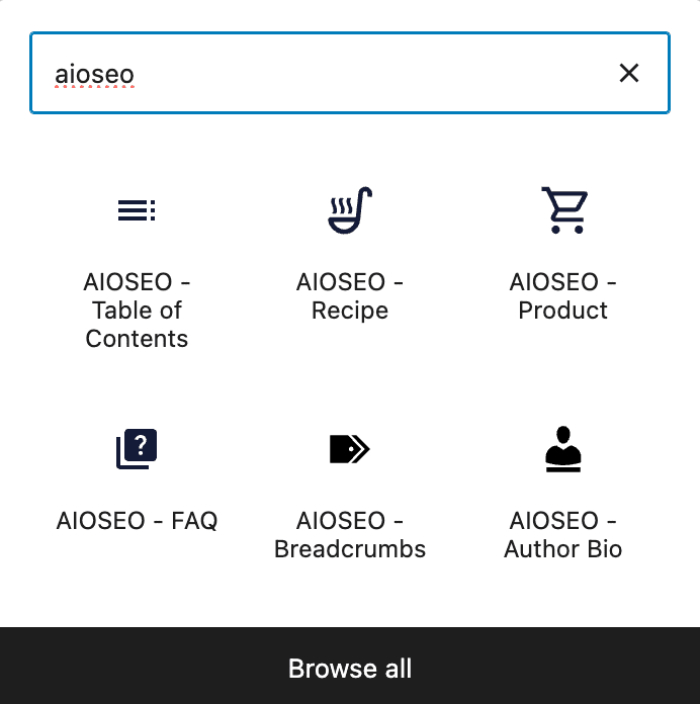
Vedrai il blocco AIOSEO – Prodotto nei risultati di ricerca. Fai clic su di esso per aggiungerlo alla tua pagina.
Ora vedrai i campi che puoi completare con i dettagli del tuo prodotto. Ci sono schede in alto per Generale, Identificatori, Offerta, Attributi, Pubblico, Recensioni, Valutazione Recensione e Destinazioni di Spedizione.
Configurazione delle informazioni sul prodotto
Scheda Generale
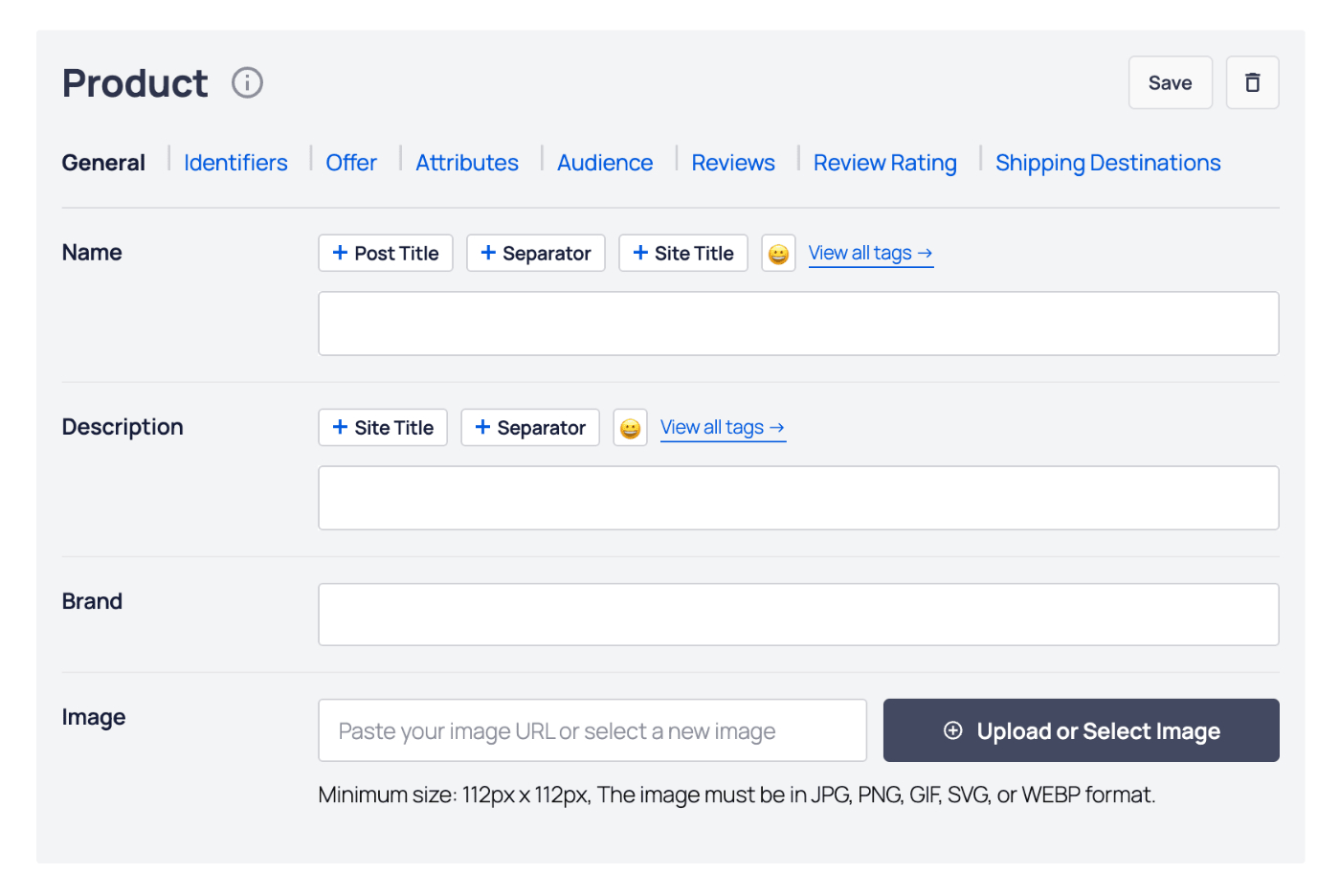
Nella scheda Generale, completa i campi come descritto di seguito:
- Nome – Inserisci il nome del tuo prodotto. Puoi selezionare uno dei tag intelligenti mostrati sopra il campo Nome, oppure fare clic su Visualizza tutti i tag per scegliere tra tag intelligenti aggiuntivi.
- Descrizione – Inserisci la descrizione del tuo prodotto. Puoi selezionare uno dei tag intelligenti mostrati sopra il campo Descrizione, oppure fare clic su Visualizza tutti i tag per scegliere tra tag intelligenti aggiuntivi.
- Marca – Inserisci la marca del prodotto.
- Immagine – Seleziona o carica un'immagine che rappresenti il tuo articolo. Puoi anche incollare l'URL di un'immagine in questo campo.
Scheda Identificatori
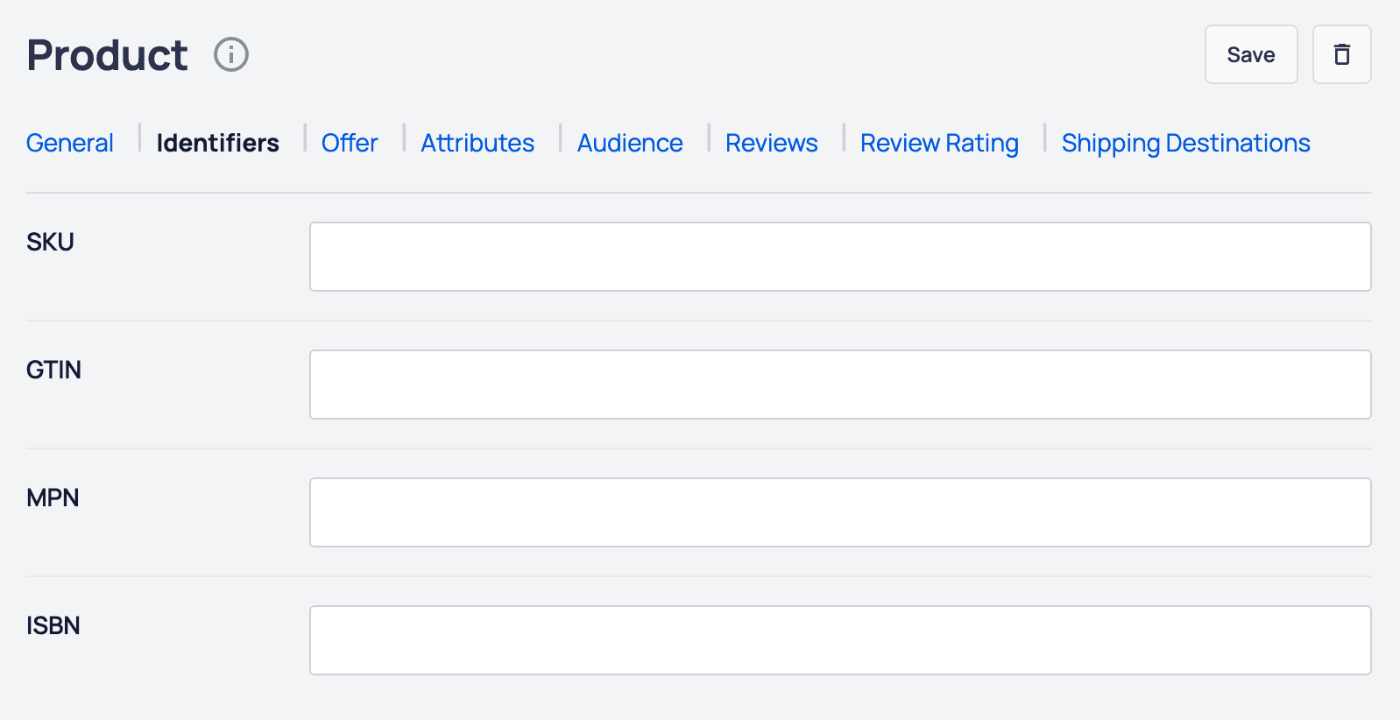
Nella scheda Identificatori , puoi impostare quanto segue:
- SKU – Inserisci l'SKU del prodotto.
- GTIN – Inserisci il GTIN del prodotto.
- MPN – Inserisci l'MPN del prodotto.
- ISBN – Inserisci l'ISBN del prodotto.
Scheda Offerta
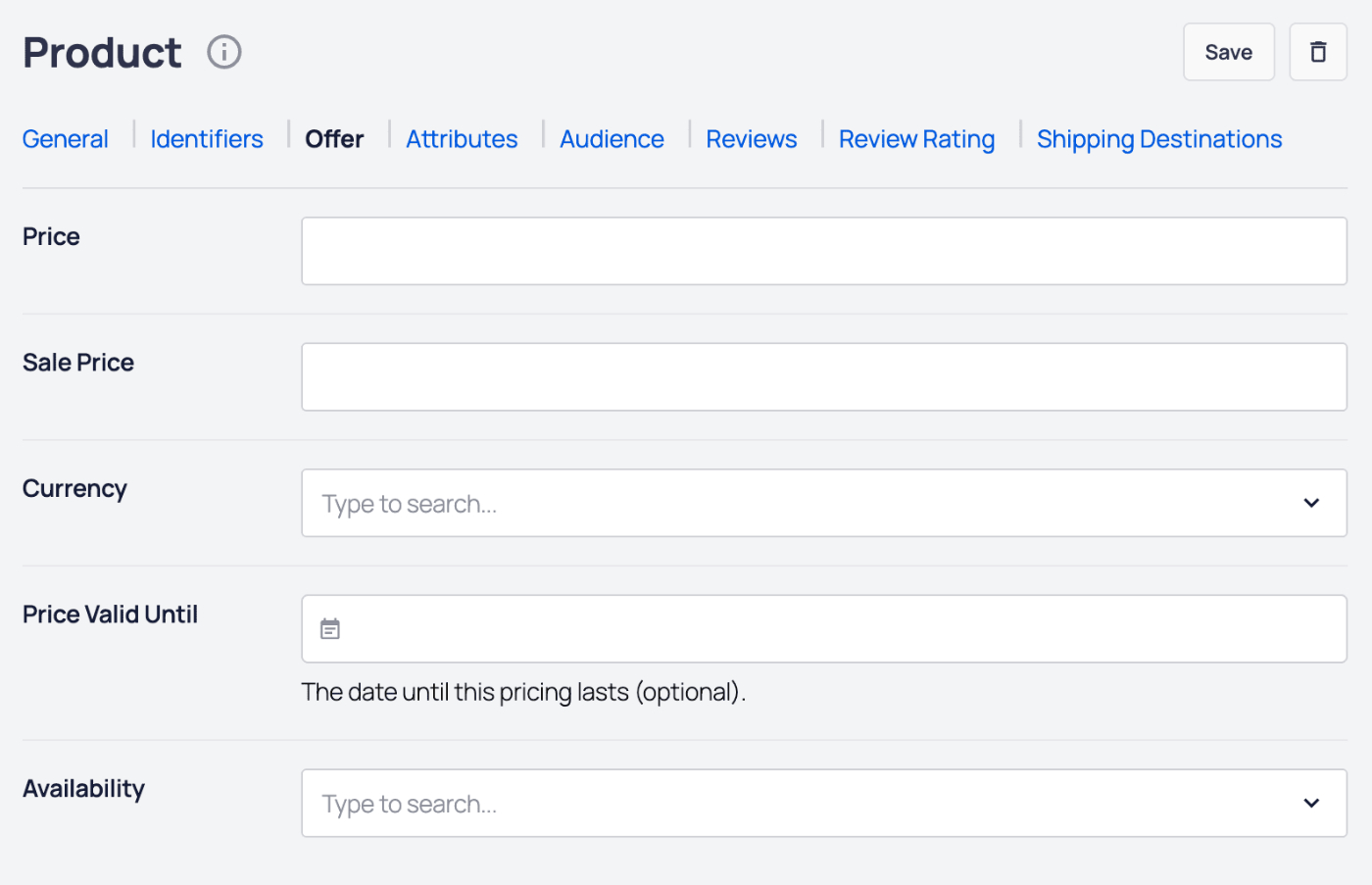
Nella scheda Offerta, puoi impostare quanto segue:
- Prezzo – Inserisci il prezzo del tuo prodotto.
- Prezzo di vendita – Inserisci il prezzo di vendita del tuo prodotto.
- Valuta – Seleziona in quale valuta è il tuo prezzo.
- Prezzo valido fino al – Se si tratta di un prezzo in saldo o a tempo limitato, selezionare la data fino alla quale il prezzo è valido.
- Disponibilità – Seleziona la disponibilità del tuo prodotto.
Scheda Attributi
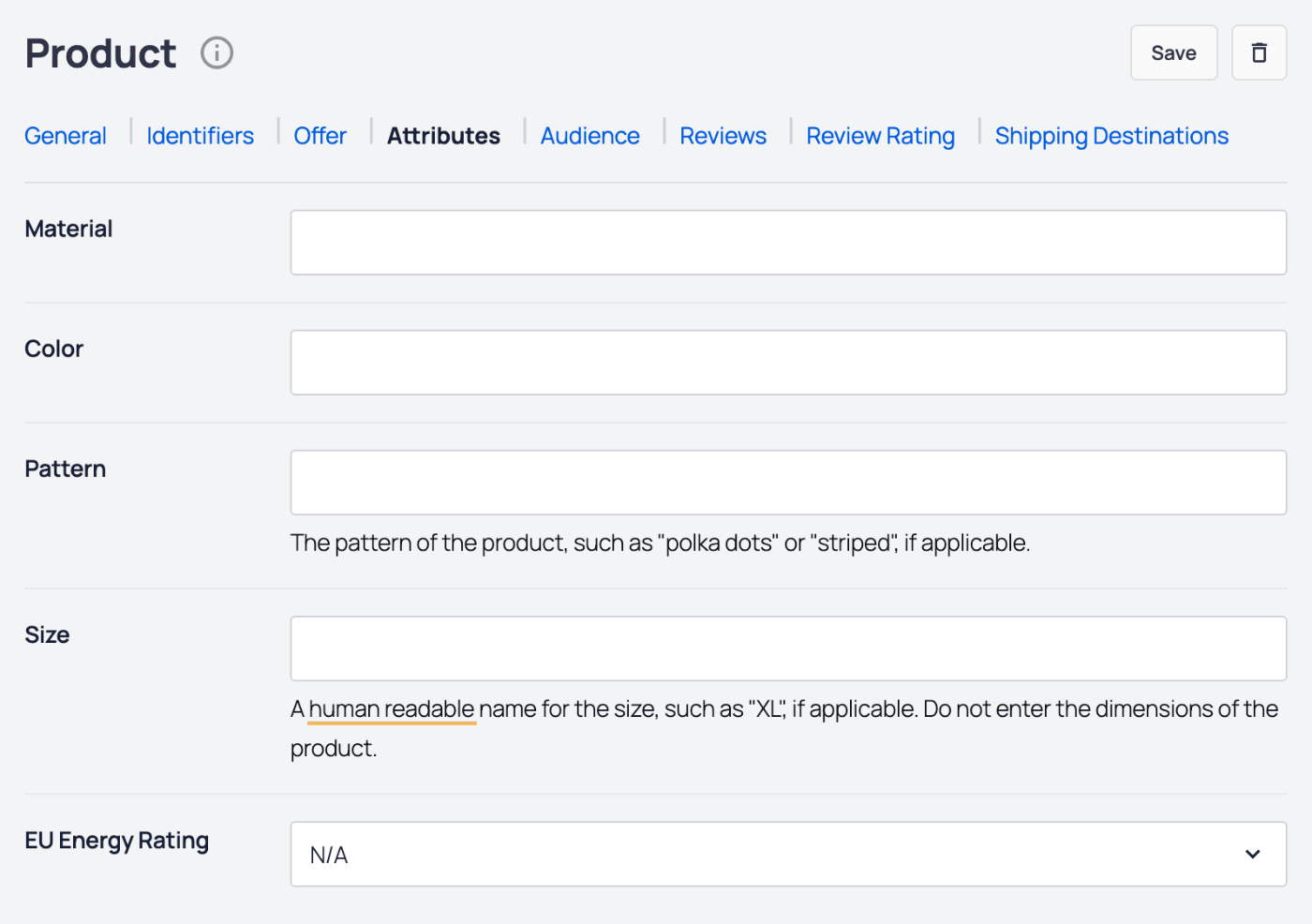
Nella scheda Attributi , è possibile impostare quanto segue:
- Materiale – Inserire il materiale o la combinazione di materiali di cui è composto il prodotto. Separare ogni materiale con una barra, ad esempio: cotone/poliestere. Vedi l'articolo di Google sui materiali qui.
- Colore – Inserire il colore o la combinazione di colori del prodotto. Separare ogni colore con una barra, ad esempio: Rosso/Verde/Nero. Vedi l'articolo di Google sui colori qui.
- Fantasia – Inserire la fantasia del prodotto. È accettata una sola fantasia. Vedi l'articolo di Google sulle fantasie qui.
- Taglia – Inserire la taglia o le taglie del prodotto. Separare ogni taglia con una barra, ad esempio: piccola/media/grande. Vedi l'articolo di Google sulle taglie qui.
- Classe Energetica UE – Selezionare la classe energetica UE per il prodotto dal menu a discesa.
Scheda Pubblico
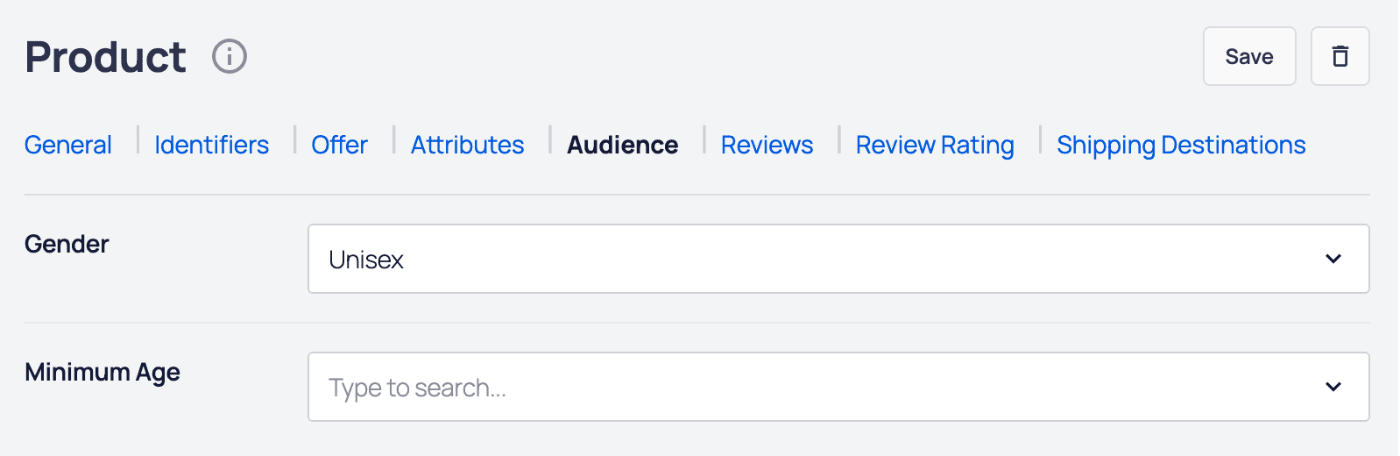
Nella scheda Destinatari , è possibile impostare quanto segue:
- Genere – Selezionare il genere dal menu a discesa del pubblico di destinazione del prodotto. Vedi l'articolo di Google sul genere qui.
- Età minima – Inserire l'età minima del pubblico di destinazione del prodotto. Vedi l'articolo di Google sull'età qui.
Scheda Recensioni
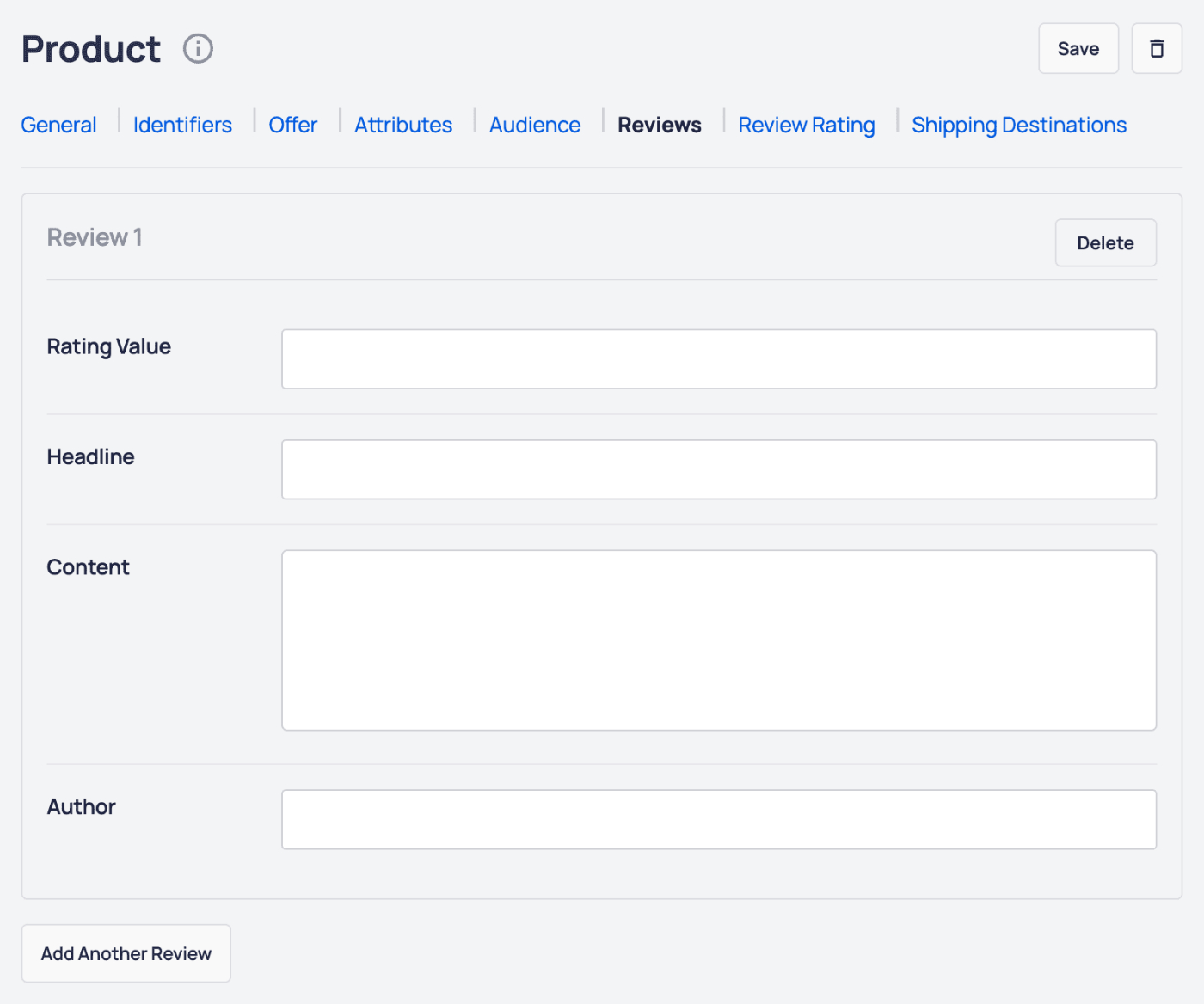
Nella scheda Recensioni , è possibile aggiungere recensioni per il prodotto. In una recensione, è possibile impostare quanto segue:
- Valore del giudizio – Il valore del giudizio per la recensione.
- Titolo – Il titolo della recensione.
- Contenuto – Il contenuto della recensione.
- Autore – Il nome dell'autore della recensione.
Fare clic sul pulsante Aggiungi un'altra recensione per aggiungere altre recensioni per il prodotto.
Fare clic sul pulsante Elimina per eliminare una recensione.
Scheda Valutazione Recensione
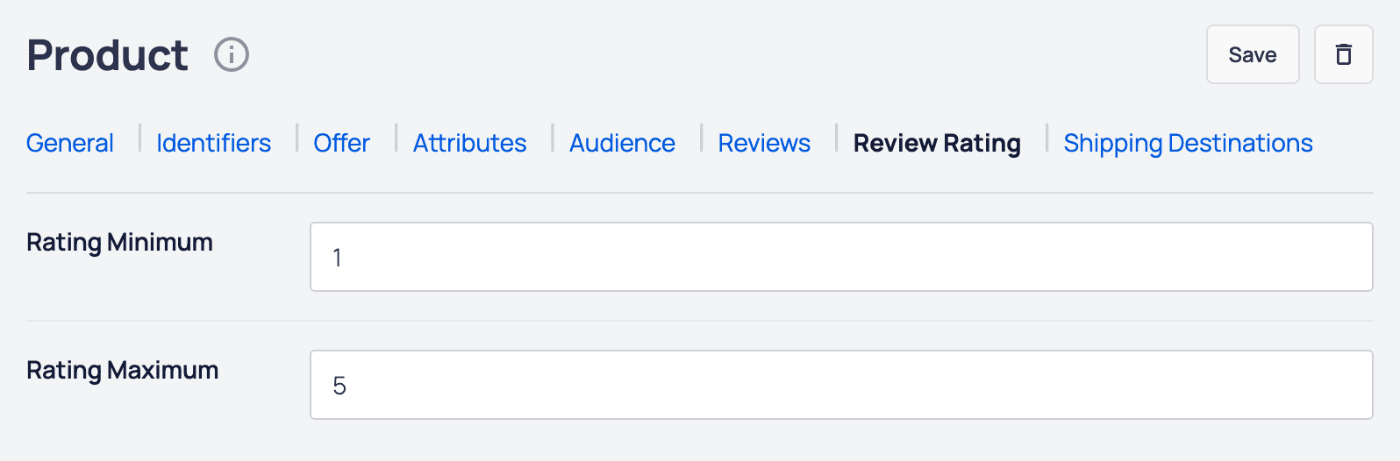
Nella scheda Giudizio recensione , è possibile impostare quanto segue:
- Giudizio minimo – Inserire il valore minimo del giudizio.
- Giudizio massimo – Inserire il valore massimo del giudizio.
Scheda Destinazioni di Spedizione
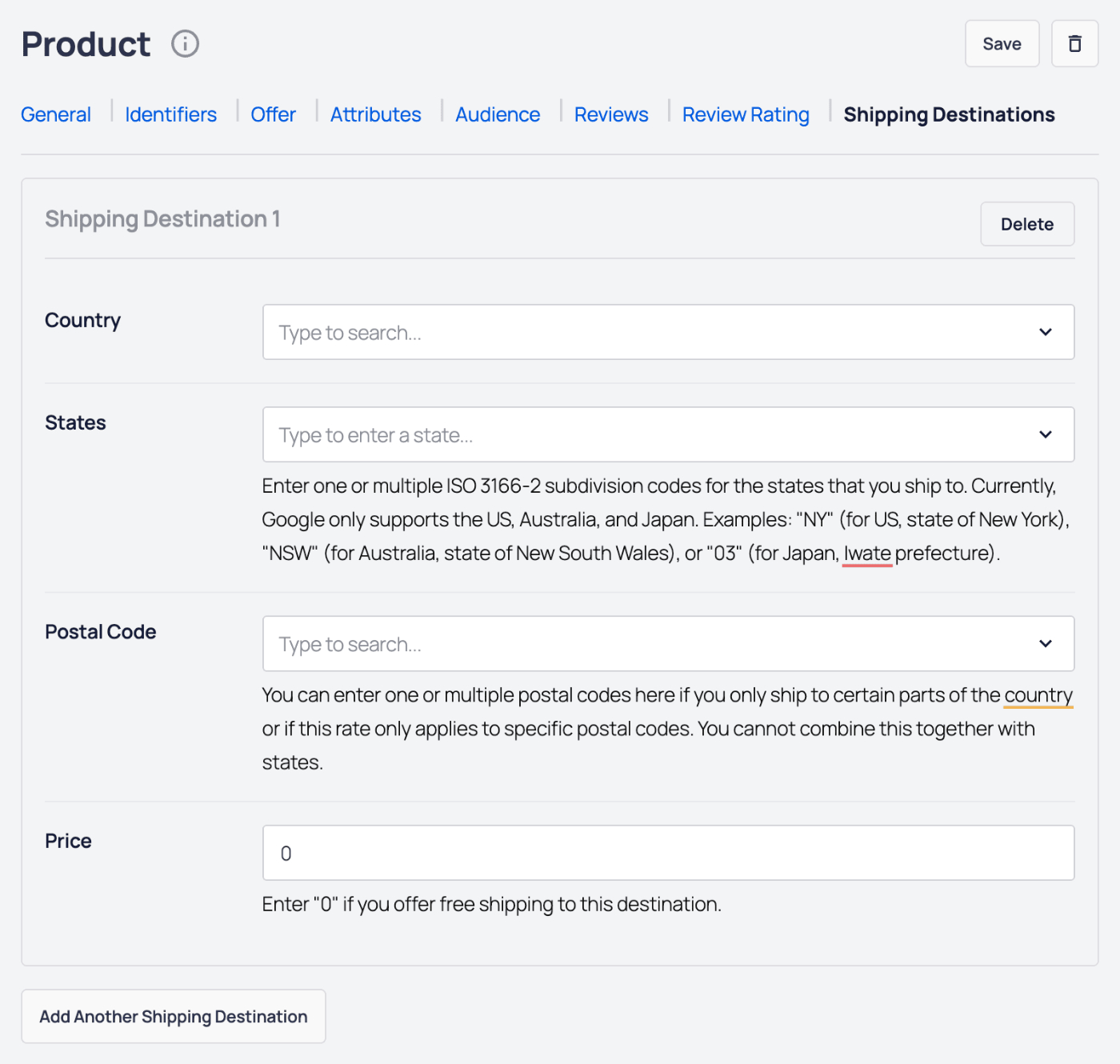
Nella scheda Destinazioni di spedizione , è possibile impostare quanto segue:
- Paese – Selezionare il paese di destinazione della spedizione dal menu a discesa.
- Stati – Inserire gli stati di destinazione della spedizione.
- Codice Postale – Inserire i codici postali di destinazione della spedizione.
- Prezzo – Inserire il costo di spedizione per questa destinazione.
Fare clic sul pulsante Aggiungi un'altra destinazione di spedizione per aggiungere altre destinazioni di spedizione per il prodotto.
Fare clic sul pulsante Elimina per eliminare una destinazione di spedizione.
Fare clic sul pulsante Salva per salvare i dettagli del prodotto, o sul pulsante Elimina per eliminare il prodotto.
Questo è tutto! Ora puoi salvare il tuo post o la tua pagina e visualizzare il prodotto sul front-end del tuo sito.
NOTA:
Non solo il tuo prodotto verrà visualizzato sul tuo sito, ma tutto il markup dello Schema Prodotto verrà visualizzato nel codice sorgente.
Ciò significa che non è necessario aggiungere lo Schema Prodotto nelle impostazioni dello Schema AIOSEO.