Quando qualcuno visita un URL sul tuo sito che non esiste, vedrà una pagina speciale chiamata pagina 404. Puoi registrare queste informazioni utilizzando il Gestore di Reindirizzamento e creare facilmente un reindirizzamento a un URL diverso sul tuo sito.
Questo è uno strumento molto utile e importante per la SEO. Quando un visitatore riceve un errore di pagina non trovata 404, è un male per il tuo visitatore e potrebbe causare la sua uscita dal tuo sito e il passaggio a un concorrente.
Quando puoi vedere quando ciò accade, puoi creare un reindirizzamento e mantenere il tuo visitatore sul tuo sito.
NOTA:
La funzione Gestore Reindirizzamenti è disponibile per i clienti con un piano Basic o superiore per All in One SEO Pro.
Alcune funzionalità avanzate sono disponibili con un piano Pro o superiore per All in One SEO Pro.
In questo articolo
Video tutorial
Abilitazione Registri 404
Per iniziare, vai su Reindirizzamenti nel menu All in One SEO e quindi fai clic sulla scheda Impostazioni.
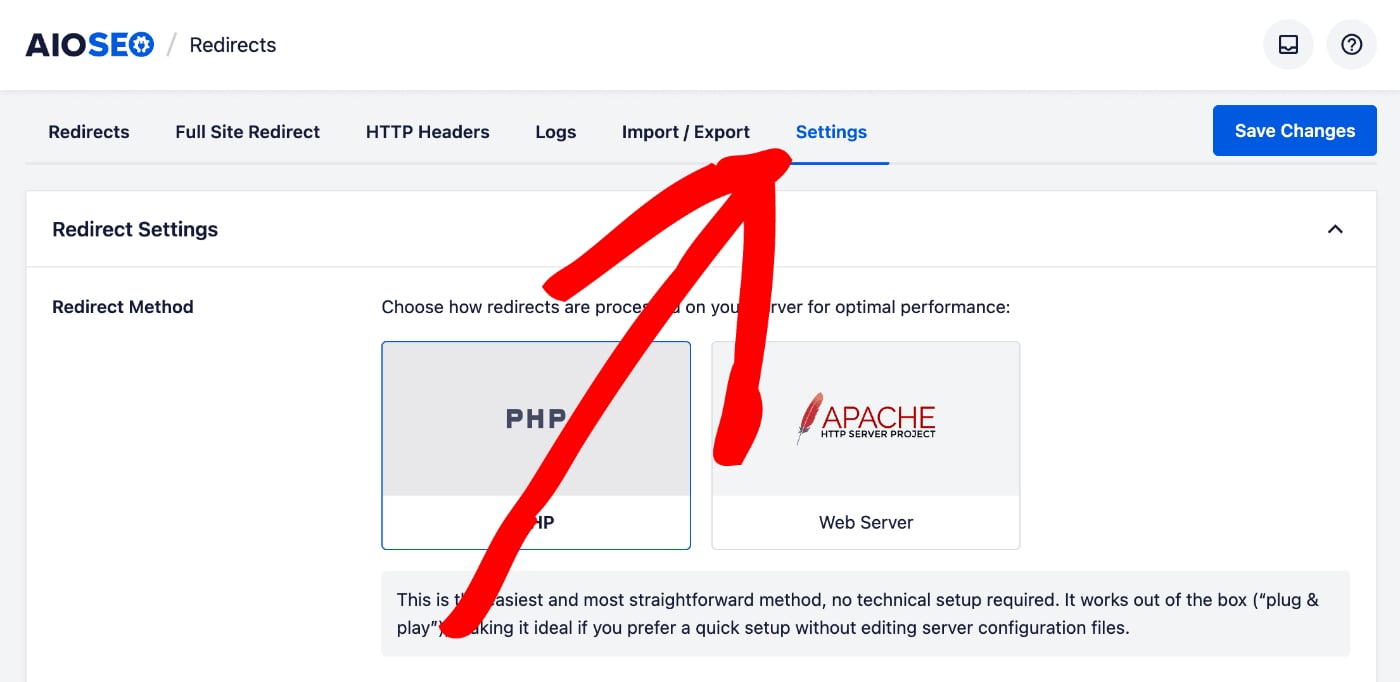
Scorri verso il basso finché non vedi la sezione Impostazioni di registrazione.
NOTA:
Le funzionalità Impostazioni di registrazione sono disponibili per i clienti con un piano Pro o superiore per All in One SEO Pro.
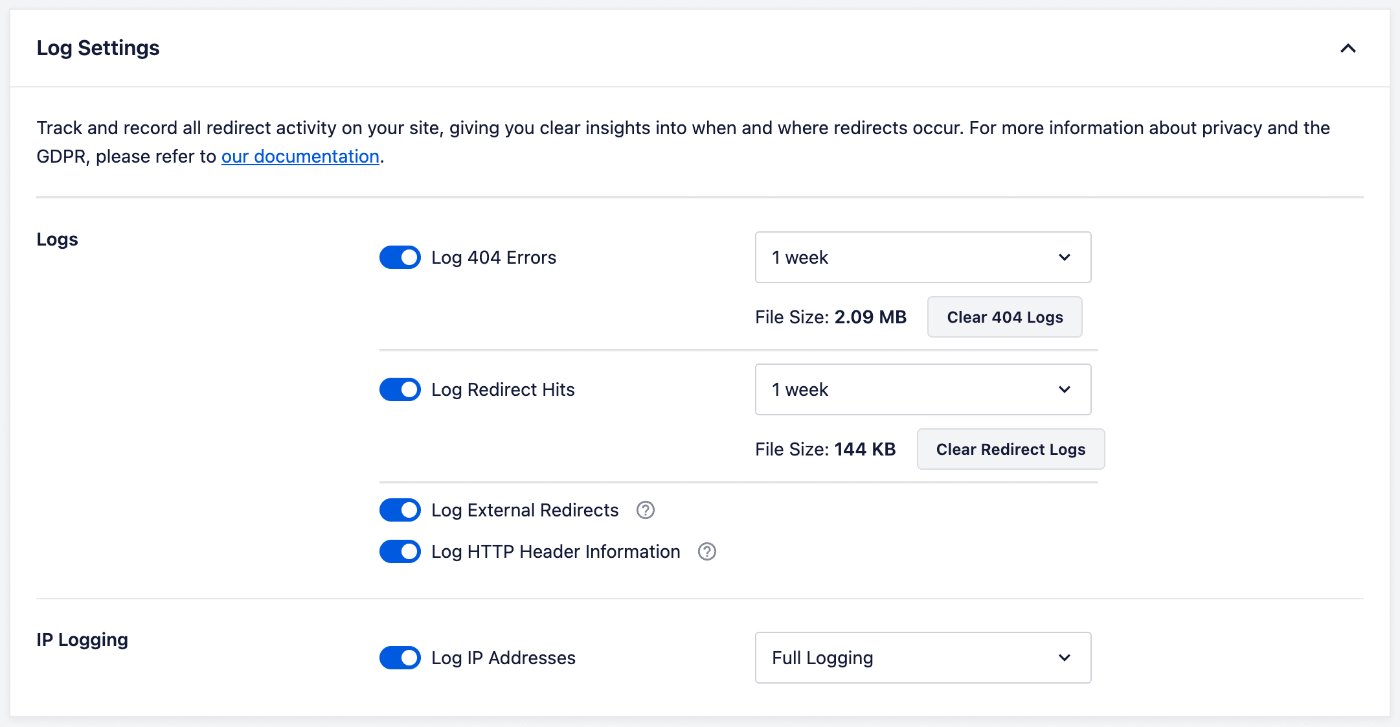
Per registrare gli errori 404, abilita l'impostazione Registra Errori 404.
Impostazione della conservazione dei registri
Puoi quindi impostare per quanto tempo vengono conservati i registri utilizzando il menu a discesa a destra dell'impostazione Registra Errori 404.
Visualizzazione ed eliminazione dei singoli registri
Ora che hai configurato la registrazione, fai clic sulla scheda Registri, quindi su Hit 404 per visualizzare i registri.
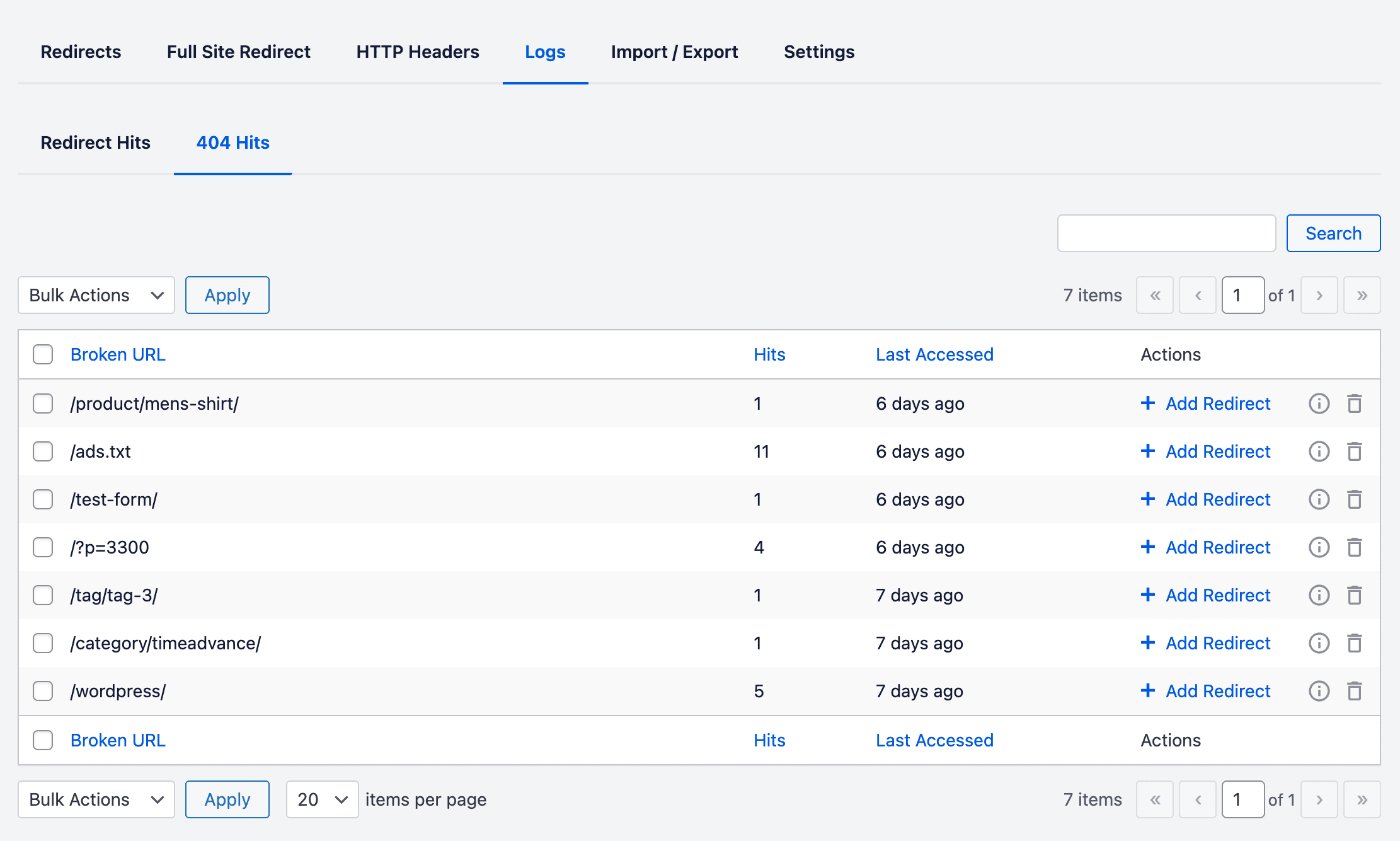
Vedrai l'URL che qualcuno ha visitato nella colonna URL, il numero di volte che l'URL è stato visitato nella colonna Hit e la data in cui l'URL è stato visitato l'ultima volta nella colonna Ultimo Accesso.
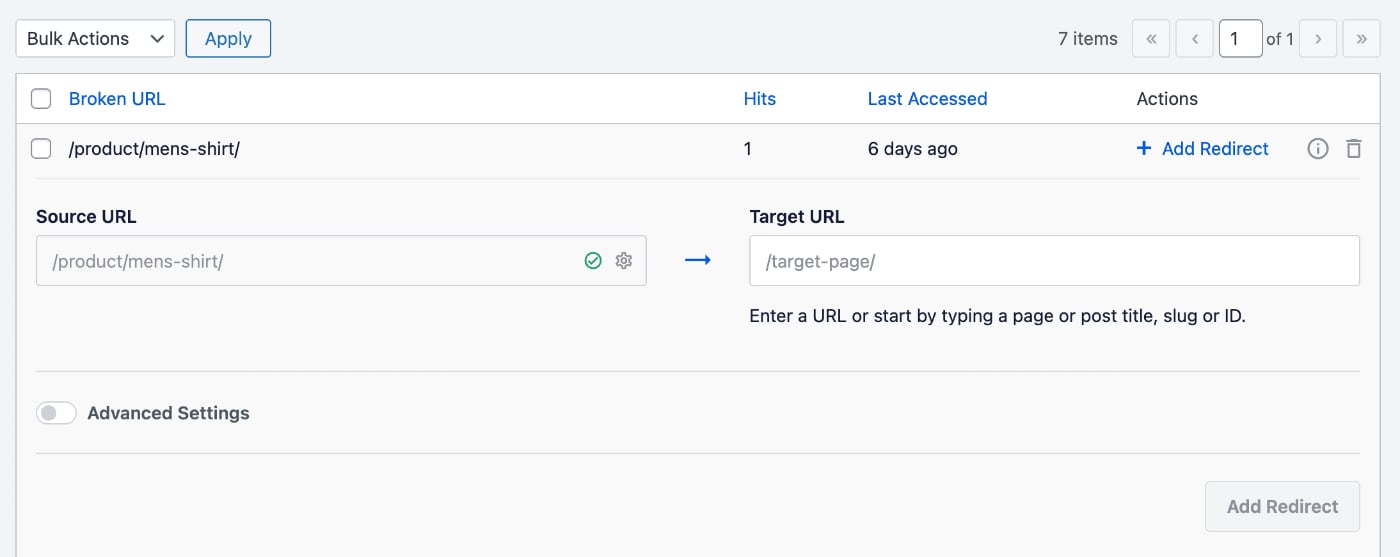
Fai clic sul link Aggiungi Reindirizzamento per aggiungere facilmente un reindirizzamento per quell'URL. Verrà visualizzato un modulo in cui puoi impostare dove vuoi reindirizzare quell'URL e quale tipo di reindirizzamento desideri.
Vedrai anche due icone sul lato destro di ogni voce di registro.
Fai clic sull'icona Informazioni aggiuntive per visualizzare i dettagli del registro.
Fai clic sull'icona Elimina per eliminare quella voce di log.
Puoi cercare nei Registri 404 un URL inserendo il tuo termine di ricerca nel campo Cerca
Eliminazione di tutti i registri 404
Se desideri eliminare tutti i log, vai su Redirect nel menu All in One SEO e quindi fai clic sulla scheda Impostazioni.
Nella sezione Impostazioni Registro vedrai Registra Errori 404 e ci sarà un pulsante Cancella Registri 404 che cancellerà tutti i registri 404.
Dai un'occhiata a ulteriore documentazione sul nostro Gestore di reindirizzamenti qui.