TruSEO Highlighter aveva un solo compito: dirti dove si trova un problema nel tuo contenuto.
A partire da AIOSEO 5.0.0, ti dice ora come risolverlo e può farlo per te.
Fai clic su un problema evidenziato e AIOSEO ti mostrerà una correzione generata dall'IA che puoi applicare direttamente dove stai scrivendo. Nessuno scorrimento per ricordare qual era il problema, nessuna rilettura del paragrafo per capire cosa significa "voce passiva" per la tua frase.
Ciò copre momenti come:
- Una frase segnalata per la voce passiva, con una versione riscritta in forma attiva pronta per essere inserita
- Una parola scritta male individuata a metà stesura, corretta senza interrompere il tuo flusso di scrittura
- Un paragrafo troppo lungo, accorciato per te senza che tu debba riscriverlo
TruSEO 2.0 è incluso in ogni piano AIOSEO, da Basic a Elite. Nessun aggiornamento necessario.
In questo articolo
Come funziona il TruSEO 2.0 Highlighter
L'idea di base del TruSEO Highlighter non è cambiata da quando l'abbiamo introdotto nel 2023: attivalo e ottieni feedback sull'ottimizzazione SEO, la leggibilità e il titolo del tuo contenuto.
Abbiamo appena aggiunto a quell'elenco e reso più facile apportare le modifiche.
Il motore di punteggio di TruSEO è stato ricostruito da zero per questa versione e l'Highlighter beneficia direttamente di quel lavoro. La stessa analisi che valuta il tuo contenuto ora ha abbastanza contesto sul perché qualcosa viene segnalato per generare una correzione effettiva, non solo un'etichetta.
Ecco la versione breve: l'Highlighter contrassegna i punti segnalati direttamente nel tuo contenuto mentre scrivi.
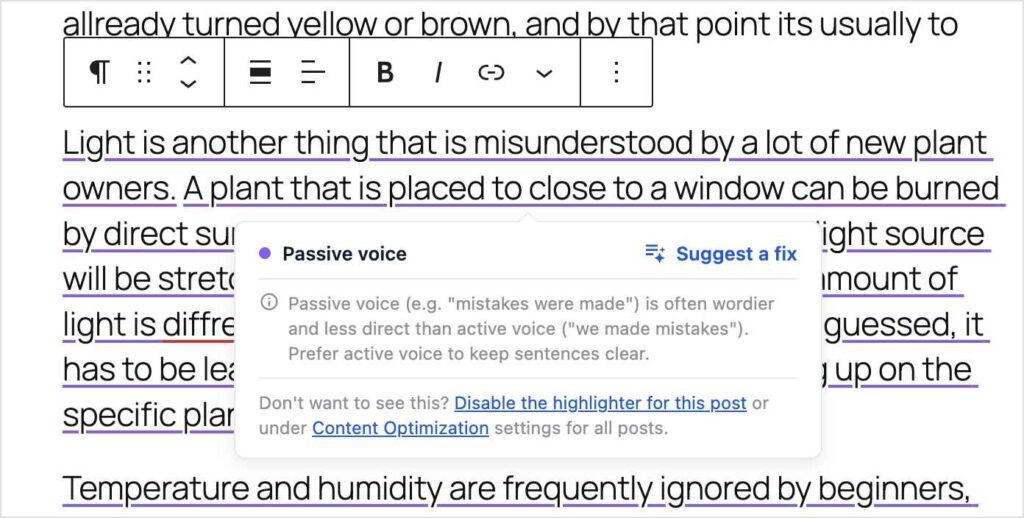
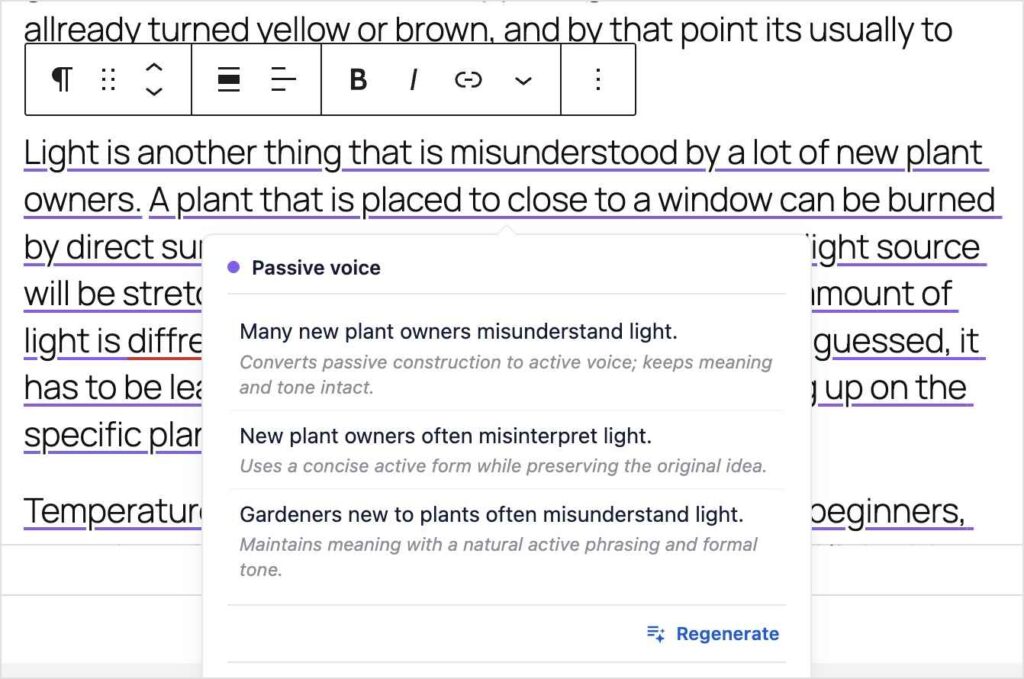
La novità è che facendo clic su uno di quei punti contrassegnati ora appare un'opzione "Suggerisci una correzione". Scegli un suggerimento e viene applicato direttamente lì, in loco.
E se le sottolineature non fanno per te, puoi disattivarle con un clic, solo per quel post o globalmente nelle impostazioni di Ottimizzazione dei contenuti.
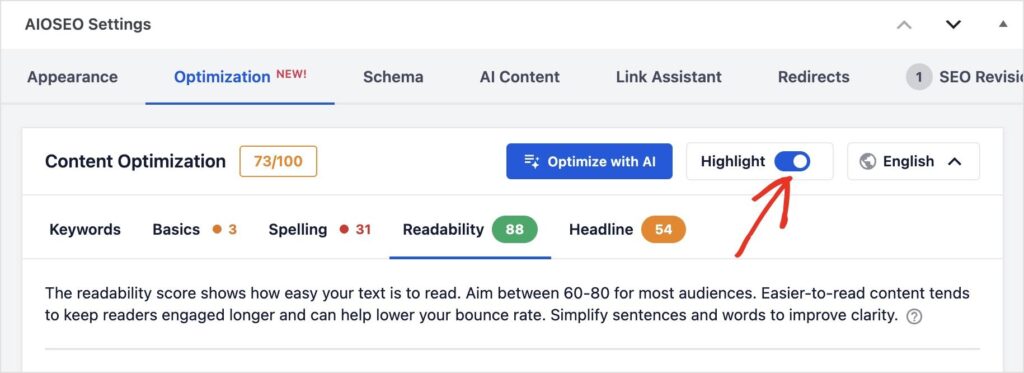
In sintesi: l'interruttore Highlight mostra ancora dove sono i problemi. La novità è che può anche correggerli, senza mandarti altrove.
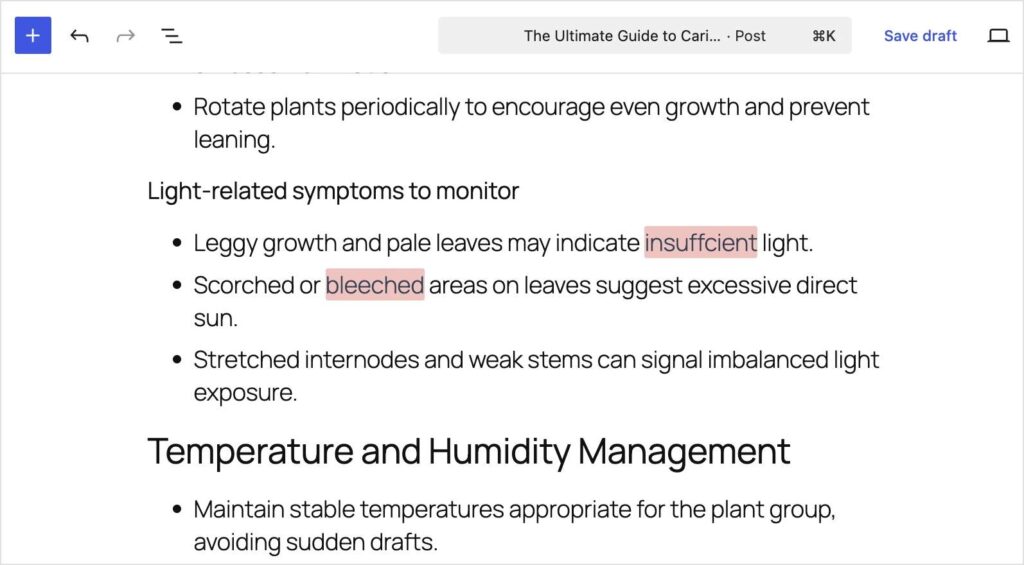
Vuoi che i problemi segnalati siano ancora più evidenti? Puoi cambiarli da sottolineati a evidenziati andando su All in One SEO >> Impostazioni generali >> Ottimizzazione dei contenuti >> Stile evidenziazione. La sottolineatura è l'impostazione predefinita, ma puoi passare a Evidenziazione.
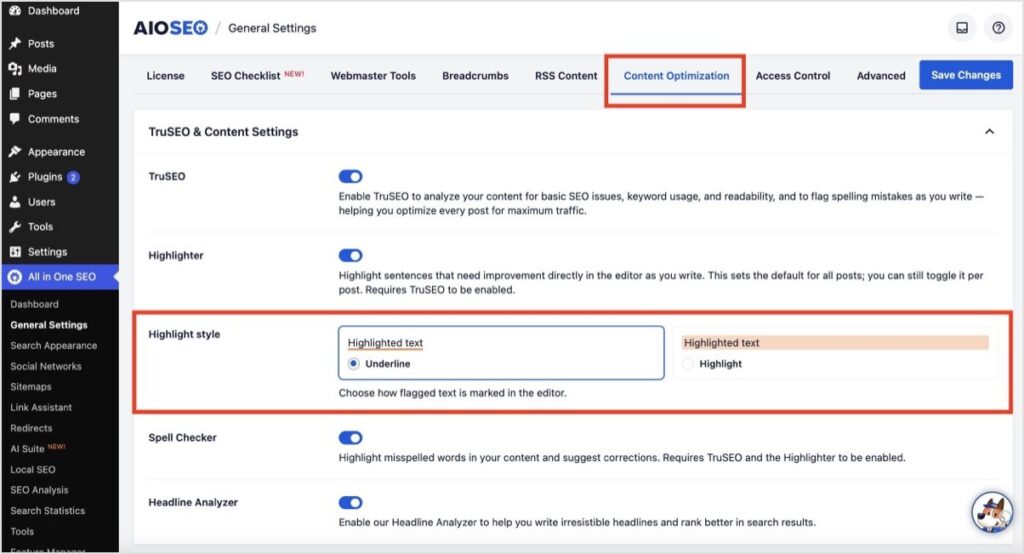
Una volta salvata questa modifica, i tuoi problemi segnalati appariranno così:
Cosa puoi fare ora con esso
Ecco un esempio di ciò che è cambiato in AIOSEO 5.0.0:
- Attiva Evidenziazione e vedi problemi di ortografia, leggibilità e SEO di base contrassegnati direttamente nel tuo contenuto mentre digiti
- Fai clic su qualsiasi problema evidenziato per vedere una correzione generata dall'IA per quel punto esatto
- Applica una correzione suggerita con un clic, senza lasciare l'editor del post
- Correggi la forma passiva, le frasi goffe o le frasi troppo lunghe senza riscriverle da zero
- Individua e correggi gli errori di ortografia allo stesso modo, proprio accanto alle altre correzioni di leggibilità
- Esamina un elenco completo di problemi segnalati in un'unica passata invece di passare avanti e indietro tra la bozza e il pannello di analisi
- Pulisci un post proprio prima di pubblicarlo, senza una passata di editing separata
Il mio consiglio? Attiva Highlight nel tuo prossimo post ed esamina i problemi segnalati per vedere il resto.
Dove appare: Ortografia, Basi e Leggibilità
I suggerimenti di correzione dell'Highlighter non si limitano a un tipo di problema. Funzionano per i controlli di base e di leggibilità a cui probabilmente sei già abituato, e ora anche per l'ortografia.
Le parole scritte in modo errato sono sottolineate in rosso.
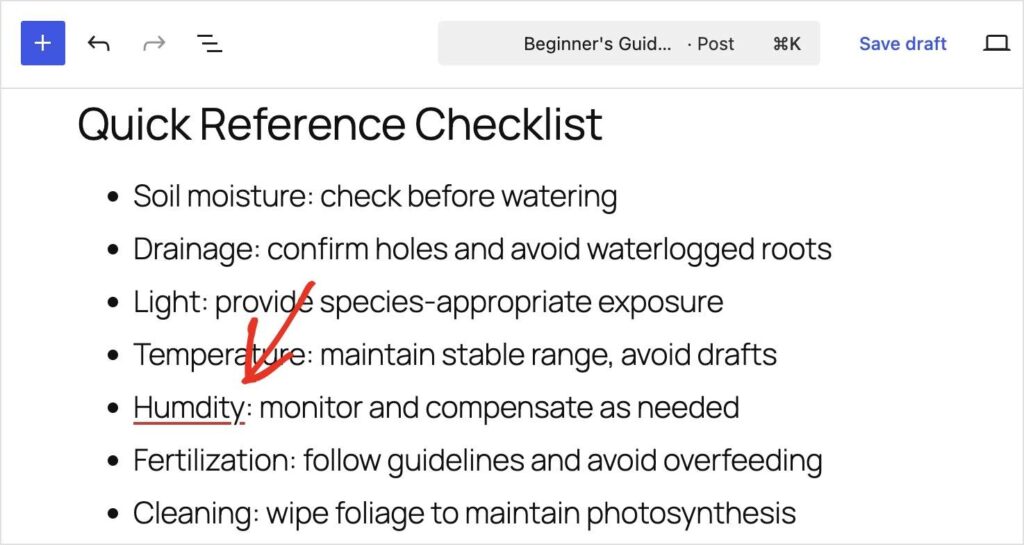
Puoi passare il mouse sopra la parola e ottenere raccomandazioni AI per potenziali corrispondenze, come mostrato di seguito.
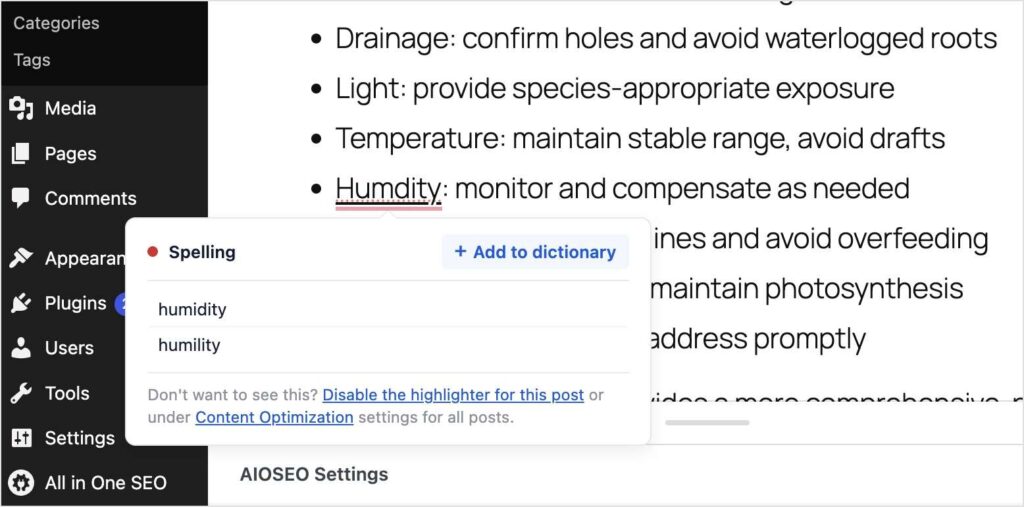
Tutto quello che devi fare è cliccare su quello che desideri.
Abbastanza facile, vero?
Per saperne di più su questa nuova funzionalità del TruSEO Highlighter, consulta questo articolo: Introduzione al correttore ortografico di AIOSEO.
Come correggere un problema evidenziato
L'Highlighter stesso non necessita di configurazione. Se l'hai già usato, è già lì. Questi passaggi coprono solo il nuovo flusso di lavoro.
Passaggio 1: Attiva Evidenziazione
Apri la scheda Ottimizzazione su qualsiasi post o pagina e trova l'interruttore Highlight in cima alla scheda Ottimizzazione dei contenuti. Attivalo e i problemi segnalati verranno contrassegnati direttamente nel tuo contenuto.
Passaggio 2: Fai clic su un problema evidenziato
Fai clic su qualsiasi punto contrassegnato nel tuo contenuto. Vedrai un'opzione per ottenere una correzione generata dall'IA per quel problema specifico. Fai clic su Suggerisci una correzione.
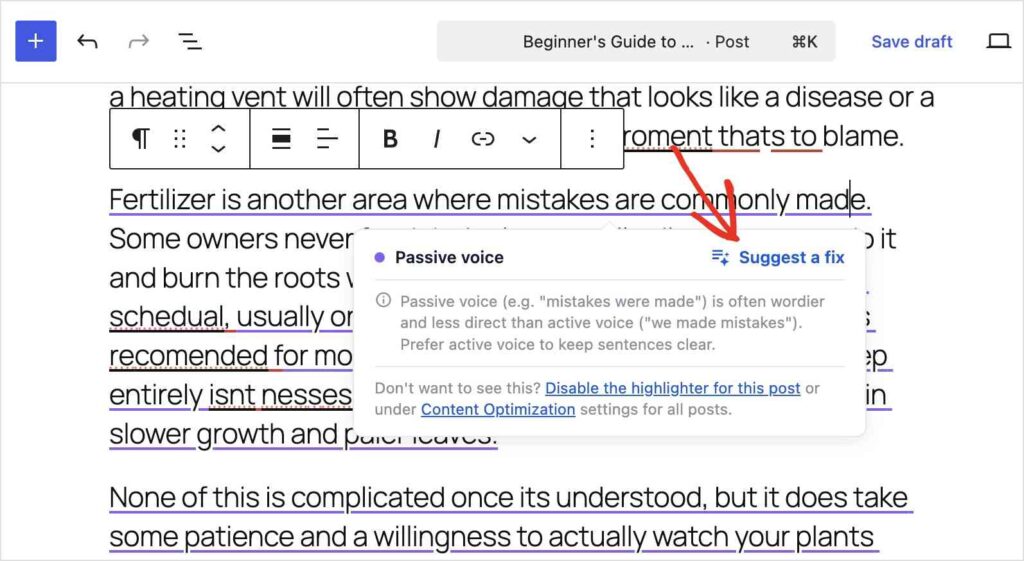
Passaggio 3: Applica la correzione
Scegli un suggerimento di correzione e viene applicato immediatamente, in loco. Continua a scrivere senza interrompere il tuo flusso.
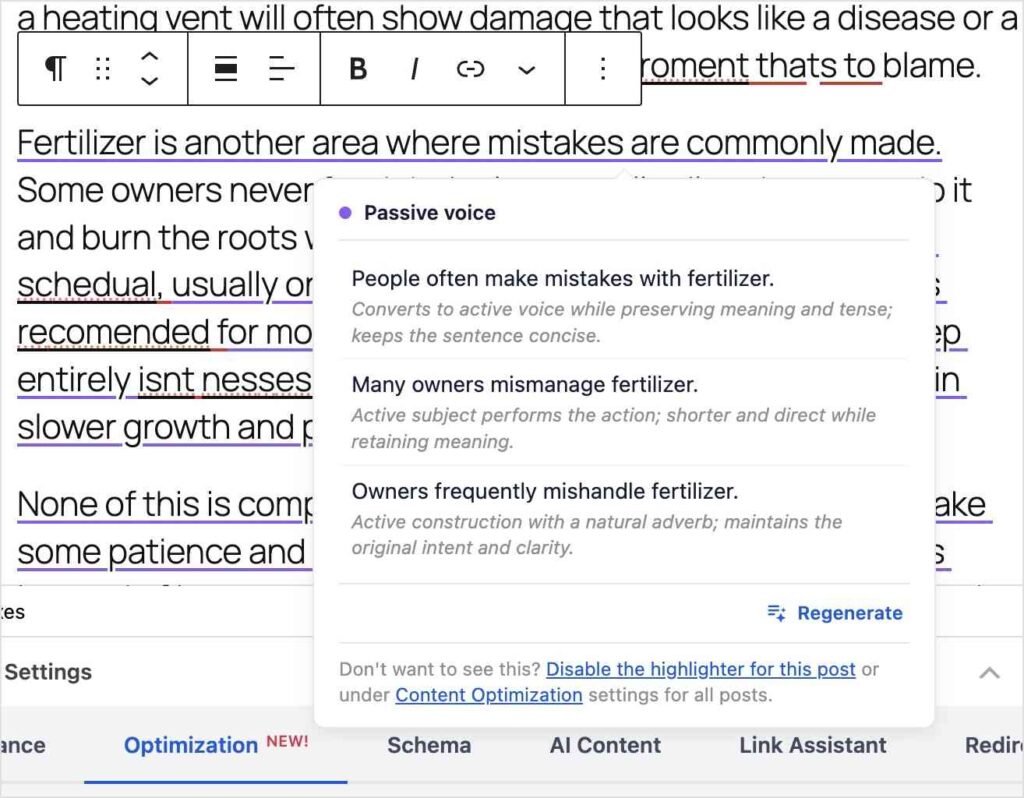
Questo intero ciclo richiede secondi per problema e non c'è nulla da configurare in anticipo.
Nota: i suggerimenti di correzione utilizzano i tuoi Crediti AI, lo stesso pool utilizzato da AIOSEO Copilot e dagli altri strumenti AI di AIOSEO. Se stai correggendo problemi su molti post, puoi tenere d'occhio il tuo utilizzo nella dashboard del tuo account.
Problemi comuni e cosa fa la correzione suggerita
Ecco un esempio di ciò che incontrerai e di come la correzione suggerita affronta il problema.
| Problema segnalato da AIOSEO | Cosa fa la correzione suggerita |
|---|---|
| Voce passiva | Riscrive la frase in forma attiva, mantenendo intatto il tuo significato |
| Frase troppo lunga | La divide in frasi più brevi e chiare |
| Paragrafo troppo lungo | Suggerisce una versione più concisa o un punto naturale in cui dividerlo |
| Parola scritta in modo errato | Offre l'ortografia corretta, applicata in loco |
| Mancanza di parole di transizione | Suggerisce una transizione naturale per migliorare il flusso |
| Frasi consecutive che iniziano allo stesso modo | Riscrive una per varietà |
| Distribuzione dei sottotitoli | Segnala dove un nuovo sottotitolo aiuterebbe, insieme alla nota sulla leggibilità |
Suggerimento Pro: se stai modificando molti post uno dopo l'altro, lavora su un tipo di problema alla volta (prima l'ortografia, poi la leggibilità, poi le basi). È più veloce che saltare da un punto all'altro, ed è più facile individuare schemi nella tua scrittura.
Disponibile su ogni piano AIOSEO
I suggerimenti di correzione basati sull'IA sono disponibili per tutti gli utenti AIOSEO, da Lite a Elite. Se usi già Highlighter, hai già questa funzionalità.
Questa è una parte di una ricostruzione più ampia in 5.0.0. Abbiamo introdotto TruSEO 2.0, che ora valuta automaticamente i tuoi contenuti invece di bloccarsi su "N/A". L'Headline Analyzer ha ricevuto un aggiornamento nella stessa release, così come una nuova funzionalità "Ottimizza con l'IA" che può apportare tutte le modifiche suggerite da TruSEO con un clic.
Promemoria: Poiché i suggerimenti di correzione funzionano con l'IA, attingono ai Crediti IA del tuo piano, proprio come AIOSEO Copilot e gli altri strumenti IA di AIOSEO. Più ti affidi alle correzioni inline su molti post, più vorrai tenere d'occhio quell'equilibrio, specialmente se gestisci diversi siti. Puoi sempre acquistare altri Crediti IA.
Abbiamo introdotto l'Highlighter originale nel 2023 come modo per aiutarti a trovare i problemi più velocemente. Questa release è il passo successivo. Aggiorna alla versione 5.0.0 e fai clic sul tuo primo problema evidenziato. Penso che vedrai subito la differenza.
— Ben Rojas, Presidente di AIOSEO
Domande frequenti
L'Highlighter TruSEO è una nuova funzionalità?
No. Il TruSEO Highlighter fa parte di AIOSEO dal 2023. Ciò che è nuovo nella versione 5.0.0 è la possibilità di fare clic su un problema evidenziato e applicare una correzione generata dall'IA istantaneamente, senza lasciare l'editor.
Ho bisogno di Pro o Elite per usare i suggerimenti di correzione IA?
No. I suggerimenti di correzione basati sull'IA sono disponibili su ogni piano AIOSEO, incluso Lite.
Utilizza i miei Crediti IA?
Sì. Le correzioni suggerite attingono allo stesso pool di Crediti IA di AIOSEO Copilot e degli altri strumenti IA di AIOSEO.
Che tipo di problemi può correggere l'Highlighter per me?
Problemi di leggibilità come voce passiva e frasi lunghe, problemi SEO di base ed errori di ortografia. I suggerimenti di correzione sono disponibili per i controlli Base, Ortografia e Leggibilità.
Devo configurare qualcosa per usarlo?
No. Se hai già utilizzato l'Highlighter, l'interruttore Highlight è già presente. Attivalo, fai clic su un problema contrassegnato e vedrai la nuova opzione di correzione.