Lorsque vous configurez une redirection dans All in One SEO, vous avez quelques options sur la façon de gérer les paramètres de requête d'URL.
C'est une fonctionnalité extrêmement bénéfique pour quiconque utilise les paramètres de requête d'URL pour suivre comment un visiteur accède à votre contenu.
Dans cet article
Qu'est-ce qu'un paramètre de requête
Un paramètre de requête d'URL est une chaîne qui est ajoutée à une URL comme celle-ci :
- Exemple d'URL sans paramètre de requête : https://aioseo.com/docs/using-query-parameters-with-redirects/
- Exemple d'URL avec paramètre de requête : https://aioseo.com/docs/using-query-parameters-with-redirects/?source=aioseo_blog
Dans les exemples ci-dessus, le paramètre de requête pourrait être utilisé pour les liens vers cet article depuis le blog AIOSEO. Vous pouvez ensuite suivre cela dans Google Analytics ou d'autres outils d'analyse afin de savoir dans quelle mesure ce lien est performant et combien de fois il est cliqué.
Avec le Gestionnaire de redirections dans All in One SEO, vous pouvez choisir comment vous redirigez les deux URL ci-dessus (celle avec et sans le paramètre de requête).
NOTE :
La fonctionnalité Gestionnaire de redirections est disponible pour les clients ayant un plan Basic ou supérieur pour All in One SEO Pro.
Certaines fonctionnalités avancées sont disponibles avec un plan Pro ou supérieur pour All in One SEO Pro.
Paramètres de requête pour une seule redirection
Pour utiliser cette fonctionnalité, accédez à Redirections dans le menu All in One SEO.
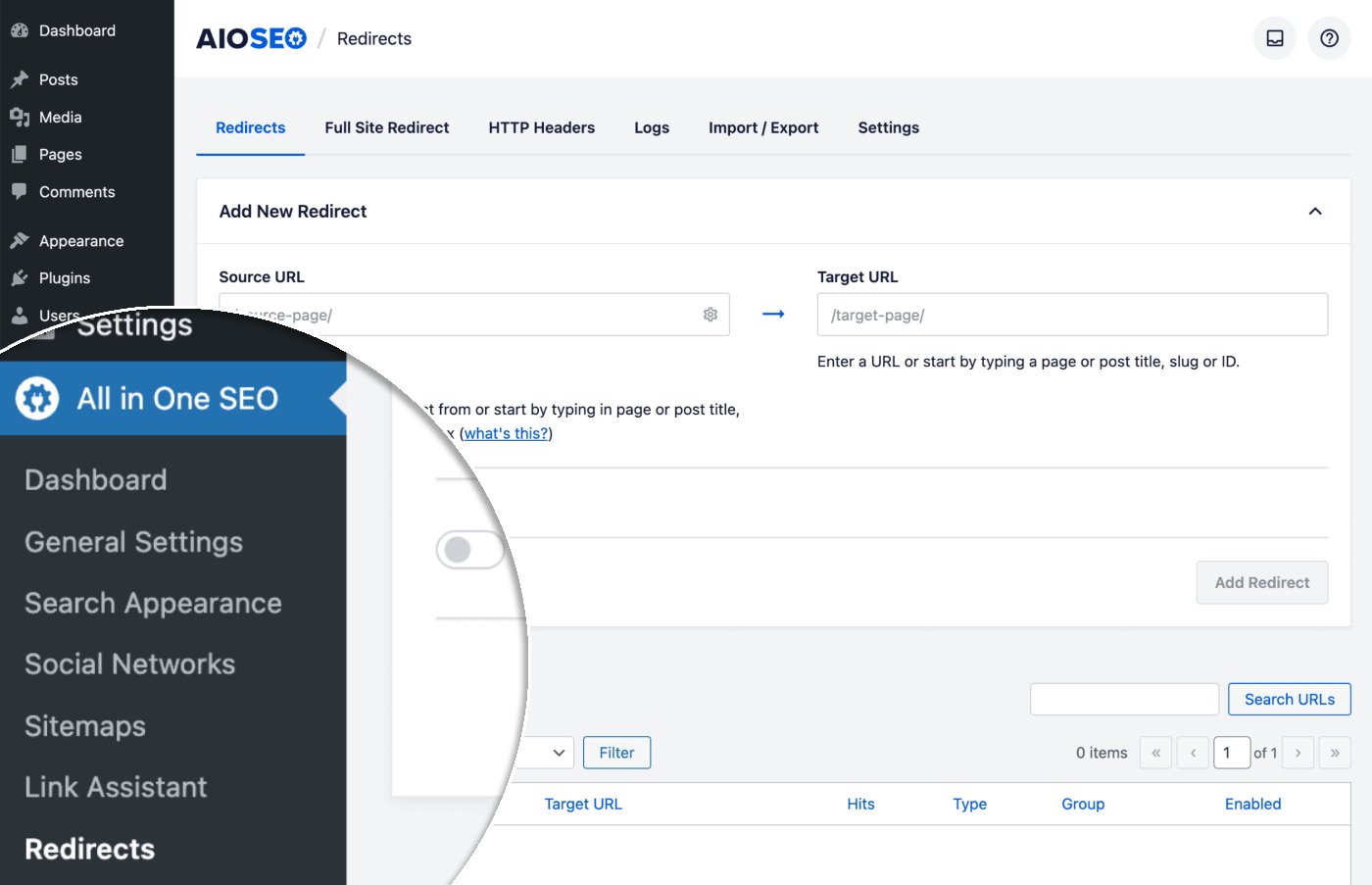
Vous verrez le formulaire Ajouter une nouvelle redirection.
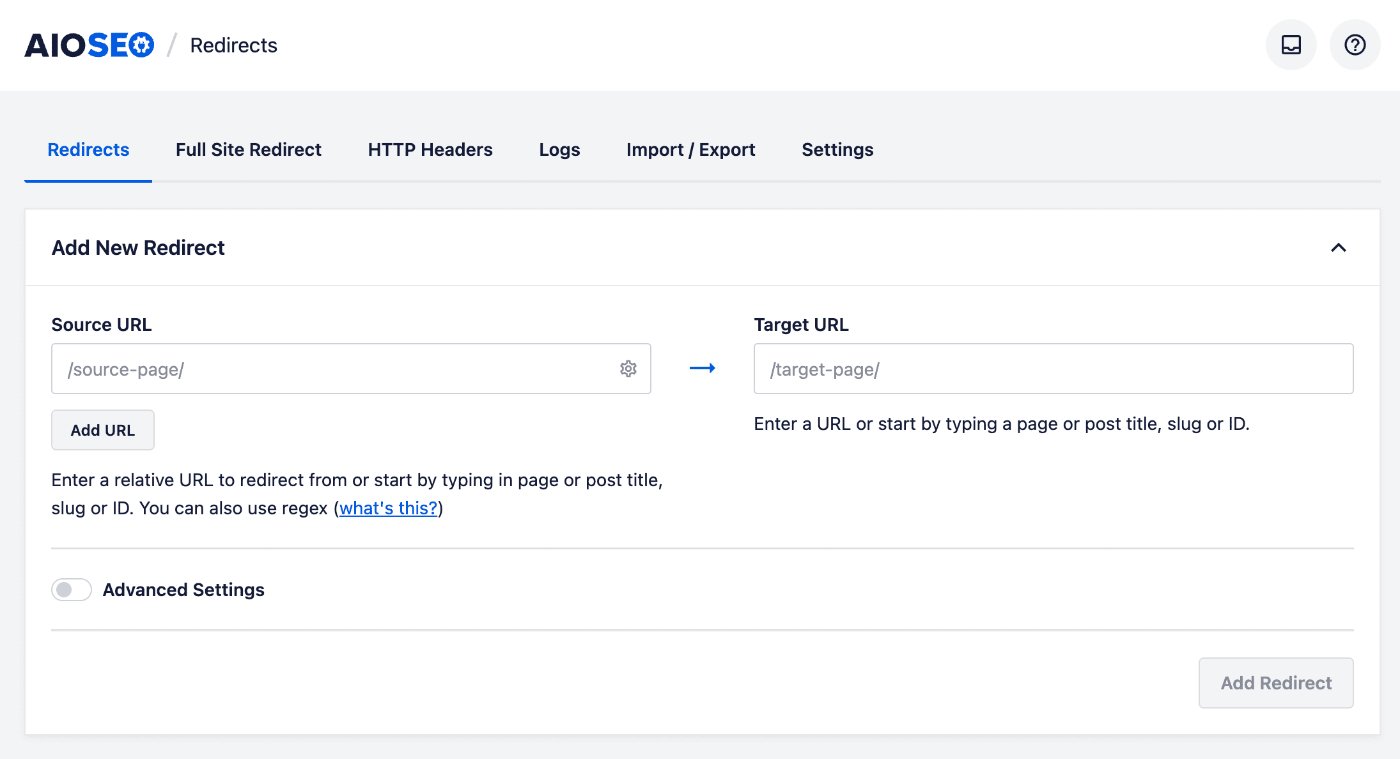
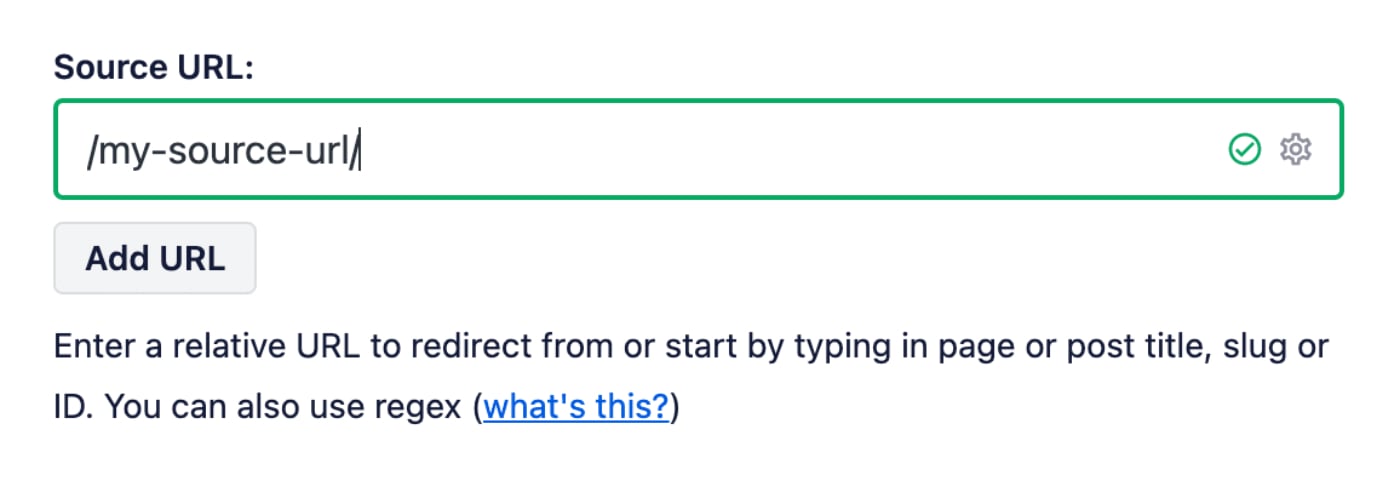
Dans le champ URL source, entrez l'URL à partir de laquelle vous souhaitez rediriger. L'URL doit être une URL relative, c'est-à-dire n'incluez pas la partie https://mydomain.com de votre URL.
Dans le champ URL cible, entrez l'URL vers laquelle vous souhaitez rediriger. L'URL peut être une URL relative ou une URL absolue.
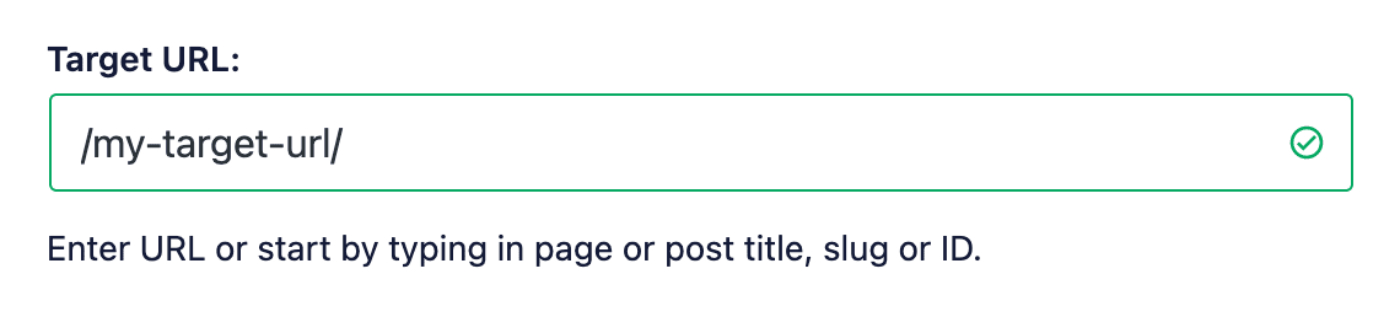
Vous pouvez également commencer à taper le titre de n'importe quel article, page ou autre contenu de votre site, ou le slug ou l'ID dans le champ URL cible et le contenu correspondant s'affichera. Cliquez sur l'article ou la page que vous souhaitez sélectionner comme cible.
Cliquez maintenant sur le bouton Paramètres avancés pour afficher le menu déroulant Paramètres de requête.

Vous verrez quatre choix comme suit :
- Ignorer tous les paramètres : Si vous sélectionnez cette option, tous les paramètres de requête d'URL seront ignorés et l'URL source redirigera vers l'URL cible.
- Correspondance exacte de tous les paramètres dans n'importe quel ordre : Si vous sélectionnez cette option, la redirection correspondra à tous les paramètres de requête d'URL que vous spécifiez dans le champ URL source. Le plugin ignorera l'ordre si vous avez plusieurs paramètres.
- Ignorer et transmettre les paramètres à la cible : Si vous sélectionnez cette option, tous les paramètres de requête d'URL seront ignorés mais seront transmis à l'URL cible afin qu'ils soient préservés.
- Ignorer tous les paramètres sauf UTM : Si vous sélectionnez cette option, tous les paramètres de requête d'URL seront ignorés à l'exception des paramètres de requête UTM.
Paramètres de requête pour toutes les redirections
Si vous souhaitez d\
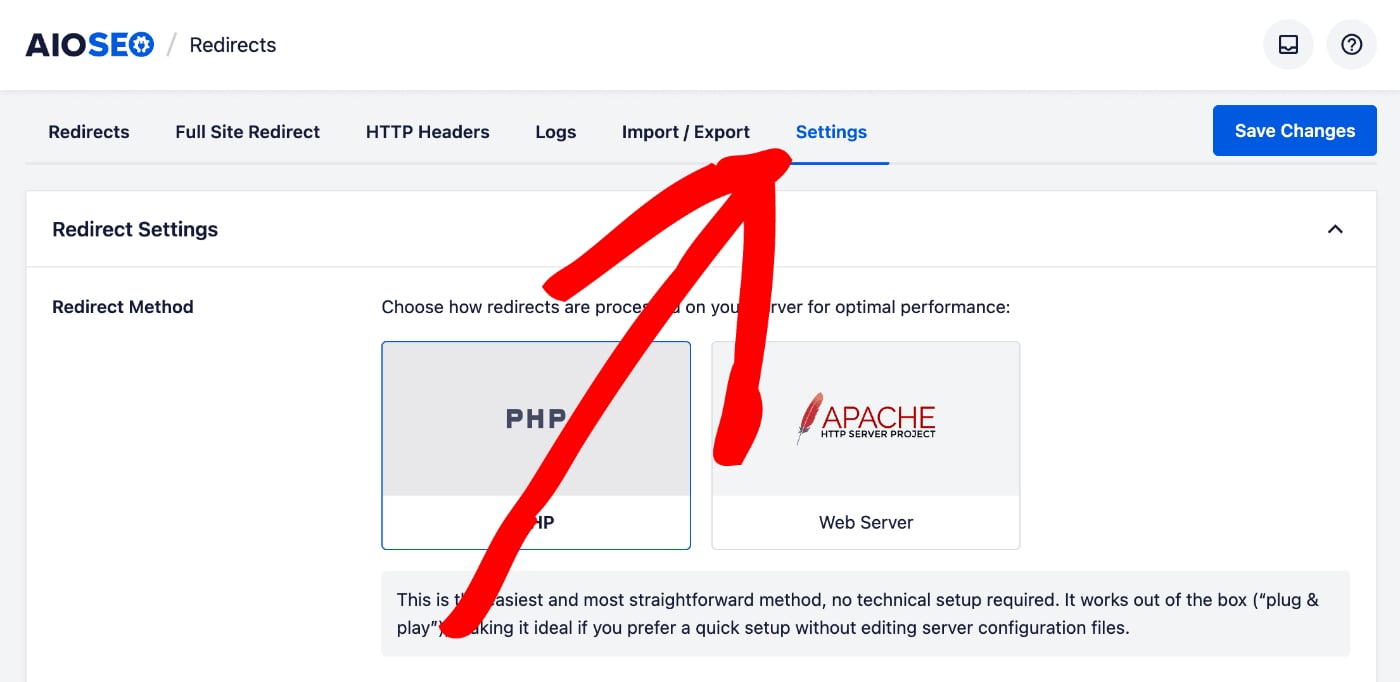
Faites d\u00e9filer vers le bas jusqu\u00e0 ce que vous voyiez la section Param\u00e8tres par d\u00e9faut des redirections et vous verrez un param\u00e8tre pour Param\u00e8tres de requ\u00eate.
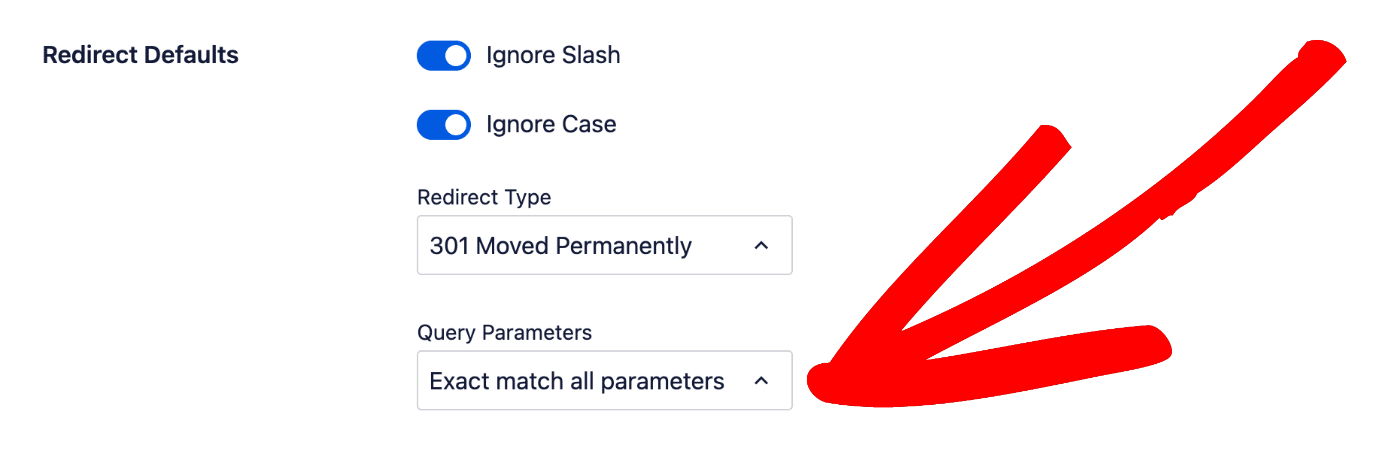
Vous verrez le m\u00eame menu d\u00e9roulant avec les m\u00eames quatre options que celles d\u00e9crites ci-dessus. Tout ce que vous d\u00e9finissez ici s\u2019appliquera \u00e0 toutes les nouvelles redirections que vous cr\u00e9ez.
Consultez notre documentation suppl\u00e9mentaire sur notre gestionnaire de redirections ici.