Páginas de categorias, arquivos de tags e páginas de taxonomias personalizadas são algumas das páginas mais visitadas em sites WordPress. E até agora, era quase impossível ver o quão bem elas estavam otimizadas.
Isso muda com o AIOSEO 5.0.1. O TruSEO agora funciona em páginas de termos de taxonomia, para que você possa ver uma pontuação de SEO real e uma lista de verificação de otimização para suas categorias e tags, não apenas para seus posts.
E está incluído em todos os planos do AIOSEO Pro.
Neste Artigo
Como funciona o novo sistema de SEO para taxonomias
Definições rápidas antes de continuar: No WordPress, uma taxonomia é uma forma de agrupar conteúdo. Categorias e tags são as 2 taxonomias nativas, e uma categoria ou tag específica, como “Palestrantes”, é chamada de termo. Portanto, quando digo que o TruSEO agora funciona em páginas de termos de taxonomia, quero dizer suas categorias, suas tags ou qualquer taxonomia personalizada que seu tema ou plugin adiciona.
O objetivo principal do TruSEO não mudou. Ele analisa seu conteúdo, sua palavra-chave de foco e suas configurações básicas de SEO, em seguida, fornece uma pontuação em tempo real junto com correções específicas e acionáveis. Até agora, essa análise só era executada em posts e páginas individuais.
Com a versão 5.0.1, o AIOSEO estende essa mesma análise para taxonomias. Ao editar uma categoria, tag ou termo de taxonomia personalizada, você agora obtém:
- Uma pontuação TruSEO ao vivo para essa página de termo
- A lista de verificação completa de SEO básico (título, meta descrição, uso de palavra-chave, slug e nome do termo)
- Uma verificação ortográfica para a descrição do seu termo, a mesma que você já usa no editor de posts
- A mesma análise por problema, com a divisão entre Bom versus Melhorias que você já conhece em posts
Como usar a pontuação TruSEO para taxonomias
Vamos imaginar que eu tenho uma loja de e-commerce de eletrônicos digitais. Eu configuro uma categoria chamada "Alto-falantes". Diretamente da página principal de Categorias, eu já consigo ver uma pontuação TruSEO. Isso me permite saber o quão bem esta página está otimizada para sua palavra-chave de foco.
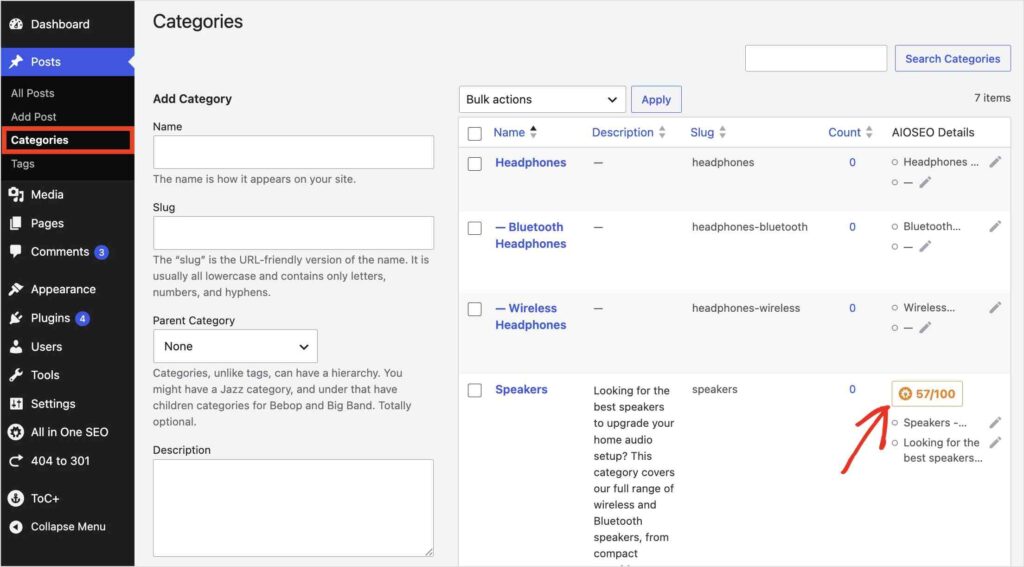
Não vê uma pontuação TruSEO? Você só precisa adicionar uma palavra-chave de foco, como mostrado abaixo.
Depois de abrir uma categoria específica, role para baixo até as Configurações do AIOSEO na parte inferior do editor. Em seguida, navegue até a aba Otimização.
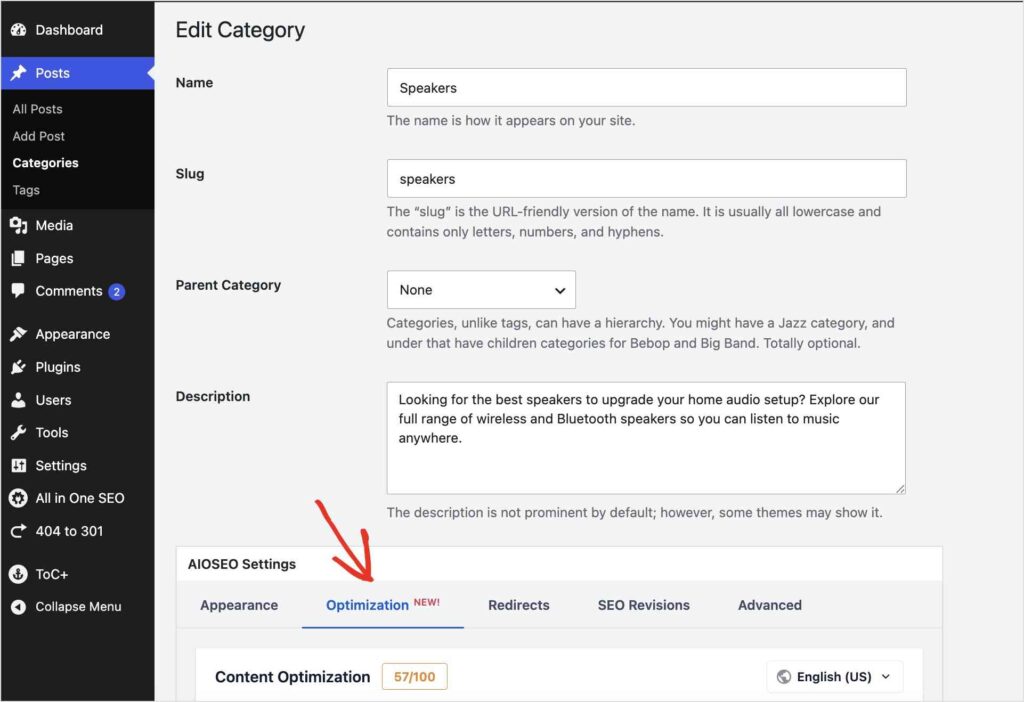
A partir daqui, insira a palavra-chave para a qual você deseja que esta página de categoria seja classificada nos resultados de pesquisa e clique em Adicionar Palavra-chave.
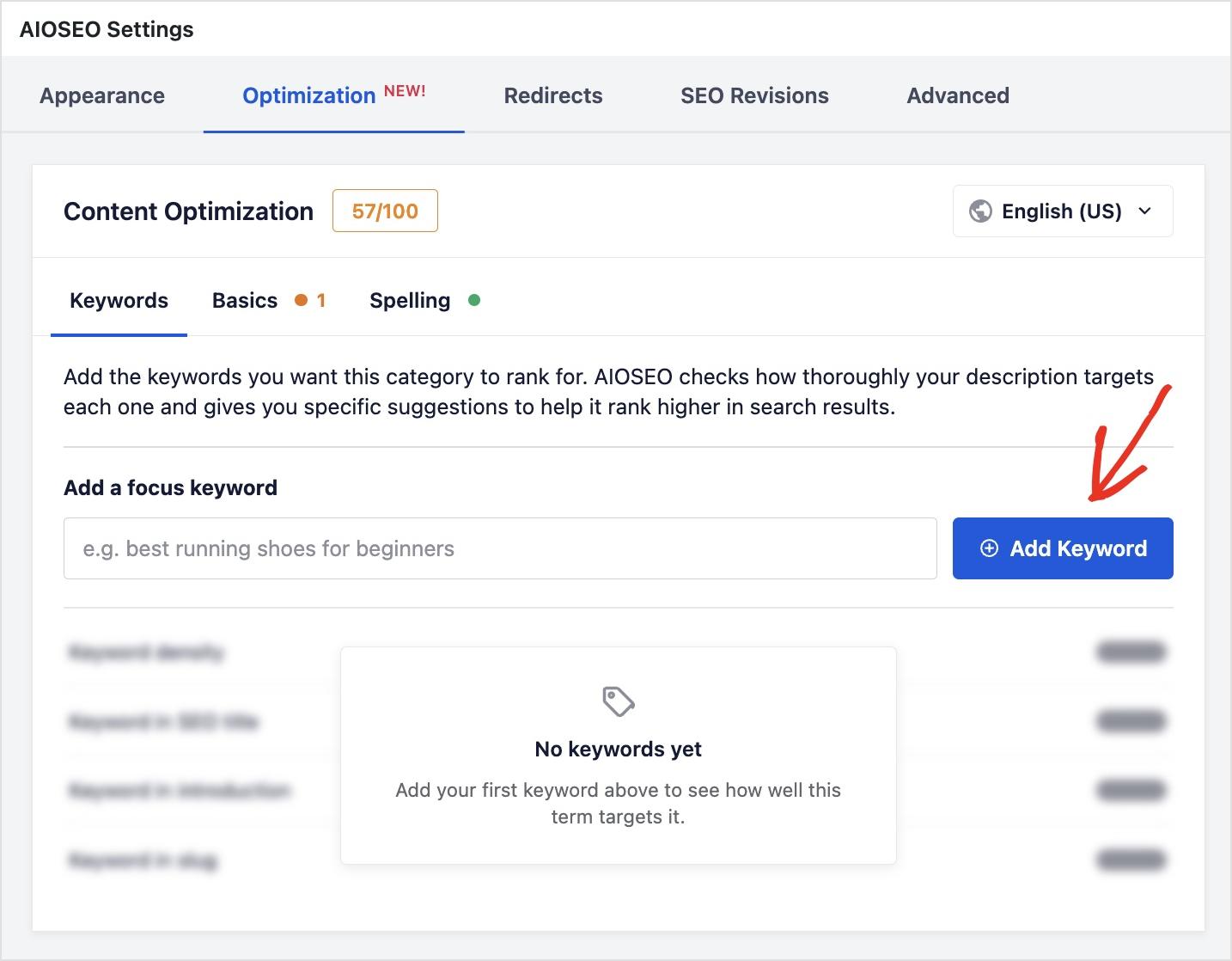
Dica profissional: Não tem certeza sobre o que mais focar? Há um link "Descobrir palavras-chave adicionais" no painel que sugere termos relacionados para os quais você pode classificar.
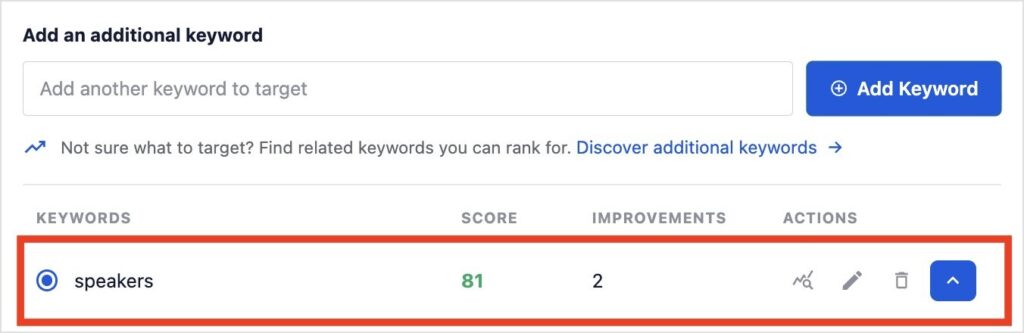
Após salvar, o TruSEO começará a pontuar sua categoria imediatamente.
Mude para a guia Básico e você terá as mesmas verificações de título e meta descrição de seus posts e páginas. Ele também mostra uma lista de Melhorias com explicações claras sobre o que corrigir.
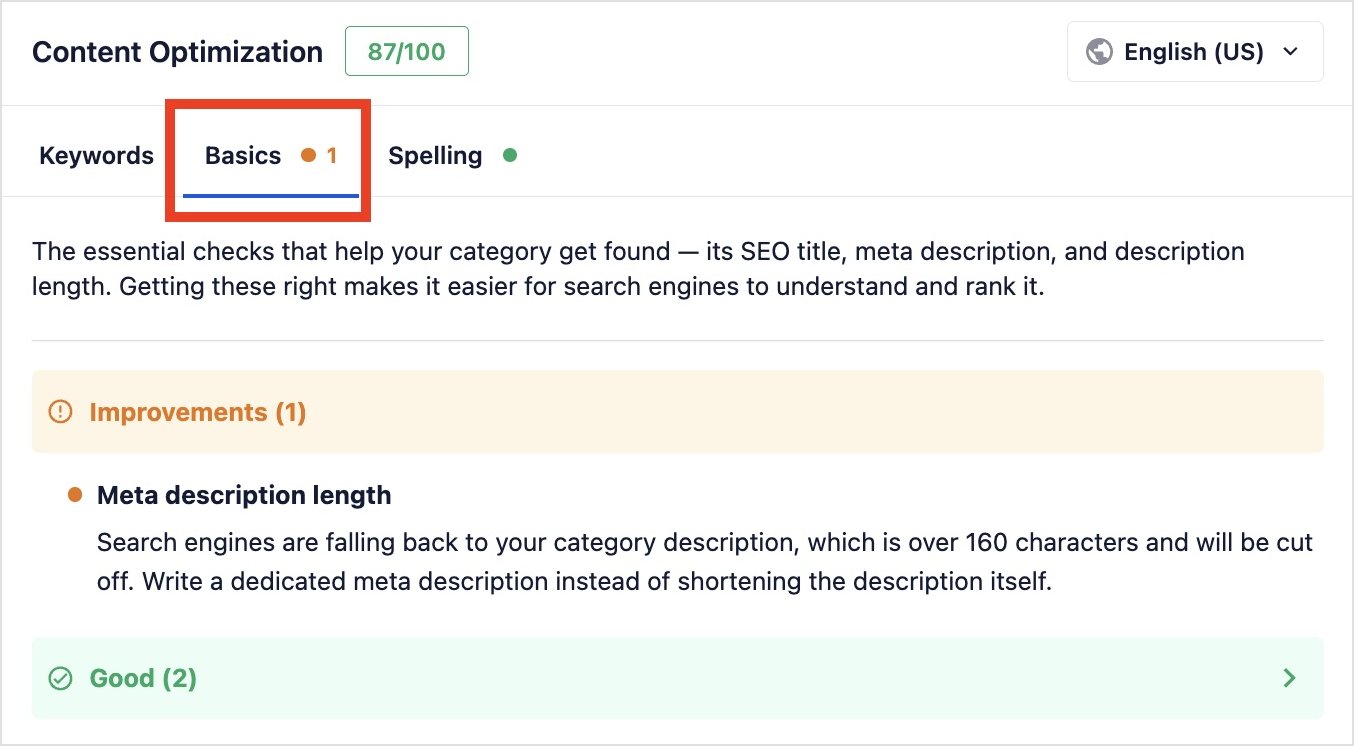
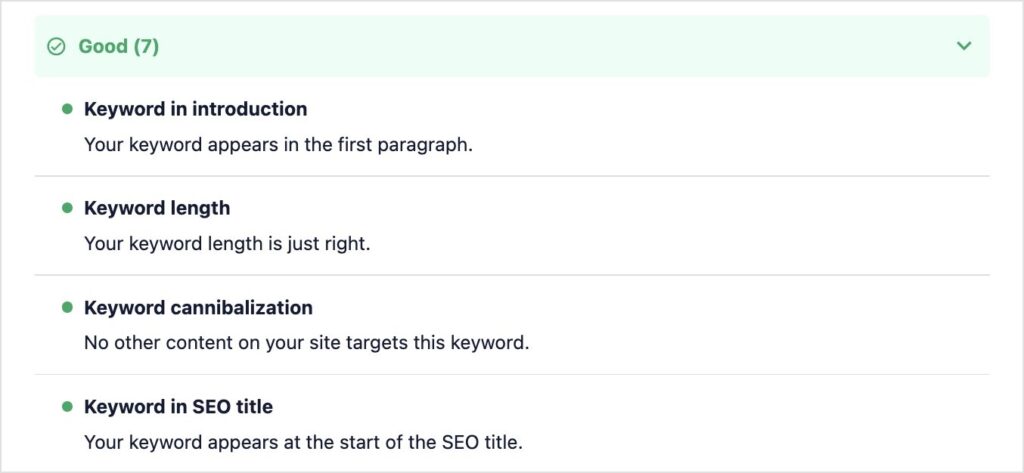
Você também pode ver o que fez bem expandindo a seção Bom.
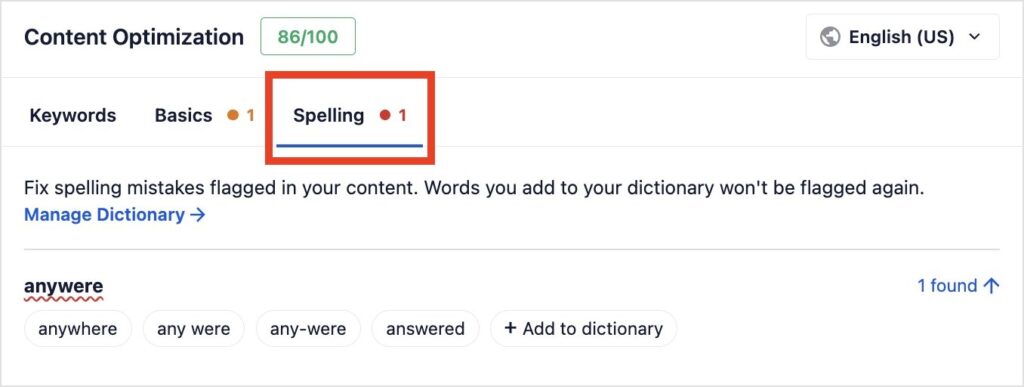
Finalmente, gosto de como a aba Ortografia detecta quaisquer erros de digitação na descrição do seu termo antes que eles sejam publicados. (Admito que já publiquei uma vez demais com um erro de digitação.)
Em resumo: O motor TruSEO tem mais capacidades do que nunca. As páginas de termos agora recebem o mesmo tratamento de SEO que seus posts e páginas já recebem. Também fizemos atualizações no algoritmo de pontuação e na UX para tornar ainda mais fácil entender suas sugestões e implementar correções com IA. Você pode saber mais sobre o TruSEO 2.0 aqui.
Onde está habilitado por padrão e por quê
As taxonomias são habilitadas nativamente para Categorias de Produtos WooCommerce.
Todas as outras taxonomias, suas categorias de postagem regulares, tags e quaisquer taxonomias personalizadas que seu tema ou plugins registrem, têm o TruSEO disponível, mas desativado por padrão.
Essa é uma escolha deliberada, não uma falha. A maioria das páginas de arquivo de taxonomia são finas, geradas automaticamente e não algo que você otimizaria por conta própria. Mas as páginas de categoria de produtos WooCommerce são diferentes.
Em muitos sites de e-commerce, essas páginas são as páginas de destino reais que as pessoas procuram e acessam, no mesmo nível das páginas de produtos individuais em tráfego e valor de conversão. Fazia sentido dar a elas suporte completo do TruSEO de imediato, deixando a decisão para você em todos os outros lugares.
Como habilitar o TruSEO para outras taxonomias
Se você quiser a pontuação TruSEO em suas categorias regulares, tags ou uma taxonomia personalizada, ativá-la leva menos de um minuto.
Passo 1: Abrir configurações gerais
No seu painel do WordPress, vá para All in One SEO » Configurações Gerais e abra a aba Otimização de Conteúdo.
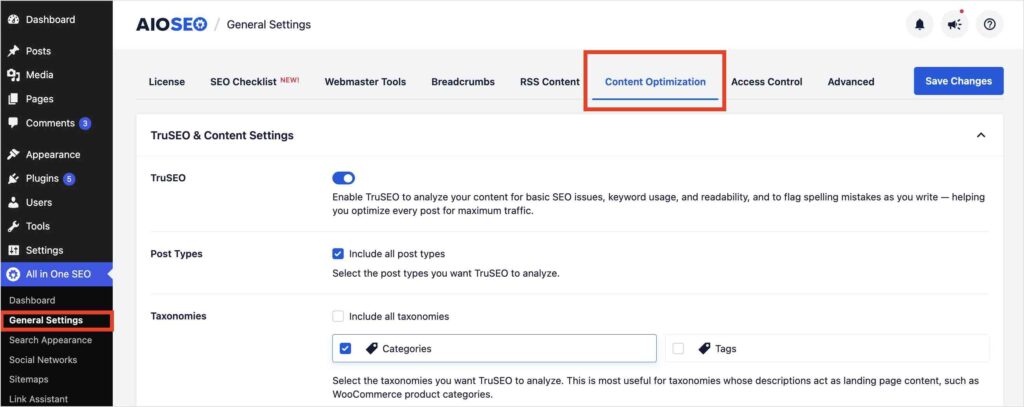
Etapa 2: Encontre as Configurações do TruSEO e de Conteúdo
Em Otimização de Conteúdo, procure a seção Configurações de TruSEO e Conteúdo. Abaixo do controle principal do TruSEO, você verá controles separados para Tipos de Post e Taxonomias. O controle de Taxonomias é o que você deseja.
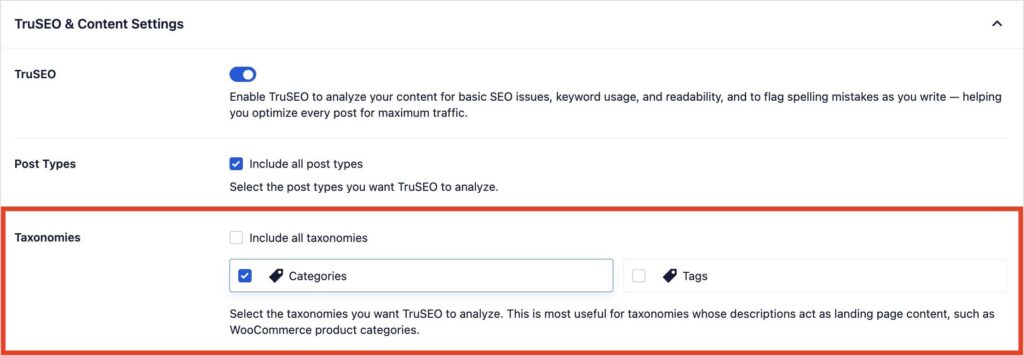
Passo 3: Habilitar as taxonomias que você deseja
Marque a caixa para cada taxonomia que você deseja pontuar: categorias, tags, categorias de produtos WooCommerce ou qualquer taxonomia personalizada em seu site. Marque "Incluir todas as taxonomias" se preferir ativar em todos os lugares de uma vez.

Passo 4: Salvar e editar um termo
Salve suas configurações e pronto! Você pode então abrir qualquer termo nessa taxonomia para editá-lo e ver sua pontuação TruSEO.
Observação: Se você não vir o painel TruSEO após habilitar uma taxonomia, verifique novamente se a taxonomia está pública e se você salvou as configurações antes de verificar o painel de Otimização de Conteúdo novamente.
Disponível em todos os planos AIOSEO Pro
Serei honesto, não esperava ficar tão entusiasmado com esta atualização quanto realmente estou. Páginas de categoria? Quanta otimização elas realmente precisam? Então abri a tela de Categorias do meu próprio site e percebi que não tinha ideia de como cada uma delas estava realmente performando. Essa é exatamente a lacuna que isso fecha.
O suporte TruSEO para taxonomias está incluído em todos os planos AIOSEO Pro, a partir do Basic. Ou seja, se você já paga pelo AIOSEO, você já tem isso. Você só precisa atualizar o plugin para a versão 5.0.1.
E se você estiver no Lite, bem, agora você tem mais um motivo para fazer o upgrade.
Próximo passo: Vá abrir sua página de Categorias agora mesmo e verifique a pontuação das suas principais. Aposto que pelo menos uma te surpreende.
— Ben Rojas, Presidente do AIOSEO
Perguntas Frequentes sobre Taxonomias TruSEO
Preciso de um plano pago do AIOSEO para usar o TruSEO em páginas de taxonomia?
Sim. A Análise TruSEO requer um plano pago. No entanto, você pode estar em qualquer plano, incluindo o Básico.
Quais taxonomias recebem TruSEO por padrão?
Apenas as Categorias de Produtos WooCommerce estão habilitadas por padrão. Todas as outras taxonomias, incluindo categorias e tags regulares, precisam ser ativadas manualmente em Otimização de Conteúdo.
Como ativo o TruSEO para minhas categorias ou tags regulares?
Vá para All in One SEO » Configurações Gerais » Otimização de Conteúdo, encontre a seção Configurações TruSEO e de Conteúdo e marque a caixa para as taxonomias que você deseja pontuar.
Isso vai deixar meu site lento?
Não. A análise TruSEO é executada no painel do WordPress enquanto você edita um termo, da mesma forma que faz para posts e páginas. Isso não afeta como seu site carrega para os visitantes.
Preciso atualizar algo além do plugin?
Não. Assim que você atualizar para o AIOSEO 5.0.1, o TruSEO para Categorias de Produtos WooCommerce já estará ativo. Habilitá-lo para outras taxonomias é uma alteração de configuração, não uma atualização.