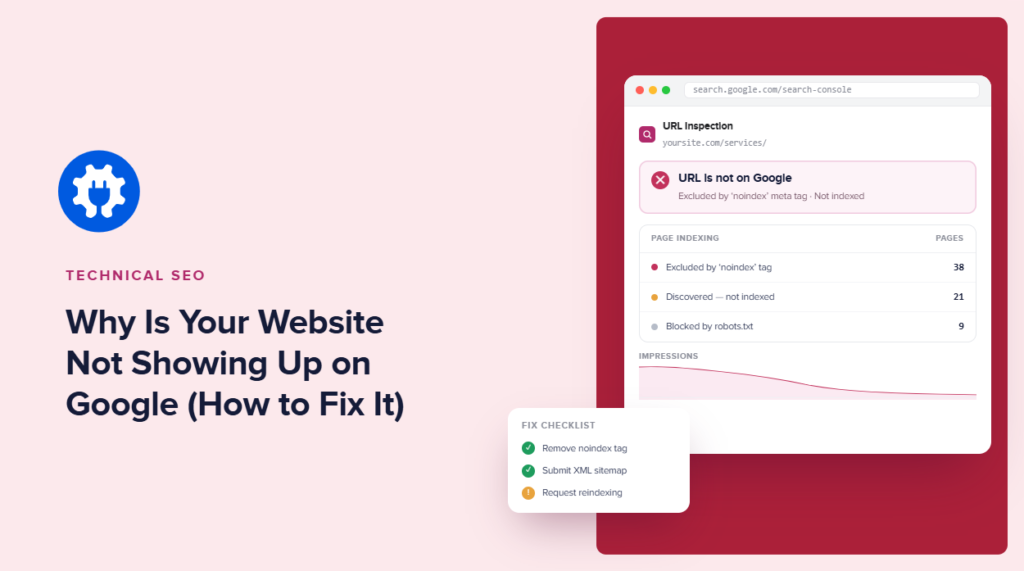

Seu site não aparece no Google? É frustrante publicar um site novo ou passar horas criando conteúdo apenas para procurá-lo e não encontrar nada.
A boa notícia é que isso não significa necessariamente que há algo seriamente errado com o seu site.
O Google precisa descobrir suas páginas, rastreá-las, decidir se as indexa e, em seguida, determinar onde elas merecem ranquear. Um problema em qualquer uma dessas etapas pode fazer com que seu site pareça invisível nas buscas.
Portanto, neste guia, mostrarei como diagnosticar por que seu site não está aparecendo no Google, corrigir os problemas mais comuns de indexação e rastreamento e ajudar o Google a descobrir seu conteúdo WordPress de forma mais eficiente.
Neste Artigo
- Por que meu site não aparece no Google?
- Cenário 1: Seu site é novo
- Cenário 2: Seu site aparecia e depois desapareceu
- Cenário 3: A maior parte do seu site aparece, mas páginas específicas estão faltando
- Como usar o Google Search Console para diagnosticar o problema
- Quanto tempo até meu site aparecer no Google?
- Site não aparece no Google: Perguntas frequentes respondidas
- Próximos Passos
Por que meu site não aparece no Google?
Seu site não está aparecendo no Google porque ele ainda não foi indexado, uma configuração técnica está bloqueando-o, ou o Google o rastreou e decidiu não adicioná-lo aos resultados de pesquisa.
Sites novos geralmente aparecem de 1 a 4 semanas após o envio de um sitemap, enquanto um site que costumava ranquear e desapareceu é quase sempre causado por uma tag noindex acidental, um bloqueio no robots.txt ou uma atualização do algoritmo do Google.
Estou cobrindo os 3 cenários mais comuns e as correções que você pode aplicar. Vamos analisá-los em detalhes.
Verifique se o seu site está realmente indexado
Antes de diagnosticar qualquer coisa, faça esta verificação rápida. Abra o Google e pesquise site:seusite.com, substituindo "seusite.com" pelo seu domínio real. Isso diz se o Google indexou alguma de suas páginas.
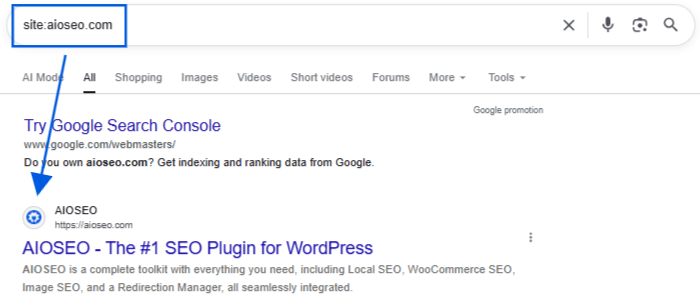
Se as páginas aparecerem nos resultados, seu site está indexado. Isso significa que você tem um problema de ranqueamento, não um problema de indexação, e as correções são completamente diferentes. Problemas de ranqueamento se resumem à qualidade do conteúdo, palavras-chave e backlinks, que é um tópico separado do que cobrimos aqui. Se você suspeita que 2 de suas próprias páginas estão competindo entre si nos resultados, isso geralmente é um caso de canibalização de palavras-chave, não um problema de indexação.
Se a pesquisa retornar zero resultados, o Google ainda não indexou seu site. Este guia ajuda você a corrigir isso.
Muitos conselhos bem-intencionados misturam os 2 problemas. Indexação se refere a se o Google sabe que sua página existe. Ranqueamento se refere a quão alto essa página aparece assim que é indexada.
Para uma análise mais aprofundada de como a rastreamento e a indexação funcionam juntos, confira nosso guia para iniciantes. Mantenha a diferença em mente enquanto analisamos os cenários abaixo.
Cenário 1: Seu site é novo
Sites novos no WordPress geralmente levam de 2 a 8 semanas para aparecer no Google, então não entre em pânico imediatamente. Mas uma configuração pode matar a indexação imediatamente, e vale a pena verificar primeiro.
Verifique a configuração "Não permitir que mecanismos de pesquisa rastreiem este site"
Esta é a causa número 1 para sites novíssimos, e ela se esconde à vista de todos. O WordPress tem uma configuração embutida que diz a todos os motores de busca para ficarem longe, não importa o que seu plugin de SEO faça. Desenvolvedores frequentemente a ativam enquanto constroem um site em um servidor de staging, e depois esquecem de desativá-la antes do lançamento.
Veja como verificar:
- No seu painel do WordPress, vá para Configurações » Leitura.
- Procure pela seção Visibilidade nos mecanismos de busca.
- Se a caixa ao lado de Proibir que mecanismos de busca indexem este site estiver marcada, desmarque-a e clique em Salvar alterações.
Envie seu sitemap para o Google
Depois de desmarcar essa caixa, ajude o Google a encontrar suas páginas mais rápido enviando seu sitemap. O AIOSEO já cria e atualiza este sitemap para você automaticamente em segundo plano, então você não está criando nada do zero; você está apenas dizendo ao Google onde encontrá-lo.
- No seu painel do WordPress, vá para All in One SEO » Sitemaps para encontrar o endereço do seu sitemap. Ele será parecido com seudominio.com/sitemap.xml.
- Abra o Google Search Console e clique em Sitemaps no menu esquerdo.
- Digite apenas o nome do arquivo, sitemap.xml, na caixa e clique em Enviar.
- Um status Sucesso significa que o Google aceitou o sitemap e começará a rastrear os URLs dentro dele. Um erro Não foi possível buscar geralmente significa que o endereço foi digitado incorretamente ou que seu site ainda está bloqueando rastreadores, portanto, verifique novamente a configuração acima.
Cenário 2: Seu site aparecia e depois desapareceu
Se o seu site costumava aparecer no Google e depois desapareceu, algo mudou. Isso é diferente de um site que nunca foi indexado, e geralmente se resume a 1 de 3 causas.
Uma atualização de plugin introduziu uma tag Noindex
Uma atualização de plugin, uma mudança de tema ou uma configuração que você não percebeu ter alterado pode adicionar silenciosamente uma tag noindex ao seu conteúdo. Essa tag diz ao Google para não mostrar a página nos resultados de pesquisa, mesmo que a página ainda funcione bem para os visitantes.
Para verificar o conteúdo individual no AIOSEO, vá para Posts ou Páginas no seu painel do WordPress e passe o mouse sobre uma entrada. O AIOSEO mostra um indicador de noindex ao lado de qualquer conteúdo definido como noindex, para que você possa escanear sua lista em vez de abrir cada página.
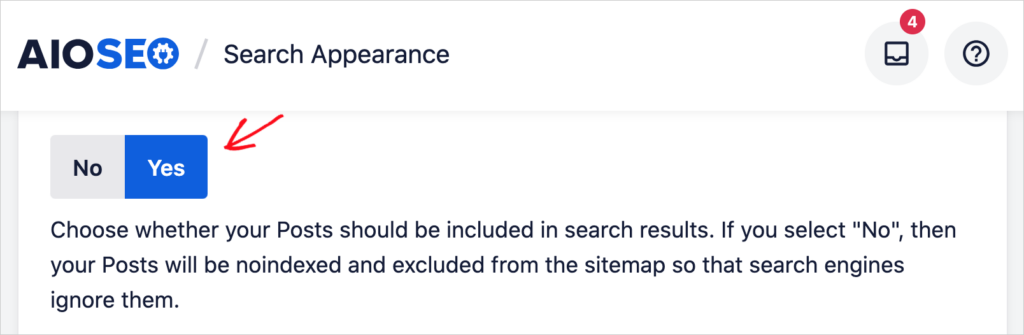
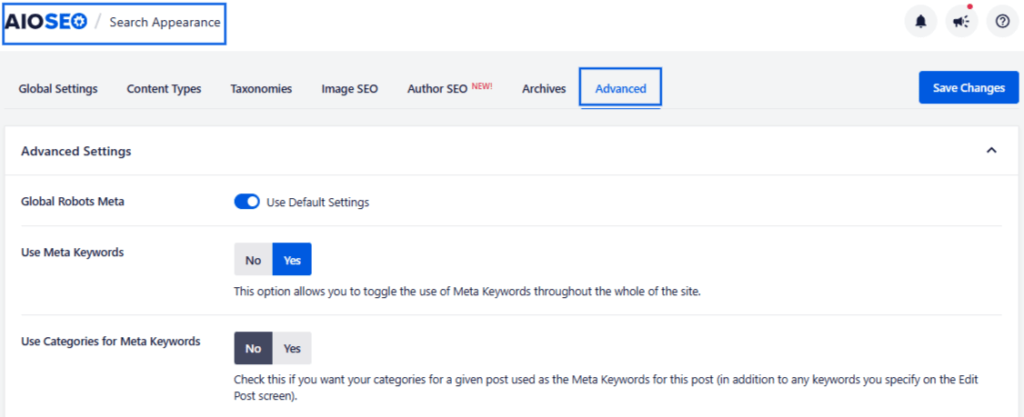
Para verificar suas configurações globais, vá para All in One SEO » Aparência da pesquisa e confirme se Não Indexar está desativado para qualquer tipo de post que você deseja que apareça no Google.
Seu Arquivo Robots.txt Está Bloqueando o GoogleBot
Todo site WordPress tem um arquivo chamado robots.txt que informa aos mecanismos de busca quais partes do seu site eles podem rastrear. Se uma linha nesse arquivo diz Disallow seguida por uma única barra, ela está bloqueando todo o seu site de todos os mecanismos de busca ao mesmo tempo.
Para verificar, vá para All in One SEO » Ferramentas e abra o editor robots.txt. Revise a pré-visualização personalizada do robots.txt em busca de qualquer regra que bloqueie todo o seu site ou uma página importante.
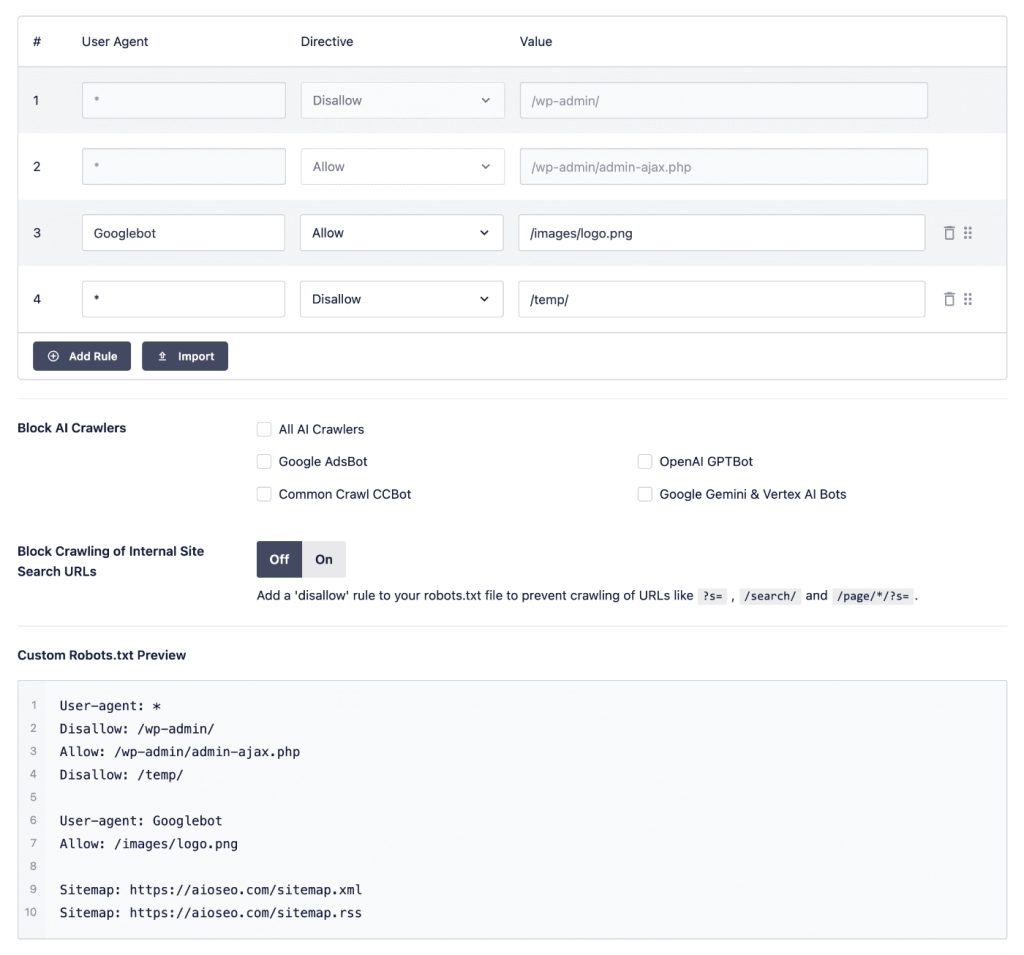
Para confirmar se uma página específica é afetada, use a ferramenta Inspeção de URL dentro do Google Search Console. Ela informa diretamente se o robots.txt está bloqueando esse URL exato, o que é mais confiável do que ler o arquivo você mesmo.
Uma atualização do algoritmo do Google alterou seus rankings
Às vezes, uma página não perdeu seu status de indexação. Ela apenas caiu tanto nos resultados que parece invisível. Compare a data em que seu tráfego caiu com a lista de atualizações de classificação de pesquisa do Google. Se as datas coincidirem, este pode ser um problema de conteúdo e autoridade. Portanto, a correção também seria diferente: conteúdo mais forte, links confiáveis e expertise clara em seu tópico, não uma configuração para desativar.
Cenário 3: A maior parte do seu site aparece, mas páginas específicas estão faltando
Se sua página inicial e a maior parte do seu conteúdo aparecem bem, mas um punhado de páginas está faltando, o problema geralmente está isolado nessas páginas específicas.
A página tem uma tag Noindex
Abra a página no seu editor WordPress, role até a caixa de configurações do AIOSEO, clique na aba Avançado e confirme se Não Indexar está desativado. Se precisar verificar várias páginas de uma vez, use o indicador de noindex na lista de Posts e Páginas em vez de abrir cada uma individualmente.
A página não está no seu sitemap
Vá para All in One SEO » Sitemaps e confirme se a página aparece na lista. Se estiver faltando, verifique sua configuração de tipos de post excluídos na mesma tela. Alguns tipos de conteúdo são excluídos do sitemap por padrão.
A página mostra um status "Rastreada, atualmente não indexada"
Este é um status comum no relatório de Páginas do Search Console. Significa que o Google a encontrou e a analisou, depois escolheu não adicioná-la aos resultados de pesquisa. As causas mais comuns são conteúdo fraco (pouco texto na página), conteúdo que duplica de perto outra página do seu site e falta de links internos apontando para essa página de outro lugar do seu site.
Cobrimos esse status exato em detalhes, incluindo como corrigir cada causa, em nosso guia completo para corrigir o status rastreado, atualmente não indexado.
A página é muito nova para ser rastreada
Se você acabou de publicar a página, o Google simplesmente ainda não a acessou. No Search Console, use a ferramenta de inspeção de URL, cole o URL da página e clique em Solicitar indexação. Isso move a página para cima na fila de rastreamento do Google, embora não seja uma correção instantânea.
Como usar o Google Search Console para diagnosticar o problema
Se nenhum dos cenários acima corresponder à sua situação exata, este guia ajuda você a encontrar a resposta.
- Abra o Search Console e vá para Indexação » Páginas no menu esquerdo.
- Você verá 2 totais: Indexadas e Não indexadas. Páginas indexadas já estão aparecendo. Páginas não indexadas são as que estão causando problemas.
- Clique em Não indexadas para ver um detalhamento por status, depois clique em cada nome de status para ver exatamente quais URLs são afetados.
- Alguns status aparecem com mais frequência. Rastreada, atualmente não indexada significa que o Google analisou, mas optou por não indexá-la. Descoberta, atualmente não indexada significa que o Google sabe que a página existe, mas ainda não a rastreou. Isso geralmente está relacionado ao orçamento de rastreamento, que é simplesmente o número de páginas que o Google está disposto a rastrear em seu site em um determinado período. Bloqueada por robots.txt significa que seu próprio site está dizendo ao Google para ficar longe. Excluída por uma tag noindex significa que uma configuração na própria página está bloqueando-a.
Se você atualizar para o AIOSEO Elite, o painel de Estatísticas de Pesquisa mostrará esses mesmos dados de índice diretamente no WordPress, para que você nunca precise abrir o Search Console.
Quanto tempo até meu site aparecer no Google?
Os prazos exatos variam, mas aqui está o que esperar realisticamente:
- Site novo, após o envio do seu sitemap: sua página inicial geralmente aparece em 1 a 4 semanas. Páginas internas podem levar de 2 a 8 semanas, especialmente em um domínio totalmente novo.
- Corrigido uma tag noindex ou problema de sitemap: o Google geralmente rastreia novamente em 1 a 2 semanas. Use Solicitar indexação em sua página inicial para acelerar essa parte.
- Recuperação de uma atualização de algoritmo: este é o caminho mais lento. Espere pelo menos 2 a 4 meses, já que você está reconstruindo a qualidade e a autoridade do conteúdo, não apenas ajustando uma configuração técnica.
Nenhum desses prazos se acelera reenviando seu sitemap repetidamente ou solicitando a indexação várias vezes. Os rastreadores do Google trabalham em sua própria programação, e a paciência combinada com a correção certa leva você até lá.
Site não aparece no Google: Perguntas frequentes respondidas
Seu site não está aparecendo no Google? Primeiro, certifique-se de que o Google possa rastrear e indexar seu site. Verifique se há diretivas noindex acidentais e restrições de robots.txt, crie um sitemap XML, envie-o através do Google Search Console e crie links internos para páginas importantes. Você também pode usar o Google Search Console ou o recurso de Status de Indexação do AIOSEO para determinar se páginas específicas foram indexadas.
O Google pode não rastrear seu site porque ele é novo, tem poucos links apontando para ele, contém restrições de robots.txt, tem problemas técnicos de acessibilidade ou ainda não foi descoberto. Verifique o Google Search Console para obter informações de rastreamento e certifique-se de que seu arquivo robots.txt não esteja bloqueando acidentalmente o google-bot. O envio de um sitemap XML também pode ajudar o Google a descobrir URLs importantes.
Se o seu domínio não aparecer mesmo quando você o pesquisa especificamente, primeiro determine se o Google indexou o site. Uma verificação rápida é pesquisar no Google por site:seudominio.com. Se o Google retornar páginas do seu site, o domínio está indexado, mesmo que não esteja classificado em suas pesquisas normais. Se nada aparecer, investigue as configurações de indexação, diretivas de robots, erros de rastreamento e seu sitemap XML.
Não há um prazo garantido. O Google precisa descobrir e rastrear um novo site antes que suas páginas possam ser consideradas para indexação, e o rastreamento não garante indexação ou classificações imediatas. Você pode ajudar o Google a descobrir um novo site criando um sitemap XML, enviando-o para o Google Search Console, garantindo que suas páginas sejam rastreáveis e construindo uma estrutura de links internos clara. Depois disso, dê tempo ao Google para processar o site em vez de mudar as coisas repetidamente simplesmente porque ele não apareceu imediatamente.
Próximos Passos
Se o seu site não está aparecendo no Google, não assuma imediatamente que você precisa de mais palavras-chave, mais conteúdo ou uma reformulação completa de SEO.
Comece com os fundamentos. Verifique se o Google indexou suas páginas. Certifique-se de que você não habilitou acidentalmente noindex. Revise o robots.txt, verifique se o seu sitemap está funcionando e investigue quaisquer erros de rastreamento ou indexação que o Google relatar.
A melhor parte é que, se você for um usuário do WordPress, o AIOSEO pode facilitar muito essa solução de problemas. Suas ferramentas de Status de Indexação podem ajudar a identificar se o Google está rastreando e indexando conteúdo importante. E depois de confirmar que o Google pode encontrar e indexar seu site, você pode mudar sua atenção para o próximo desafio: obter classificações melhores.
Aviso: Nosso conteúdo é apoiado pelo leitor. Isso significa que se você clicar em alguns de nossos links, poderemos ganhar uma comissão. Recomendamos apenas produtos que acreditamos que agregarão valor aos nossos leitores.
Quer Experimentar o AIOSEO Gratuitamente?
Digite o URL do seu site WordPress para instalar o AIOSEO Lite.