
Wondering how to add custom schema markup to your WordPress site?
Custom schema markup is code that tells Google exactly what your content means, not just what it says. Adding it can make your pages eligible for rich results in search, the kind with star ratings, prices, or extra details that stand out from a plain blue link. And it's super easy to add in WordPress, especially if you use SEO plugins like All In One SEO.
So, in this guide, I'll show you how to add custom schema markup in WordPress. I'll also cover what has changed with rich results, and how schema now plays a role in AI search tools like ChatGPT and Google AI Overviews.
What you'll need: The All in One SEO (AIOSEO) plugin.
In This Article
What Is Schema Markup?
Schema markup is code that helps Google understand the details of your content. It does not automatically appear on your pages. You have to add it.
The good news is that WordPress users can add this code in a few clicks. For some schema types, you will fill out a short form instead of writing any code.
Is Schema Markup the Same as Structured Data?
Almost. Structured data is the organized information itself, like a recipe's ingredients or a product's price. Schema markup is the code that communicates structured data to search engines. Think of structured data as labels that only search engines can read.
You do not need to memorize the technical difference to use it. AIOSEO handles the code for you.
Is Schema Still Good for SEO?
Yes, but it is worth knowing what schema can and cannot do today.
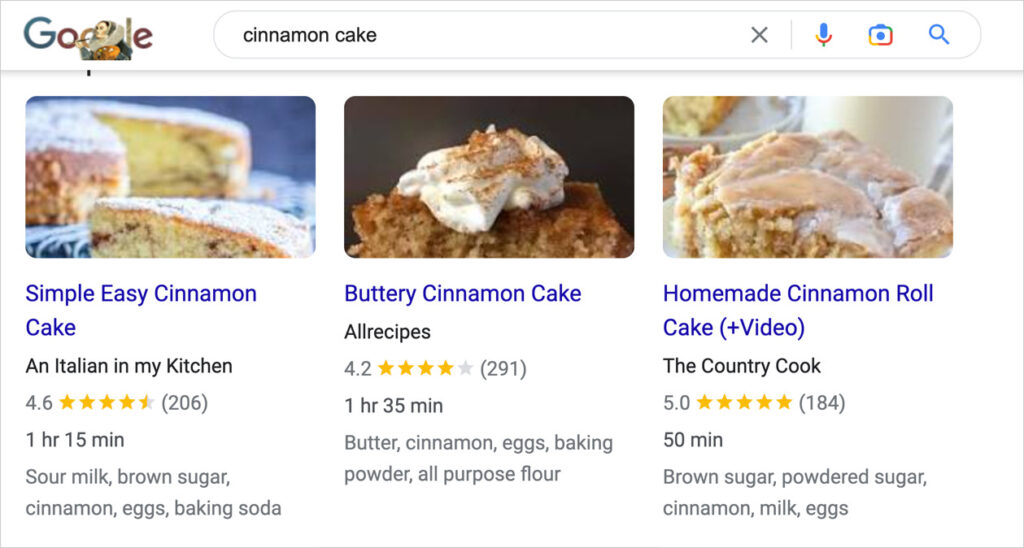
Schema does not directly boost your rankings. What it does is make your page eligible for a rich result, an enhanced search listing that can include images, star ratings, prices, or breadcrumbs. Rich results stand out visually, and that can lead to more clicks even if your position on the page does not change.
A couple of things have changed since Google first rolled out these features widely, and we want to be upfront about them.
- HowTo rich results are no longer shown. Google removed the special HowTo display from both desktop and mobile results. Adding the HowTo schema will not hurt your page, but it will not earn you a special listing either.
- FAQ rich results are limited. Google now mostly reserves the FAQ rich result for authoritative government and health sites. Most blogs will no longer see the FAQ dropdown in search results, even with a valid FAQ schema in place.
Schema types that still commonly earn rich results include Article, Product, Recipe, Review, Event, and Breadcrumb. Google supports around 31 schema types in total, and applying any of them still gives Google a clearer context about your page, even when there is no visual reward in search results.
If you have not added schema to a page before, I recommend starting with our guide on adding rich snippets to WordPress.
If you have not added schema to a page before, we recommend starting with our guide on how to add rich snippets to WordPress.
What Is Custom Schema Markup?
In this guide, custom schema markup means any schema, even a common type, that is not already available as a built-in option in your schema generator plugin.
Schema plugins cover the most popular types to keep things simple. When you need something outside that list, you can still add it easily. Let's walk through how.
Step 1: Install All in One SEO
First, download the AIOSEO plugin (if you don't already have it). I'll show you how to use it to add custom schema markup and turn it into a reusable template with just a few clicks, all from inside the WordPress dashboard.
AIOSEO is used by more than 3 million WordPress sites, from small businesses and bloggers to large publishers. It comes with thousands of 5-star ratings on WordPress.org and one-on-one support.
After downloading the plugin, open your WordPress dashboard and go to Plugins > Add New Plugin. For step-by-step help, check out our guide on installing All in One SEO Pro.
Step 2: Add Your Custom Schema Markup
Next, open the page or post where you want to add custom schema.
- Scroll down to the AIOSEO Settings section below the content editor.
- Click the Schema tab, then click the Generate Schema button. This opens the Schema Generator window.
- Inside the Schema Generator, click the Custom Schema tab. You will see an editor where you can paste your own schema in JSON-LD format, plus a field to name it. Use a short name, since it will appear on a clickable button.
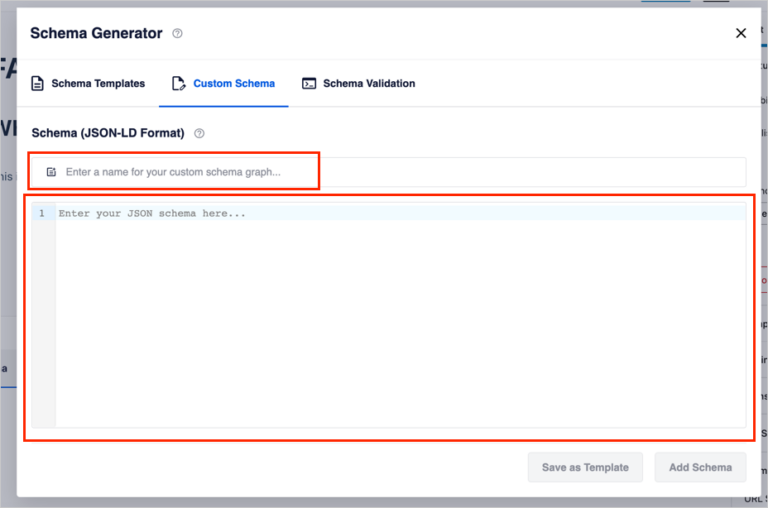
If you are not comfortable writing JSON-LD from scratch, you do not have to. AIOSEO's schema generator can pull details directly from your existing content, such as your title, featured image, and author, so you rarely need to write custom code. A custom schema is mainly for cases where your schema type does not yet cover, such as a specific event format or a non-standard content type.
If there is an error in your code, AIOSEO will prevent you from saving it and display a warning message.
To reuse this schema later, click Save as Template. If you only need it once, click Add Schema instead.
Clicking Add Schema attaches your code to the page and creates a small button you can click to validate it. Clicking Save as Template adds it to a new Your Templates section, so you can apply the same schema to other pages with one click.
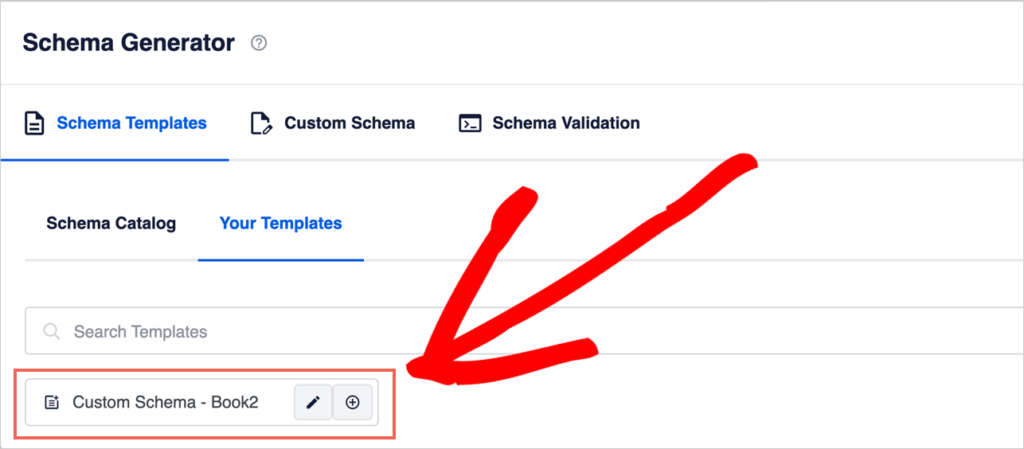
Save your custom schema as a template when you plan to reuse it, without changes, on more than one page. If your schema describes something specific, such as details for a single event, just click Add Schema and skip the template step.
Step 3: Validate Your Schema
Once you add a custom schema, either as a template or a one-time addition, you will see a Validate Schema button. Click it to open Google's Rich Results Test in a new window, with your code already loaded in.
Click Test Code to run the check.
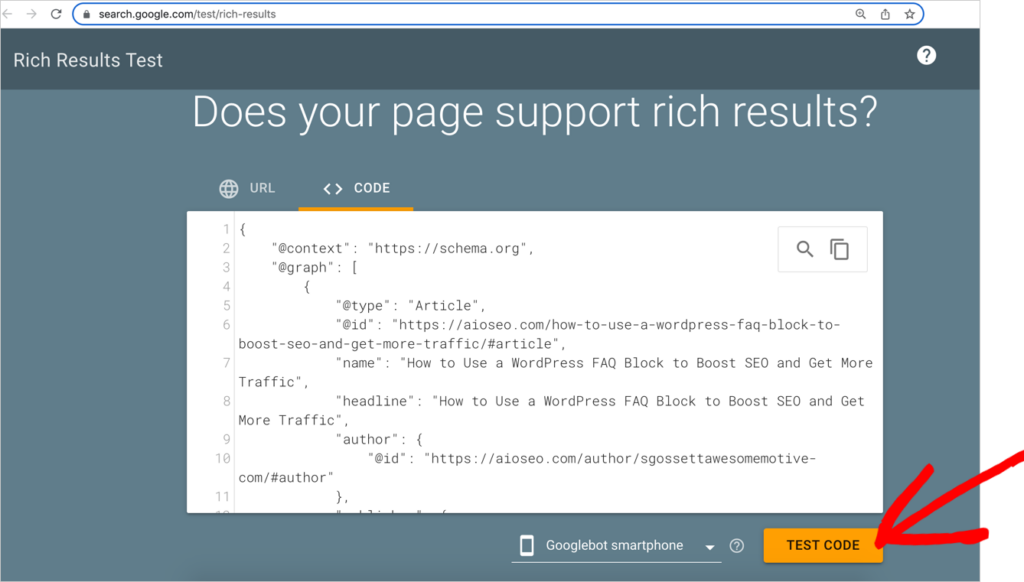
Then review your results.
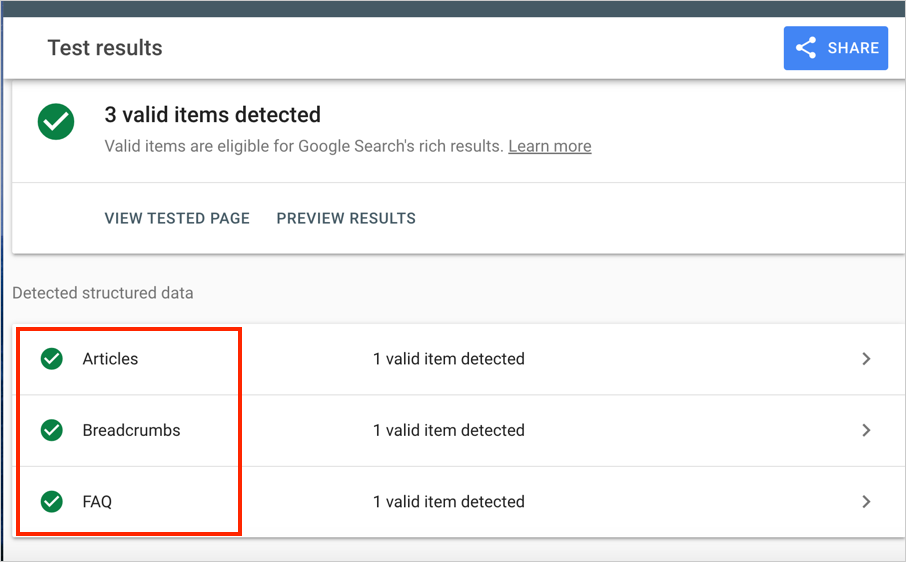
A valid result confirms your code is error-free and eligible for a rich result, though, as we covered above, not every schema type comes with a special visual treatment anymore. Article and Breadcrumb schema are still common examples that do.
Schema Markup and AI Search
Search is no longer limited to Google's blue links. Tools like ChatGPT, Perplexity, and Google's AI Overviews pull information from web pages to build their answers. This is often called answer engine optimization, or AEO.
Clean schema markup helps here, too. It provides AI tools with clear, structured facts about your content, your author, and your organization, making your page easier to summarize and cite accurately. Structured data will not guarantee a citation, but it removes ambiguity that could cause an AI tool to skip your page in favor of a clearer source.
If you want to go further on the AEO side, AIOSEO's LLMs.txt Generator creates a file that gives AI crawlers a clear map of your site's most important content, working alongside your schema markup rather than replacing it.
Where Can I Find a Custom Schema to Add to AIOSEO?
- First, check this list of schema types already built into AIOSEO. If your content fits one of them, you do not need a custom schema.
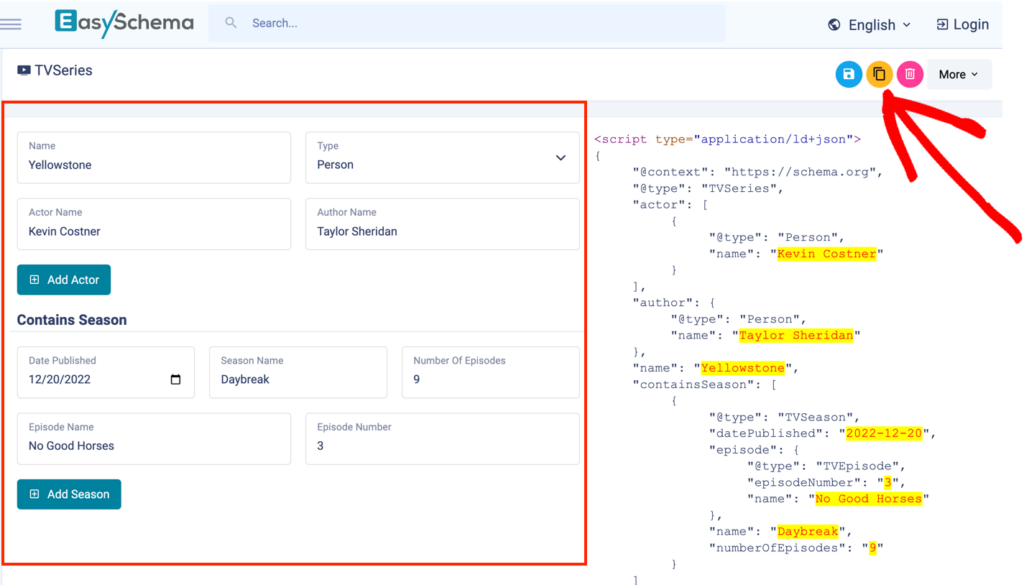
- If you need something different that's not already covered, EasySchema.com offers a free schema generator with templates for dozens of specific content types.

Pick the schema type you need, fill out the form, and your JSON-LD code appears on the right. Copy it, then paste it into AIOSEO's Custom Schema editor using the steps above.
AIOSEO sets Article schema as the default for all WordPress posts. You can change the default schema type for any content type by following these instructions.
Schema Types that AIOSEO's Schema Generator Provides
AIOSEO's schema generator supports more than 20 schema types out of the box, including these:
- Article
- Book
- Course
- Dataset
- Event
- FAQ
- Fact Check
- How To
- Job Posting
- Movie
- Music
- Person
- Product
- Recipe
- Service
- Software
- Video
- Web Page
AIOSEO also lets you stack multiple schema types on the same page. A blog post could carry both Article and FAQ schema at once, for example, something many basic plugins do not support.
You will also find user-friendly options for these:
- Knowledge Graph: fill out a form under AIOSEO > Search Appearance > Global Settings.
- Breadcrumbs: enable with one click under AIOSEO > General Settings > Breadcrumbs.
- Local business schema: fill out a short form under AIOSEO > Local SEO.
- Sitelinks search box: enable with one click under AIOSEO > Search Appearance > Advanced.
FAQs: Custom Schema Markup and Testing
Do HowTo and FAQ schema still show rich results?
Not usually. Google removed the HowTo rich result from search entirely, and it now limits the FAQ rich result mostly to authoritative government and health sites. Adding this schema will not hurt your page, but most sites should no longer expect a visual payoff from it. Article, Product, Recipe, Review, and Breadcrumb schema remain reliable choices for rich results.
How many types of schema are there?
Schema.org lists almost 800 schema types. Google supports around 31 of them for rich results. Applying a supported type still helps Google, and increasingly AI search tools, understand your page more clearly, even without a rich result.
What is structured data testing?
Structured data testing checks whether the schema markup on a page is valid and error-free, and whether the page qualifies for rich results. Most testing tools let you either paste in a live URL or paste in your schema code directly.
What are the SEO benefits of structured data?
Structured data makes a page eligible for a rich result in search, which can improve click-through rates when it appears. It also gives search engines and AI tools a clearer context about your content, which can help your page be accurately represented and cited, even outside traditional search results.
What schema markup testing tools can I use?
There are dozens of schema markup testing tools. The following ones are commonly cited and used by web professionals.
Next Steps
Custom schema markup gives you more control over how your content shows up in search, and increasingly, how it's understood by AI search tools, too. I hope this guide made it easy to add custom schema markup to your WordPress site.
Next, check out our guide on writing meta descriptions that get more clicks, and see how the LLMs.txt Generator can help AI tools understand your whole site, not just one page.
Ready to add custom schema markup to your site? Get started with AIOSEO today.
Disclosure: Our content is reader-supported. This means if you click on some of our links, then we may earn a commission. We only recommend products that we believe will add value to our readers.
Want to Try AIOSEO for Free?
Enter the URL of your WordPress website to install AIOSEO Lite.




Very helpful post!
I really love the table of contents. Is this hard coded into each post or do you have a plugin that does that?
Hi Curtis – Thanks for the feedback. Glad it was helpful! That table of contents was created with the AIOSEO plugin, but it’s customized. It’s actually set up as a custom WordPress Block Pattern for re-use. I can get some more details for you if you like.