Wussten Sie, dass Sie mit All in One SEO Durchleitungs-Umleitungen erstellen können?
HINWEIS:
Die Funktion Redirection Manager ist für Kunden mit einem Basic-Tarif oder höher für All in One SEO Pro verfügbar.
Einige erweiterte Funktionen sind mit einem Pro-Tarif oder höher für All in One SEO Pro verfügbar.
Eine Durchleitungs-Umleitung ist eine, die den Inhalt der Seite, zu der Sie weiterleiten, lädt, aber die alte URL beibehält.
Sie möchten beispielsweise von https://meineseite.de/quell-url/ zu https://meineseite.de/ziel-url/ weiterleiten, aber dem Besucher dies verbergen, indem Sie die URL https://meineseite.de/quell-url/ beibehalten.
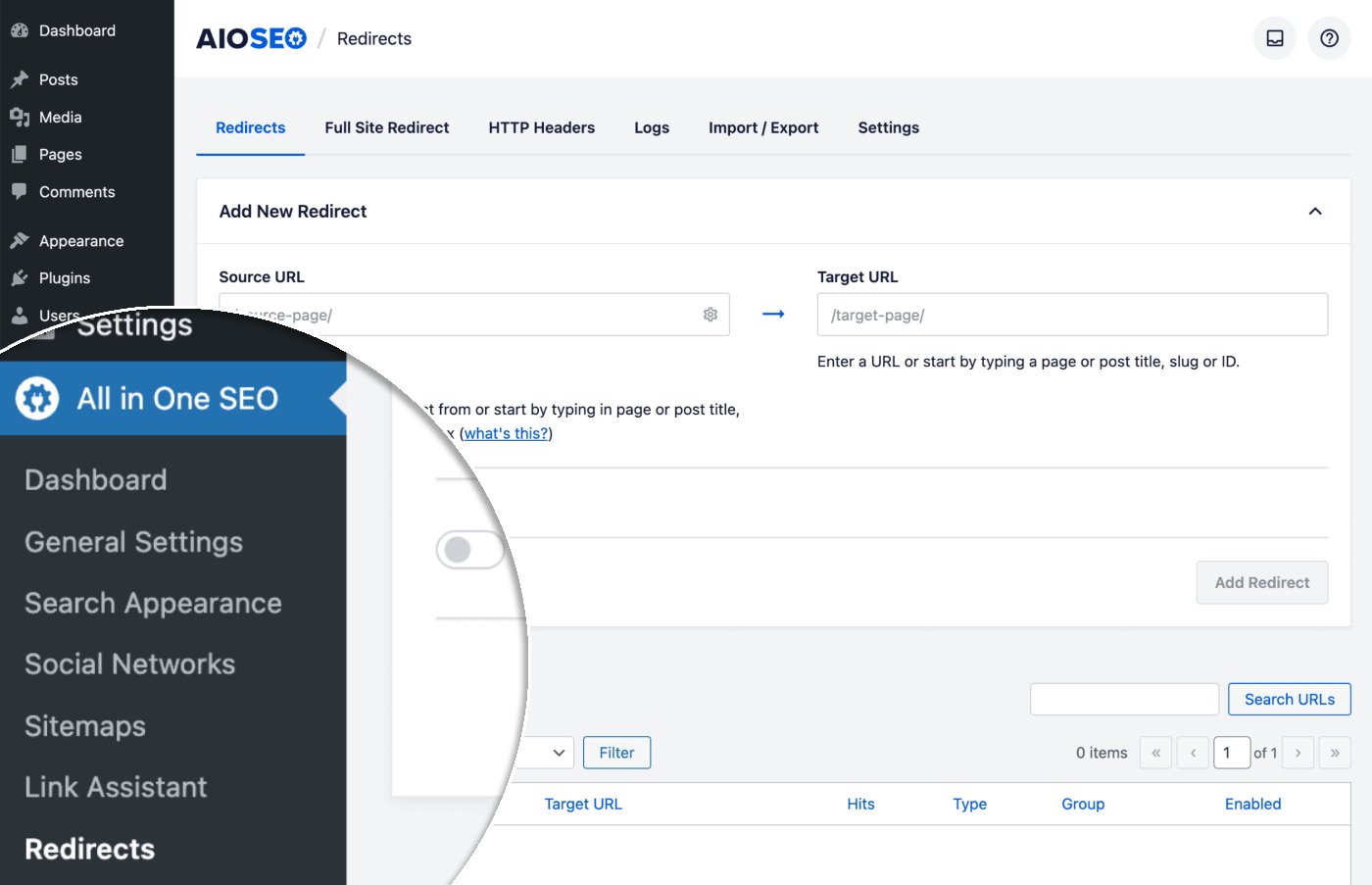
Um diese Funktion zu nutzen, gehen Sie zu Weiterleitungen im Menü All in One SEO.
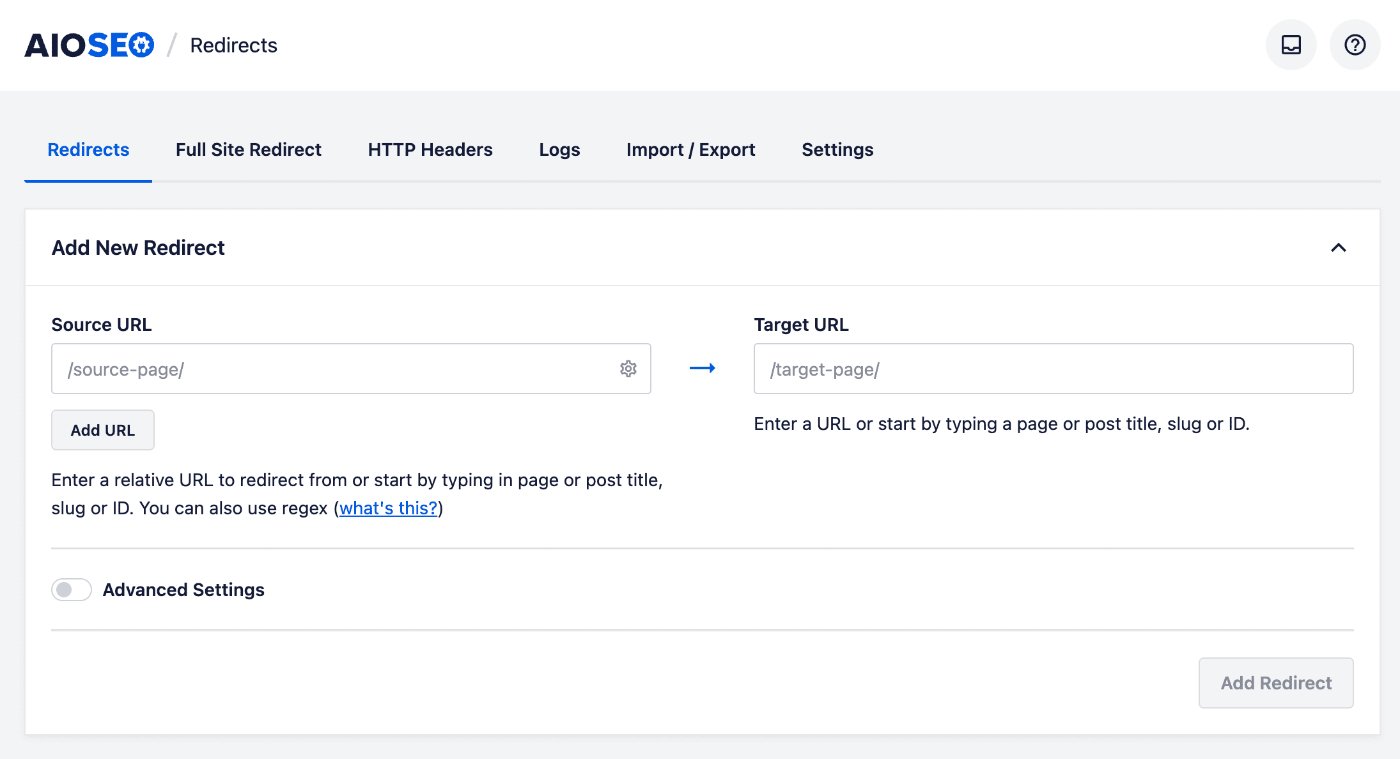
Sie sehen das Formular Neue Weiterleitung hinzufügen.
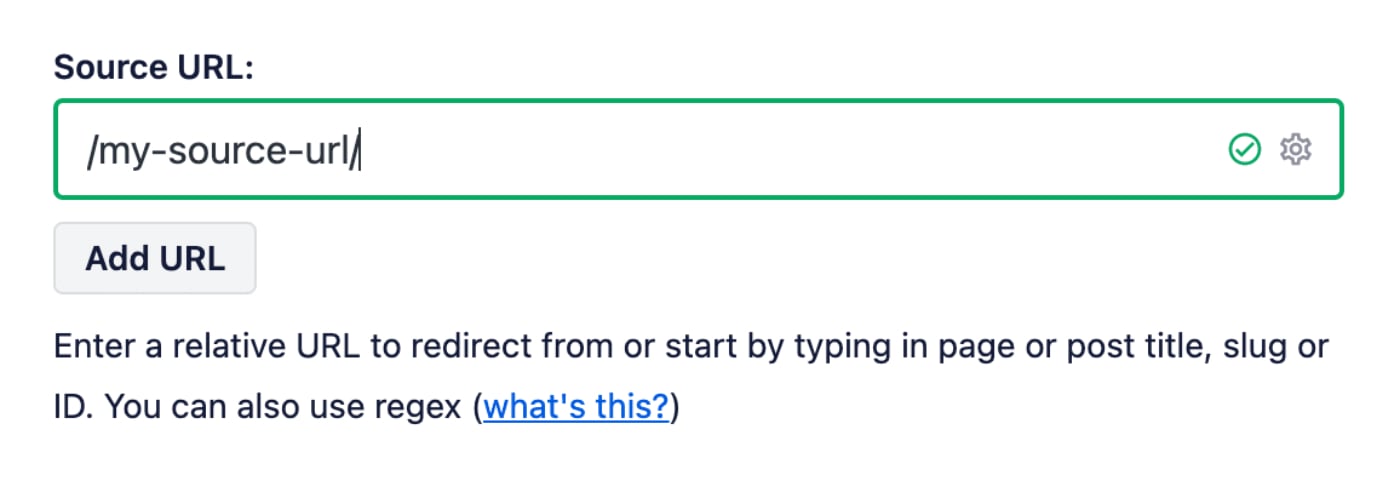
Geben Sie im Feld Quell-URL die URL ein, von der Sie weiterleiten möchten. Die URL muss eine relative URL sein, d. h. schließen Sie nicht den Teil https://mydomain.com Ihrer URL ein.
Geben Sie im Feld Ziel-URL die URL ein, zu der Sie weiterleiten möchten. Die URL kann entweder eine relative URL oder eine absolute URL sein.
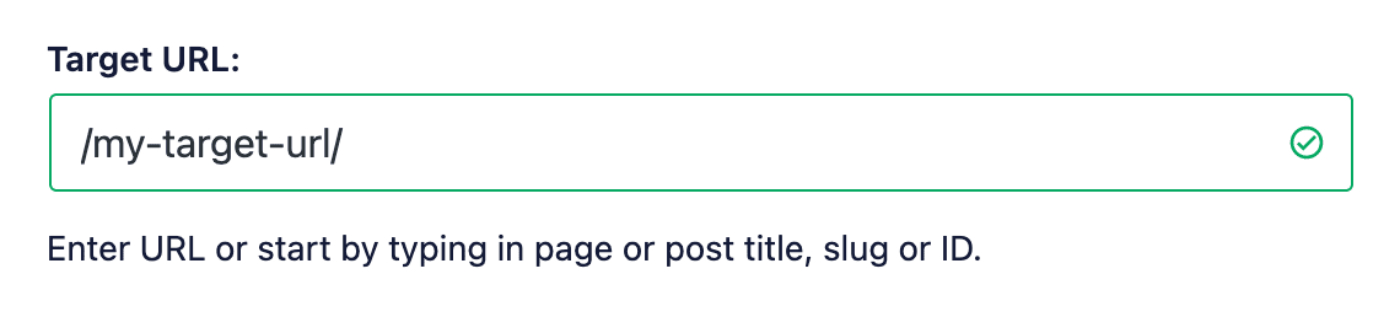
Sie können auch mit der Eingabe des Titels eines beliebigen Beitrags, einer Seite oder anderer Inhalte auf Ihrer Website, oder des Slugs oder der ID im Feld Ziel-URL beginnen, und die passenden Inhalte werden angezeigt. Klicken Sie auf den Beitrag oder die Seite, die Sie als Ziel auswählen möchten.
Klicken Sie nun auf den Schalter Erweiterte Einstellungen, dann auf das Dropdown-Menü Weiterleitungstyp und wählen Sie Durchleitung.
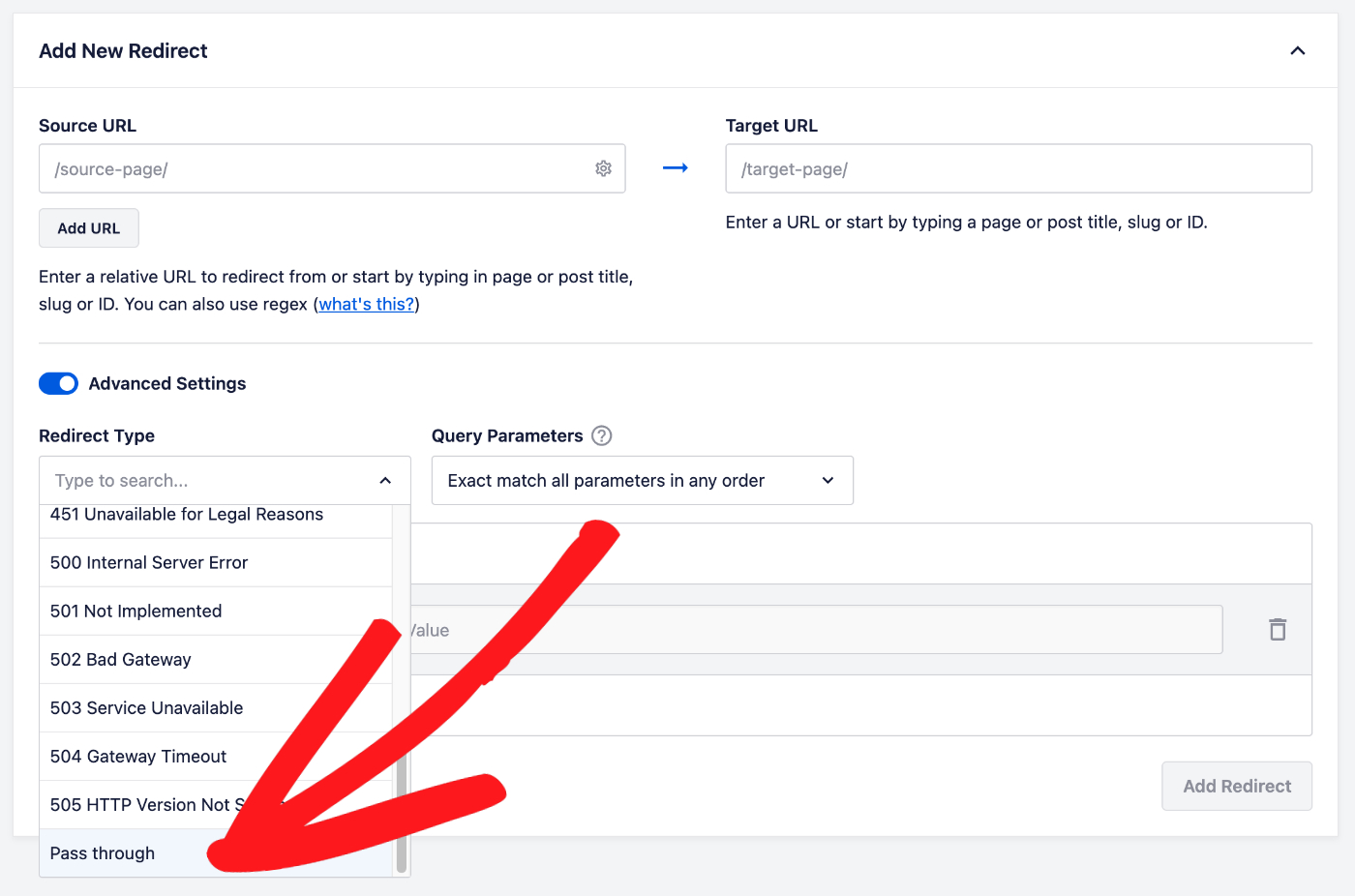
Klicken Sie auf die Schaltfläche Weiterleitung hinzufügen, um Ihre Weiterleitung zu erstellen.
Das ist alles! Sie haben nun eine Durchleitungs-Umleitung erstellt.
Weitere Dokumentation finden Sie hier in unserem Weiterleitungs-Manager.