Wussten Sie, dass All in One SEO Inhalte, die zu einem 404 "Nicht gefunden"-Fehler führen, automatisch umleiten kann?
Dies kann für Ihre Besucher nützlich sein, wenn Sie ihnen keine 404 "Nicht gefunden"-Fehlerseite anzeigen möchten. Wir empfehlen jedoch stattdessen, eine benutzerdefinierte 404-Seite zu erstellen, wie die auf unserer Website unten gezeigt:
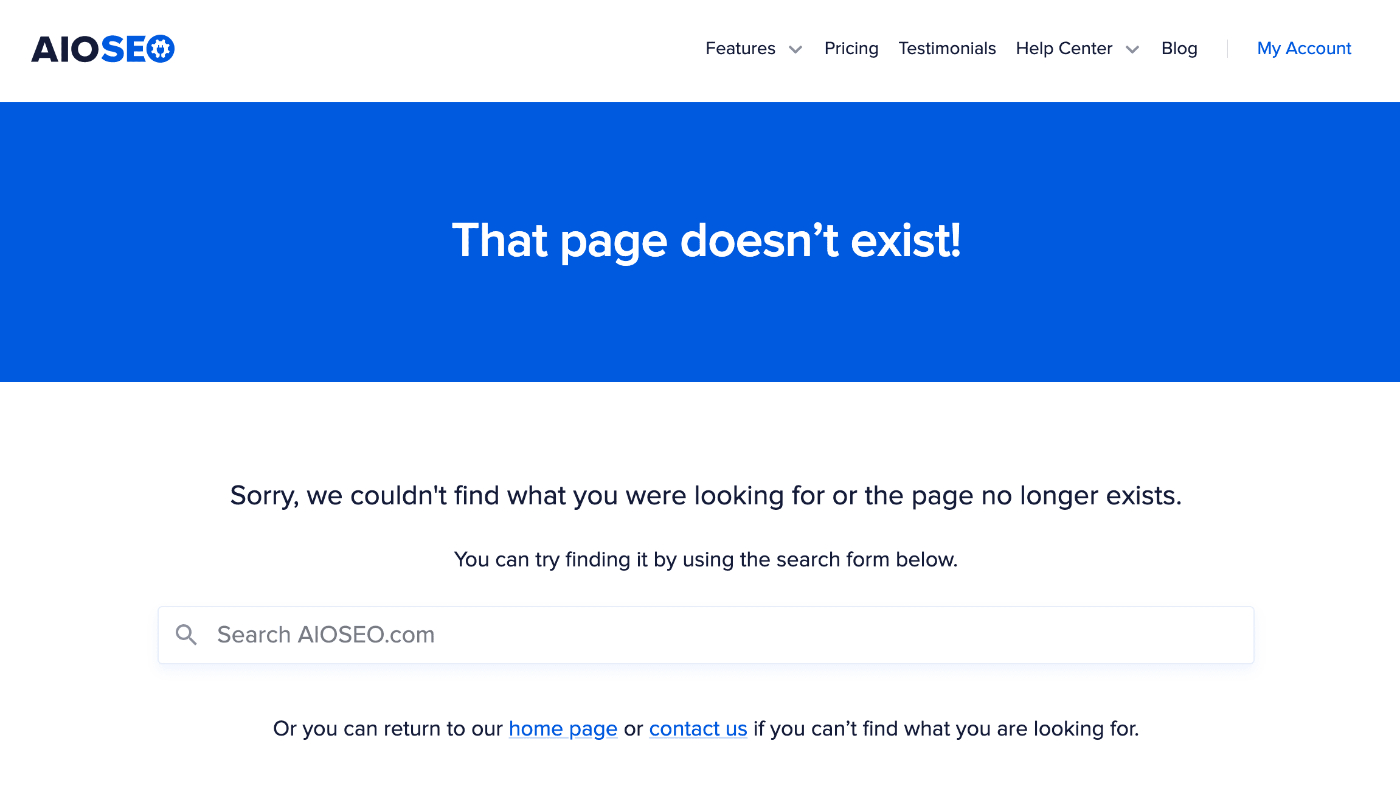
Ein 404 "Nicht gefunden"-Fehler tritt auf, wenn Inhalte, die auf Ihrer Website unter einer bestimmten URL veröffentlicht wurden, nicht mehr vorhanden sind.
Dies kann passieren, weil der Inhalt gelöscht wurde oder die URL geändert wurde, sodass der Inhalt unter dieser URL nicht mehr gefunden werden kann.
HINWEIS:
Die Funktion "Erweiterte 404-Umleitungen" ist für Kunden mit einem Pro-Plan oder höher für All in One SEO Pro verfügbar.
In diesem Artikel
Video-Anleitung
Automatische Umleitungen zur Startseite oder zu einer benutzerdefinierten URL
Um zu beginnen, gehen Sie zu Weiterleitungen im Menü All in One SEO und klicken Sie dann auf die Registerkarte Einstellungen.
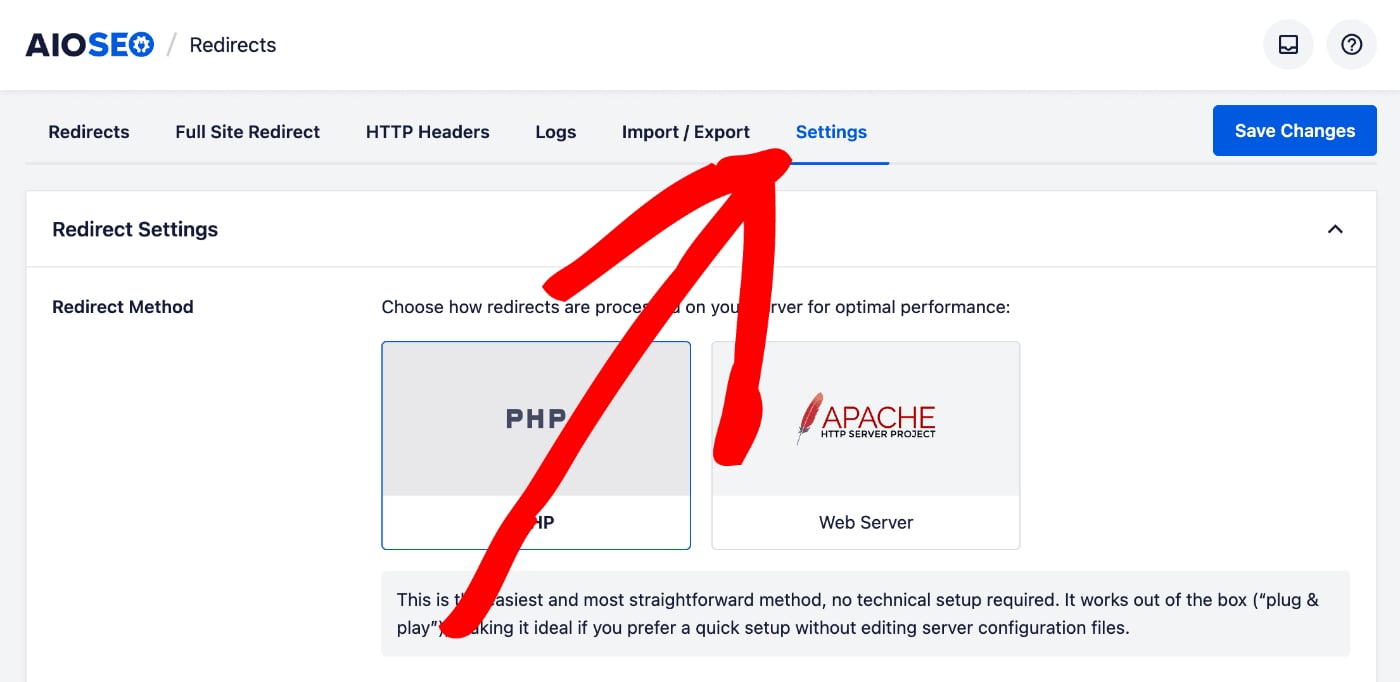
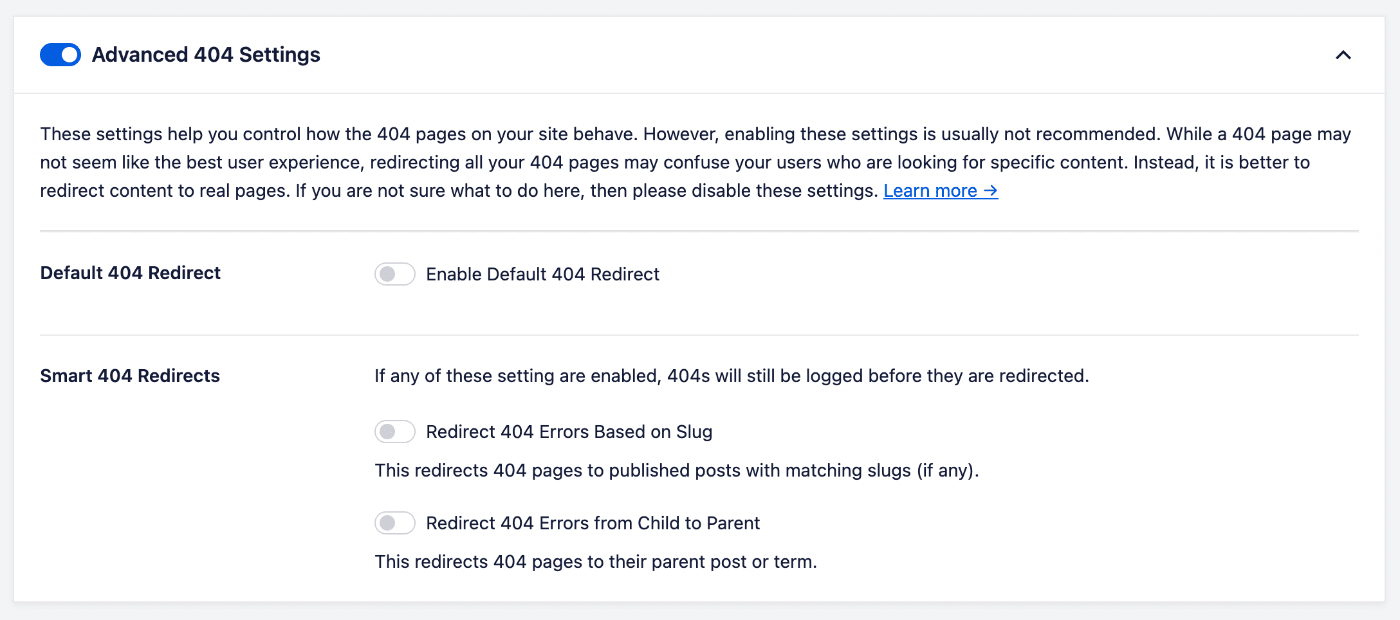
Scrollen Sie nach unten, bis Sie den Abschnitt Erweiterte 404-Einstellungen sehen, und klicken Sie dann auf den Schalter Erweiterte 404-Einstellungen.
WICHTIG:
Diese Einstellungen sind für fortgeschrittene Benutzer gedacht, die die Auswirkungen von 404-Fehlerumleitungen verstehen. Es ist wichtig zu verstehen, dass die Umleitung von 404-Fehlern Ihre SEO negativ beeinflussen und Ihre Besucher verwirren kann.
Wenn Sie sich nicht sicher sind, was zu tun ist, lassen Sie die Erweiterten 404-Einstellungen einfach deaktiviert.
Klicken Sie auf Standard-404-Umleitung aktivieren, um All in One SEO zu ermöglichen, jede 404 "Nicht gefunden"-Fehlerseite umzuleiten.
Sie sehen eine Option, zu Ihrer Startseite umzuleiten oder zu einer benutzerdefinierten URL umzuleiten.
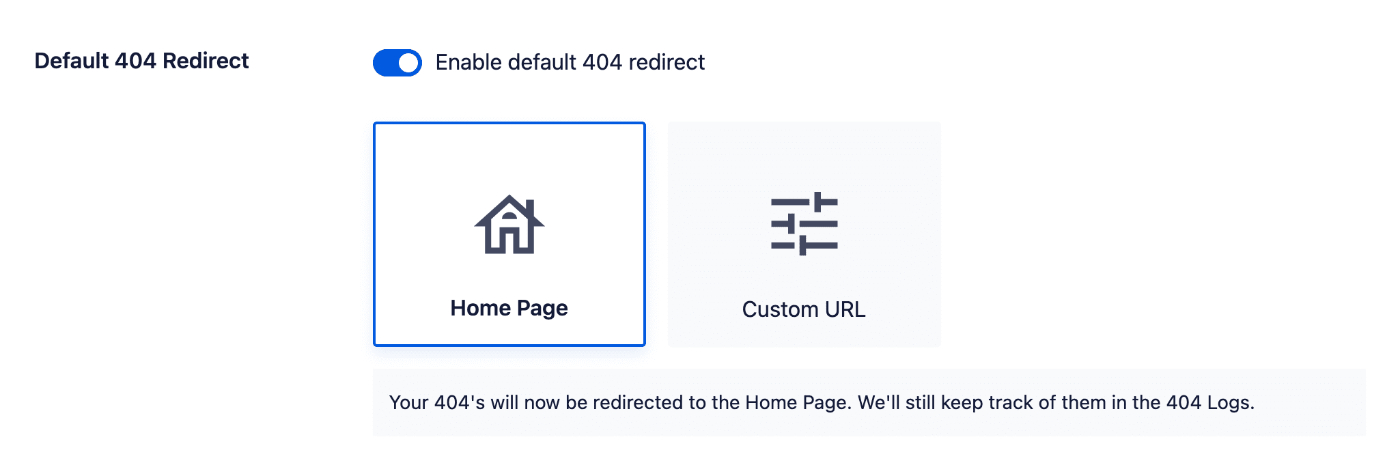
Wenn Sie Benutzerdefinierte URL auswählen, sehen Sie ein Feld, in das Sie die relative oder vollständige URL eingeben können, zu der Sie umleiten möchten.
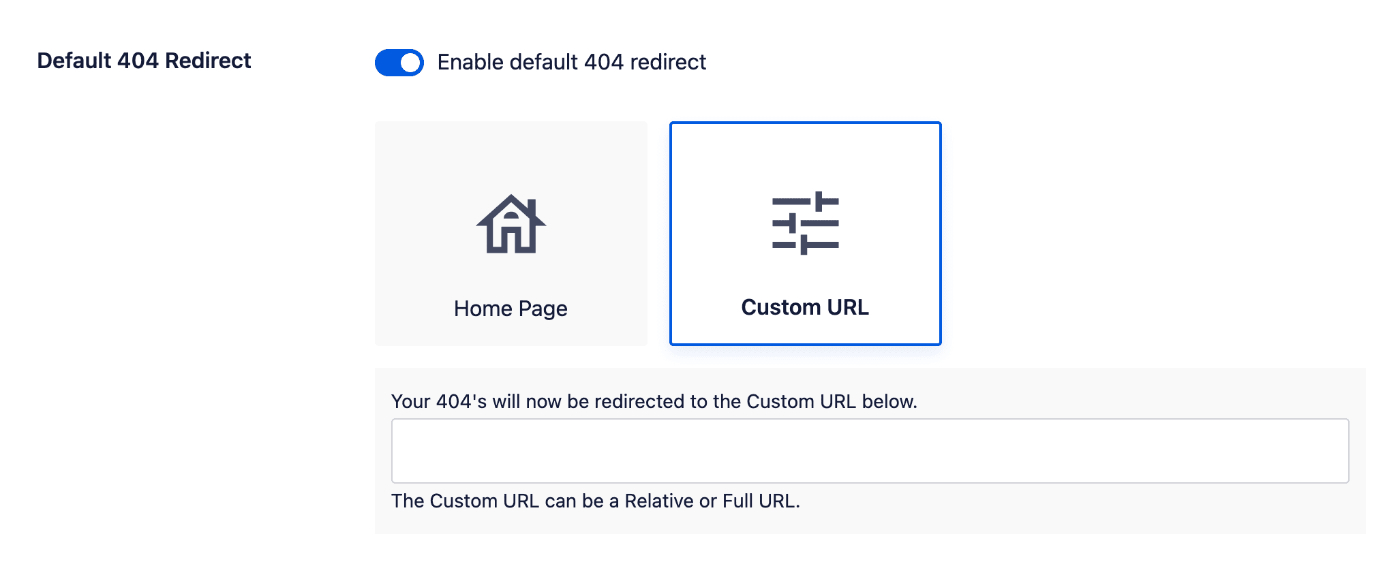
Wählen Sie die bevorzugte Option und geben Sie eine URL ein, wenn Sie die Einstellung Benutzerdefinierte URL verwenden, und klicken Sie dann auf Änderungen speichern.
Automatische Umleitungen zur übergeordneten Seite oder Kategorie
Um zu beginnen, gehen Sie zu Weiterleitungen im Menü All in One SEO und klicken Sie dann auf die Registerkarte Einstellungen.
Scrollen Sie nach unten, bis Sie den Abschnitt Erweiterte 404-Einstellungen sehen, und klicken Sie dann auf den Schalter Erweiterte 404-Einstellungen.
WICHTIG:
Diese Einstellungen sind für fortgeschrittene Benutzer gedacht, die die Auswirkungen von 404-Fehlerumleitungen verstehen. Es ist wichtig zu verstehen, dass die Umleitung von 404-Fehlern Ihre SEO negativ beeinflussen und Ihre Besucher verwirren kann.
Wenn Sie sich nicht sicher sind, was zu tun ist, lassen Sie die Erweiterten 404-Einstellungen einfach deaktiviert.
Klicken Sie auf 404-Fehler von untergeordneter zu übergeordneter Seite umleiten, um All in One SEO zu ermöglichen, jede 404 "Nicht gefunden"-Fehlerseite zu ihrer übergeordneten Seite umzuleiten.
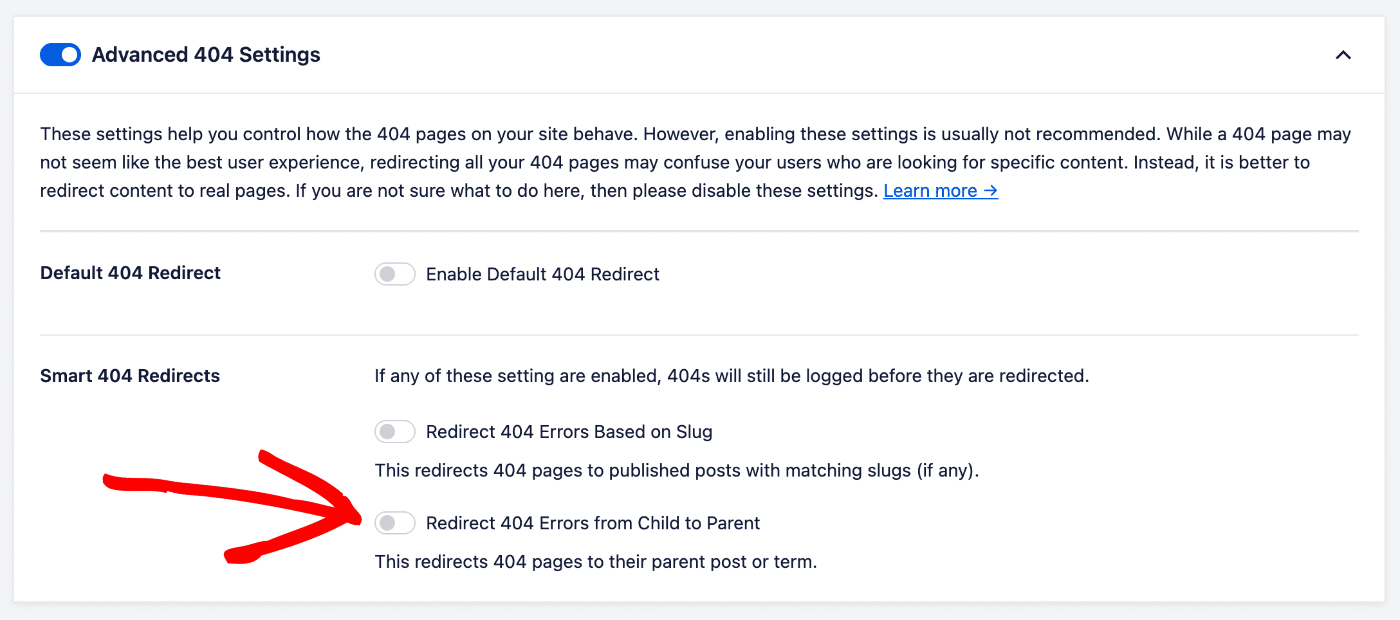
Das bedeutet, dass wir bei Seiten oder anderen hierarchischen Beitragstypen, wenn die Seite eine übergeordnete Seite hat, zur übergeordneten Seite umleiten.
Bei Beiträgen oder Beitragstypen mit einer Taxonomie leiten wir zur Kategorie um, in der sich der Beitrag befindet.
HINWEIS:
Die Funktion 404-Fehler zur übergeordneten Seite oder übergeordneten Kategorie umleiten ist für Kunden mit einem Pro-Plan oder höher für All in One SEO Pro verfügbar.
Wenn Sie einen WooCommerce-Shop haben, sollten Sie die Einstellung 404-Fehler für WooCommerce-Produkte & Kategorien umleiten aktivieren, um WooCommerce-Produkte zu ihrer Kategorie umzuleiten.
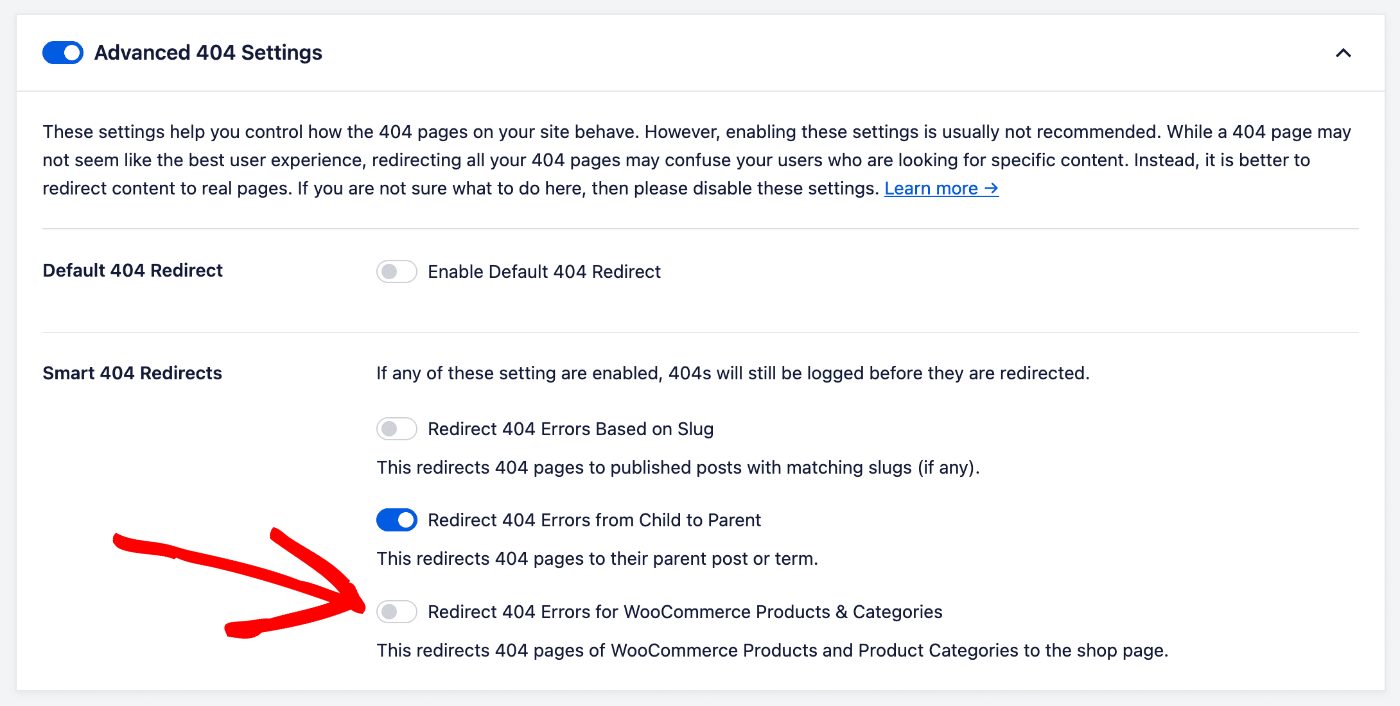
Intelligente Slug-Umleitungen mit All in One SEO
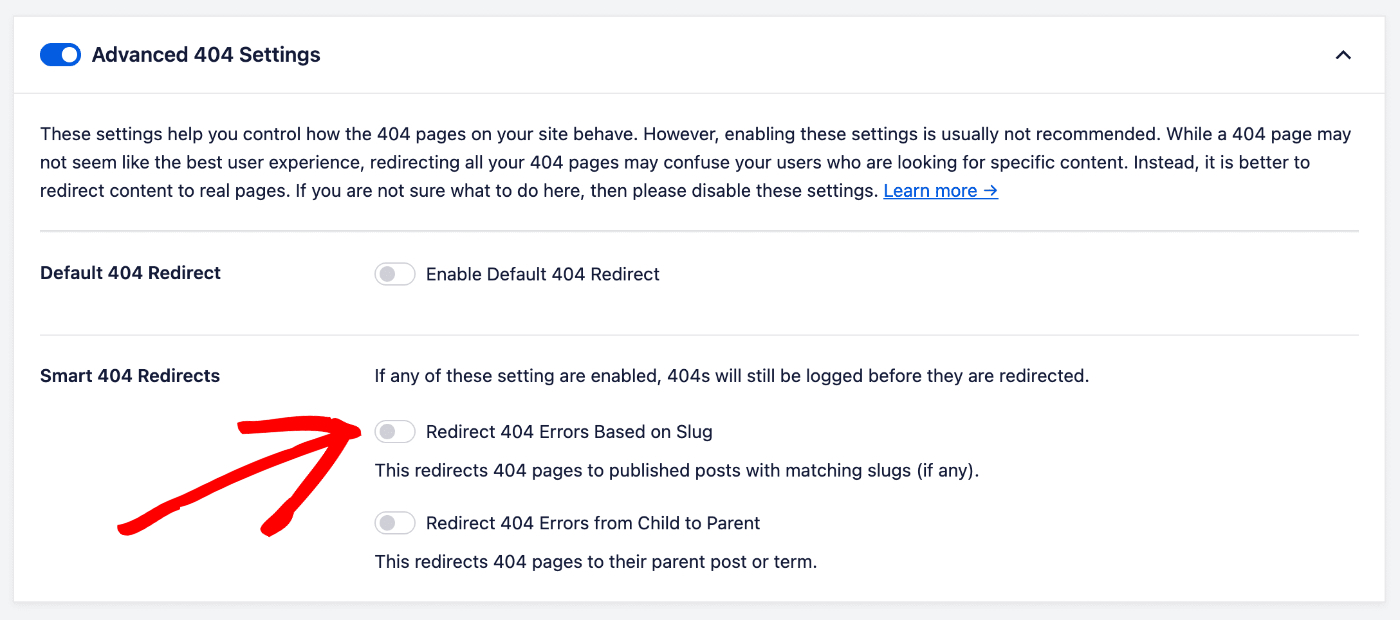
Die Einstellung 404-Fehler basierend auf Slug umleiten versucht, 404-Fehler umzuleiten, indem sie den Slug in Ihrer WordPress-Datenbank überprüft. Dies ist nützlich, wenn Sie Ihre Permalinks-Struktur geändert haben, Inhalte zwischen Beitragstypen verschoben haben oder die Permalinks mit einer anderen Methode geändert haben.
Klicken Sie unter Erweiterte 404-Einstellungen auf 404-Fehler basierend auf Slug umleiten, um diese Funktion zu aktivieren.
Weitere Dokumentation finden Sie hier in unserem Weiterleitungs-Manager.