All in One SEO incluye una gama de funciones de IA que utilizan un sistema de créditos para permitir el uso de estas funciones.
El sistema de créditos de IA es independiente de la suscripción a All in One SEO Pro, lo que permite a los usuarios tanto de la versión gratuita de All in One SEO como de la versión premium All in One SEO Pro utilizar estas funciones.
Hay dos formas de comprar créditos de IA: paquetes de pago por uso (PAYG) o bloques de créditos que se incluyen con una suscripción a All in One SEO Pro.
En este artículo
Compra de créditos de IA de pago por uso
Los usuarios de nuestro plugin gratuito, All in One SEO, pueden comprar paquetes de créditos de IA para utilizar las funciones de IA.
Para comprar un paquete de créditos de IA, haz clic en Ajustes generales en el menú All in One SEO.
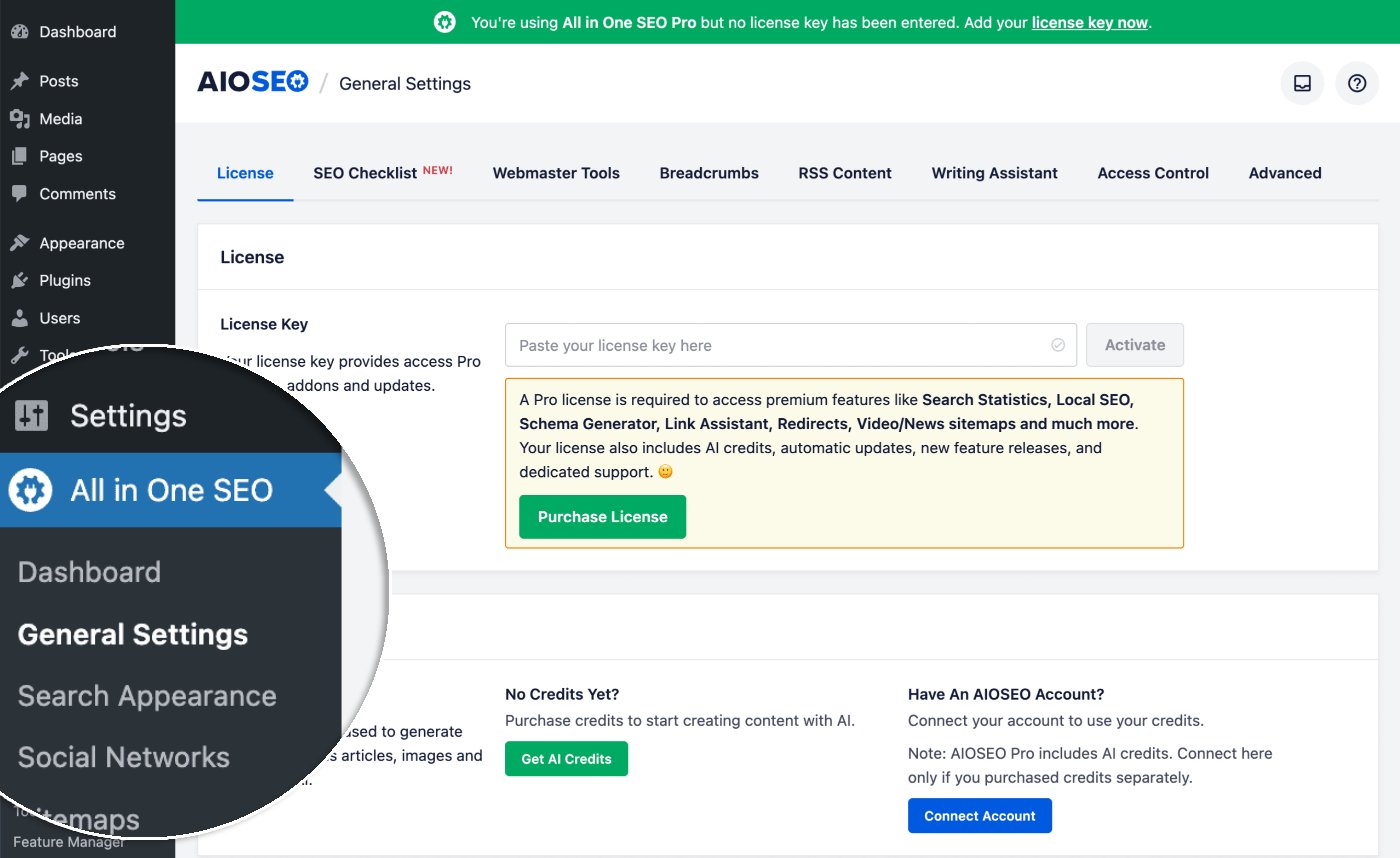
Desplázate hacia abajo hasta la sección Créditos de IA en la pestaña Licencia.
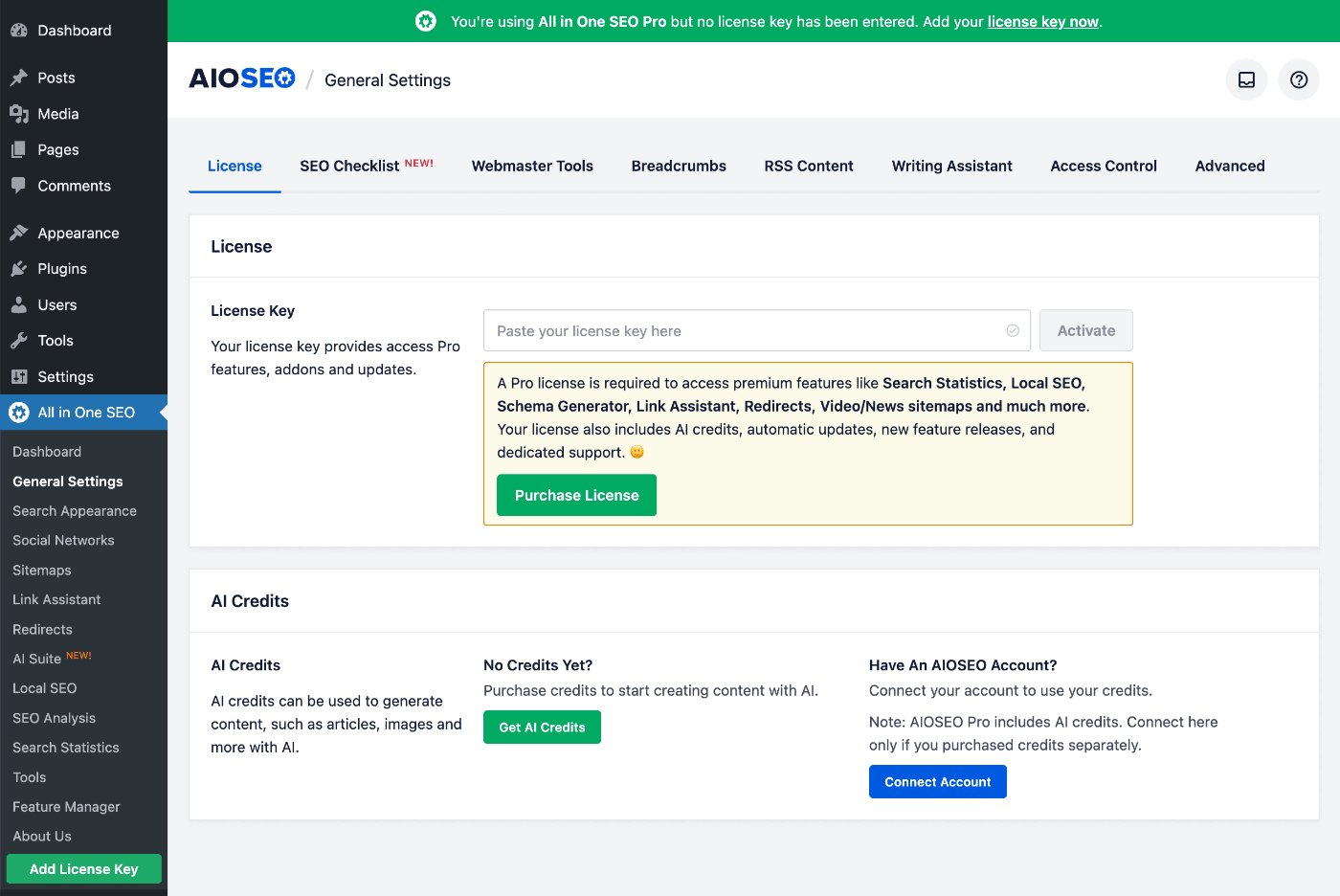
Haz clic en el botón verde Obtener créditos de IA para comprar un bloque de créditos de pago por uso.
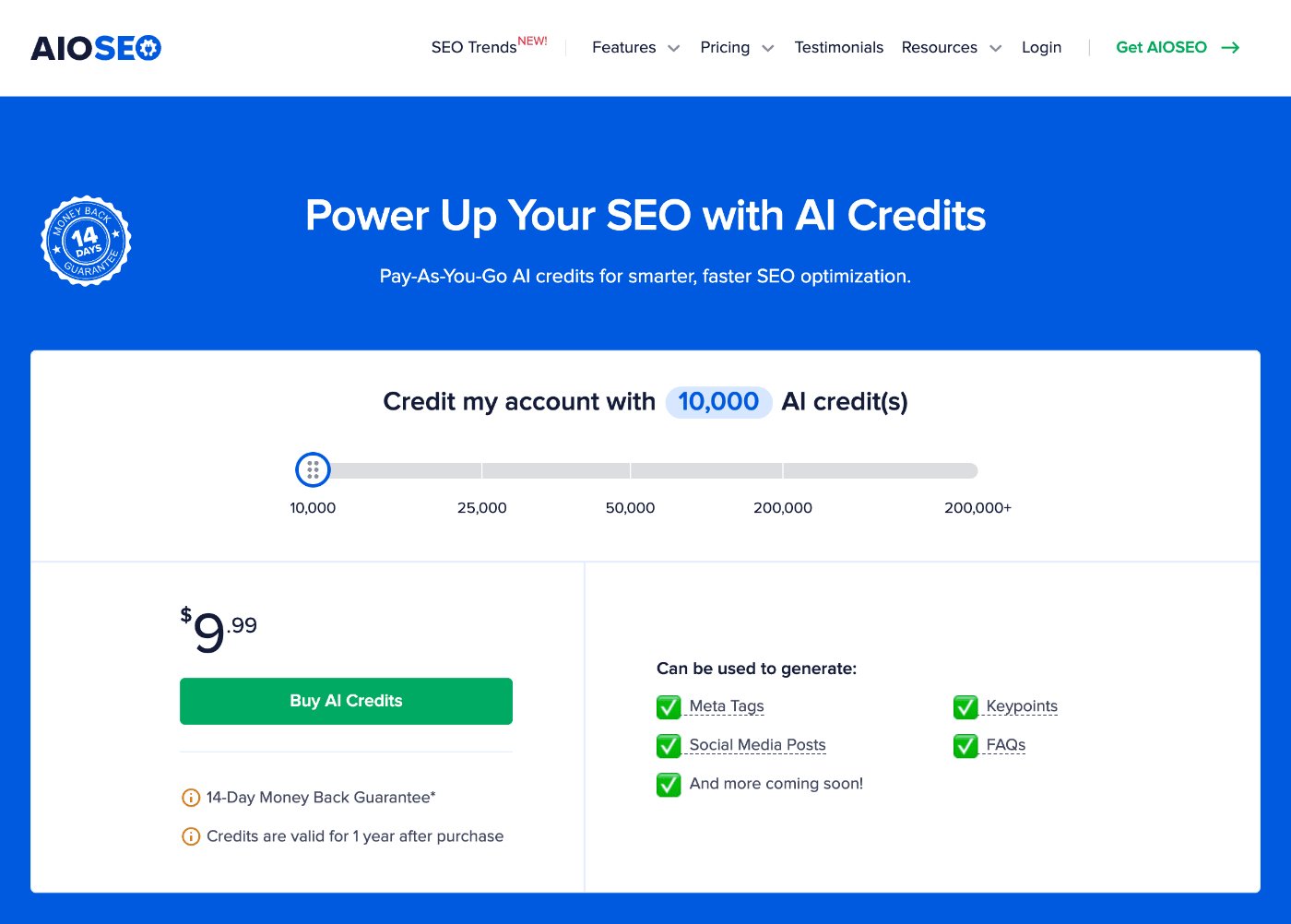
Verás una escala deslizante donde puedes seleccionar la cantidad de créditos PAYG que deseas comprar.
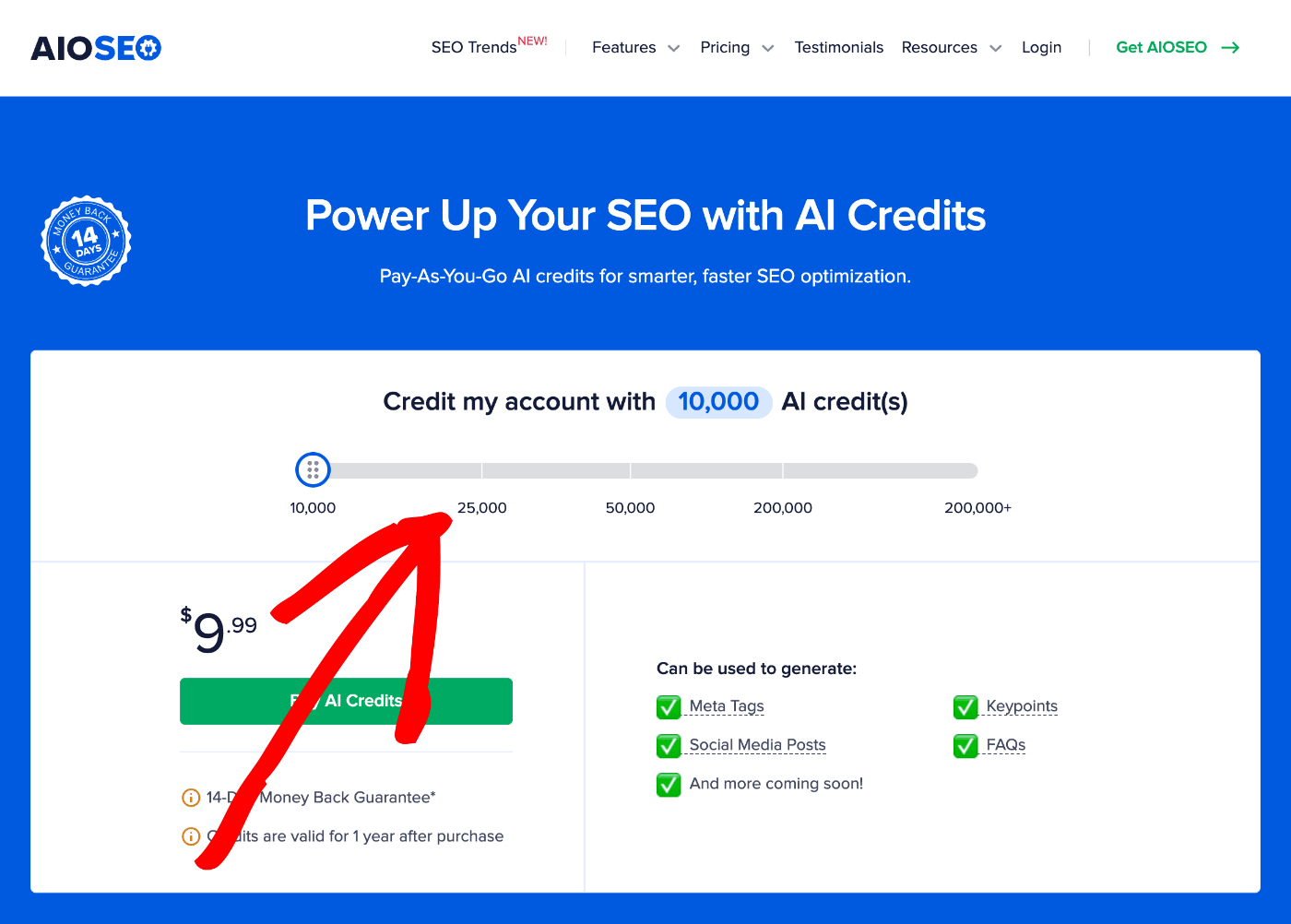
Selecciona el número de créditos que deseas y haz clic en el botón Comprar créditos de IA.
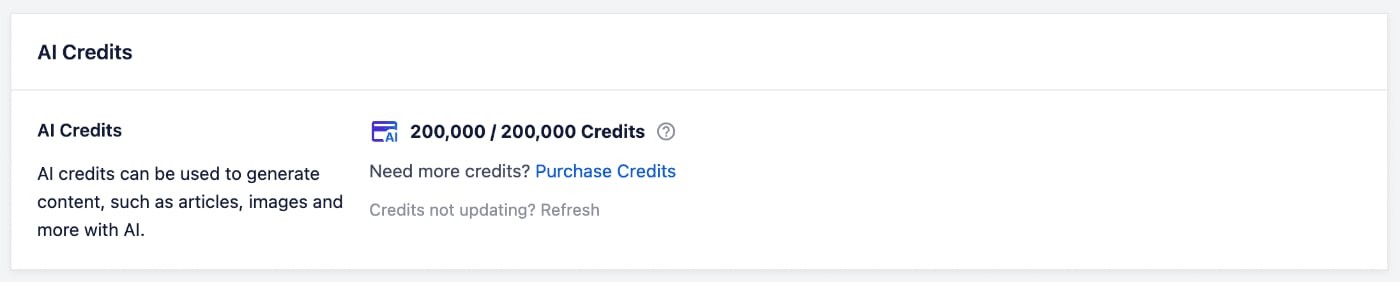
Serás dirigido a la página de pago, donde podrás completar tu compra. Una vez completada, tus créditos aparecerán en All in One SEO.
Conexión a una cuenta de All in One SEO para acceder a los créditos de IA
Si ya tienes una cuenta para créditos de IA, puedes conectarte a esta cuenta para acceder a los créditos de IA de esa cuenta.
Para ello, ve a All in One SEO > Ajustes generales y haz clic en el botón azul Conectar cuenta en la sección Créditos de IA.
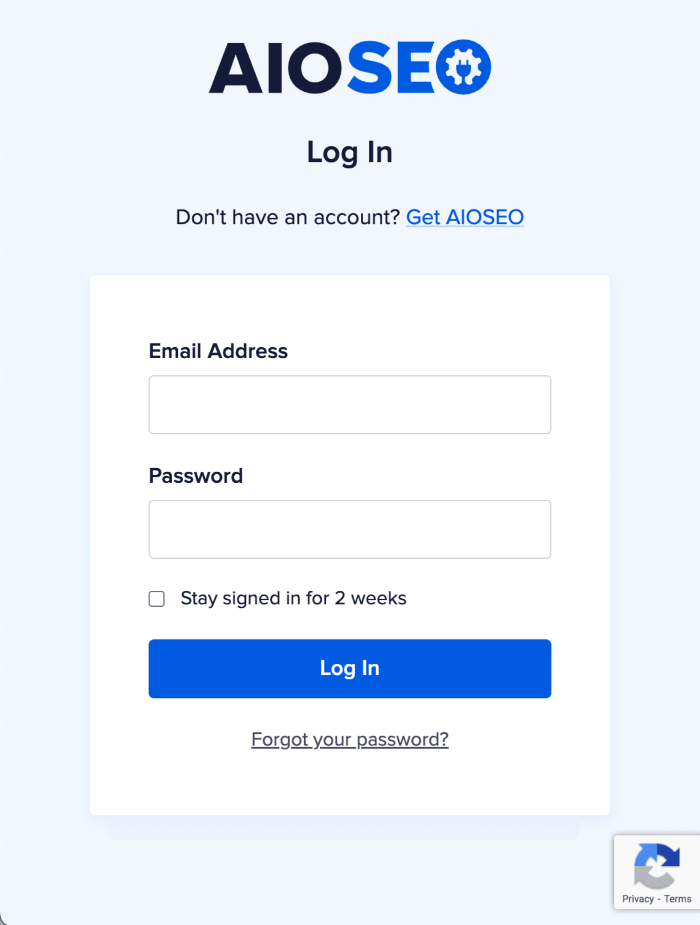
Se te pedirá que inicies sesión en tu cuenta en aioseo.com.
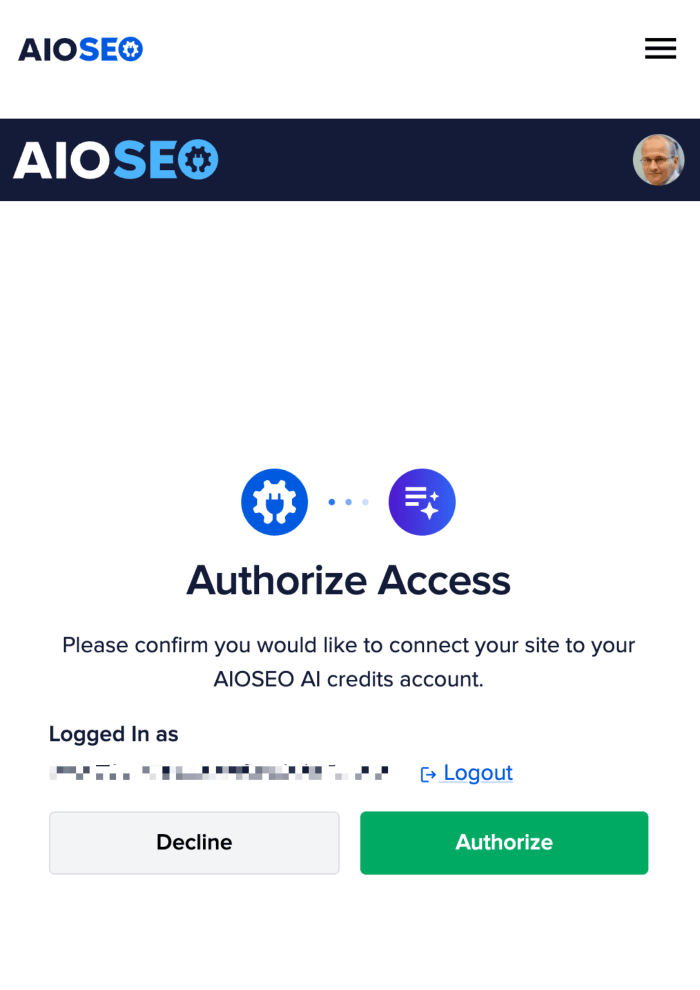
Una vez que hayas iniciado sesión, se te pedirá que autorices la conexión a tu cuenta en aioseo.com.
Una vez completado, tus créditos aparecerán en All in One SEO.
Créditos para suscripciones de All in One SEO Pro
Si tienes una suscripción actual a All in One SEO Pro, tendrás créditos de IA incluidos en tu suscripción.
Simplemente activa tu clave de licencia para All in One SEO Pro y los créditos se mostrarán en la sección Créditos de IA de la pantalla Licencia.

NOTA:
Si tienes una suscripción a All in One SEO Pro y compras créditos PAYG, primero se utilizarán los créditos incluidos en tu suscripción. Una vez que estos créditos se hayan agotado, se utilizarán los créditos PAYG.
Comprobación de tu uso de créditos de IA
Puedes comprobar tu uso de créditos de IA de dos maneras: directamente desde All in One SEO o desde tu cuenta en aioseo.com.
Comprobación del uso de créditos de IA en All in One SEO
Para comprobar tus créditos de IA en All in One SEO, ve a All in One SEO > Ajustes generales y desplázate hacia abajo hasta la sección Créditos de IA para ver tus créditos de IA actuales.
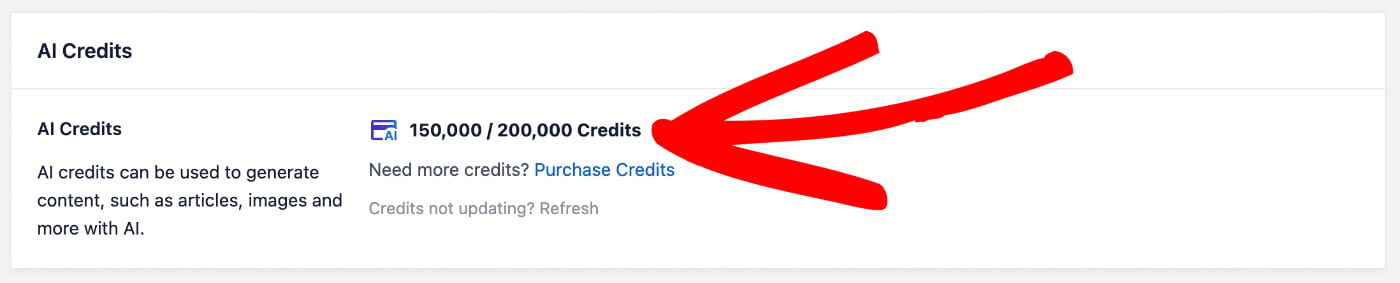
El número de la izquierda es la cantidad de créditos de IA que te quedan. En la captura de pantalla anterior, serían 150.000.
El número de la derecha es la cantidad total de créditos de IA que has recibido. En la captura de pantalla anterior, serían 200.000.
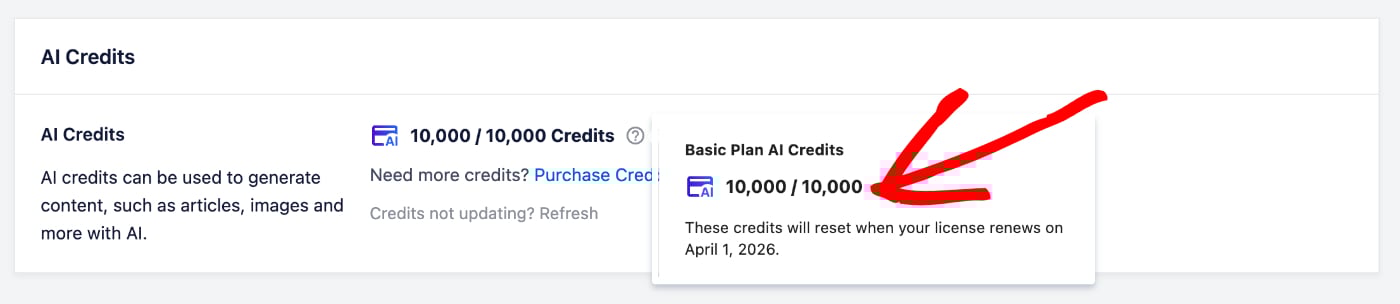
Si pasas el cursor sobre el icono de Ayuda (?), verás una ventana emergente que muestra más detalles, incluyendo si y cuándo se renuevan los créditos de IA.
NOTA:
Los clientes con una suscripción activa a All in One SEO Pro renovarán sus créditos de IA cada año en la fecha de renovación de su suscripción.
Comprobación del uso de créditos de IA en aioseo.com
Para consultar tus créditos de IA en aioseo.com, empieza por iniciar sesión en tu cuenta en https://aioseo.com/account/
En la pestaña Descripción general, verás una lista de tus suscripciones junto con los créditos de IA.
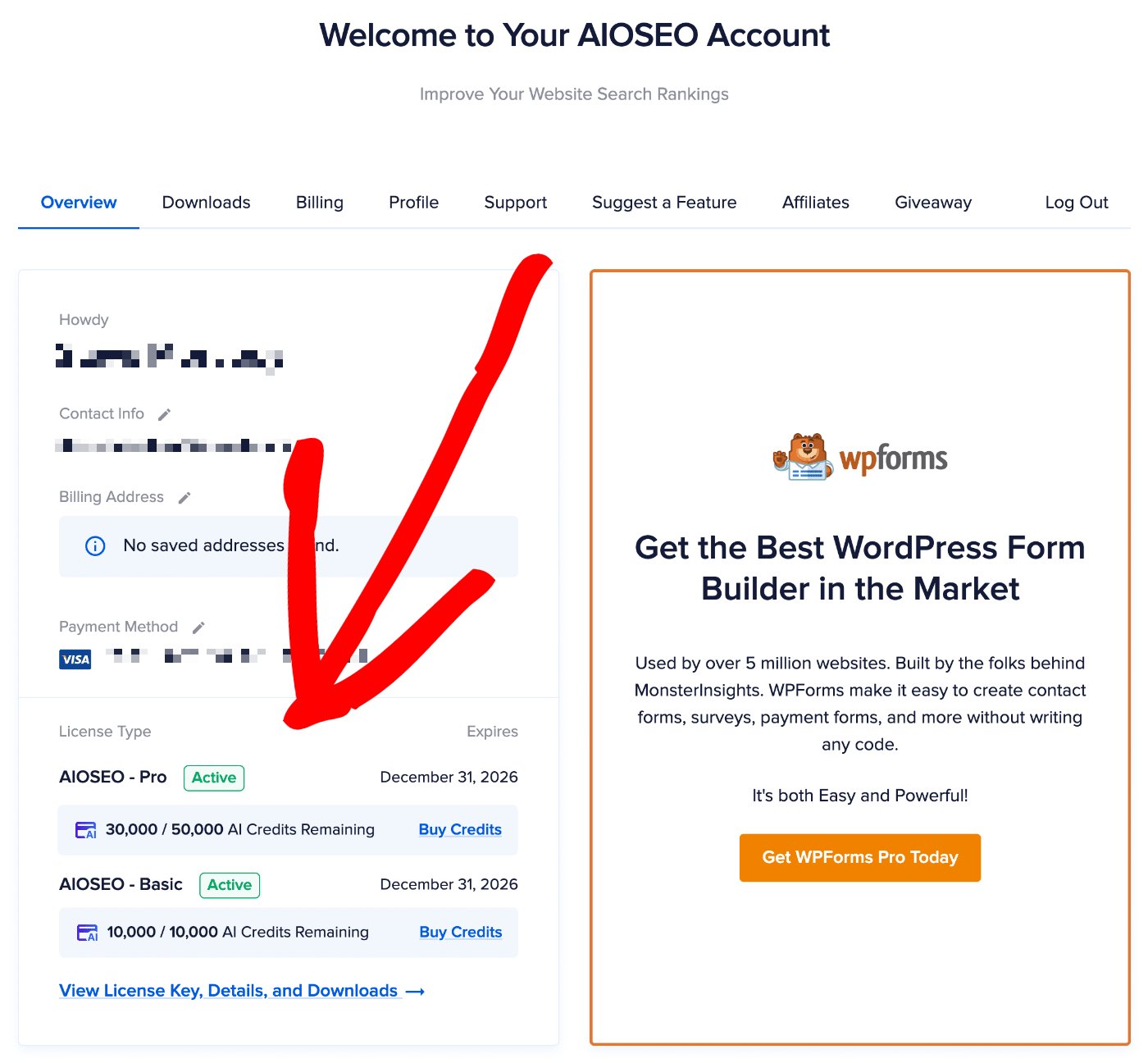
El número de la izquierda es la cantidad de créditos de IA que te quedan. En la captura de pantalla anterior, serían 30.000.
El número de la derecha es la cantidad total de créditos de IA que has recibido. En la captura de pantalla anterior, serían 50.000.
¡Eso es todo! Ahora puedes comprar, usar y administrar los créditos de IA de AIOSEO para utilizar las funciones de contenido de IA en All in One SEO.
Configuración de contenido de IA
Para administrar la configuración global de las funciones de IA de AIOSEO, ve a All in One SEO > AI Suites y haz clic en la pestaña AI Content. Aquí verás la configuración predeterminada para las funciones de IA.
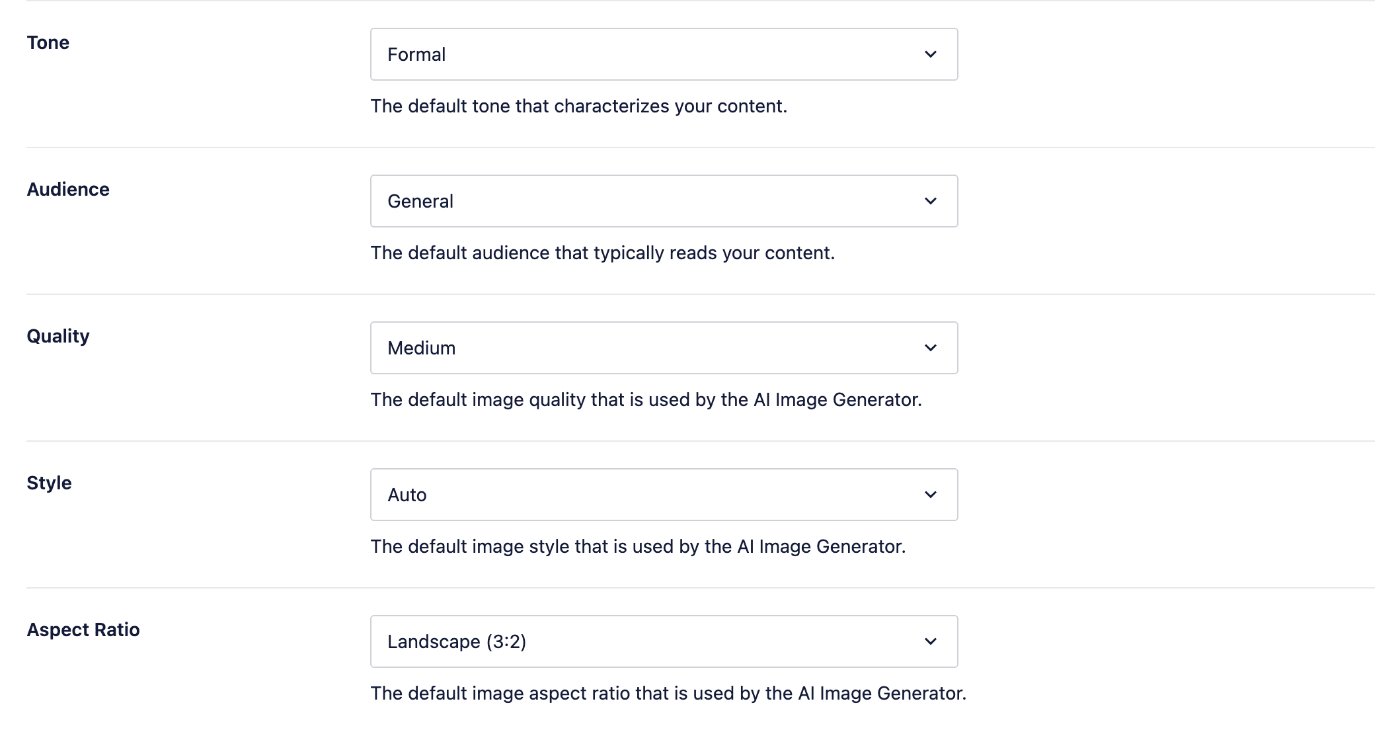
La configuración del texto generado por las funciones de IA de AIOSEO es:
- Tono – En este menú desplegable, puedes establecer el tono predeterminado del texto que generan las funciones de IA de AIOSEO.
- Audiencia – En este menú desplegable, puedes establecer la audiencia predeterminada para el texto que generan las funciones de IA de AIOSEO.
La configuración de las imágenes generadas por las funciones de IA de AIOSEO es
- Calidad – En este menú desplegable, puedes establecer la calidad de imagen predeterminada para las imágenes que generan las funciones de IA de AIOSEO.
- Estilo – En este menú desplegable, puedes establecer el estilo de imagen predeterminado para las imágenes que generan las funciones de IA de AIOSEO.
- Relación de aspecto – En este menú desplegable, puedes establecer la relación de aspecto predeterminada para las imágenes que generan las funciones de IA de AIOSEO.
NOTA:
La calidad de la imagen afectará la cantidad de créditos de IA que se utilizarán para generar la imagen.
IMPORTANTE:
Estos valores predeterminados se pueden anular mediante la configuración individual en las funciones cuando las utilices.
Por ejemplo, cuando utilices el Generador de imágenes de IA en una publicación específica, podrás seleccionar las opciones de imagen allí, lo que anulará estos valores predeterminados.
Lectura adicional
Consulta más artículos sobre cómo usar las funciones de IA de AIOSEO aquí.