Saviez-vous que vous pouvez planifier des redirections dans All in One SEO afin qu'elles commencent et se terminent à une date et une heure spécifiques ?
Créer des redirections dans All in One SEO est déjà très facile. Mais maintenant, vous pouvez également les planifier facilement.
NOTE :
La fonctionnalité Gestionnaire de redirections est disponible pour les clients ayant un plan Basic ou supérieur pour All in One SEO Pro.
Certaines fonctionnalités avancées sont disponibles avec un plan Pro ou supérieur pour All in One SEO Pro.
Dans cet article
Ajouter une redirection
Vous pouvez apprendre comment ajouter une redirection dans All in One SEO ici.
Planification d'une redirection
La planification d'une redirection ne peut être effectuée que lors de l'ajout d'une nouvelle redirection. Pour ce faire, suivez les étapes ci-dessous.
Tout d'abord, cliquez sur Redirections dans le menu All in One SEO.
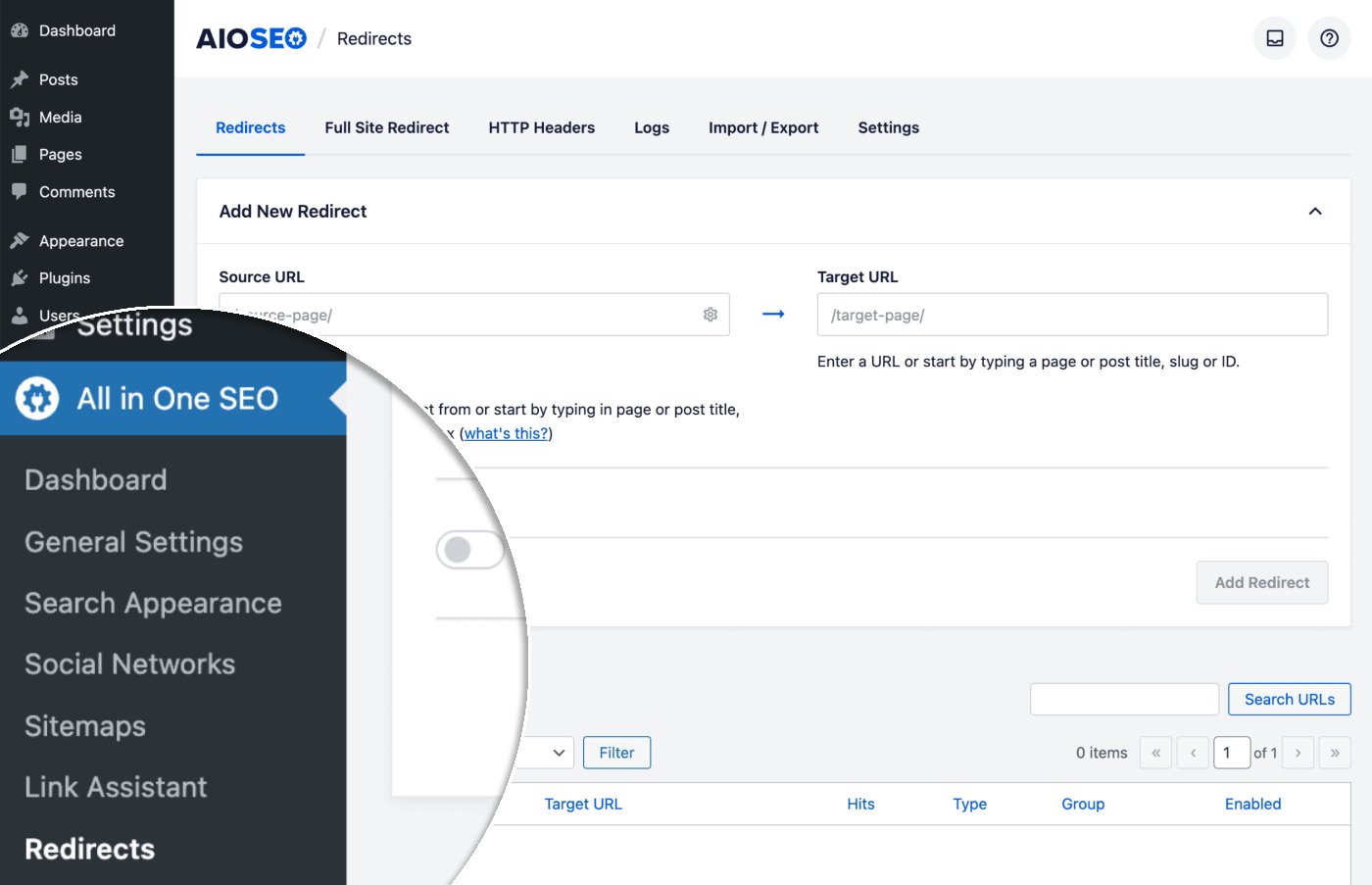
Vous verrez l'écran Redirections et en haut se trouvera le formulaire Ajouter une nouvelle redirection.
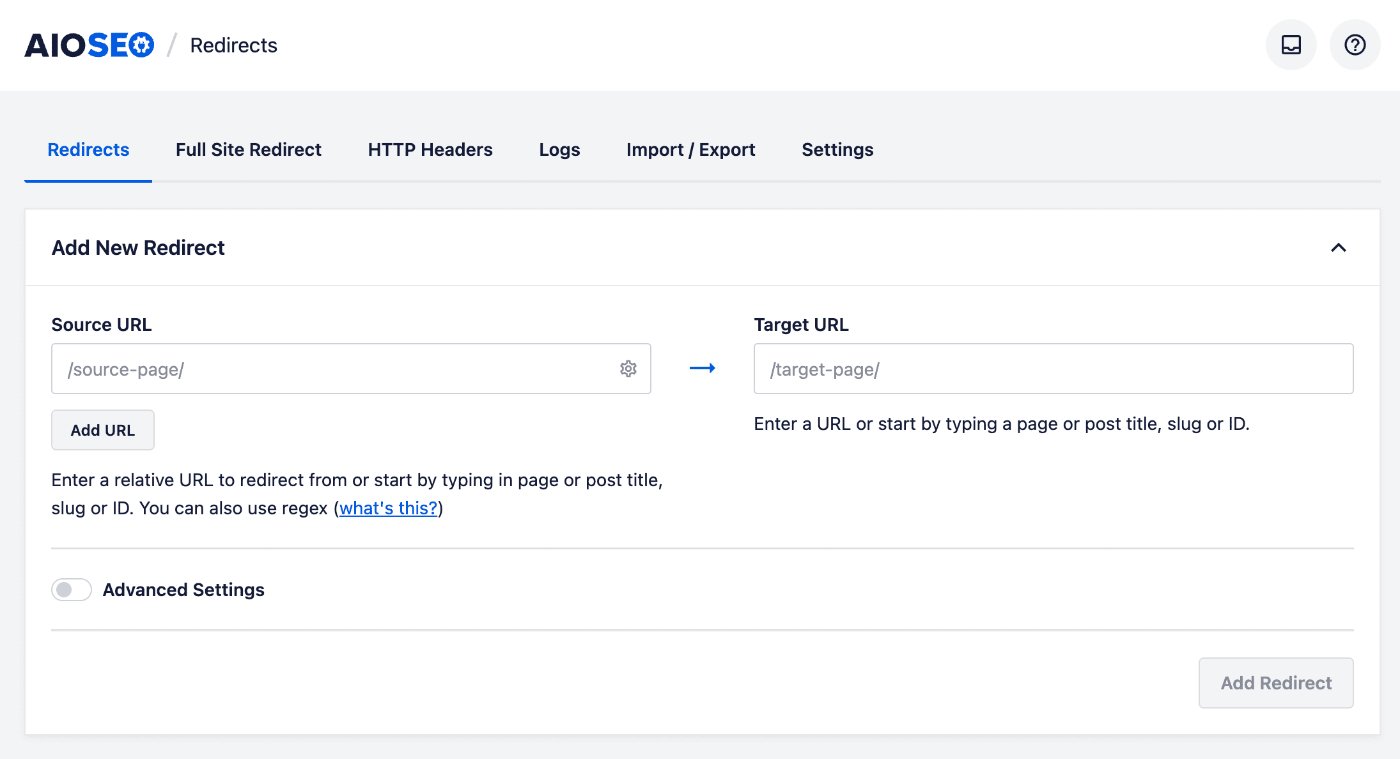
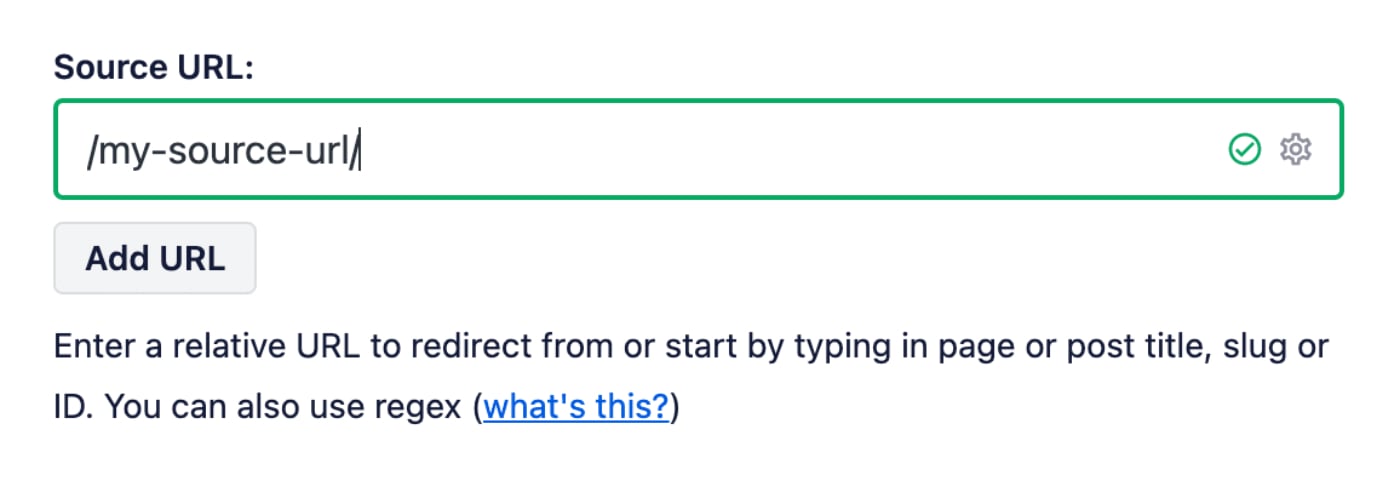
Dans le champ URL source, entrez l'URL à partir de laquelle vous souhaitez rediriger. L'URL doit être une URL relative, c'est-à-dire n'incluez pas la partie https://mydomain.com de votre URL.
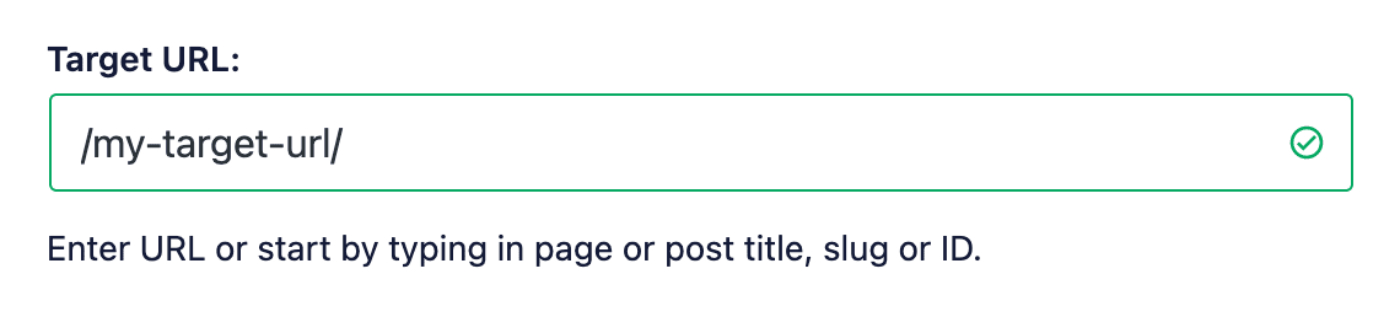
Dans le champ URL cible, entrez l'URL vers laquelle vous souhaitez rediriger. L'URL peut être une URL relative ou une URL absolue.
Définir le type de redirection
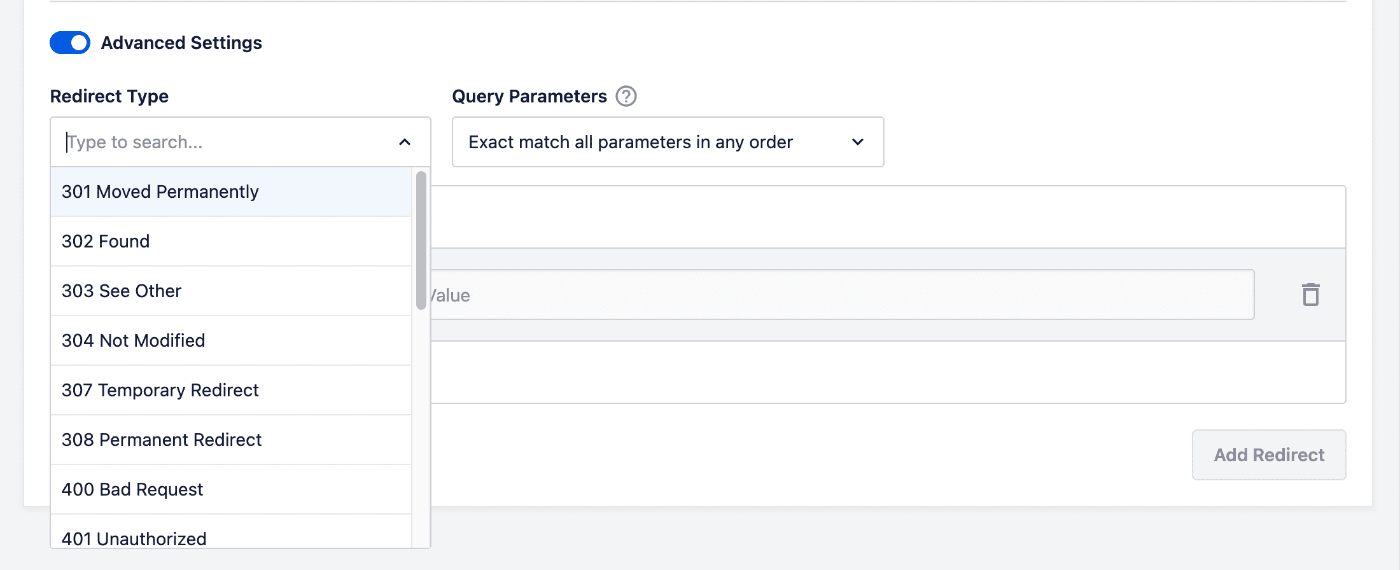
Pour définir le Type de redirection, cliquez sur le bouton Paramètres avancés pour activer les paramètres avancés. Vous verrez le menu déroulant Type de redirection, cliquez dessus pour sélectionner le type de redirection que vous souhaitez. Les deux plus courants sont :
- 301 Déplacé définitivement : Utilisez ceci si vous souhaitez rediriger définitivement l'ancienne URL car le contenu a été supprimé ou déplacé.
- 307 Redirection temporaire : Utilisez ceci si vous souhaitez uniquement rediriger temporairement l'ancienne URL.
Planification de votre redirection
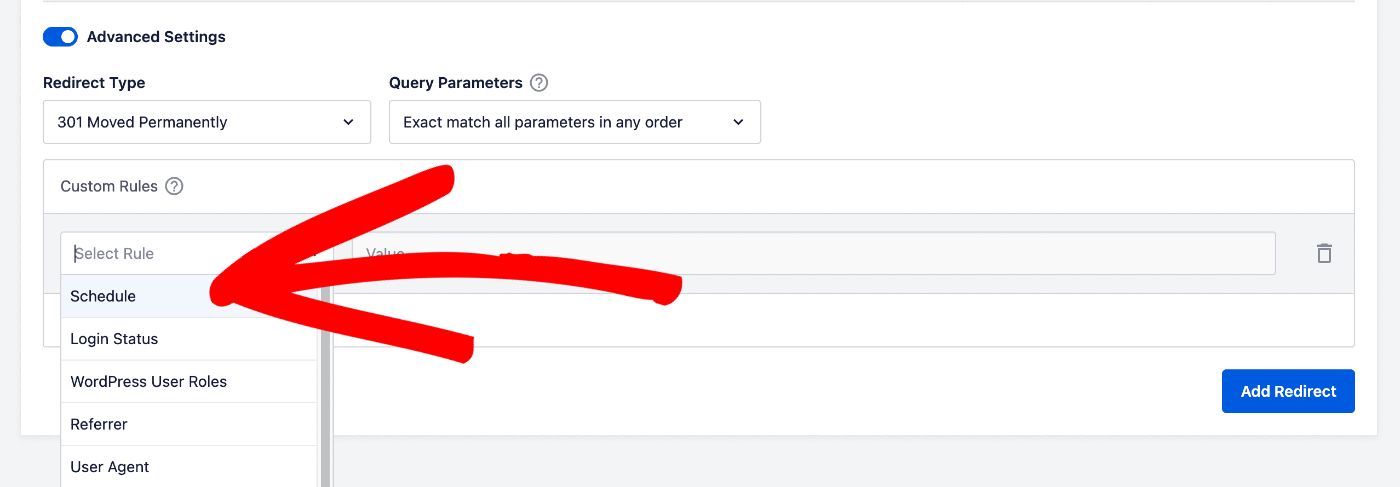
Dans les Paramètres avancés, cliquez sur le menu déroulant Sélectionner la règle et choisissez Planifier.
Vous verrez les champs Date de début et Date de fin où vous pouvez sélectionner une date et définir une heure. Utilisez-les pour choisir la date et l'heure auxquelles vous souhaitez que la redirection commence et se termine.
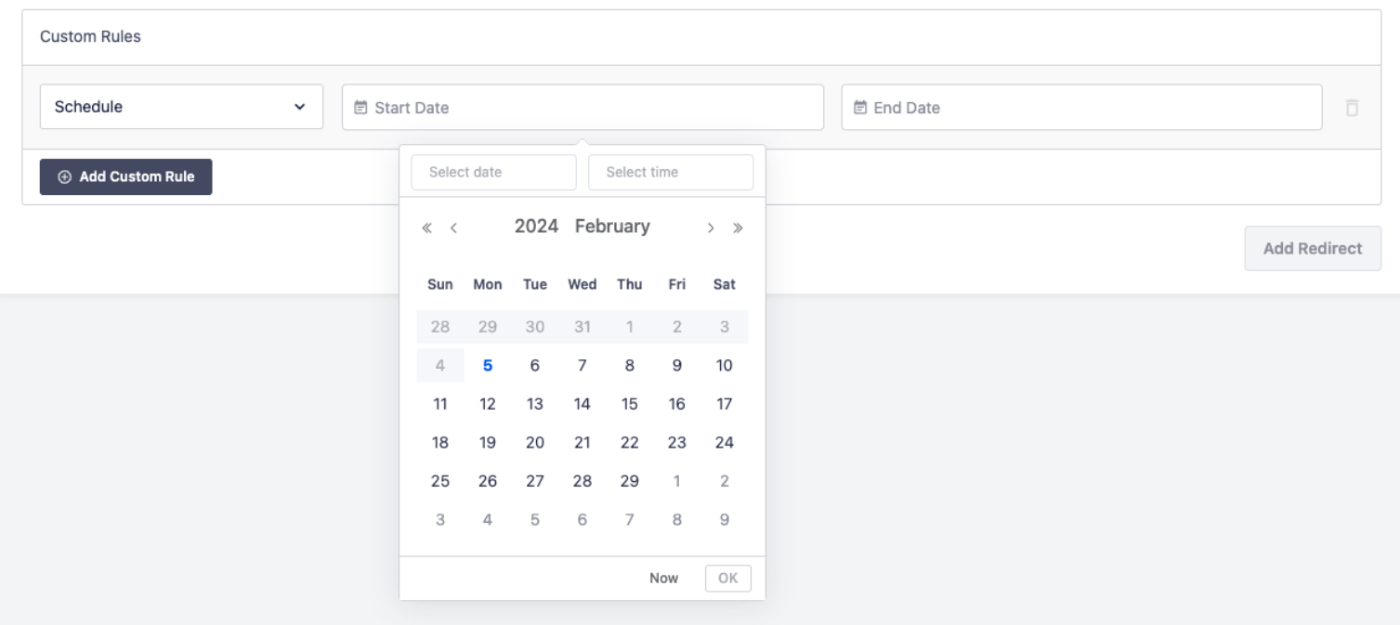
Si vous laissez le champ Date de fin vide, la redirection n'aura pas de date de fin et se poursuivra jusqu'à ce que vous la désactiviez ou la supprimiez.
Cliquez sur le bouton Ajouter une redirection pour ajouter votre redirection.
NOTE :
Vous pouvez également planifier une redirection depuis l'écran Modifier l'article. Les mêmes options sont disponibles dans la section Paramètres AIOSEO sous l'onglet Redirections.
Vous pouvez en savoir plus sur l'ajout de redirections sur l'écran Modifier l'article ici.
Consultez plus de documentation sur notre Gestionnaire de redirections ici.