
Votre site Web n'apparaît pas sur Google ? Il est frustrant de publier un nouveau site ou de passer des heures à créer du contenu pour ensuite le chercher et ne rien trouver.
La bonne nouvelle est que cela ne signifie pas nécessairement qu'il y a un problème grave avec votre site Web.
Google doit découvrir vos pages, les explorer, décider s'il faut les indexer, puis déterminer où elles méritent de se classer. Un problème à l'une de ces étapes peut rendre votre site Web invisible dans les résultats de recherche.
Donc, dans ce guide, je vais vous montrer comment diagnostiquer pourquoi votre site Web n'apparaît pas sur Google, résoudre les problèmes d'indexation et d'exploration les plus courants, et aider Google à découvrir votre contenu WordPress plus efficacement.
Dans cet article
- Pourquoi mon site Web n'apparaît-il pas sur Google ?
- Scénario 1 : Votre site Web est nouveau
- Scénario 2 : Votre site Web apparaissait, puis a disparu
- Scénario 3 : La plupart de votre site apparaît, mais des pages spécifiques sont manquantes
- Comment utiliser Google Search Console pour diagnostiquer le problème
- Combien de temps avant que mon site Web n'apparaisse sur Google ?
- Site Web n'apparaissant pas sur Google : FAQ répondue
- Prochaines étapes
Pourquoi mon site Web n'apparaît-il pas sur Google ?
Votre site Web n'apparaît pas sur Google car il n'a pas encore été indexé, un paramètre technique le bloque, ou Google l'a exploré et a décidé de ne pas l'ajouter aux résultats de recherche.
Les nouveaux sites apparaissent généralement dans les 1 à 4 semaines suivant la soumission d'un sitemap, tandis qu'un site qui apparaissait auparavant et a disparu est presque toujours causé par une balise noindex accidentelle, un blocage robots.txt, ou une mise à jour de l'algorithme de Google.
Je couvre les 3 scénarios les plus courants et les correctifs que vous pouvez appliquer. Examinons-les en détail.
Vérifiez si votre site est réellement indexé
Avant de diagnostiquer quoi que ce soit, effectuez cette vérification rapide. Ouvrez Google et recherchez site:votresiteweb.com, en remplaçant "votresiteweb.com" par votre nom de domaine réel. Cela vous indique si Google a indexé des pages de votre site.
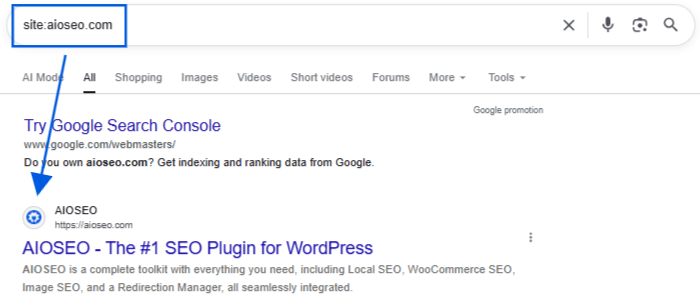
Si des pages apparaissent dans les résultats, votre site est indexé. Cela signifie que vous avez un problème de classement, pas un problème d'indexation, et les solutions sont complètement différentes. Les problèmes de classement dépendent de la qualité du contenu, des mots-clés et des backlinks, ce qui est un sujet distinct de ce que nous abordons ici. Si vous suspectez que 2 de vos propres pages se font concurrence dans les résultats, il s'agit généralement d'un cas de cannibalisation de mots-clés, et non d'un problème d'indexation.
Si la recherche ne renvoie aucun résultat, Google n’a pas encore indexé votre site. Ce guide vous aide à résoudre ce problème.
Beaucoup de conseils bien intentionnés mélangent les 2 problèmes. L'indexation concerne la connaissance par Google de l'existence de votre page. Le classement concerne la position de cette page une fois qu'elle est indexée.
Pour un aperçu plus approfondi de la manière dont l’exploration et l’indexation fonctionnent ensemble, consultez notre guide pour débutants. Gardez la différence à l’esprit pendant que nous examinons les scénarios ci-dessous.
Scénario 1 : Votre site Web est nouveau
Les nouveaux sites WordPress mettent généralement 2 à 8 semaines à apparaître sur Google, alors ne paniquez pas tout de suite. Mais un réglage peut tuer l'indexation immédiatement, et il vaut la peine de vérifier en premier.
Vérifiez le paramètre "Décourager les moteurs de recherche"
C'est la cause numéro 1 pour les nouveaux sites, et elle se cache à la vue de tous. WordPress a un réglage intégré qui dit à tous les moteurs de recherche de rester à l'écart, peu importe ce que fait votre plugin SEO. Les développeurs l'activent souvent pendant la construction d'un site sur un serveur de staging, puis oublient de le désactiver avant le lancement.
Voici comment vérifier :
- Dans votre tableau de bord WordPress, allez dans Paramètres » Lecture.
- Recherchez la section Visibilité pour les moteurs de recherche.
- Si la case à côté de Décourager les moteurs de recherche d'indexer ce site est cochée, décochez-la et cliquez sur Enregistrer les modifications.
Soumettez votre sitemap à Google
Une fois que vous avez décoché cette case, aidez Google à trouver vos pages plus rapidement en soumettant votre sitemap. AIOSEO construit et met à jour automatiquement ce sitemap pour vous en arrière-plan, vous n'avez donc rien à créer à partir de zéro ; vous dites simplement à Google où le trouver.
- Dans votre tableau de bord WordPress, allez dans All in One SEO » Sitemaps pour trouver l'adresse de votre sitemap. Elle ressemblera à votresite.com/sitemap.xml.
- Ouvrez Google Search Console et cliquez sur Sitemaps dans le menu de gauche.
- Tapez juste le nom du fichier, sitemap.xml, dans la boîte et cliquez sur Soumettre.
- Un statut Succès signifie que Google a accepté le sitemap et commencera à explorer les URL qu’il contient. Une erreur Impossible d’extraire signifie généralement que l’adresse a été mal tapée ou que votre site bloque toujours les robots d’exploration, alors vérifiez à nouveau le paramètre ci-dessus.
Scénario 2 : Votre site Web apparaissait, puis a disparu
Si votre site apparaissait auparavant sur Google puis a disparu, quelque chose a changé. C'est différent d'un site qui n'a jamais été indexé, et cela se résume généralement à 1 des 3 causes.
Une mise à jour de plugin a introduit une balise Noindex
Une mise à jour de plugin, un changement de thème ou un réglage que vous n'avez pas réalisé avoir touché peut ajouter discrètement une balise noindex à votre contenu. Cette balise indique à Google de ne pas afficher la page dans les résultats de recherche, même si la page fonctionne toujours bien pour les visiteurs.
Pour vérifier le contenu individuel dans AIOSEO, allez dans Articles ou Pages dans votre tableau de bord WordPress et survolez une entrée. AIOSEO affiche un indicateur noindex à côté de tout contenu défini comme noindex, vous pouvez donc parcourir votre liste au lieu d'ouvrir chaque page.
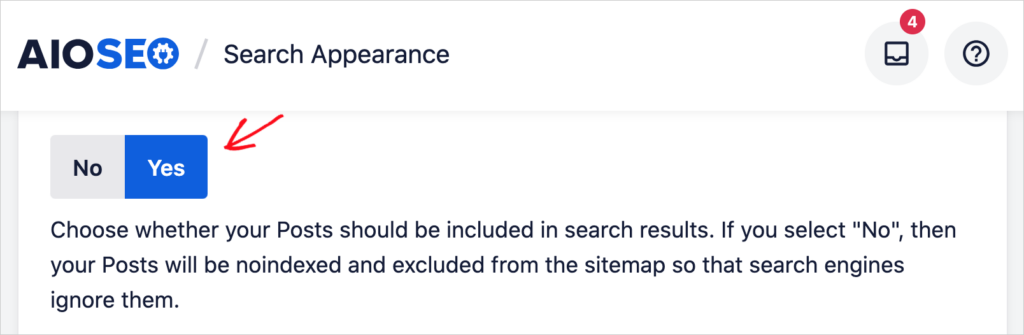
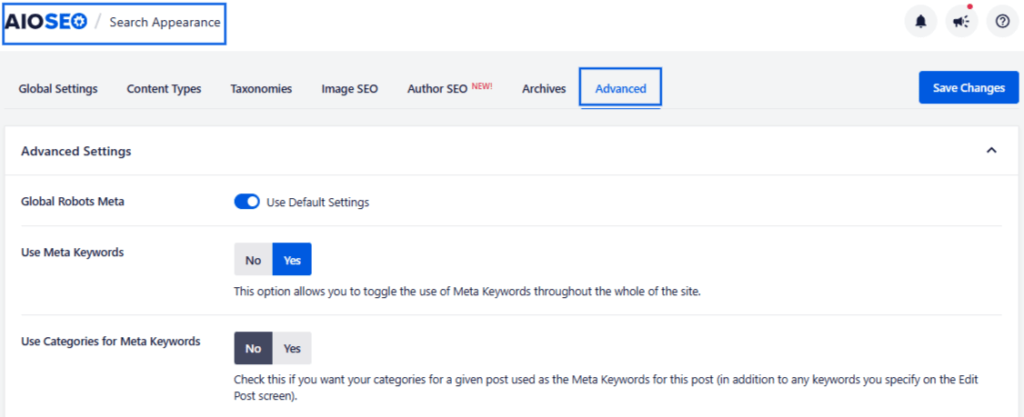
Pour vérifier vos paramètres globaux, allez dans All in One SEO » Apparence de la recherche et confirmez que No Index est désactivé pour tout type de publication que vous souhaitez voir apparaître sur Google.
Votre fichier Robots.txt bloque GoogleBot
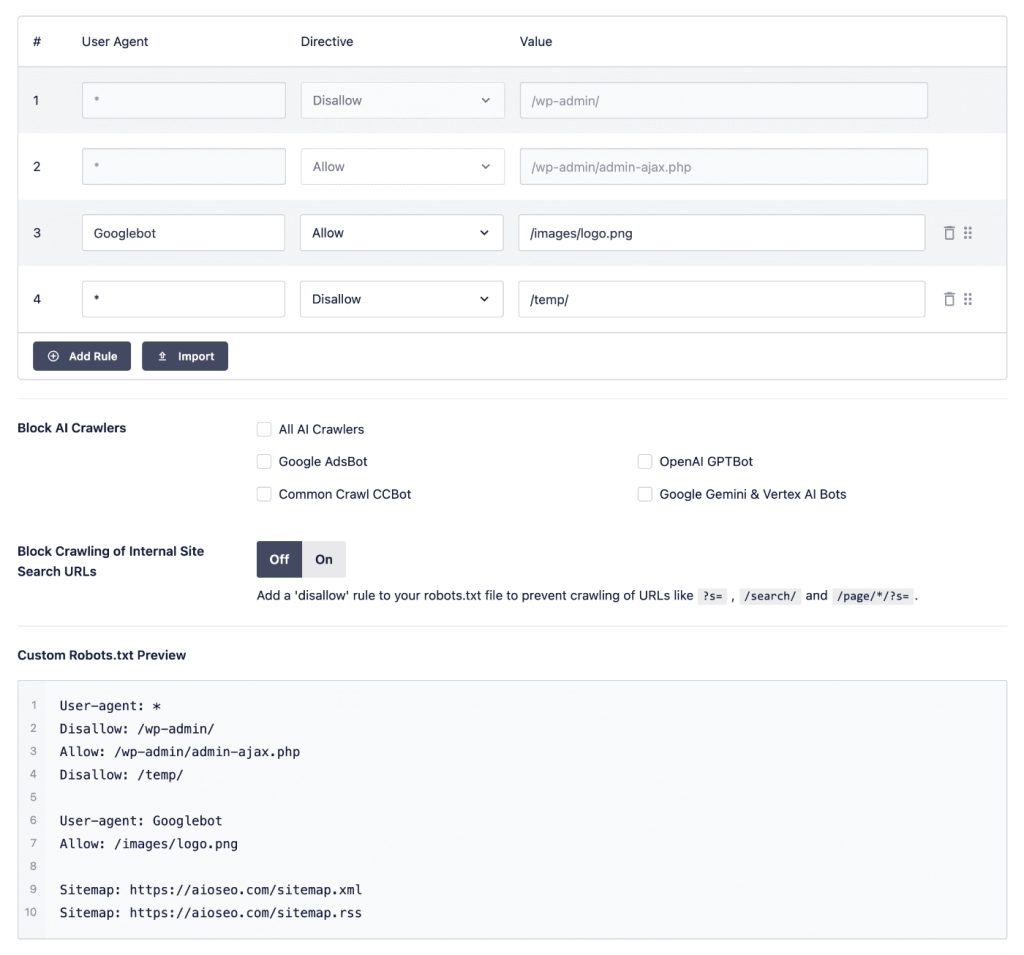
Chaque site WordPress possède un fichier nommé robots.txt qui indique aux moteurs de recherche quelles parties de votre site ils peuvent explorer. Si une ligne de ce fichier indique Disallow suivie d'une seule barre oblique, cela bloque votre site entier de tous les moteurs de recherche à la fois.
Pour le vérifier, allez dans Tout en un SEO » Outils et ouvrez l'éditeur robots.txt. Examinez l'aperçu personnalisé de robots.txt pour toute règle qui bloque votre site entier ou une page clé.
Pour confirmer si une page spécifique est affectée, utilisez l'outil Inspection d'URL dans Google Search Console. Il vous indique directement si robots.txt bloque cette URL exacte, ce qui est plus fiable que de lire le fichier vous-même.
Une mise à jour de l'algorithme de Google a modifié votre classement
Parfois, une page n’a pas perdu son statut d’indexation du tout. Elle est simplement tombée si bas dans les résultats qu’elle semble invisible. Comparez la date de la baisse de votre trafic avec la liste des mises à jour du classement de recherche de Google. Si les dates correspondent, il pourrait s’agir d’un problème de contenu et d’autorité. Ainsi, la solution serait différente aussi : un contenu plus solide, des liens fiables et une expertise claire sur votre sujet, pas un paramètre à désactiver.
Scénario 3 : La plupart de votre site apparaît, mais des pages spécifiques sont manquantes
Si votre page d'accueil et la plupart de votre contenu s'affichent correctement mais qu'une poignée de pages sont manquantes, le problème est généralement isolé à ces pages spécifiques.
La page a une balise Noindex
Ouvrez la page dans votre éditeur WordPress, faites défiler jusqu'à la boîte de réglages AIOSEO, cliquez sur l'onglet Avancé, et confirmez que Pas d'indexation est désactivé. Si vous devez vérifier plusieurs pages à la fois, utilisez l'indicateur noindex sur la liste des Articles et des Pages au lieu d'ouvrir chacune individuellement.
La page n'est pas dans votre sitemap
Allez dans Tout en un SEO » Plans du site et confirmez que la page apparaît dans la liste. Si elle est manquante, vérifiez votre réglage de types de publication exclus sur le même écran. Certains types de contenu sont exclus du plan du site par défaut.
La page affiche un statut "Rastreado, actualmente no indexado"
C'est un statut courant dans le rapport Pages de la Search Console. Cela signifie que Google l'a trouvée et l'a examinée, puis a choisi de ne pas l'ajouter aux résultats de recherche. Les causes les plus courantes sont un contenu mince (très peu de texte sur la page), un contenu qui duplique étroitement une autre page de votre site, et un manque de liens internes pointant vers cette page depuis ailleurs sur votre site.
Nous couvrons ce statut exact en détail, y compris comment corriger chaque cause, dans notre guide complet pour corriger le statut "exploré, actuellement non indexé".
La page est trop récente pour être explorée
Si vous venez de publier la page, Google n’y est tout simplement pas encore parvenu. Dans la Search Console, utilisez l’outil d’inspection d’URL, collez l’URL de la page et cliquez sur Demander l’indexation. Cela place la page plus haut dans la file d’attente d’exploration de Google, bien que ce ne soit pas une solution instantanée.
Comment utiliser Google Search Console pour diagnostiquer le problème
Si aucun des scénarios ci-dessus ne correspond à votre situation exacte, ce guide vous aide à trouver la réponse vous-même.
- Ouvrez la Search Console et allez dans Indexation » Pages dans le menu de gauche.
- Vous verrez 2 totaux : Indexées et Non indexées. Les pages indexées s'affichent déjà. Les pages non indexées sont celles qui vous causent des problèmes.
- Cliquez sur Non indexées pour voir une répartition par statut, puis cliquez sur chaque nom de statut pour voir exactement quelles URL sont affectées.
- Quelques statuts reviennent le plus souvent. "Rapporté, actuellement non indexé" signifie que Google a consulté mais a choisi de ne pas l'indexer. "Découvert, actuellement non indexé" signifie que Google sait que la page existe mais ne l'a pas encore explorée. Cela concerne souvent le budget d'exploration, qui est simplement le nombre de pages que Google est disposé à explorer sur votre site sur une période donnée. "Bloqué par robots.txt" signifie que votre propre site dit à Google de rester à l'écart. "Exclu par une balise noindex" signifie qu'un paramètre de la page elle-même la bloque.
Si vous passez à AIOSEO Elite, le tableau de bord des statistiques de recherche affiche ces mêmes données d'indexation directement dans WordPress, vous n'avez donc jamais besoin d'ouvrir la Search Console.
Combien de temps avant que mon site Web n'apparaisse sur Google ?
Les délais exacts varient, mais voici ce à quoi vous pouvez vous attendre de manière réaliste :
- Nouveau site, après soumission de votre sitemap : votre page d'accueil apparaît généralement en 1 à 4 semaines. Les pages internes peuvent prendre 2 à 8 semaines, surtout sur un tout nouveau domaine.
- Correction d'une balise noindex ou d'un problème de sitemap : Google ré-explore généralement en 1 à 2 semaines. Utilisez la demande d'indexation sur votre page d'accueil pour accélérer cette partie.
- Rétablissement après une mise à jour d'algorithme : c'est le chemin le plus lent. Attendez-vous à au moins 2 à 4 mois, car vous reconstruisez la qualité et l'autorité du contenu, et non pas un simple interrupteur technique.
Aucun de ces délais ne s’accélère en renvoyant votre sitemap à plusieurs reprises ou en demandant l’indexation encore et encore. Les robots d’exploration de Google travaillent selon leur propre calendrier, et la patience associée à la bonne solution vous mènera à votre objectif.
Site Web n'apparaissant pas sur Google : FAQ répondue
Votre site Web n’apparaît pas sur Google ? Tout d’abord, assurez-vous que Google peut explorer et indexer votre site Web. Vérifiez les directives noindex accidentelles et les restrictions robots.txt, créez un sitemap XML, soumettez-le via Google Search Console et créez des liens internes vers les pages importantes. Vous pouvez également utiliser Google Search Console ou la fonctionnalité d’état d’indexation d’AIOSEO pour déterminer si des pages spécifiques ont été indexées.
Google peut ne pas explorer votre site Web car il est nouveau, a peu de liens pointant vers lui, contient des restrictions robots.txt, a des problèmes d’accessibilité technique ou n’a pas encore été découvert. Vérifiez la Search Console de Google pour obtenir des informations sur l’exploration et assurez-vous que votre fichier robots.txt ne bloque pas accidentellement google-bot. La soumission d’un sitemap XML peut également aider Google à découvrir les URL importantes.
Si votre domaine n’apparaît pas même lorsque vous recherchez spécifiquement, déterminez d’abord si Google a indexé le site Web. Une vérification rapide consiste à rechercher sur Google site:votredomaine.com. Si Google renvoie des pages de votre site, le domaine est indexé même s’il ne se classe pas dans vos recherches normales. Si rien n’apparaît, examinez les paramètres d’indexation, les directives robots, les erreurs d’exploration et votre sitemap XML.
Il n’y a pas de délai garanti. Google doit découvrir et explorer un nouveau site Web avant que ses pages puissent être prises en compte pour l’indexation, et l’exploration ne garantit pas une indexation ou un classement immédiats. Vous pouvez aider Google à découvrir un nouveau site en créant un sitemap XML, en le soumettant à Google Search Console, en vous assurant que vos pages sont explorables et en créant une structure de liens internes claire. Ensuite, laissez à Google le temps de traiter le site plutôt que de changer constamment des choses simplement parce qu’il n’est pas apparu immédiatement.
Prochaines étapes
Si votre site Web n’apparaît pas sur Google, n’assumez pas immédiatement que vous avez besoin de plus de mots-clés, de plus de contenu ou d’une refonte complète de votre SEO.
Commencez par les bases. Vérifiez si Google a indexé vos pages. Assurez-vous de ne pas avoir accidentellement activé noindex. Examinez robots.txt, vérifiez que votre sitemap fonctionne et enquêtez sur les erreurs d’exploration ou d’indexation que Google signale.
La meilleure partie est que si vous êtes un utilisateur de WordPress, AIOSEO peut faciliter une grande partie de ce dépannage. Ses outils d’état d’indexation peuvent vous aider à identifier si Google explore et indexe le contenu important. Et une fois que vous avez confirmé que Google peut trouver et indexer votre site, vous pouvez vous concentrer sur le défi suivant : obtenir de meilleurs classements.
Divulgation : Notre contenu est financé par nos lecteurs. Cela signifie que si vous cliquez sur certains de nos liens, nous pouvons gagner une commission. Nous ne recommandons que les produits qui, selon nous, apporteront de la valeur à nos lecteurs.
Envie d'essayer AIOSEO gratuitement ?
Entrez l'URL de votre site Web WordPress pour installer AIOSEO Lite.