
Here’s something the “best SEO tools for beginners” guides don’t tell you: the tool isn’t what makes you rank. I’ve seen beginners with free-only setups outrank sites paying $500/month in tool subscriptions.
The difference wasn’t the tools. It was knowing what to do with them.
That’s exactly what this guide is about. You’ll learn the best SEO tools for beginners to use and what to do inside each one so your data turns into rankings.
In This Article
- What To Start With (And What Can Wait)
- 9 Best SEO Tools for Beginners
- 1. All in One SEO (AIOSEO) — Best WordPress SEO Plugin
- 2. Google Search Console — Best Free SEO Tool, Period
- 3. Google Analytics 4 — Best Free Traffic Analytics Tool
- 4. MonsterInsights — GA4 Plugin for WordPress
- 5. LowFruits — Best Keyword Research Tool for Beginners
- 6. Google Keyword Planner — Free Keyword Research Option
- 7. Semrush — Best All-in-One Suite When You're Ready to Level Up
- 8. Google PageSpeed Insights — Best Free Site Speed Checker
- 9. Screaming Frog SEO Spider — Free Technical Site Crawler
- 1. All in One SEO (AIOSEO) — Best WordPress SEO Plugin
- How to Build Your Beginner SEO Toolkit
- Mistakes Beginners Make With SEO Tools
- Start Simple. Stay Consistent.
- Beginner SEO Tool FAQs
What To Start With (And What Can Wait)
Before getting into the list, one thing is worth saying plainly: you don’t need a full stack of paid SEO tools on day 1.
Google’s free tools will carry you further than most beginners realize. A keyword research tool or all-in-one suite starts to pay off once you’re publishing consistently and want to dig into competitor data, but that’s a month 2 or month 3 decision, not a day 1.
Here’s how I’d sequence it:
- Start free. Google Search Console and Google Analytics cover the fundamentals.
- Add an SEO plugin. Essential if you’re on WordPress, and All in One SEO is the one I’d reach for first.
- Layer in keyword research once you’re ready to be strategic about what you publish.
- Consider an all-in-one suite when you need deep competitor data or you’re publishing at volume.
With that in mind, here are the best SEO tools for beginners.
Why You Should Trust Me
I’m an SEO content strategist with 7+ years of experience optimizing WordPress sites for small businesses. I’ve tested all the tools on this list, and I’ve seen firsthand which ones actually help beginners move the needle and which ones just make your life harder.
9 Best SEO Tools for Beginners
| Tool | Best for | Pricing |
|---|---|---|
| All in One SEO | On-page SEO in WordPress | Free lite version; paid from $49.60/yr |
| Google Search Console | Organic performance data | Free |
| Google Analytics 4 | Understanding your traffic | Free |
| MonsterInsights | GA4 for WordPress users | Free lite version; paid from $99.60/yr |
| LowFruits | Finding easy keywords | From $21/mo |
| Google Keyword Planner | Free keyword research | Free |
| Semrush | Competitor research & audits | Free limited plan; paid from $117.33/mo (billed annually) |
| Google PageSpeed Insights | Site speed diagnostics | Free |
| Screaming Frog SEO Spider | Technical site crawl | Free up to 500 URLs; $259/yr unlimited crawling |
1. All in One SEO (AIOSEO) — Best WordPress SEO Plugin
Best for: WordPress users who want on-page SEO handled without the guesswork
If you’re on WordPress, an SEO plugin is where your content optimization workflow lives.
For beginners, All in One SEO is the one I recommend.
All in One SEO (AIOSEO) is a WordPress SEO plugin used by over 3 million website owners. What makes it stand out for beginners is that it doesn’t just give you data. It tells you what to fix and where, right inside your WordPress editor as you write.
👉 What To Do First
Start by running the Setup Wizard. It walks you through your site’s foundational SEO configuration in a few minutes: your site title, meta description format, sitemap settings, all of it.

Most beginners skip this and start publishing immediately. Don’t. Getting the foundation right first means every post you publish afterward is already starting in a better position.
Then, for every post you write, scroll to the AIOSEO panel below the editor. Set your focus keyword and watch your TruSEO On-Page Analysis score update in real time.

TruSEO checks whether your keyword appears in the right places, like your title tag, meta description, first paragraph, subheadings, and image alt text. It flags anything missing before you hit publish.
Pro Tip: Think of TruSEO as a pre-flight checklist. You want everything green before the post goes live.
As your site grows, 2 more features become invaluable:
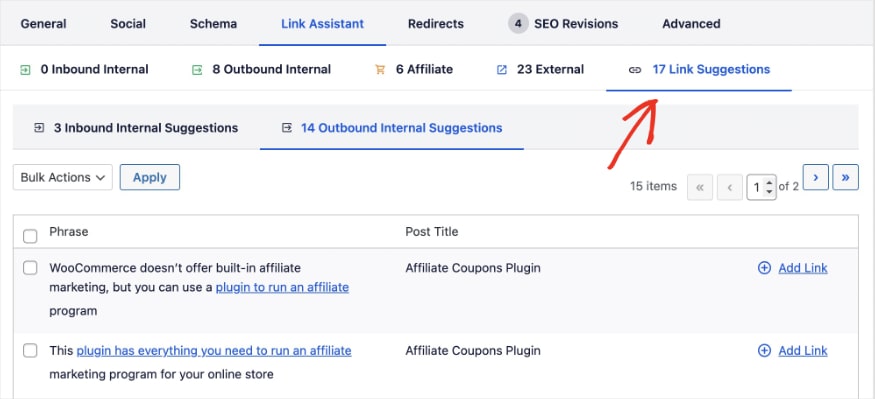
Link Assistant scans your entire site and suggests internal links with relevant anchor text (the kind of thing that’s impossible to track manually once you’re 50+ posts deep).
Search Statistics pulls your Google Search Console data directly into WordPress so you can track rankings and performance without switching tabs.
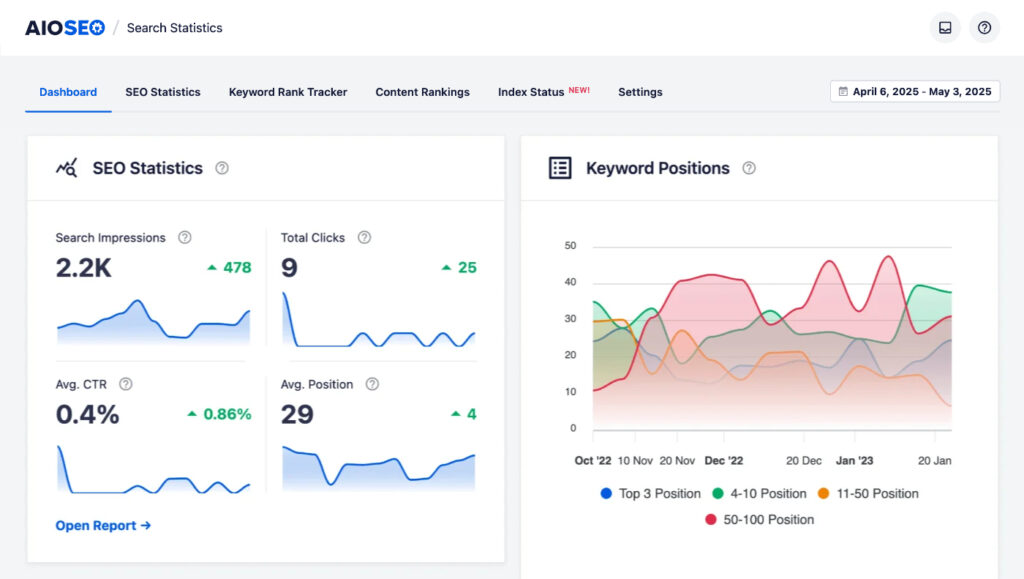
I’ve only scratched the surface here, but that’s the point. Instead of handing you a dashboard and wishing you luck, AIOSEO guides you through on-page SEO step by step.
Pricing: Paid plans start at $49.60/year. There’s a free version (AIOSEO Lite) on WordPress.org if you want to try the core on-page features first. See all plans →
Not on WordPress? Most platforms (Squarespace, Wix, Shopify) have built-in SEO fields. You’ll just need to be more mindful of your optimizations than if you were using checklists like TruSEO.
2. Google Search Console — Best Free SEO Tool, Period
Best for: Understanding how Google sees and ranks your site
Google Search Console (GSC) is the single most valuable free SEO tool available. It’s free, comes directly from Google, and gives you first-party data that no third-party tool can replicate. I set it up on every site before anything else. (This tutorial shows you how. If you’re not on WordPress, skip those steps, but all others apply.)
👉 What To Do First
Once it’s connected, head to Performance → Search Results. This is where I spend most of my time, and it’s surprisingly beginner-friendly.
Here’s how to read what you’re looking at:

- Clicks: how many people visited your site from Google search
- Impressions: how many people saw your result in search, whether they clicked or not
- CTR (click-through rate): clicks divided by impressions. The average CTR for a page ranking #1 is around 19–28%. If you’re ranking on page 1 but your CTR is well below 3%, your title tag or meta description probably needs work. People are seeing your result and choosing someone else’s.
- Average position: where your page ranks on average across all the searches that triggered it
The move that pays off most for beginners: Filter by a specific page and look at which keywords it’s getting impressions for. You’ll almost always find queries you weren’t targeting, sometimes better than the ones you were. That’s free keyword research hiding in plain sight.
Pricing: Free. Works on any platform.
3. Google Analytics 4 — Best Free Traffic Analytics Tool
Best for: Understanding what visitors do after they land on your site
Google Search Console tells you how people find you. Google Analytics 4 (GA4) tells you what they do after they click. These two tools are complementary, and you need both.
Here’s the simplest way to think about it: GSC tells you your ranking and CTR. GA4 tells you whether the people who clicked stuck around. If they didn’t, that’s a problem worth fixing.
👉 What To Do First
Go to Reports → Acquisition → Traffic Acquisition and filter by Organic Search. You’ll see your top pages from Google alongside three numbers that matter:
- Sessions: how much organic traffic each page is pulling in
- Average engagement time: how long people are actually staying
- Bounce rate: how many people leave without doing anything
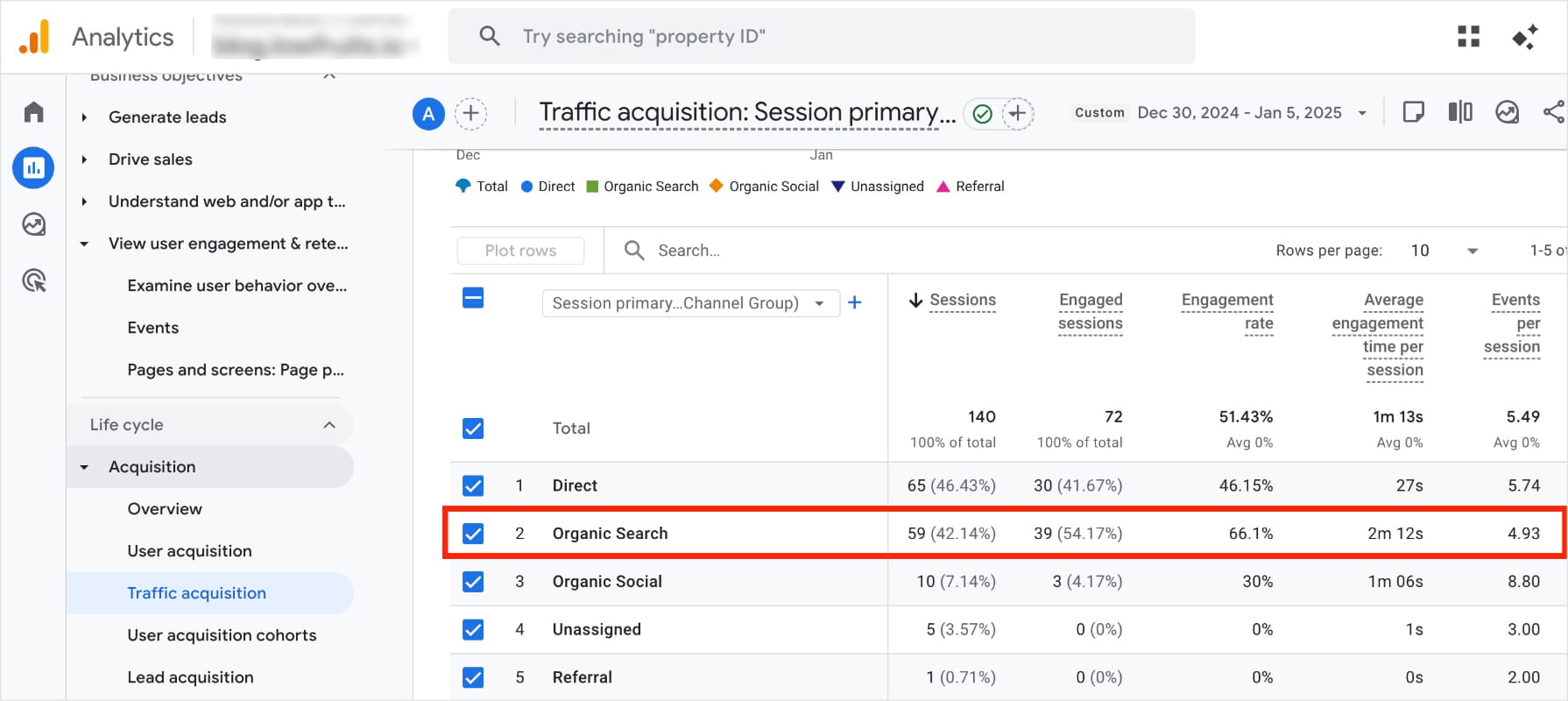
Find any post where sessions are decent but engagement time is low (under 30 seconds is a red flag). That mismatch between good rankings and people leaving immediately almost always means your content isn’t delivering what the searcher expected.
The fix is to go back to the post, search the keyword yourself, look at what the top results are actually covering, and update your content to match that intent.
I find at least one of these mismatches on almost every site I audit. It’s consistently one of the highest-ROI fixes a beginner can make, and you’d never catch it from Search Console alone.
Pricing: Free.
4. MonsterInsights — GA4 Plugin for WordPress

Best for: WordPress users who find GA4’s interface overwhelming
GA4 is powerful but genuinely hard to navigate if you’re not already comfortable with analytics. The menus are buried, the reports aren’t intuitive, and half the time you’re not sure if you’re looking at the right data. MonsterInsights solves that by pulling your most important GA4 data directly into your WordPress dashboard.
Think of it as GA4 with the complexity stripped out. Instead of hunting through menus, you open your WordPress dashboard and your key metrics are right there.
👉 What To Do First
After installing and connecting MonsterInsights to GA4, go to Insights → Reports → Overview in your WordPress dashboard. You’ll see your top traffic sources, most popular pages, and organic search performance at a glance, all without leaving WordPress.
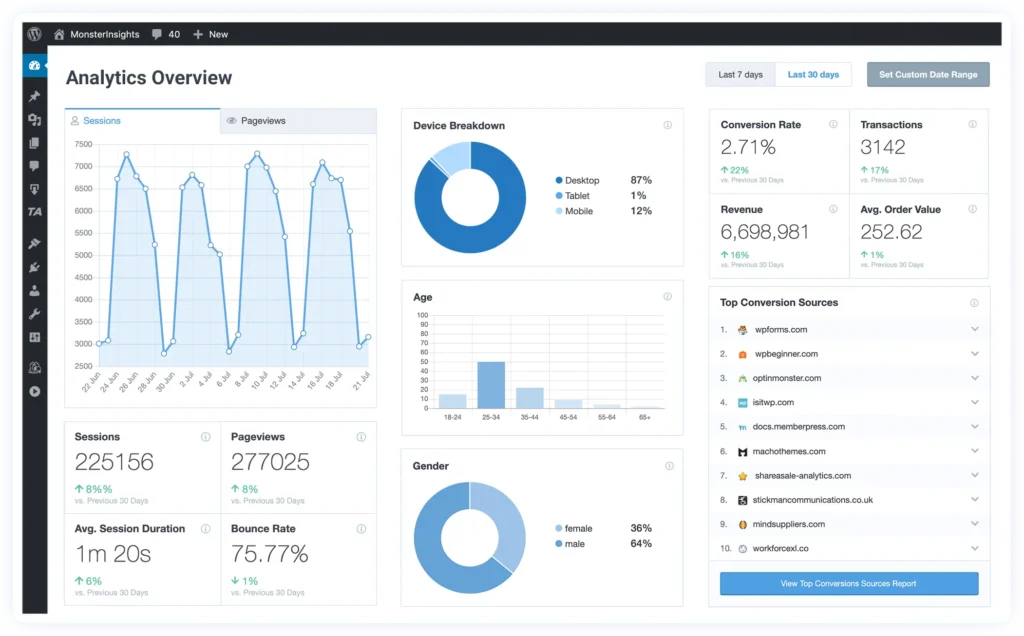
For beginners who want a quick answer to “is SEO working?” without a 20-minute analytics session, this is the fastest way to get it.
The Search Console Report inside MonsterInsights is worth calling out separately. It shows your top 50 ranking keywords with clicks, impressions, and average position. It’s the same GSC data, but surfaced right in WordPress so you can check it while you’re already working on posts.
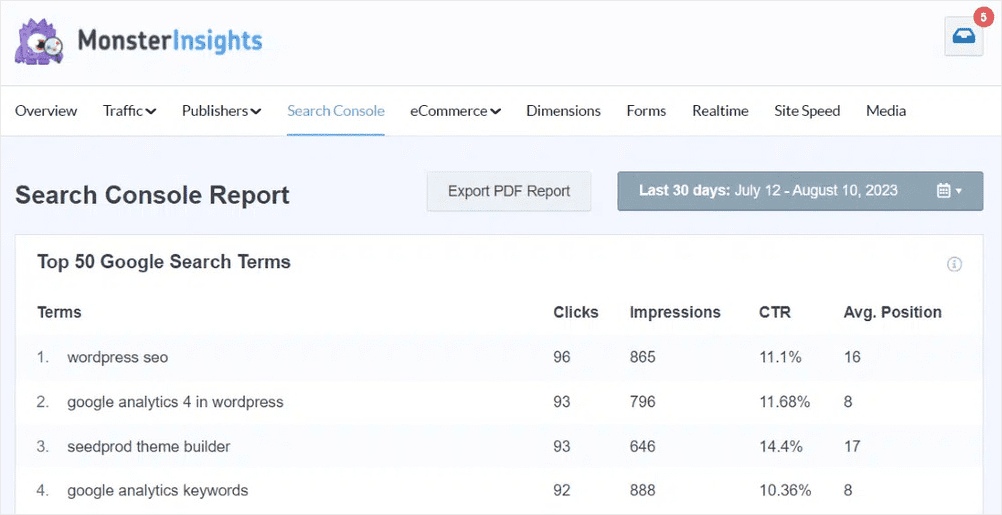
Once you’ve got MonsterInsights set up, there’s very little reason to open GA4 or GSC directly for most day-to-day checks.
Pricing: Free lite version available. Paid plans start at $99.60/year.
5. LowFruits — Best Keyword Research Tool for Beginners
Best for: Finding keywords you can realistically rank for as a newer site
Most keyword research tools show you all the keywords that exist. And that’s useful once you’re an established site with real domain authority. But when you’re new, those tools hand you a list of terms that industry giants are all competing for. You have no shot.
That’s why I like LowFruits.
It shows you which keywords you actually have a chance at by identifying Weak Spots in the SERPs. These are low-authority websites ranking on page 1. If they’re there, you can get there too.
This distinction matters enormously for beginners. The most common pattern I see: someone does keyword research, targets high-volume competitive terms, publishes 10 posts, gets zero traction, and concludes that SEO doesn’t work. It does. They just started at the wrong end of the difficulty curve.
👉 What To Do First
Enter your main topic in the KWFinder tool and let LowFruits pull keyword ideas. Sort by SERP Difficulty and look for keywords with multiple Weak Spot indicators. Those are your best targets as a newer site.
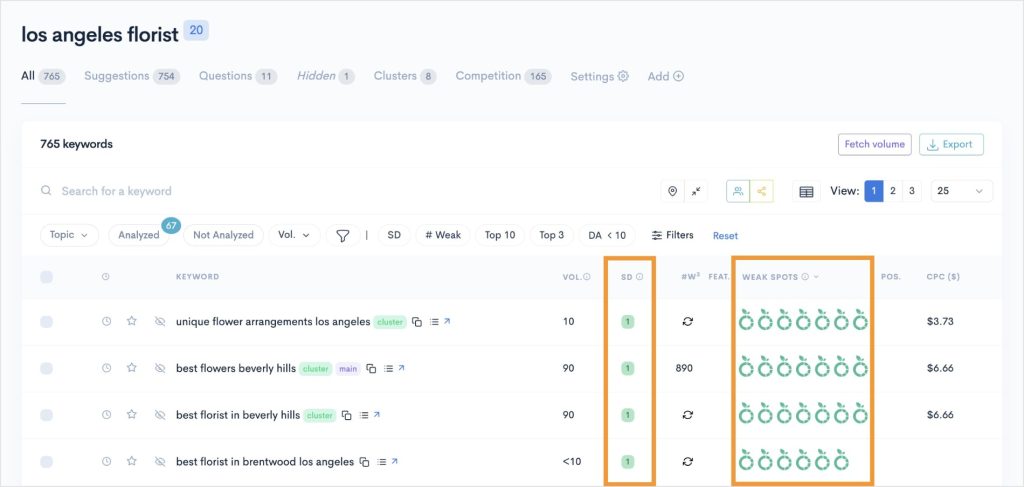
Before you start writing, use the clustering feature. This groups related keywords by search intent and tells you which ones belong in a single post versus which ones need their own separate page.
It sounds like a small thing, but getting this wrong is expensive. You can spend weeks writing posts that compete with each other rather than covering different ground. I run every keyword list through clustering before I write a single word.

Pricing: Starts at $21/month. Pay-as-you-go credits also available.
6. Google Keyword Planner — Free Keyword Research Option
Best for: Zero-budget keyword research straight from the source
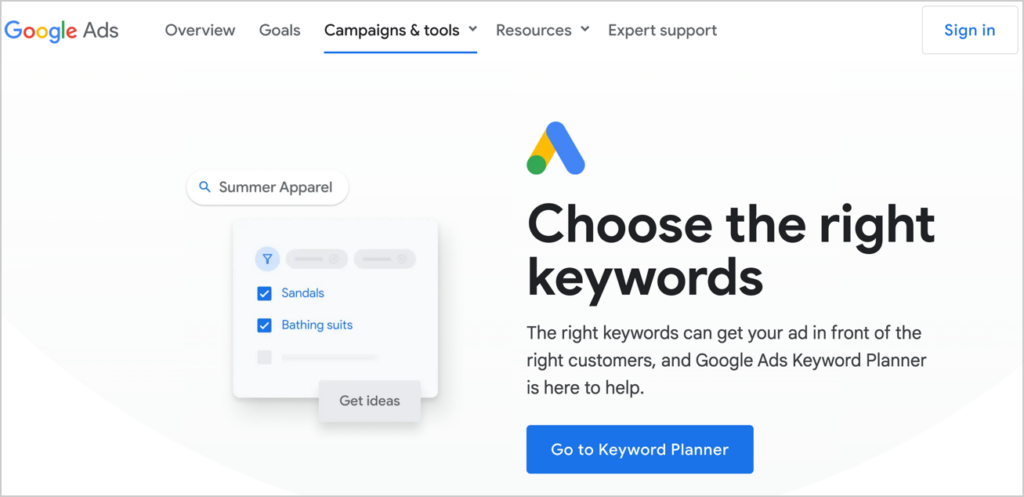
Google Keyword Planner was built for advertisers, but it’s one of the most reliable free keyword research tools because the data comes directly from Google. No third-party estimates, just actual search behavior from the source.
I still use it as a sanity check when comparing keyword demand before deciding what to write. It’s not as powerful as a paid tool, but it’s not guessing either.
👉 What To Do First
Go to Discover new keywords and enter your topic. You’ll get a list of related keyword ideas with search volume ranges and competition levels. Start by filtering for low competition. Those are the keywords where you’re less likely to get buried by bigger sites.

Pro Tip: Instead of entering a keyword, enter a competitor’s URL. Keyword Planner pulls the terms they’re targeting across their site. It’s one of the fastest ways to find content ideas you might have missed.
Honest Caveat: if you’re not running ads, you’ll see broad volume ranges like “1K–10K” rather than exact numbers. Still useful for comparing relative demand, just less precise than a paid tool.
Pricing: Free. Requires a Google Ads account, but you don’t need to run any ads.
7. Semrush — Best All-in-One Suite When You’re Ready to Level Up
Best for: Competitor research, keyword analysis at scale, and site audits
Semrush is not where I’d tell a beginner to start. It has close to 50 features and opening it for the first time without context is genuinely disorienting.
But once you have your basics in place and you want to go deeper, it’s one of the most comprehensive tools available. The reason it earns a spot on a beginner’s toolkit is that it fills a gap the free tools can’t: showing you exactly what your competitors are doing.
👉 What To Do First (When You’re Ready)
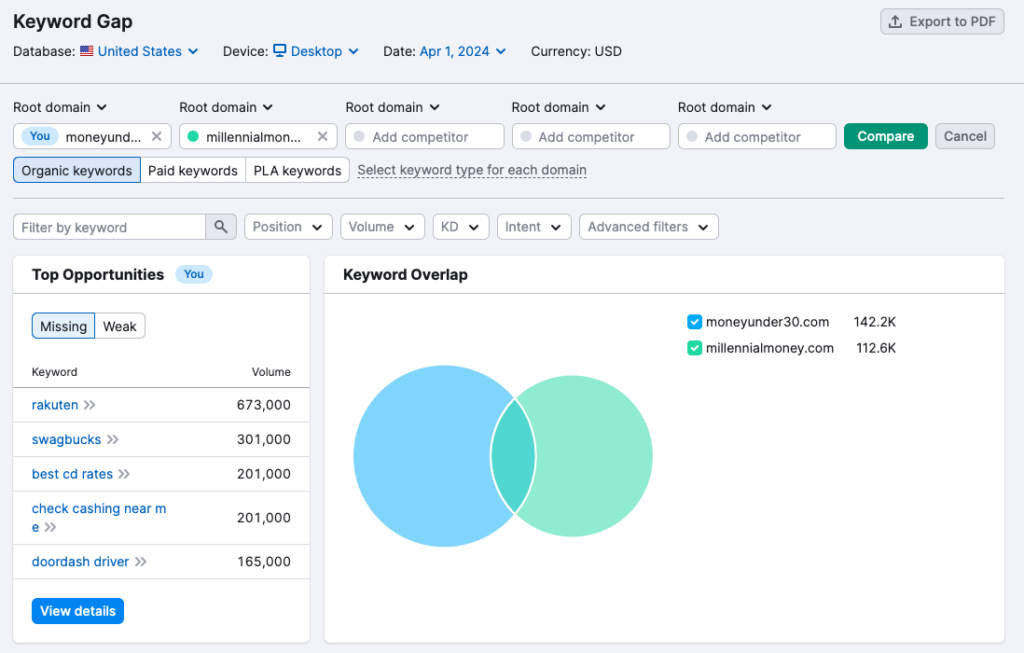
Start with Organic Research. Enter a competitor’s domain and you’ll see every keyword they rank for, the pages driving their traffic, and where their backlinks are coming from. From there, use the Keyword Gap tool to find topics they’re ranking for that you aren’t. Those are your highest-priority content opportunities.
Once you’ve mined a few competitor sites, move to the Keyword Magic Tool. Enter a topic, filter by keyword difficulty (start under 30 for a newer site), and build your target list.
Then set up Position Tracking to monitor your rankings over time. Add your target keywords, set your location, and Semrush will show you daily ranking changes as you publish.
My Suggestion: Commit to mastering just those 3 features before touching anything else. Semrush rewards patience.
Pricing: Free limited plan (10 queries/day). Paid plans start at $117.33/month billed annually.
Ahrefs is a strong alternative, particularly well-regarded for backlink analysis if that becomes a priority.
8. Google PageSpeed Insights — Best Free Site Speed Checker
Best for: Diagnosing performance issues that hurt rankings and user experience
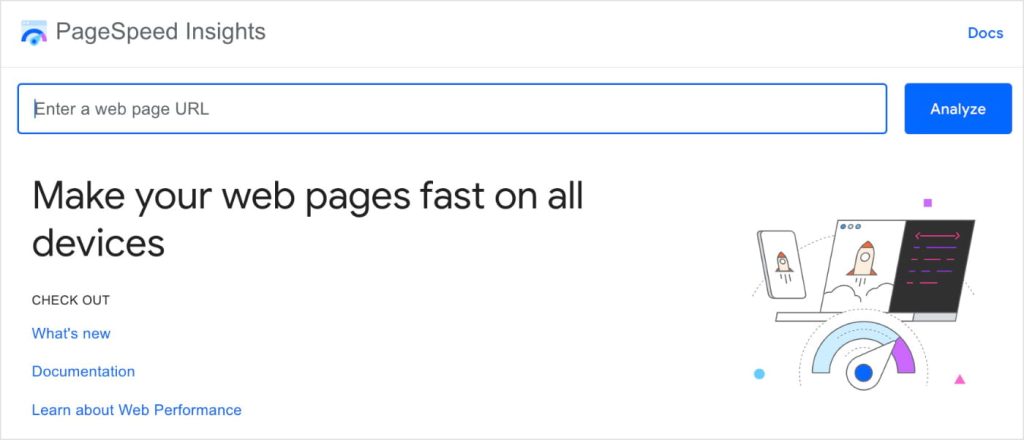
Page speed is a Google ranking factor, and a slow site hurts both your rankings and your bounce rate. PageSpeed Insights gives you a free performance score for any URL, plus a specific list of what to fix.
👉 What To Do First
Run your homepage URL through the tool. Focus on two things: the Mobile Performance Score and the Opportunities section below it. The Opportunities list ranks fixes by potential impact and explains each one in plain English.
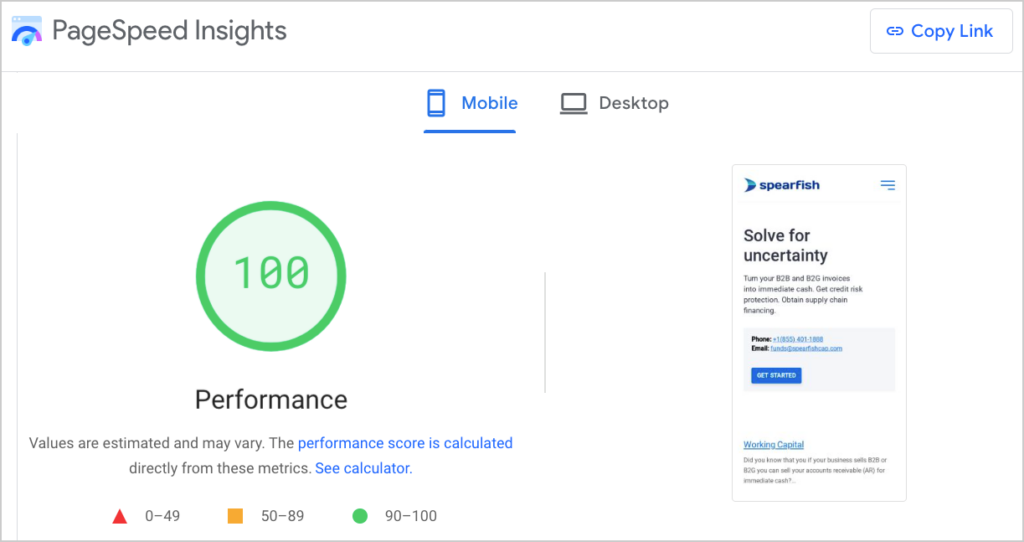
Don’t get distracted by the waterfall charts or the detailed diagnostics. Those are for developers. Your job as a beginner is to identify the top 2–3 opportunities and tackle them one at a time.
Most speed issues come down to a handful of common culprits, such as uncompressed images, no caching, and render-blocking scripts. WordPress users can install plugins like Smush (image compression) and WP Rocket (caching and performance) fix the most common issues. (No technical knowledge required.)
Install one, re-run the test, and see how much the score moves.
Pricing: Free. No account needed.
9. Screaming Frog SEO Spider — Free Technical Site Crawler
Best for: Finding technical SEO issues across your whole site
Screaming Frog is a desktop app that crawls your site the same way Google does and gives you a full technical report. You can view broken links, missing meta descriptions, duplicate title tags, redirect chains, and more.
It’s the most advanced tool on this list, but worth running every few months even if you don’t have a developer background.
👉 What To Do First
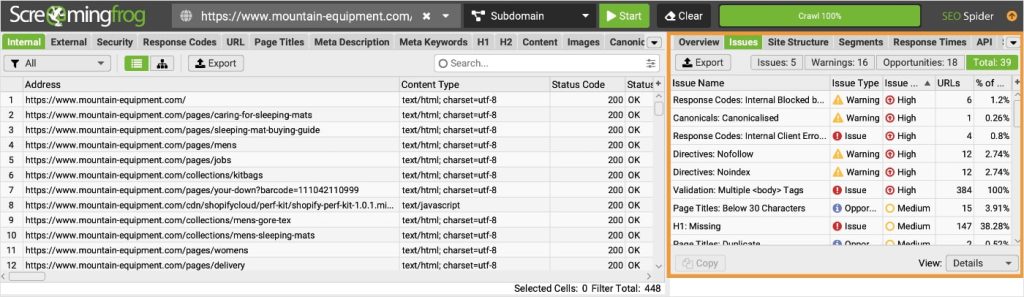
Download the app, enter your homepage URL, and let it crawl. Once it’s done, focus on these three tabs:
- Response Codes: Filter for 404s. These are broken pages that need redirects or fixes.
- Page Titles: Filter for missing or duplicate titles.
- Meta Description: Filter for missing descriptions.
You can also open the Issues tab on the right to see an overview of all site issues ranked by severity. This is useful if you want a prioritized fix list rather than working through tabs manually.
The free version crawls up to 500 URLs, which is more than enough for most beginner sites. Run it, fix what it flags, and set a reminder to run it again in a few months.
Pricing: Free up to 500 URLs. Paid plan is $259/year for unlimited crawls.
How to Build Your Beginner SEO Toolkit
You don’t need all 9 of these on day 1. Here’s how I’d phase it:
Month 1: The Foundation (All Free)
- Set up Google Search Console
- Set up Google Analytics 4
- Install AIOSEO on WordPress (the free version is a solid starting point)
- Use Google Keyword Planner for initial content ideas
Months 2–3: Build Momentum
- Add LowFruits for more strategic keyword research
- Install MonsterInsights to make your GA4 data readable inside WordPress
- Run a Screaming Frog crawl to catch any technical issues early
- Check PageSpeed Insights and tackle the top opportunities
Month 4+: Go Deeper
- Start a Semrush trial when you want competitor data
- Upgrade to AIOSEO Pro to unlock Link Assistant and Search Statistics
That’s a complete working SEO setup. And it costs nothing for the first month.
Mistakes Beginners Make With SEO Tools
- Paying for Semrush or Ahrefs before mastering GSC. Google Search Console alone can surface more actionable insights than most beginners realize. Don’t spend $140/month on a tool before you’ve gotten everything out of the free ones.
- Installing too many tools at once. Pick one tool per job and get good at it. I’ve seen beginners set up 6 platforms, get overwhelmed, and end up using none of them consistently.
- Treating scores as goals. A 100/100 TruSEO score or a perfect PageSpeed score doesn’t automatically mean your content will rank. Scores are diagnostic checklists, not report cards. I’ve seen posts with a 60/100 TruSEO score outrank posts with a perfect one because the content was genuinely better. The score points you toward problems. It doesn’t guarantee results.
- Setting up GSC and never going back. This is the most common one, and it’s the one that costs you the most opportunity. The data only helps you if you act on it. Check your Performance report at least once a week. It’s where most of your content optimization opportunities are hiding.
Start Simple. Stay Consistent.
If I were starting over today, here’s what I’d do: set up Google Search Console, install AIOSEO, and publish 10 posts targeting keywords LowFruits told me I could win.
That’s it.
No Semrush, no Screaming Frog, no paid suite of any kind. Not yet.
The urge to build the perfect tool stack before you’ve written a single post is real, and it’ll slow you down. The site owners I’ve seen grow fastest weren’t the ones with the most tools. They were the ones who picked a small set, learned them well, and kept publishing.
Start there. The rest follows.
And when you’re ready, AIOSEO is where I’d start. It brings your most important SEO workflow right into WordPress, where you’re already working.
Want to keep learning? Check out these favorites:
You can also follow us on Twitter, Facebook, and YouTube for more beginner SEO tips.
Beginner SEO Tool FAQs
What is the best free SEO tool for beginners?
Google Search Console is the most valuable free SEO tool for beginners. It shows you the exact keywords your pages rank for, which pages Google has indexed, and any technical issues on your site. Pair it with Google Analytics 4 and AIOSEO Lite (for WordPress users) and you have a solid free foundation.
Do I need to pay for SEO tools as a beginner?
No, at least not right away. Google’s free tools (Search Console, Analytics, and Keyword Planner) give you everything you need to get started and make real progress. Paid tools like Semrush or LowFruits become worth it once you’re publishing consistently and want to go deeper on keyword research or competitor analysis.
How many SEO tools do I need as a beginner?
Three to four is plenty to start: one SEO plugin (AIOSEO), one for performance data (Google Search Console), one for analytics (Google Analytics 4), and one for keyword research (LowFruits or Google Keyword Planner). Adding more tools before you’ve mastered the basics creates overwhelm, not better results.
Is AIOSEO good for beginners?
Yes, it’s one of the most beginner-friendly SEO plugins for WordPress. The Setup Wizard handles your site’s foundational SEO configuration in minutes, and the TruSEO On-Page Analysis gives you a real-time checklist while you write, so you know exactly what to fix before publishing.
How long does it take to see results from SEO?
It depends on your niche, but most new posts take 3–6 months to rank in a competitive space. That’s not an SEO or tool problem; it’s just how search engines work. Tools help you optimize your content and track progress, but consistency over time is what drives results.
Disclosure: Our content is reader-supported. This means if you click on some of our links, then we may earn a commission. We only recommend products that we believe will add value to our readers.
Want to Try AIOSEO for Free?
Enter the URL of your WordPress website to install AIOSEO Lite.