この記事では、リダイレクションマネージャーのカスタムルールオプションの使用方法を説明します。
注意:
リダイレクトマネージャー機能は、All in One SEO Pro の Basic プラン以上のお客様にご利用いただけます。
一部の高度な機能は、All in One SEO ProのProプラン以上で利用可能です。
リダイレクションマネージャーやその他の多くの機能を入手するには、今すぐ All in One SEO Pro にアップグレードしてください!
カスタムルールの使用
この機能を使用するには、**All in One SEO** メニューの **リダイレクト** に移動します。
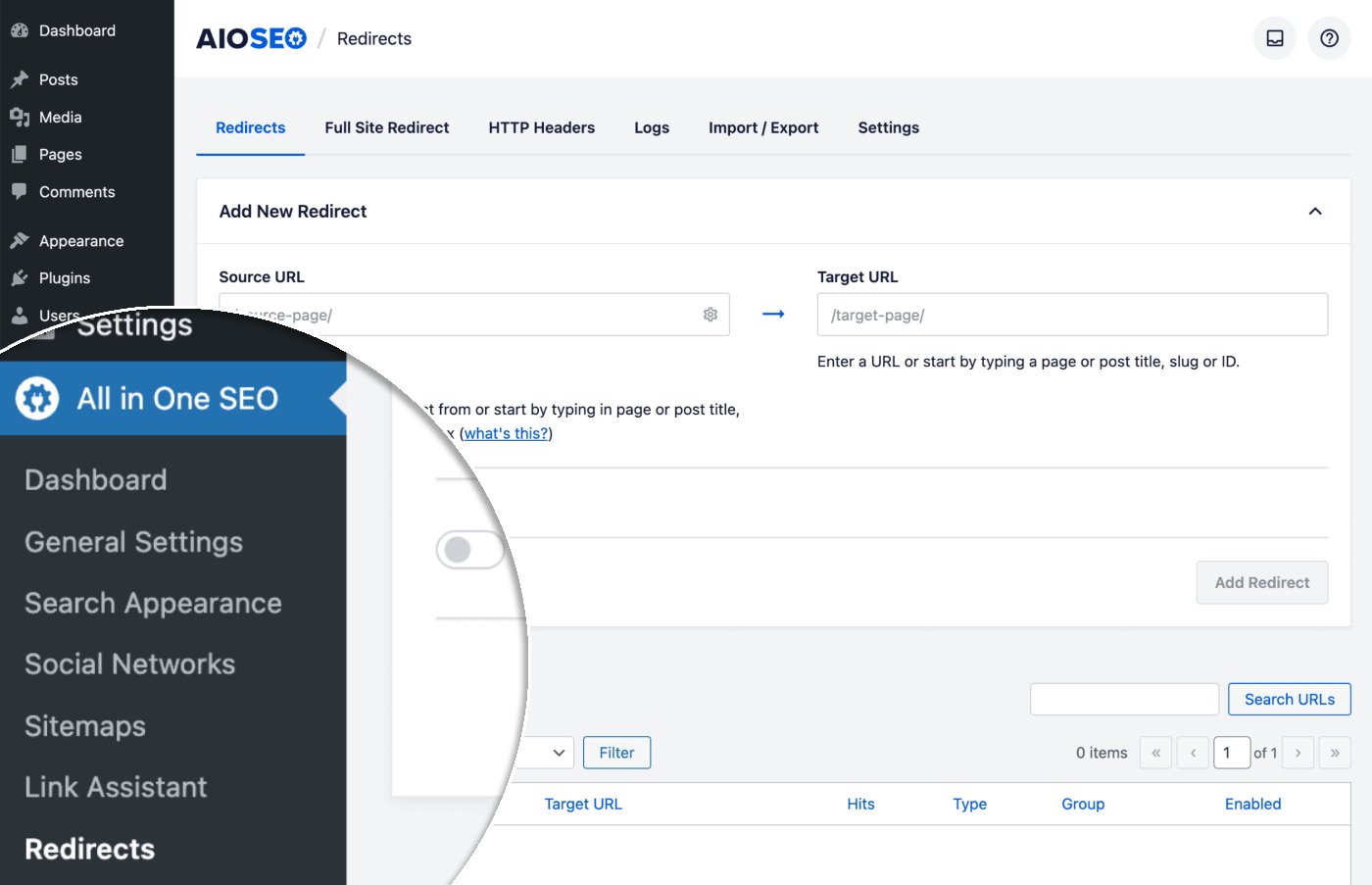
**新規リダイレクトを追加** フォームが表示されます。
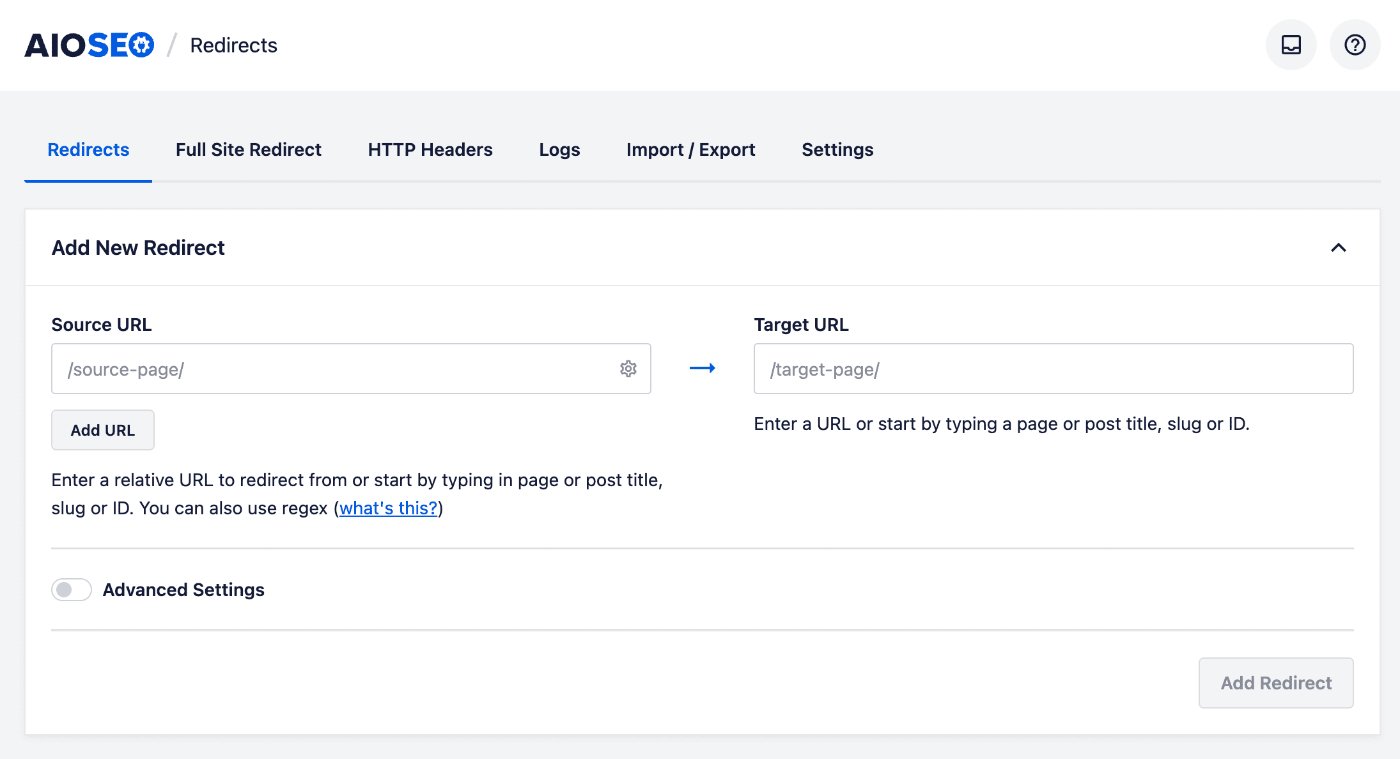
**ソースURL** フィールドに、リダイレクトしたい元のURLを入力します。URLは相対URLである必要があります。つまり、URLの https://mydomain.com の部分は含めないでください。
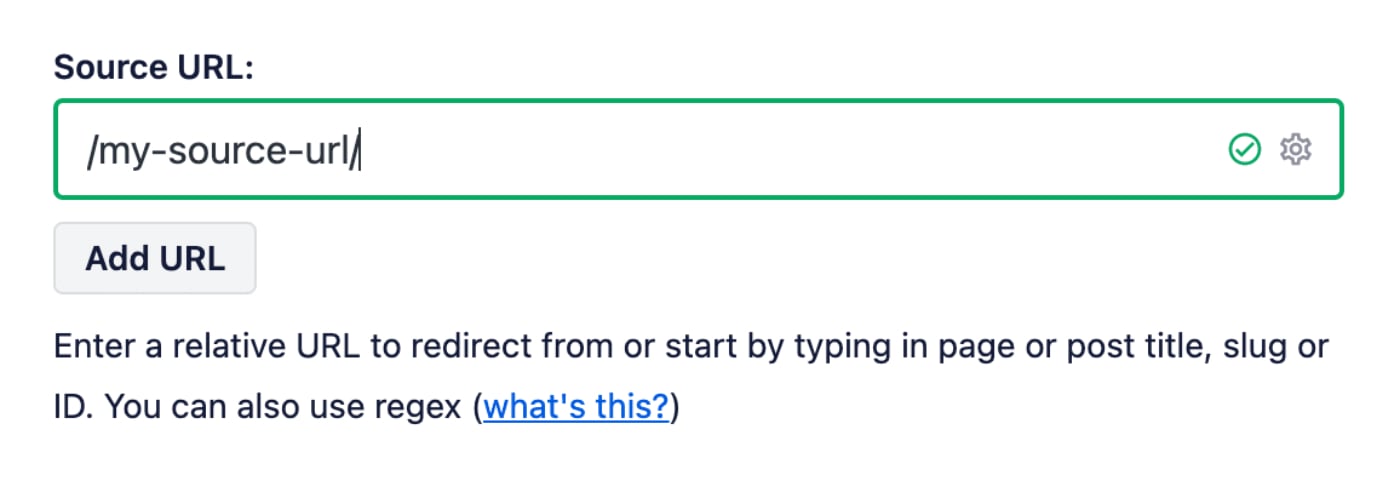
**ターゲットURL** フィールドに、リダイレクト先のURLを入力します。URLは相対URLまたは絶対URLのいずれでもかまいません。
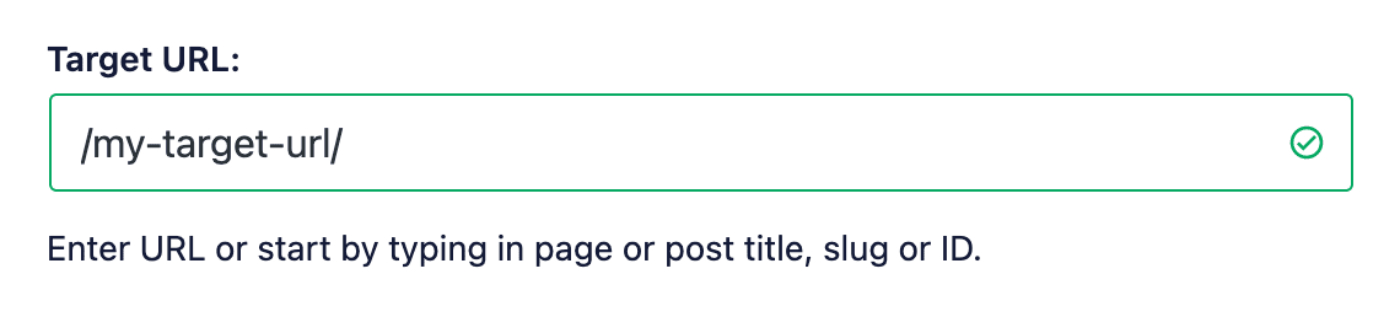
また、サイト上の任意の投稿、ページ、その他のコンテンツのタイトル、またはスラッグやIDを ターゲットURL フィールドに入力し始めると、一致するコンテンツが表示されます。ターゲットとして選択したい投稿またはページをクリックします。
次に **詳細設定** トグルをクリックして、**カスタムルール** フィールドを表示します。
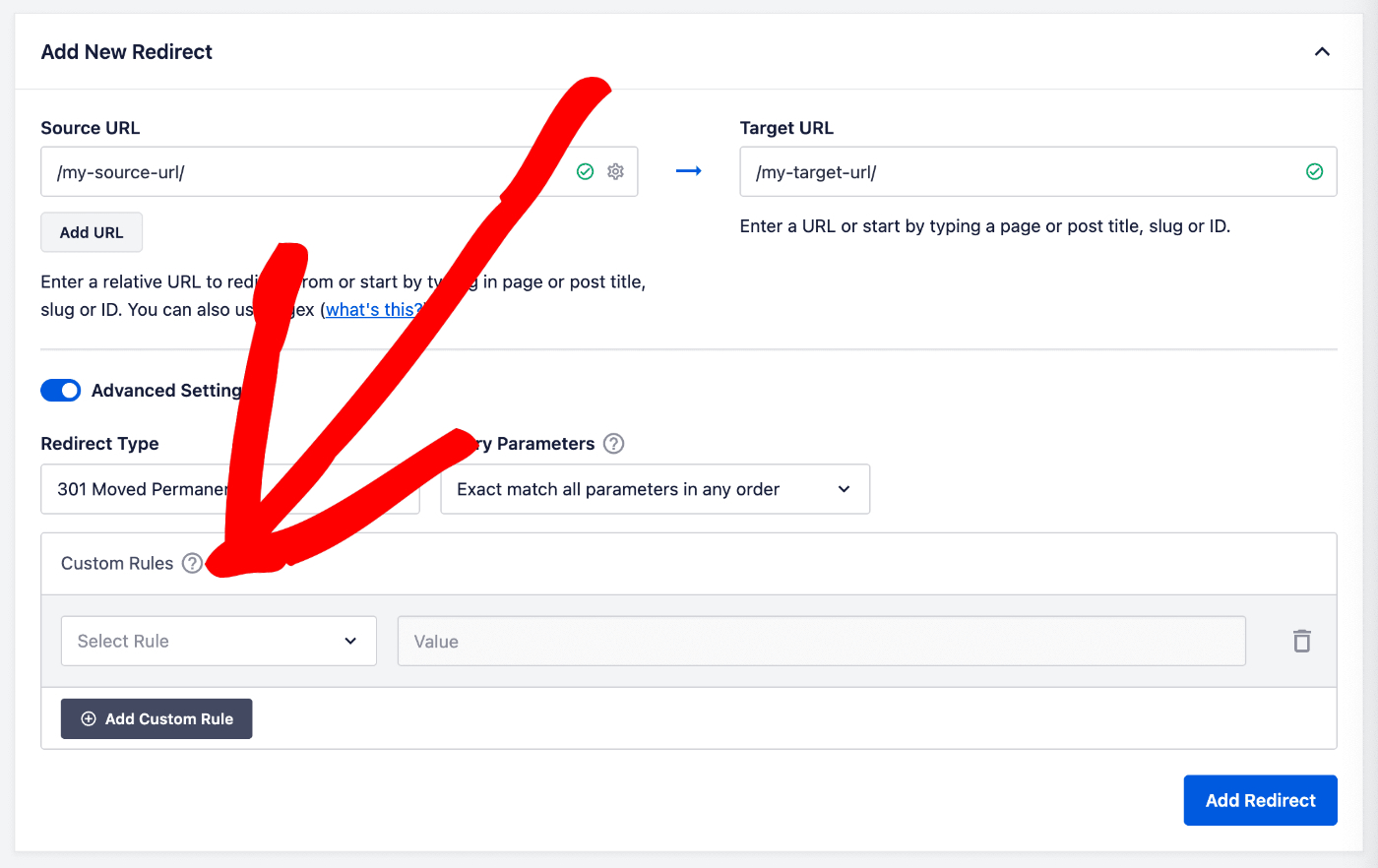
ルールタイプを選択するドロップダウンと、一致させる値を入力するフィールドが表示されます。
各ルールタイプの説明を以下に示します。
ログイン状態
このオプションを使用して、ユーザーのログイン状態によってリダイレクトを一致させます。サイトにログイン中またはログアウト中の訪問者をリダイレクトできます。

WordPressのユーザーロール
このオプションを使用して、ログイン中のユーザーのユーザーロールによってリダイレクトを一致させます。著者やエディターなどの複数のロールを設定して、いずれかに一致させることができます。

参照元
このオプションを使用して、参照元によってリダイレクトを一致させます。値を一致させるために正規表現を使用するには、**正規表現** トグルをクリックします。

ユーザーエージェント
このオプションを使用して、ユーザーエージェントによってリダイレクトを一致させます。独自の値を追加したり、定義済みのオプションを使用したりするには、**正規表現** トグルをクリックします。
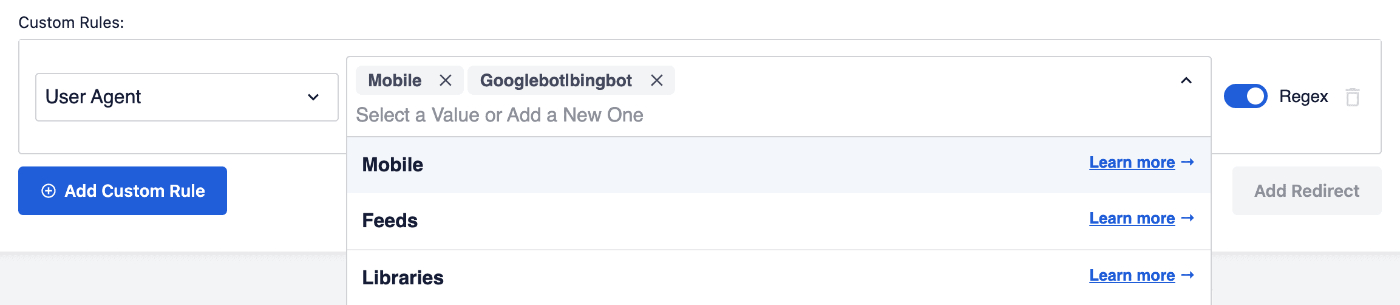
定義済みのオプションの説明を以下に示します。
- **モバイル:** このオプションは、これらのモバイルユーザーエージェントのいずれかに正規表現で一致します。
iPad|iPod|iPhone|Android|BlackBerry|SymbianOS|SCH-Md+|Opera Mini|Windows CE|Nokia|SonyEricsson|webOS|PalmOS- **フィード:** このオプションは、これらのフィードユーザーエージェントのいずれかに正規表現で一致します。
Bloglines|feed|rss
- **ライブラリ:** このオプションは、これらのライブラリユーザーエージェントのいずれかに正規表現で一致します。
cURL|Java|libwww-perl|PHP|urllib
クッキー
このオプションを使用して、Cookieへのリダイレクトを一致させます。値を一致させるために正規表現を使用するには、**正規表現** トグルをクリックします。

IPアドレス
このオプションを使用して、IPアドレスによってリダイレクトを一致させます。

値を一致させるために正規表現を使用するには、**正規表現** トグルをクリックします。

サーバー
このオプションを使用して、サーバーへのリダイレクトを一致させます。値を一致させるために正規表現を使用するには、**正規表現** トグルをクリックします。

HTTPヘッダー
このオプションを使用して、HTTPヘッダーへのリダイレクトを一致させます。正規表現トグルをクリックして、値に一致させるために正規表現を使用します。

WordPressフィルター
このオプションを使用して、カスタムフィルターを設定します。フィルター名は、リダイレクトを一致させようとするときに実行されます。

フィルターの戻り値は常に「false」になり、フィルターは一致しません。フィルターを使用して「true」値を返すことで、ルールを一致させることができます。
add_filter( 'aioseo_custom_filter', function ( $match, $url, $redirect ) {
   if ( ! empty( $_GET['do-redirect'] ) ) {
      $match = true;
   }

   return $match;
}, 10, 3 );
ロケール
このオプションを使用して、ロケールへのリダイレクトを一致させます。正規表現トグルをクリックして、値に一致させるために正規表現を使用します。

複数のルール
カスタムルールを追加ボタンをクリックして、上記を組み合わせて複数のルールを追加できます。
複数のルールはAND一致として機能します。
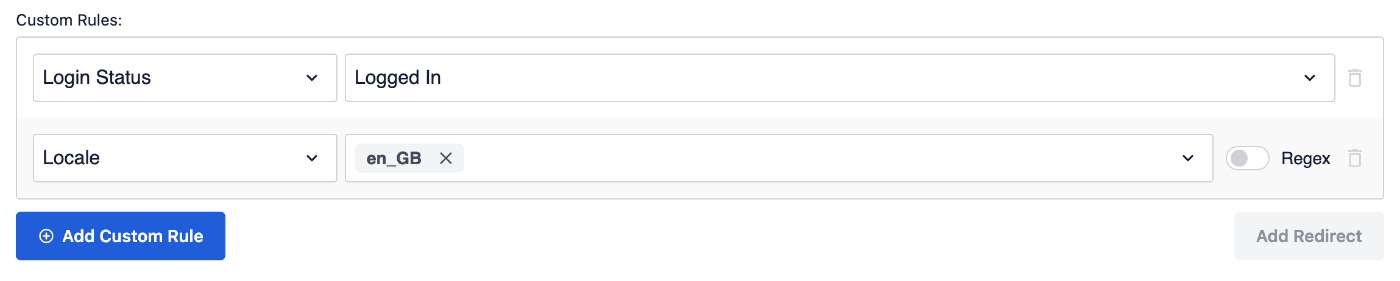
例:以下のログインステータスとロケールルールは次のように一致します:ユーザーはログイン済みであり、かつロケールはen_GBです。