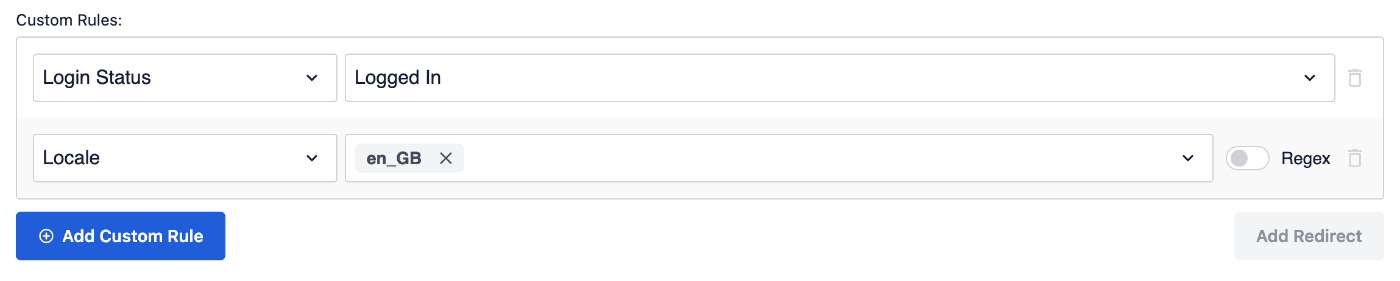
In this article we'll explain how to use the Custom Rules options in our Redirection Manager.
NOTE:
The Redirection Manager feature is available to customers with a Basic plan or above for All in One SEO Pro.
Some advanced features are available with a Pro plan or above for All in One SEO Pro.
Upgrade to All in One SEO Pro today to get Redirection Manager and many more features!
In This Article
Using Custom Rules
To use this feature, go to Redirects in the All in One SEO menu.
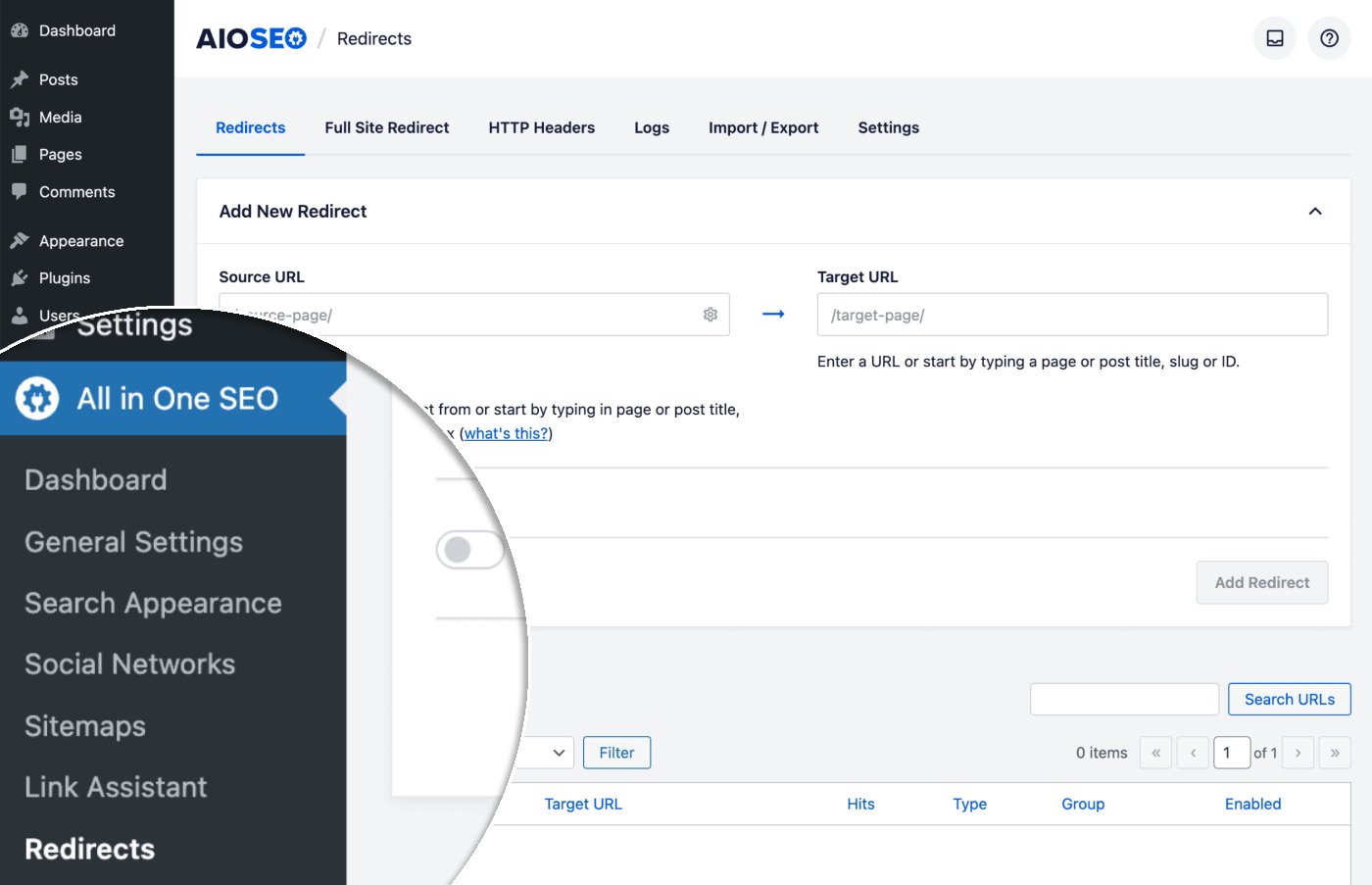
You'll see the Add New Redirect form.
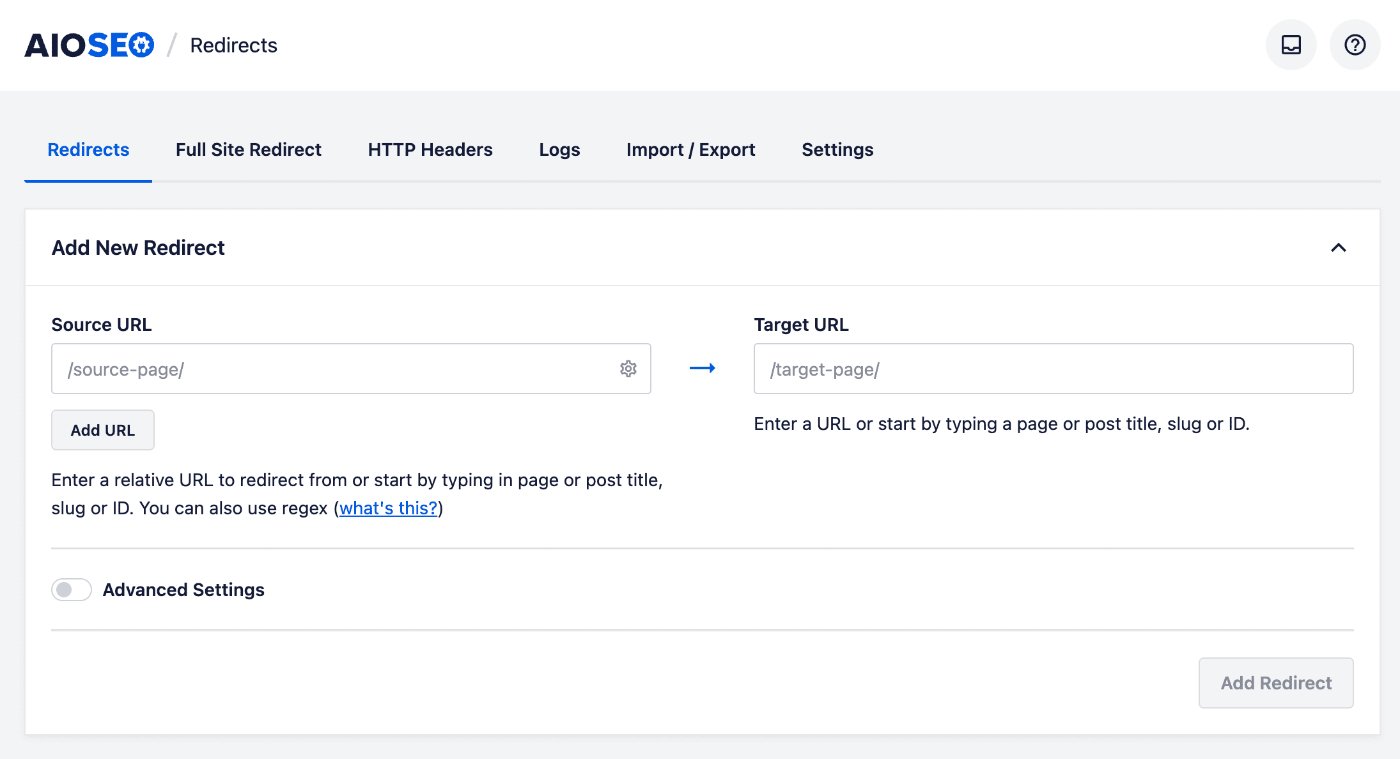
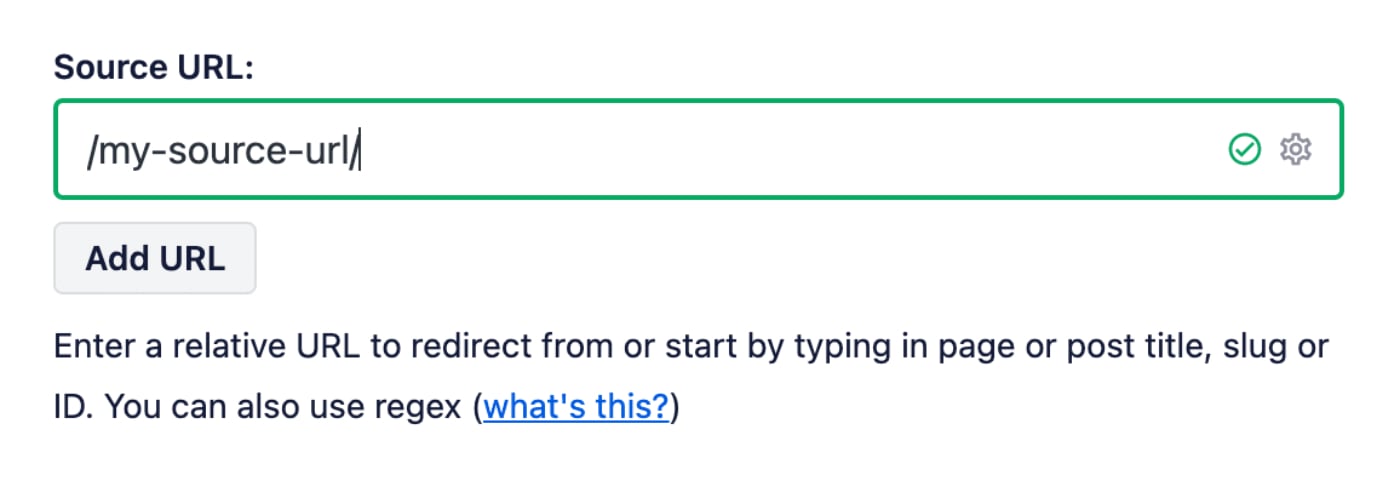
In the Source URL field, enter the URL you want to redirect from. The URL must be a relative URL, i.e. don't include the https://mydomain.com part of your URL.
In the Target URL field, enter the URL you want to redirect to. The URL can be either a relative URL or an absolute URL.
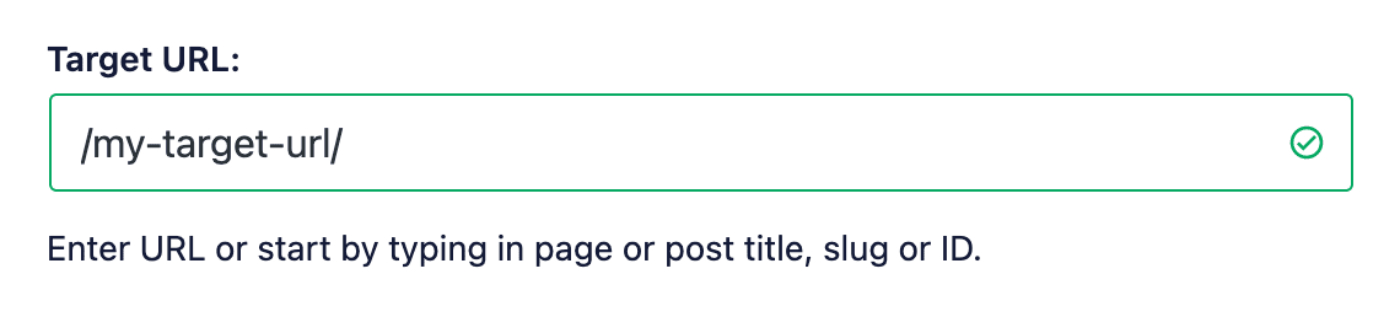
You can also start typing the title of any post, page or other content on your site, or the slug or ID in the Target URL field and the matching content will be displayed. Click on the post or page you want to select as your target.
Now click on the Advanced Settings toggle to display the Custom Rules fields.
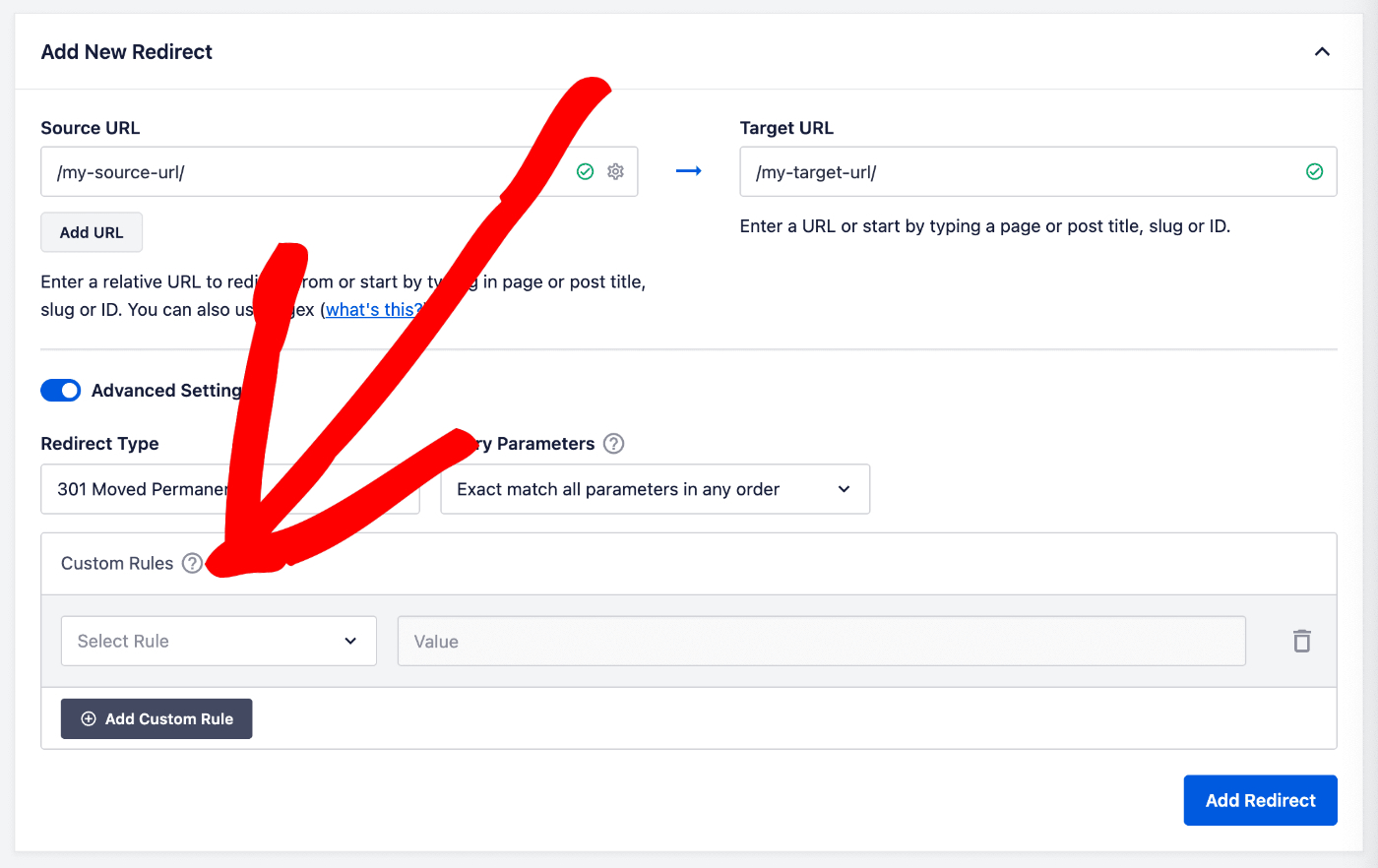
You'll see a drop down where you can select the rule type, and a field where you can enter the value to match on.
Here's an explanation of each of the rule types:
Login Status
Use this option to match redirects by the user login status. You can redirect a visitor if they're either Logged In or Logged Out of your site.

WordPress User Roles
Use this option to match redirects by the user role for logged in users. You can set multiple roles like Author and Editor to match one or the other.

Referrer
Use this option to match redirects by the referrer. Click on the Regex toggle to use regex to match the values.

User Agent
Use this option to match redirects by the user agent. Click on the Regex toggle to add your own values or use our predefined options.
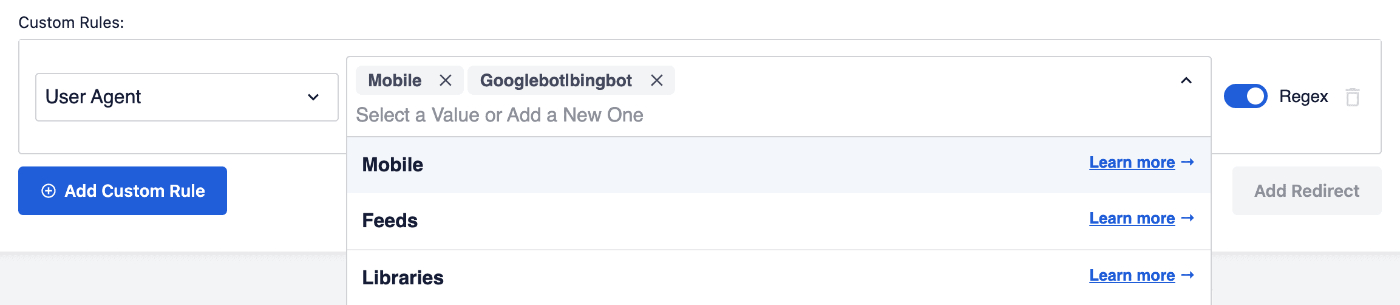
Here's an explanation of our predefined options:
- Mobile: This option will regex match any of these mobile user agents:
iPad|iPod|iPhone|Android|BlackBerry|SymbianOS|SCH-Md+|Opera Mini|Windows CE|Nokia|SonyEricsson|webOS|PalmOS- Feeds: This option will regex match any of these feed user agents:
Bloglines|feed|rss
- Libraries: This option will regex match any of these library user agents:
cURL|Java|libwww-perl|PHP|urllib
Cookie
Use this option to match redirects to cookies. Click on the Regex toggle to use regex to match the values.

IP Address
Use this option to match redirects by IP address.

Click on the Regex toggle to use regex to match the values.

Server
Use this option to match redirects to a server. Click on the Regex toggle to use regex to match the values.

HTTP Header
Use this option to match redirects to a HTTP header. Click on the Regex toggle to use regex to match the values.

WordPress Filter
Use this option to set custom filters. The filter name will be executed when trying to match a redirect.

The filter return value will always be ‘false' meaning the filter will never match. Use the filter and return a ‘true' value to have the rule match.
add_filter( 'aioseo_custom_filter', function ( $match, $url, $redirect ) {
   if ( ! empty( $_GET['do-redirect'] ) ) {
      $match = true;
   }

   return $match;
}, 10, 3 );
Locale
Use this option to match redirects to a locale. Click on the Regex toggle to use regex to match the values.

Multiple Rules
You can add multiple rules combining any of the above by clicking on the Add Custom Rule button.
Multiple rules will behave as an AND match.
Example: The Login Status and Locale rule below will match as: Use is Logged In AND their Locale is en_GB.