¿Sabías que puedes añadir fácilmente una tabla de contenidos a tu sitio con All in One SEO?
All in One SEO facilita la adición de una tabla de contenidos a tu sitio para que los visitantes puedan navegar fácilmente por contenido largo. Los motores de búsqueda a veces utilizan tablas de contenidos en los resultados de búsqueda o fragmentos enriquecidos, lo que puede ayudarte a aumentar tus clasificaciones.
IMPORTANTE:
Los bloques de WordPress solo funcionan con el editor de bloques de WordPress. No funcionan con el editor clásico ni con ningún maquetador de páginas.
En este artículo
Vídeo tutorial
Añadir el bloque de tabla de contenidos
Para empezar, edita cualquier contenido usando el editor de bloques de WordPress y haz clic en el icono Añadir bloque.
Puedes buscar el bloque escribiendo AIOSEO en el campo de búsqueda.
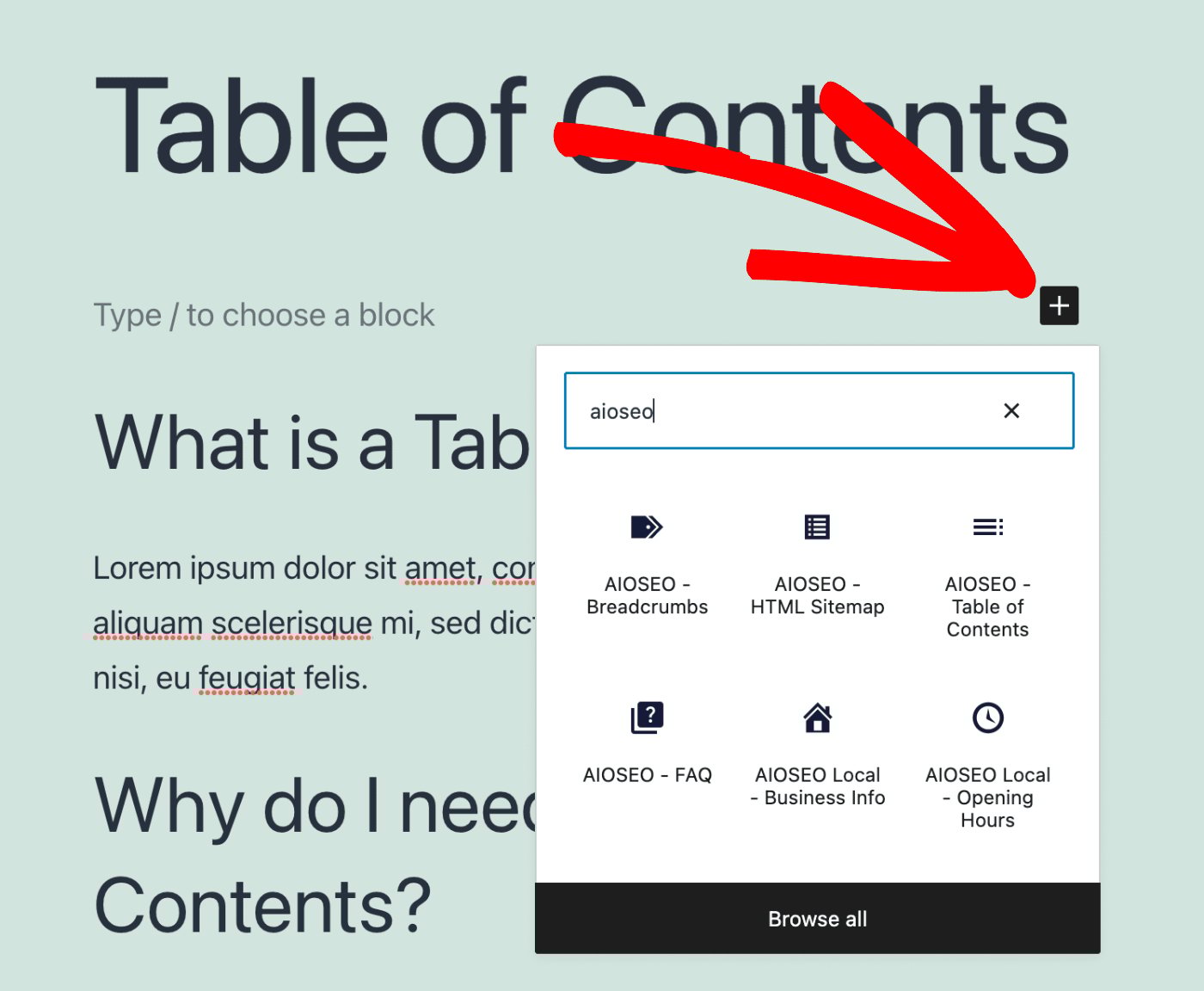
Verás el bloque AIOSEO – Tabla de contenidos en los resultados de búsqueda. Haz clic en él para añadirlo a tu página.
Por defecto, el bloque estará vacío como se ve a continuación, a menos que tengas encabezados en tu contenido.

Cómo funciona el bloque de tabla de contenidos
Cuando tengas encabezados H1 a H6 en tu contenido, estos se mostrarán en el bloque de tabla de contenidos como se ve a continuación:
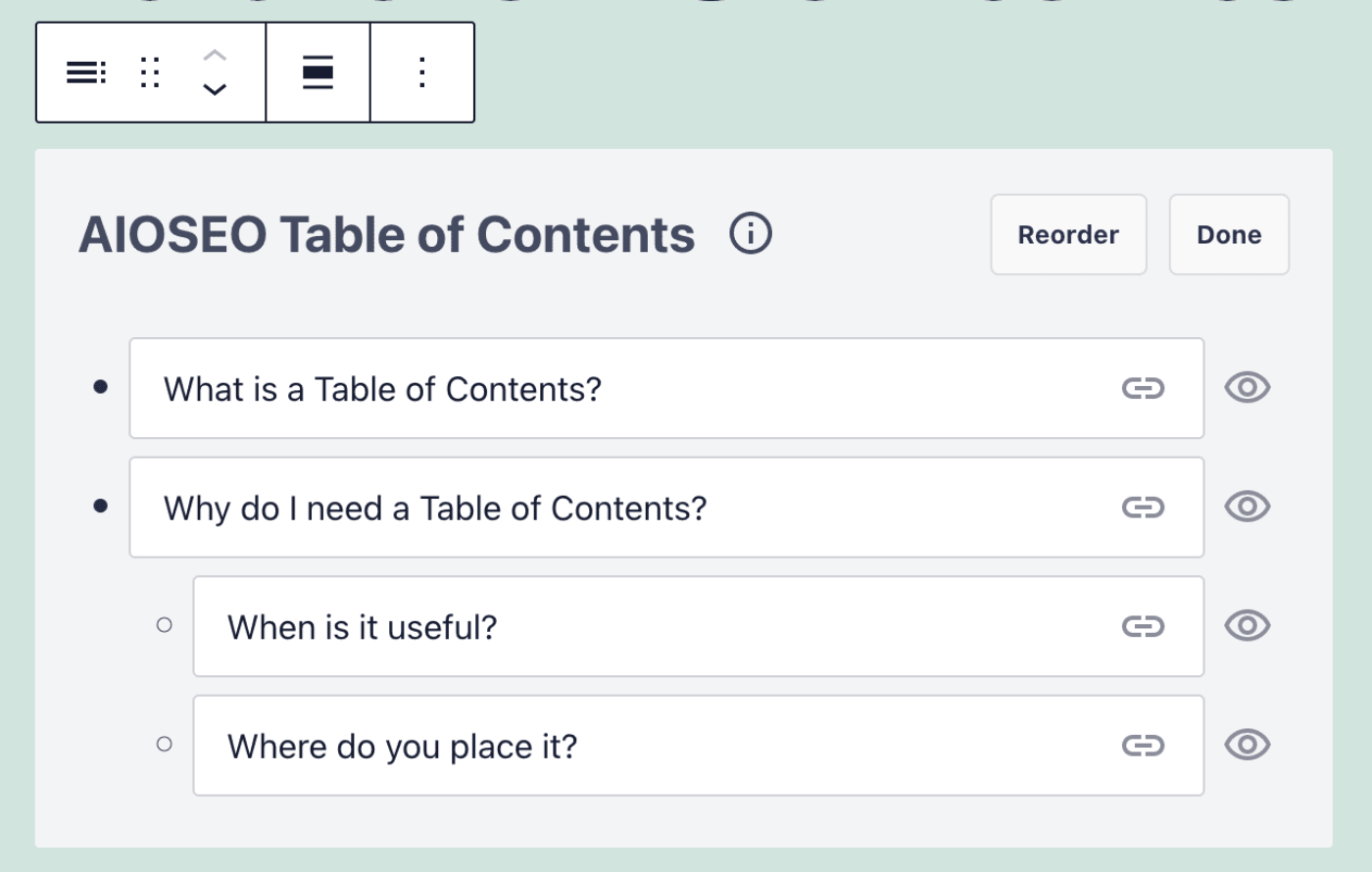
En el ejemplo anterior, los dos primeros encabezados son H2 y los dos últimos son H3, por eso están indentados.
Ajustes del bloque de tabla de contenidos
Cuando selecciones el bloque de tabla de contenidos, verás algunos ajustes en la barra lateral.
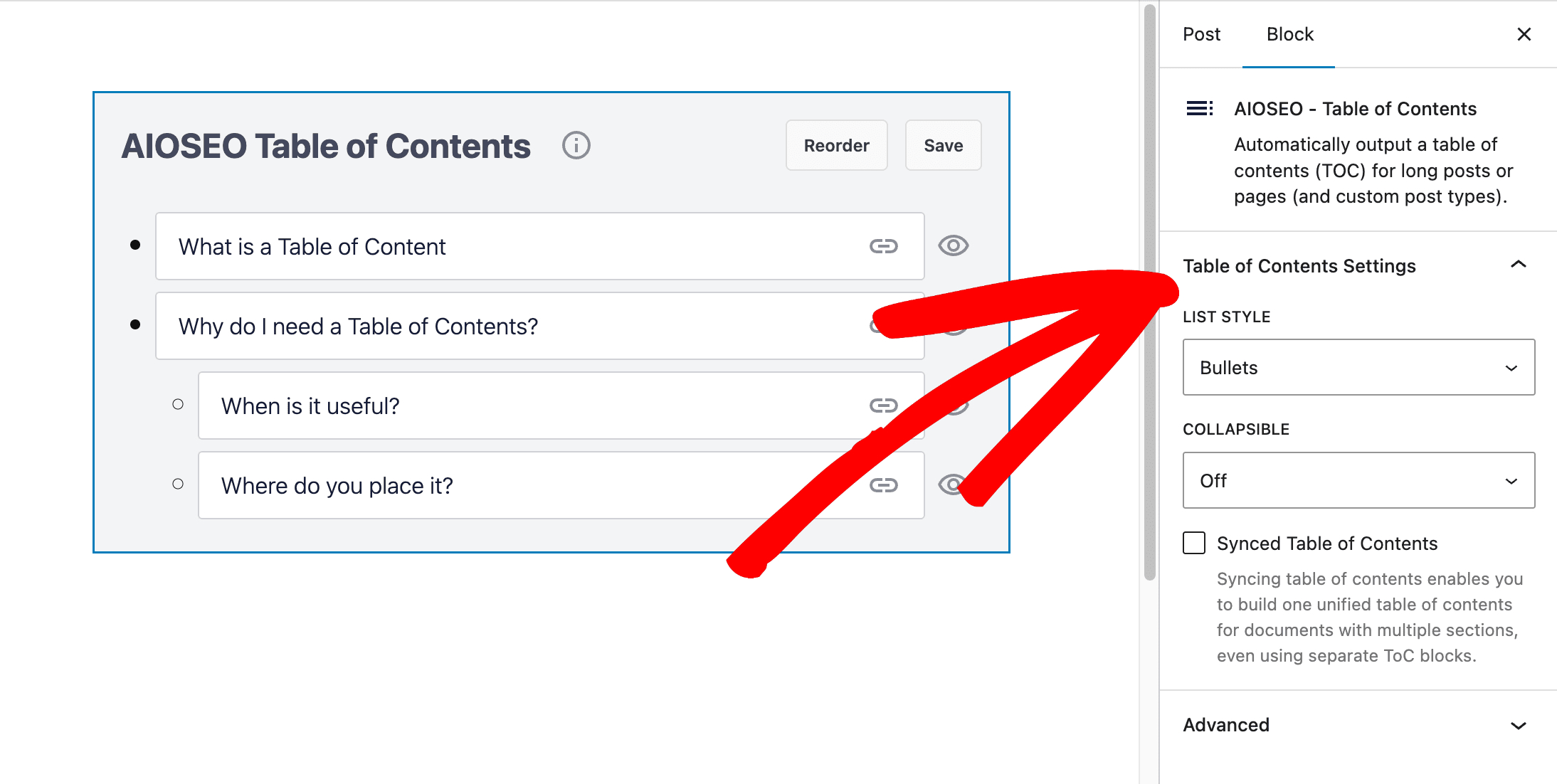
Los siguientes ajustes están disponibles:
- Estilo de lista – Este ajuste te permite elegir si tu tabla de contenidos se muestra como una lista con viñetas o una lista numerada.
- Colapsable – Este ajuste te permite elegir si tu tabla de contenidos se muestra colapsada o no. Si eliges que tu tabla de contenidos se muestre colapsada, verás opciones para establecer el título que se muestra cuando la tabla de contenidos está colapsada y el título que se muestra cuando la tabla de contenidos está desplegada.

Tabla de contenidos mostrada colapsada.
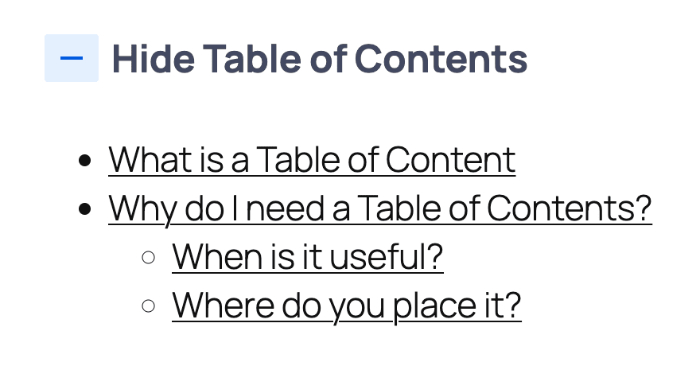
Tabla de contenidos mostrada desplegada.
- Tabla de contenidos sincronizada – Este ajuste te permite crear una tabla de contenidos unificada a partir de tablas de contenidos separadas en tu contenido. Por ejemplo, si tienes una publicación larga con varias secciones, cada sección puede tener su propia tabla de contenidos, y puedes tener una tabla de contenidos de nivel superior al principio de la publicación.
Reordenar la tabla de contenidos
También verás algunos botones e iconos en el bloque de tabla de contenidos.
En la esquina superior derecha hay un botón Reordenar. Al hacer clic en este botón, aparecerá un cuadro emergente donde puedes arrastrar y soltar los elementos de la tabla para cambiar su orden.
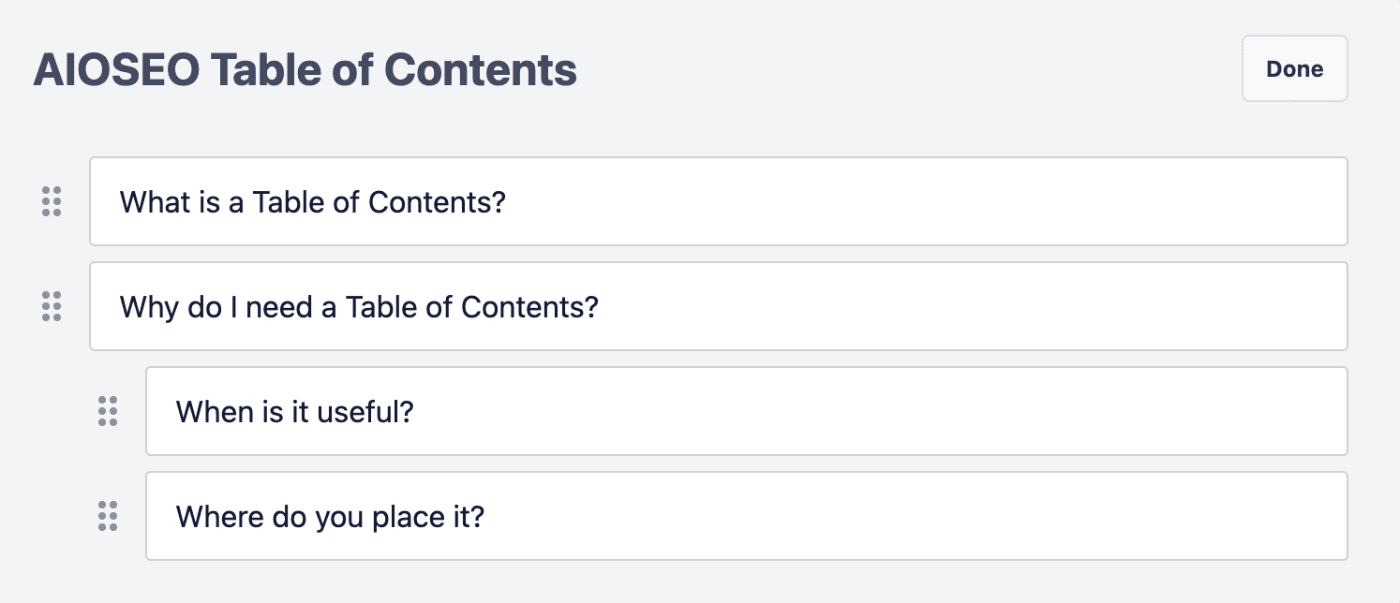
Una vez que hayas cambiado el orden de los elementos de la tabla, haz clic en Hecho para cerrar el cuadro emergente.
NOTA:
Cambiar el orden de los elementos en la tabla de contenidos no afecta la posición de los encabezados en tu contenido. Solo afecta el orden de tu tabla de contenidos.
Editar los enlaces de la tabla de contenidos
Hay dos iconos en el bloque de tabla de contenidos.
El icono de enlace te permite cambiar el enlace ancla que vincula el elemento de la tabla con el encabezado de tu contenido.
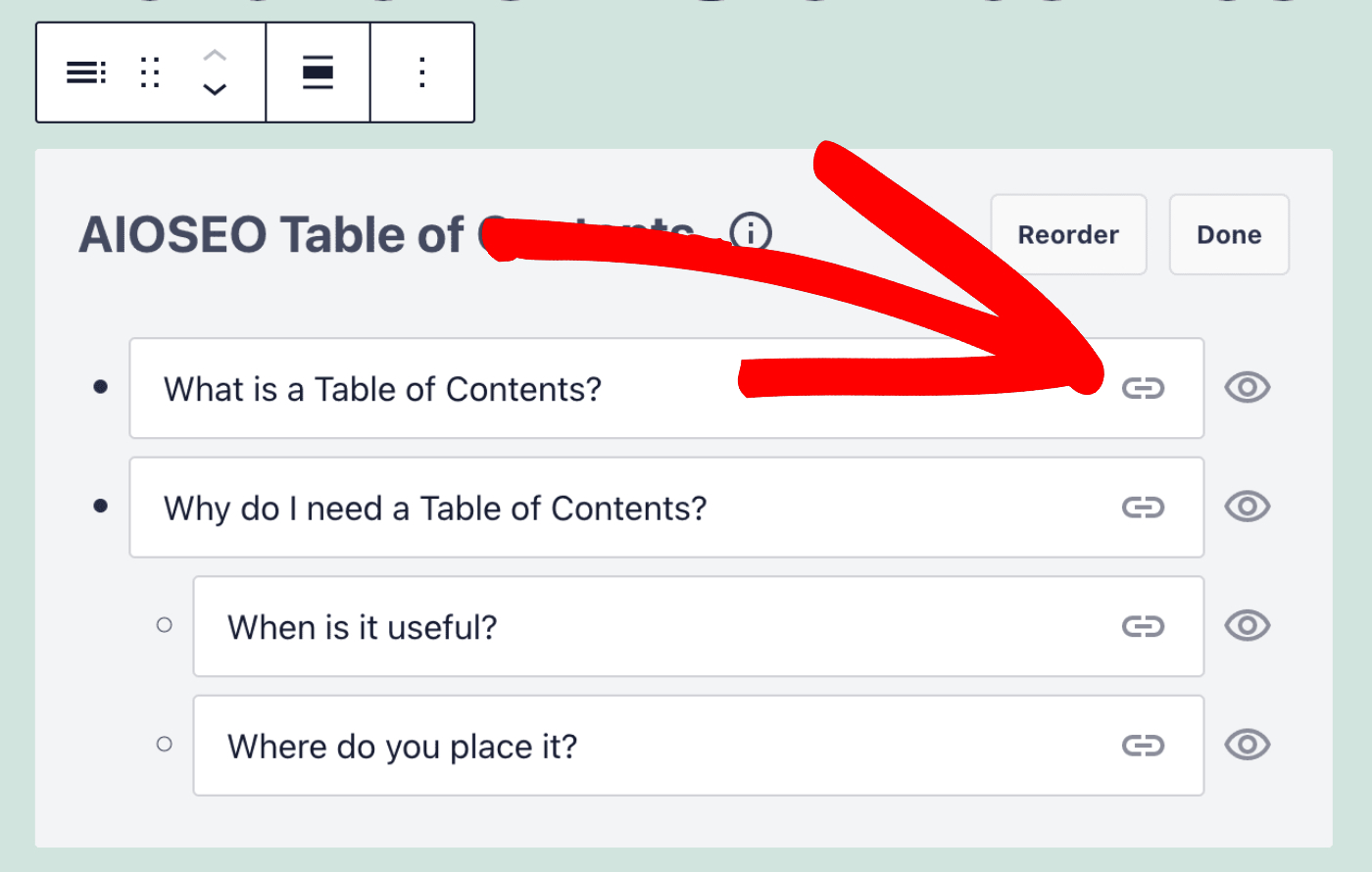
Haz clic en el icono de enlace para editar el enlace ancla.
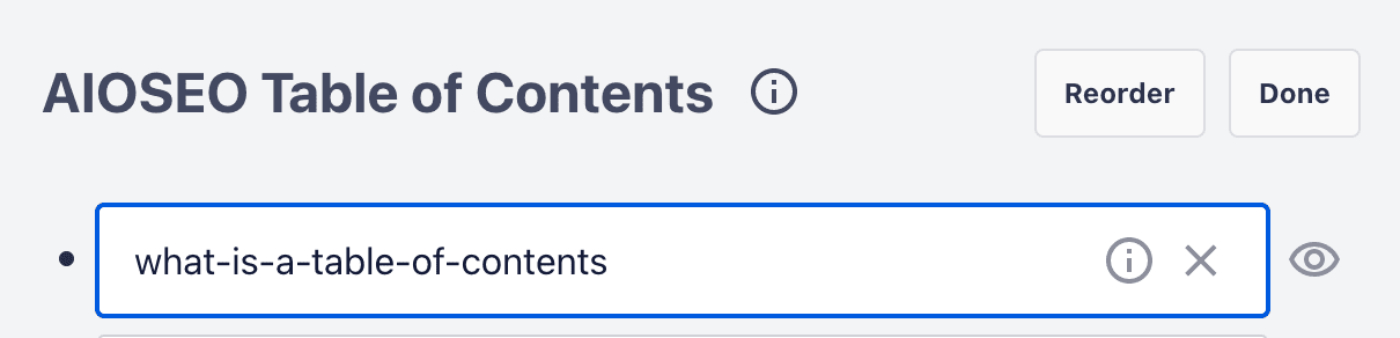
Una vez que hayas editado tu enlace, haz clic en la X para guardar y volver al bloque de Tabla de contenido.
Ocultar elementos en la tabla de contenidos
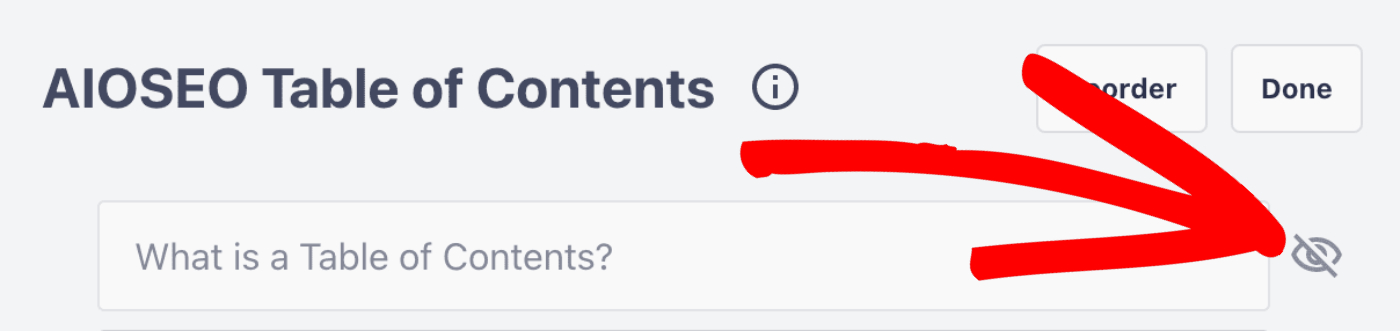
El icono de visibilidad te permite ocultar elementos en la Tabla de contenido que se muestra en tu sitio.
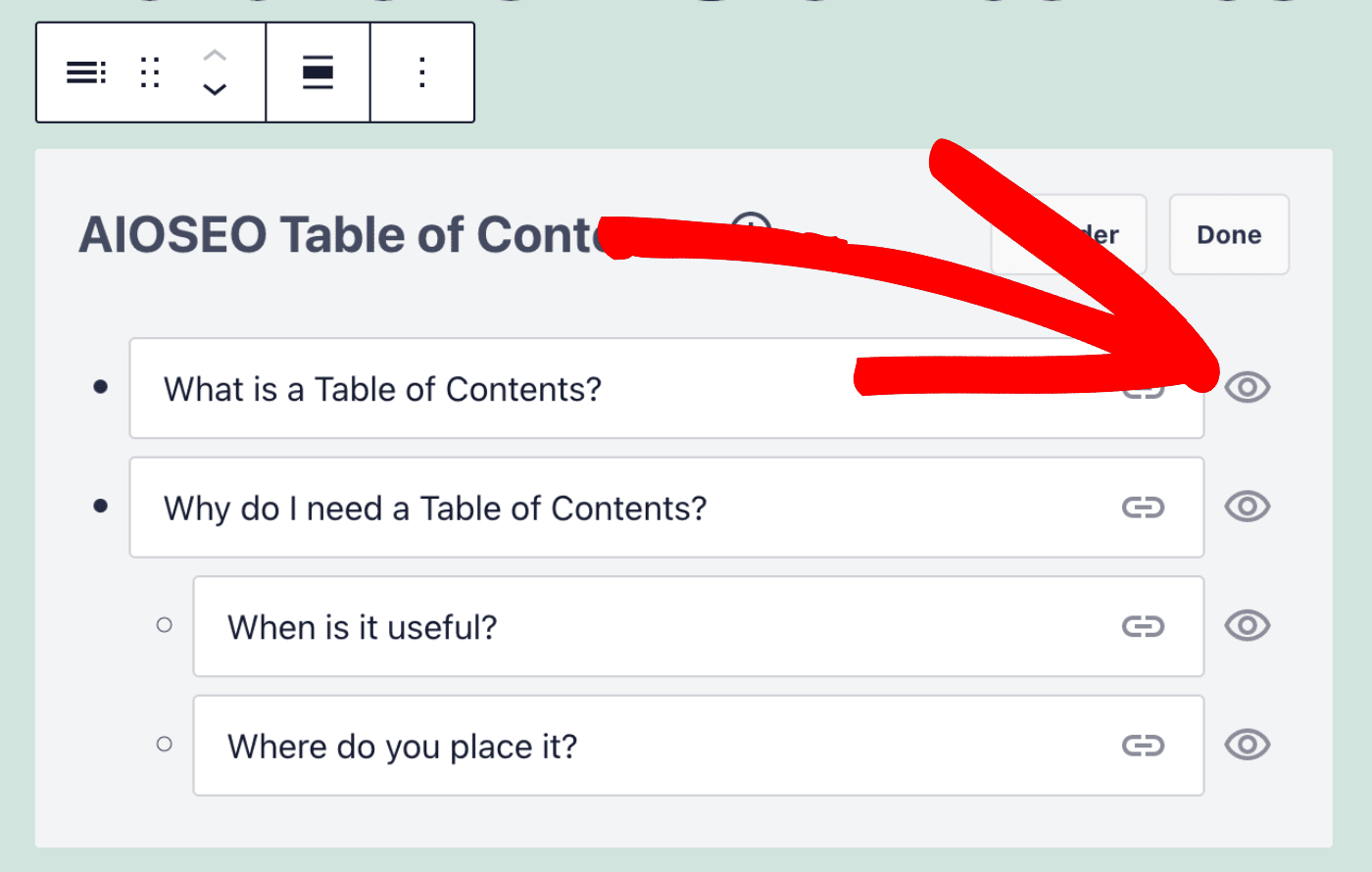
En la imagen de abajo, la visibilidad del elemento está configurada como oculta, por lo que no será visible en la Tabla de contenido de tu sitio.
Una vez que hayas terminado de hacer cambios en tu bloque de Tabla de contenido, haz clic en Hecho para guardar tus cambios.