All in One SEO has a number of settings to control what is logged in the Redirection Manager.
You can find the full details of these settings in our Logging Redirects in All in One SEO article.
NOTE:
The Redirection Manager feature is available to customers with a Basic plan or above for All in One SEO Pro.
Some advanced features are available with a Pro plan or above for All in One SEO Pro.
Upgrade to All in One SEO Pro today to get Redirection Manager and many more features!
In This Article
When it comes to privacy and GDPR compliance, there are a number of things you can do.
To get started, click on Redirects in the All in One SEO menu and then click on the Settings tab.
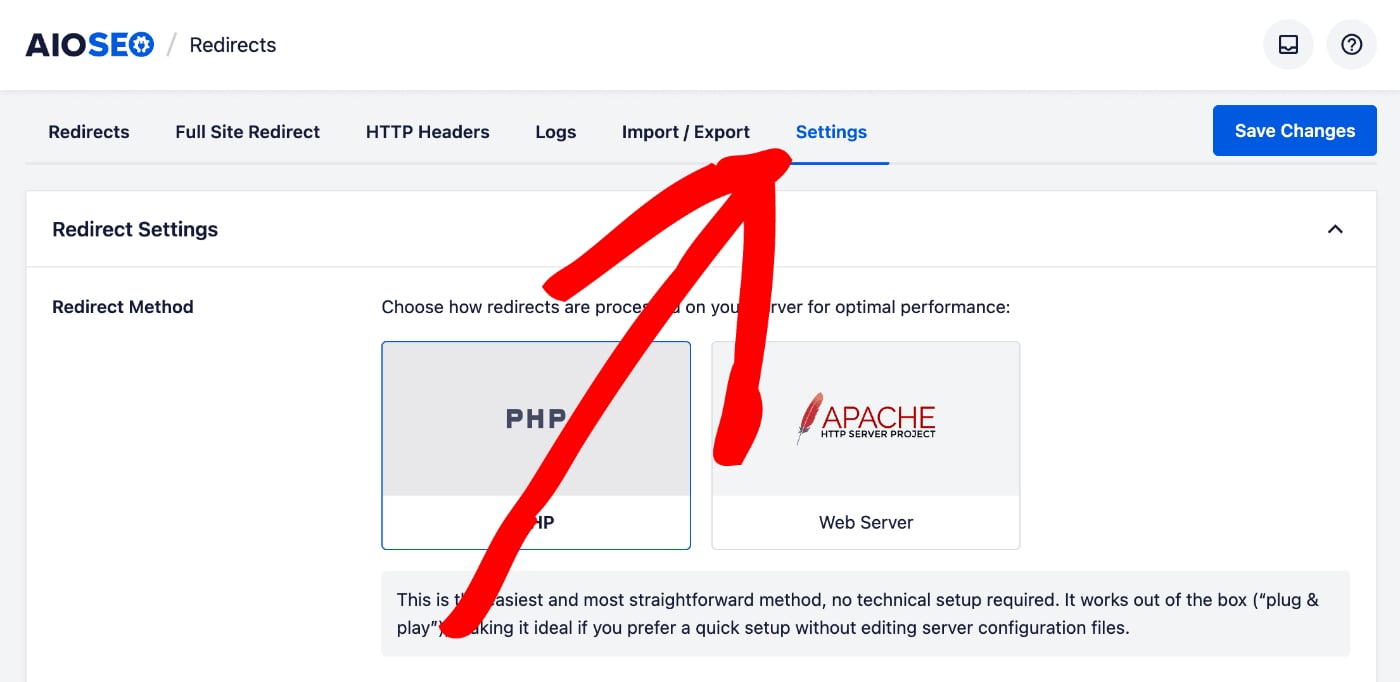
Scroll down and you'll see the Log Settings which you can enable and set the cache duration.
NOTE:
The Log Settings features are available to customers with a Pro plan or above for All in One SEO Pro.
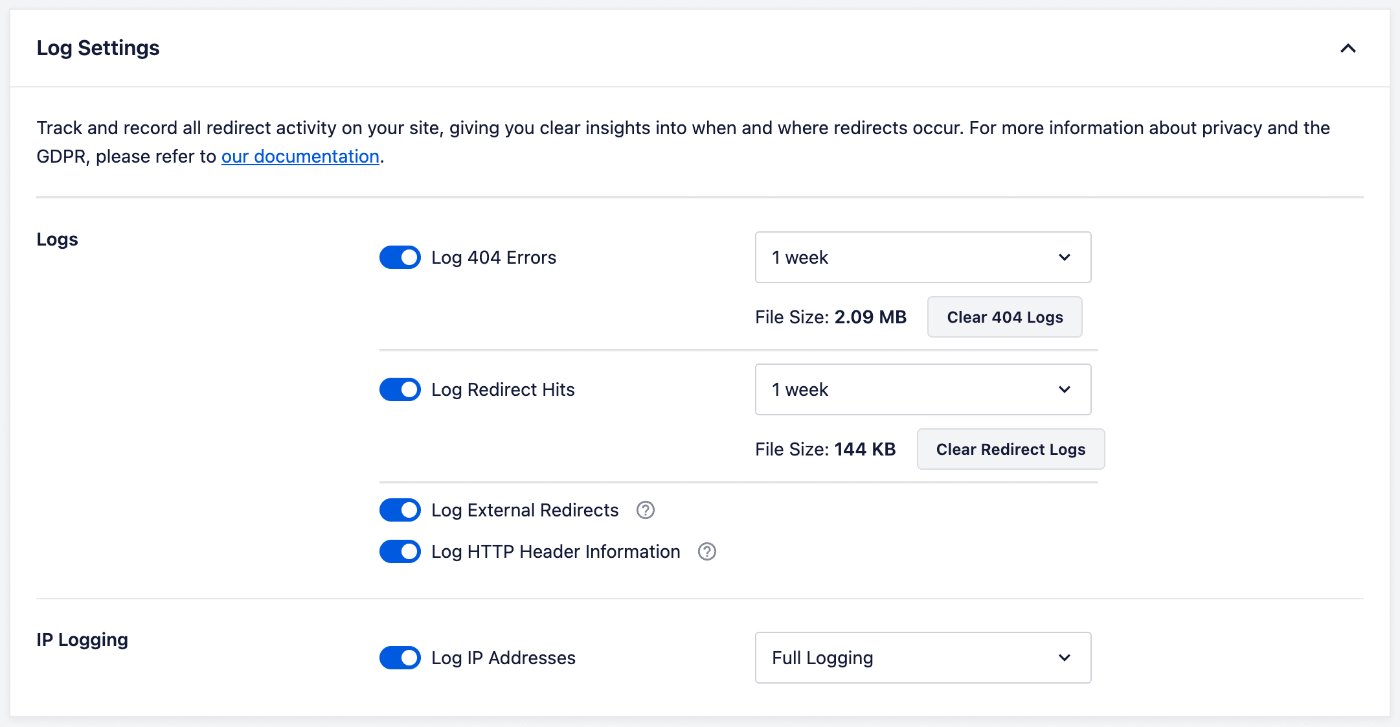
Disable Logging of Redirects
First, you can disable logging completely by clicking on the toggles next to the settings in the Logs section, shown above.
If you only want to log basic information such as the date and time the redirect happened and the IP address of the visitor, then make sure that the Log HTTP Header Information toggle is disabled.
Logging 404 Errors
You can opt to collect logs of all 404 errors for your site. To do this, make sure that the Log 404 Errors setting is enabled, and select a retention period in the drop down.
You can use the Clear 404 Logs button to empty the log file.
Logging Redirect Hits
You can opt to collect logs of all redirects for your site. To do this, make sure that the Log Redirect Hits setting is enabled, and select a retention period in the drop down.
You can use the Clear Redirect Logs button to empty the log file.
Logging External Redirects
Select this option if you want to log any redirects that happen on our site but outside of All in One SEO.
Logging HTTP Header Information
Select this option is you want to collect HTTP headers for all redirects. This will log additional information from the browser, except for cookies.
Enabling IP Logging
You can enable or disable IP logging or set IP logging to anonymize the IP addresses of visitors.
To enable IP logging, make sure that the Log IP Addresses toggle is set to Full Logging.
To disable IP logging, make sure that the Log IP Addresses toggle is in the off position.
To anonymize IP addresses instead, click on the drop-down next to Log IP Addresses and select Anonymize IP.
All in One SEO will now only display the first three sets of numbers in the IP address and will display the last set of numbers as zero.
To disable IP logging, make sure that the Log IP Addresses toggle is in the off position.
Check out more documentation on our Redirection Manager here.