The SEO Checklist helps you set up your site correctly after installing All in One SEO, identify and resolve important SEO issues, and discover key features of the plugin.
You can work through a list of prioritized tasks, track your progress, and improve your site for better search engine rankings—all in one place.
In This Article
Where to Find the SEO Checklist
You can open the SEO Checklist by clicking on General Settings in the All in One SEO menu, and then clicking on the SEO Checklist tab.
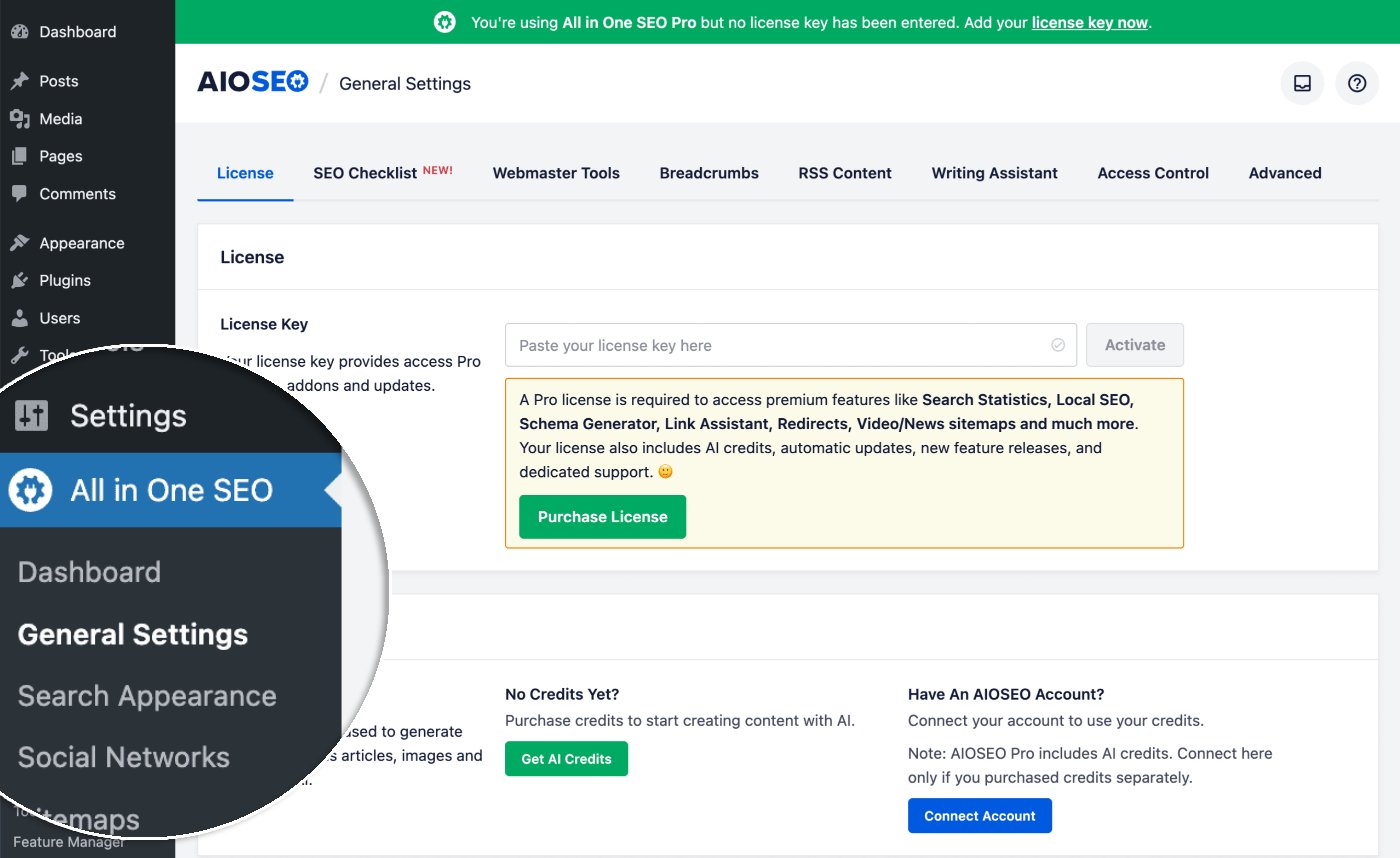
You will then see the SEO Checklist with your tasks and progress.
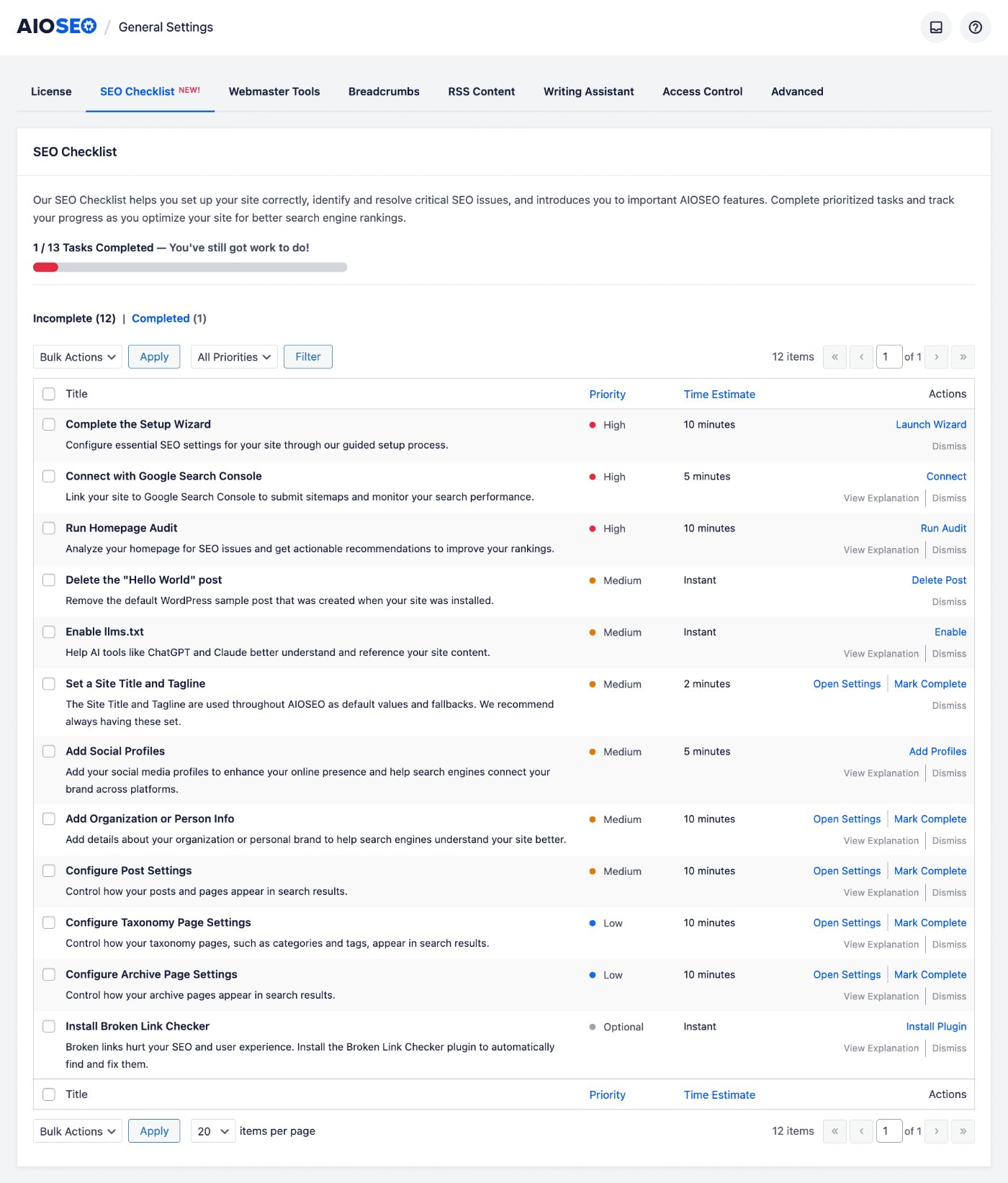
Understanding the SEO Checklist
At the top of the SEO Checklist screen you’ll see:
- Progress bar – The progress bar shows how far you've progressed through the SEO Checklist tasks. For example, “1/13 Tasks Completed — You've still got work to do!” so you know how many tasks you’ve finished and how many are left.
- Incomplete | Completed – Switch between these tabs to see the tasks you still need to do and the tasks you’ve already completed.
- Bulk Actions – Use the Bulk Actions dropdown and Apply button to perform actions on multiple selected tasks.
- Priority filter – Use the Priority dropdown and Filter button to filter the tasks by priority (e.g. High, Medium, Low, Optional).
Below this you'll see the Tasks table that shows a list of the tasks to be completed, with columns for Title, Priority, Time Estimate, and Actions.
Each task has a checkbox on the left so you can select it for bulk actions.
Under the Actions column you'll see the action you need to perform on each task. There's a View Explanation link that you can click on to display a description of the task and what you should do, and a Dismiss link you click to move the task to the Completed tab without taking any action.

How to Use the SEO Checklist
First, open the SEO Checklist by going to All in One SEO » General Settings and click the SEO Checklist tab.
In the Tasks table, look at the Priority column. Tasks marked High (shown with a red dot) are the most important. You can use the Priority drop down to filter on just the High priority tasks.
Complete the action for each task. Click on the View Explanation link if you want to display a description of the task and what you should do.
Click the Dismiss link if you want to move the task to the Completed tab without taking any action.
Next, work through Medium (orange dot) and Low (blue dot) priority tasks.
Continue through the checklist until all of the tasks have been completed.
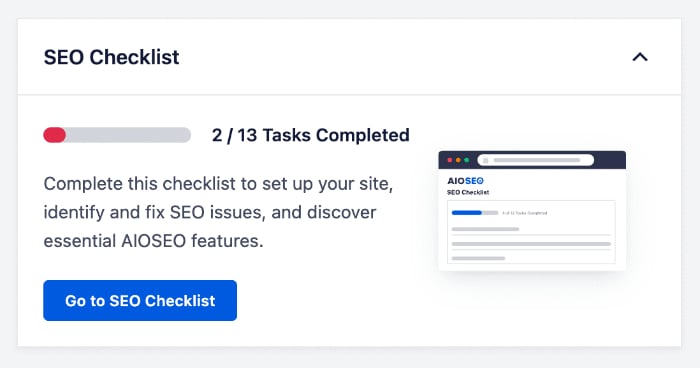
You can revisit the SEO Checklist at any time by returning to this screen. You can also see your progress in the SEO Checklist widget on the AIOSEO Dashboard (shown once you've completed the Setup Wizard).
NOTE:
Not all tasks may be applicable to every site. You can dismiss any that you feel don't apply.
The SEO Checklist is an important tool in ensuring you've set up All in One SEO correctly for your site, and optimized your site for search engines and social networks.