You just finished writing a post, and TruSEO tells you it's sitting at 62 out of 100. Somewhere in that list of flagged issues is a weak title, a short meta description, a passive sentence, and a spelling error you missed 3 times already. Fixing all of that by hand is doable. But it's also the kind of cleanup that takes 30+ minutes you don't have.
Starting in AIOSEO 5.0.0, you can use AI to optimize your content in 1 click.
This takes TruSEO beyond just telling you what's wrong, but allows you to actually fix it with minimal effort. It can rewrite your SEO title, meta description, long sentences, and cleans up spelling, all in the same pass.
You'll find it as the Optimize with AI button, included on every plan.
In This Article
How It Works
TruSEO's analysis doesn't stop at flagging problems anymore. Click Optimize with AI, and it closes the gap between finding an issue and fixing it.
Here's an overview of this new AI-powered workflow:
- TruSEO scores your content the moment you start typing, no manual save required (more on that in the TruSEO 2.0 changes below).
- Click the Optimize with AI button, and it rewrites your SEO title, meta description, headline, and content, and fixes spelling, all in the same click.
- Before it changes anything, AIOSEO saves your current version as a revision.
- If you don't like the result, you don't need a special undo tool. You can either click “Revert” next to any proposed changes or restore a previous revision from WordPress's normal revision history.
In summary: TruSEO tells you what's holding your score back, and 1 click on Optimize with AI rewrites any issues it found in your content. Your previous version is saved as a revision first, so nothing is ever truly lost.
👉 This is also where AI Credits come in.
Every click draws from your plan's monthly credit allotment, the same credits that power AIOSEO's other AI tools. If you're running low, you can top off your account and buy AI Credits.
What You Can Do With AI in the Editor
This feature works inside the same Content Optimization panel where TruSEO already shows your score, so there's nothing new to install or configure. Here's what changes once you click Optimize with AI:
- Rewrite your SEO title so it's more likely to rank higher in search results and earn clicks
- Rewrite your meta description so it's a stronger pitch, not just a summary
- Improve your headline to include your focus keyword and pique interest
- Clean up passive voice, long sentences, and other issues flagged in your content
- Correct spelling errors AIOSEO catches, without leaving your post to run a separate check
- Fix your SEO title, meta description, headline, content, and spelling in a single click instead of one field at a time, which is the part most other AI writing tools still make you do manually
And it does all this under 30 seconds.
How to Optimize a Post With AI
If you're running AIOSEO 5.0.0 or later, the Optimize with AI button is already live in your post editor. No setup required.
Step 1: Open the Optimization Tab
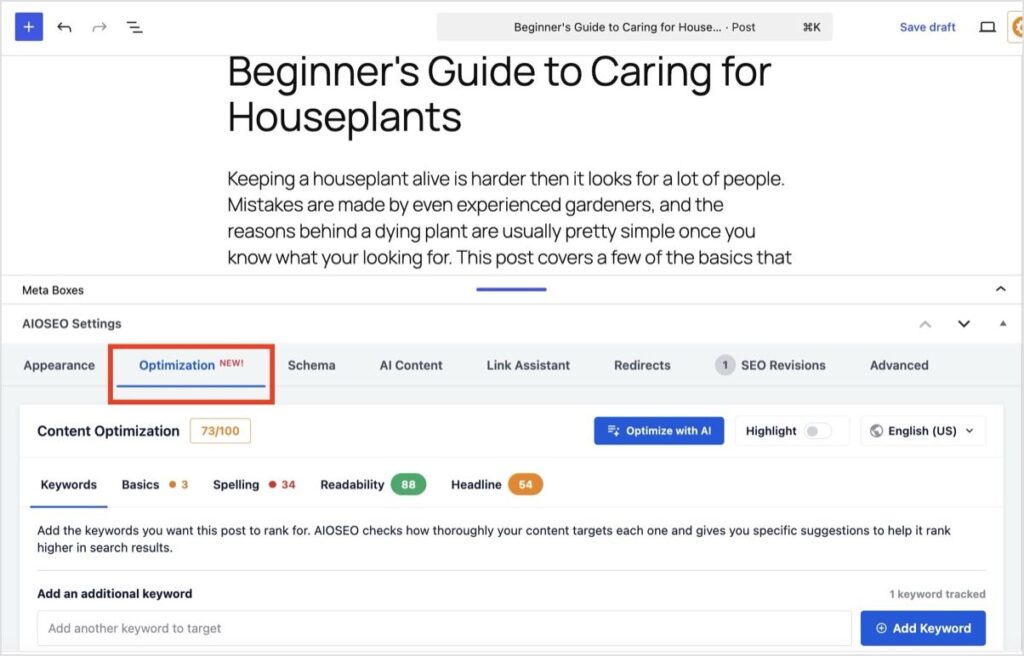
Edit any post or page and look for the Optimization tab in your editor meta boxes.
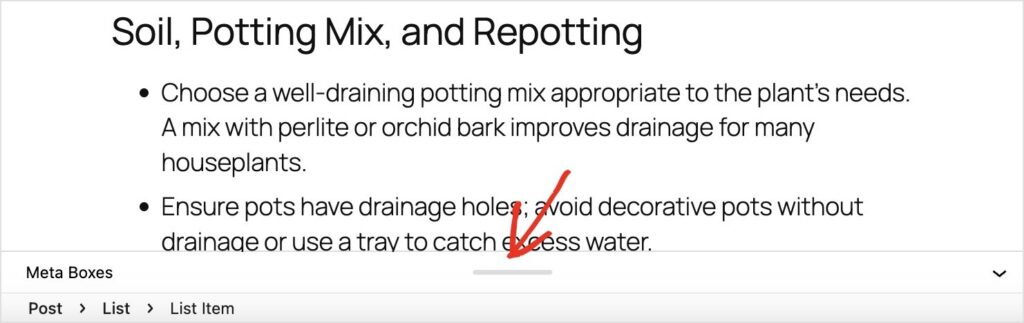
Don't see the AIOSEO Settings? Look for the grey pull tab and “Meta Boxes” label at the bottom of the editor. Click the tab and drag it up to reveal the content within.
Step 2: Check Your Content Optimization Score
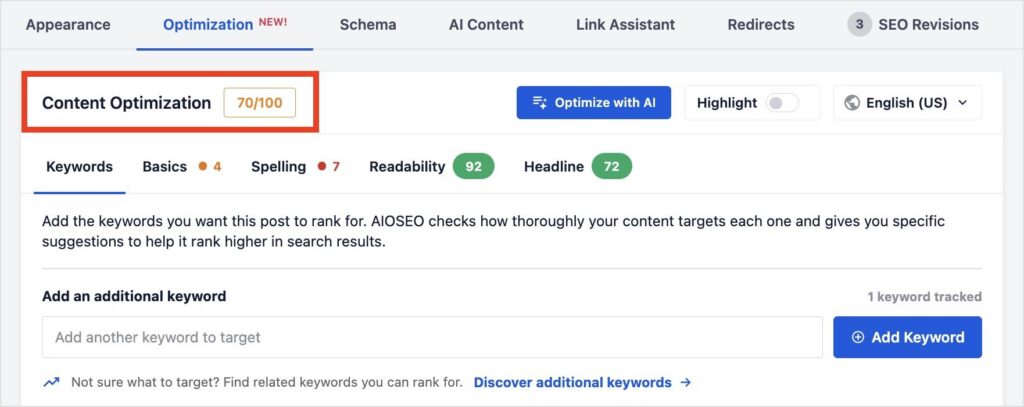
Your score now generates automatically the moment you start writing, so you won't see it stuck at N/A the way older versions sometimes showed on fresh installs or right after switching from another SEO plugin.
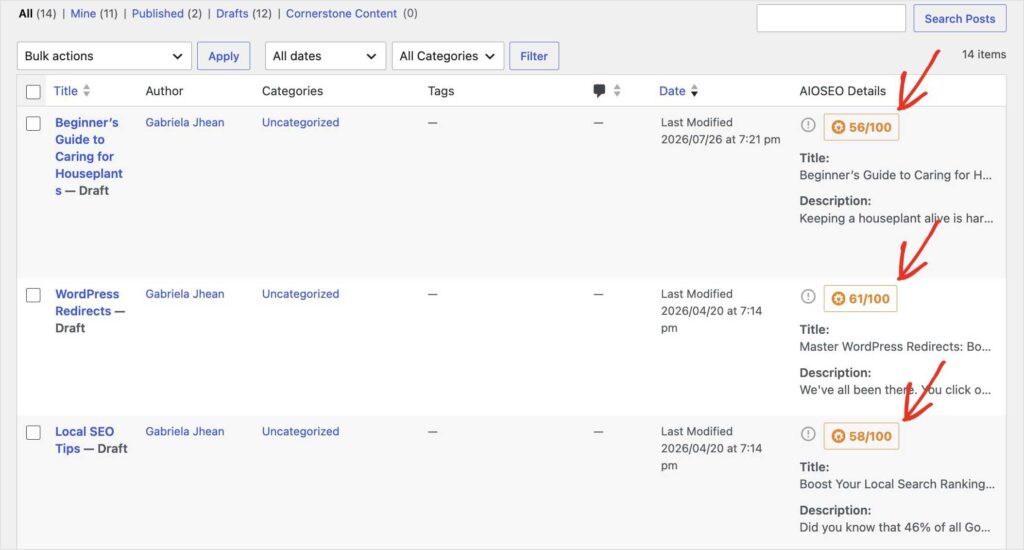
You'll also see this score in the post editor. It updates automatically as you make changes to your content.
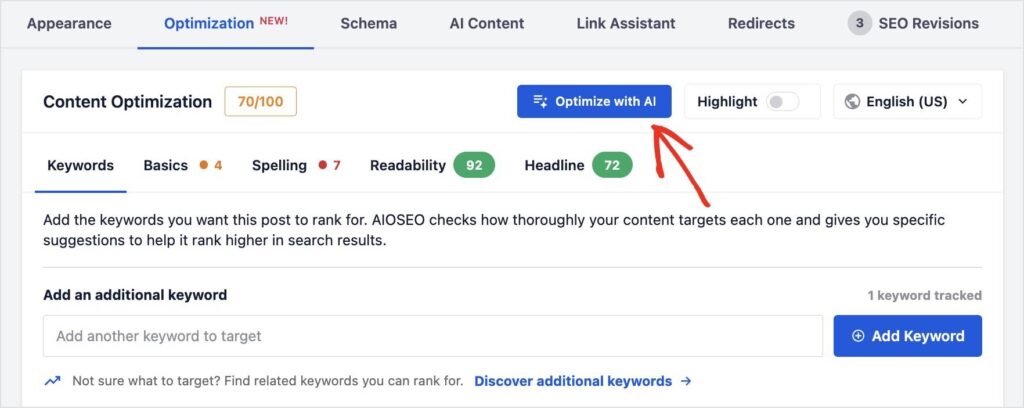
Step 3: Click Optimize with AI
At the top of the Content Optimization card, you'll find a button titled, “Optimize with AI.” Click it to launch the AI workflow.
Here's the message you'll see before confirming you want to optimize with AI. Click “Optimize” when you're ready.

Step 4: Check the Result, Roll Back If You Need To
Once the AI-powered optimization is complete, you'll get a full report of everything that changed. You'll also see how your overall SEO score improved, along with a breakdown of individual changes and their points.
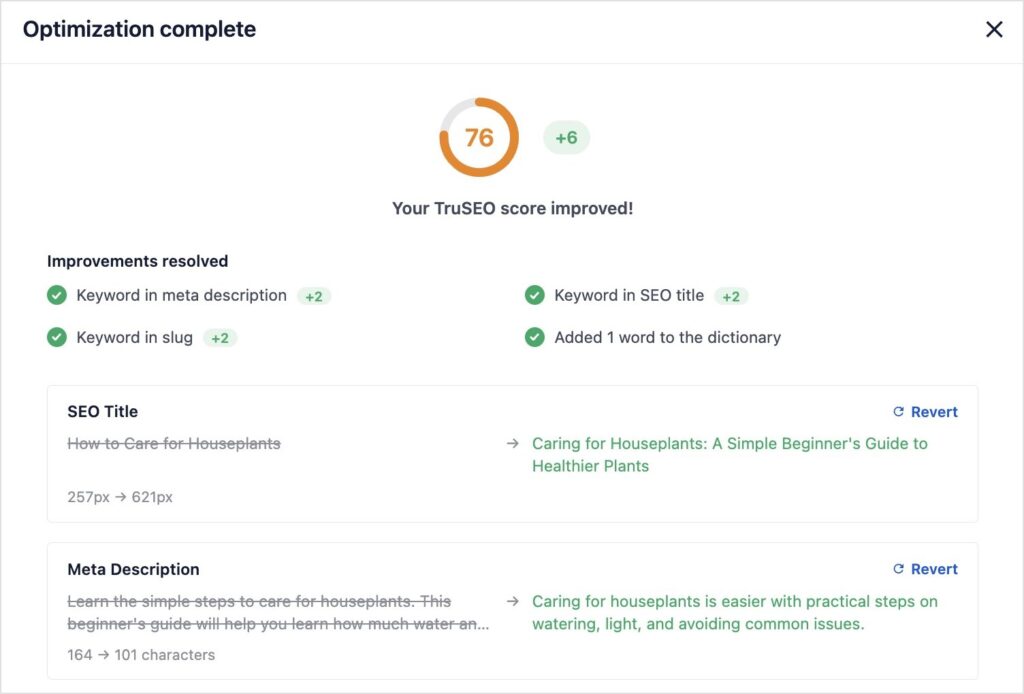
There are a few things I want to note here:
- You can compare the exact changes with the before and after view of each edit.
- If there are any changes you don't want to keep, click the “Revert” text for that specific edit. This will keep your original text, not the AI-generated copy.
- If you close this screen without clicking “Done,” it will keep the AI-generated changes, not your original text. More often than not, you'd want to apply all changes anyway, but it's just something to keep in mind.
- Not thrilled with the changes? Click “Optimize again” to run the AI-powered workflow and get different results.
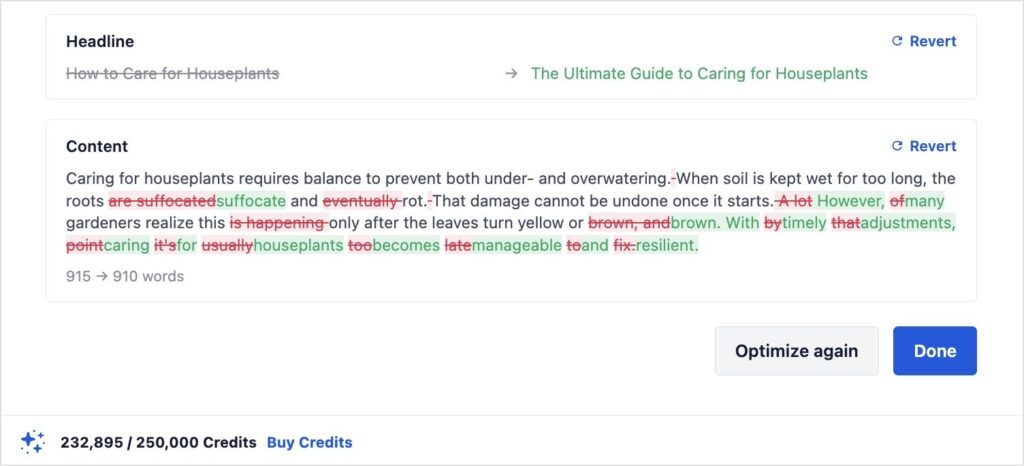
In one example, a post's SEO score went from 68 to 85 after a single click. That's not a guarantee for every post, but it's what's possible when your title, meta description, content, and spelling all get fixed in the same pass instead of one at a time.
The process is the same whether you're cleaning up one post or working through a backlog. I've noticed the biggest time savings when optimizing several old posts. It makes a huge difference to not have to edit all your posts one by one.
Need help? If something doesn't generate the way you expect, our support team can help you sort it out. Contact us and we'll take a look.
What Gets Rewritten in 1 Click
| What It Touches | What Changes |
|---|---|
| SEO Title | Rewritten to include your focus keyword and earn the click, not just describe the page |
| Meta Description | Rewritten as a real pitch to pique the reader's interest, not just a summary |
| Headline | Rewritten to include your focus keyword and pique interest, not just restate the topic |
| Content | Passive voice, long sentences, and other flagged issues cleaned up |
| Spelling | Misspelled words corrected |
Pro Tip: Try it on a low-stakes post first, an older post that needs a refresh. This will give you a feel for how it works before you start to update the rest of your posts and pages.
Included on Every AIOSEO Plan
To be honest, this would have been an easy feature to keep gated under the higher-tier AIOSEO plans. But that's not how we work here.
The goal of optimizing your content with AI is to:
- Make your content better
- Improve your visibility in search results
- Get more visitors to your site
And that's something I want for every AIOSEO user, regardless of what plan you're on. As long as you have AI Credits, you can use it.
And I hope you do. It's really powerful and one of the more exciting releases we've put out this year. So, update to 5.0.0, run the content optimizer, and let me know how much your score improves.
— Ben Rojas, President of AIOSEO
P.S. In addition to this new AI-powered workflow, we did a complete overhaul of TruSEO. Now, you have real-time scoring, a redesigned interface, and support for 10 more languages. You can read all about it here: Introducing TruSEO 2.0.
Frequently Asked Questions
What does the Optimize with AI button do?
It's a one-click action inside AIOSEO's Content Optimization panel. It rewrites your SEO title, meta description, headline, and content, and fixes spelling, all at once, based on what TruSEO flags.
Do I need a paid plan to use it?
No. AI optimizations are available to all AIOSEO users, from Lite to Elite. You only need AI Credits, which you can buy separately.
Does this use my AI Credits?
Yes. Each click draws from your plan's monthly AI Credit allotment, the same pool used by AIOSEO's other AI tools. You can see your balance and buy more AI Credits at any time.
Can I undo a change I don't like?
Yes. AIOSEO saves your previous version as a revision before it makes any changes. If you don't like the result, restore that revision from WordPress's normal revision history. You can also click the “Revert” option next to any of the proposed changes when reviewing the AI-generated changes.
What does it actually rewrite?
Your SEO title, meta description, headline, and content, and it fixes spelling, all in the same click.