
SEO Alerts in All in One SEO watches your site for serious issues and notifies you by email or Slack as soon as one appears. All you need is All in One SEO installed and activated on your site.
In this guide, we'll walk you through setting up SEO Alerts so you're the first to know when something breaks.
In This Article
Before you get started, make sure All in One SEO is installed and activated on your WordPress site.
Choosing Which Issues to Monitor
To get started, we'll open the SEO Alerts settings and pick the issues to monitor.
From your WordPress admin sidebar, go to All in One SEO » Tools. Then select the SEO Alerts tab.
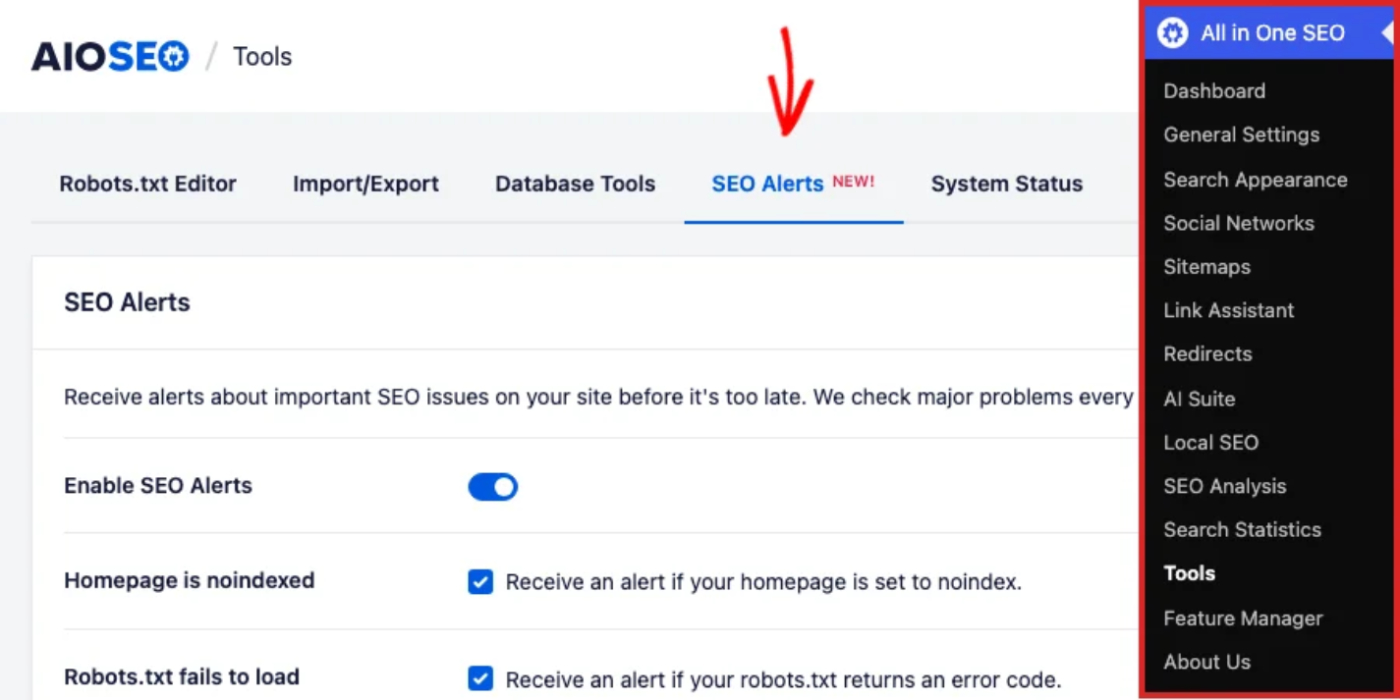
The Enable SEO Alerts toggle must be turned on for monitoring to work. With alerts enabled, AIOSEO checks your site for major SEO problems every hour and lets you know if it finds one.
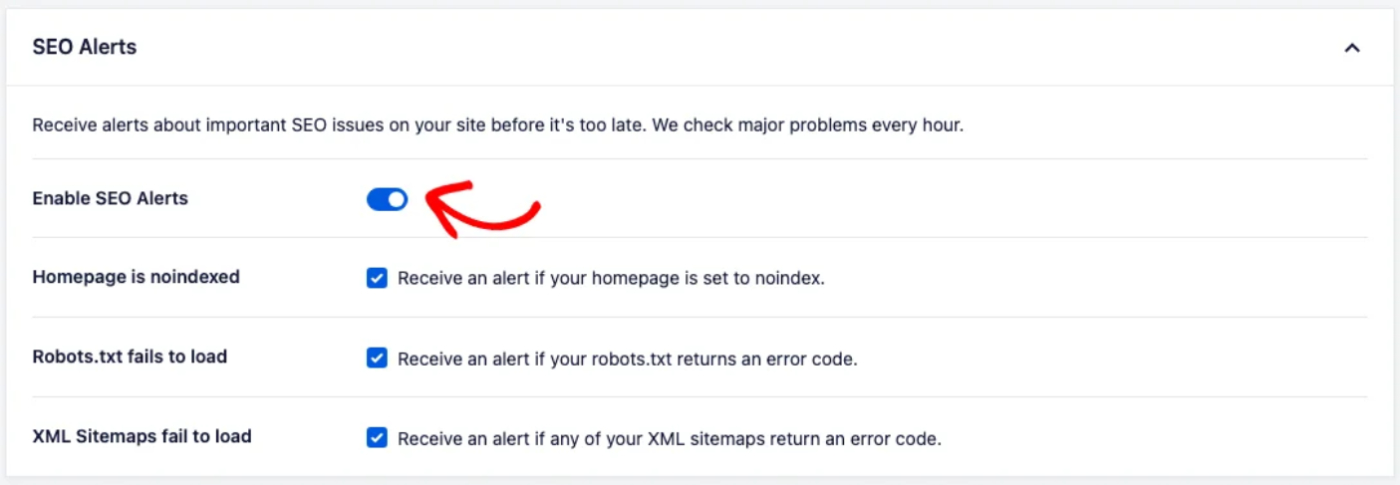
Below the toggle, choose which issues you want to watch for. All three are enabled by default, so turn off any you don't want to monitor. Each one catches a problem that can quietly stop your pages from ranking:
- Homepage is noindexed — alerts you if your homepage is set to noindex, which tells search engines not to list it.
- Robots.txt fails to load — alerts you if your robots.txt file returns an error, which can block search engines from crawling your site. New to this file? See What is Robots.txt for a plain-English explanation.
- XML Sitemaps fail to load — alerts you if any of your XML sitemaps return an error, which can stop your content from being discovered. For background, see What Is an XML Sitemap?
With the issues you want to watch for selected, you're ready to decide how AIOSEO should reach you when one appears.
Setting Up Alert Delivery
In the SEO Alerts Delivery section, choose how you want to be notified.
To get alerts in Slack, paste a webhook URL into the Slack Webhook URL field. The “How to find my Slack Webhook URL” section below explains where to get one.
To get alerts by email, type an address and click Add Email Address. Repeat this to add more than one address.
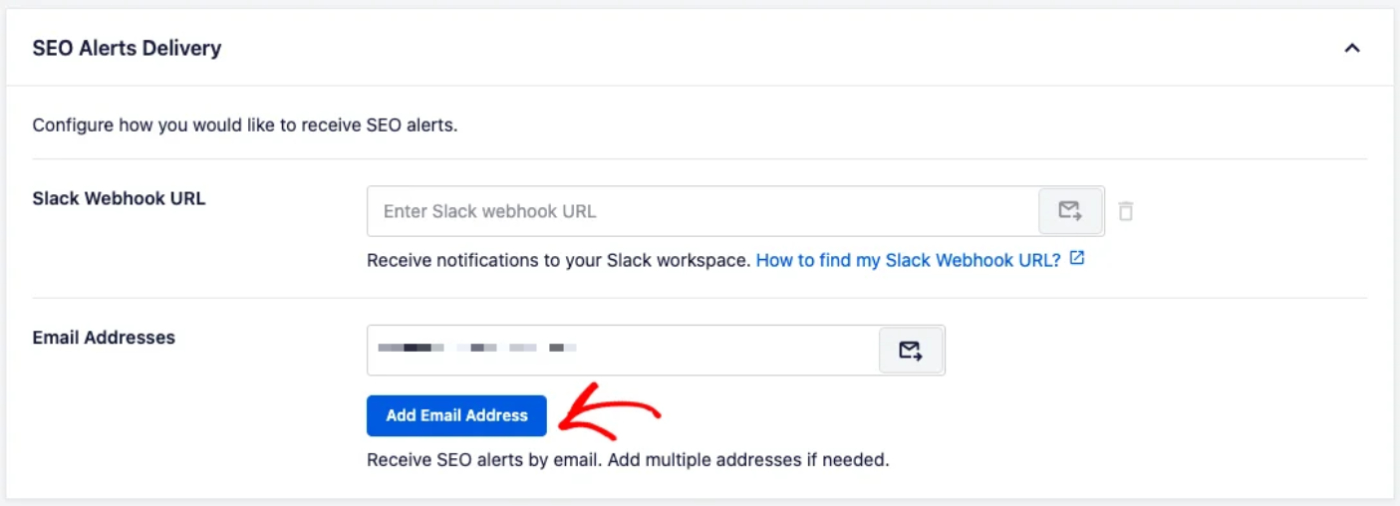
You can use email, Slack, or both, depending on where you'd rather be notified.
How to find my Slack Webhook URL
We recommend checking the latest documentation from Slack on how to create a webhook URL.
First, you'll need to create a Slack app at https://api.slack.com/apps if you don't already have one.
Once you've created your Slack app, you'll need to enable incoming webhooks on the Settings page of your new Slack app.
Then, you can add a new incoming webhook. Once you've done this, you'll see the webhook URL, which you can enter in All in One SEO.
Once your alerts and delivery options are set, click Save Changes to turn on monitoring
That's it! All in One SEO will now monitor your site and alert you if one of these critical SEO issues appears. Next, work through the rest of your SEO setup with the SEO Checklist.
Frequently Asked Questions
Below, we've answered some of the most common questions about SEO Alerts.
How often does SEO Alerts check my site?
With SEO Alerts enabled, All in One SEO checks your site for major SEO problems every hour. To avoid repeat notifications, it won't alert you about the same issue more than once a day.
Which issues does SEO Alerts watch for?
SEO Alerts watches for three critical issues, and you can turn each one on or off. See the Choosing Which Issues to Monitor section above.
How will I receive alerts?
You can receive alerts by email at the addresses you add, by Slack using a webhook URL, or both at the same time.
Can I send alerts to more than one email address?
Yes. Add each address in the Email Addresses field, and All in One SEO will notify all of them.