
Would you like to fix the “Couldn't Fetch” error that Google Search Console shows when you submit your XML sitemap?
In this guide, we'll walk you through how to diagnose and resolve it using All in One SEO (AIOSEO). All you need is your AIOSEO sitemap and access to your Google Search Console account.
The “Couldn't Fetch” status usually means Google was unable to retrieve your sitemap at the moment it checked, rather than a sign that something is wrong with the sitemap itself. The steps below work through the most common causes, starting with the quickest checks.
NOTE:
AIOSEO generates your XML sitemap automatically. The sitemap is turned on by default.
In This Article
Before you get started, make sure AIOSEO is installed and activated on your WordPress site.
Checking Your Sitemap in a Browser
To get started, we'll confirm your sitemap is reachable in a browser. Open it in a private or incognito window by visiting https://yourdomain.com/sitemap.xml, replacing yourdomain.com with your own domain. A private window makes sure you're seeing the live sitemap rather than a cached copy saved by your browser.
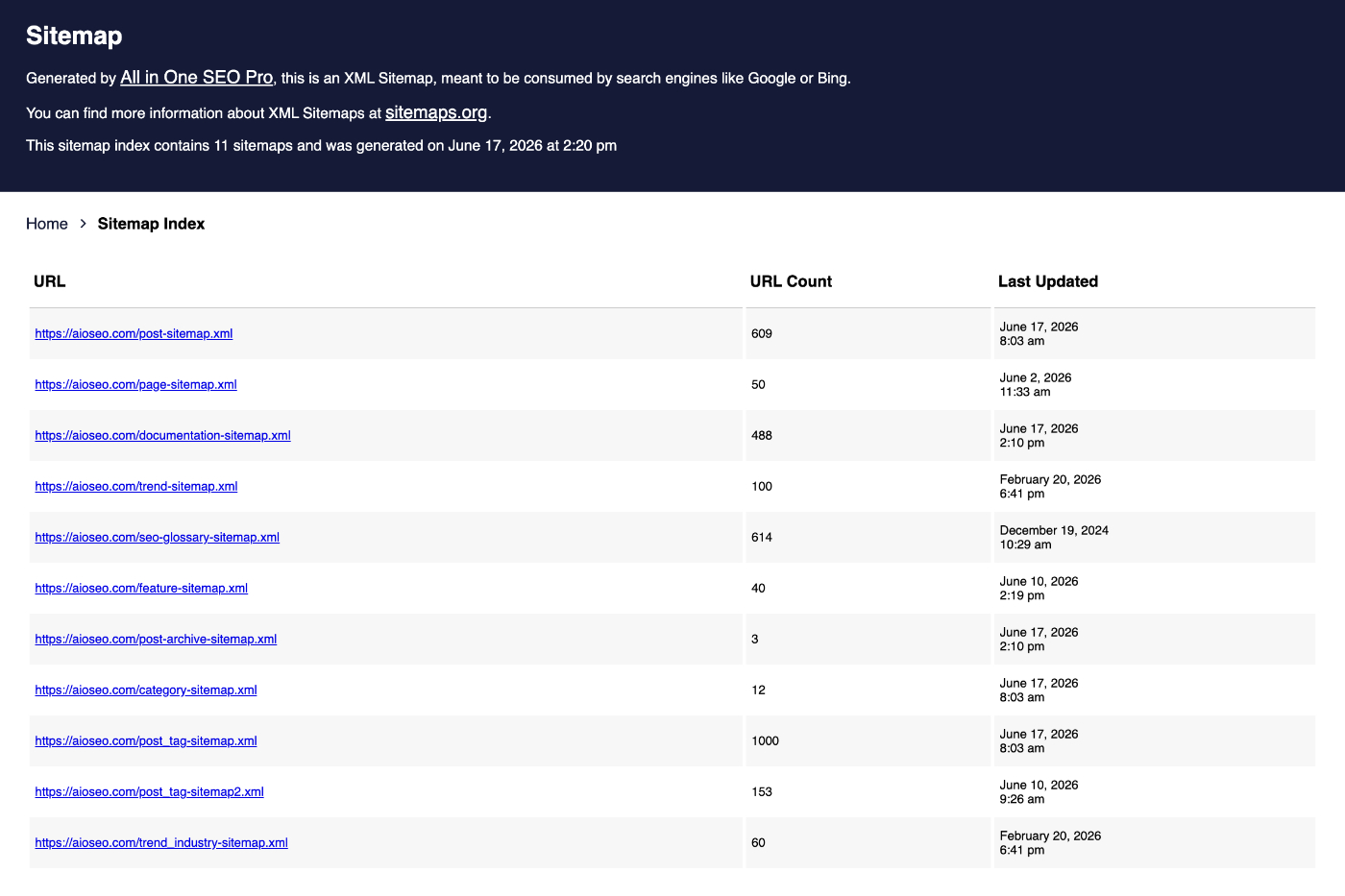
If your sitemap loads correctly, move on to the next step.
If you see a 404 error instead, your sitemap may be turned off. Go to All in One SEO » Sitemaps and confirm Enable Sitemap is switched on. Your sitemap won't load until this is on.
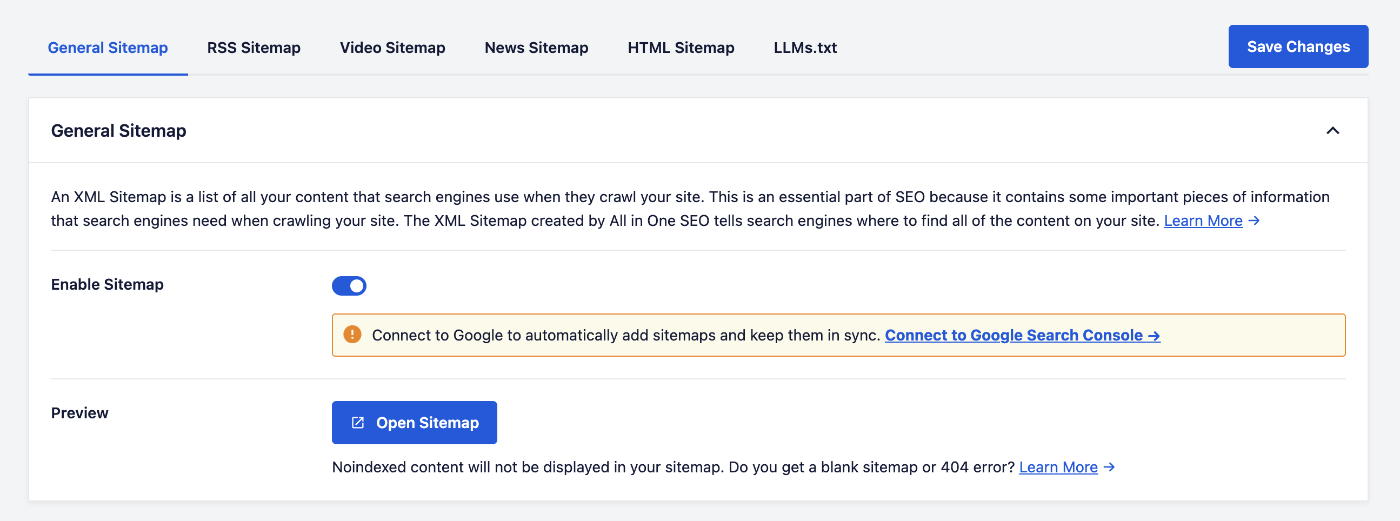
For more help with this, see our guide on how to fix a 404 error when viewing your sitemap.
Submitting the Correct Sitemap URL to Google Search Console
Google Search Console treats each version of your domain as a separate property, including with or without www, and http versus https. If you submit your sitemap under a version that doesn't match your site's primary address, Google won't be able to fetch it.
First, let's check your site's primary address. In your WordPress dashboard, go to Settings » General and look at the Site Address (URL) field.
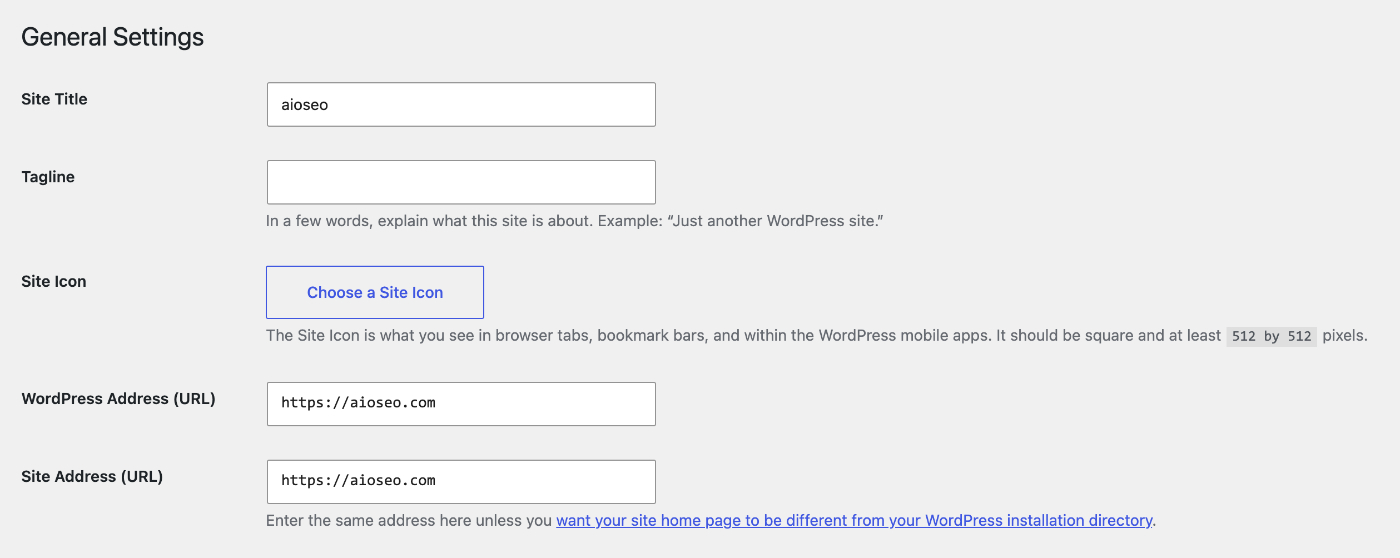
Then, in Google Search Console, add and verify this exact version of your domain. Once it's verified, submit your sitemap URL (https://yourdomain.com/sitemap.xml) under that property.
With the correct property and sitemap URL in place, you're ready to rule out the other common causes.
Fixing Common Sitemap Issues
If Google still can't fetch your sitemap, a few common issues can be the cause. Let's work through each one.
Confirming Your Sitemap Loads Correctly
AIOSEO gives you a quick way to open your live sitemap. Go to All in One SEO » Sitemaps. From here, click Open Sitemap.
Your sitemap opens in a new browser tab, where you can confirm it lists your content as expected.
Making Sure Your Content Is Set to Index
If your content is set to noindex, AIOSEO leaves it out of your sitemap, which can make the sitemap look empty to Google. To check this, go to All in One SEO » Search Appearance and select the Content Types tab.
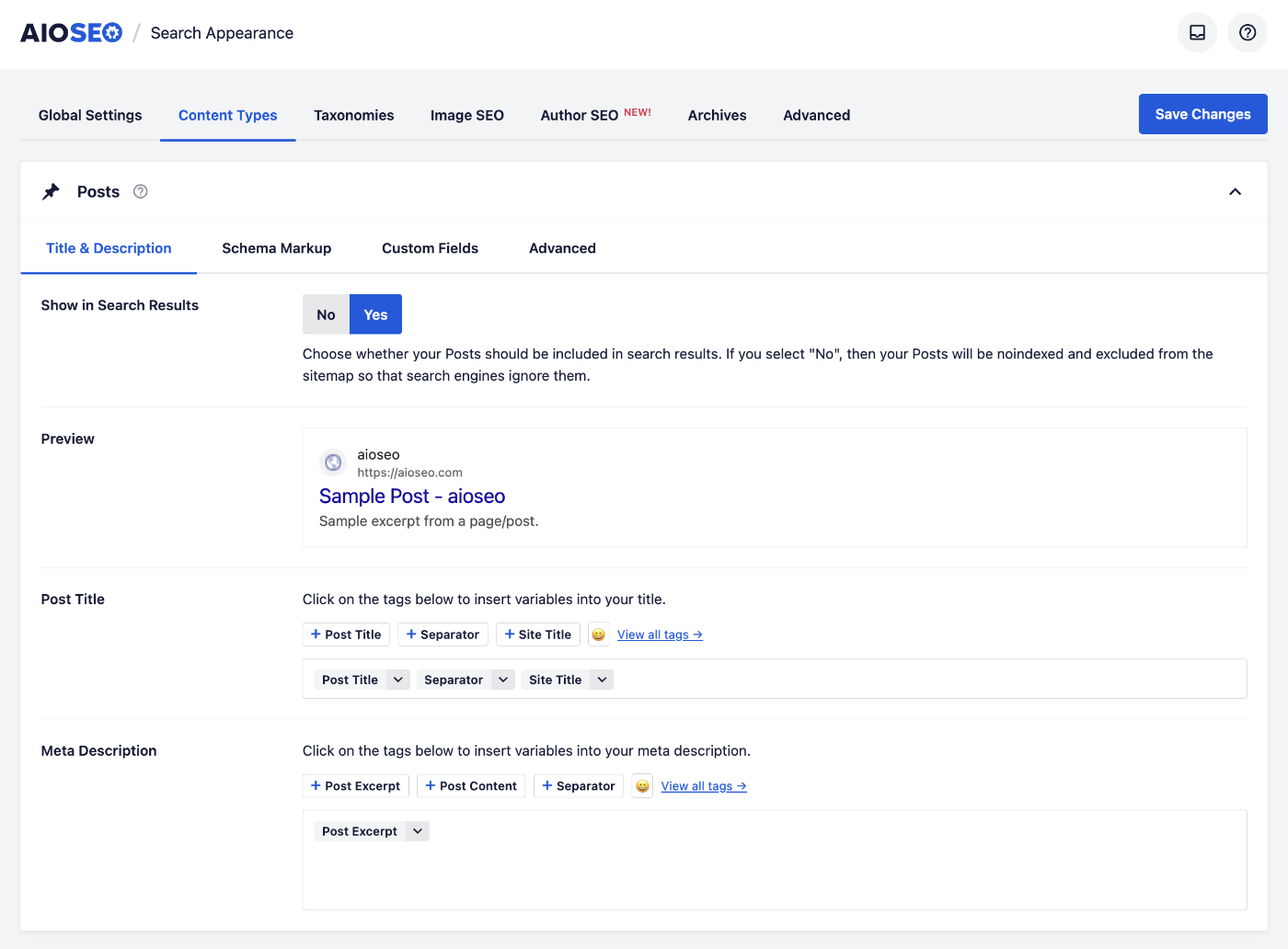
For each content type you want Google to index, such as Posts and Pages, set Show in Search Results to Yes.
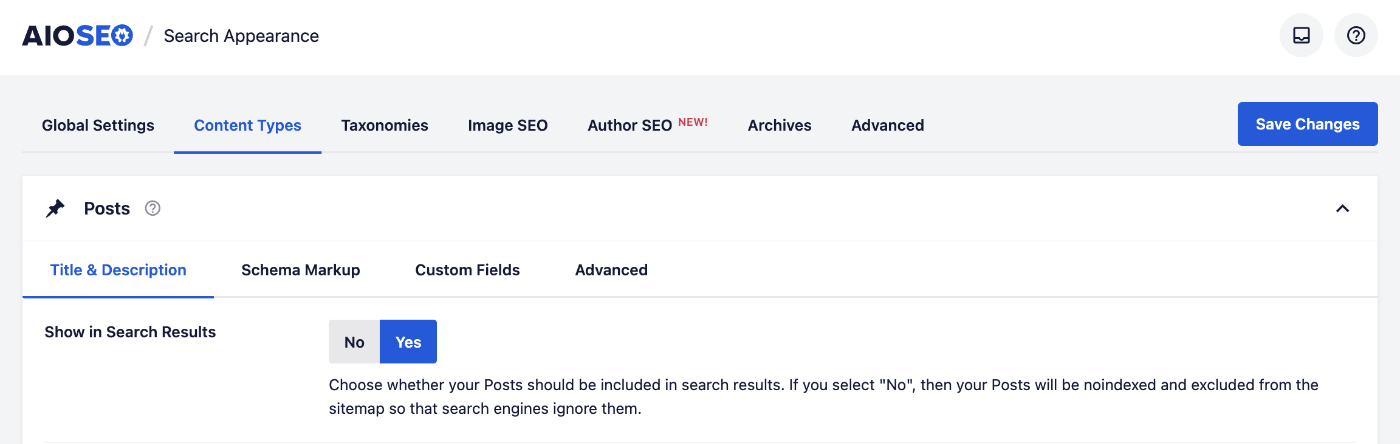
When you're done, click Save Changes.
Excluding the Sitemap from Caching
Some caching plugins and server-level caches can serve Google an outdated copy of your sitemap. To prevent this, follow our guide on excluding the XML sitemap from caching. After you've added the exclusion, clear your site and server caches so the next request returns a fresh sitemap. For the steps to clear each type of cache, see how to clear your cache in WordPress.
Testing the Sitemap URL with Google
To see your sitemap the way Google does, run it through Google's Rich Results Test. Visit the Rich Results Test. Enter your sitemap URL and run the test.
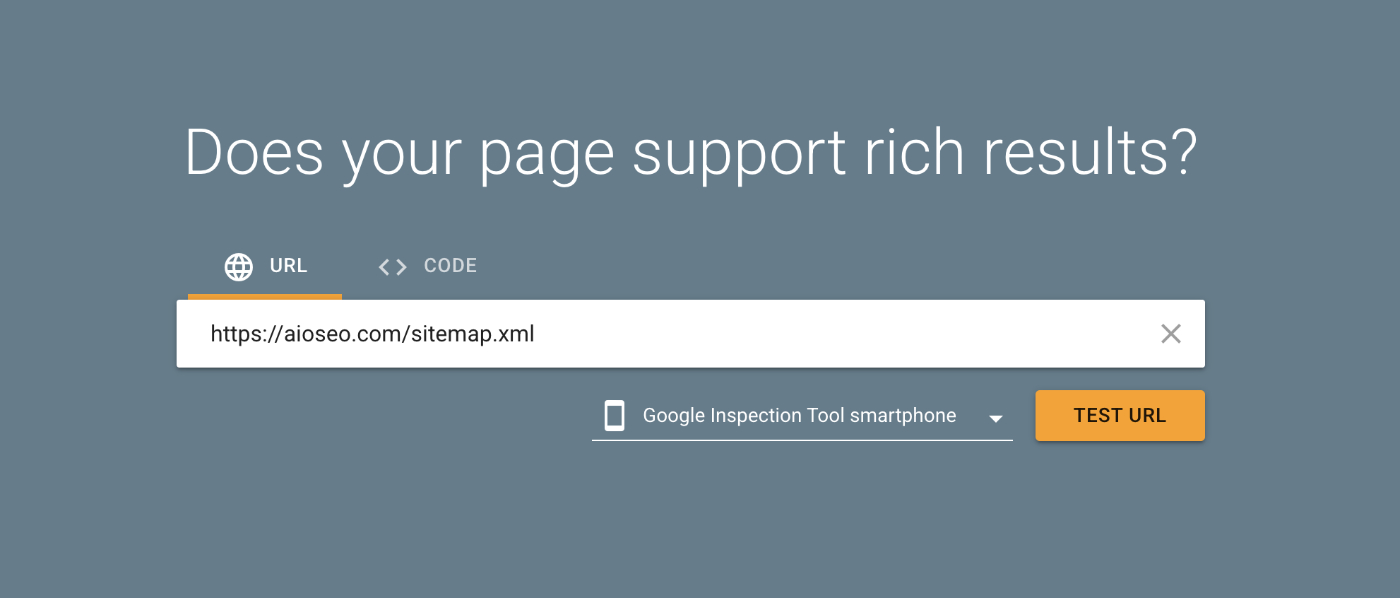
The Rich Results Test is built for pages rather than sitemaps, so the overall result reads “Crawl failed.” That's expected.
What matters is whether Google could reach the file. Confirm that Crawl allowed shows Yes and Page fetch shows Successful.
You can also view the response to check that it returns a 200 status code. A 200 status means Google retrieved your sitemap successfully.
Resubmitting the Sitemap in Google Search Console
Sometimes the error clears if you simply submit the sitemap again. In Google Search Console, go to Indexing » Sitemaps. Enter your sitemap URL and click Submit. Wait a few seconds. Then submit the same URL a second time without refreshing the page.
Once you've submitted it twice, check whether the status updates to show that Google fetched the sitemap.
Submitting the Sitemap with a Different Name
If the error still appears, Google may be holding on to a cached copy of your sitemap on its end. You can prompt a fresh fetch by submitting the same sitemap under a slightly different URL. In Indexing » Sitemaps, submit https://yourdomain.com/sitemap.xml?test=1.
The ?test=1 on the end points to the same sitemap but looks like a new URL to Google, so it retrieves a fresh copy instead of relying on its cache.
That's it! You've worked through the most common causes of the “Couldn't Fetch” error in Google Search Console. Next, learn more about submitting a sitemap to Google.
Frequently Asked Questions
Below, we've answered some of the most common questions about the “Couldn't Fetch” error and your AIOSEO sitemap.
Where do I find my AIOSEO sitemap?
By default, your sitemap is located at https://yourdomain.com/sitemap.xml. To open it at any time, go to All in One SEO » Sitemaps and click Open Sitemap.
Does the “Couldn't Fetch” error mean my sitemap is broken?
Not usually. It most often means Google couldn't retrieve your sitemap at the moment it checked. If the sitemap loads in your browser and returns a 200 response in the Rich Results Test, the file itself is working.
Do I need to resubmit my sitemap every time I publish new content?
No. AIOSEO updates your sitemap automatically as you add or change content, and Google re-crawls it on its own schedule. You only need to submit the sitemap once.
How long does it take Google to fetch the sitemap?
Google fetches and processes sitemaps on its own schedule, so the status in Search Console may not update right away. It's normal for it to take some time after you submit.