
Vous souhaitez ajouter des produits à WordPress, mais vous n'avez pas besoin d'une plateforme de commerce électronique complète ?
De nombreux utilisateurs de WordPress ont besoin d'afficher des produits de manière professionnelle sans la lourdeur d'un système complet de panier d'achat. La bonne nouvelle, c'est qu'il existe une méthode beaucoup plus simple et légère pour le faire.
Mieux encore, cette méthode ajoute un puissant avantage SEO qui peut vous aider à vous démarquer dans les résultats de recherche Google.
Dans ce guide, je vais vous montrer comment ajouter des produits à WordPress en utilisant le puissant bloc Produit d'AIOSEO, sans configuration compliquée.
À qui s'adresse cette méthode ? (Quand éviter WooCommerce)
Avant de passer au « comment », assurons-nous que c'est la bonne méthode pour vous. Cette approche est parfaite pour :
- Petits sites e-commerce : Utiliser une plateforme e-commerce peut sembler excessif lorsque vous avez un petit catalogue de produits. Cette méthode est idéale pour les utilisateurs qui ont déjà un plugin de paiement et qui ont juste besoin d'un moyen d'afficher leurs produits.
- Prestataires de services : Présenter vos différents forfaits ou niveaux de service dans un format professionnel et attrayant.
- Affiliés : Afficher les produits que vous promouvez avec des liens externes vers un site partenaire (comme Amazon ou un autre détaillant).
- Sites de catalogue simples : Présenter vos produits sans les vendre en ligne (par exemple, un fabricant de meubles qui vend en magasin ou prend des commandes personnalisées).
- Blogueurs d'avis : Créer de belles boîtes de produits pour les articles que vous examinez afin d'augmenter les clics sur vos liens d'affiliation.
Comment ajouter des produits à WordPress sans plugin e-commerce
Pour ce tutoriel, je vais utiliser le bloc Produit du plugin All in One SEO (AIOSEO), le plugin SEO original pour WordPress.
Avec plus de 3 millions d'utilisateurs actifs, AIOSEO est l'un des plugins SEO les plus populaires du marché. Je l'utilise depuis plus de 2 ans et j'apprécie la façon dont l'équipe continue d'ajouter de nouvelles fonctionnalités.
Le plus récent est le bloc Produit, que je vais vous présenter maintenant.
Étape 1 : Ajouter le bloc Produit dans l'éditeur WordPress
Tout d'abord, ouvrez l'article ou la page où vous souhaitez afficher votre produit.
Dans l'éditeur, cliquez sur le bouton plus (+) pour ajouter un nouveau bloc. Une barre de recherche apparaîtra. Tapez simplement « AIOSEO Produit » ou « Produit » et cliquez sur le bloc pour l'ajouter à votre article.
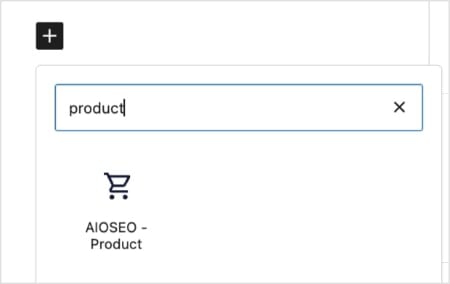
Astuce Pro : Vous pouvez également taper « /produit » directement dans l'éditeur, et le bloc apparaîtra. C'est un moyen rapide de l'ajouter sans interrompre votre processus d'écriture.
Étape 2 : Remplir les détails de votre produit
Vous verrez maintenant un bloc clair et facile à utiliser avec des champs pour les informations de votre produit. Vous n'avez pas besoin de tout remplir tout, mais pour de meilleurs résultats, je recommande de compléter ces champs clés sous les onglets Général, Identifiants et Offre :
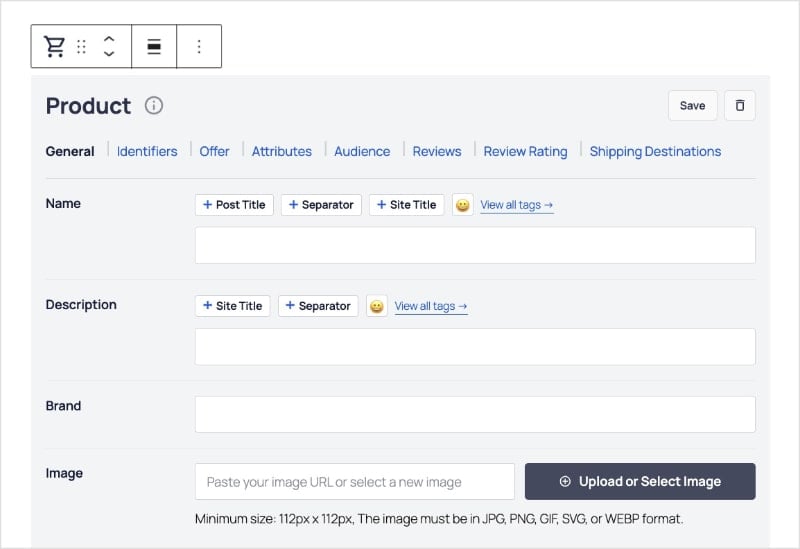
Certains des champs les plus importants incluent :
- Nom du produit : Le nom de votre produit.
- Image : Téléchargez ou sélectionnez une image de votre médiathèque.
- Description : Rédigez un résumé convaincant du produit.
- Marque : Le nom de la marque du produit.
- Prix et devise : Le prix actuel et la devise (par exemple, USD).
- Disponibilité : Choisissez si le produit est en stock, hors stock, etc.
Étape 3 : Ajouter des avis et des notes clients
L'une des fonctionnalités les plus puissantes pour les ventes et le référencement est l'avis client.
Les notes par étoiles et les témoignages clients sont une preuve sociale que d'autres personnes aiment votre produit ou service. Cela renforce la confiance et établit la crédibilité de votre marque sur votre marché.
La bonne nouvelle est que vous pouvez facilement les ajouter dans le bloc Produit, ce qui augmente considérablement vos chances de les voir apparaître dans les pages de résultats des moteurs de recherche (SERP).
Sous l'onglet Avis, vous pouvez ajouter une note client, un titre, un contenu et le nom de l'auteur.
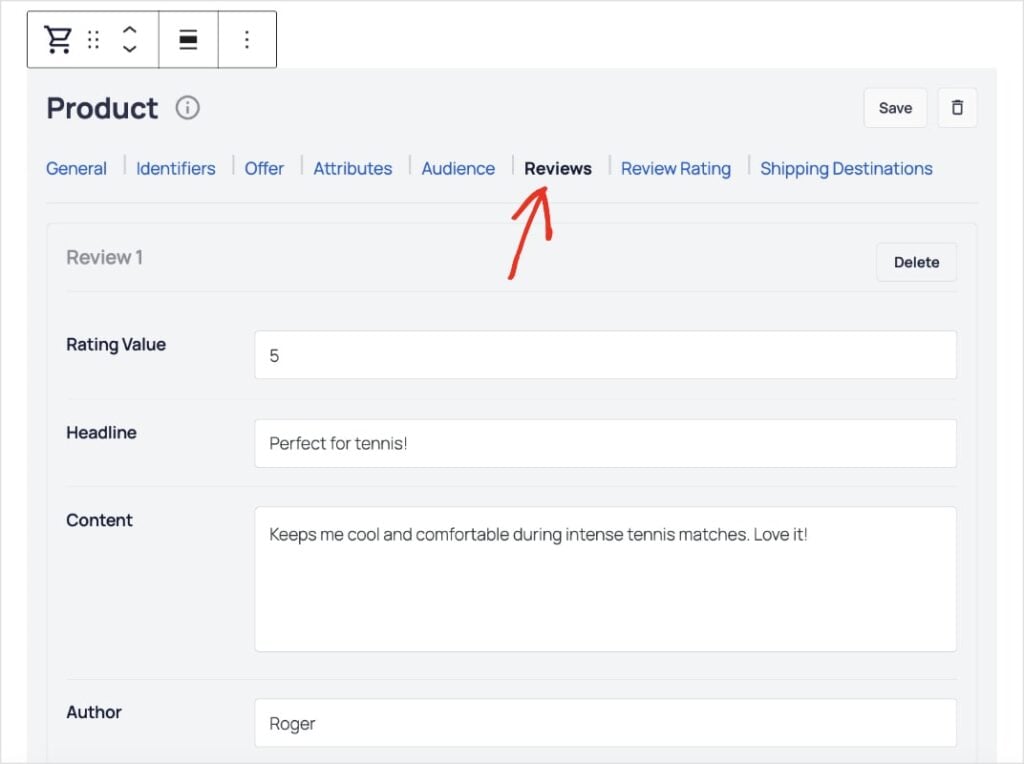
Astuce de pro : Ajoutez plusieurs avis pour mettre en évidence les commentaires positifs des clients. Et si vous souhaitez modifier la valeur de la note (par défaut 1-5), vous pouvez personnaliser les paramètres dans l'onglet suivant : Note de l'avis.
Étape 4 : Ajouter votre appel à l'action (CTA)
Enfin, vous devez dire à vos visiteurs quoi faire ensuite.
Une fois que vous avez ajouté votre bloc produit, je vous recommande vivement de rédiger un appel à l'action (CTA) avant ou après votre bloc.
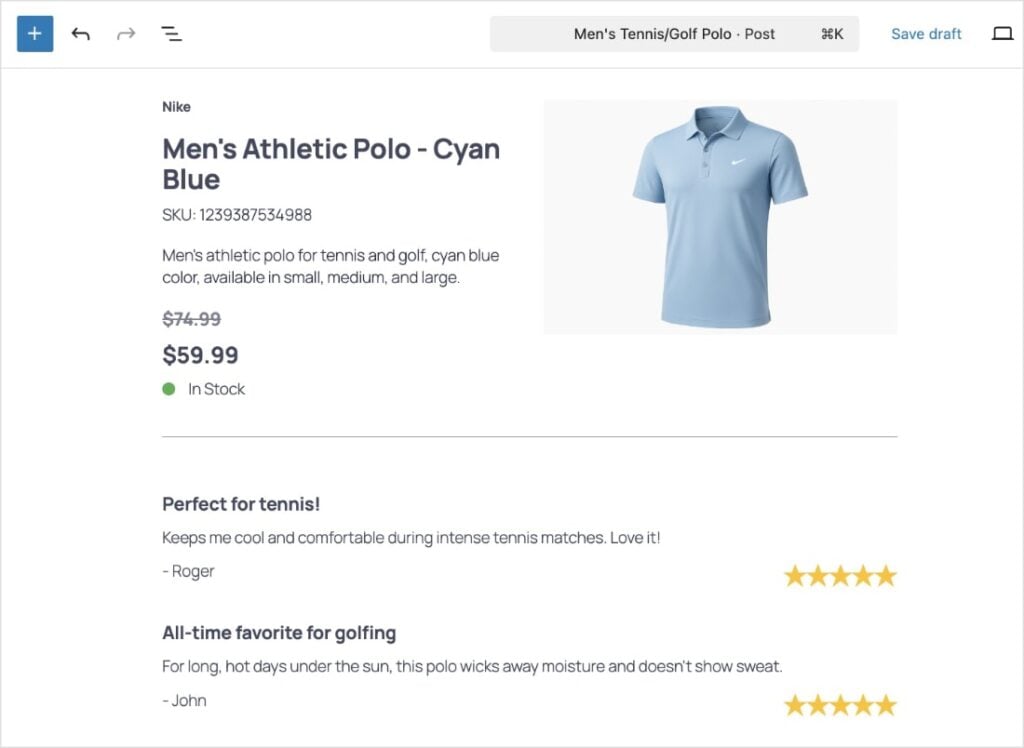
Cela peut être aussi simple que « Acheter sur Amazon » (pour un lien d'affiliation) ou « En savoir plus » (pour une page de service), et ainsi de suite.
Ensuite, vous n'avez qu'à coller votre lien d'affiliation ou tout autre lien sur le texte de votre choix. (En référencement, nous appelons les mots que vous utilisez pour un hyperlien « texte d'ancre ».)
Pourquoi cette méthode est excellente pour le référencement
Le bloc Produit AIOSEO fait bien plus qu'afficher une image et du texte. En coulisses, il ajoute un code spécial appelé balisage de schéma de produit à votre page.
Considérez le balisage de schéma comme une « antisèche » pour Google. Il étiquette clairement tous les détails de votre produit – comme le nom, le prix, la marque et la note par étoiles – dans un langage que Google peut comprendre facilement.
Cette « antisèche » est ce qui rend vos produits éligibles pour des extraits enrichis dans les résultats de recherche. Ce sont ces extras accrocheurs comme les notes par étoiles, les prix et la disponibilité que vous voyez directement sur la page de résultats de Google.
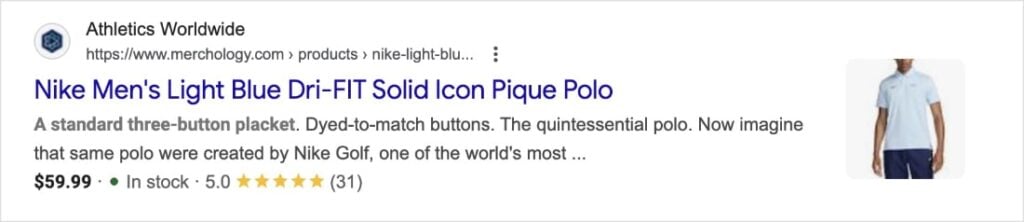
Les extraits enrichis vous aident à vous démarquer de la concurrence et peuvent considérablement augmenter votre taux de clics (CTR).
Que faire après avoir ajouté des produits WordPress à votre site
Lorsque vous ajoutez des produits à WordPress, vous n’avez pas besoin d’installer un plugin lourd et compliqué.
Au lieu de cela, vous avez maintenant la possibilité de créer de beaux affichages de produits légers qui sont parfaitement optimisés pour les moteurs de recherche. Cela vous aidera à attirer plus de visiteurs de Google.
Vous avez également vu la puissance du balisage schema pour les produits.
Maintenant, consultez notre guide SEO eCommerce pour apprendre à accroître votre visibilité en ligne. Nous avons également une liste de contrôle SEO eCommerce qui vous aidera à générer plus de ventes.
Vous cherchez à attirer du trafic dans votre magasin physique ? Utilisez notre guide SEO local pour apparaître dans les résultats de recherche locaux et découvrez nos meilleures sélections des meilleurs outils pour le SEO local.
Pour des tutoriels WordPress plus simples et des conseils SEO, abonnez-vous à notre chaîne YouTube. Vous pouvez également nous suivre sur X (Twitter), LinkedIn ou Facebook pour rester informé.
FAQ sur l'ajout de produits à WordPress
Quelle est la meilleure façon d'ajouter des produits à WordPress sans WooCommerce ?
La meilleure façon d'ajouter des produits à WordPress sans WooCommerce est d'utiliser un plugin qui vous permet d'afficher des produits sur votre site. All in One SEO est la solution idéale car il dispose d'un bloc Produit qui vous permet de créer des vitrines de produits complètes avec des images, des informations sur les prix, des avis clients et plus encore. Il ajoute également un schema de produit en arrière-plan pour vous aider à obtenir des extraits enrichis comme des évaluations par étoiles dans Google.
Le bloc Produit AIOSEO me permettra-t-il de vendre des produits directement depuis mon site ?
Non, le bloc Produit AIOSEO n'inclut pas de panier d'achat ni de processus de paiement. Il est conçu pour afficher des produits ou des services. Si vous souhaitez réaliser des ventes en ligne, vous aurez besoin d'un plugin de paiement, comme WP Simple Pay. Ou, si vous êtes un affilié, vous pouvez inclure un lien d'affiliation externe sur votre page.
Pourquoi le schema de produit est-il si important pour le SEO ?
Le schema de produit est crucial pour le SEO car il aide les moteurs de recherche à comprendre les détails de votre produit. Les moteurs de recherche peuvent utiliser ces informations pour créer des extraits enrichis dans les résultats de recherche — les évaluations par étoiles accrocheuses, les prix et la disponibilité que vous voyez sous le titre d'une page. Ces résultats ont des taux de clics et un engagement élevés.
Dois-je savoir coder pour ajouter un schema de produit avec ce bloc ?
Absolument pas. Le bloc Produit AIOSEO s'occupe de tout le code JSON-LD compliqué pour vous. Il vous suffit de remplir les champs conviviaux tels que « Nom du produit », « Prix » et « Note », et le plugin génère automatiquement le balisage schema correct en arrière-plan.
Envie d'essayer AIOSEO gratuitement ?
Entrez l'URL de votre site Web WordPress pour installer AIOSEO Lite.
Divulgation : Notre contenu est financé par nos lecteurs. Cela signifie que si vous cliquez sur certains de nos liens, nous pouvons gagner une commission. Nous ne recommandons que les produits qui, selon nous, apporteront de la valeur à nos lecteurs.
