

Vous êtes-vous déjà demandé comment certaines vidéos dans les résultats de recherche Google obtiennent ces miniatures accrocheuses et ces détails supplémentaires ? Ce n'est pas un hasard, et c'est quelque chose que vous pouvez faire aussi.
Cette fonctionnalité spéciale est débloquée par quelque chose appelé schéma vidéo.
Le schéma vidéo est comme une « feuille de triche » pour Google concernant votre vidéo, ce qui vous permet de mieux vous classer et d'obtenir plus de clics.
De plus, il est très facile de l'ajouter à votre site lorsque vous disposez des bons outils.
Dans ce guide, je vais vous montrer exactement comment ajouter un schéma vidéo dans WordPress à l'aide d'AIOSEO — sans aucun codage requis.
Dans cet article
Qu'est-ce que le schéma vidéo ?
Le schéma vidéo est un type de données structurées qui agit comme un traducteur entre votre site Web et un moteur de recherche. Vous l'ajoutez à votre site à l'aide d'un balisage de schéma, qui est un type de code.
Voici un exemple de ce à quoi cela ressemble dans le code source :

Vous pouvez considérer le balisage de schéma comme une étiquette sur une boîte. L'étiquette vous indique ce qu'il y a à l'intérieur, qui l'a fabriquée et d'autres détails clés sans que vous ayez à ouvrir la boîte.
Le schéma vidéo fait la même chose pour les moteurs de recherche, en leur indiquant le titre, la description, la durée et la miniature de votre vidéo.
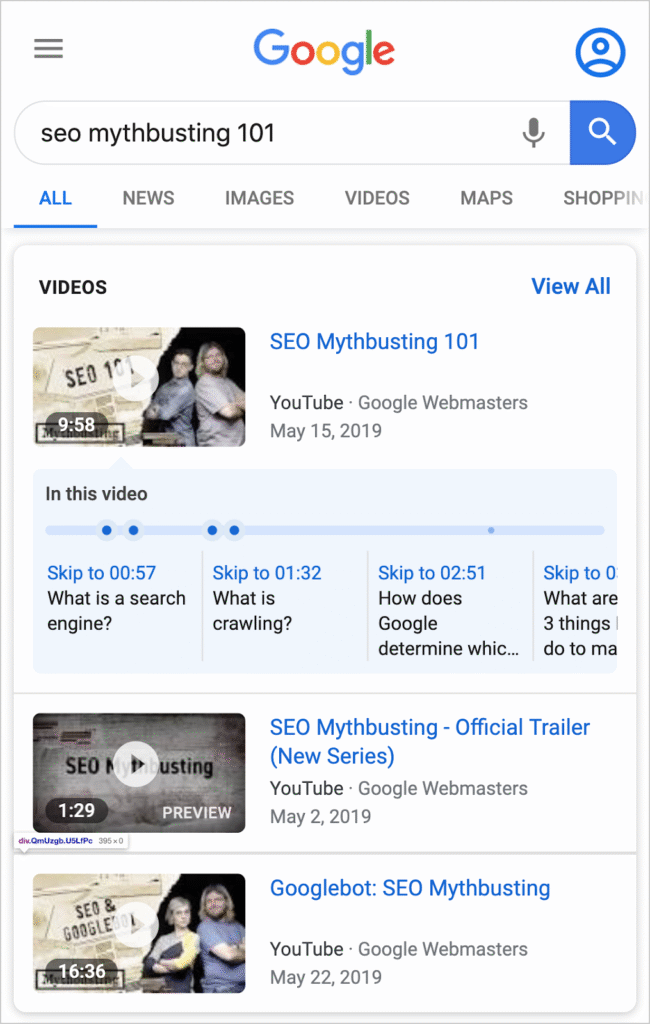
Cela aide Google à comprendre votre contenu et à le présenter dans les pages de résultats des moteurs de recherche (SERP), comme dans les exemples ci-dessous.
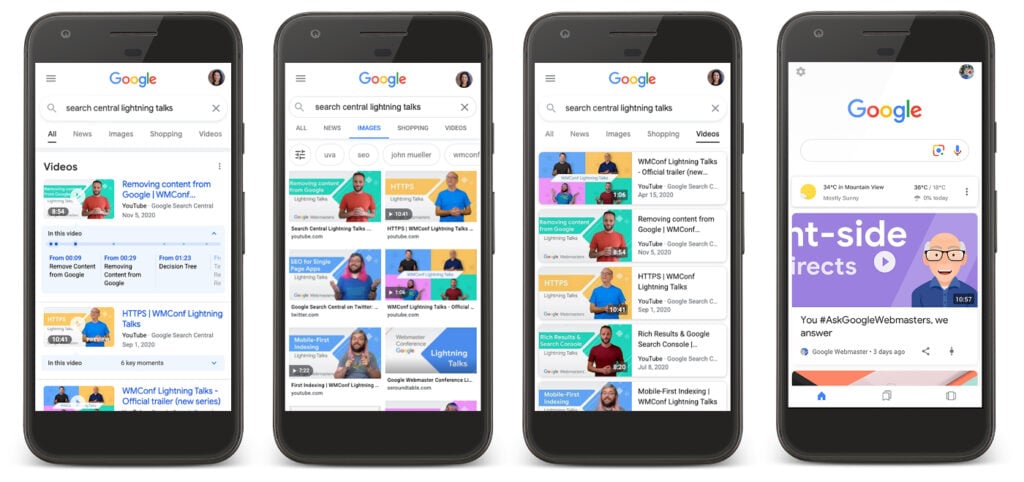
Comme vous le verrez bientôt, le schéma vidéo ne nécessite pas de codage. (Le balisage de schéma utilise JSON-LD.)
C'est particulièrement vrai pour les utilisateurs de WordPress car les meilleurs plugins SEO rendent cela aussi simple que de cliquer sur des boutons et de remplir quelques champs de formulaire.
Le schéma vidéo est-il bon pour le SEO ?
100 % oui.
Faire ressortir vos vidéos dans la recherche Google est l'un des meilleurs moyens d'obtenir plus de trafic.
Voici pourquoi c'est si important :
- Vous obtenez un taux de clics (CTR) plus élevé : Les vidéos avec des résultats enrichis (comme une miniature) sont tout simplement plus attrayantes. En fait, une étude a montré que le schéma vidéo peut augmenter le CTR en moyenne de 67 %.
- Google comprend mieux votre contenu : Vous dites à Google exactement de quoi parle votre vidéo, ce qui vous aide à vous classer pour les bons mots-clés.
- Vous obtenez un avantage concurrentiel : Bon nombre de vos concurrents n'utilisent pas le schéma vidéo. C'est un moyen facile de faire ressortir votre contenu et de capter un public plus large.
Saviez-vous ? Google représente 93 % de tout le trafic web. Cela fait 93 % de raisons supplémentaires d'optimiser vos vidéos pour la recherche Google si vous êtes sérieux au sujet de l'augmentation de votre trafic.
Comment ajouter le balisage de schéma vidéo dans WordPress
Je vais vous guider dans ce processus en utilisant le plugin All in One SEO (AIOSEO). C'est la méthode la plus simple que j'ai trouvée pour le faire sans toucher au code. Mais avant cela...
Pourquoi vous devriez me faire confiance
Je travaille avec le SEO WordPress tous les jours, et j'ai vu de mes propres yeux comment de petites modifications techniques peuvent entraîner de grands résultats. L'ajout de balisage de schéma est l'une de mes « victoires SEO rapides » préférées. J'ai aidé d'innombrables propriétaires de sites à le mettre en œuvre, et les étapes que je vais vous montrer sont le même processus simple et efficace que j'utilise moi-même.
Bien, allons-y.
Étape 1 : Télécharger et installer All in One SEO
All in One SEO (AIOSEO) est un plugin convivial pour les débutants qui vous donne des résultats professionnels sans avoir à engager une aide SEO.
Je l'utilise depuis plus de 2 ans et je ne peux plus imaginer utiliser un autre plugin SEO (et j'ai essayé tous les autres).

Donc, une fois que vous avez téléchargé AIOSEO, allez-y et ouvrez l'éditeur WordPress. (Le plugin sera téléchargé sous forme de fichier zip. Il n'est pas nécessaire d'ouvrir le fichier.)
Dans la colonne de gauche de votre éditeur WordPress, allez dans Plugins » Ajouter.
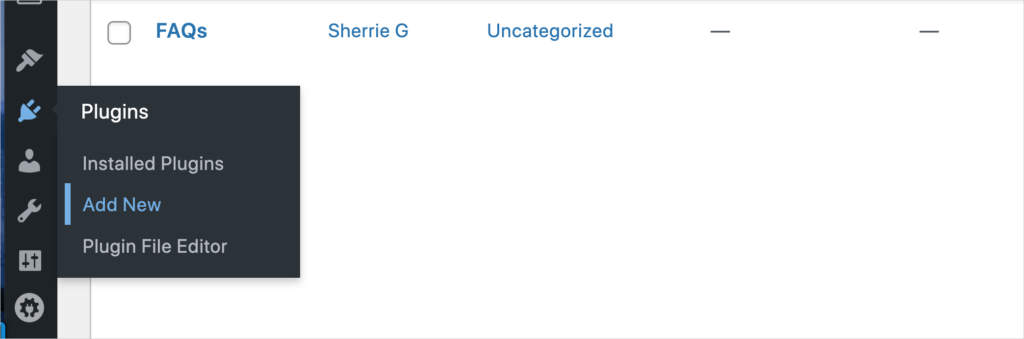
Ensuite, cliquez sur le bouton Téléverser un plugin en haut de la page et téléversez le fichier zip AIOSEO depuis votre ordinateur.

L'assistant de configuration d'All in One SEO s'ouvrira automatiquement et vous guidera à travers quelques étapes simples.
Avec le plugin AIOSEO installé, vous êtes prêt à ajouter le schéma vidéo à une page web.
Étape 2 : Accéder au générateur de schéma vidéo
Ouvrez l'éditeur WordPress de la page ou de l'article auquel vous souhaitez ajouter le schéma vidéo.
Ensuite, faites défiler vers le bas jusqu'à ce que vous voyiez les Paramètres AIOSEO et cliquez sur l'onglet Schéma. Vous verrez une liste des types de schéma existants déjà utilisés et un bouton pour Générer un schéma. Cliquez sur ce bouton.
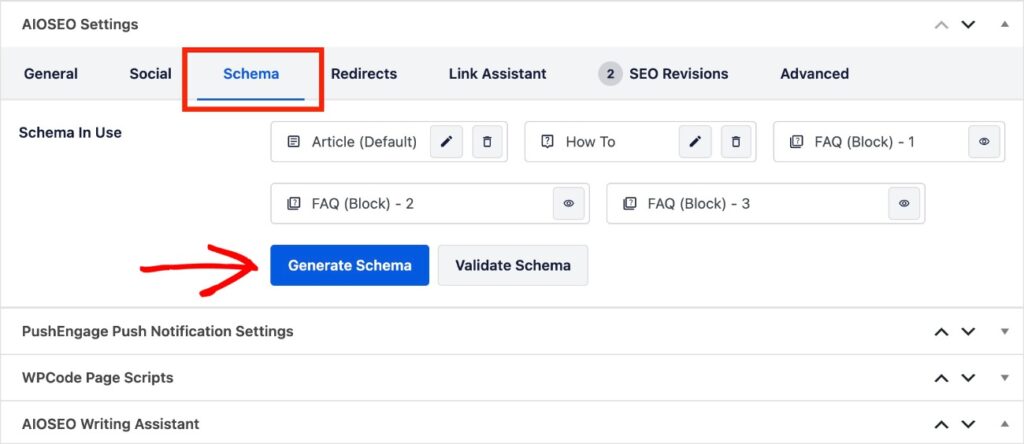
Cette action ouvrira le Générateur de Schéma AIOSEO, qui ressemble à un catalogue. Sélectionnez Vidéo dans la liste.
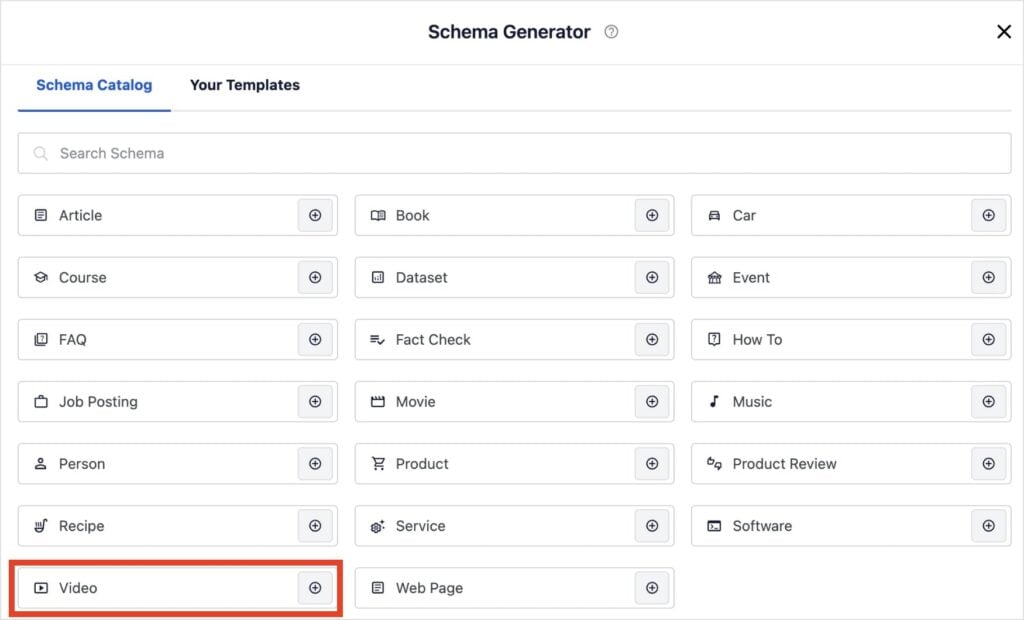
Étape 3 : Remplir le formulaire de schéma vidéo
Vous arriverez sur un nouvel écran qui demande des détails sur votre vidéo. Chaque champ est convivial et comporte des descripteurs clairs de ce qu'il faut ajouter.
Par exemple, dans le champ URL d'intégration, il est indiqué « Une URL pointant vers un contenu intégrable pour la vidéo (par exemple, un lien YouTube.) Ainsi, dans ce champ, vous ajouteriez simplement le lien YouTube de votre vidéo.
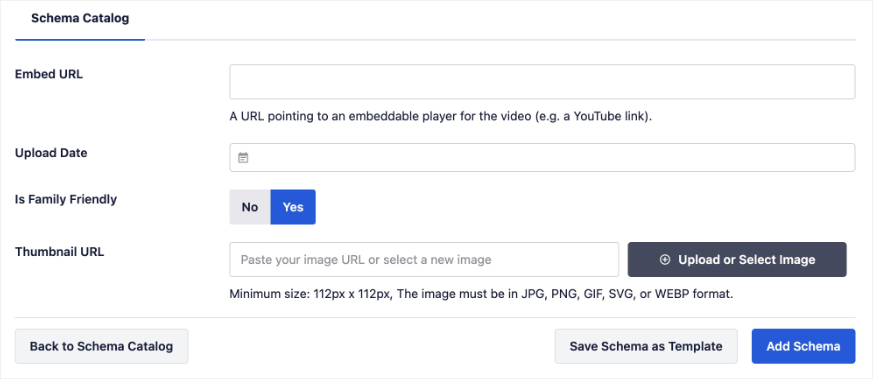
Voici un aperçu rapide des champs disponibles :
- Nom : Entrez le titre de votre vidéo.
- Description : Ajoutez une description de votre vidéo.
- URL du contenu : Ajoutez l'URL du fichier vidéo, si vous l'avez téléchargé sur votre site web. (Ce sera probablement un fichier .mp4 ou .mov.) (Les moteurs de recherche préfèrent cette URL à l'URL d'intégration.)
- URL d'intégration : Entrez l'URL de la page dédiée hébergeant la vidéo. Il peut s'agir de YouTube ou de Vimeo.
- Date de mise en ligne : Ajoutez la date à laquelle la vidéo a été mise en ligne sur votre site ou sur YouTube ou Vimeo.
- Adapté aux familles : Choisissez Oui ou Non.
- URL de la miniature : Téléchargez une image miniature pour votre vidéo. Vous pouvez également choisir de coller l'URL de cette image.
Vous pouvez ajouter autant ou aussi peu que vous le souhaitez dans ces champs, mais je recommande de remplir autant que possible.
Une fois que vous avez terminé, cliquez sur Ajouter le schéma en bas à droite de la fenêtre.
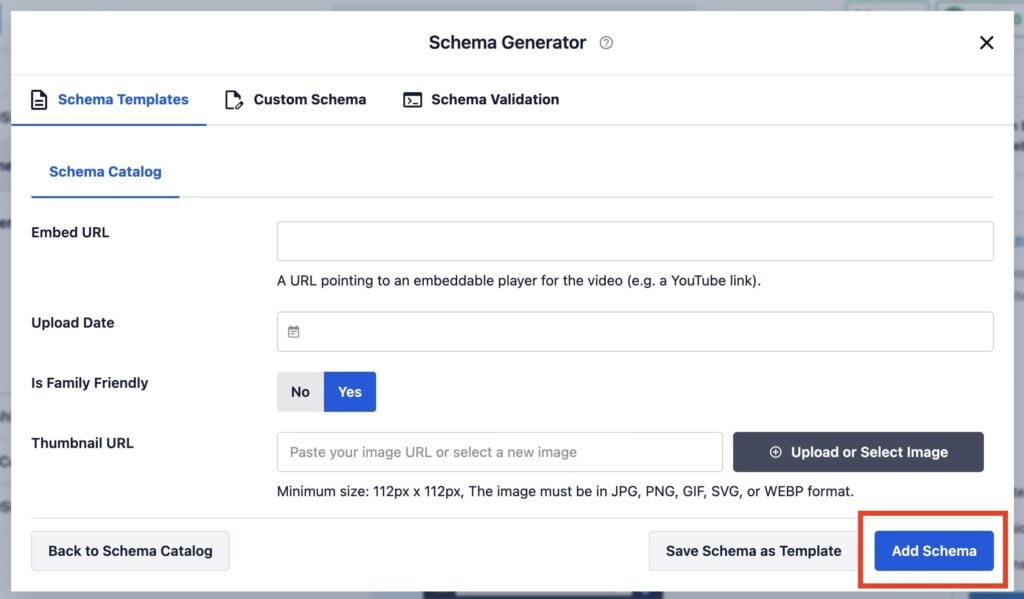
Le générateur de schéma vidéo formatra correctement votre balisage de schéma pour les moteurs de recherche, vous donnant les meilleures chances de classement avec des extraits vidéo dans les SERP.
Astuce de pro : Vous pouvez également enregistrer votre schéma vidéo comme modèle pour une utilisation future. Cliquez simplement sur Enregistrer le schéma comme modèle, et vous y aurez accès plus tard.
Étape 4 : (Facultatif) Tester votre schéma
Comme vous n'ajoutez pas ce code de schéma manuellement, vous n'avez pas à vous soucier des erreurs.
Cependant, si vous voulez *vraiment* vérifier que le code est correctement appliqué, vous pouvez le tester directement dans WordPress.
AIOSEO a une connexion au test des résultats enrichis de Google intégrée à son générateur de schéma.
Ce tutoriel vous montre comment exécuter un test de résultats enrichis.
Comment modifier ou supprimer votre schéma vidéo
Besoin de modifier votre schéma vidéo ?
Pas de problème.
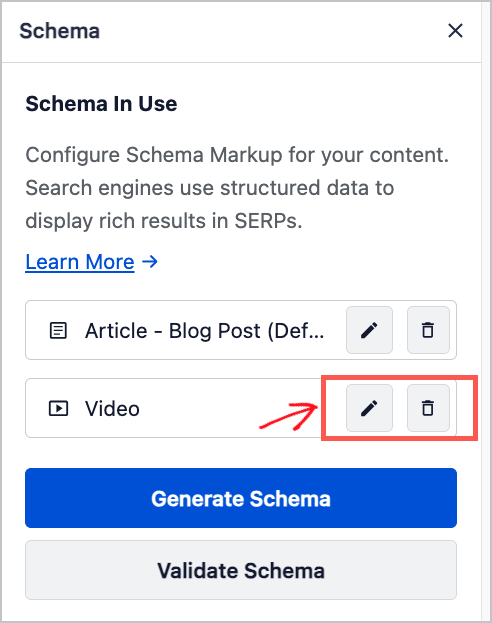
Avec AIOSEO, il est facile de modifier ou de supprimer n'importe lequel de vos balisages de schéma. Pour ce faire, accédez à la section schéma de votre article ou de votre page.
Une fois que vous avez localisé votre schéma vidéo, vous pouvez soit :
- Cliquez sur l'icône en forme de crayon pour le modifier ou
- Cliquez sur l'icône de la corbeille pour le supprimer
Assez simple, n'est-ce pas ?
C'est ce que j'aime chez AIOSEO (même en dehors du balisage de schéma), cela rend des processus potentiellement compliqués faciles.
Puis-je ajouter plus d'un type de schéma ?
Oui, vous pouvez et vous devriez ! Une seule page peut avoir plusieurs types de schéma. Cela donne à Google l'image la plus complète de votre contenu.
Par exemple, si votre vidéo fait partie d'une recette, vous devriez ajouter à la fois le schéma vidéo *et* le schéma de recette.
Voici quelques-uns des types de schéma les plus populaires que vous pouvez ajouter en utilisant le catalogue de schéma AIOSEO :
- FAQ : Utilisez ceci pour les pages avec un format question-réponse afin de vous aider à obtenir un extrait enrichi avec des réponses déroulantes dans les résultats de recherche.
- Comment faire : Parfait pour tout tutoriel ou guide étape par étape.
- Recette : Indispensable pour les blogs culinaires. Il vous aide à afficher les notes, le temps de cuisson et une image directement dans les résultats de recherche.
- Produit : Essentiel pour les pages de commerce électronique afin d'afficher des détails importants tels que le prix, la disponibilité et les évaluations par étoiles.
- Entreprise locale : C'est un must pour les propriétaires de petites entreprises locales. Il aide votre entreprise physique à apparaître avec des informations clés dans la recherche locale et sur Google Maps.
Ouvrez simplement le catalogue de schémas à nouveau et ajoutez tout autre type qui correspond à votre contenu. AIOSEO facilite leur superposition sur une seule page.
Et ensuite ?
Vous savez maintenant comment ajouter un schéma vidéo pour donner à votre contenu une meilleure chance de se démarquer dans les résultats de recherche. En faisant de cela une partie régulière de votre routine de publication, vous construirez une base SEO plus solide pour votre site.
Pour en savoir plus sur la façon de faire remarquer vos vidéos, consultez notre guide des meilleures pratiques SEO pour les vidéos et découvrez comment créer un sitemap vidéo.
La façon la plus simple de gérer tous vos types de schémas et le SEO sur la page est avec AIOSEO. Avec notre générateur de schémas, vous pouvez bénéficier des données structurées en quelques clics.
Si vous avez trouvé cet article utile, alors abonnez-vous à notre chaîne YouTube. Vous y trouverez de nombreux tutoriels supplémentaires. Vous pouvez également nous suivre sur X (Twitter), LinkedIn ou Facebook pour rester informé des nouvelles fonctionnalités que nous publions.
FAQ sur le balisage de schéma vidéo
Qu'est-ce que le balisage de schéma vidéo ?
Le schéma vidéo est un type de code spécifique (données structurées) que vous ajoutez à votre site Web pour fournir aux moteurs de recherche des informations détaillées sur votre vidéo. Considérez-le comme une étiquette détaillée qui indique à Google le titre, la description, la durée et la miniature de la vidéo, l'aidant à comprendre et à présenter correctement votre contenu dans les résultats de recherche.
Le schéma vidéo est-il important pour le SEO ?
Absolument. Le schéma vidéo est très important pour le SEO car il aide vos vidéos à se démarquer avec des résultats enrichis (comme des miniatures) dans la recherche Google. Cela rend votre contenu plus attrayant et conduit souvent à un taux de clics (CTR) plus élevé, ce qui signifie plus de trafic pour votre site Web.
Dois-je savoir coder pour ajouter un schéma vidéo ?
Pas du tout. C'est le meilleur avantage de l'utilisation d'un plugin comme All in One SEO (AIOSEO). Au lieu d'écrire du code, vous remplissez simplement un formulaire convivial avec les détails de votre vidéo, et le plugin génère automatiquement le balisage de schéma correct pour vous en arrière-plan.
Puis-je ajouter un schéma vidéo pour les vidéos YouTube intégrées sur mon site ?
Oui, et vous devriez absolument le faire. Lorsque vous intégrez une vidéo YouTube sur votre page Web, vous pouvez ajouter un schéma vidéo à cette page spécifique. Vous avez juste besoin de l'URL de la vidéo YouTube (l'URL d'intégration) et d'un lien vers une image miniature. Vous les ajoutez aux champs de schéma pour la page où la vidéo est intégrée afin d'en informer Google.
Envie d'essayer AIOSEO gratuitement ?
Entrez l'URL de votre site Web WordPress pour installer AIOSEO Lite.

Divulgation : Notre contenu est financé par nos lecteurs. Cela signifie que si vous cliquez sur certains de nos liens, nous pouvons gagner une commission. Nous ne recommandons que les produits qui, selon nous, apporteront de la valeur à nos lecteurs.
