

Is your website slower than you'd like?
A slow site can be frustrating, especially when you know it's causing visitors to leave before they even see your content. (Not to mention, Google isn’t a fan of high bounce rates, making it harder for you to rank.)
The good news is you don't need to be a developer to make a difference. You can significantly improve your site's performance with a few simple changes.
In this guide, I'll walk you through 5 easy steps for WordPress speed optimization that you can do today.
In This Article
Why Page Speed Is a Big Deal
Before we dive into the “how,” let's quickly cover the “why.” A fast website isn't just a nice-to-have; it's a must.
Here's what a speedy site does for you:
- You'll Keep Your Visitors Happy: No one likes to wait. A slow website frustrates people and sends them clicking the ‘back' button. A faster site creates a much better user experience and reduces bounce rates.
- You Can Improve Your SEO Rankings: Google uses page speed as a ranking signal. A faster site can give you an edge over slower competitors in search results.
- You'll Get Better Results on Mobile: More than half of all web traffic comes from mobile devices. Mobile users expect speed, and Google's mobile-first indexing prioritizes sites that deliver it.
- You'll Build Trust: A fast, snappy website feels professional and reliable. A slow one can feel outdated and untrustworthy, which can hurt your brand's reputation.
What Does Website Speed Optimization Involve?
Optimizing site speed is considered part of technical SEO, which aims to improve the back-end functions of your website.
For many site owners, technical optimizations require hiring web developers to modify code and load times.
But WordPress users can take a different (easier) approach. By choosing a theme that’s already coded to load fast, you can bypass many of these technical headaches.
There are also image and caching plugins that will speed up your site, as well as web hosts designed for optimized performance.
So, want to know how to do it?
Let’s walk through each of these options, step-by-step.
Why You Should Trust Me
I've been optimizing WordPress sites for 6+ years. In that time, I've become a bit obsessed with site speed. I've seen firsthand how taking a site from slow to fast can dramatically improve traffic and conversions. The steps I'm sharing below are the exact ones I use on my own projects to get real results, without touching a single line of complicated code.
How to Optimize Your WordPress Site Speed
Follow these steps to improve your website speed optimization in WordPress.
Step 1: Test Your Current Website Speed
First, you need to know where you're starting from. The best way to do this is with a free tool called Google PageSpeed Insights.
Just go to the PageSpeed Insights website, enter your website's domain or a specific URL, and click Analyze.
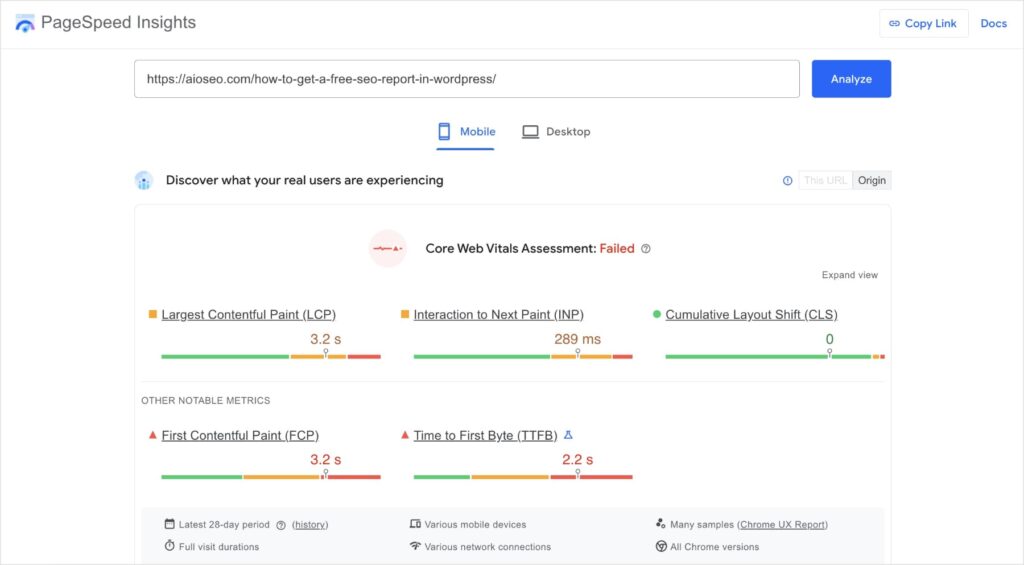
In a few moments, you'll get a color-coded report with performance feedback:
- Green: Your site is fast.
- Yellow: Your site has room for improvement.
- Red: Your site is slow and needs urgent attention.
If you continue scrolling down the page, you’ll also get numbered scores for various elements.
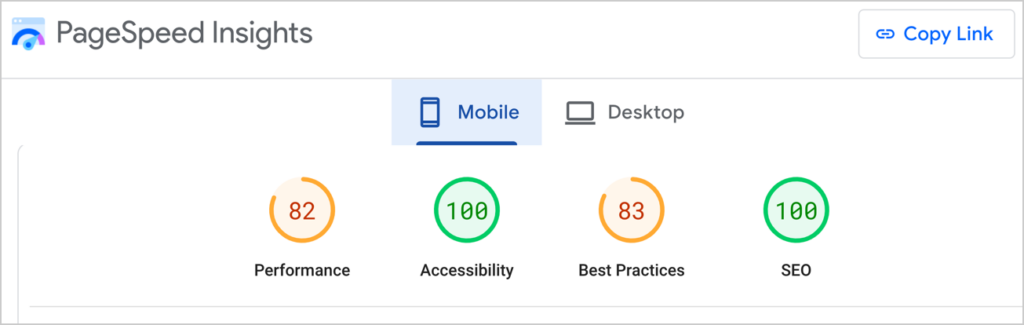
The goal isn’t necessarily to hit 100 for every report. The goal is to increase your site speed and improve the user experience (UX).
To do this, you’ll want to scroll down until you see the Diagnostics. You’ll find specific areas for improvement. But realize, these diagnostics are for professionals. Very few of the recommendations will make sense to the average user (including myself).
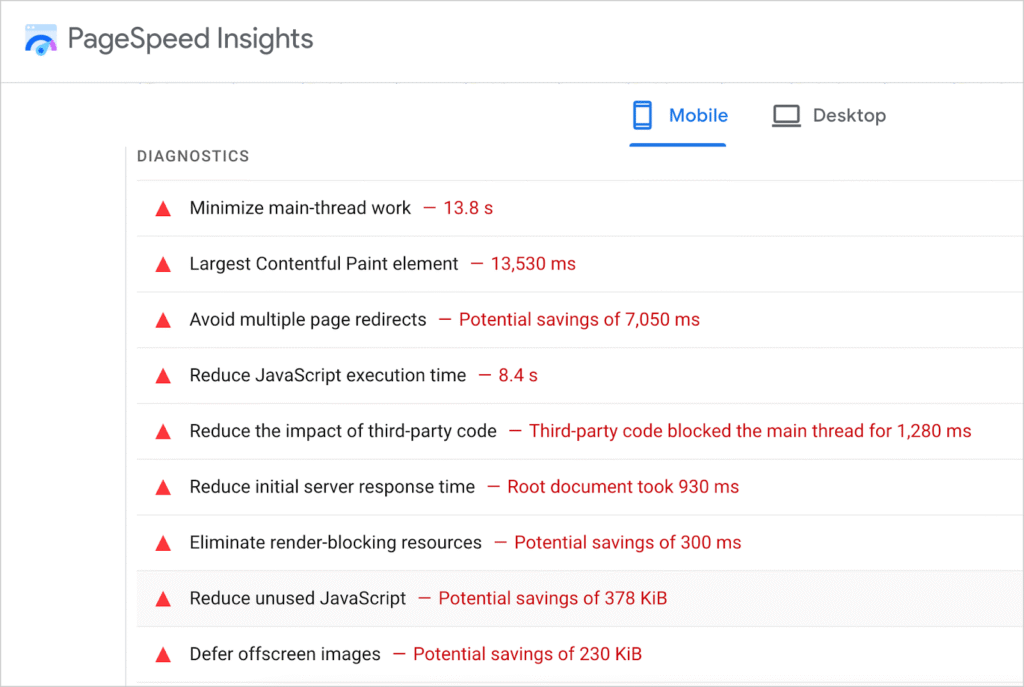
If you are comfortable working through this method, you can click any item to get detailed recommendations on what to change.
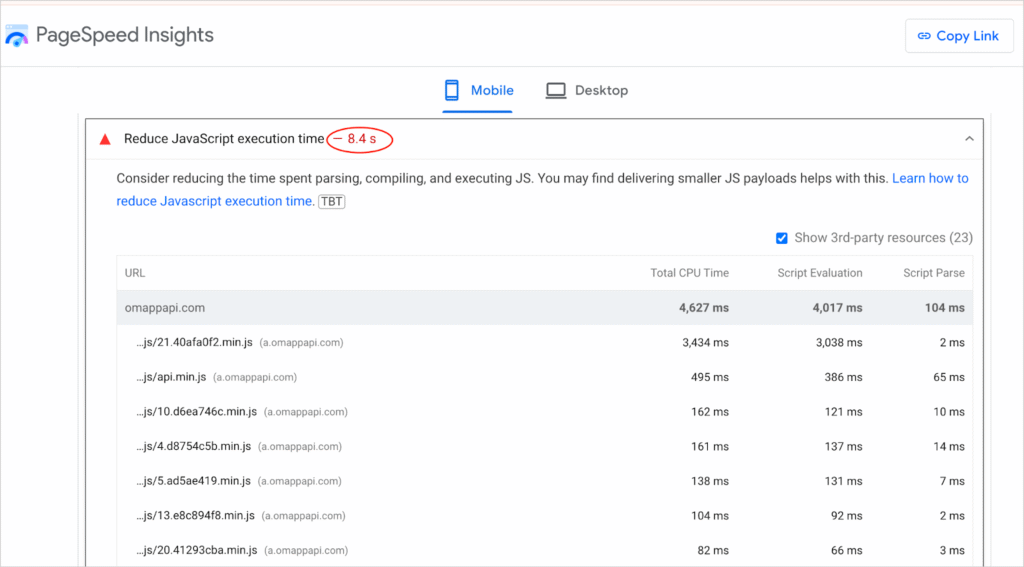
Now, you know where your performances issues are and how to fix them.
You can also add competitors to PageSpeed Insights and compare your Performance Score with theirs.
A Note for WordPress Users
The easiest way to run a site speed test in WordPress is to use All In One SEO (AIOSEO).
I’ve used too many SEO plugins to count over the years, and I’ve found AIOSEO to be the most user-friendly option for testing site speed.
AIOSEO helps users improve their websites’ visibility in search results with on-page SEO features and technical SEO tools. Today, it has over 3 million active users.
For step-by-step instructions on how to install AIOSEO, visit our Installation Guide.
To check your site speed using AIOSEO, start by navigating to the AIOSEO Dashboard. Then, look for the SEO Site Score section.
You’ll get an overall score with a detailed breakdown of “good” (SEO checks), warnings, and issues.
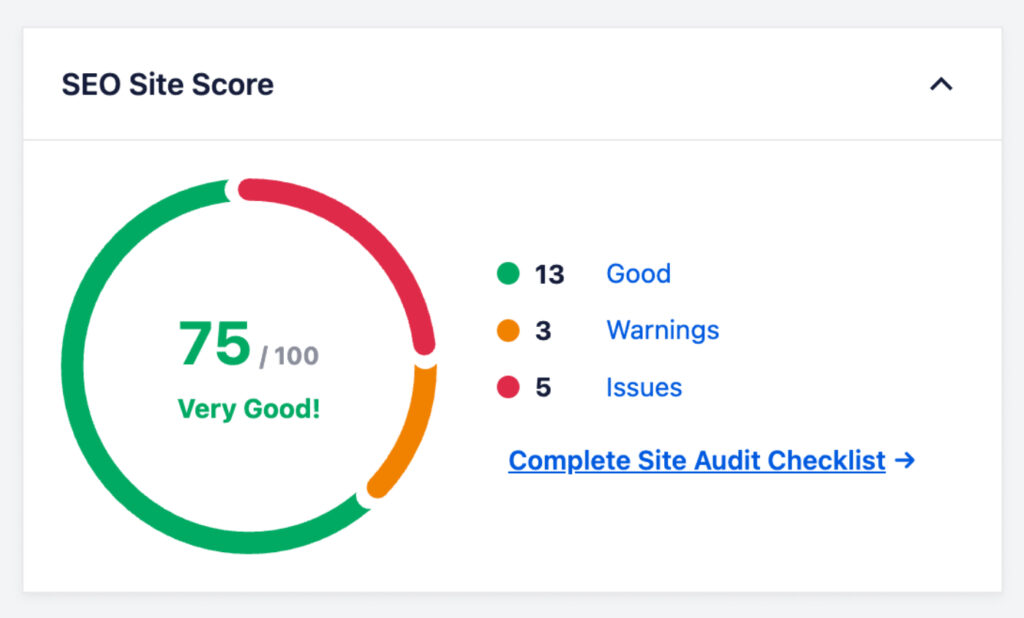
From here, click on “Complete Site Audit Checklist” to navigate to the SEO Analysis tool.
Then, scroll down until you see the Performance SEO section.
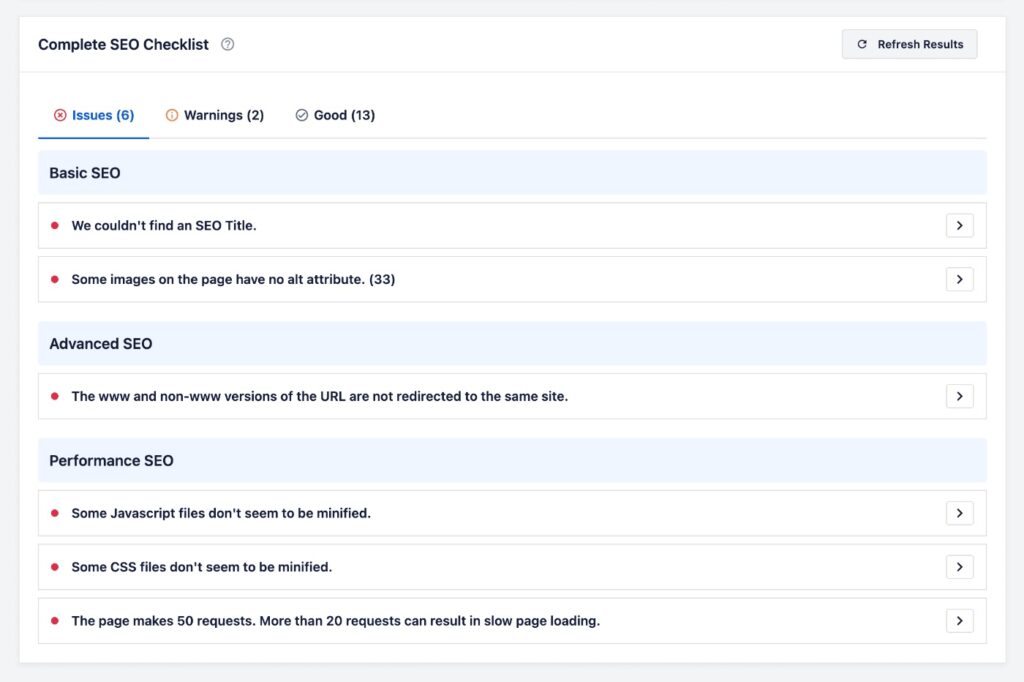
You can expand any of these sections to learn more about the performance issue and get recommendations on what to improve.
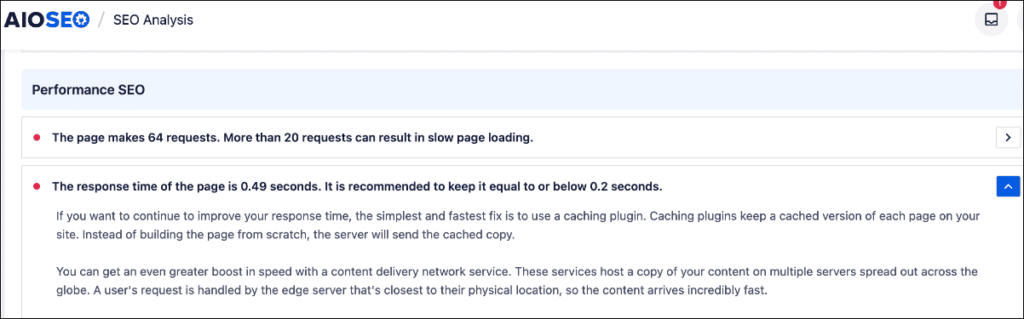
Personally, I find this method much easier than digging through PageSpeed Insights.
The language is also more beginner-friendly, making understanding issues and how to fix them more accessible.
Want more tool recommendations? Check out my list of the best page speed test tools.
Ultimately, AIOSEO is a handy way to keep an eye on your site’s performance without the technical headache.
Step 2: Choose a Fast-Loading Theme
A WordPress theme controls the entire look and feel of your website. Think of it like the design and layout of a house. It determines your site’s colors, fonts, and page structure without changing your actual content (the furniture).
Your theme is the foundation of your website's design and plays a huge role in your site's speed. Some themes are bloated with unnecessary code that can slow you down.
The easiest way to get a fast site is to start with a theme built for speed.
If you're starting a new site or planning a redesign, consider using a lightweight theme known for great performance. Some popular and fast themes include:
You can also use page builders. My personal favorite is SeedProd.
SeedProd comes with a lot of pre-built designs, sorted by industry. This makes creating a beautiful (and fast) site painless.

It also has a particular emphasis on designs that boost conversions.
Ultimately, it doesn’t really matter whether you use a theme or page builder. You can choose whichever one suits you.
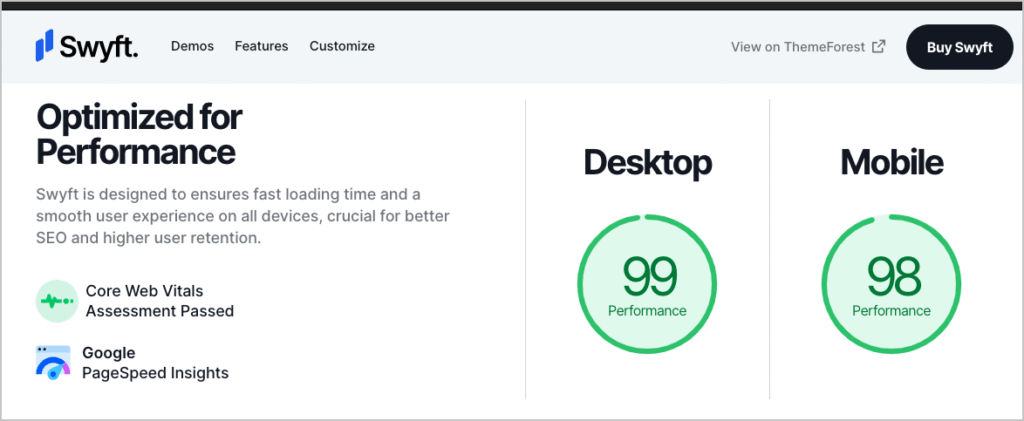
Another way to find fast-loading themes is to browse a marketplace like ThemeForest.net. Then use search terms like “fast-loading” or “page speed optimized.”
That’s how I found the theme below, Swyft.
Now let’s look at what’s commonly the biggest culprit in slow loading speed: images.
Step 3: Compress Your Images
Large, uncompressed images are the #1 cause of slow websites.
When you download a photo from a stock site, that image file can be huge—sometimes 4MB or more. Uploading that directly to your site is like trying to stuff a moose into a MINI Cooper. Something’s gotta give, and what goes is your site's loading speed.
The solution is to compress your images. This means reducing the file size without sacrificing much visual quality.
You can do this using a WordPress plugin like WP Rocket. This plugin is designed to boost your site speed overall.
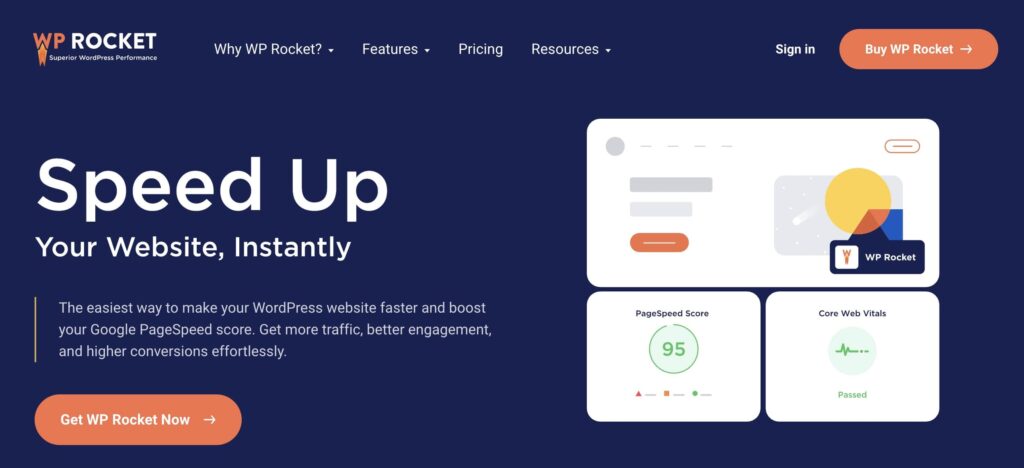
Here’s how it helps:
Lazy Load Your Images
WP Rocket compresses images and uses lazy loading.
Lazy loading is a best practice that prioritizes loading images at the top of the screen, then loading the rest of the images on the page in rapid succession.
This gives the user a sense of instantaneous loading.
If they happen to scroll down the screen quickly, before the rest of the images have loaded, they’ll see a blurred image that rapidly comes into focus. This is more satisfying than seeing a red X, which makes the page look broken.
Let’s look at an example.
Here, I navigated to a page using a mobile phone on a slow public network. When I scrolled down quickly, I saw this image, blurred out, which hadn’t quite loaded yet.
The blurring is a function of lazy loading. We see some colors, but not much else.

In an instant (around 1 second or even less), the image came into focus.

Note that lazy loading can use various blurring styles, but you get the idea. It helps users access all your images when they need them and without weighing down your site speed.
Did you know? Lazy loading is one of my top website optimization tips for site owners. It sounds intimidating, but it’s actually really easy to do when have the right tools. Plus, it makes a big difference for your site speed and UX.
Shameless Plug: I also want to mention that we recently released an AI Image Generator for WordPress. I’ve been using it a lot for my content and have been blown away with the results.
You just enter a text prompt, click Generate, and the tool will produce an original image right in the WordPress editor. You can even submit edit request, and it will keep an entire revision history of your prompts and images.

Once you’re happy with the result, click Insert Image to add it right into your content.
It’s one of the best AI image generators I’ve ever used, and the fact that you can use it in WordPress is a game-changer.
Step 4: Use a Caching Plugin
This is the most impactful technical step you can take, and a good plugin makes it incredibly easy.
So, what is caching?
Imagine someone asks you a complicated math problem. The first time, it takes you a while to figure it out. But if they ask you the same question again, you remember the answer and can say it instantly.
Caching works like that for your website. It creates and saves a static copy of your site. When a user visits, your server shows them the saved copy instead of rebuilding the page from scratch every time.
This is much, much faster.
With just a few clicks, WP Rocket will:
- Turn on caching for your site
- Minify your CSS and JavaScript files (this means removing unnecessary spaces and characters from code to make it smaller)
- Apply Lazy Loading to your images
Simply installing and activating a plugin like WP Rocket can take your performance score from red or orange straight into the green.
Step 5: Check Web Hosting Speed Options
Lastly, your web host can be a valuable resource in speeding up your site.
Contact them and ask what they can do to speed up your site.
Most web hosts offer content delivery networks (CDNs). These networks save a copy of your site whenever it’s updated in various geographic locations around the world. This way, a user can connect to your site from a location near them.
You can also discuss your hosting plan with them. Some “shared hosting” plans, which are typically low-cost plans, can limit your speed.
Finally, ask them if they have other resources or recommendations for speeding up your site. Sometimes it’s best to get information straight from the source rather than trying to figure it all out on your own.
And there you have it! 5 steps to better, faster website speed optimization.
Now, before we wrap things up, I want to discuss one more technical element for advanced users.
Core Web Vitals
When it comes to website performance, a good speed is one that provides a seamless and fast experience for users.
Since PageSpeed Insights breaks overall performance down to specific metrics, called Core Web Vitals, I’ve defined a few of them below.
Please note that this is for more advanced users. Do not panic if you’re an average site owner and don’t understand them. Core Web Vitals are designed for web professionals, so feel free to skip this section.
- Page Load Time: Aim for a page load time of 2 seconds or less. Studies have shown that users start to abandon websites that take longer than 3 seconds to load. Google recommends a load time of under 1 second for e-commerce websites.
- Time to First Byte (TTFB): TTFB is the time it takes for a user's browser to receive the first byte of data from the server. A good TTFB should be under 200ms.
- First Contentful Paint (FCP): FCP measures the time it takes for the first piece of content to appear on the screen. A good FCP should be within 1 second.
- Largest Contentful Paint (LCP): LCP measures the time it takes for the largest content element (e.g., an image or block of text) to appear on the screen. A good LCP should be within 2.5 seconds.
- Cumulative Layout Shift (CLS): CLS measures the visual stability of a page as it loads. A good CLS score should be less than 0.1.
- Time to Interactive (TTI): TTI measures the time it takes for a page to become fully interactive. A good TTI should be within 5 seconds.
Keep in mind that the ideal website speed may vary depending on your target audience, industry, and the complexity of your website.
However, by aiming for the above-mentioned benchmarks, you can ensure a good browsing experience for your visitors.
After Website Speed Optimization…
Now that you have a path forward for improving your site speed, what’s next?
Read our review of the best caching plugins, and learn how WP Beginner sped up their site. Then, check out our SEO secrets for driving revenue.
You can also come join us on our YouTube Channel to find simple WordPress SEO tutorials. Or follow us on X (Twitter), LinkedIn, or Facebook to stay in the loop.
FAQs About Website Speed Optimization
Will speeding up my site actually improve my SEO rankings?
Improving your site speed can definitely influence your rankings for the better. Google uses site speed as a ranking signal because a fast site provides a better user experience.
While high-quality content is still the most important factor, speed matters. If your site is noticeably slower than your competitors, a speed boost can give you a real competitive edge in search results.
But even beyond SEO, a faster site helps you keep visitors from leaving and encourages them to convert. That's a win no matter what.
How can I control costs if I hire a professional?
The best way to control costs is to ask the professional to focus on the highest-impact tasks first. This usually includes proper image optimization and expert cache plugin configuration, which often deliver the biggest speed improvements.
Also, look for services that offer a fixed-price package instead of an open-ended hourly rate. This way, you know the full cost upfront with no surprises.
What's a good PageSpeed score to aim for?
While it's tempting to chase a perfect score of 100, it's often not necessary. The real goal is to provide a fast, smooth experience for your visitors. A score in the green (90-100) is an excellent target.
The most important thing is to see a significant improvement from your starting score and ensure your site feels fast to a real user. Don't stress about the last few points; focus on the user experience.
Want to Try AIOSEO for Free?
Enter the URL of your WordPress website to install AIOSEO Lite.
Disclosure: Our content is reader-supported. This means if you click on some of our links, then we may earn a commission. We only recommend products that we believe will add value to our readers.
