Most serious SEO problems don't announce themselves. You find out the way no one wants to: traffic starts sliding, someone asks why, and you spend an afternoon working backwards trying to figure out what changed.
I've seen sites go weeks with their homepage set to noindex before anyone caught it. By the time someone noticed, the damage was already done.
Starting with AIOSEO 4.9.9, you have an earlier warning system. SEO Alerts sends you an email or Slack notification the moment one of these issues is detected on your site.
A few situations this catches before they become real problems:
- Your robots.txt breaks during a server migration. Google stops crawling your site. You find out a week later when traffic starts to drop.
- A plugin update accidentally sets your homepage to noindex. Your most important page disappears from search results.
- Your sitemap stops loading after a WordPress update. New posts stop getting submitted to search engines.
You configure it once, add your email or Slack, and AIOSEO monitors from there.
That's SEO Alerts. And it's free for every plan, including Lite.
In This Article
What SEO Alerts Monitors
SEO Alerts currently checks for 3 critical issues that can quietly damage your rankings without obvious symptoms:
- Homepage noindex: Confirms your homepage is set to index, not noindex. A noindex tag tells search engines not to include the page in search results, which means your homepage won't appear in Google. It's one of the most damaging mistakes a site can have, and one of the easiest to trigger without realizing it.
- Robots.txt: Confirms your robots.txt file is accessible. A broken robots.txt can block search engines from crawling your entire site.
- XML Sitemap: Verifies your XML sitemap is loading correctly. A broken sitemap means new content stops getting submitted to search engines.
When any of these issues is detected, AIOSEO sends a notification to every channel you've configured: email, Slack, or both. Checks run on an hourly schedule, so no time is wasted if one of these issues arises.
More alert types are planned for future releases. These 3 cover the issues most likely to cause serious ranking damage.
In summary: SEO Alerts checks your homepage index status, robots.txt, and sitemap every hour and notifies you via email or Slack if something breaks.
How to Set Up SEO Alerts in WordPress
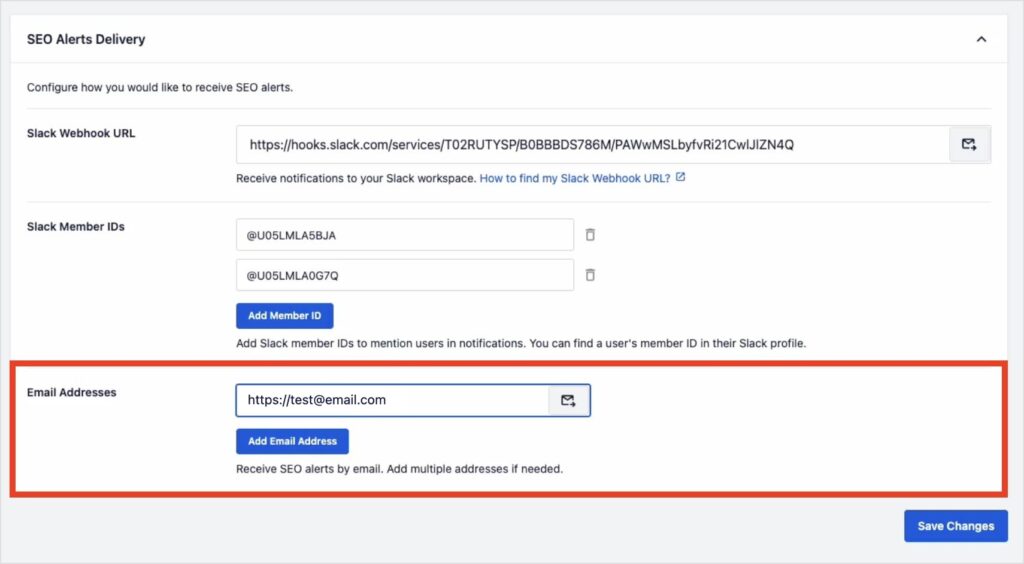
SEO Alerts is under Tools >> SEO Alerts in your WordPress dashboard. The setup is short.
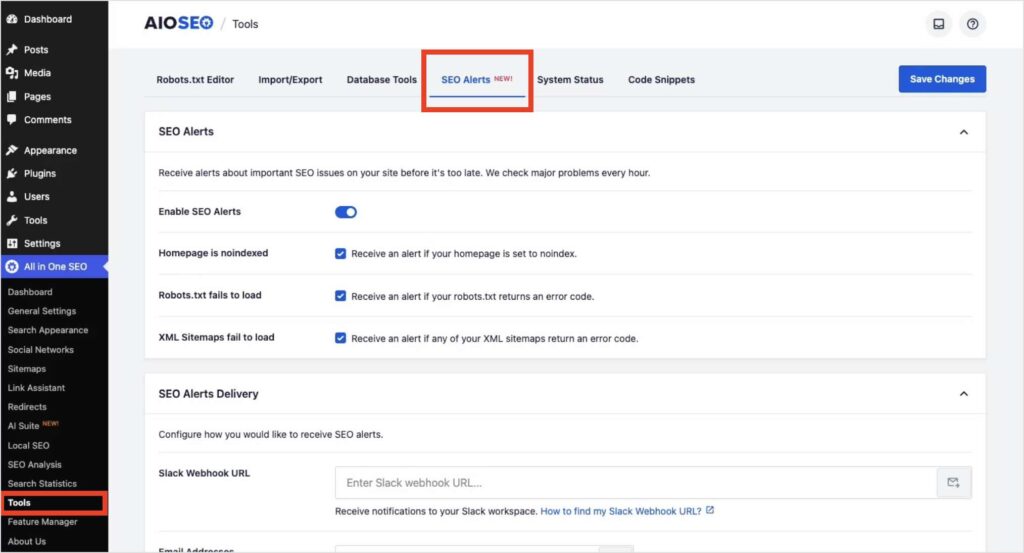
Step 1: Configure Slack
If you want Slack notifications, create an incoming webhook URL in your Slack workspace and paste it into the Slack Webhook URL field in the SEO Alerts panel.
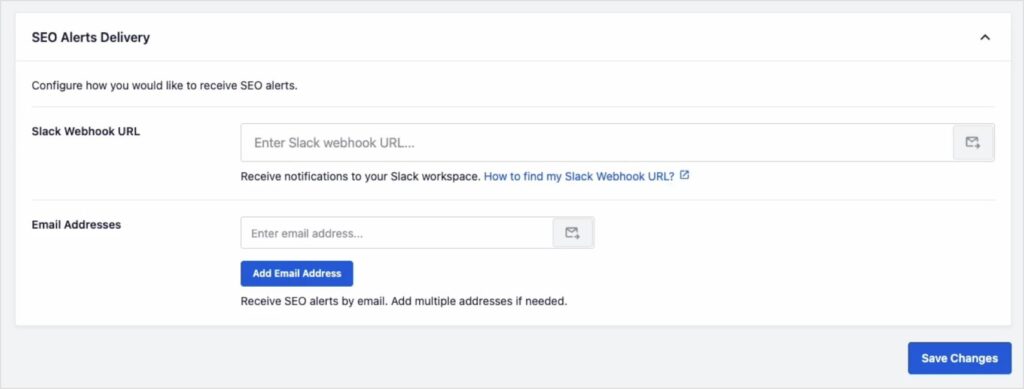
Note: Here's a step-by-step guide for getting your Slack webhook URL.
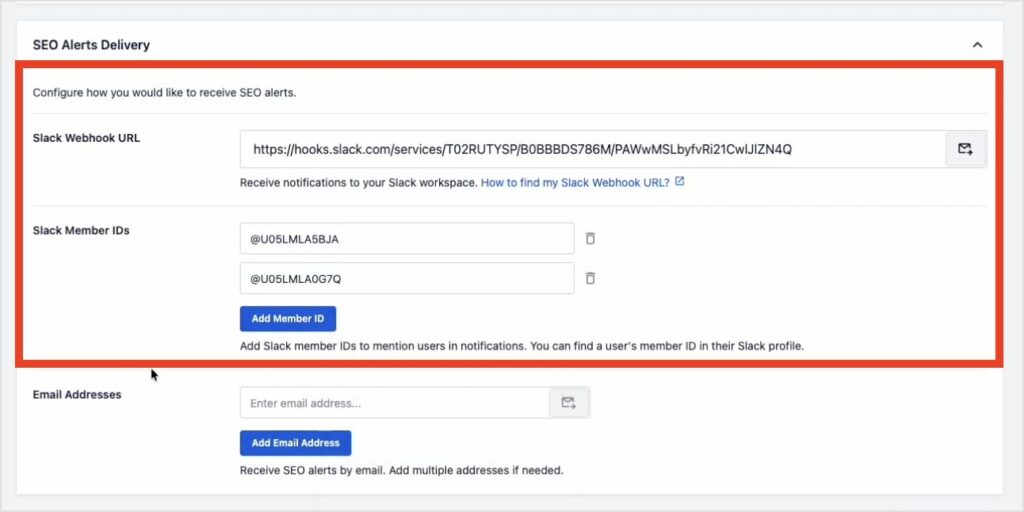
Once the URL is added, a Slack Member IDs field appears. Enter the IDs of any team members you want @mentioned when an alert fires. You can add multiple IDs.
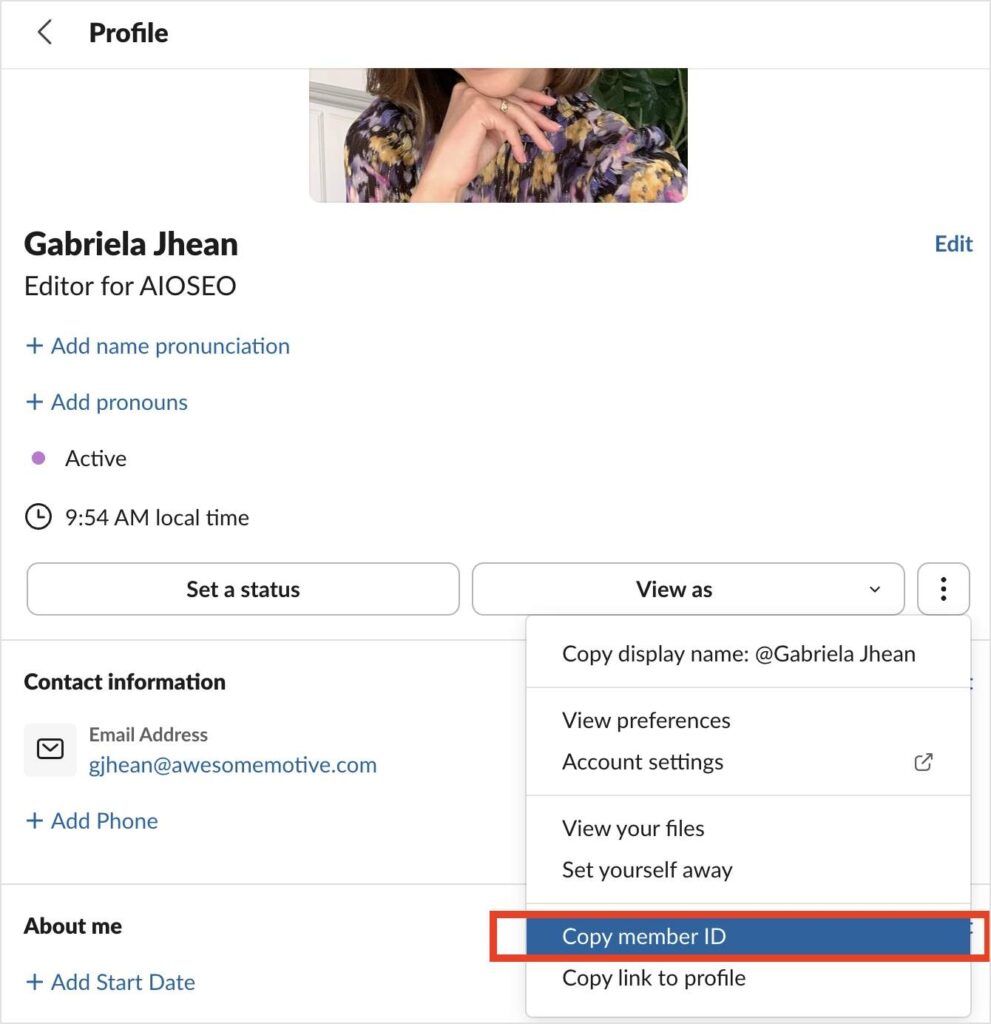
To find a member's ID in Slack, click their name, open the three-dot menu, and choose Copy member ID.
Step 2: Add Email Addresses
Enter the email addresses you want alerts sent to. Multiple addresses are supported.
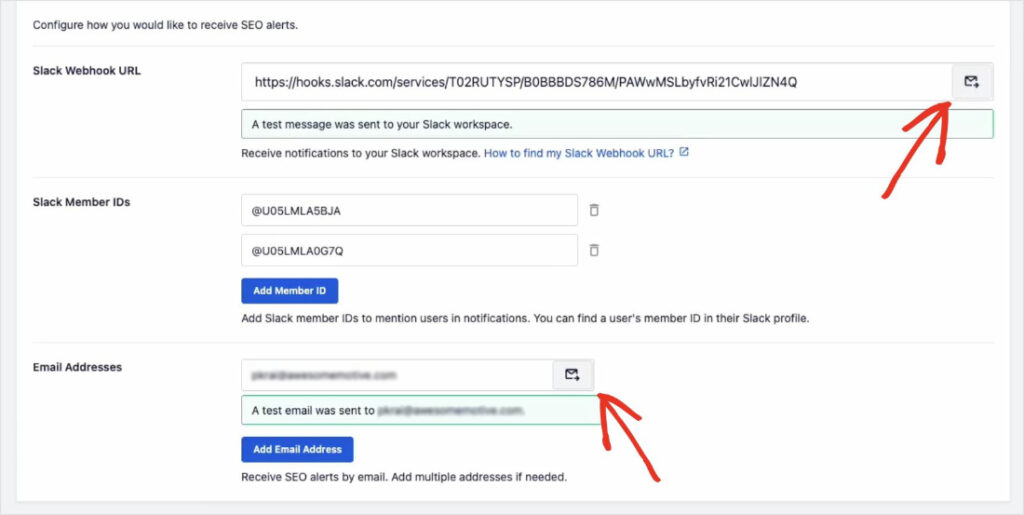
Step 3: Test Your Setup
Use the Test buttons to send a sample notification to each channel. This helps you confirm you're receiving them before you actually need the feature.
Here's what a test message looks like in Slack:
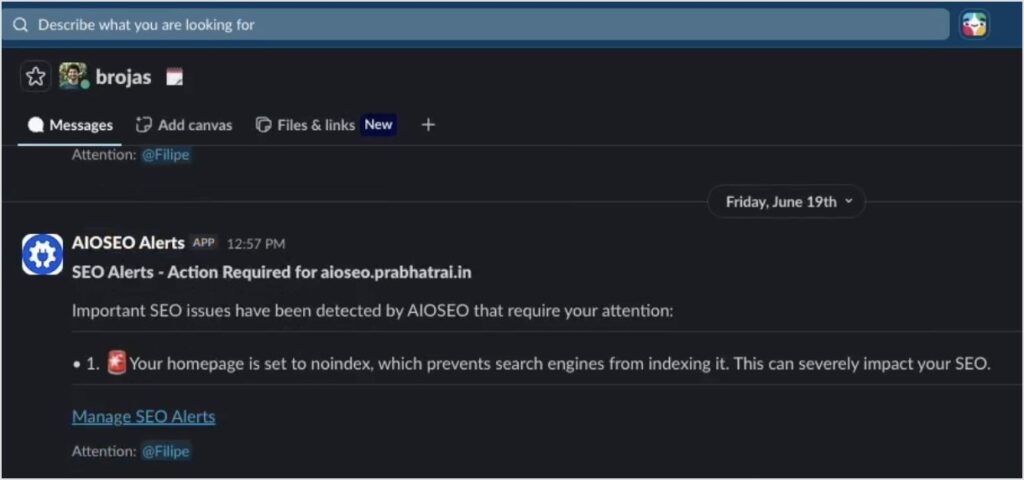
After that, AIOSEO runs the checks on an hourly basis. You'll only hear from it when something actually breaks, keeping your inboxes clean and unbothered.
Available on All Plans, Including Lite
SEO Alerts is free for every AIOSEO plan, including Lite. All you have to do is update to 4.9.9 from Plugins >> Installed Plugins in your WordPress dashboard. Your first check will run automatically.
4.9.9 also includes 2 other updates:
- Event schema in Basic: Event schema was previously available on Elite only. Starting with 4.9.9, it's included in the Basic plan.
- Job Posting schema in Basic: Job Posting schema was previously available on Pro and above. Now, it's included in the Basic plan.
The problems SEO Alerts catches are exactly the kind you least expect to have. Quiet issues that don't show up until rankings start sliding.
My advice? Update to 4.9.9 and let AIOSEO keep an eye on the things you can't afford to miss.
— Ben Rojas, President of AIOSEO
Pro Tip: Run a test notification right after you set this up. It confirms everything is wired correctly before you're depending on it.
Frequently Asked Questions
Does SEO Alerts require configuration before it starts working?
Yes. You need to add at least one email address or Slack webhook URL before alerts can be sent. Once configured, the hourly checks run automatically.
Which SEO issues does AIOSEO currently alert me about?
4.9.9 covers 3 issues: homepage noindex status, robots.txt accessibility, and sitemap availability. More alert types are planned for future releases.
Can I receive both email and Slack notifications for the same issue?
Yes. Configure both channels in the SEO Alerts settings panel and AIOSEO will send notifications to all of them when an issue is detected.
Which plans include SEO Alerts?
All plans, including the free Lite version. Update to 4.9.9 to access it.
How often does AIOSEO check for SEO issues?
Checks run on an hourly schedule. You can also send a test notification at any time from the SEO Alerts panel to verify your setup.