
Would you like to let an AI assistant like Claude read and update your site's SEO directly from a chat window? All you need is AIOSEO with the AI Suite, an MCP-compatible AI client, and a few minutes to complete the setup.
This guide walks you through connecting an AI client to your WordPress site using AIOSEO's built-in MCP server.
MCP, short for Model Context Protocol, is an open standard that lets AI clients securely call functions on other applications. AIOSEO registers a set of SEO “abilities” (such as reading and updating post titles, managing redirects, and pulling Search Statistics) and exposes them over MCP. This lets your AI assistant work on your SEO for you.
NOTE:
The AI Assistant and MCP Server work with the free version of AIOSEO, which gives your AI assistant 13 SEO abilities. All in One SEO Pro doubles that, adding abilities for taxonomy SEO, redirects and Search Statistics. Some abilities follow the license requirements of the feature behind them. Search Statistics abilities need an Elite license, and Link Assistant abilities need the Link Assistant addon, included with Pro and Elite.
In This Article
Before you get started, make sure AIOSEO is installed and activated on your WordPress site. You will also need WordPress 6.9 or newer, which is the release that added the Abilities API, and AIOSEO 4.9.8 or newer. The free MCP Adapter plugin is required too, and AIOSEO installs it for you in one click during setup.
Opening the MCP Setup
To get started, we'll open the MCP setup screen in AIOSEO.
Go to All in One SEO in your WordPress dashboard, open the AI Suite page, and select the MCP tab.
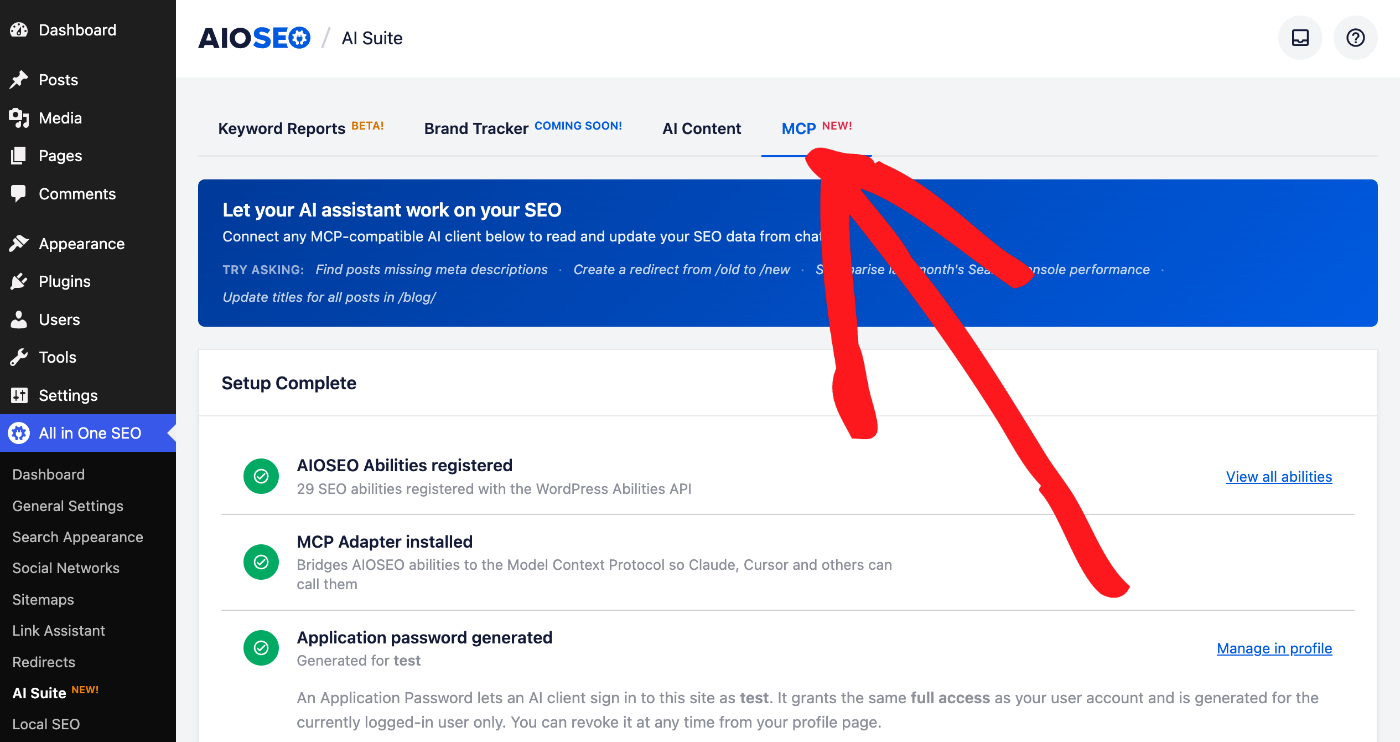
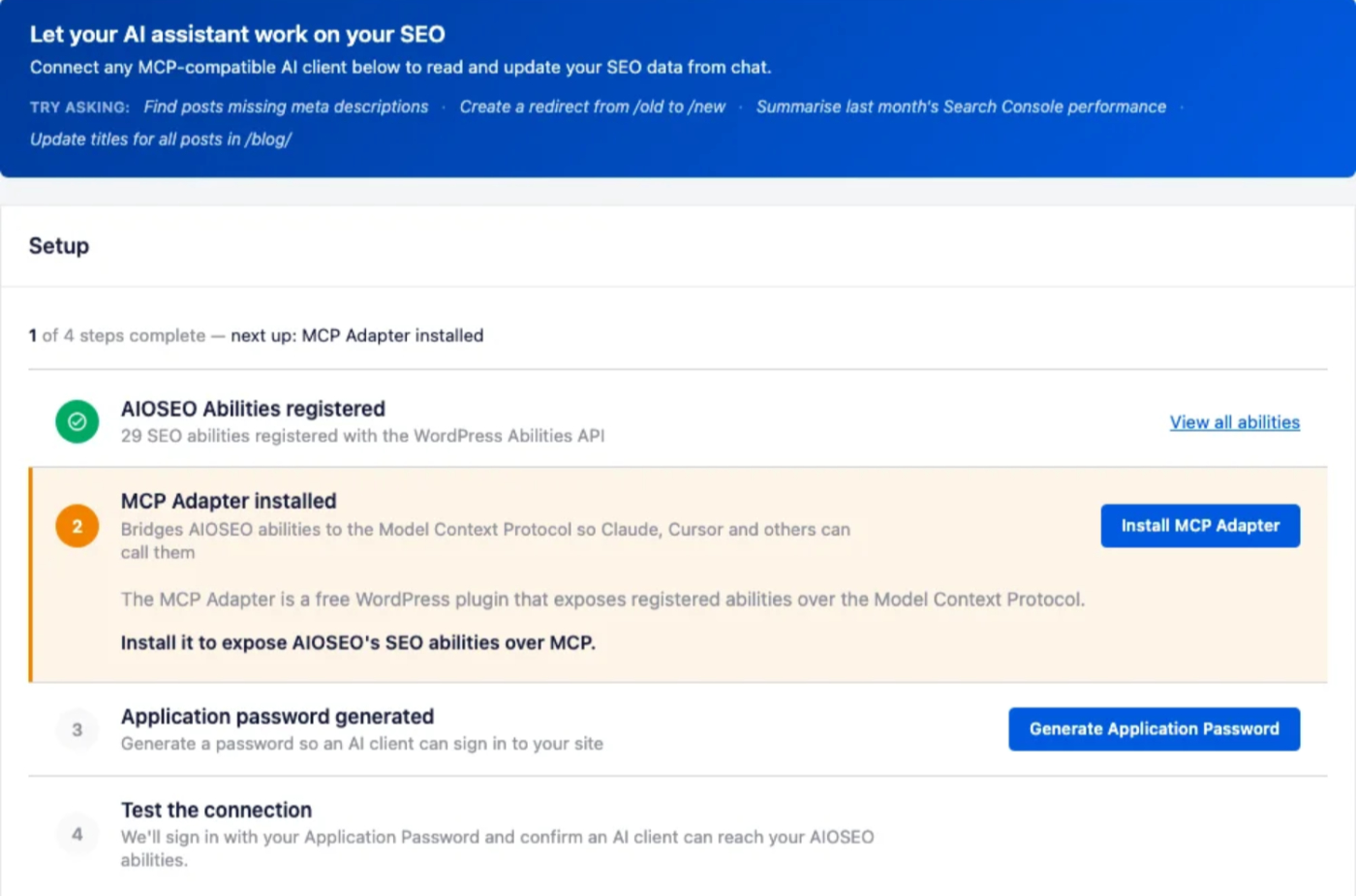
The MCP tab walks you through a 4-step setup that prepares your site to connect an AI client. Each step shows its status, and the progress counter at the top tracks how many steps are complete.
Reviewing the Registered SEO Abilities
The first step confirms that AIOSEO has registered its SEO abilities with WordPress, shown by the green checkmark. These abilities are the specific actions your AI assistant will be able to perform. To review the full list grouped by category, expand View all abilities.
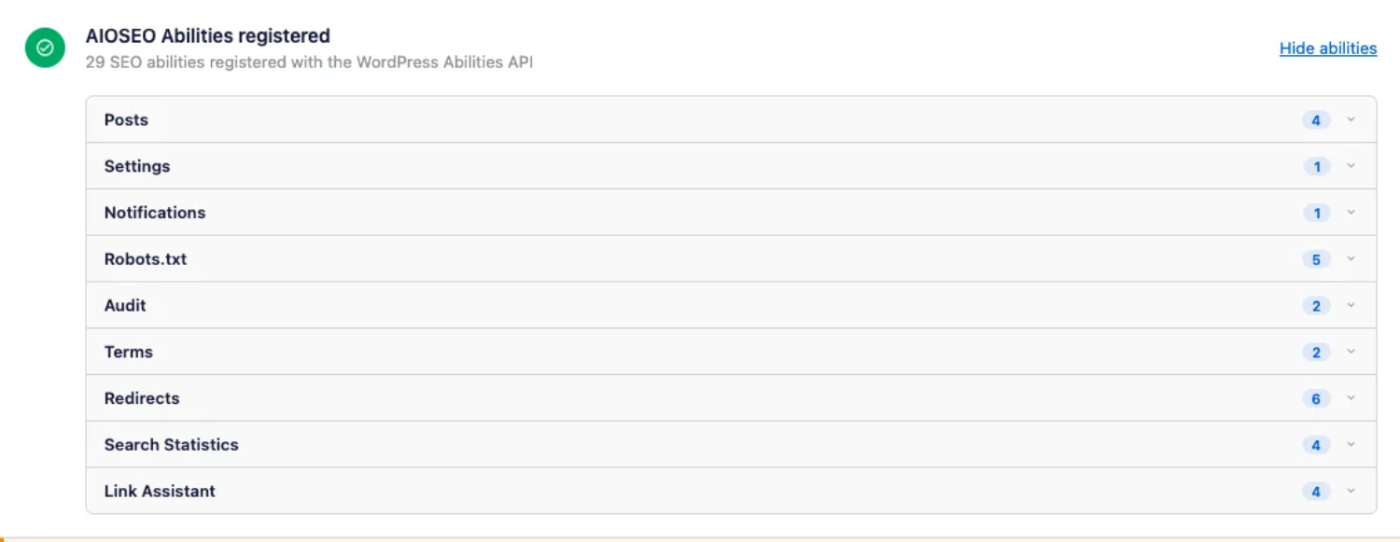
The abilities cover areas like Posts, Settings, Notifications, Robots.txt, Audit, Terms, Redirects, Search Statistics, and Link Assistant, so your assistant can read and update SEO data across your site.
The list you see depends on your setup. The free version of AIOSEO registers 13 abilities covering posts, settings, notifications, robots.txt and site audits. All in One SEO Pro adds abilities for terms, redirects and Search Statistics, and the Link Assistant addon adds four more. Some abilities are registered even when the feature behind them needs a higher license level, so Search Statistics abilities return data on Elite, and Link Assistant abilities need the Link Assistant addon, included with Pro and Elite.
Installing the MCP Adapter
The second step adds the MCP Adapter, a free WordPress plugin that bridges AIOSEO's abilities to the Model Context Protocol. To add it, click Install MCP Adapter.

AIOSEO downloads, installs, and activates the adapter for you. Once it finishes, the step shows a green checkmark to confirm the adapter is ready.

Generating an Application Password
The third step creates the credentials your AI client uses to sign in to your site. To create them, click Generate Application Password.

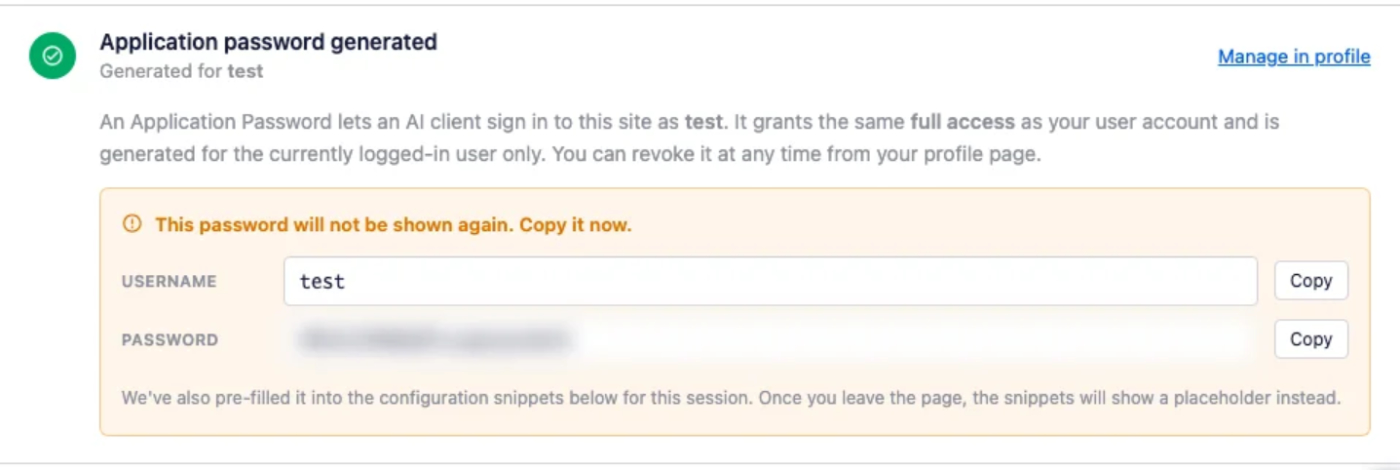
AIOSEO then displays a username and a one-time Application Password. This password grants the same access as your user account. Copy it right away using the Copy button next to the password field. For security, the password is shown only once, and you can revoke it at any time from your WordPress profile.
Testing the Connection
The fourth step confirms that an AI client can reach your site with the credentials you just created. To run the check, click Test connection.

AIOSEO signs in with your Application Password and reports how many abilities it found. A “Connection successful” message confirms your site is ready to connect an AI client.

Connecting Your AI Client
With setup complete, you can connect your AI assistant. In the Connect to AI Client section, choose the tool you want to use. Here, we'll select Claude Desktop.

NOTE:
Not sure which tab to pick?
Choose the client you already use to chat with AI. Pick Claude Desktop if you use the Claude app on your computer. Pick Claude Code CLI or Gemini CLI if you work from a terminal. Pick Cursor or VS Code if you connect from your code editor.
If you're not sure, start with Claude Desktop, since it's the simplest to set up.
AIOSEO generates a ready-to-use configuration snippet and shows where to save it for your chosen client. To copy it, click Copy snippet. Then add it to your client's configuration file and restart the client. Your Application Password is filled in automatically while you stay on the page.
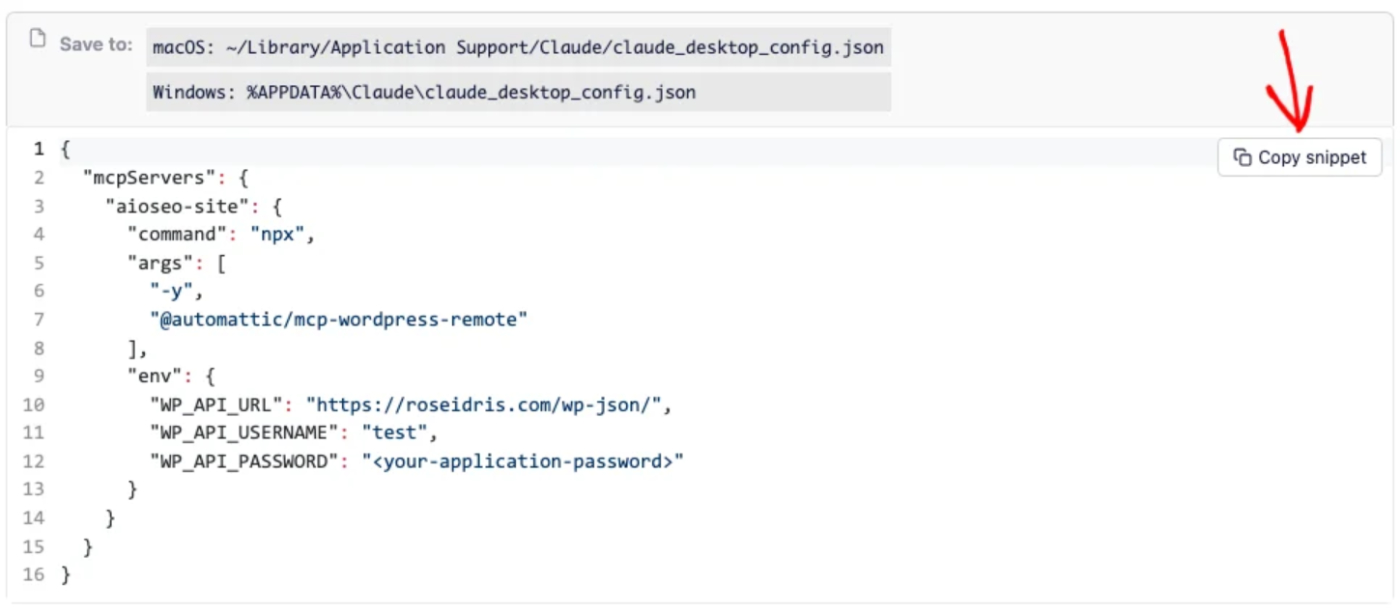
Once your client restarts, it can use AIOSEO's abilities. You can then ask it to do things like find posts missing meta descriptions, create a redirect, or summarize your recent Search Statistics.
That's it! You've connected an AI assistant to your WordPress site with AIOSEO's MCP server.
Frequently Asked Questions
Below, we've answered some of the most common questions about connecting an AI assistant to your site with AIOSEO's MCP server.
Which AI clients can I connect?
The MCP tab provides ready-made configuration for Claude Desktop, Claude Code CLI, Gemini CLI, Cursor, and VS Code. If you use ChatGPT, connect with one of these clients instead, since ChatGPT's connectors rely on a different sign-in method.
What can the AI assistant do on my site?
It can call the AIOSEO abilities registered with WordPress, such as reading and updating the SEO data on your posts, finding posts that are missing SEO fields, managing redirects, reviewing your Search Statistics, and running site audits.
Will my Application Password be shown again?
No. The Application Password appears only once, when you generate it. If you lose it, generate a new one and update your AI client's configuration with the new value.
Can I remove an AI client's access later?
Yes. The Application Password can be revoked at any time from the Application Passwords section of your WordPress profile, which immediately ends that client's access.
What should I do if Application Passwords are disabled?
AIOSEO's MCP server uses a WordPress Application Password so your AI client can sign in to your site. If Step 3 of the MCP setup says Application Passwords are disabled, something on your site has turned the feature off. AIOSEO names the cause when it can find it. Here's how to fix the most common ones:
Your site isn't using HTTPS
WordPress only allows Application Passwords on sites served over HTTPS (local development sites are the exception). Switch your site to HTTPS, then reload the MCP tab.
A security plugin turned them off
- Wordfence: go to Wordfence > Firewall > All Firewall Options > Brute Force Protection, uncheck Disable WordPress application passwords, and click Save.
- Disable Application Passwords: this plugin's only job is to turn the feature off. Deactivate it from the Plugins screen.
- Solid Security (formerly iThemes Security): it can limit Application Passwords to certain users. Allow your account in its settings, or ask a site administrator to.
- Other security plugins: look for an “Application Passwords” option in the plugin's settings, often under REST API, login or hardening settings.
Custom code or your host turned them off
A code snippet or must-use plugin can disable the feature with the wp_is_application_passwords_available filter. Remove that code, or ask your developer or hosting provider.
They're only disabled for your account
If AIOSEO says Application Passwords are disabled for your account, a security or two-factor plugin is limiting who can create them. Ask a site administrator to allow your account.
You can't manage plugins
If your role can't activate or configure plugins (for example, the AIOSEO Manager role), AIOSEO asks you to contact a site administrator. Send them a link to this section.
Once it's fixed, reload All in One SEO > AI Suite > MCP. Step 3 now shows the Generate Application Password button.