job-posting-schema

How to Add Job Posting Schema in WordPress

Job posting schema can help your vacancies stand out in search by giving Google clear, structured information about the roles you're hiring for.

When implemented correctly, job posting schema can also make eligible pages available for enhanced job search experiences, including Google's job listings. That can increase visibility and help potential applicants understand key details before they even visit your website.

The challenge is that manually creating and maintaining structured data for every new vacancy can get tedious, especially if you're hiring regularly.

So, in this guide, I'll explain what job posting schema is, why it matters for SEO, and how to add it to WordPress step by step using AIOSEO.

Let's start with a quick definition.

What Is Job Posting Schema?

Job posting schema is structured data that describes a job vacancy to search engines. It's part of the Schema.org vocabulary and provides a standardized way to label the information already contained in your job listing.

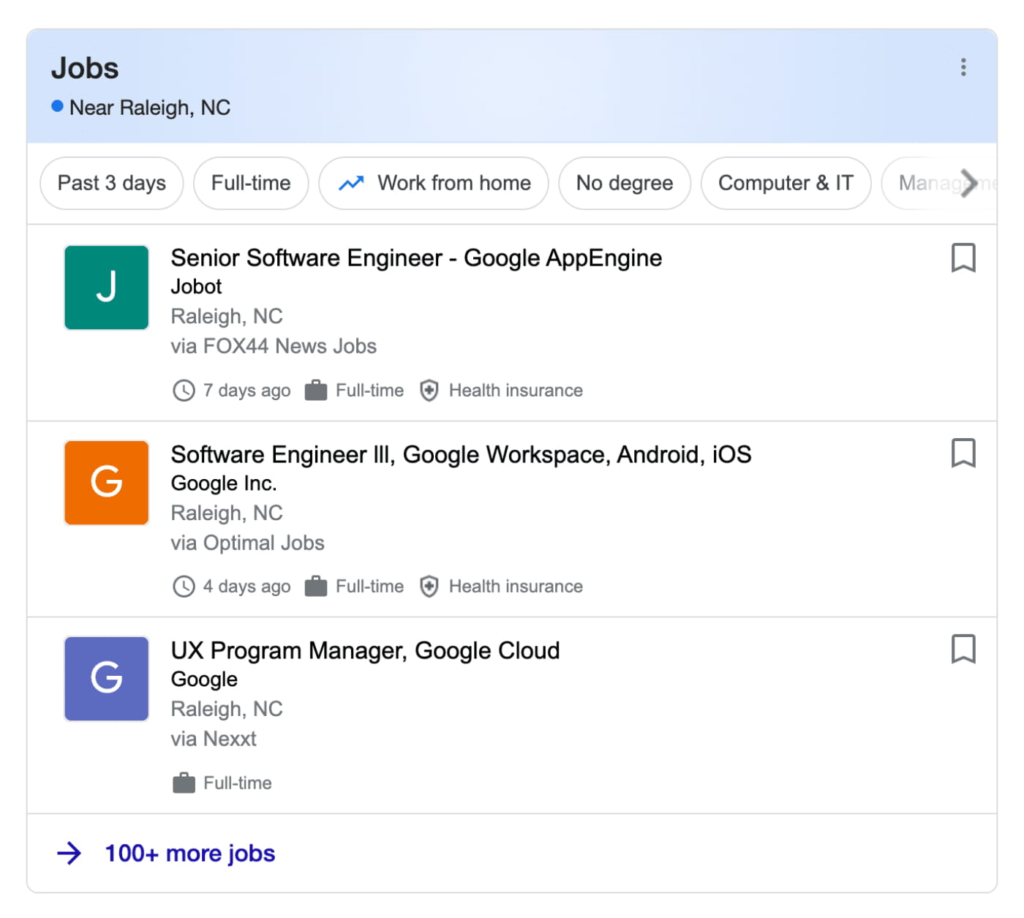
A snapshot showing examples of job postings in Google
This is how a standard job posting shows up in search engines like Google.

For example, instead of relying on Google to extract the right details from paragraphs of content, a job posting schema markup can explicitly identify information such as:

  • Job title
  • Job description
  • Hiring organization
  • Employment type
  • Job location
  • Salary
  • Experience and education requirements
  • Publish date
  • Expiration date

This can help search engines categorize your vacancy correctly and understand which searches it may be relevant to.

Getting the dates right is especially important. Your publish date tells search engines when you posted the vacancy, while the expiration date shows when the listing is no longer valid. For time-sensitive job listings, accurate dates help prevent expired opportunities from appearing as active vacancies.

However, adding job posting schema doesn't automatically guarantee placement in Google Jobs or another rich search experience. Google ultimately determines when enhanced results are appropriate.

That's also why I'd recommend treating schema as a way to describe a good job page, not replacing it. Candidates should still be able to see important information such as responsibilities, qualifications, location, salary where provided, and how to apply on the page itself.

How to Add Job Posting Schema in WordPress With AIOSEO

If you publish job openings on your WordPress site, adding job posting schema gives search engines structured information about each vacancy.

Instead of making Google interpret an ordinary page and figure out that it's a job listing, JobPosting schema explicitly identifies important details such as the job title, employer, location, employment type, salary, requirements, and relevant dates.

And with AIOSEO's Schema Generator, I can add this information without manually creating JSON-LD.

Here's how to do it:

Step 1: Open Your Job Posting

From the WordPress dashboard, open the page or post containing the vacancy you want to optimize.

Before adding schema, make sure the actual page contains all the information a candidate needs. Your structured data should accurately reflect the visible job posting, not add details visitors can't see.

Step 2: Open AIOSEO's Schema Generator

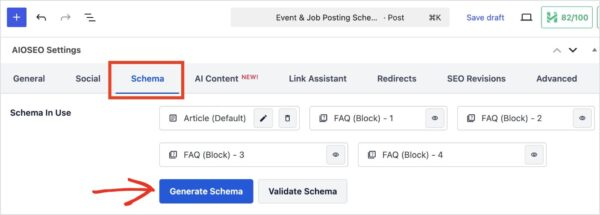
Scroll down to AIOSEO Settings and select the Schema tab.

A snapshot showing the schema generator in AIOSEO

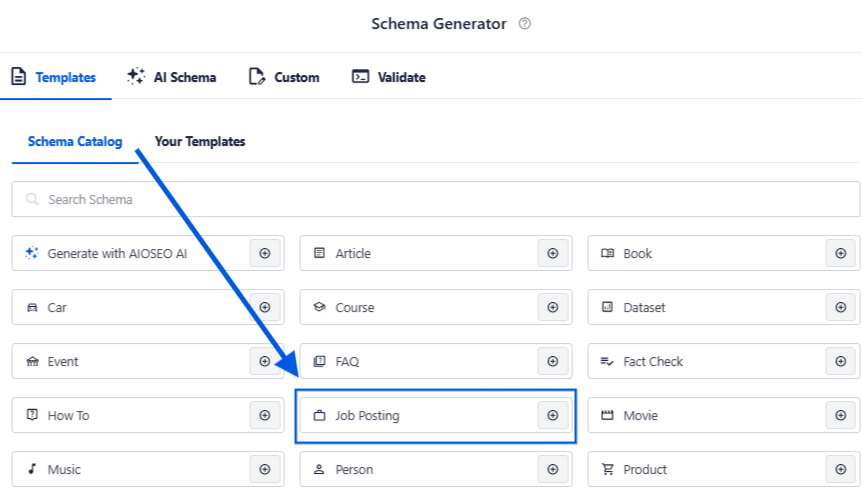
Click Generate Schema to open the Schema Catalog. Find Job Posting and click the Add Schema icon.

A snapshot of the job posting schema tab in AIOSEO's schema generator

Step 3: Add the Basic Job Information

AIOSEO will now open a form containing the information needed for your Job Posting schema.

Start by adding the:

  • Job Title
  • Description
  • Employment Type
  • Work from Home status

AIOSEO can automatically use your post title for the Job Title and the post content for the Description, but I still recommend reviewing both to make sure they accurately describe the vacancy.

Step 4: Add the Job Location and Hiring Organization

Next, complete the Location section with the address where the employee will work, where applicable.

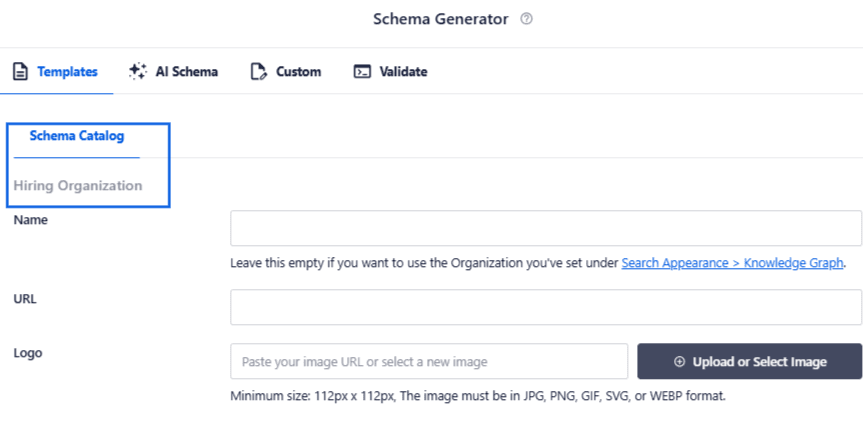
Under Hiring Organization, you can provide the organization's name, URL, and logo. If you've already configured your organization through AIOSEO's Knowledge Graph settings, you can use those details instead.

A snapshot showing the hiring organization category in schema generator

This is another reason I recommend configuring AIOSEO's Knowledge Graph information properly before working through individual schema types. It creates a consistent foundation you can reuse across your site.

Step 5: Add Salary and Job Requirements

You can also provide structured information about compensation.

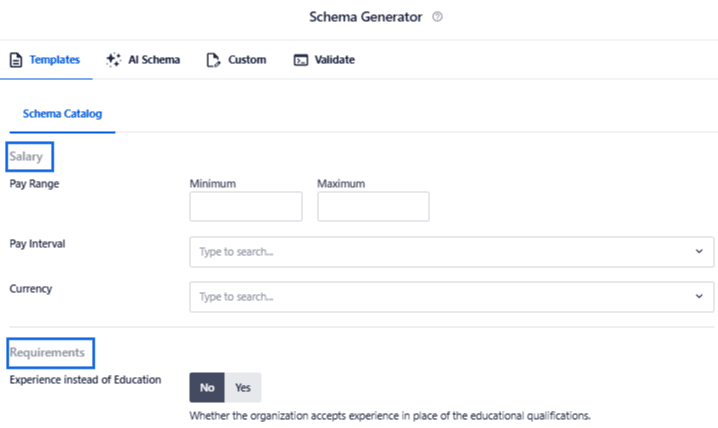
AIOSEO's Salary section lets you enter the pay range, pay interval, and currency.

Then move to Requirements, where you can specify information such as required experience and degree requirements.

A snapshot showing the salary and requirements categories in schema generator

Don't use schema to make the position look more attractive than the actual listing. Salary, employment type, requirements, and other structured properties should accurately correspond to the vacancy you're advertising.

Step 6: Pay Particular Attention to Publish and Expiration Dates

The Dates section is especially important for job listings. AIOSEO lets you specify:

  • Publish Date: When the vacancy was published.
  • Expiration Date: When the vacancy stops accepting applications.

In JobPosting structured data, these correspond to important date information such as datePosted and, when applicable, validThrough.

I wouldn't overlook the expiration date. Job search experiences need to distinguish active vacancies from jobs that are no longer available. Keeping expiration information accurate also reduces the risk of searchers reaching an expired vacancy after finding it through search. If you extend the application deadline, update the visible job posting and its structured information accordingly. Likewise, don't keep expired vacancies appearing as though they're still accepting applications.

Step 7: Add and Save the Schema

Once you've completed the relevant fields, click Add Schema.

AIOSEO adds the Job Posting schema to the page's source code without requiring you to manually create or insert JSON-LD.

You'll then see the schema under Schema in Use, where you can edit or delete it later if the vacancy changes. You can also save your configuration as a Schema Template, which is particularly useful if your organization regularly publishes vacancies with a similar structure.

Finally, update or publish the job listing.

How to Test Your Job Posting Schema

After you add schema, verify it before you consider the listing done. I'd recommend checking it with one of these two tools.

  1. Google's Rich Results Test: Paste in your published page URL, or paste the code snippet directly. Google will tell you whether the schema is valid and eligible for the Job Posting rich result.
  2. Schema Markup Validator: This one checks broader schema.org formatting and is good for catching structural errors the Rich Results Test might not flag.

A passing result will show the job posting type with green checkmarks next to each required property. If something's missing, the tool flags it with a warning or an error so you know exactly what to go back and fill in.

Job Posting Schema: FAQs Answered

FAQs

What is job posting schema in WordPress?

Job posting schema is structured data added to a job listing page that follows Google's JobPosting format. In WordPress, you can add it using a plugin like AIOSEO instead of writing the code yourself. It's what allows Google to read and display your listing inside Google for Jobs.

Does job posting schema work on all AIOSEO plans?

As of AIOSEO 4.9.9, job posting schema is available on every paid AIOSEO plan, starting with Basic. It used to require the Elite plan, so this is a real change if you're running a small site and didn't want to pay for a higher tier just for this one feature.

Can I add job posting schema without a plugin?

Yes, you can hand-code JSON-LD markup and add it to your theme or page, but it's easy to miss a required field or format a date wrong. A plugin like AIOSEO gives you a form instead of code, so you're far less likely to end up with invalid schema.

Final Thoughts

Job Posting schema is a small technical addition that makes your vacancies much easier for search engines to understand.

The most important part is accuracy. Your structured data should reflect what's actually visible on the job page, and time-sensitive information such as publish and expiration dates should stay current.

Ready to get your job listings in front of the people searching for them? Get started with AIOSEO and add your first Job Posting schema today.

Disclosure: Our content is reader-supported. This means if you click on some of our links, then we may earn a commission. We only recommend products that we believe will add value to our readers.

Want to Try AIOSEO for Free?

Enter the URL of your WordPress website to install AIOSEO Lite.

author avatar
Alina Zahid Content Writer
Alina is an SEO professional with specialized knowledge of content marketing. When she’s not busy researching and creating awesome content for SEOBoost and AIOSEO, she can be found practicing piano, writing fiction and traveling.

Add a Comment

We're glad you have chosen to leave a comment. Please keep in mind that all comments are moderated according to our privacy policy, and all links are nofollow. Do NOT use keywords in the name field. Let's have a personal and meaningful conversation.