
Did you know that you can easily create Schema Markup for your content using AI?
With All in One SEO's AI features, you can generate Schema Markup automatically within your content to increase your presence in search results.
In This Article
Getting Started with AIOSEO AI
The AI features in All in One SEO rely on a credits system. You can buy blocks of credits, or use credits you receive as part of your subscription for All in One SEO Pro.
To get started, you'll need to verify that you have AI credits. To do this, click on General Settings in the All in One SEO menu and scroll down to the AI Credits section on the License tab.
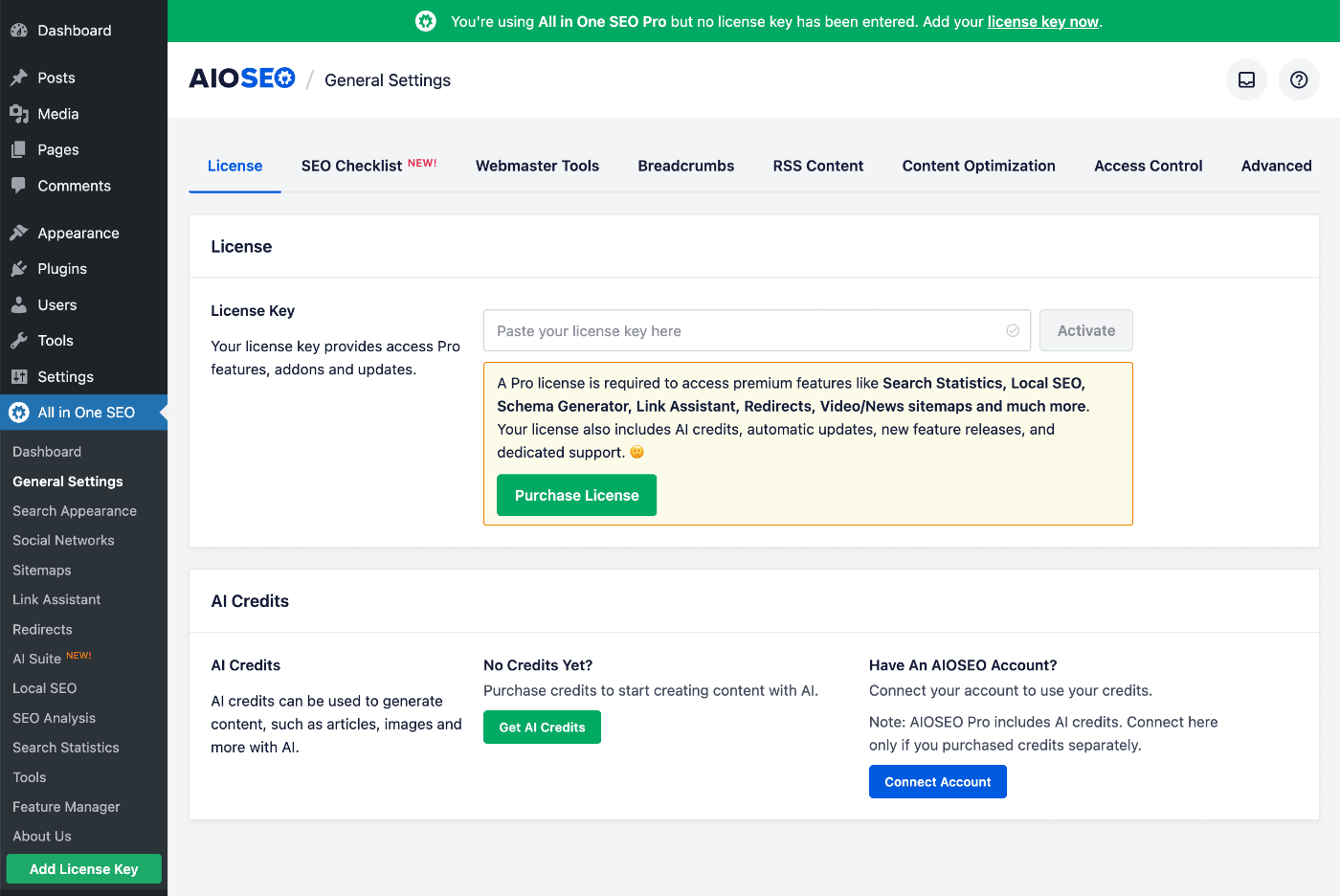
You can click on the Get AI Credits button to purchase a block of Pay-As-You-Go credits, or you can click on the Connect Account button if you already have an account for AI credits.
If you activate a license key for All in One SEO Pro, then you'll see that your account is automatically connected and the number of credits available to you.
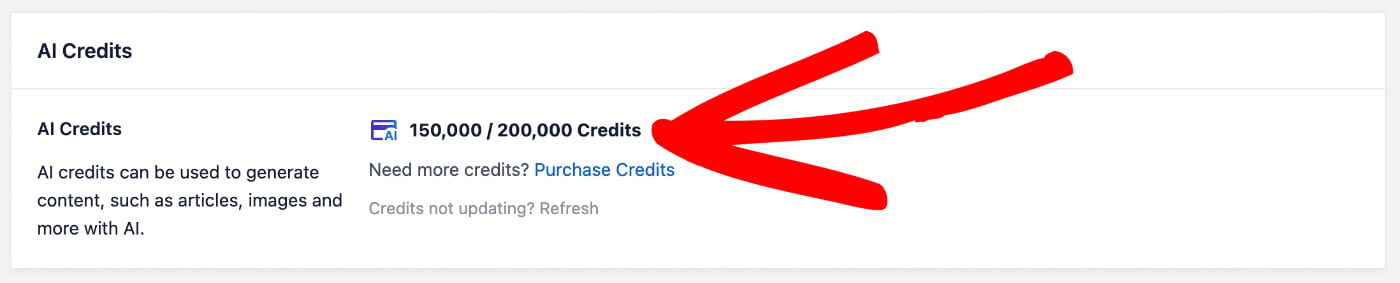
In the screenshot above, you can see that we have 150,000 credits remaining out of 200,000 credits.
For more information about the AI credits system for All in One SEO and how to manage your account, please check out our article on Buying and Managing Credits for the AIOSEO AI Features.
Now that we've verified that we have some AI credits, let's check out the FAQs feature.
Generating Schema Markup Using AIOSEO AI
NOTE:
AI Generation of Schema is available to customers with a Basic plan or above for All in One SEO Pro.
Upgrade to All in One SEO Pro today to get this and many more features!
To get started, edit any content and scroll down to the AIOSEO Settings section, then click on the Schema tab.
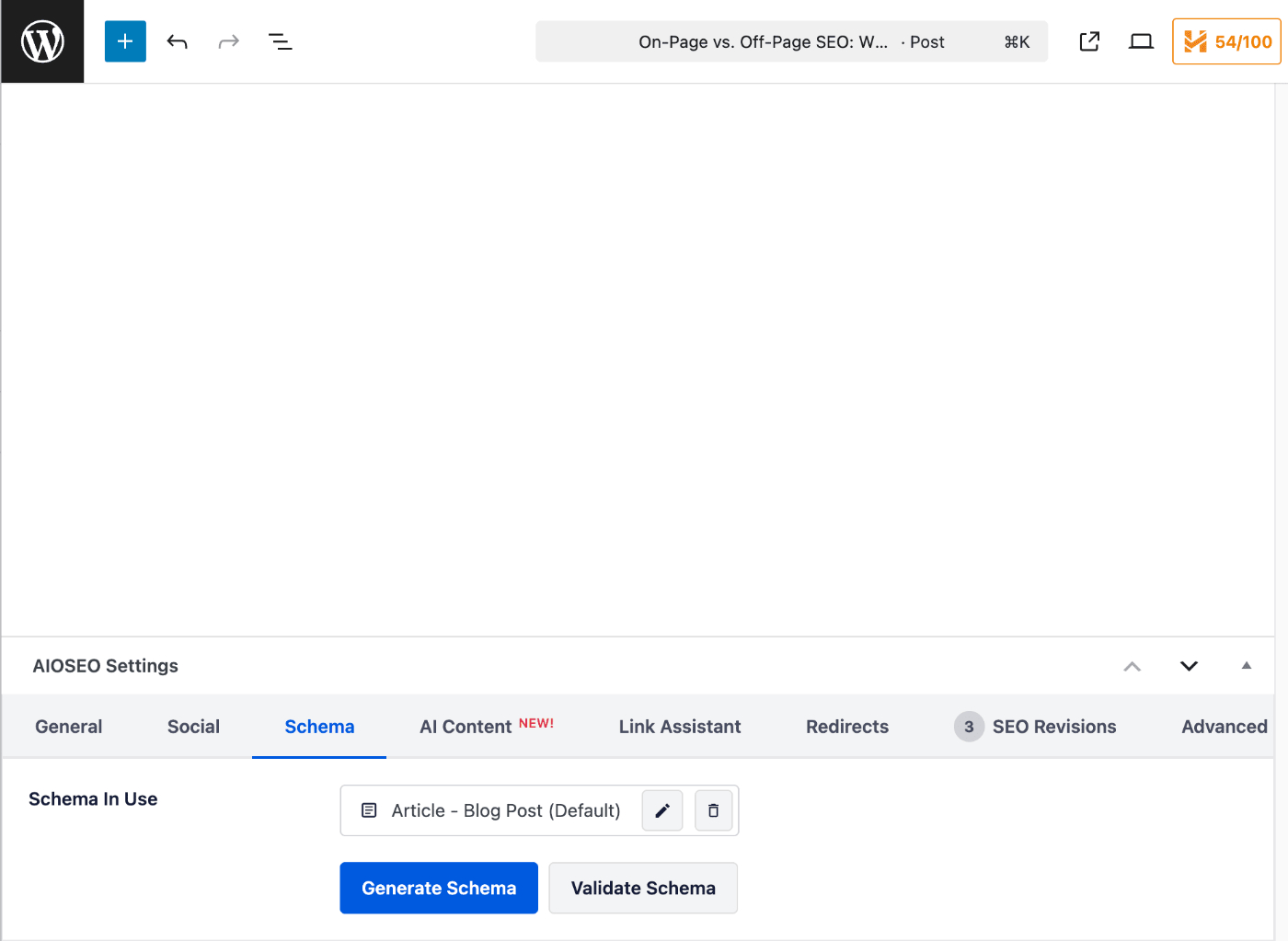
Click on the Generate Schema button to open the Schema Generator popup.
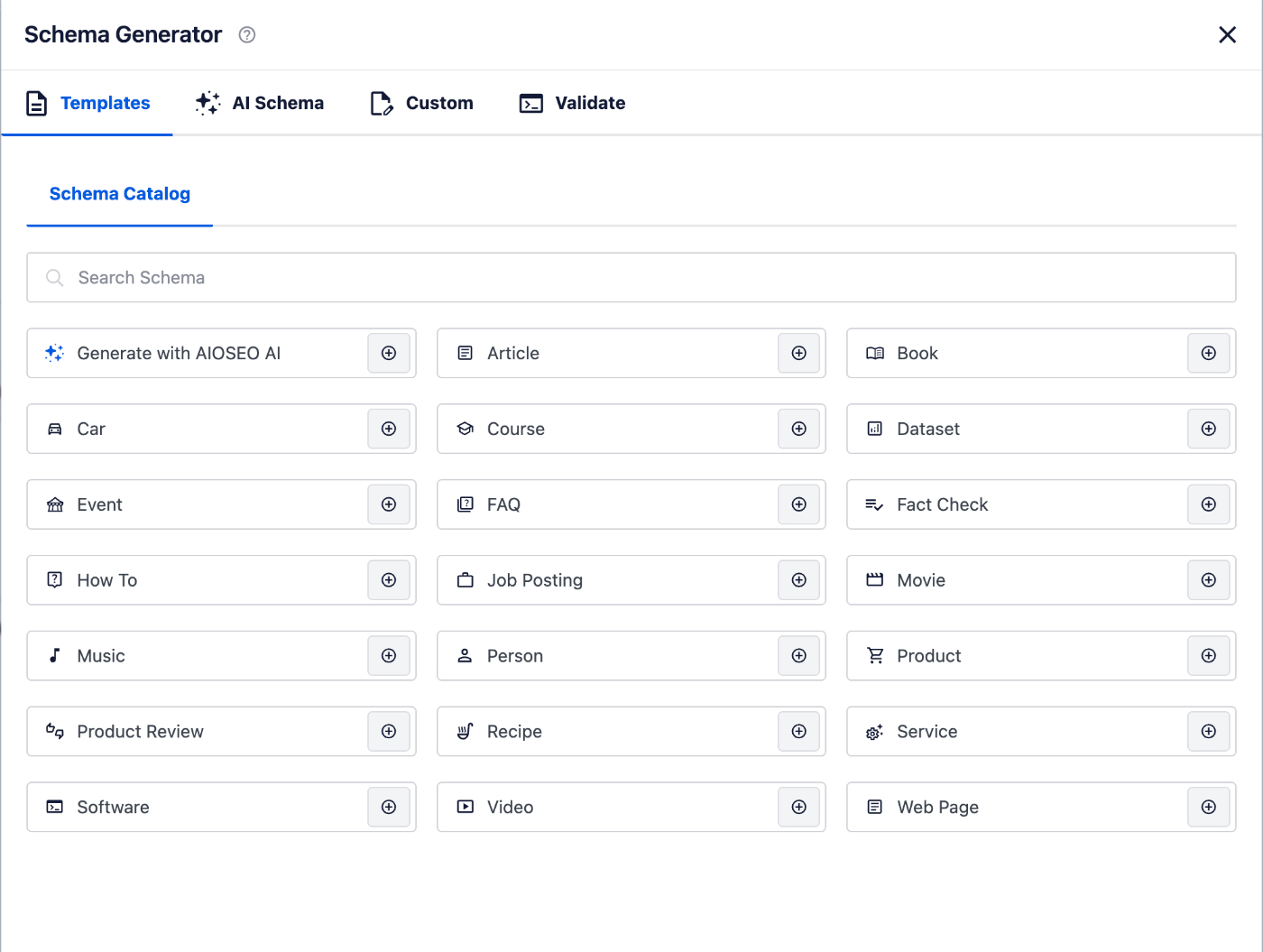
Then click on the AI Schema tab to use AI to generate your schema markup.
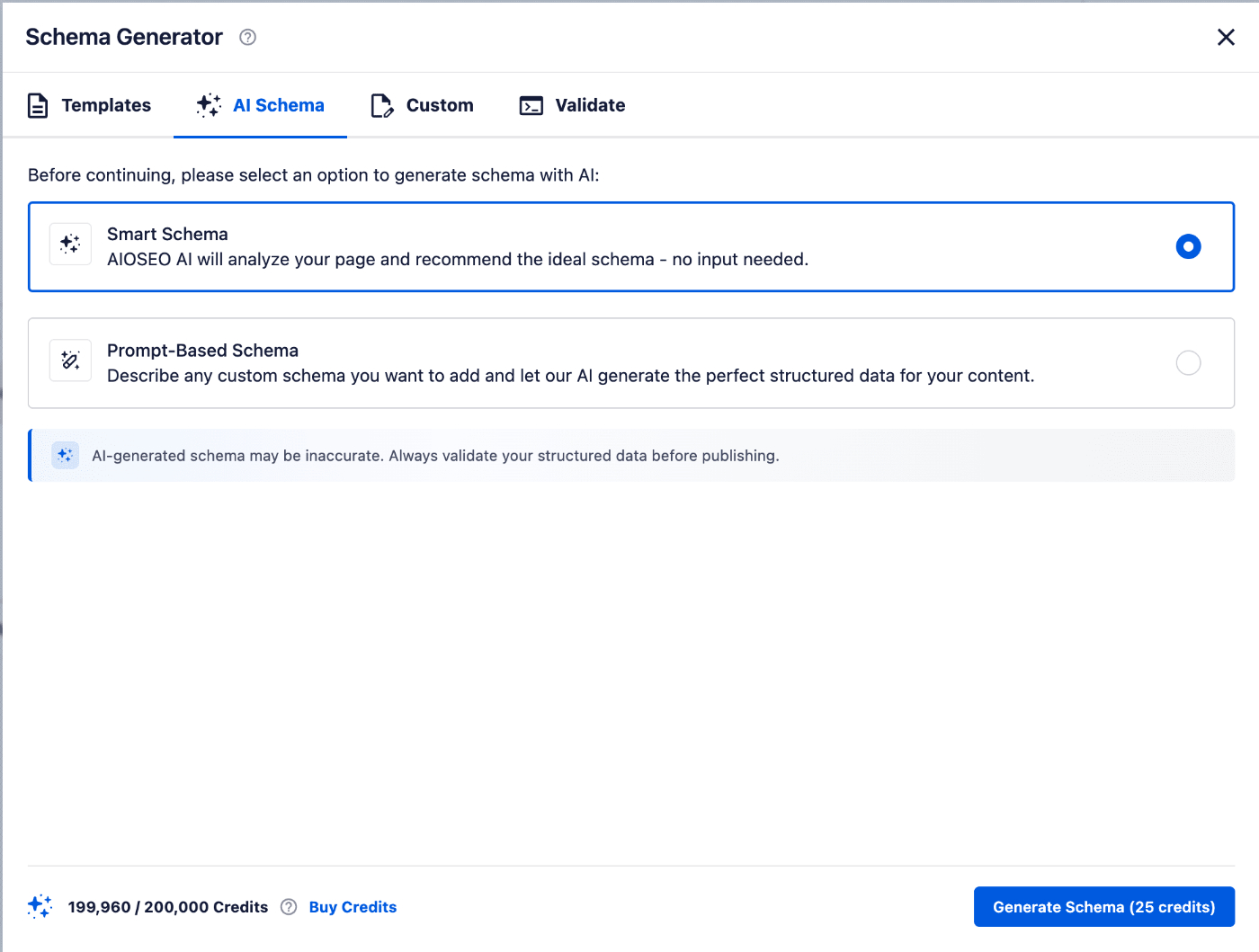
You'll see two options:
- Smart Schema – All in One SEO analyzes the content of your page or post and recommends an appropriate schema. You don't need to type a prompt.
- Prompt-Based Schema – You describe the schema you want (for example, FAQ or HowTo), and AIOSEO AI creates the Schema Markup to match your instructions.
NOTE:
A notice reminds you that AI-generated schema may be inaccurate and that you should validate structured data before publishing.
You can validate the generated schema from within the AI Schema tab when you're ready to double-check the generated markup.
Generating Schema with Smart Schema
Smart Schema is a good choice when you want AIOSEO to analyze your content and suggest the best schema without extra input from you.
To do this, select Smart Schema on the AI Schema tab, then click the Generate Schema button.
Notice that the Generate Schema button shows the number of AI credits that will be used to generate the schema markup.
You'll also see the number of credits you have, along with the amount remaining, in the bottom left-hand corner of the window.
After generation completes, you will see the suggested schema with checkboxes to the left.
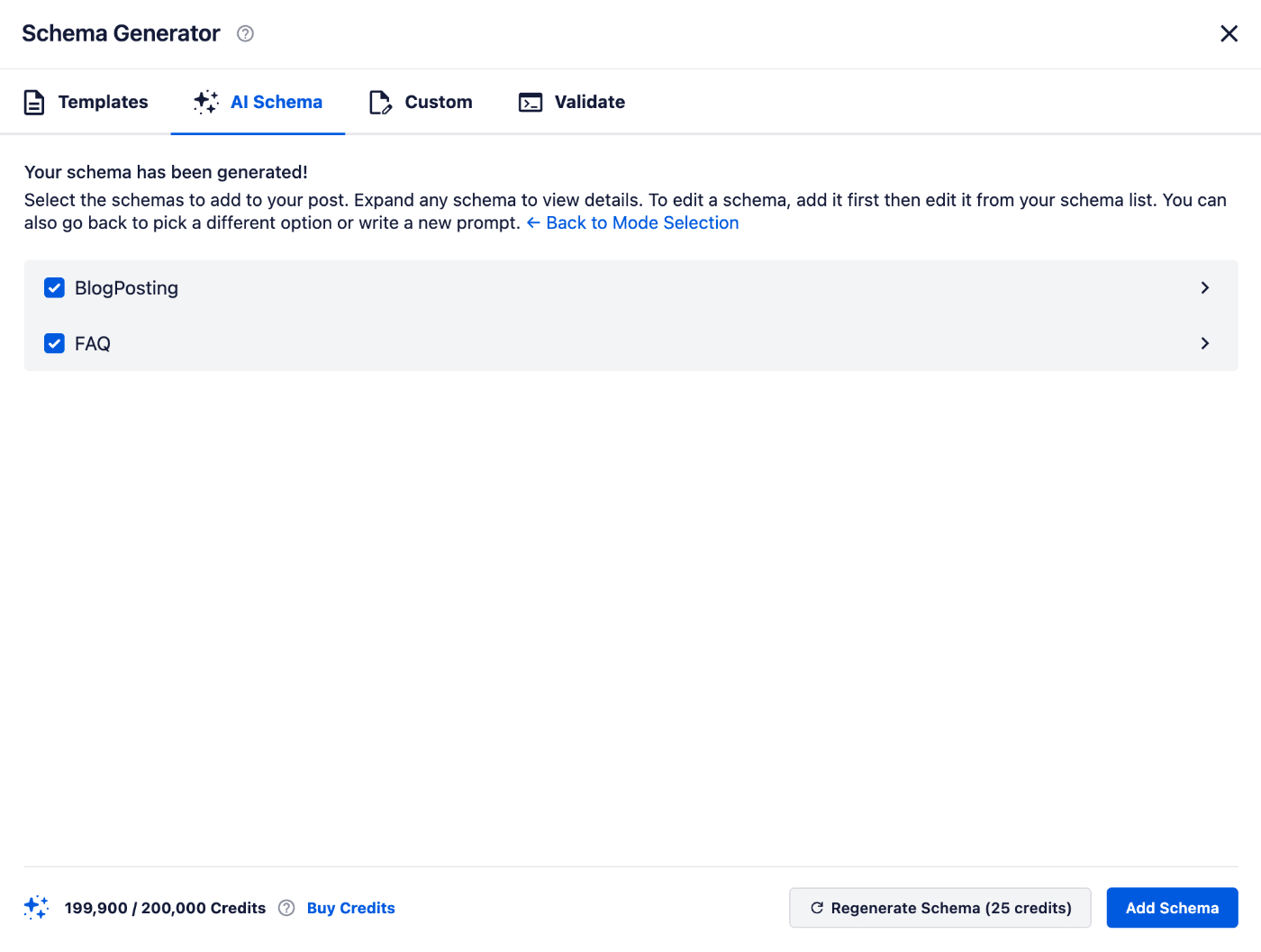
Click the arrow to the right to expand each schema to view the actual markup.
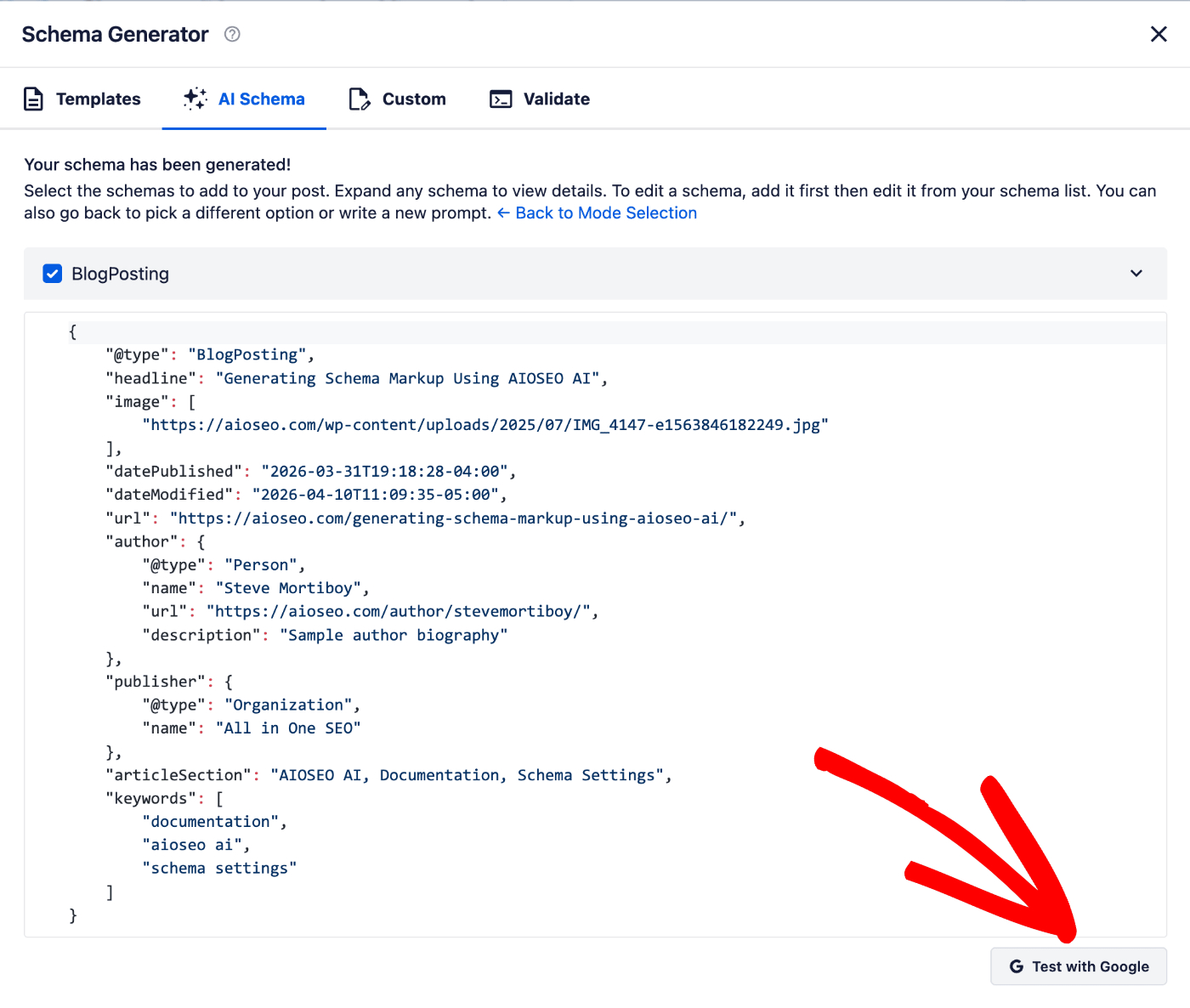
You'll see a Test with Google button that you can click to text the generated schema for errors. This will open a new browser tab and automatically test the schema in Google's Rich Results Testing tool.
Use the checkboxes next to each schema to select which schema you want to apply, and click the Add Schema button to save your new schema.
If you want to regenerate the schema using the Prompt-Based method, click the Regenerate Schema button to return to the previous screen.
Generating Schema with Prompt-Based Schema
Prompt-Based Schema is ideal when you already know what you want—for example, FAQ schema for a list of questions, or a specific structure for a product or how-to article.
To do this, select Prompt-Based Schema on the AI Schema tab, then enter your prompt describing what schema you'd like All in One SEO to generate for you in the Your Prompt field. Then, click the Generate Schema button.
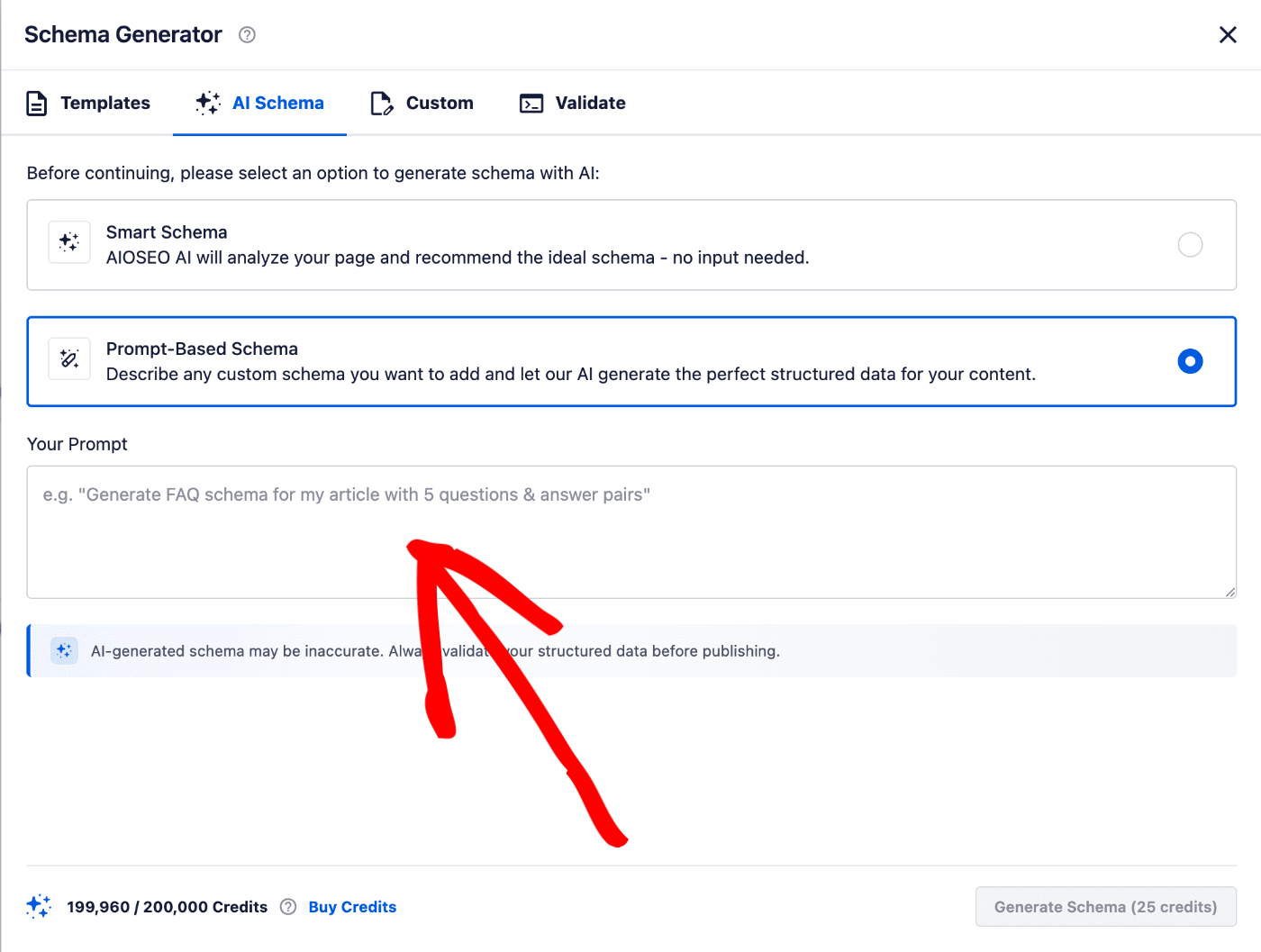
Notice that the Generate Schema button shows the number of AI credits that will be used to generate the schema markup.
You'll also see the number of credits you have, along with the amount remaining, in the bottom left-hand corner of the window.
After generation completes, you will see the suggested schema with checkboxes to the left.
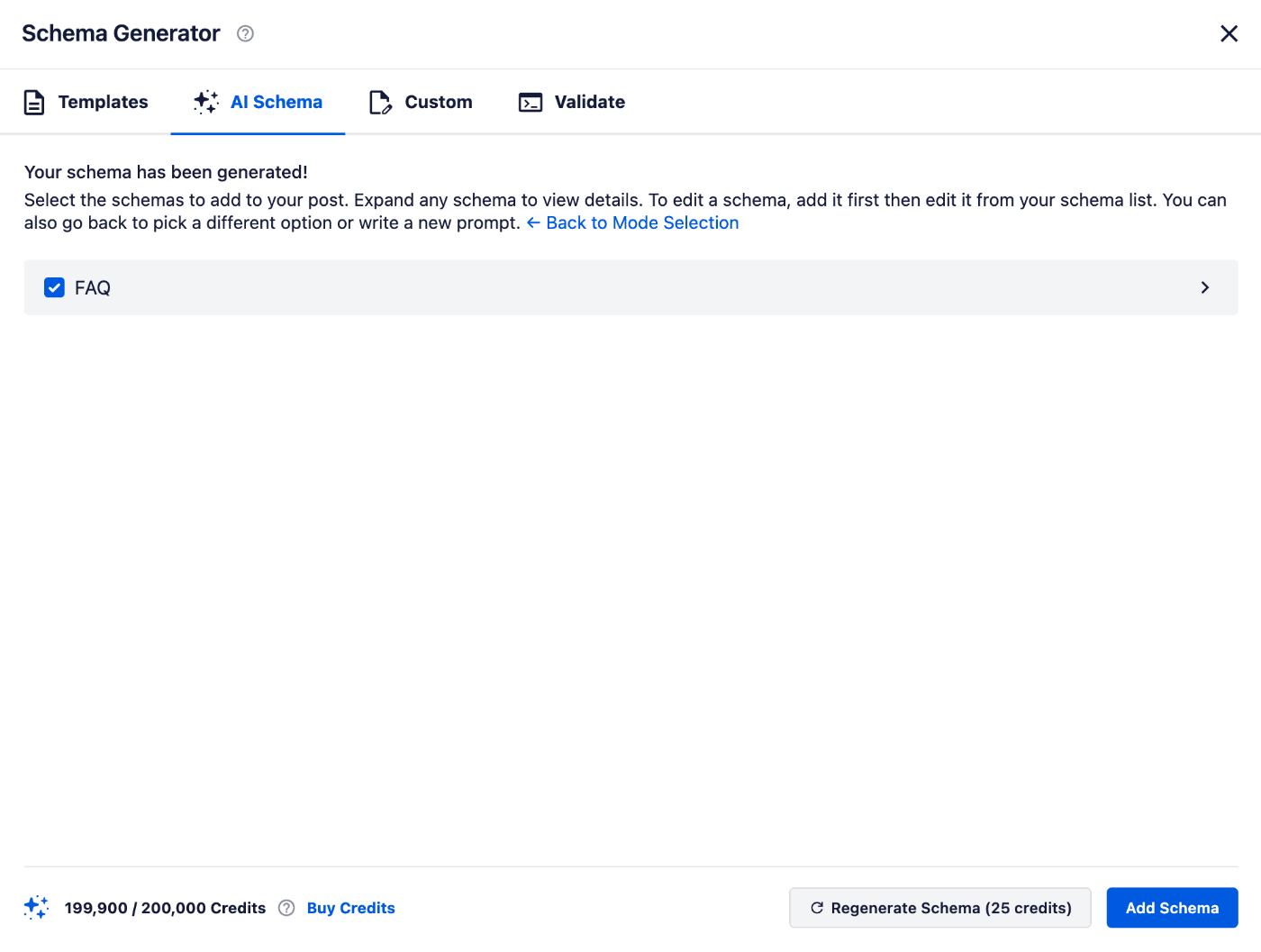
Click the arrow to the right to expand the schema to view the actual markup.
You'll see a Test with Google button that you can click to text the generated schema for errors. This will open a new browser tab and automatically test the schema in Google's Rich Results Testing tool.
Click the Add Schema button to save your new schema.
That's all! You've now used AIOSEO AI to generate Schema Markup for your post, page, or other content.
AI Generated Content Disclaimer
The content generated by artificial intelligence tools may not always be entirely accurate or reliable. While these systems are designed to provide helpful and informative content, they are based on patterns in data and may inadvertently produce information that is outdated, incomplete, or incorrect. We recommend that you verify critical details through reputable sources before publishing AI-generated content.
Additionally, AI models can sometimes reflect biases present in their training data, which may lead to unintentional skewing of information or perspectives. It's important for users to approach AI-produced content with a critical mindset and consider multiple viewpoints to ensure a well-rounded understanding. The developers of All in One SEO do not guarantee the absolute accuracy or impartiality of the generated output.
Further Reading
Check out more articles on how to use the AIOSEO AI features here.
Check out more documentation on our Schema Settings here.