Broken links are the kind of problem you only notice when it’s already hurting you. That’s because links break quietly. No alert. No support ticket from a visitor hitting a 404 error. Just a poor user experience that slowly drags down your SEO, until you happen to stumble upon it.
That’s the gap email reports closes.
Starting with Broken Link Checker 1.3.1, the plugin doesn’t just reveal broken links when you go looking. It searches for them automatically and notifies you via email, automatically.
And the best part is that it’s built into every BLC plan, no additional cost or set up required.
In This Article
How it works
Broken Link Checker already scans your site on a schedule in the background. Email reports plugs into that same scan and adds a notification layer on top of it.
Broken Link Checker sends 2 different kinds of email, and they work differently on purpose:
- Weekly email — sent within a week of Broken Link Checker finding a new broken link. If nothing broke, you get nothing. No email is itself the good news.
- Monthly email — a full summary of every link Broken Link Checker checked that month, broken or not. This one always arrives, whether or not anything broke.
In summary: the scan does the finding. Email reports is how you find out about it without opening WordPress.
What you can do with it
- Get notified automatically when new broken links are found, instead of stumbling onto them later
- Hear about a new broken link within about a week of it breaking, without checking manually
- Get a full monthly summary of everything checked, even on months when nothing broke
- Skim the report and know immediately whether anything needs your attention today
- Keep an eye on client sites without logging into each one’s dashboard on a schedule
- Use the report as your cue to open Broken Link Checker and fix what it found, rather than checking in “just in case”
How to turn on email reports
Prerequisites: Broken Link Checker 1.3.1 or later, active on your site.
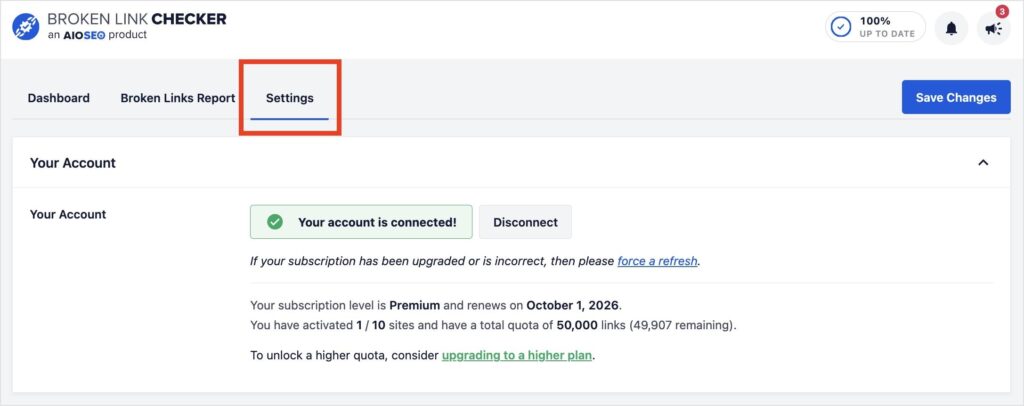
Step 1: Open Broken Link Checker settings
From your WordPress dashboard, go to Broken Link Checker’s settings.
Step 2: Find the email report setting
Under General Settings, you’ll find the email reports toggle alongside your scan frequency and scan sources.
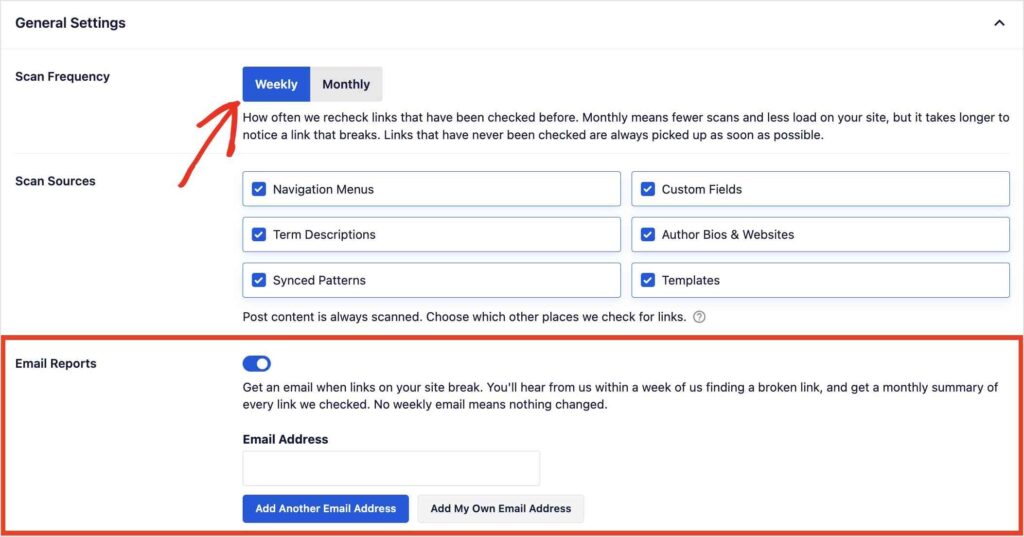
Note: Email reports is separate from your scan frequency setting. Scan frequency controls how often Broken Link Checker checks your site for broken links in the background (also now available as weekly or monthly). Email reports isn’t a cadence you pick, it’s 2 fixed kinds of email: a within-the-week alert when something actually breaks, and a full monthly summary regardless. They run independently of how often you’ve set scans to happen.
Step 3: Turn it on and add your email address
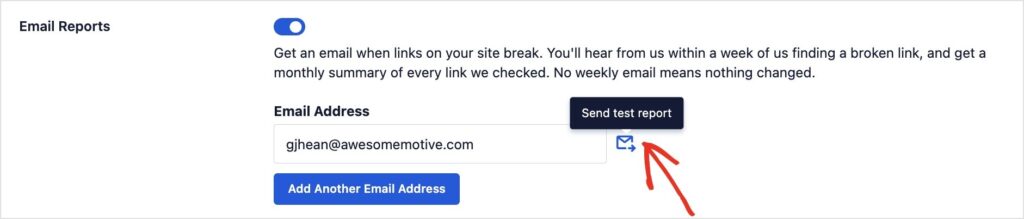
Flip the email reports toggle on, then add the email address (or addresses) that should receive the reports. Your own account’s address is one click away with “Add My Own Email Address,” and you can add more with “Add Another Email Address” if other people on your team should get them too.
Once you’ve added an email address, you can click “Send test report” to make sure it goes to the right inbox.
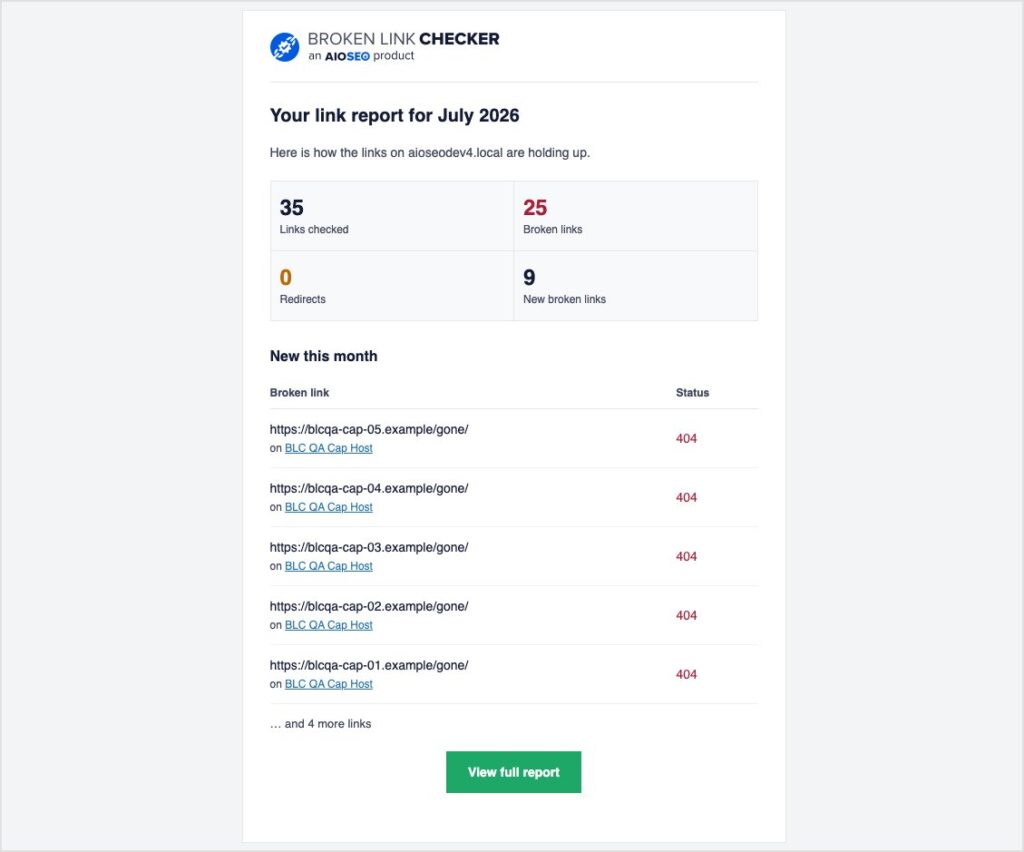
And that’s it. You’ll get your first weekly alert the next time a scan finds something new, and your first monthly summary at the start of the next cycle either way. Here’s an example of what that monthly report will look like:
Free for every plan
Email reports comes with every Broken Link Checker plan, including the free version.
This release also includes expanded scanning coverage, which means those email reports now cover a lot more of your site than they used to, and a new BLC dashboard that shows you exactly what to fix first when you do open the report and log in. Between the 2, checking on broken links across a whole site just got a lot less manual.
Honestly, broken link cleanup has always been the kind of maintenance task that’s easy to fall behind on. And it’s not because it’s hard, but because nothing reminds you it needs doing. Email reports is that reminder.
Update to 1.3.1 and add your email address. I think you’ll notice the difference the first time a report lands in your inbox with something you’d have otherwise missed.
— Ben Rojas, President of AIOSEO
Frequently asked questions
How often will I get an email from Broken Link Checker?
Two ways: within a week of any link actually breaking, and once a month no matter what, as a full summary of everything checked. The weekly one only shows up when something’s wrong, so no email is good news.
Do I need a paid plan to get email reports?
No. Email Reports is included on every Broken Link Checker plan, including the free version.
Are email reports the same as my scan frequency setting?
No. Scan frequency controls how often Broken Link Checker checks your site in the background. Email Reports is a separate, fixed pair of notifications, a within-the-week alert when something breaks and a full monthly summary either way, that run independently of your scan schedule.
What does the email actually include?
Depends which email. The weekly one lists the new broken links found that week. The monthly one is broader, a full summary of every link checked that month, broken or not.
Do I need to do anything to start getting reports?
Just turn on Email Reports and add your email address in Broken Link Checker’s settings. Once that’s set, both the weekly alert and the monthly summary go out automatically.