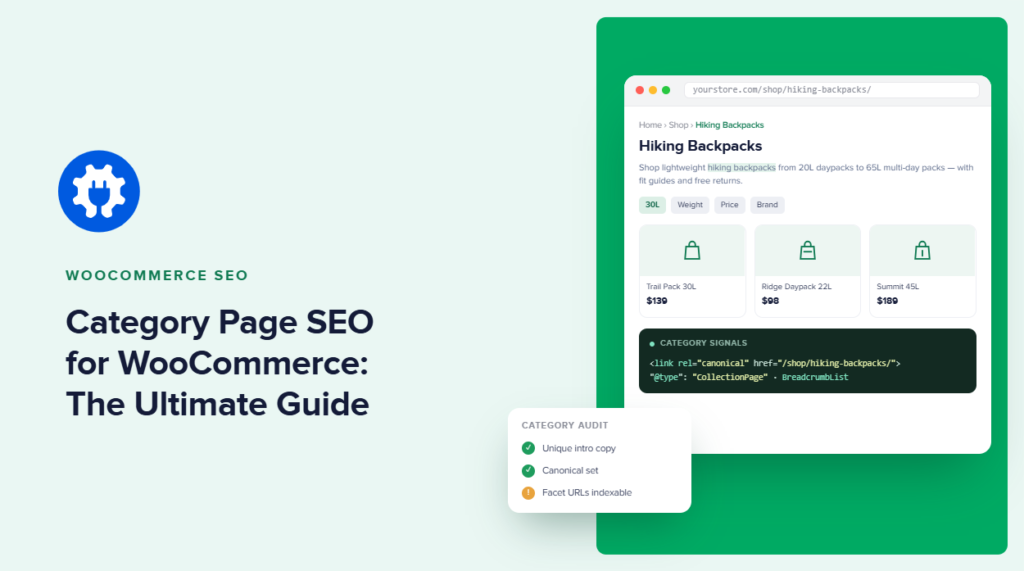

Category page SEO can help your WooCommerce store rank for valuable commercial keywords that individual product pages often don’t fit well.
Think about how people actually shop; they want to browse options, compare products, and narrow down their choice. That’s exactly what a well-optimized product category page allows them to do.
But WooCommerce category pages are easy to overlook. Many stores leave them with little more than a category name and a product grid. That means missing opportunities to target high-intent keywords, build useful internal linking hubs, and help search engines understand your store’s structure.
The good news is I’ve created this guide to show you how to approach category page SEO for WooCommerce and how I use AIOSEO to optimize WooCommerce product categories directly inside WordPress.
In This Article
- What Is Category Page SEO?
- The WooCommerce Category SEO Checklist
- 1. Add and Optimize Your WooCommerce Category Title and Description
- 2. Use AIOSEO's Bulk Title Templates for Large Catalogs
- 3. Add Keyword-Rich H1s (or Verify WooCommerce Is Using Them)
- 4. Include Category Pages in Your XML Sitemap
- 5. Optimize Category Page Images
- 6. Manage Pagination for Large Categories
- 7. Check for Duplicate Content From Filtered Views
- 8. Build Internal Links Between Categories and Pages
- 9. Add Breadcrumbs to Your Category Hierarchy
- 10. Monitor Your Category Page Performance
- 1. Add and Optimize Your WooCommerce Category Title and Description
- Category Page SEO for WooCommerce: FAQs Answered
- Next Steps
What Is Category Page SEO?
Category page SEO is the process of optimizing ecommerce category pages so they can be discovered, understood, and ranked by search engines for relevant searches.
In WooCommerce, these pages group related products together. For example, an online clothing store might have a structure like:
Home → Men’s Clothing → Shirts → Oxford Shirts
Each category represents a different level of search intent.
Someone searching for “men’s shirts” is usually performing a broader commercial search than someone searching for a particular blue Oxford shirt by brand and model.
That’s why category pages and product pages shouldn’t compete for exactly the same keywords. Your product pages can target highly specific, product-focused searches, while category pages can target broader terms people use when they’re still comparing their options.
A strong category page also acts as an important internal linking hub. It connects your broader store architecture with the individual products beneath it, giving shoppers and search engines clear paths through your catalog.
The goal of category page SEO for WooCommerce is to create a page that satisfies broader shopping intent while making your ecommerce hierarchy easy to navigate and understand.
Why WooCommerce Category Pages Matter for SEO
Before I get into the checklist, it is worth understanding why category pages deserve this much attention in the first place.
- Category pages target broad, high-volume keywords that no individual product page can target.
- Category pages naturally collect internal links from every product page beneath them, which makes them structurally stronger in Google’s eyes.
- Google treats category pages as high-authority landing pages. For many buyers, a category page is the first click in the entire shopping journey.
- A single optimized category page can compete for dozens of related keyword variations at once, something a product page, tied to one specific item, simply cannot do.
If you have spent your time optimizing product pages and skipped categories entirely, you have been ignoring some of the highest-traffic-potential pages on your site.
I see this constantly with WooCommerce stores that have solid product-level SEO and category pages that have never been touched since the theme installed them. That gap is usually the single fastest place to find new organic traffic, because the pages already exist, already have products on them, and already have internal links pointing at them.
The WooCommerce Category SEO Checklist
Now that you understand why category page SEO for WooCommerce is important, here’s a complete checklist you can follow. Plus, how to use AIOSEO in WordPress to optimize these steps even more.
1. Add and Optimize Your WooCommerce Category Title and Description
WooCommerce supports category descriptions natively, but most themes do not display them by default, so it is easy to forget they exist. I aim for at least 100 to 200 words per category.
A good description explains what kind of products live in the category, mentions the focus keyword naturally, and adds a sentence or two about why the selection in that category is worth browsing.
Important: Whether the description shows up above the product grid depends entirely on your theme. Some themes hide it, some show a truncated version, and some display it in full. Even if your theme doesn’t display it, Google still indexes it, so it is still worth writing for a better user experience.
Now, you can write and optimize the product title and description directly in WordPress using AIOSEO. Just open the relevant page and make the changes there.

I’d advise skipping the thin, generic filler you sometimes see on category pages that tells Google and shoppers nothing. Write the product types in the category, call out what makes the selection worth browsing, whether that is price, brand variety, or something specific to your store, and mention the primary keyword in the description.
Set a Custom SEO Title in AIOSEO
By default, WordPress uses the category name as the page title, which is rarely the SEO title you actually want. “Skincare” tells Google almost nothing about why your store is worth clicking.
Under All in One SEO » Search Appearance » Taxonomies, you can set a keyword-optimized title for the category, separate from the name displayed on the page itself.
The category name on the page does not have to change at all. Only the title tag Google sees in search results changes, which means you can keep short, clean category names in your navigation while still writing a fully optimized title for search.
2. Use AIOSEO’s Bulk Title Templates for Large Catalogs
Writing individual titles works fine for 10 categories. It falls apart fast once you have 50 or more, which is where most growing WooCommerce stores end up. This feature makes category SEO realistic at scale, and it does not get nearly enough attention in most WooCommerce SEO advice.
Under All in One SEO » Search Appearance » Taxonomies, scroll to the Product Categories section. Instead of a single title, you set a title and description format template that applies to every product category at once, built from smart tags like the category name and your site name.
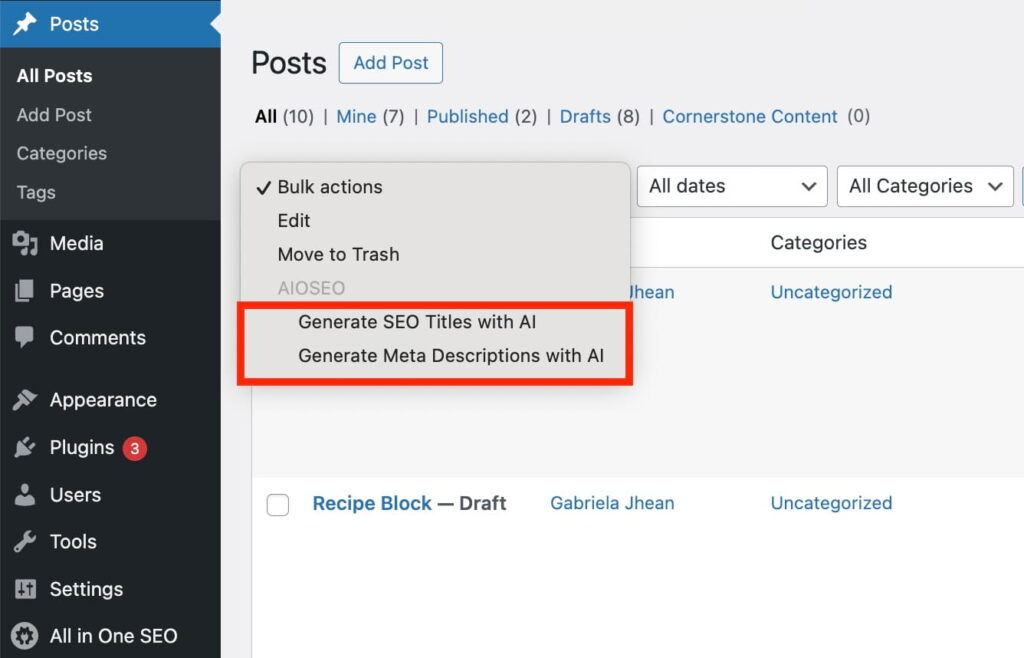
Save the template, and every category title updates to follow that pattern automatically. From there, I go back and manually override the format on a handful of high- priority categories.
For a store with a large catalog, this single setting probably does more for category SEO than anything else on this list, because it is the difference between optimizing every category and optimizing none of them.
3. Add Keyword-Rich H1s (or Verify WooCommerce Is Using Them)
The H1 heading tag tells both Google and your visitors what the page is about, and most WooCommerce themes use the category name as the H1.
So, check your theme to confirm the category name renders as an H1, not an H2 or something missing entirely.
If a category name is generic, something like “Products” or “Shop,” rename it to something with real keyword value or the specific category. Remember that changing the category name affects the H1. So, unless you set a custom SEO title in item 2, check the title tag after you make the change.
4. Include Category Pages in Your XML Sitemap
An XML sitemap tells search engines which pages on your site are worth crawling. AIOSEO includes WooCommerce category pages in your XML sitemap by default, but it is worth a quick check to make sure it’s turned on for your store.
Go to All in One SEO » Search Appearance and confirm that taxonomies, including product categories, are enabled.
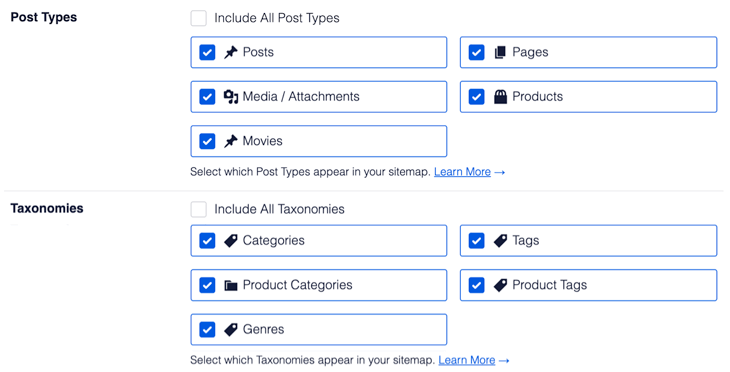
A sitemap doesn’t guarantee rankings on its own, but it does tell search engines exactly which category pages exist and where to find them, which matters a lot on a large catalog where crawlers might otherwise miss pages buried several clicks deep in your navigation.
5. Optimize Category Page Images
Most WooCommerce themes display a banner or thumbnail image at the top of a category page. Give it descriptive alt text that actually describes what is in the image, something like “wireless bluetooth headphones category” rather than leaving it blank or using the file name.
With AIOSEO, you can automatically generate alt text for images in your Media Library by using the AI features. To do this, go to your Media Library and select the images that you want to autogenerate alt text for. Once you’ve selected all of your images that need alt text, you can click on the bulk actions drop-down and select Generate Alt Text for Images with AI.
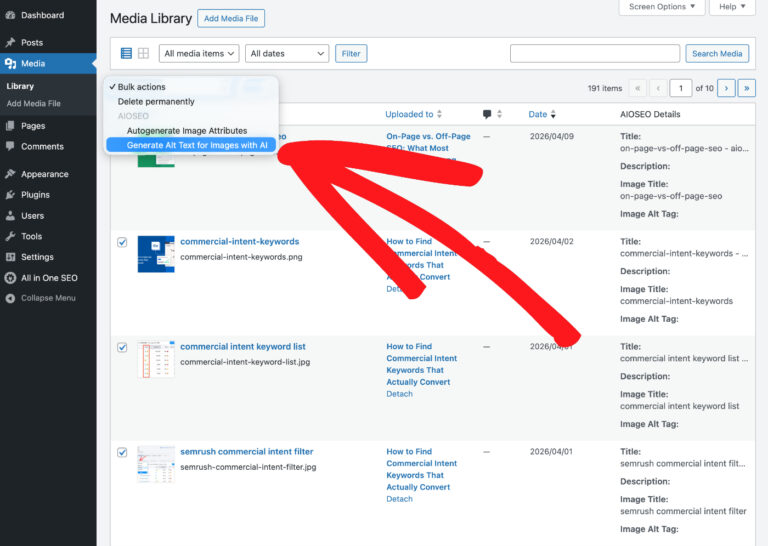
Also, make sure the file names are descriptive too. If needed, compress the file before you upload it. A large, unoptimized banner image slows down the exact page you are trying to get ranking, and page speed is still a factor in how well a category page performs.
6. Manage Pagination for Large Categories
Once a category has enough products to spill onto a second or third page, pagination becomes a real SEO consideration. The main risk is accidentally noindexing pages you actually want ranking, or letting duplicate title tags pile up across page 2, page 3, and beyond.
AIOSEO automatically appends a page number to the SEO title and description on paginated pages, so page 2 of the same category doesn’t compete with page 1 with an identical title.
Worth a check either way: under All in One SEO » Search Appearance » Advanced, look at the Global Robots Meta settings for a No Index Paginated toggle.

Make sure it is set the way you actually want it for your store before you assume every paginated page is indexable.
7. Check for Duplicate Content From Filtered Views
Filter plugins, AJAX (Asynchronous JavaScript and XML) sorting, and price range filters all tend to generate URL variations of the same category page, and each one can look like duplicate content to Google if it gets crawled and indexed on its own.
AIOSEO doesn’t automatically detect and merge these, so you’ll have to run a quick manual check.
Under All in One SEO » Search Appearance » Advanced, you can set a custom canonical URL pointing filtered variations back to the base category page.
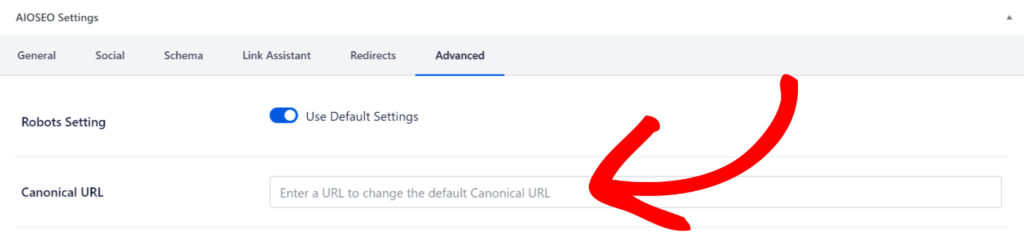
For a larger store generating a lot of these query string URLs, AIOSEO’s Query Arg Monitoring, in that same Advanced tab, lets you track and block specific URL parameters so they stop getting crawled as separate pages in the first place.
A quick way to spot the problem is to search site:yourstore.com/product-category/your-category in Google. If you see multiple listings for the same category with different query strings attached, that is duplicate content already sitting in the index.
8. Build Internal Links Between Categories and Pages
Every product description or sidebar should link back to the category page it belongs to. It sounds small, but it is one of the easiest ways to reinforce a category page’s topical authority, since every product page underneath it is passing a signal back up.
If you’re managing a catalog with hundreds of products, doing this by hand is not realistic. So, I’d suggest using AIOSEO’s Link Assistant to identify internal linking opportunities across existing content, which becomes particularly useful as your store grows.
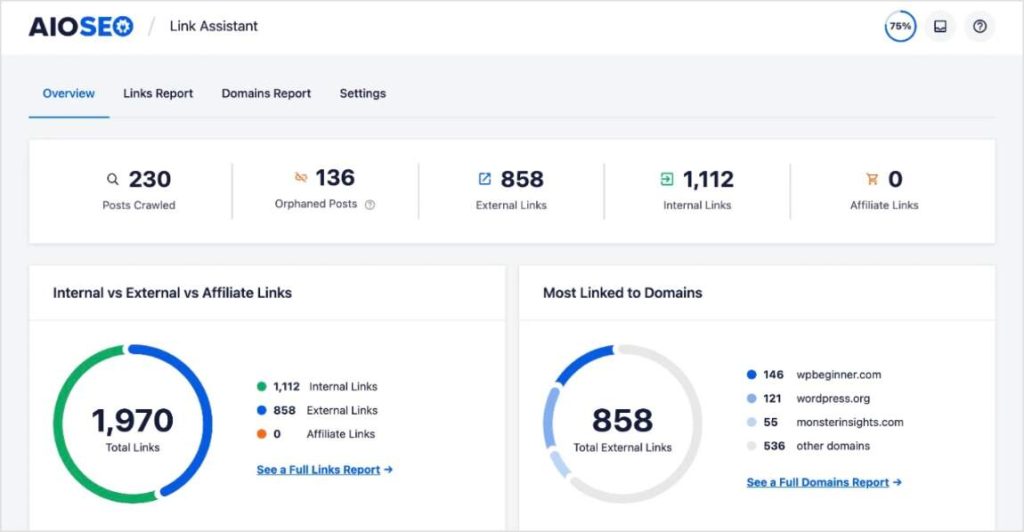
It identifies linking opportunities across your whole catalog and helps automate the linking, instead of you opening every product one at a time.
9. Add Breadcrumbs to Your Category Hierarchy
Breadcrumbs are particularly useful for WooCommerce category SEO because ecommerce stores naturally contain hierarchical relationships.
AIOSEO’s Breadcrumbs feature lets you display these navigational paths and generate corresponding breadcrumb structured data. To configure them, go to:
All in One SEO → General Settings → Breadcrumbs
Enable breadcrumbs and customize settings such as the homepage link, labels, and separators.

You can then display them using the AIOSEO Breadcrumbs block, shortcode, widget, or theme implementation.
For ecommerce sites, this does 2 useful things at once: shoppers get an easy way to move between category levels, while search engines receive clearer information about how pages relate to one another.
10. Monitor Your Category Page Performance
Finally, optimization shouldn’t end when you hit Update.
Monitor how your important category pages perform over time. Look at impressions, clicks, rankings, and the search terms bringing shoppers to them.
AIOSEO’s Search Statistics brings Google Search Console data into WordPress, making it easier to identify pages and keywords that are improving or declining.
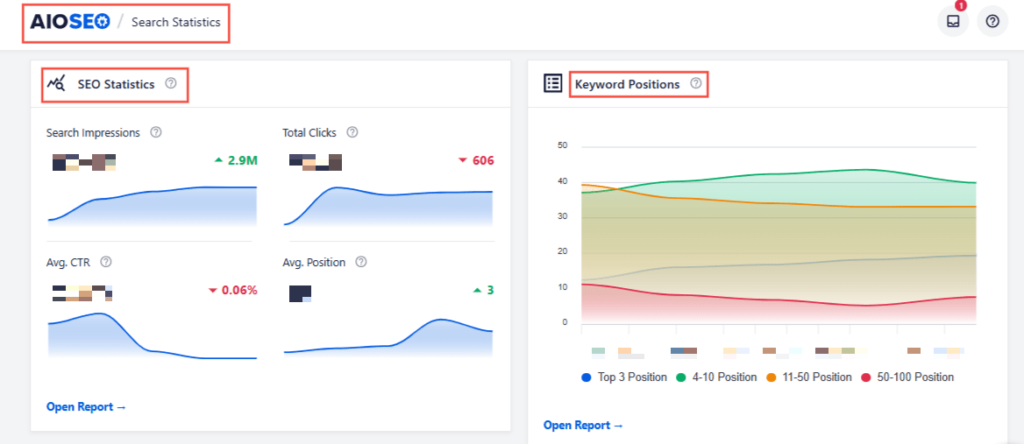
If a category receives plenty of impressions but very few clicks, for example, I’d revisit its SEO title and description. If it ranks on page 2 for a commercially valuable term, I’d investigate whether stronger content, internal links, or authority could move it higher.
The aim is to treat category pages as SEO landing pages in their own right, not simply pages WooCommerce happened to generate.
Category Page SEO for WooCommerce: FAQs Answered
Start by choosing a primary keyword that matches the category’s search intent. Optimize the category name, SEO title, meta description, URL, and description, then strengthen the page with useful internal links, breadcrumbs, optimized images, and a logical product hierarchy. Avoid adding generic keyword-heavy copy simply to make the page longer.
Yes. Ecommerce category pages can be particularly valuable for broader commercial searches where users want to browse several products rather than find one specific item. They can also strengthen site architecture by connecting broader topics with relevant subcategories and product pages.
Useful category pages targeting genuine search demand should generally be available for indexing. However, automatically generated taxonomies, filters, tags, or near-duplicate archives may not provide enough unique value to warrant appearing in search. Evaluate them individually rather than assuming every WooCommerce archive should be indexed.
There’s no ideal word count for an ecommerce category page. Include enough content to help shoppers understand the collection and make a decision without burying the products beneath unnecessary SEO copy. Search intent and usefulness matter more than hitting an arbitrary word count.
Next Steps
Good category page SEO bridges broad ecommerce searches and the individual products you want shoppers to buy.
And the good news is that AIOSEO helps you manage many of these elements without jumping between different WordPress tools. You can optimize WooCommerce taxonomies, create scalable SEO title templates, add breadcrumbs, improve images, manage indexation, and monitor search performance from within WordPress.
Most importantly, don’t treat category pages as placeholders between your homepage and products. For broader commercial searches, remember that the category page may be exactly the page Google and your potential customer are looking for.
Disclosure: Our content is reader-supported. This means if you click on some of our links, then we may earn a commission. We only recommend products that we believe will add value to our readers.
Want to Try AIOSEO for Free?
Enter the URL of your WordPress website to install AIOSEO Lite.