
Are you a plumber, electrician, or HVAC pro wondering why the company down the road gets all the calls from Google and whether it’s time for you to focus on contractor SEO?
The good news is you don’t need a giant marketing budget to compete. Most of the work that gets contractors found online is stuff you can set up yourself, right inside WordPress.
So, in this guide, I’ll show you how contractor SEO works and the exact steps to rank higher and book more local jobs.
Let’s start with a quick definition.
In This Article
- What Is Contractor SEO?
- How Customers Search for Contractors
- How to Do Contractor SEO in WordPress
- Step 1: Set Up Your Google Business Profile
- Step 2: Add Local Business Schema With AIOSEO
- Step 3: Check That Your Schema Is Working
- Step 4: Set Up Multiple Locations
- Step 5: Create a Separate Page for Each Service
- Step 6: Build Service Area Pages the Right Way
- Step 7: Add a Map and Business Hours to Your Site
- Step 8: Optimize Your Titles and Meta Descriptions
- Step 9: Collect Reviews and Build Local Citations
- Step 10: Publish Content That Answers Customer Questions
- Step 11: Track Your Rankings and Results
- Contractor SEO Tips by Trade
- How to Show Up in AI Search as a Contractor
- Should You Do Contractor SEO Yourself or Hire an Agency?
- Contractor SEO: FAQs Answered
- Final Thoughts
What Is Contractor SEO?
Contractor SEO means making your business easy to find when people near you search for the services you offer.
Think about the last time your own furnace quit or a pipe burst. You probably grabbed your phone and typed something like “plumber near me.” The businesses that show up first get the call. Contractor SEO is how you become one of those businesses.
It usually covers 4 main areas:
- Local SEO: Getting your business into Google Maps and the “map pack” for searches in your service area.
- On-page SEO: Building clear service pages with the right titles, descriptions, and content.
- Off-page SEO: Earning reviews, directory listings, and links from other websites.
- Technical SEO: Making sure your site loads fast, works on phones, and is easy for Google to read.
And the reason contractor SEO is important for trade businesses has a lot to do with the broader search dynamic.
Running ads can bring in calls fast, but you pay for every click. And for contractors, those clicks aren’t cheap.
In fact, according to a recent survey, home services businesses paid about $91 per lead on average. HVAC leads ran about $128, plumbing about $129, and roofing over $228 per lead.
And that’s because SEO works differently. Once a service page ranks, it can keep bringing in calls month after month without a per-click bill. That’s why SEO is one of the best long-term investments a contractor can make.
Contractor SEO vs. Construction SEO
You’ll sometimes see these terms used as if they mean the same thing. They overlap, but they’re different.
Contractor SEO usually focuses on homeowners in a local area. Think repairs, installs, and remodels. Construction SEO often targets bigger commercial projects, where the buyer is a business, and the sales cycle is much longer.
This guide will focus on contractors who serve homeowners, like plumbers, electricians, HVAC techs, roofers, and remodelers.
How Customers Search for Contractors
Before you change anything on your site, it helps to understand how people actually look for a contractor.
Emergency Searches vs. Research Searches
Some searches are urgent. A homeowner with no hot water or a sparking outlet wants help today. They search things like “emergency plumber near me” and usually call one of the first businesses they see.
Other searches are slow. Someone planning a kitchen remodel or a new roof might research for weeks. They search for costs, timelines, and ideas long before they’re ready to hire.
Your SEO plan should match how your customers search. Emergency trades need to win the map pack. Project-based trades need helpful content that builds trust during the research phase.
The Map Pack vs. Regular Search Results
When someone searches for a local service, Google usually shows 2 types of results:
- The map pack: A map with 3 local businesses listed below it. These come from Google Business Profile listings.
- Regular results: The standard blue links. These come from websites.
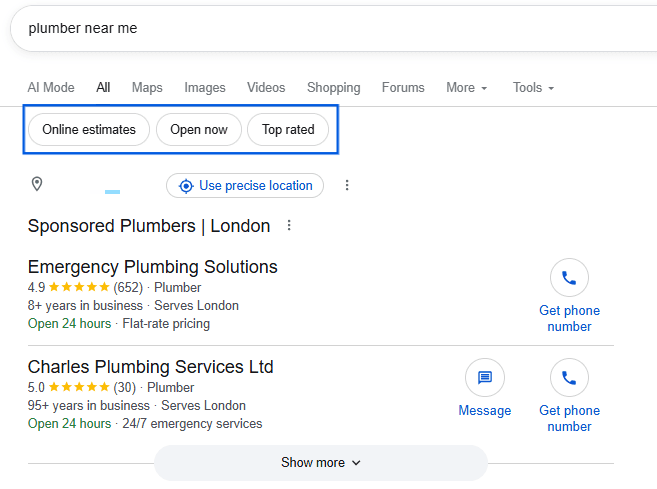
Here’s the good part: you can show up in both. That means your business can appear twice on the first page for the same search. The steps below cover both.
How to Do Contractor SEO in WordPress
Now let’s get to work. I’ll walk you through every step, from setting up your Google listing to tracking your results.
For the website steps, I’d recommend using All in One SEO (AIOSEO), the #1 WordPress SEO plugin. It’s used by over 3 million websites and has a built-in Local SEO module made for service businesses.
Note: AIOSEO’s Local SEO features, including maps and multiple locations, are available on the Plus plan or higher. Keyword rank tracking is part of the Elite plan.
Step 1: Set Up Your Google Business Profile
Your Google Business Profile (GBP) is your free listing on Google Maps and in the map pack. For most contractors, it’s the single biggest source of calls from search.
Go to Google Business Profile and sign in with your Google account. Then claim or create your listing and fill in every section you can:
- Primary category: Pick the most specific match, like “Plumber” or “HVAC contractor.” Add secondary categories for other services you offer.
- Service area: If you go to your customers instead of having them come to you, list the cities or ZIP codes you serve.
- Services: Add each service you offer, such as drain cleaning, panel upgrades, or AC installation.
- Photos: Upload real photos of your team, your trucks, and finished jobs.
- Hours and phone number: Make sure they match your website exactly.
Work from home? You can still have a listing. Set yourself up as a service-area business and hide your home address from the public. Keep this in mind for Step 2, because you’ll want your website to match.
Pro Tip: Don’t stuff keywords into your business name, like “Mike’s Plumbing Best Plumber Dallas.” Use your real business name only. Keyword-stuffed names can get your listing suspended.
Step 2: Add Local Business Schema With AIOSEO
Schema markup is code that tells search engines key facts about your business, like your name, address, phone number, and hours. Local Business schema helps Google connect your website to your location and services.
The good news is that you don’t need to write any code, as AIOSEO adds it for you.
First, install and activate AIOSEO on your WordPress site.
Next, go to AIOSEO » Local SEO in your WordPress dashboard. If this is your first time, click Activate Local SEO.

Then open the Business Info section and fill in your details:
- Business name: Use the same name as your Google Business Profile.
- Business type: Choose the most specific type that matches your trade.
- Address and phone number: Enter them exactly as they appear on your Google listing. If you have a shop or office, use that address.
- Area served: List the towns or regions you cover.
- Payment info: Add accepted payment methods if you’d like.
Now click the Opening Hours tab and add your business hours. If you offer 24-hour emergency service, you can set any day to Open 24h.
Click Save Changes when you’re done.
For a deeper walkthrough, check out our guide on how to add local business schema in WordPress.
Step 3: Check That Your Schema Is Working
Before you move on, make sure Google can read your new schema. It only takes a minute.
Open your homepage or contact page in the WordPress editor. Scroll down to the AIOSEO Settings box and click the Schema tab. Then click the Validate Schema button.
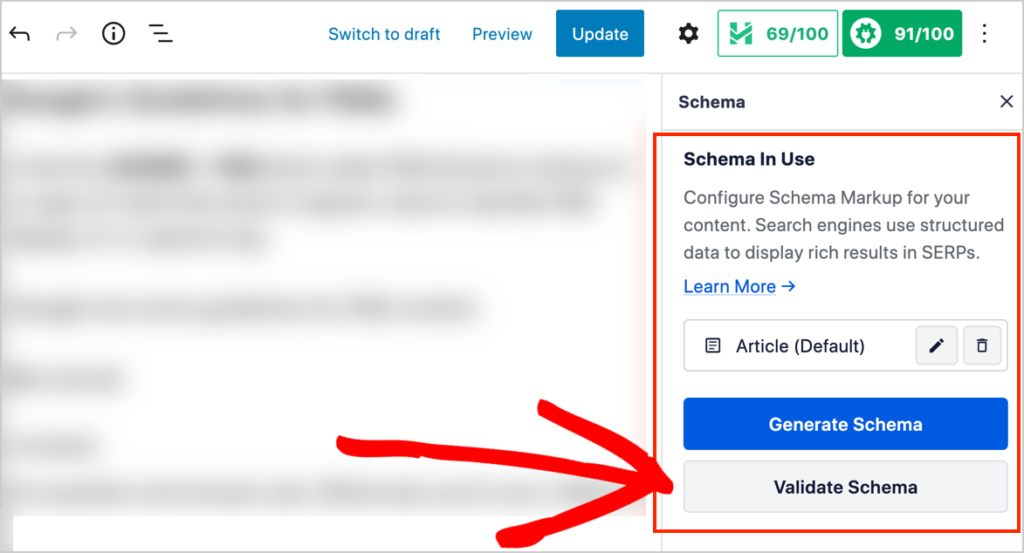
A popup will show your schema code. Click Test With Google. Google’s Rich Results Test will open in a new tab with your code already filled in. Click Test Code.
After a few seconds, you’ll see your results. A green check next to your Local Business item means you’re all set. If you see errors, the test will tell you which field to fix.
For a full walkthrough, see our guide on how to run a rich results test in WordPress.
Step 4: Set Up Multiple Locations
If you run more than 1 shop or office, each one should have its own location details. You can skip this step if you only have 1 location.
In AIOSEO » Local SEO, set the Multiple Locations toggle to Yes. AIOSEO will add a new Locations menu to your WordPress dashboard.
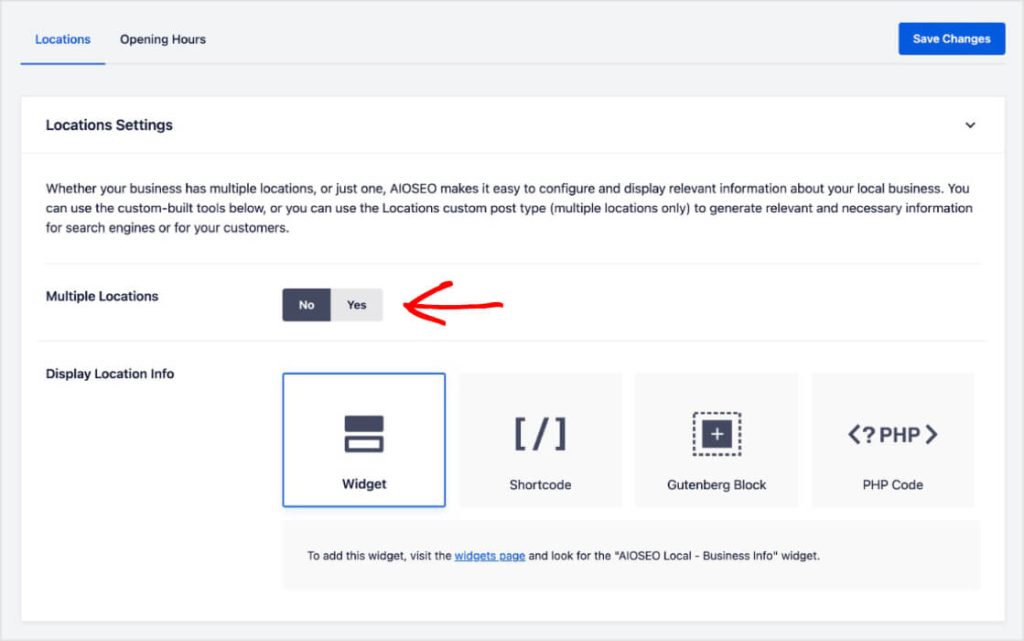
Next, go to Locations » Add New. Give the location a name, then scroll down to the AIOSEO Local Business box. Fill in the business info and opening hours for that location, then click Publish.
Repeat this for each location. You can then add the AIOSEO Local – Business Info block to any page to show that location’s details.
Step 5: Create a Separate Page for Each Service
This is one of the most common mistakes we see on contractor websites. Every service gets crammed onto 1 “Services” page.
The problem is that customers don’t search for “plumbing services.” They search for the problem they have, like “water heater repair” or “clogged drain.”
Give each main service its own page. For example, a plumber might have separate pages for:
- Drain cleaning
- Water heater repair and installation
- Leak detection
- Sewer line repair
Each page should explain what the service is, the signs a customer needs it, how you handle the job, and how to reach you. Add photos of real jobs and a clear call button near the top.
Step 6: Build Service Area Pages the Right Way
If you serve several towns, a page for each main area can help you rank in those places. For example, a page targeting “drain cleaning in Plano” might live at yoursite.com/drain-cleaning-plano.
But there’s a catch. Copying the same page 20 times and swapping the city name won’t work. Google calls these doorway pages, and they can hurt your rankings.
Make each area page truly useful. Mention jobs you’ve done in that town, common problems there (like hard water or older homes), local reviews, and a map of the area you serve.
For more ideas, see our list of local SEO tips for WordPress users.
Step 7: Add a Map and Business Hours to Your Site
Showing a map and your hours on your contact page helps customers and gives Google another signal about where you work.
To show a map, you’ll need a free Google Maps API key. An API key is a code that lets your site use Google Maps.
Here’s how to get one:
- Go to the Google Maps Platform and sign in with your Google account.
- Select a billing account or set up a new one. Google requires this to use its maps, even if your usage stays within the free amount.
- Create your API key and copy it somewhere safe.
- Make sure the Maps JavaScript API and Geocoding API are turned on for your key. AIOSEO needs both. The Maps Embed API and Places API are optional.
Next, go to AIOSEO » Local SEO and click the Maps tab. Paste your key into the API Key field and click Save Changes. If the key works, you’ll see a sample map. If not, AIOSEO will show you a notice.
Pro Tip: If you manage sites for clients, set up the billing account in your client’s name so Google’s billing emails go to them.
Also, for step-by-step screenshots, see the AIOSEO guide on setting up Google Maps for Local SEO.
Now open your contact page in the block editor. Click the + icon and search for “AIOSEO Local.” Add the AIOSEO Local – Map block and the AIOSEO Local – Opening Hours block.
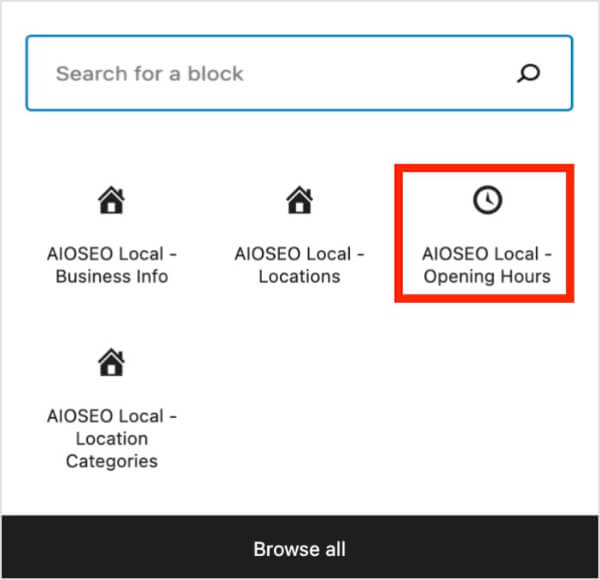
Click Update to save your page.
Using a page builder? These blocks only work in the WordPress block editor. If your site uses a page builder or the Classic Editor, AIOSEO also offers shortcodes and widgets that do the same job.
Step 8: Optimize Your Titles and Meta Descriptions
Your page title and meta description are what people see in search results. A clear title with your service and city helps you rank and gets more clicks.
A simple formula works well: Service in City | Business Name. For example, “Water Heater Repair in Plano | Smith Plumbing.”
To set this in AIOSEO, open any service page and scroll down to the AIOSEO Settings box. Enter a focus keyword, then edit the Post Title and Meta Description fields.
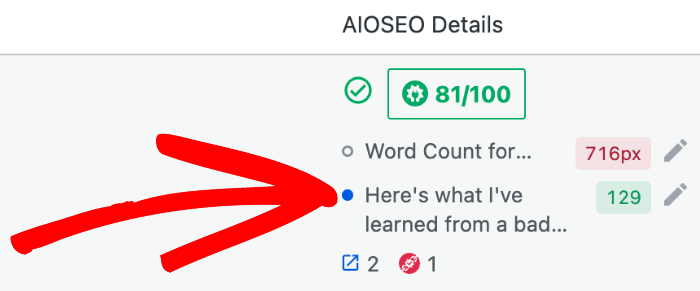
AIOSEO’s TruSEO score will check your page and give you a simple checklist of fixes, like adding your keyword to a heading or making your description the right length.
Step 9: Collect Reviews and Build Local Citations
Reviews are one of the strongest signals in local search. They also help customers choose you over the next company on the list.
Make asking for reviews part of every job. A quick text with your Google review link after the work is done goes a long way. Reply to every review, good or bad, in a friendly and professional way.
Next, list your business in trusted directories. These listings are called citations. Good places for contractors include Yelp, Angi, HomeAdvisor, the Better Business Bureau, and your local chamber of commerce.
Keep your NAP (name, address, and phone number) exactly the same everywhere. Small differences, like “St.” on 1 site and “Street” on another, can confuse search engines.
For a full walkthrough, see our guide on how to get local SEO citations and directory listings.
Step 10: Publish Content That Answers Customer Questions
You answer the same customer questions every week. Turning those answers into blog posts is one of the easiest ways to bring in more traffic.
Here are some ideas that work well for contractors:
- Cost guides: “How much does a new roof cost in Denver?”
- Repair or replace posts: “Should you repair or replace a 15-year-old AC unit?”
- Warning signs: “7 signs your electrical panel needs an upgrade”
- Seasonal tips: “How to get your furnace ready for winter”
- Timelines: “How long does a bathroom remodel take?”
Link each post to the matching service page. That way, a reader who’s learning about water heaters can book a repair in 1 click.
Step 11: Track Your Rankings and Results
SEO isn’t a one-time task. You’ll want to see which pages are climbing and which need more work.
AIOSEO’s Keyword Rank Tracker lets you track your target keywords right inside WordPress. Go to AIOSEO » Search Statistics and click the Keyword Rank Tracker tab. Then click Add Keywords and enter the keywords you want to watch, like “water heater repair” or “drain cleaning.”
The data comes straight from your Google Search Console account. That means you’ll see your average position across everyone who searched, not your ranking from 1 specific street or town. Keyword ranking is the best way to spot trends, like which service pages are climbing or slipping.
To see how you show up in the map pack, check the performance report in your Google Business Profile. It shows the calls, website clicks, and direction requests your listing brings in.
Contractor SEO Tips by Trade
The steps above work for every contractor. But each trade has its own search patterns. Here’s a quick look at where to focus based on what you do.
| Trade | Common Searches | Search Urgency | Content Ideas |
|---|---|---|---|
| Plumbers | emergency plumber near me, water heater repair, clogged drain | High | Signs of a hidden leak, tankless vs. tank water heaters |
| Electricians | electrician near me, panel upgrade, EV charger installation | Medium to high | EV charger install costs, signs of faulty wiring |
| HVAC | AC repair near me, furnace not working, HVAC maintenance | High in summer and winter | Seasonal maintenance checklists, repair or replace guides |
| Roofers | roof repair near me, roof replacement cost, storm damage roof | Medium, spikes after storms | Storm damage and insurance claims, roofing material comparisons |
| General Contractors and Remodelers | kitchen remodel contractor, home addition cost, bathroom remodel | Low (long research) | Cost breakdowns, project timelines, before and after galleries |
If you’re in a high-urgency trade, put most of your energy into your Google Business Profile and reviews. If you do bigger projects, invest more in helpful content and project galleries that build trust.
How to Show Up in AI Search as a Contractor
More homeowners now ask AI tools like ChatGPT, Google’s AI Overviews, and Perplexity for help. They might type, “Who’s a good electrician in Tampa for an EV charger?”
The good news is that most of what helps you rank on Google also helps you show up in AI answers. Here’s what to focus on:
- Answer questions directly: Start service pages and blog posts with a short, clear answer before going into detail. AI tools love content that gets to the point.
- Add FAQ sections: Put common customer questions and answers on your service pages.
- Keep your business info consistent: AI tools pull from many sources. Matching details across your site, Google, and directories make you easier to trust.
- Use schema markup: The Local Business schema you set up and tested in Steps 2 and 3 helps machines understand who you are and where you work.
- Keep earning reviews: Reviews give AI tools real customer feedback to draw from.
Should You Do Contractor SEO Yourself or Hire an Agency?
Honestly, it depends on your time, budget, and how competitive your area is.
Agencies that focus on contractors aren’t usually cheap. Doing it yourself makes sense if you have a few hours a month and a WordPress site. Steps 1 through 9 in this guide cover the foundation, and AIOSEO handles the technical parts like schema for you.
On the other hand, hiring an agency for help makes sense if you’re in a crowded market, run several locations, or simply don’t have time between jobs. If you do hire, ask for monthly reports and avoid anyone promising guaranteed rankings.
Contractor SEO: FAQs Answered
If you do it yourself, the main costs are your time and an SEO plugin like AIOSEO. Agency plans for contractors often start around $1,000 per month and go up from there based on how many areas and locations you serve.
Google Business Profile and review improvements can bring more calls within weeks. Website rankings take longer. One home services agency estimates 4 to 6 months for real ranking movement and 9 to 12 months for steady lead flow.
Yes, you can set up your Google Business Profile as a service-area business and hide your home address. Then list the towns you serve instead. Just make sure your website doesn’t show the address you hid on Google.
Final Thoughts
I hope this guide helped you understand contractor SEO and how to rank higher and book more local jobs.
Not using AIOSEO yet? Get started today and set up your Local SEO in minutes.
If you found this article helpful, please subscribe to our YouTube channel. You’ll find many more great tutorials there. You can also follow us on X (Twitter), LinkedIn, or Facebook to stay in the loop.
Disclosure: Our content is reader-supported. This means if you click on some of our links, then we may earn a commission. We only recommend products that we believe will add value to our readers.
Want to Try AIOSEO for Free?
Enter the URL of your WordPress website to install AIOSEO Lite.