
Did you know that 46% of all Google searches have local intent?
That means nearly half of the people typing into Google are looking for a business nearby. They’re searching for “plumber near me,” “best Italian restaurant in [city],” or “dentist open now.”
If your WordPress website isn’t optimized for these searches, you’re handing those customers directly to your competitors.
But here’s the good news: Local SEO isn’t all that hard. You just need to learn how to do it.
In this actionable guide, I’ll share my top 13 local SEO tips specifically for WordPress users. These strategies will help you dominate the “Local Pack” (that map at the top of search results) and drive more foot traffic to your door.
In This Article
- What Is Local SEO?
- Top Local SEO Tips to Boost Your Rankings
- 1. Claim and Optimize Your Google Business Profile
- 2. Ensure NAP Consistency Everywhere
- 3. Add Local Business Schema Markup
- 4. Perform Local Keyword Research
- 5. Create Dedicated Location Pages
- 6. Optimize Title Tags & Meta Descriptions
- 7. Embed a Google Map on Your Contact Page
- 8. Display Your Opening Hours Clearly
- 9. Get More Customer Reviews (And Respond to Them)
- 10. Build Local Citations
- 11. Optimize for Mobile Users
- 12. Create Local Content
- 13. Focus on Local Link Building
- 1. Claim and Optimize Your Google Business Profile
- Master These Local SEO Tips With AIOSEO
- FAQs About Local SEO
What Is Local SEO?
Local SEO is the process of optimizing your online presence to attract more business from relevant local searches.
While traditional SEO focuses on ranking globally (like “best running shoes”), local SEO focuses on ranking in a specific geographic area (like “running shoe store in Austin, TX”).
The goal is to appear in the Local Pack:
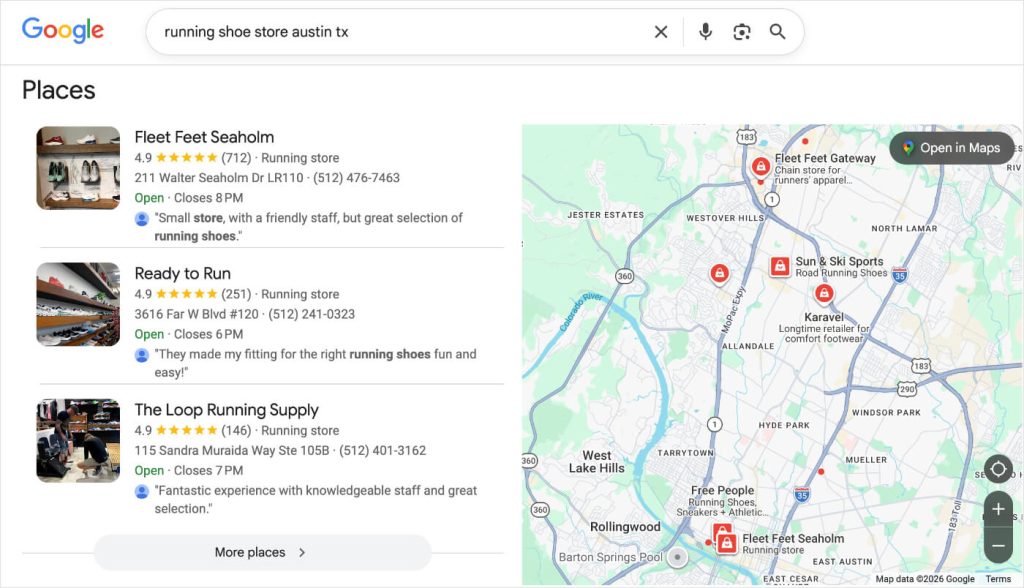
Ranking here is critical for local businesses because these results appear above the standard organic links.
Here are tips for local SEO to help you get there.
Top Local SEO Tips to Boost Your Rankings
Here are 13 proven strategies to help you climb the rankings and get discovered by customers in your area.
Why You Should Trust Me
Hi, I’m Gabriela. I’m a content writer for All in One SEO (AIOSEO), the original WordPress SEO plugin. I spend my days testing new features, analyzing Google algorithm updates, and helping our community of over 3 million users improve their rankings.
I have over 6 years of experience in the SEO industry, working directly with business owners to grow their organic traffic and get discovered by the right customers.
From independent financial advisors to boutique law firms, the local SEO tips below allow small businesses to compete with big brands every day. I’ve also tested each strategy firsthand to ensure they are easy enough for anyone to use, regardless of technical skill.
1. Claim and Optimize Your Google Business Profile
If you only do one thing from this list, make it this one.
Your Google Business Profile (GBP) is the official listing of your business on Google. It’s what powers Google Maps and the Local Pack.
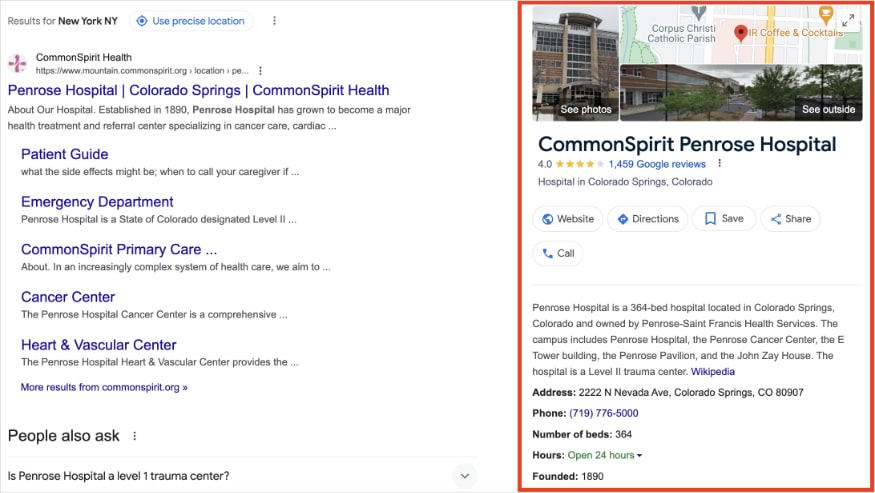
It’s completely free, yet many businesses fail to claim it or leave it half-empty.
Action Item
Go to the Google Business Profile page and claim your listing. Once verified, I recommend filling out as much as you can.
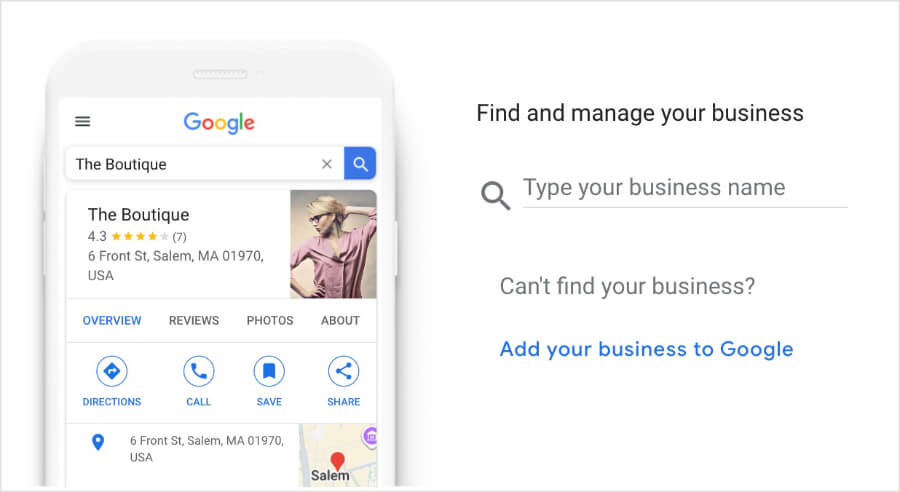
Some of the fields you’ll be prompted to optimize include:
- Business Name: Use your real-world name exactly as it appears on your signage. (Warning: Do not stuff keywords like “Best Plumber in Austin” unless that is your legal business name. Google can suspend you for this.)
- Categories: Choose a Primary Category that describes your main service (e.g., “Pizza Restaurant”). Then, add Secondary Categories for other services (e.g., “Pizza Delivery,”).
- Description: You have 750 characters. Use them to pitch your business and naturally include your primary keywords and city name near the beginning.
- Attributes: Add relevant attributes like “Wheelchair accessible,” “Outdoor seating,” or “Women-owned.” People filter searches by these specific features.
- Photos: Upload high-quality photos of your storefront, team, and products. Listings with photos receive more requests for directions.
Pro Tip: Treat your profile like a social media feed. Use the GBP Posts feature to share weekly offers, events, or new blog posts. This shows Google, and users, your business is active and alive.
2. Ensure NAP Consistency Everywhere
NAP stands for Name, Address, and Phone Number. It sounds simple, but it’s the foundation of local SEO trust.
Google views your NAP data like a digital fingerprint. It scans the entire internet (your website, Facebook, Yelp, local directories) looking for this fingerprint to verify your business is legitimate.
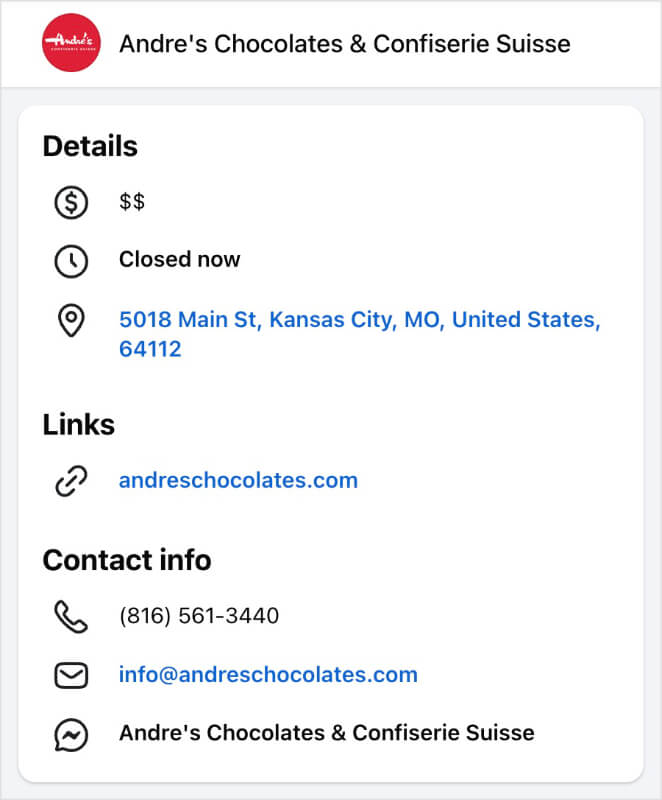
If your website says you are at “123 Main Street” but your Facebook page says “456 Main Road” Google gets confused. Is it the same business? Which address is correct?
When Google isn’t 100% sure, it won’t rank you in the Local Pack.
Action Item
Create a “Master NAP” document. Decide exactly how you want your address to appear (e.g., do you spell out “Street” or use “St.”? Do you use “Suite 100” or “#100”?).
Then, audit these key locations to ensure they match your master copy character-for-character:
- Your Website Footer: Ensure your address is in the footer of every page. Make sure it is text, not an image, so Google can read it.
- Google Business Profile: This is your source of truth.
- Social Media Profiles: Facebook, LinkedIn, Instagram, etc.
- Major Directories: Yelp, Bing Places, Apple Maps.
Pro Tip: Avoid using call-tracking numbers on your local listings. Always use your real, local area code phone number (e.g., 512 for Austin). A local area code is a strong ranking signal that proves you are physically located in the community you serve.
3. Add Local Business Schema Markup
This is one of the most technical local SEO optimization tips, but it’s also the one that gives you the biggest competitive advantage.
Schema markup is a specific code (JSON-LD) that acts as a “translator” for search engines.
While you might write “We are open 9-5” on your contact page, Google just sees text. Schema markup explicitly tells Google’s database: “This specific string of text represents our opening hours.”
When you add local business schema, you’re feeding Google information about:
- Your Business Type: (Are you a generic “store” or specifically a “shoe store”?)
- Geo-Coordinates: Exact latitude and longitude for Google Maps.
- Price Range: ($ to $$$$).
- Service Area: The specific zip codes or cities you serve.
Writing this code manually is a nightmare and prone to errors. But if you use WordPress, you don’t have to touch a line of code.
How to Add Local Business Schema in WordPress
All in One SEO (AIOSEO) has a dedicated local SEO module that handles this automatically.
Step 1: Install AIOSEO Pro and go to Local SEO in your dashboard.
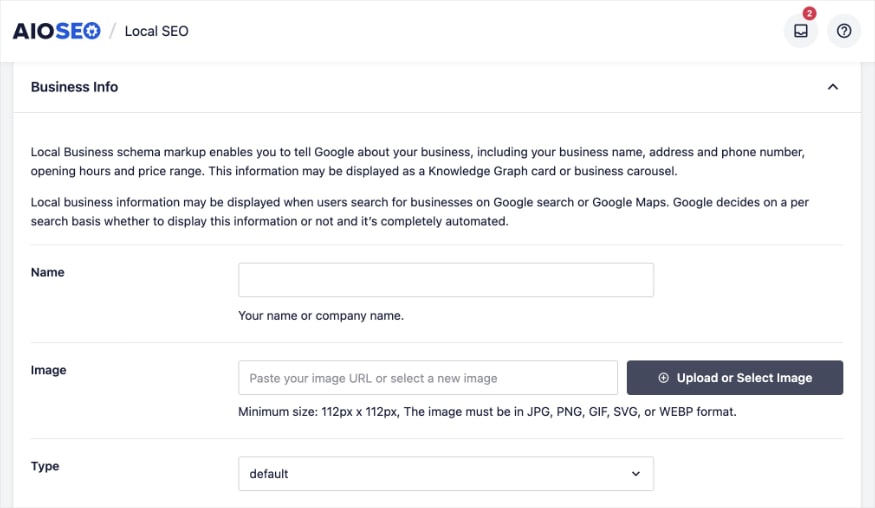
Step 2: Fill in your business details in the Business Info tab. (This is where you’ll put your NAP info.)
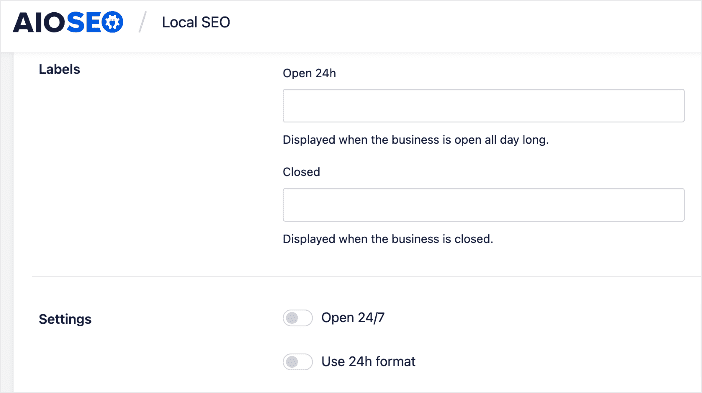
Step 3: Click on the Opening Hours tab and fill out your store or office hours. Open 24/7? Just toggle that setting on.
Otherwise, you’ll be able to enter specific hours for every day of the week.
Step 4: The last step is to embed your Google Maps. To do this, just navigate to the Maps tab and paste in your Google API Key. Need help finding it? Here’s a beginner-friendly tutorial.
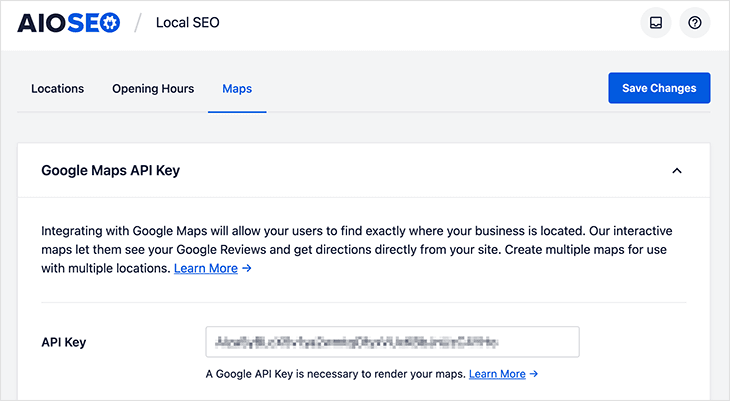
AIOSEO takes this data and automatically generates the correct code for every page of your site.
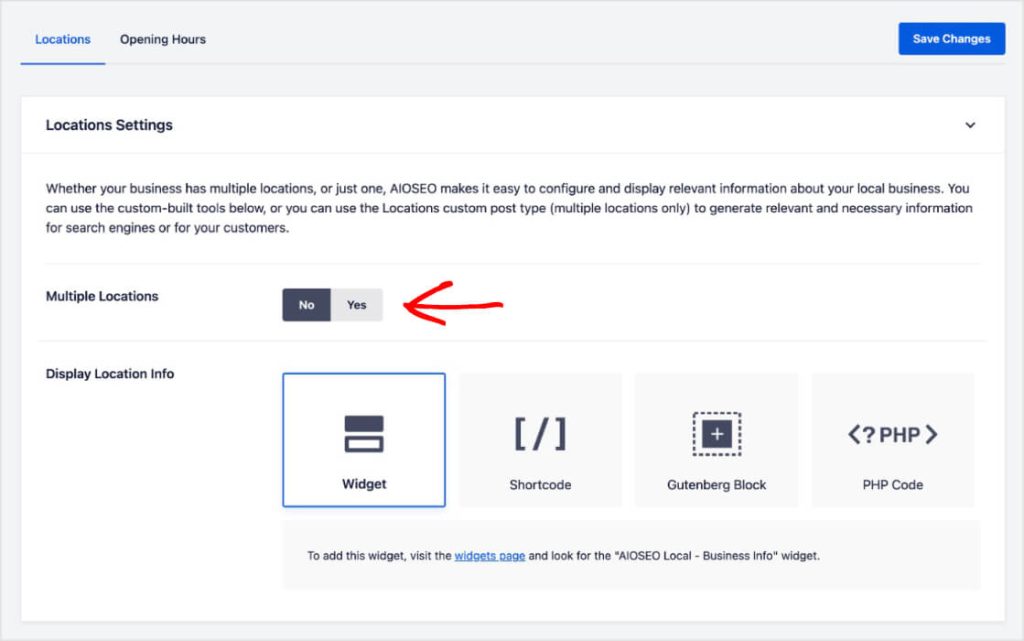
Pro Tip: If you have multiple locations, AIOSEO can handle that, too. When you’re on the Locations tab, just toggle the “Multiple Locations” option on, and save your details. The plugin will generate the appropriate schema for each location.
4. Perform Local Keyword Research
People search differently when they’re looking for local services.
Instead of searching for generic terms like “marketing agency,” they search for “marketing agency Miami” or “digital marketing near me.”
That’s why it’s important to perform keyword research and discover exactly what terms your customers use in organic search. Here are some tips for getting started.
How to Do Local Keyword Research
Create a list of your core services and map them to your location.
- Bad: “coffee shop”
- Good: “best espresso bar in Brooklyn”
- Good: “cheap plumber in Austin”
Then, run these ideas through a keyword research tool. I like using LowFruits because it flags low-dfficulty keywords and “Weak Spots” in SERPs. (Weak Spots are low-authority domains ranking in the top 10 positions.)
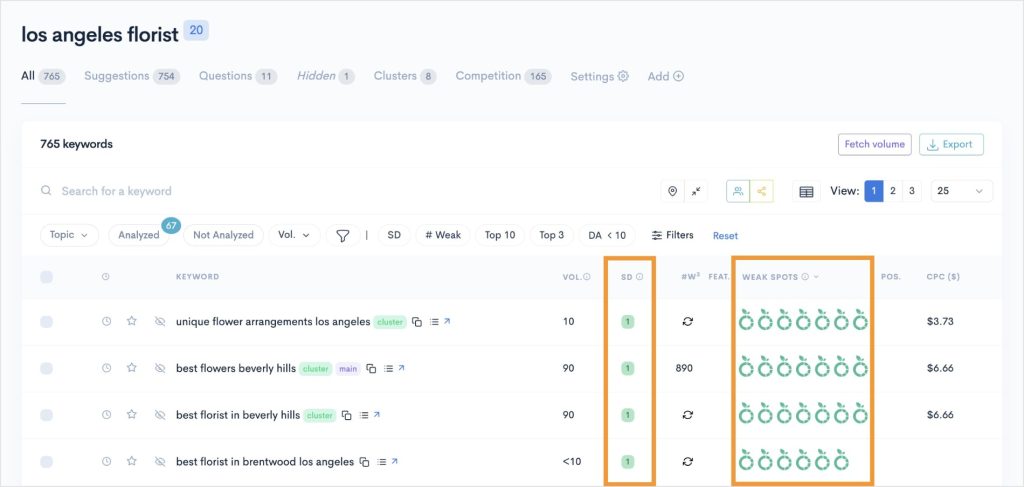
When you find keywords with a SERP Difficulty Score (1) and multiple Weak Spots, you know you’ve found a good keyword to target. These are easy to rank for, even if you’re a new or small business.
From here, you’ll want to optimize your on-page SEO. (This is where you incorporate your keywords into your content.) Some key areas to include your focus keyword are:
- SEO Title: The title of your page that appears in search results.
- Meta Description: Your “sales pitch” in search results that appears below the blue link.
- Header Tags: The title of your post or page and supporting titles in the content.
- Body Content: Sprinkle your keywords throughout your content.
Pro Tip: AIOSEO’s TruSEO tool checks for your focus keyword automatically. You get a user-friendly checklist that flags when you’ve forgotten it in important areas.

5. Create Dedicated Location Pages
Do you serve multiple cities?
A common mistake I see is listing all the cities in the website footer or on a single “Contact” page. This creates a confusing experience for your customers and Google.
That’s why I recommend creating a unique landing page for each location.
For example, if you are a plumber serving both Austin and Round Rock, create two pages:
- yourdomain.com/plumber-austin
- yourdomain.com/plumber-round-rock
Crucial: Do NOT just copy and paste the same content and change the city name. Google hates duplicate content and might see these as spammy “doorway pages.”
How to Make Your Pages Unique
Here are some creative ways to differentiate your location pages.
- Unique Reviews: Showcase testimonials from customers in that specific city.
- Unique Photos: Use photos of projects or landmarks in that area.
- Specific Services: Mention if you offer slightly different services in each location.
- Local Address/Phone: Display the specific NAP for that branch.
This signals to Google that you’r business is genuinely active and relevant in multiple areas, boosting your chances of ranking in more than one Local Pack.
Reminder: Don’t forget to toggle the Multiple Locations setting on in AIOSEO to optimize all your locations!
6. Optimize Title Tags & Meta Descriptions
Your title tag is your billboard in search results. If it doesn’t immediately tell users what you do and where you are, they’ill scroll past you.
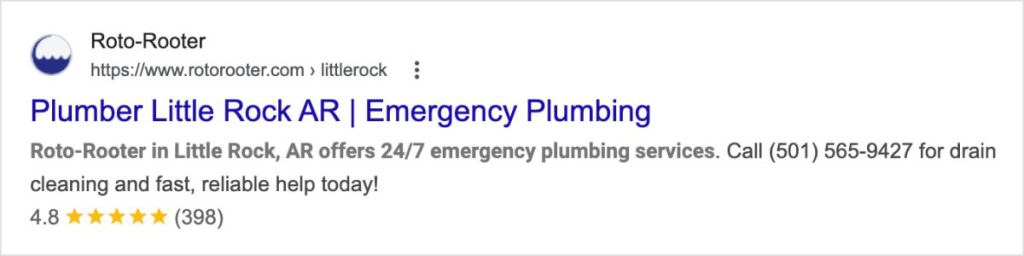
The Winning Formula: Main Service + City + Brand Name
- Example: “Emergency Plumber in Chicago | SpeedyFix”
Here’s another good example in the search engine results pages:
How to Automate This in WordPress
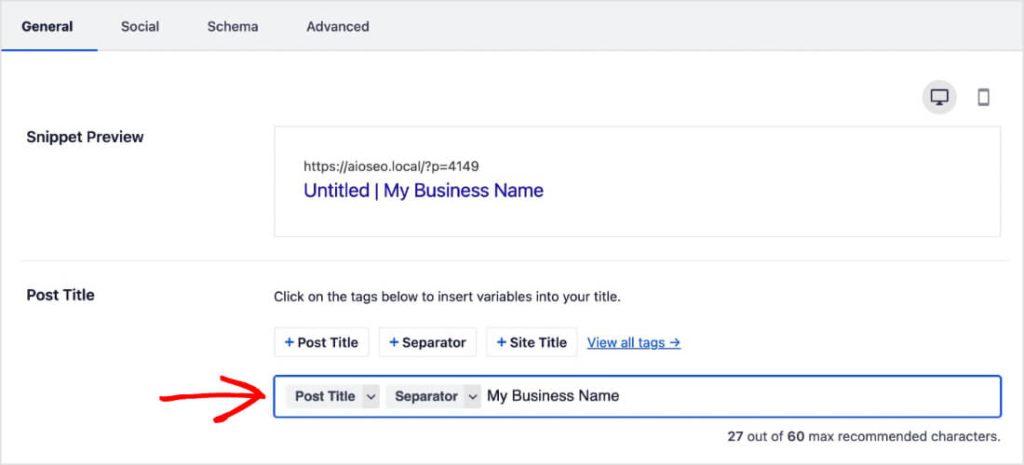
You don’t want to manually update every SEO title tag anytime you make a tiny edit. That’s why I like to use smart tags when writing titles and meta descriptions in AIOSEO.
Smart tags are dynamic variables that populate based on their settings. For example, the smart tag [Post Title] will pull the SEO title from your H1 tag.
This keeps your titles fresh and click-worthy with zero maintenance.
Recommended Reading: How to Use Smart Tags in AIOSEO
7. Embed a Google Map on Your Contact Page
Embedding a Google Map helps users find you, but it also confirms your exact location to Google.
However, a standard Google Maps embed (via iframe) can often slow down your website. Plus, if your business moves, you have to remember to update every single page.
Action Item
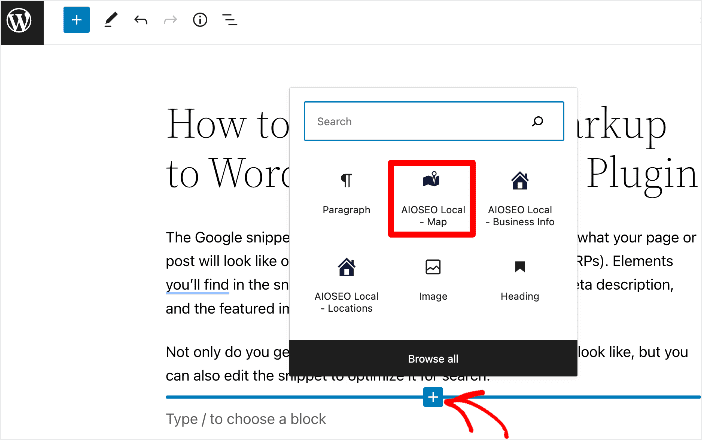
If you’re using AIOSEO, you can use the Local Business Maps block.
Just open the WordPress block editor, search for “AIOSEO Local Business,” and drop the map block onto your page.
Why use this block?
- Always Accurate: It pulls the address directly from your schema settings. Update your address once in the plugin, and it updates everywhere.
- Fast: It is optimized for speed, unlike heavy iframes.
- Smart: It automatically links to directions in Google Maps, making it easy for mobile users to navigate to you.
Here’s a full tutorial on how to embed Google Maps in WordPress.
8. Display Your Opening Hours Clearly
There’s nothing worse for a customer than driving to a store only to find it closed. Google hates this user experience, too.
Ensure your opening hours are clearly visible on your website, preferably in the footer and contact page.
The Problem: Many businesses update their Google Business Profile hours but forget their website. Google sees conflicting hours and penalizes your ranking.
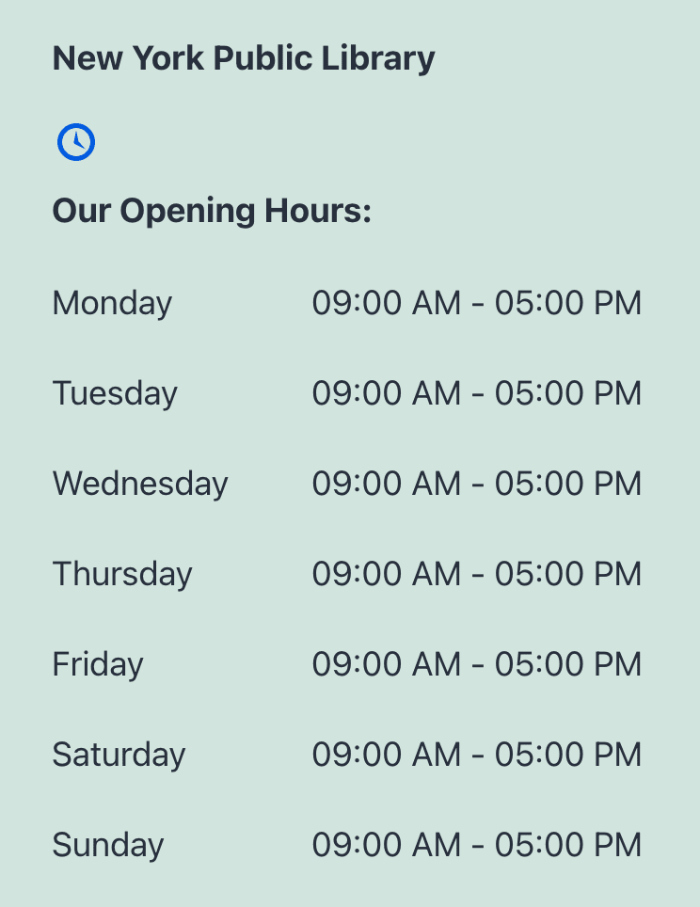
The Solution: Use the AIOSEO Opening Hours block.
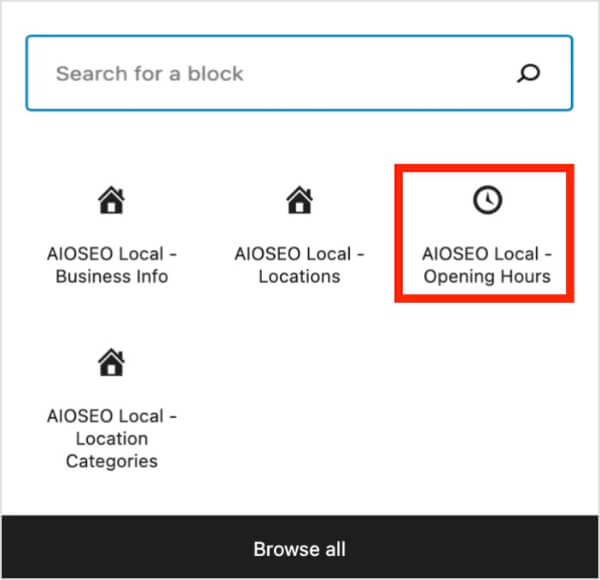
This block syncs with your local SEO settings and displays your opening hours on your post or page. You can even toggle off specific days if they’re not relevant to your business’s operating hours.
9. Get More Customer Reviews (And Respond to Them)
Reviews are a direct ranking factor for the Map Pack. A business with 100 5-star reviews signals to Google that it’s trusted by the community.
It’s also one of the most powerful ways to drive foot traffic to your business.
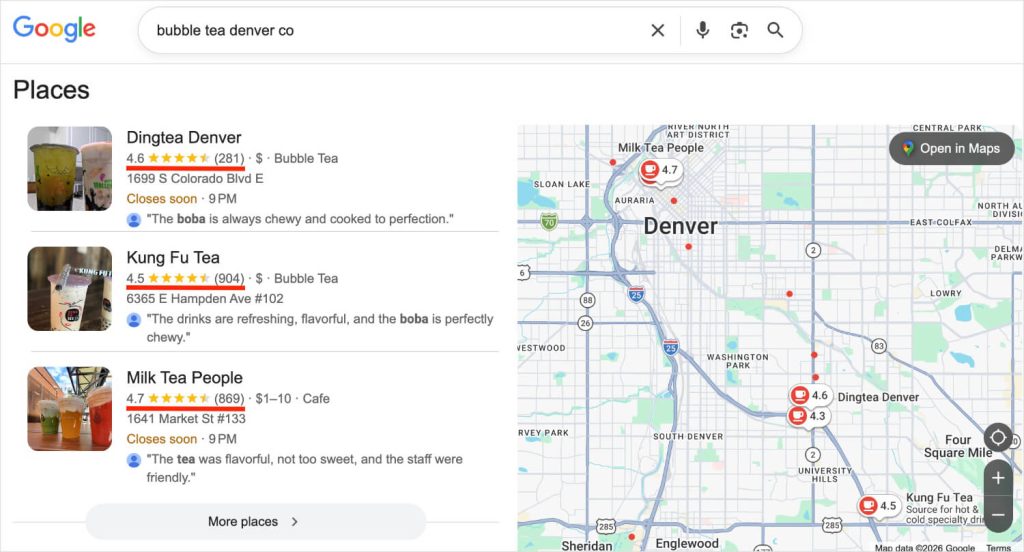
Would you visit a business that had a low customer rating? Probably not.
That’s why it’s important to engage customers that have had a positive experience with your business.
Action Item
Create a system to ask for reviews consistently.
- Email: Send a follow-up email 24 hours after a service.
- QR Code: Place a QR code at your checkout counter linking directly to your Google review form.
- SMS: Text a link to happy customers (SMS has a 98% open rate!).
Important: Always respond to reviews—both good and bad.
- Good review: “Thanks, [Name]! We loved helping you with [Service].”
- Bad review: “I’m sorry to hear that, [Name]. Please contact us at [Phone] so we can make it right.”
This shows Google (and future customers) that you are active and care about your reputation.
Pro Tip: Use AIOSEO’s Schema Generator to add product review schema in WordPress. This beginner-friendly method allows you to add customer reviews and structured data without touching code. (Product review schema is often how websites get these star ratings in search results!)

10. Build Local Citations
A local SEO citation is any mention of your business name, address, and phone number (NAP) on another website.
Think of citations like “votes of confidence” for your address. The more reputable sites that list your business, the more Google trusts your location data.
Where to Get Citations:
- Core Directories: Google Business Profile, Yelp, Bing Places, Apple Maps.
- Industry Directories: TripAdvisor (Travel), Angie’s List (Home Services), Avvo (Legal).
- Local Directories: Chamber of Commerce, local news sites, Better Business Bureau (BBB).
And here’s a tutorial on how to get them.
Action Item
Create a spreadsheet of your citations. Ensure your NAP is identical on every single one. If your phone number changed 2 years ago, fix the old listings immediately.
11. Optimize for Mobile Users
According to SEO statistics, 76% of users who perform a local search on their mobile phone visit the location within 24 hours. Furthermore, 28% of these visits end in a purchase.
Here’s the reality: most local searches happen on the go. If your website takes too long to load or doesn’t look good on a smartphone, users will bounce immediately.
A “bounce” is when a user visits your website and leaves after viewing only 1 page. It’s measured as a percentage called “bounce rate.”
Action Item
Use a responsive WordPress theme, and test your site on your own phone.
- Speed: Does it load in under 3 seconds?
- Buttons: Are your “Call Now” and “Get Directions” buttons large enough to tap with a thumb?
This is crucial because Google primarily uses the mobile version of your content for indexing and ranking. (In SEO, we call this mobile-first ranking.)
Recommended reading: Mobile SEO Guide
12. Create Local Content
Don’t just blog about generic industry topics; blog about what’s happening in your city.
Why? Because Google wants to see that you’re actually part of the community, not just a faceless national brand.
Here are some local content ideas:
- “Best of” Lists: “The Top 5 Coffee Shops in [Neighborhood]” (Include your business if relevant, or just be helpful).
- Local Events: “How [Your Business] is Participating in the [City] Charity Run.”
- Local Guides: “A Homeowner’s Guide to [City] Hard Water Issues” (Great for plumbers!).
This establishes you as a local authority and connects you with the community.
13. Focus on Local Link Building
Backlinks (links from other sites to yours) are crucial for SEO. But for local SEO, relevance is more important than domain authority.
A link from a massive site like Forbes is great for general authority, but a link from a small local church, high school, or community blog is arguably better for proving to Google that you are in that specific city.
Action Item
Look for local partnership opportunities, like:
- Sponsorships: Sponsor a Little League team or a 5K charity run. (These organizations almost always list sponsors with a link on their website).
- Local News: Get featured in the local paper for a community event or milestone.
- Partnerships: Exchange links with non-competing local businesses. (e.g., If you’re a wedding planner, trade links with a local florist and a local bakery).
Master These Local SEO Tips With AIOSEO
Implementing these top local SEO tips can feel overwhelming, especially the technical parts like schema markup.
That’s why we built the Local SEO module in All in One SEO. We wanted to make it easy for WordPress users to rank on Google Maps without needing to hire a developer.
With AIOSEO, you can:
- Add Local Business Schema with one click.
- Sync your opening hours across your site.
- Add maps and location info widgets instantly.
Ready to boost your local rankings? Get started with AIOSEO today.
And for even more local seo optimization tips, check out this tutorial on how to do a local SEO audit. I also recommend reading up on our picks for the best local SEO tools and the benefits of local SEO.
If you found this article helpful, go ahead and subscribe to our YouTube Channel. You can also follow us on X (Twitter), LinkedIn, or Facebook to stay in the loop.
FAQs About Local SEO
What is the most important factor for local SEO?
While there are many factors, your Google Business Profile (GBP) is arguably the most critical for local SEO. Optimizing your GBP with accurate categories, photos, and reviews is the fastest way to appear in the Local Map Pack.
How long does it take to see results from local SEO?
Local SEO typically shows results faster than traditional SEO because the competition is smaller (you are only competing with nearby businesses). However, it usually takes 3 to 6 months to see significant movement in rankings, depending on your location and industry.
Do I need a physical address for local SEO?
Yes, Google requires a physical address to verify your business, even if you are a “Service Area Business” (like a plumber who visits clients). However, you can hide your address on your public profile if you work from home.
Is Google Business Profile free?
Yes, creating and managing a Google Business Profile is 100% free. Be wary of any agency or scammer that tries to charge you just to “claim” your listing.
What is the difference between SEO and local SEO?
The main difference between SEO and local SEO is the intent. SEO focuses on ranking for global searches (e.g., “chocolate cake recipe”), while local SEO focuses on ranking for location-specific searches (e.g., “bakery near me”). Local SEO also relies heavily on reviews, citations, and Google Maps, which traditional SEO does not.
Disclosure: Our content is reader-supported. This means if you click on some of our links, then we may earn a commission. We only recommend products that we believe will add value to our readers.
Want to Try AIOSEO for Free?
Enter the URL of your WordPress website to install AIOSEO Lite.