
Tired of hunting for featured images in WordPress that don’t look like every other blog on the internet?
I’ve been there. After 7+ years in tech and a lot of hands-on product testing, my fastest workflow is generating the image with AI inside the post editor, then letting my SEO plugin handle the optimization. It takes me just about a few minutes per post (sometimes even less!).
So, in this guide, I’ll show you the exact steps, the prompt template I reuse, and what it costs in AI credits to create featured images in WordPress with AI.
In This Article
- Why Featured Images in WordPress Are Important
- AIOSEO AI Credits Explained
- How to Generate Featured Images in WordPress With AI (Step by Step)
- Prompt Tips for Blog Featured Images in WordPress
- GPT Image 2 vs. Nano Banana 2: Which Model Should You Use?
- How AIOSEO Optimizes Featured Images in WordPress for SEO
- Can You Bulk Generate Featured Images in WordPress?
- Featured Images in WordPress: FAQs Answered
- Start Creating Featured Images in WordPress With AI
Why Featured Images in WordPress Are Important
Featured images in WordPress show up in more places than your post. They appear on your blog archive, in related post widgets, in social shares, and sometimes in search results. For a lot of readers, they’re the first thing they see before they read a single word.
Now, understandably, free stock photos are easy to grab. But that’s exactly the problem. The same handshake photo or laptop-on-a-desk shot appears on thousands of other sites.
So what exactly makes a good featured image?
For featured images, 3 things matter most: the image reads clearly at thumbnail size, it fits a landscape slot, and it looks consistent with the rest of your archive.
And the great news is that AI image generation handles all 3. Plus, if you’re using a good SEO plugin, it would also handle the alt text and filename, automating the process for you.
Here’s What You Need Before You Start
For this tutorial, I’m using the AI Image Generator in All in One SEO. It’s built right into the WordPress block editor, so there’s no separate image tool to sign up for and no API key to paste in.
The AI Image Generator is available to all AIOSEO users, including the free Lite version. You just need AI credits to run it.
The automatic image optimization part of this workflow is different. That comes from the Image SEO add-on, which requires the Plus plan or higher.
AIOSEO AI Credits Explained
Now that you know what you need to follow this tutorial, here’s a quick breakdown of AI credits that might be helpful for you.
Every image you generate uses AI credits. Here’s how many credits each plan includes per year:
- Lite (free): 100 credits to try it out
- Basic: 10,000 credits
- Plus: 25,000 credits
- Pro: 50,000 credits
- Elite: 200,000 credits
The cost of a single image depends on the quality you choose. A medium-quality image costs fewer credits than a high-quality one. But you’ll always see the cost on the Generate button before you confirm, so there are no surprises.
While each plan comes with a specific number of AI credits, keep in mind that those credits also power AIOSEO’s other AI tools, like title and description writing, so budget for those too.
If you run low, you can buy pay-as-you-go AI credits from All in One SEO » General Settings » License » AI Credits.
How to Generate Featured Images in WordPress With AI (Step by Step)
Now for the fun part. Here’s the full workflow, start to finish.
Step 1: Open Your Post in the WordPress Editor
Open the post you want a featured image for from Posts » All Posts. I’d advise doing this once your draft is mostly written, so you know exactly what to describe for the image generation.
Step 2: Click Generate With AI in the Featured Image Panel
In the right sidebar, make sure you’re on the Post tab. Find the featured image section.
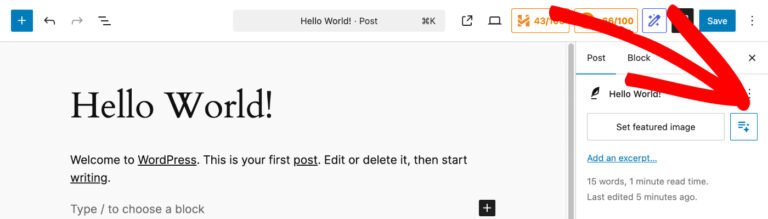
Next to the Set featured image button, you’ll see a Generate with AI button. Click it.
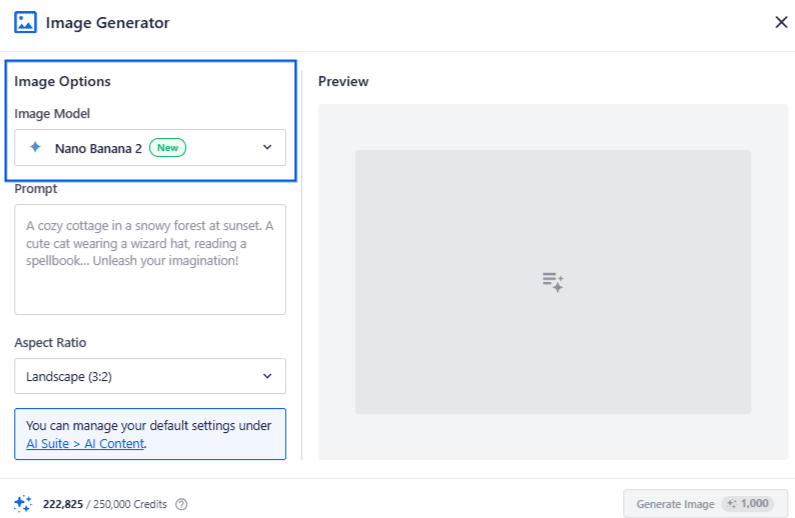
This opens the Image Generator window. You’ll see a Prompt field and image options on the left, with a Preview area on the right.
Step 3: Write Your Image Prompt
In the Prompt field, describe the image you want. For a featured image, keep it focused on 1 clear subject that represents your post.
I’ll share more prompt tips in the next section. For now, a sentence or 2 is plenty.
Step 4: Choose Your Model, Style, and Aspect Ratio
Below the prompt, you’ll find a few dropdowns to fine-tune your image:
- Model: Choose GPT Image 2 from OpenAI or Nano Banana 2 from Google. I’ll explain when to use each one below.
- Style: Pick cinematic, illustration, minimalist, or vibrant. You can also let the AI choose for you.
- Aspect ratio: Choose square, portrait, or landscape. For featured images, I almost always go with landscape since it fits most themes and social shares.
- Quality: Higher quality looks sharper but costs more credits. Medium is usually enough for a featured image.
Step 5: Generate, Review, and Insert Your Featured Image
Click the Generate Image button. In under a minute, your image appears in the Preview area.
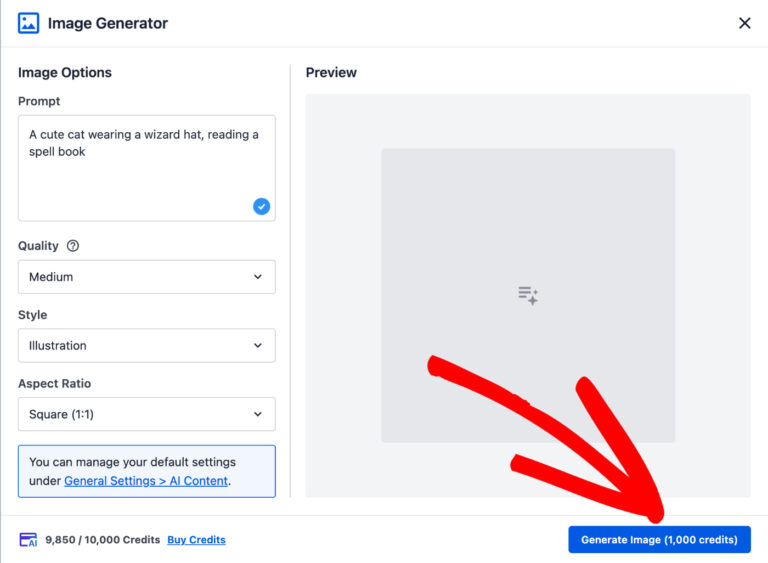
Not quite right? Edit your prompt or change the quality and click Regenerate. Revision history keeps your earlier versions, so you can go back if the first one was better after all.
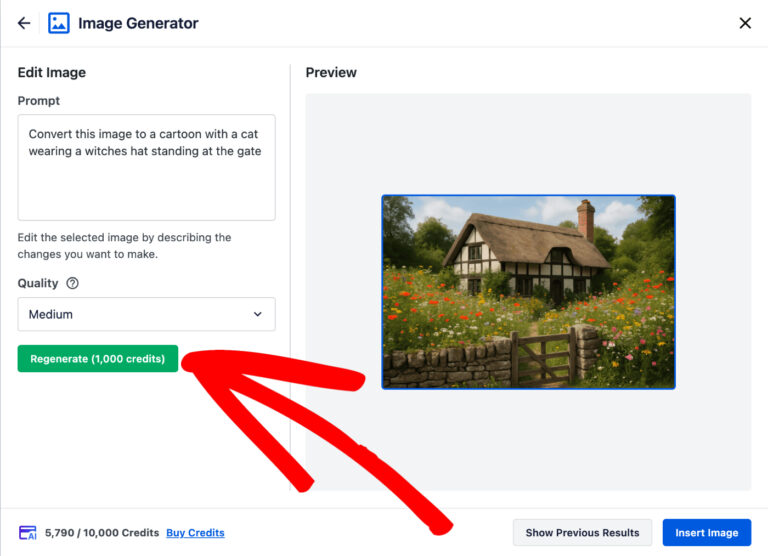
When you’re happy with it, click Insert Image. AIOSEO saves the image to your Media Library and sets it as the featured image for your post.
Step 6: Optimize the Image for SEO
Your featured image is set, but it isn’t done yet. It still needs alt text so search engines and screen readers know what it shows.
If you’re on AIOSEO Plus or higher, Image SEO can take care of this for you. I’ll walk through exactly how in the optimization section below.
Prompt Tips for Blog Featured Images in WordPress
The AI Image Generator handles simple prompts well. But a few habits make a big difference for featured images specifically.
1. Include Your Post Topic or Main Keyword
Start your prompt with the main subject of your post. If your post is about container gardening, say so up front: Container garden with herbs on a small apartment balcony.
This keeps the image on topic. It also has a nice side effect. AIOSEO builds the image filename from your prompt, so leading with your topic gives you a more descriptive filename from the start.
2. Use Style Presets to Match Your Brand
Pick 1 style and stick with it across your blog. Here’s how I think about each preset:
- Cinematic: Dramatic lighting and depth. Great for storytelling and lifestyle posts.
- Minimalist: Clean and simple. Works well for tech, business, and how-to content.
- Illustration: Drawn, graphic look. Perfect for explaining abstract ideas.
- Vibrant: Bold, saturated color. Stands out in crowded social feeds.
Consistency helps readers recognize your posts. If every featured image uses the same style, your archive page starts to look like a real brand.
3. Avoid These in Featured Image Prompts
While generating images with AI, a few things tend to backfire. Here’s a list of the most common ones to look out for:
- Long blocks of text in the image: Both models handle in-image text better than older tools. Even so, small text gets hard to read in thumbnails, and your post title already appears next to the image. Keep words short or leave them out.
- Overly complex scenes: 5 people, 3 props, and a busy background turn into visual noise at thumbnail size. Pick 1 subject.
- Vague prompts: “Marketing image” could mean anything. Describe what’s in the frame, the setting, and the mood.
- Real brands and logos: Don’t ask for other companies’ logos or products. Stick to original scenes.
My Reusable Featured Image Prompt Template
When you publish often, writing every prompt from scratch can slow you down and feel monotonous. So I recommend creating a prompt template you can reuse to generate different featured images in WordPress.
Here’s the template I use: [Main subject of the post], [setting], [lighting or mood], simple background, plenty of empty space around the subject.
Then I use the same style preset and the landscape ratio for every post in a category. My how-to posts always get Minimalist, and my roundups get Vibrant. That keeps the archive consistent and turns each featured image into a quick, repeatable job.
GPT Image 2 vs. Nano Banana 2: Which Model Should You Use?
AIOSEO has both models, and they read the same prompt differently, so it’s worth knowing their strengths. If both are set to the same quality and size, they cost the same number of credits.
When to Use GPT Image 2
GPT Image 2 is OpenAI’s latest image model. It follows prompts closely and produces sharp, detailed results with a clear subject.
I’d recommend using it for when accuracy matters. Think product shots, editorial-style photos, or any prompt with specific details that need to show up in the final image. It tends to give you a tight, centered composition, which reads well as a thumbnail.
When to Use Nano Banana 2
Nano Banana 2 is Google’s image model. It’s built for photorealism and creative edits, and it’s a good pick when speed and flexibility matter most.
It tends to place your subject naturally inside a wider scene instead of posing it front and center. That makes it great for lifestyle posts and wide hero-style featured images.
My honest advice? Run your prompt through both models once and compare. Personal taste decides this more than any spec sheet.
How AIOSEO Optimizes Featured Images in WordPress for SEO
This is where the workflow really pays off. Standalone AI image plugins stop once the image is made. With AIOSEO, the same plugin that created your image also helps it rank.
To be fair, other SEO plugins cover part of this. Rank Math, for example, can write AI alt text using its Content AI credits. What I couldn’t find in Rank Math or Yoast is a built-in image generator. With either one, you’d still need a separate tool, and often a separate subscription, to create the image itself. So, in my opinion (and experience), it helps to stick with a tool that does it all in the same workflow.
To turn on Image SEO, go to All in One SEO » Search Appearance and click the Image SEO tab.

Then click Activate Image SEO.
AI-Generated Alt Text
AIOSEO gives you 2 ways to handle alt text:
- Alt tag format: On the Alt Tag tab, set a template with smart tags, like your post title. AIOSEO applies it automatically.
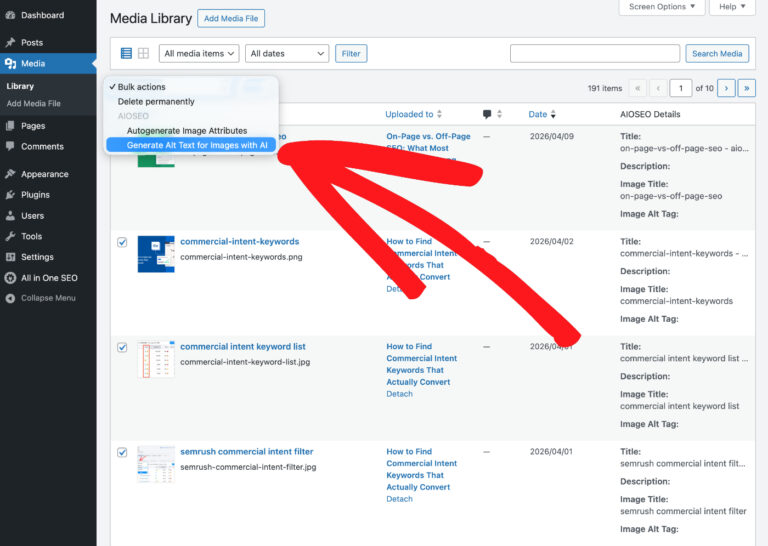
- AI alt text: Go to Media » Library, select your new featured image, and choose Generate Alt Text for Images with AI from the Bulk actions dropdown. Click Apply. AIOSEO looks at what’s actually in the image and writes a description. Each alt text uses 10 AI credits.
For featured images, I prefer the AI option. A template gives every image similar alt text. The AI version describes the specific picture, which is better for screen readers and image search.
At scale, I wouldn’t do this 1 image at a time. You can easily sort the Media Library, select every featured image generated, and run the AI alt text action on all of them at once.
SEO-Friendly Filenames
On the Filename tab, you can strip punctuation, set casing, and remove filler words with the Words to Strip field. That keeps your filenames short, clean, and descriptive, which helps search engines understand your images.
Can You Bulk Generate Featured Images in WordPress?
Here’s the honest answer: not with AIOSEO. The AI Image Generator works 1 post at a time, from inside the editor.
For featured images, that’s not a bad thing. A quick review catches odd results before they go live.
Where you can work in bulk is optimization. If you’ve got a library full of older featured images with missing alt text, select them in Media » Library and run Generate Alt Text for Images with AI on all of them at once.
You can also use the Autogenerate image attributes bulk action to apply your caption and description formats.
Featured Images in WordPress: FAQs Answered
Yes, as long as your theme supports featured images. AIOSEO saves the image to your Media Library and sets it as a standard WordPress featured image, so your theme displays it the same way it would any other featured image.
Yes. Every image you generate or edit is saved straight to your WordPress Media Library, so you can reuse it in other posts later.
It depends on the quality you choose. Higher quality costs more credits. The exact cost shows on the Generate button before you confirm.
Yes, you can upload an existing photo and ask the AI to enhance, edit, or reimagine it. For an image already in your post, click Edit with AI in the block toolbar.
Yes, with AIOSEO, you can generate a featured image from a text prompt right in the WordPress editor, choose the model and style, and set it as your featured image in 1 click.
Start Creating Featured Images in WordPress With AI
Creating featured images in WordPress with AI takes a few minutes once you know the workflow. Generate the image in your editor, pick the right model, and let Image SEO make sure search engines understand it.
Want to use AI for the rest of your post images too? Check out our full guide on how to create images with AI in WordPress.
Ready to skip the stock photo hunt for good? Get AIOSEO today and generate your first featured image in minutes.
Disclosure: Our content is reader-supported. This means if you click on some of our links, then we may earn a commission. We only recommend products that we believe will add value to our readers.
Want to Try AIOSEO for Free?
Enter the URL of your WordPress website to install AIOSEO Lite.