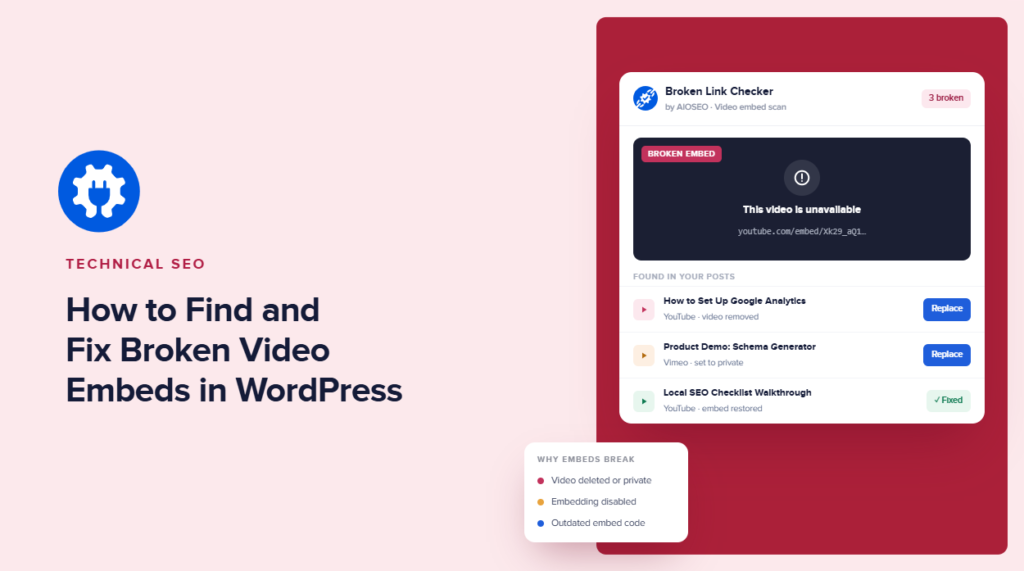

Have you found broken video embeds on your site, like a black box or an empty space where your YouTube video used to be?
If you embed a lot of YouTube or Vimeo videos, some of your posts probably have dead embeds right now. And your broken link checker hasn’t said a word.
So, in this guide, I’ll show you why, how to catch every dead video, and what to do with each one. You’ll learn how to find and fix broken video embeds in WordPress, step by step.
Let’s start!
In This Article
- Why Broken Video Embeds Are Harder to Catch Than Broken Links
- What a Broken Video Embed Actually Costs You
- How to Find Broken Video Embeds in WordPress
- How to Fix Broken Video Embeds in WordPress
- How to Prevent Broken Video Embeds Going Forward
- Broken Video Embeds in WordPress: FAQs Answered
- Final Thoughts
Why Broken Video Embeds Are Harder to Catch Than Broken Links
A regular broken link is easy to spot. The page is gone, the server sends back a 404 error, and your link checker flags it. However, broken video embeds don’t necessarily follow that pattern, making them harder to catch.
When a creator deletes a YouTube video, YouTube doesn’t return a 404. The video URL still loads a page, and the server responds with a 200 OK status. That page just tells your reader the video is unavailable.
A standard link checker reads that 200 status and marks the link as healthy. So your report says everything is fine, while your readers stare at an error screen.
Vimeo and most other video hosts work the same way. The problem is invisible by design.
Other Causes of Broken Video Embeds
Deleted videos are the most common cause of broken video embeds, but embeds also break in these quiet ways:
- The video went private: A brand hides its old demos, but the embed still looks fine in your editor.
- The video was removed for a copyright claim: Recipe and music videos get hit by this a lot.
- Embedding was restricted: The owner turned off embedding or limited it to their own domains.
- The account was suspended or deleted: 1 creator can break dozens of your posts at once.
- The embed code uses HTTP on an HTTPS site: Browsers can block old embed code as mixed content.
The last one is a code problem on your site, so I’ll show you how to run a manual check below.
What a Broken Video Embed Actually Costs You
Broken video embeds don’t throw an error in your dashboard, so they’re easy to ignore. But they can impact your website, especially the UX, a lot.
Readers who came to watch a tutorial don’t wait around when they hit a black box. Their most likely next action is to go back to Google. A dead player also makes the whole post look abandoned, and if it collapses or loads at the wrong size, it leaves a gap that shifts your layout.
Let’s be honest here. Google hasn’t said that broken video embeds trigger a ranking penalty on their own. But it causes a few problems that add up:
- Your page stops delivering what it promised: If the post says “watch the walkthrough” and there’s nothing to watch, it’s less helpful.
- Engagement drops: Without the video, more people leave quickly.
- Your video markup points to nothing: If you added video schema or list the video in a video sitemap, you’re now describing a video Google can’t watch. That makes the page a weak candidate for video rich results.
How to Find Broken Video Embeds in WordPress
Here’s how to automatically find broken video embeds, plus a manual backup method.
Step 1: Install and Set Up Broken Link Checker by AIOSEO
I’m using Broken Link Checker by AIOSEO for this tutorial, and it does something most link checkers don’t. When it finds a link to a supported video platform, it runs a separate platform-level check to confirm the video itself still exists. It supports YouTube and Vimeo, plus 10+ other platforms like TikTok, Dailymotion, and VideoPress.
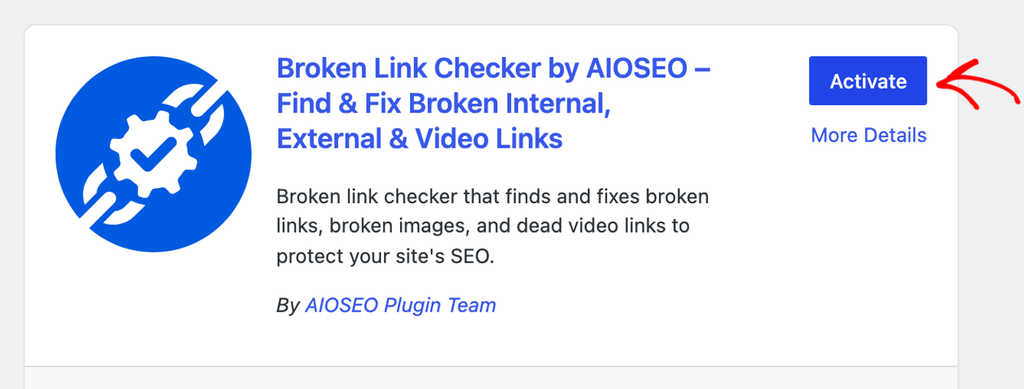
To install it, go to Plugins » Add Plugin in your WordPress dashboard. Search for “Broken Link Checker” and find Broken Link Checker by AIOSEO. Click Install Now, then click Activate.
The Setup Wizard opens next. Click Let’s Get Started. Then click Create a Free Account if you’re new, or Connect Account if you already have an account on aioseo.com.
Next, choose where BLC looks for links and how often it rechecks them. The defaults work for most sites, so click Save & Continue.
Video detection is included on all paid Broken Link Checker plans. The free plan checks up to 250 regular links a month, but it won’t run the video check.
Step 2: Update to Version 1.3.0 or Later and Run a Scan
Good news: there’s no video setting to turn on. Video checks run automatically on paid plans as part of your normal scan.
If you already use BLC, go to Plugins » Installed Plugins and make sure you’re on version 1.3.0 or later. Your next scheduled scan will include video links.
Don’t want to wait? You can start a manual scan from the BLC dashboard to get results right away. If you embed a lot of video, do this as soon as you update.
Step 3: Review the Results in Your Broken Links Report
Once the scan finishes, go to Broken Links » Dashboard and click the Broken Links Report tab.
Click the Broken filter at the top. Then open the All Types dropdown, choose Videos, and click Filter. Now you’re only looking at broken video embeds and links.
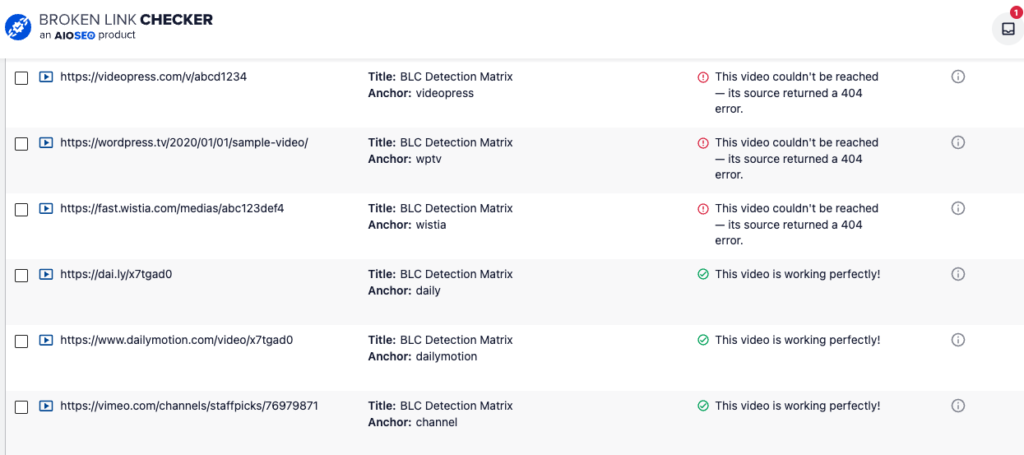
Here’s what each column tells you:
- URL: The video address. A small icon marks video links.
- Found in: The post or page where the embed lives.
- Status: Why BLC marked it as broken.
- Broken for: How long it’s been dead. Videos broken for months cost you the most.
If you have a big archive, the Dashboard tab helps you prioritize. The Fix these first card groups problems you can clear with 1 action, like several dead links on the same page. You can also click CSV in the report to export your broken videos into a spreadsheet for a bigger content cleanup.
Manual Backup Method: Checking Embeds One by One
To check by hand, or to catch HTTPS issues, follow these steps:
- Go to Posts » All Posts and type “youtube.com” in the search box. WordPress searches post content, so this lists every post with a YouTube link. Repeat for “vimeo.com” and “youtu.be”.
- Open each post in a private browser window and look for a “Video unavailable” message or an empty player.
- Right-click the page and choose Inspect. Then open the Console tab. A “Mixed Content” warning means the embed uses HTTP and needs to be updated to HTTPS.
While this method works, you’ll find it difficult to scale for multiple or batch videos.
That’s why I’d suggest using Broken Link Checker, which automatically flags broken video embeds, so you don’t need to manually check every post.
Video detection is included on every paid plan, starting with Starter at $4.99 a month for 1 site and 1,000 links. If you want to try BLC first, the free version checks up to 250 regular links, though it doesn’t include the video check.
How to Fix Broken Video Embeds in WordPress
You can fix broken video embeds in 4 ways.
Option 1: Re-Embed a Working Version of the Same Video
Creators often delete a video because they uploaded a newer version, so check their channel first.
In the Broken Links Report, hover over the dead video and click Edit URL. Paste the new address in the Replace with field and click Update link.
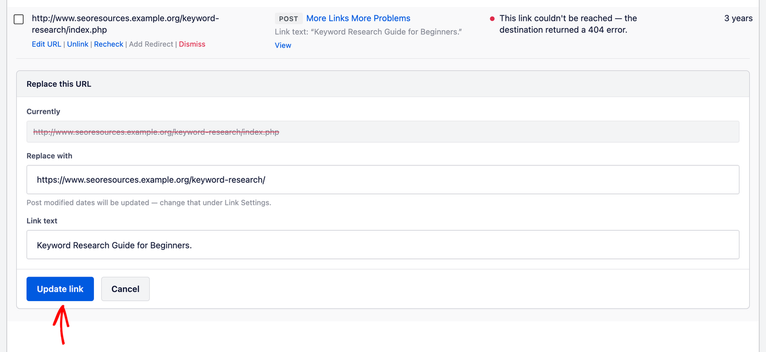
BLC replaces the old address everywhere it appears on your site.
Pro tip: WordPress caches the HTML for embedded videos. If the old player still shows up after you swap the URL, open the post and click Update to refresh it. Then hover over the link in the report and click Recheck to confirm it’s fixed.
Option 2: Replace With a Different Video on the Same Topic
If the original is gone for good, find another video on the same topic. You can pick active channels that post regularly, since they’re less likely to vanish.
Swap it in with the same Edit URL steps, then reread the text around it. If you wrote “at the 3-minute mark,” make sure that still matches.
Option 3: Remove the Embed and Rewrite the Section
When there’s no good replacement, click the post title in the Found in column to open it. Select the embed block and delete it. Then fill the gap with written steps, screenshots, or a short summary of what the video showed.
Option 4: Set Up a Redirect When the Video Was the Main Value
Some posts are basically a wrapper around 1 video. Think “Watch our 2022 webinar” with 2 paragraphs of text. If the video is gone, the page has no reason to exist.
Here, a 301 redirect to your best related post is the cleanest fix.
If you use AIOSEO, the Redirection Manager makes this easy.
Go to All in One SEO » Redirects, enter the old post URL as the Source URL, add the related post as the Target URL, choose 301 Moved Permanently, and click Add Redirect.
Then move the old post to the trash.
How to Prevent Broken Video Embeds Going Forward
Fixing your backlog is half the job. The other half is hearing about the next dead video before your readers do.
Schedule Recurring BLC Scans and Email Reports
Go to Broken Links » Dashboard and click the Settings tab. Under General Settings, set Scan Frequency to Weekly. Monthly is lighter on your site, but it takes longer to notice a new break.
Next, make sure Email Reports is turned on and your email address is added. BLC will email you within about a week of finding a broken link, and it will also send a monthly summary.
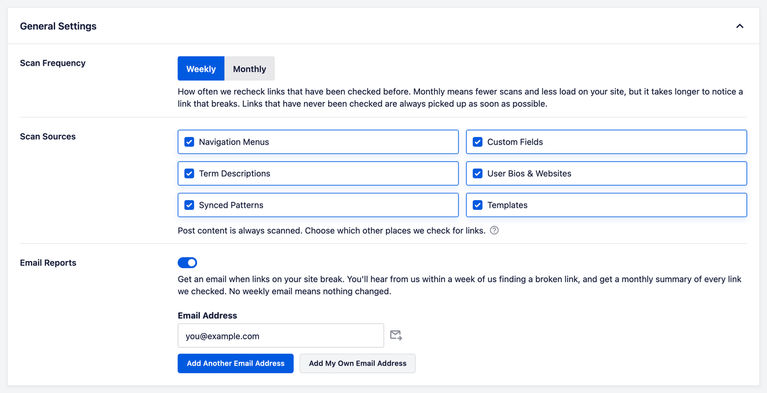
Click Save Changes when you’re done.
Use Your Video Sitemap to Cross-Reference Live Video URLs
If you’re on AIOSEO Pro, the Video Sitemap gives you a full list of every video you’ve told Google about. You’ll find it under All in One SEO » Sitemaps on the Video Sitemap tab.
A video sitemap doesn’t detect broken embeds. Think of it as your video inventory. Once a quarter, compare it with BLC’s Videos filter. Any video in my sitemap that BLC flags as broken goes to the top of my list, since you’re telling Google about a video that no longer exists.
Want to compare options? See our roundup of the best video sitemap generators.
Self-Host Critical Videos Instead of Relying on Third-Party Platforms
Embedding someone else’s video means trusting them to keep it online.
For videos a post can’t live without, upload them to an account you control, like your own YouTube channel or a paid Vimeo account. Hosting large video files on your WordPress server usually slows your site down, so I’d avoid that.
Save third-party embeds for nice-to-have extras.
Broken Video Embeds in WordPress: FAQs Answered
Find the dead video with a tool like Broken Link Checker by AIOSEO. Then re-embed a working version, replace it with a similar video, or delete the embed and rewrite that section. If the video was the main point of the page, redirect the post.
Usually, the video was deleted, set to private, or removed for a copyright claim. The owner may also have turned off embedding, or your browser may be blocking older HTTP embed code.
Not through a direct penalty, but they still cause harm. Readers leave faster, the page becomes less helpful, and any video schema or video sitemap entry points to a video that no longer exists. That makes the page a weaker candidate for video rich results.
The embed failed to load. The video may be gone, embedding may be restricted, or your browser blocked an HTTP embed on an HTTPS page. Check your browser console for mixed content warnings, then open the video URL directly.
Final Thoughts
Broken video embeds hide behind a healthy 200 status. Now you know how to find and fix broken video embeds in WordPress, and how to catch new ones early.
But remember video embeds are only part of the picture. For text links, images, and menus, check our guide on how to find and fix broken links in WordPress.
Ready to see how many of your videos have gone dark? Get Broken Link Checker and run your first video scan today.
Disclosure: Our content is reader-supported. This means if you click on some of our links, then we may earn a commission. We only recommend products that we believe will add value to our readers.
Want to Try AIOSEO for Free?
Enter the URL of your WordPress website to install AIOSEO Lite.