Most AI tools can tell you what to fix. AIOSEO MCP lets your AI actually fix your SEO, directly in WordPress.
Starting with AIOSEO 4.9.8, you can connect Claude, Cursor, VS Code, or Gemini directly to your WordPress site and give it real SEO tasks, the same way you'd give them to a team member.
- “Find every post missing a focus keyword.”
- “Sort my content by TruSEO score.”
- “Create a redirect from /old to /new.”
Your AI reads your site, takes action, and reports back. All from chat.
That's AIOSEO MCP. And it’s free for every plan, including Lite.
In This Article
How the AIOSEO MCP Works
AIOSEO MCP is built on 2 new features in 4.9.8: WordPress Abilities and MCP support.
WordPress Abilities are a new WordPress feature that gives plugins a way to register specific actions with AI agents and external systems. With this release, we're registering 28 SEO abilities with the WordPress Abilities API — things like reading and updating post metadata, creating redirects, checking TruSEO scores, and pulling search performance data. These actions are available to 3 types of tools:
- MCP (for AI clients)
- REST API (now free for all AIOSEO users)
- WP-CLI (for developers who prefer the command line)
MCP stands for Model Context Protocol. It's an open standard that lets AI tools connect to external platforms and take actions on them directly. You can think of it like the bridge between your AI client and your WordPress site.
Once connected, your AI can call any of AIOSEO's abilities straight from chat. We support 6 AI clients out of the box:
- Claude Desktop
- Claude Code CLI
- Cursor
- VS Code
- Gemini CLI
In summary: Abilities define what AIOSEO can do. MCP is how your AI runs them.
What Can Your AI Agent Do in WordPress?
Once connected, here are a few examples of what you can ask your AI to do:
- Find every post missing a focus keyphrase and populate them automatically.
- Sort your content by TruSEO score to prioritize which posts need attention first.
- Create a redirect from /old to /new without opening WordPress.
- Update SEO titles in bulk across a category or section.
- Summarize your Search Console performance for any time period in plain language.
- Create new posts and set the SEO title, focus keyword, and schema in a single prompt.
And that's just the start. As the Abilities standard matures, we'll keep expanding what's possible.
How to Connect Your AI Agent to the MCP
The setup lives in AIOSEO's AI Suite under the new MCP tab. You'll need WordPress 6.9 or higher, but I recommend updating to WordPress 7.0. This ensures you’ll get the full experience across all 28 abilities.
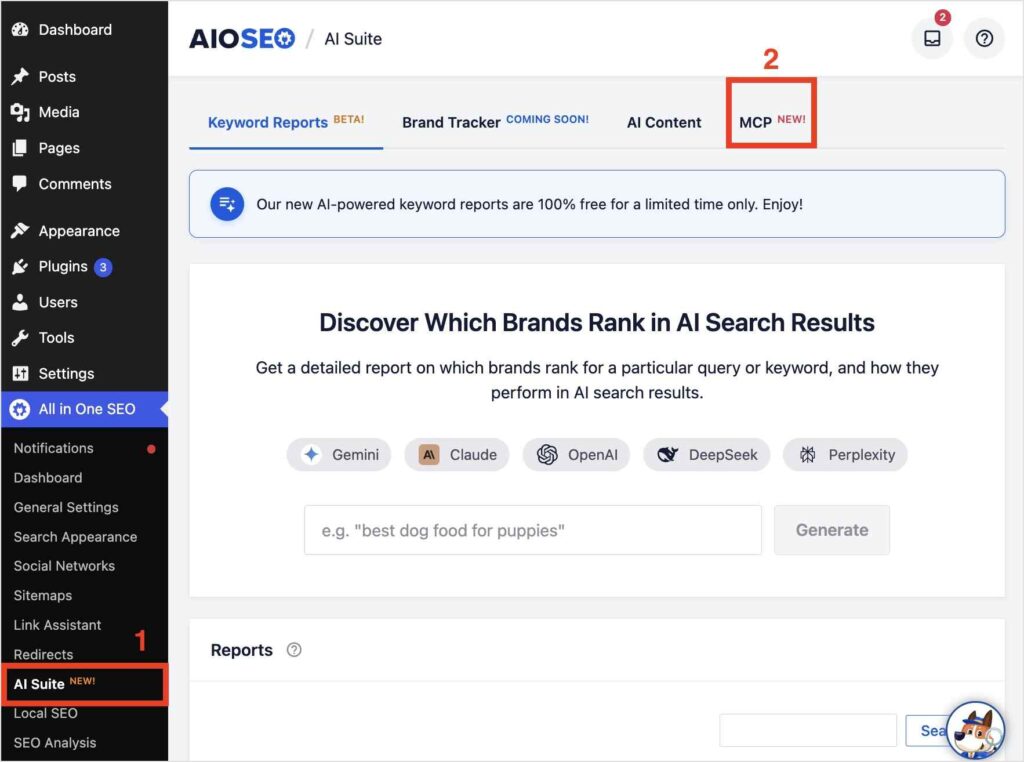
Once you're on a compatible version, Step 1 completes automatically. The other 3 steps take about 2 minutes.
Step 1: Register AIOSEO Abilities
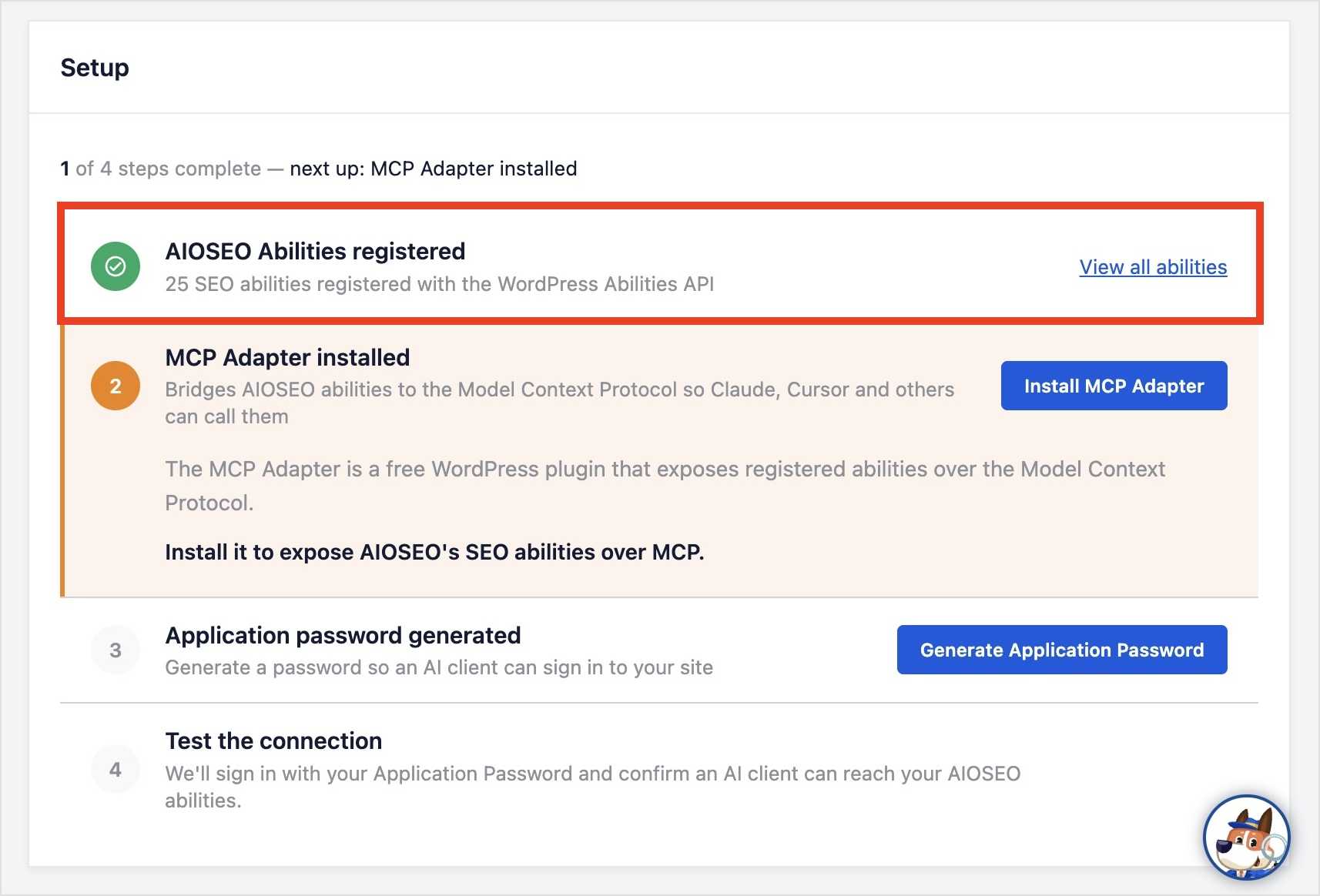
When you open the MCP tab on WordPress 6.9 or higher, AIOSEO automatically registers 28 SEO abilities with the WordPress Abilities API.
You'll see “AIOSEO Abilities registered” with a green checkmark. Click View all abilities to see the full list.
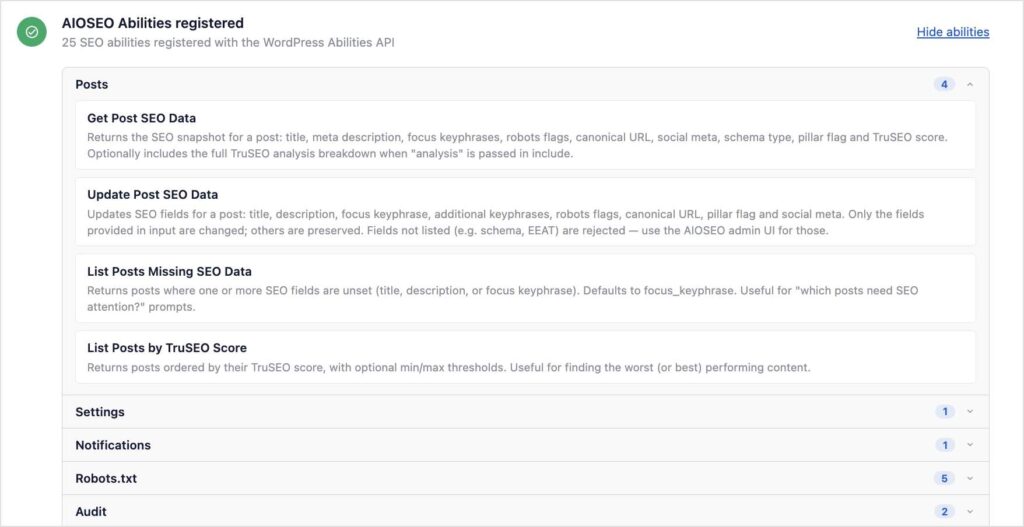
Here, you can browse the entire library of AIOSEO abilities. I'd recommend exploring the different sections to see what abilities are available and how they work.
Step 2: Install the MCP Adapter
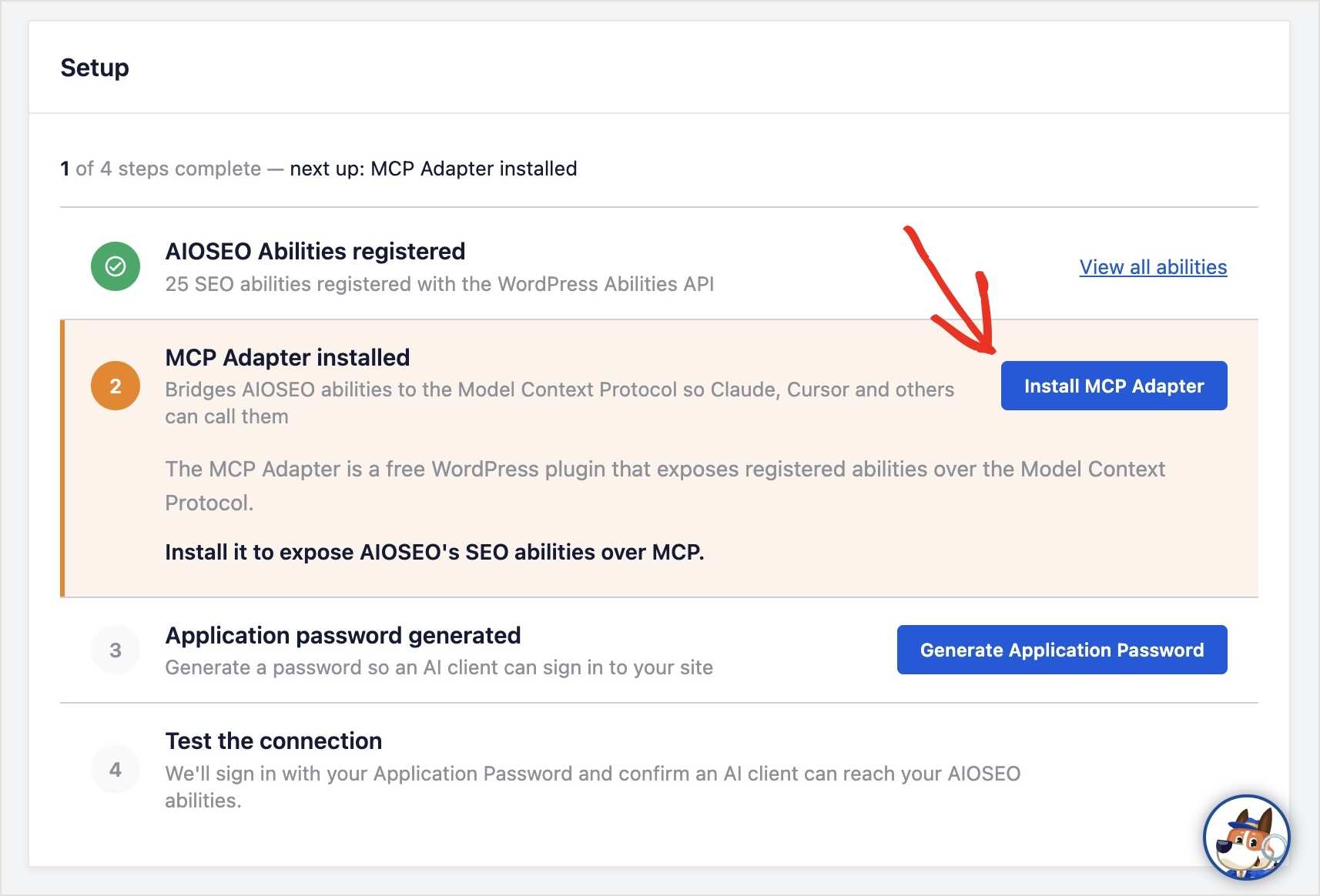
The MCP Adapter is a free WordPress plugin that exposes AIOSEO's registered abilities over the Model Context Protocol. (In other words, it shares what your AI tool can do in AIOSEO directly on your WordPress site.)
Click Install MCP Adapter and AIOSEO handles everything automatically. There's nothing to configure manually.
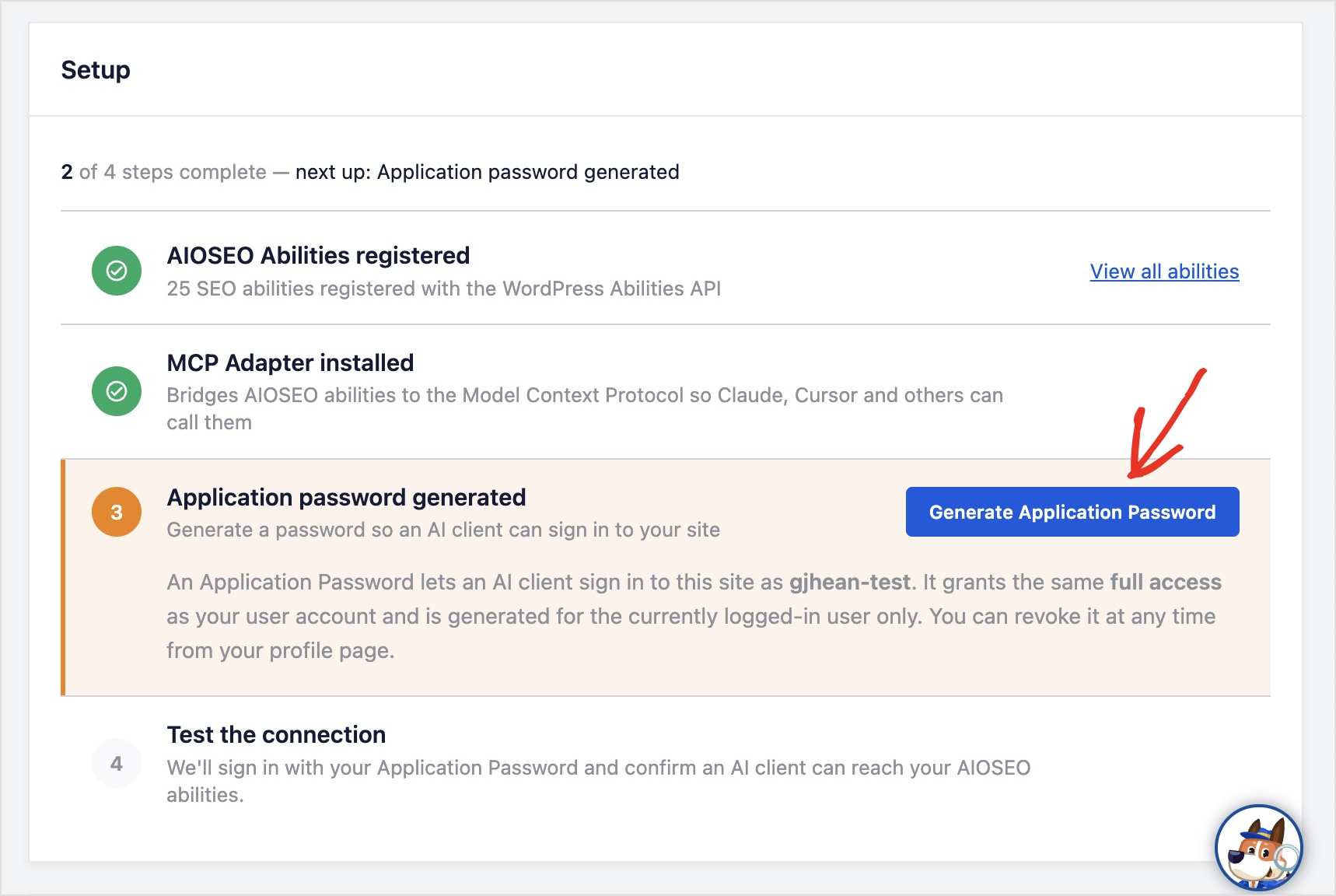
Step 3: Generate an Application Password
An Application Password lets your AI client sign in to your site securely. It's not your regular WordPress password. It's a separate credential tied to your user account, and you can revoke it from your profile page at any time.
Click Generate Application Password. AIOSEO creates the password and pre-fills it into the configuration snippets below.
This is what it looks like after generating:
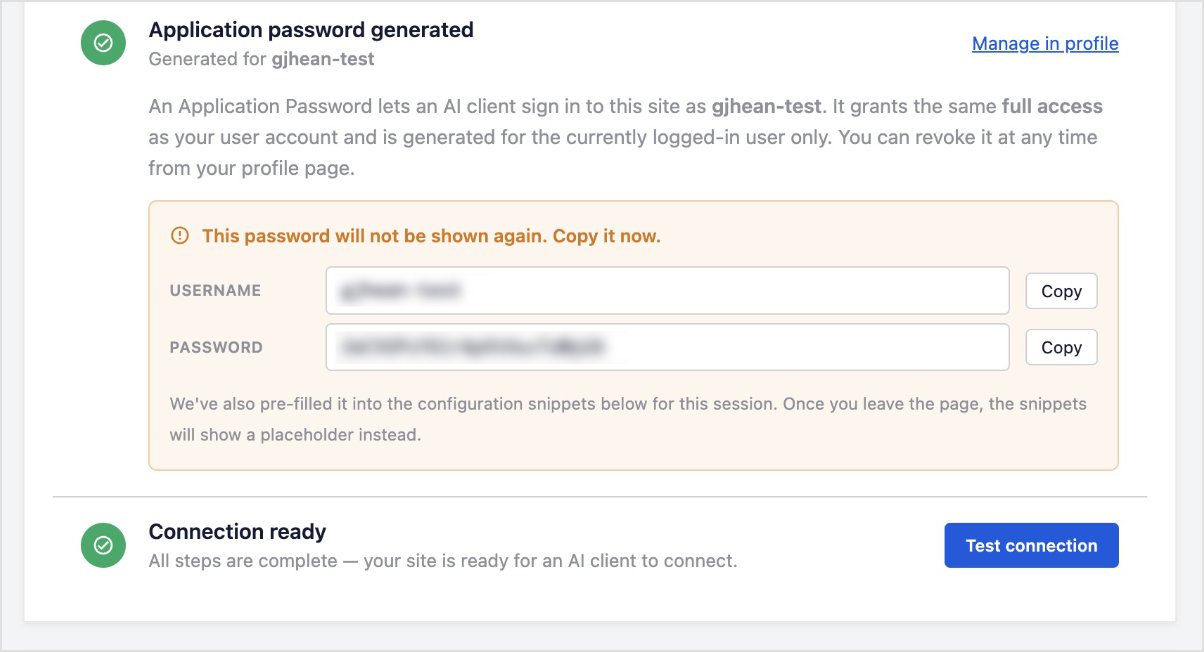
AIOSEO autopopulates this into the connection snippet in a later step, but if you're planning to set up your AI client later, copy the password now. WordPress hides it once the session ends.
Forgot to copy your application password? No problem. You can always generate a new one in your WordPress admin and revoke previous iterations.
Step 4: Test the Connection
Click Test Connection. AIOSEO authenticates with your application password and checks that your site can reach all 28 registered abilities.

You'll see “Connection successful” with a confirmation that the connection is ready.
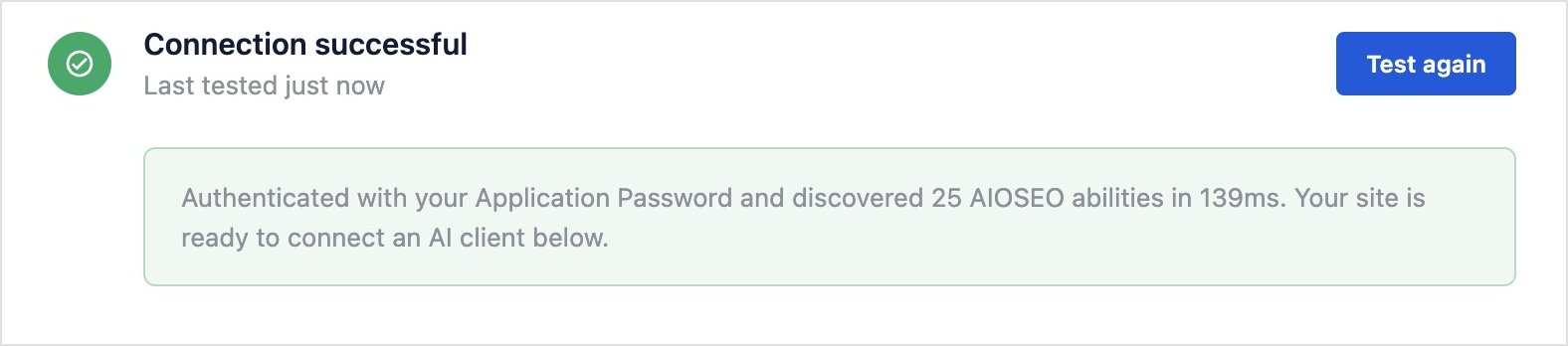
Did you get an error message? Contact our support team, and we'll sort it out for you.
That's the full setup. Now for the fun part!
Here's what a real workflow looks like, from copying the snippet to running your first live SEO fix. I'm using Claude Code CLI below, but the steps are similar for any supported client.
Connecting Claude Code CLI: A Full Walkthrough
Once the 4 steps above are done, here's how to connect Claude Code CLI to your site. The process is similar for other supported AI clients. Just select the right tab in the Connect to AI Client section.
Step 1: Copy the Command Snippet
Scroll down to the “Connect to AI Client” section in the MCP tab. Select the Claude Code CLI tab. You'll see a terminal command with your site URL and application password already filled in, assuming you’re in the same session when you generated it. (If not, you can always swap in the new password.).
Click Copy Snippet.
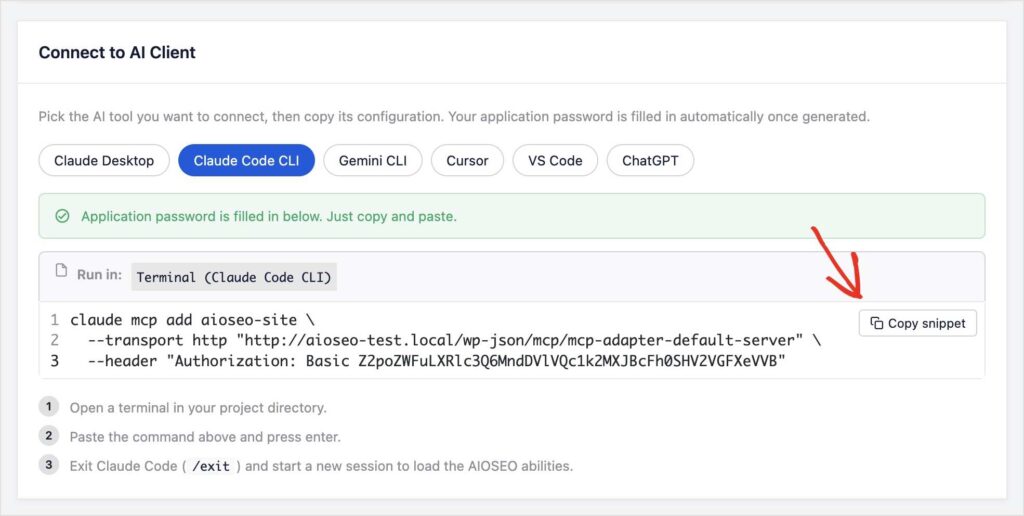
Step 2: Run It in Your Terminal
Open a terminal in your project directory. Paste the command and press Enter.
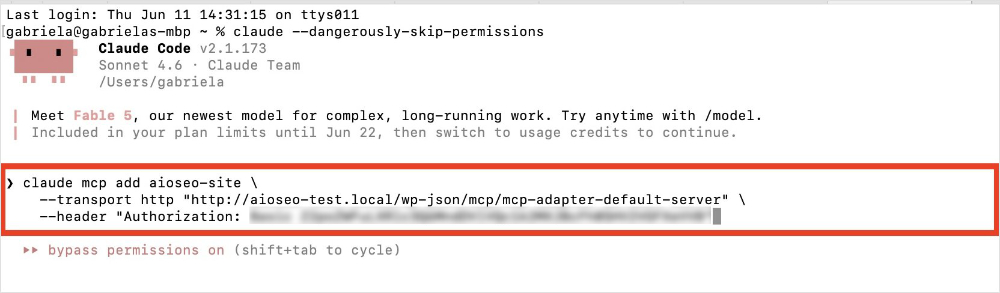
Claude Code will confirm the MCP server was added to your local config.
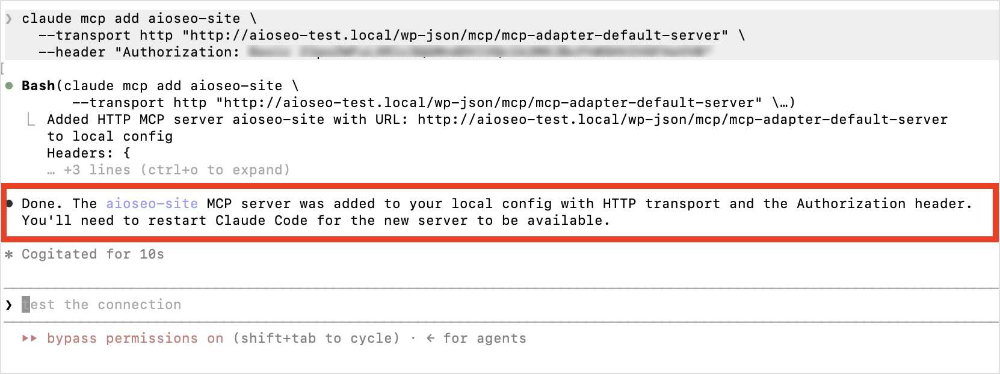
Step 3: Start a New Session
Type /exit and start a new Claude Code session. AIOSEO's abilities load automatically when the new session starts.
Pro Tip: Ask Claude to list out the AIOSEO abilities for you. This is a great way to preview all the tasks you can do with your AI tool in WordPress. You can also ask it to describe each one to help you get familiar with the different abilities.
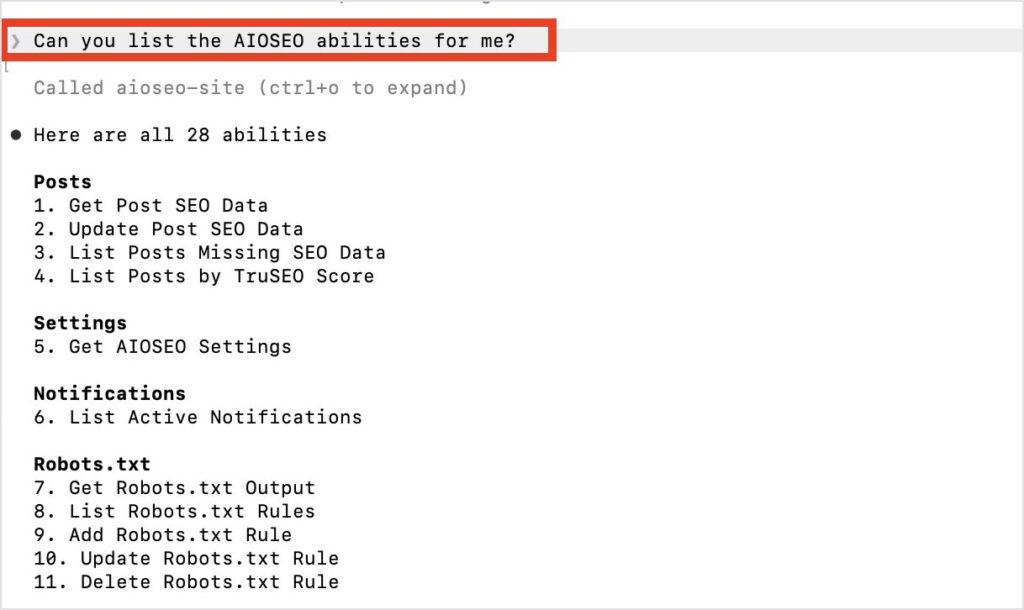
Step 4: Type a Command
You're connected. Now, you can start asking Claude to do things for your WordPress SEO.
Let's look at an example. I'm going to ask Claude to scan my site for posts with no meta descriptions.
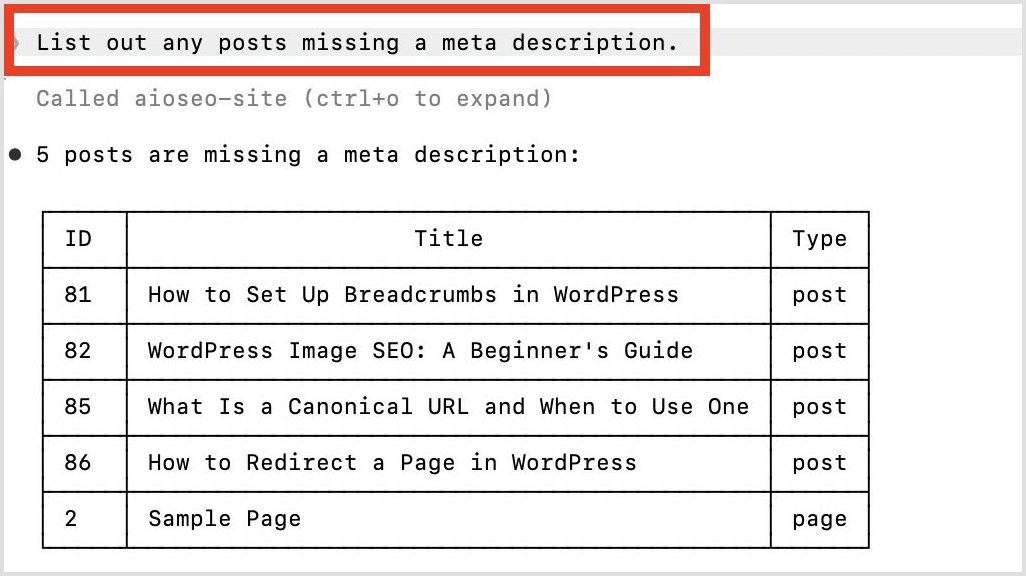
It returned 5 posts. Now, here's where the AIOSEO MCP gets really powerful.
Instead of going into these posts one by one and adding meta descriptions yourself, you can tell Claude to do it for you.
Here's my prompt: “Add meta descriptions to each of these posts.”
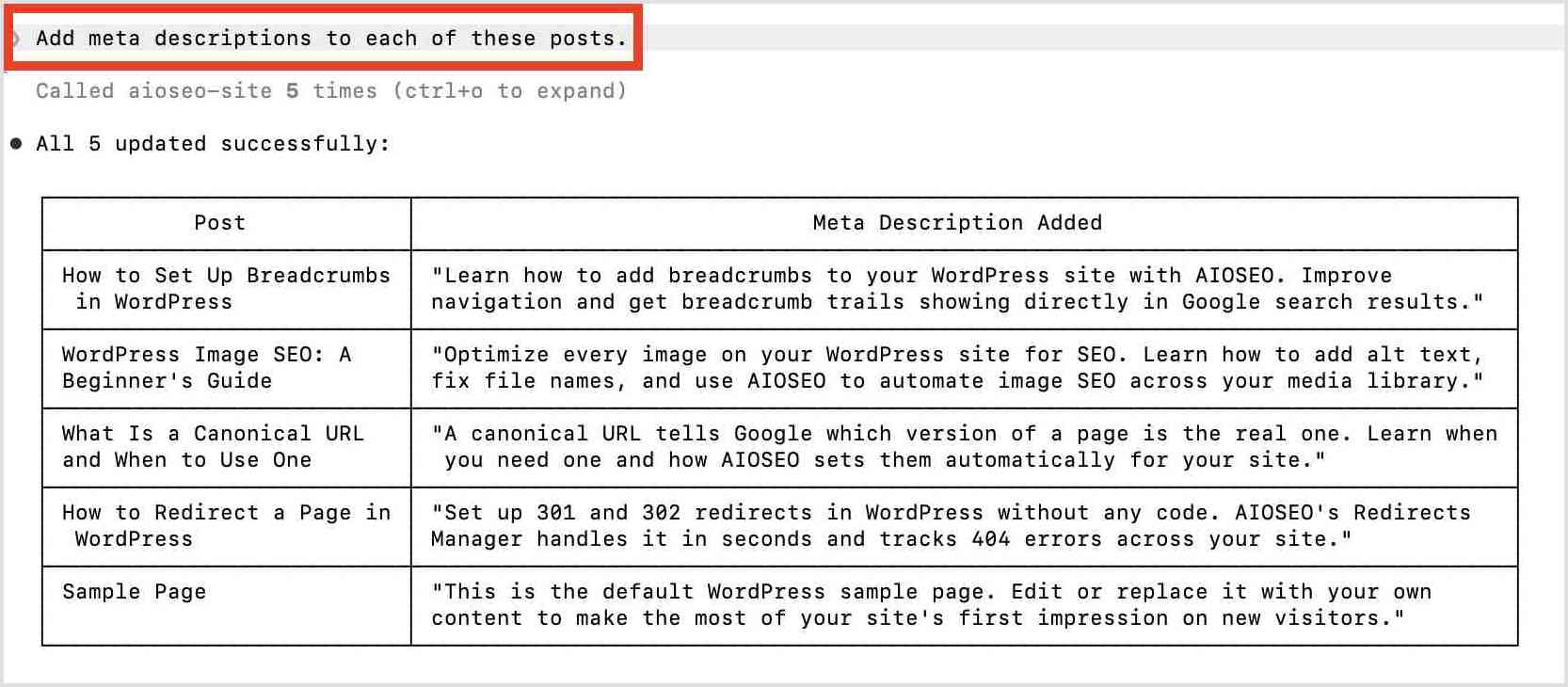
The meta descriptions are updated in real time. You can verify them directly in the WordPress post editor.
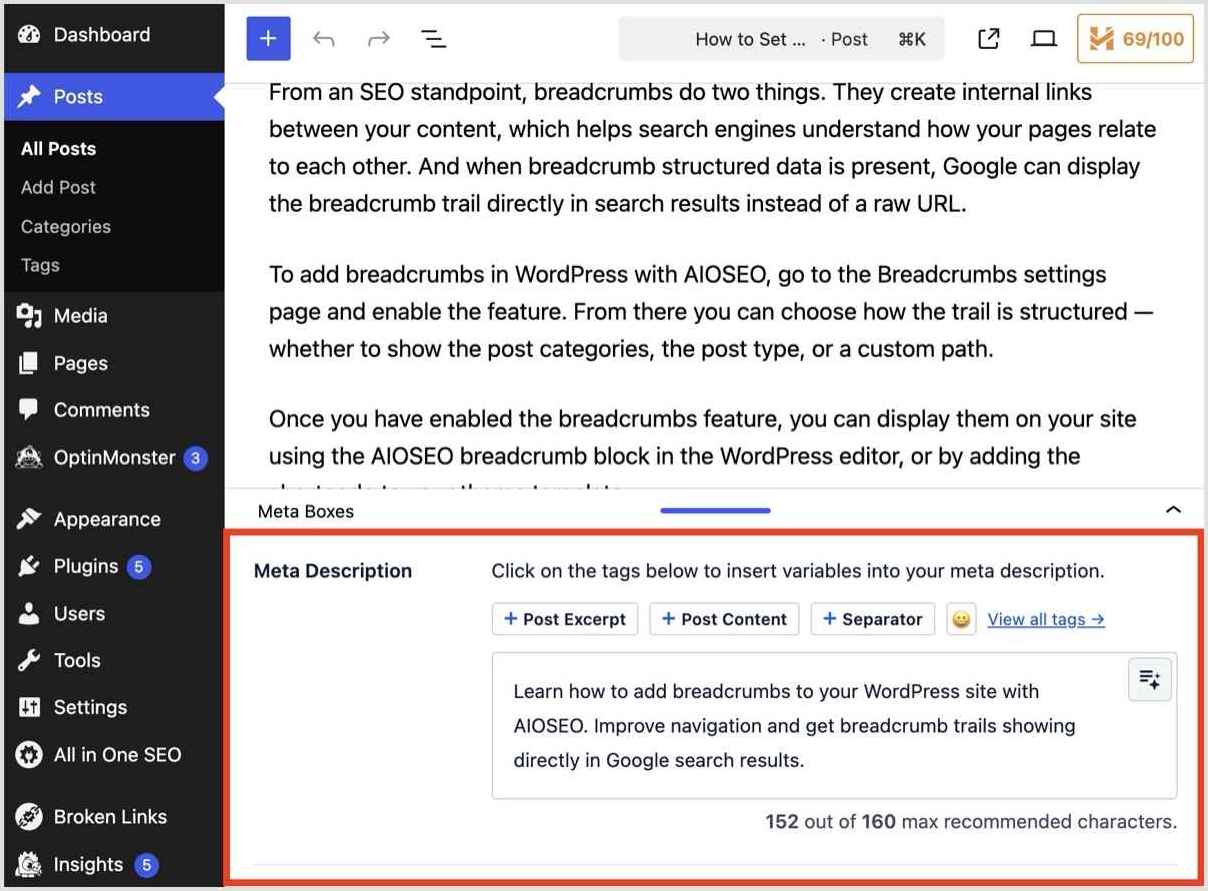
Pretty cool, right?
Now all the posts it identified have optimized meta descriptions in WordPress.
I've got to say that this is one of the most exciting updates we've made to the plugin yet. AI is already part of how most of us work every day. This just brings that same workflow into your WordPress SEO.
Getting Started: Try These Prompts
The best way to see what's possible with the new AIOSEO MCP is to just start asking your AI system. Here are some prompts worth trying right away, along with what each one actually does:
| Try This Prompt | What You Get |
|---|---|
| “List all posts missing a focus keyword.” | A prioritized list of content gaps, so you know exactly which posts need SEO attention before rankings slip. |
| “List all posts with a TruSEO score below 50 and sort them by score.” | Your weakest content ranked from worst to best, so you can focus optimization time where it'll have the most impact. |
| “Update the SEO title for [post name] to include the keyword [keyword].” | A fast way to fix SEO titles without opening individual posts one by one. |
| “Show me all 404 errors logged in the last 30 days.” | A list of broken URLs with hit counts, so you can set up redirects for the ones getting the most traffic first. |
| “Create a 301 redirect from /old-page to /new-page.” | A new redirect rule, set up instantly, without touching .htaccess or the WordPress redirects screen. |
| “Run a full site SEO audit.” | A site-wide health snapshot: score, issue count by severity, sitemap status, and GSC connection. |
| “Check my robots.txt settings and flag anything unusual.” | A quick check for misconfigurations that could accidentally block search engines from key pages. |
| “List my orphaned posts.” | All posts with zero inbound links — content search engines may never discover without a direct URL. |
| “Show me posts with inbound linking opportunities.” | Pages where a few strategic internal links could pass authority and improve discoverability across the site. |
Pro TIp: You can also chain prompts. Ask Claude to list posts missing a focus keyword, then tell it to populate them in the WordPress editor. It'll work through the list and confirm each update.
Free for All Plans, Including Lite
MCP and the WordPress Abilities API are free on every AIOSEO plan, Lite included. No upgrade needed. Update to 4.9.8, connect your AI client, and you're in.
4.9.8 also includes two other updates worth exploring:
- REST API access is now free for all plans. Every ability available over MCP is also accessible directly via the REST API, which opens the door to custom integrations and automations outside of an AI client.
- New AI image generation models. 4.9.8 adds support for new image generation models in AIOSEO's AI Image Generator: Nano Banana 2 and GPT Image 2. This gives you more creative freedom to create images that are unique to your site and brand.
Recap: What makes this release different is that your AI isn't just reading your site anymore. It's actively working on it. That's a meaningful shift in what's possible for WordPress SEO, and 4.9.8 is where it starts. Update and see what yours can do.
— Ben Rojas, President of AIOSEO
Frequently Asked Questions
What is MCP and how does it work with WordPress?
MCP (Model Context Protocol) is an open standard that lets AI tools connect to external platforms and take actions on them directly. AIOSEO uses MCP to expose SEO abilities — things like reading post metadata, creating redirects, and running audits — to compatible AI clients like Claude, Cursor, and Gemini. Once connected, your AI can perform those actions directly on your WordPress site from chat.
Which AI clients work with AIOSEO MCP?
AIOSEO MCP supports 5 AI clients out of the box: Claude Desktop, Claude Code CLI, Cursor, VS Code, and Gemini CLI, . We may expand support in the future to include other AI clients.
Also, if you use ChatGPT, connect with one of the above clients instead since ChatGPT uses a different sign-on method.
Do I need a paid AIOSEO plan to use MCP?
No. MCP and the WordPress Abilities API are free on every AIOSEO plan, including the free Lite version. No upgrade required.
What version of WordPress do I need?
You need WordPress 6.9 or higher. (WordPress 7.0 is the recommended version.) Step 1 of the setup — registering AIOSEO's abilities with the WordPress Abilities API — completes automatically on 6.9+. If you're on an older version, the MCP tab will be visible but the connection won't activate until you update.
What can my AI access on my site? Is it safe?
Your AI can only access and modify the specific SEO fields covered by AIOSEO's registered abilities — things like post titles, meta descriptions, focus keyphrases, redirects, and robots.txt rules. It can't access passwords, payment data, user accounts, or anything outside AIOSEO's scope.
The connection uses a WordPress Application Password, which is a separate revocable credential, not your regular admin password. You can disconnect at any time from your WordPress profile page.