The concept of schema markup is simple. The execution of it is not.
But you know it matters. You’ve seen the star ratings, cooking times, and FAQs that dominate the search results when a site has it. Unfortunately, getting there means figuring out which schema type fits your content, writing valid JSON-LD, and hoping you formatted it correctly. It’s enough to make most people skip it entirely.
👉 That’s why we decided to fix it in AIOSEO 4.9.6.
The new AI Schema Generator takes care of the hard parts: figuring out what schema you need, writing the code, and even validating it with Google’s Rich Results tool. A few clicks, and you’re done.
We’ve also added a bulk AI tool for generating SEO titles, meta descriptions, and image alt text at scale (available to Lite users, too!), plus a small but genuinely useful improvement to redirects. Chem them out below.
What’s New in 4.9.6
[NEW] AI Schema Generator: Add Structured Data to Any Page Without Writing Code
Let’s start with a quick explanation of what schema markup actually does, because it’s worth understanding before you start generating it.
When you add schema to a page, you’re giving search engines a structured way to understand your content. Not just “this is a blog post about recipes” — but “this is a recipe, the author is X, the prep time is 20 minutes, the rating is 4.7 stars, and the first step is Y.”
That level of detail is what earns featured snippets and rich results, like the one below.
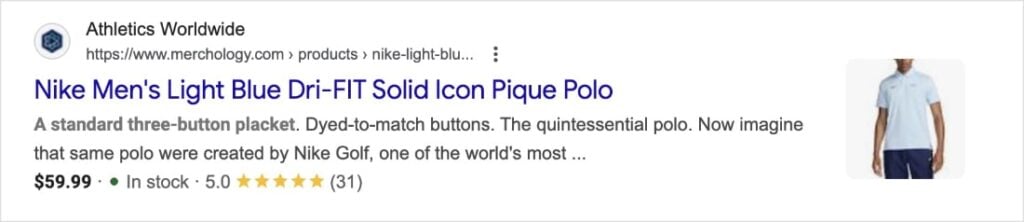
Rich results are search listings with stars, images, cooking times, FAQ dropdowns, and step-by-step instructions that take up way more real estate in search results than a standard blue link.
The problem has always been that generating valid schema markup required either technical knowledge or a lot of copying and pasting. AIOSEO has long offered our Schema Catalog, but 4.9.6 takes it further by letting AI do the heavy lifting.
Smart Schema: The AI Figures Out What You Need
If you’re not sure which schema type fits your page, Smart Schema is where to start.
Open the Schema tab on your post or page, click Generate Schema, and choose Smart Schema. AIOSEO’s AI reads your content (the title, body copy, the context of what you’ve written) and recommends the most appropriate schema types for it.
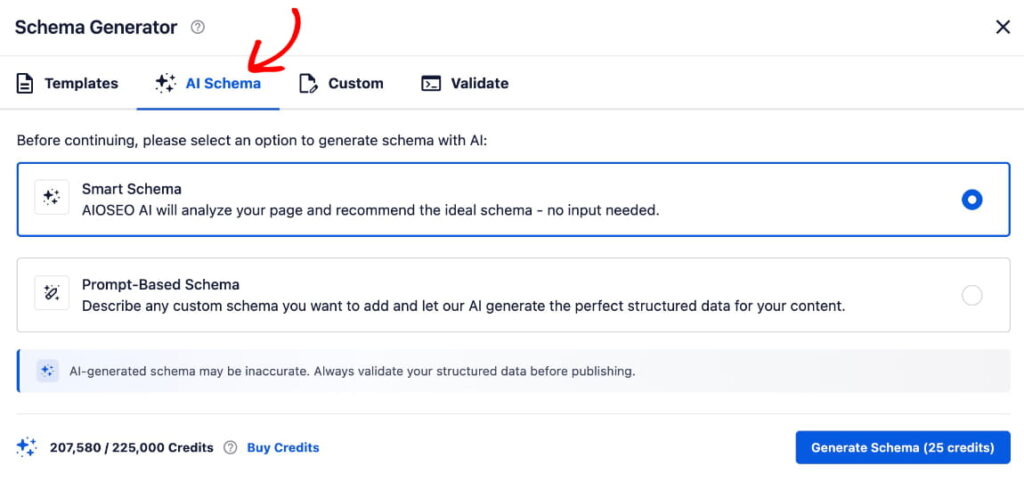
A recipe post gets Recipe schema (helpful for those recipe rich snippets that are so popular in food search). A product page gets Product schema. A how-to guide gets HowTo. The AI makes the call based on what you’ve already written.
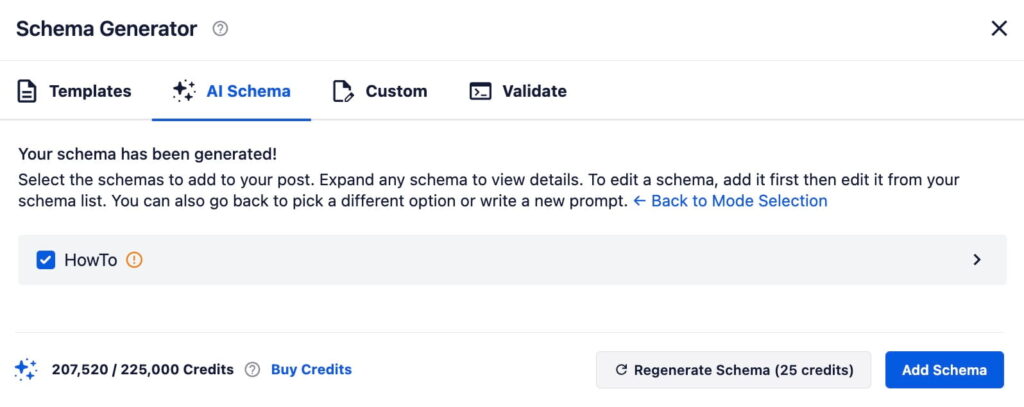
You see the recommendations with expandable previews of the actual markup. All you have to do is pick the schemas you want, and click Add Schema.
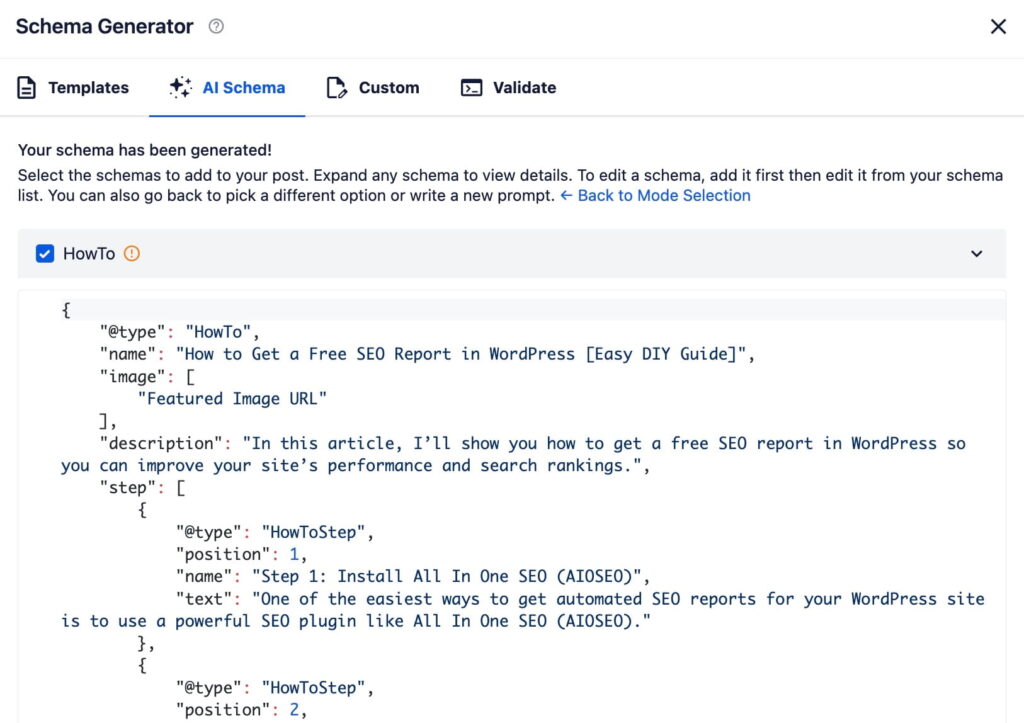
There’s also a “Test with Google” button that opens your page in the Rich Results tool so you can validate everything before it goes live.
Prompt-Based Schema: Tell It Exactly What You Want
If you already know what schema type you need, skip Smart Schema and go straight to Prompt-Based.
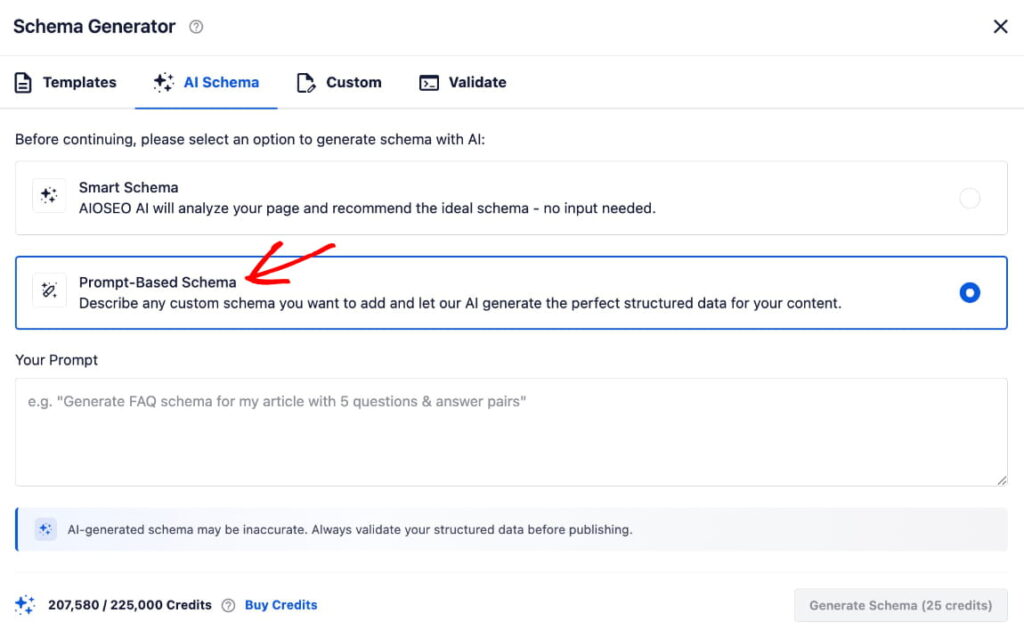
In this method, you type a description of what you want. Something like: “Create an FAQ schema with 5 questions about WordPress security” or “Generate LocalBusiness schema for a dental practice in Chicago.”
The AI builds the structured data based on your prompt, which is especially useful for specialized schema types or when Smart Schema’s recommendation doesn’t quite match what you had in mind.
How to Use the AI Schema Generator
- Open any post or page in the WordPress editor.
- Scroll to AIOSEO Settings and click the Schema tab.
- Click Generate Schema to open the modal.
- Go to the AI Schema tab.
- Choose Smart Schema (AI analyzes your content) or Prompt-Based Schema (you describe what you need).
- Click Generate, the button shows your credit cost before you commit.
- Review the suggested schemas, expand them to see the actual markup, and test with Google.
- Check the schemas you want and click Add Schema.
👉 If schema has been sitting on your to-do list because it felt too technical, this is the version that makes it accessible.
Availability: The AI Schema Generator is available to AIOSEO Pro users. Each generation costs approximately 25 AI credits, with the exact count shown on the Generate button before you confirm. Credits come with a Pro subscription or can be purchased as pay-as-you-go.
[NEW] AI Bulk Actions: Fill SEO Gaps Across Your Entire Site
This next one is exciting because it’s free for all users. Yep, even those on Lite.
With AI Bulk Actions, you can generate SEO titles, meta descriptions and image alt text in bulk — at once. No more digging through old content to optimize metadata post by post.
It’s faster, smarter, and totally free for any user who has AI credits. This means that even if you haven’t upgraded to Pro, you can still start using AI to work through your SEO backlog.
Bulk SEO Titles and Meta Descriptions
If you have a site with dozens or hundreds of posts and patchy metadata, this is the feature to use first.
Go to the All Posts screen for any post type, select the posts you want to update using the checkboxes, and open the Bulk Actions dropdown. You’ll see two new options:
- Generate SEO Titles with AI
- Generate Meta Descriptions with AI
Choose one, and click Apply.
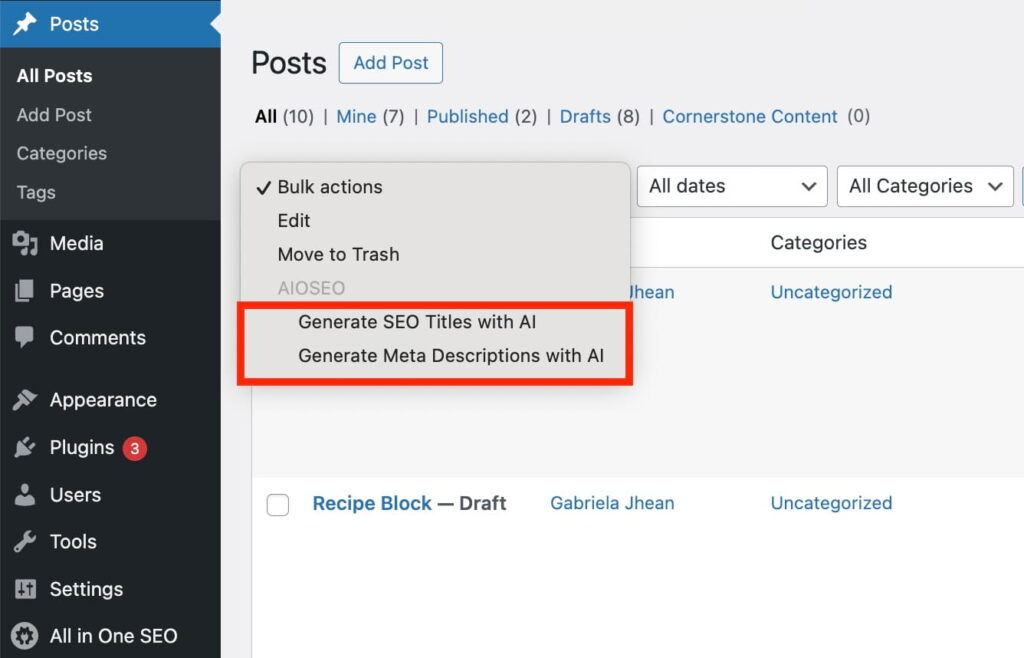
AIOSEO will generates metadata for every post you selected.
For SEO titles and meta descriptions, you get multiple suggestions per post, so you’re not stuck with one option you don’t love.
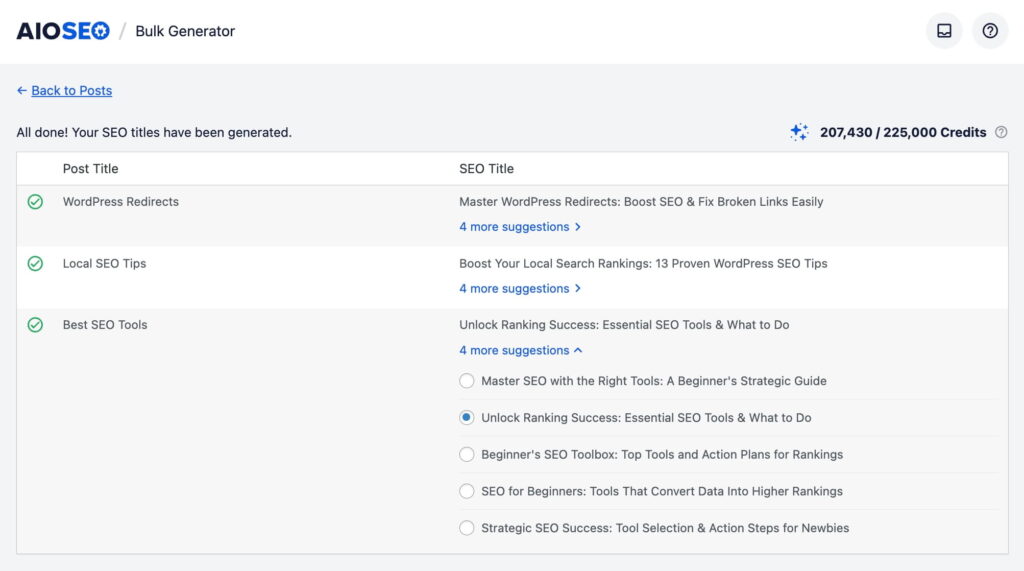
This is a huge time-saver if you have a lot of content with empty metadata. It’s also great for performing a quick and easy SEO audit across older content.
Image Alt Text for Your Entire Media Library
The bulk AI toolset covers images too. Head to the WordPress Media Library, select the images you want to update, and choose Generate Alt Text for Images with AI from the bulk actions dropdown.
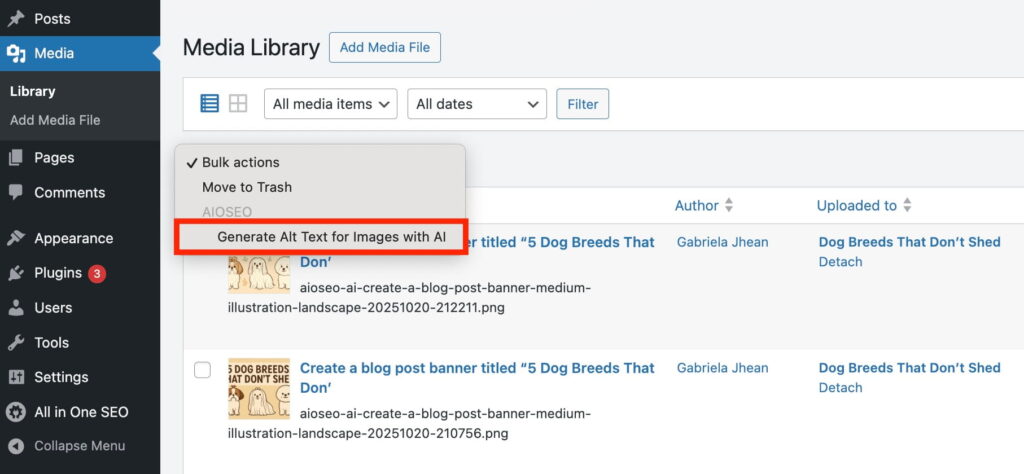
AIOSEO analyzes each image and writes descriptive alt text. You can do this across your full library in one go, or tackle images individually as you upload new content.
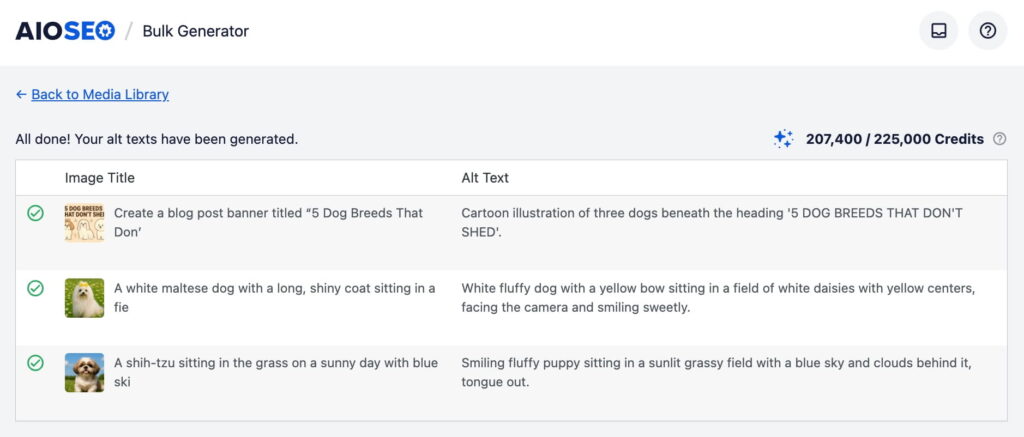
For anyone uploading images with filenames like “screenshot-0312.jpg” and skipping the alt text field, this is a fast way to close a gap that affects both SEO and accessibility.
Getting Credits: Go to AIOSEO > General Settings > License > AI Credits. Pro subscribers get a credit allocation with their plan. Free users can purchase pay-as-you-go credits from that same screen.
[IMPROVED] Notes Field in Redirects: Context for Every Redirect You Create
This one’s a smaller update, but if you’ve ever stared at a 50-row list trying to remember why you added a redirect, you’ll appreciate it.
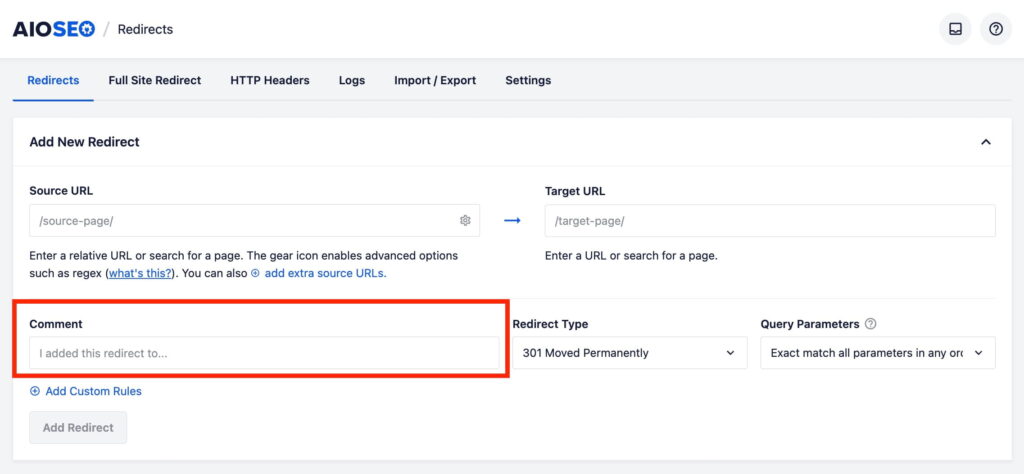
Redirects now include an optional Comment field in the creation form. When you’re setting up a new redirect, there’s a spot to write a note explaining why it exists. For example, you might note a URL migration, a seasonal campaign, or any other reason for the change.
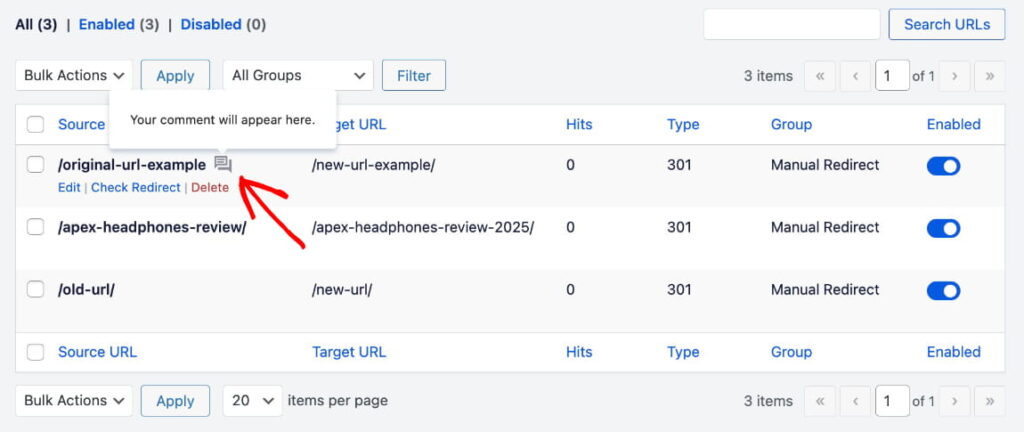
The note shows up as a hoverable icon in your redirect list so it doesn’t clutter the view. You can also go back and add or edit notes on existing redirects at any time.
In addition to being helpful for small businesses, this small change is a big win for agencies and teams managing redirects across client sites. Context matters in these scenarios and can make the difference between “I’m afraid to delete this” and “I know exactly what this was for.”
Comments are available to all AIOSEO Pro users with the Redirects feature.
Also in AIOSEO 4.9.6
There are two more things in this release that I want to highlight:
- WordPress 7.0 Support: AIOSEO is fully tested and compatible with WordPress 7.0.
- Divi 5 Integration: If you’re running the latest version of Divi, AIOSEO now works seamlessly with it.
Update to AIOSEO 4.9.6 Today
If schema markup has been sitting on your to-do list because it felt like too much work, 4.9.6 is a good reason to check it off. And if you’re on the free plan, the bulk AI tools give you an efficient way to start improving your SEO metadata right now.
Update from your WordPress dashboard under Plugins > Updates, or visit our pricing page if you want to unlock the AI Schema Generator and other Pro features. If you’re new to AIOSEO altogether, our WordPress SEO setup guide is a great place to start.
Have questions about anything in this release? Leave a comment below or reach out to our support team. We’re here to help!
— Benjamin Rojas, President of AIOSEO
FAQs
What is the AI Schema Generator in AIOSEO?
The AI Schema Generator is a Pro feature that automatically creates schema markup (structured data) for your WordPress pages. You can choose Smart Schema, where AIOSEO’s AI analyzes your content and recommends the right schema type, or Prompt-Based Schema, where you describe the schema you need and the AI builds it to your specifications.
Do I need a Pro plan to use AI Bulk Actions?
No. AI Bulk Actions for generating SEO titles, meta descriptions, and image alt text is available to all AIOSEO users, including the free Lite version. You need AI credits to use it, which are included with Pro plans or available as a pay-as-you-go purchase.
How many AI credits does the AI Schema Generator use?
Each schema generation costs approximately 25 AI credits. The exact credit count is shown on the Generate button before you confirm, so you’ll always know the cost upfront.
How do I get AI credits for AIOSEO?
Go to AIOSEO > General Settings > License > AI Credits. Pro subscribers receive credits as part of their plan. Free users can purchase pay-as-you-go credits directly from that screen.
Can I check AI-generated schema before it goes live?
Yes. After generating schema, AIOSEO includes a “Test with Google” button that opens your page in Google’s Rich Results tool. You can validate the markup before publishing, which is worth doing since AI-generated schema can occasionally need a small adjustment.