We’ve all been there. You work on a post, publish it, and the second it’s live, you see a typo staring back at you. It’s annoying, and you wonder how you missed it in the first place.
In AIOSEO 5.0.0, we’ve added a built-in Spell Checker that catches typos before you hit publish.
This new tool flags every misspelled or unrecognized word, tells you how many times it shows up, and gives you real suggested corrections, not just a red squiggly line you have to guess your way through.
It also comes with a dictionary, so you can add your own vocabulary like brand names and technical terms.
Continue reading to learn more about the Spell Checker you’ve been asking for.
In This Article
How the Spell Checker Works
The Spell Checker lives inside AIOSEO’s new Optimization tab, which organizes all your SEO insights and scores in one place. Open any post or page, and you’ll find it under the AIOSEO Settings of the meta box.
Once you’re inside Optimization, select the Spelling tab. Right off the bat, you already know how many spelling errors there are in your content.
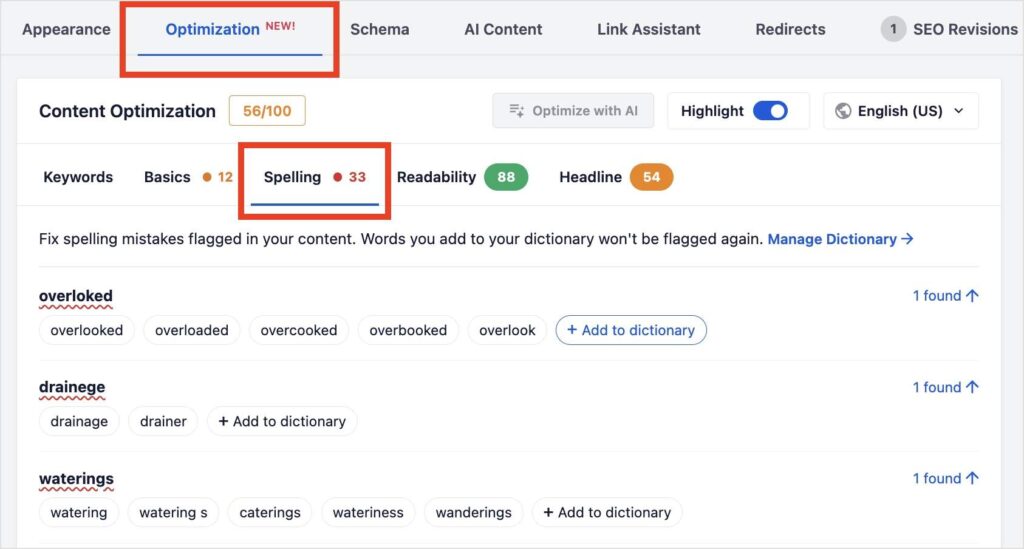
Note: Don’t see the Optimization tab yet? Make sure your site is running AIOSEO 5.0.0 or later.
Next, you’ll see a list of all the misspelled words and how many instances there are in your post or page.
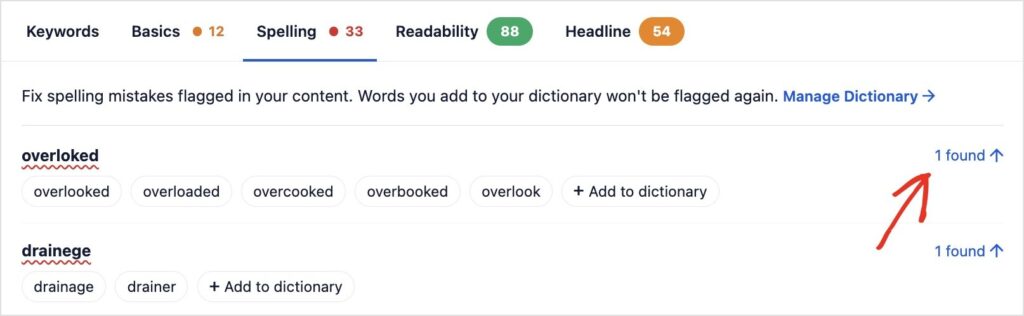
You can click the link, and the Spell Checker will take you exactly where the misspelling is in your content.
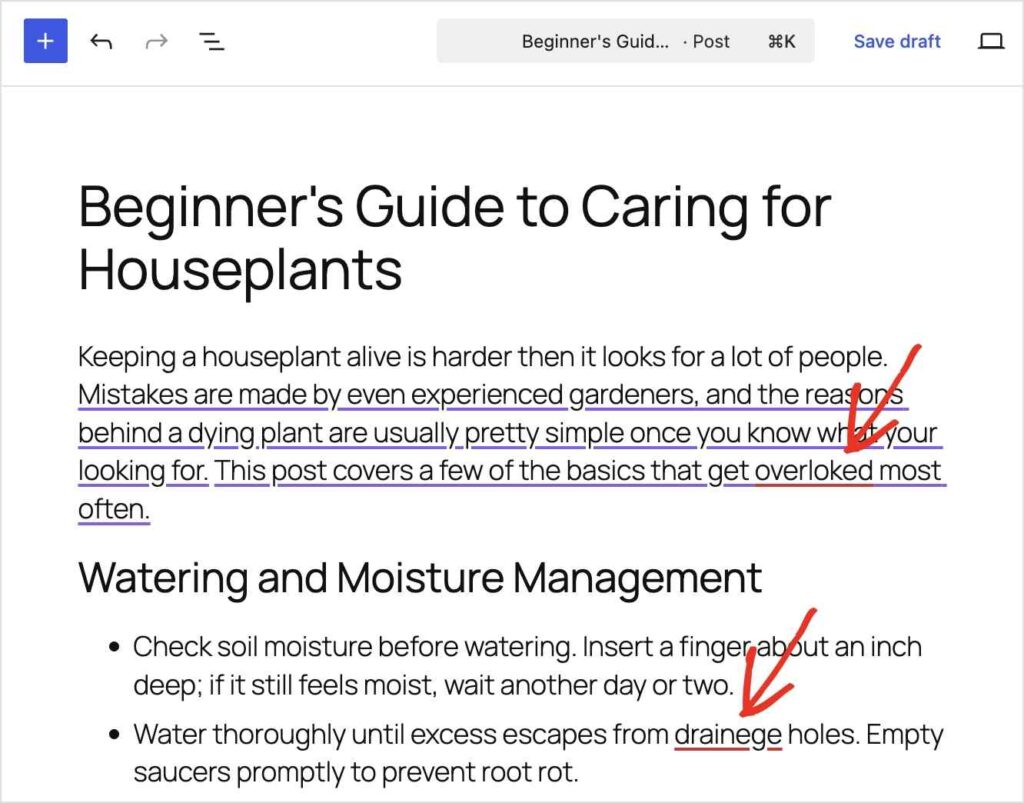
Pro Tip: Misspelled words will be underlined in red. The Spell Checker works as you write so you’ll see these immediately. That means you don’t have to always go to the Spelling tab in the editor’s meta box, unless you want to.
Once you click on the word, the Spell Checker will open a small pop-out with potential matches. You can click the one you want, and the Spell Checker will replace your misspelled word with the chosen suggestion.
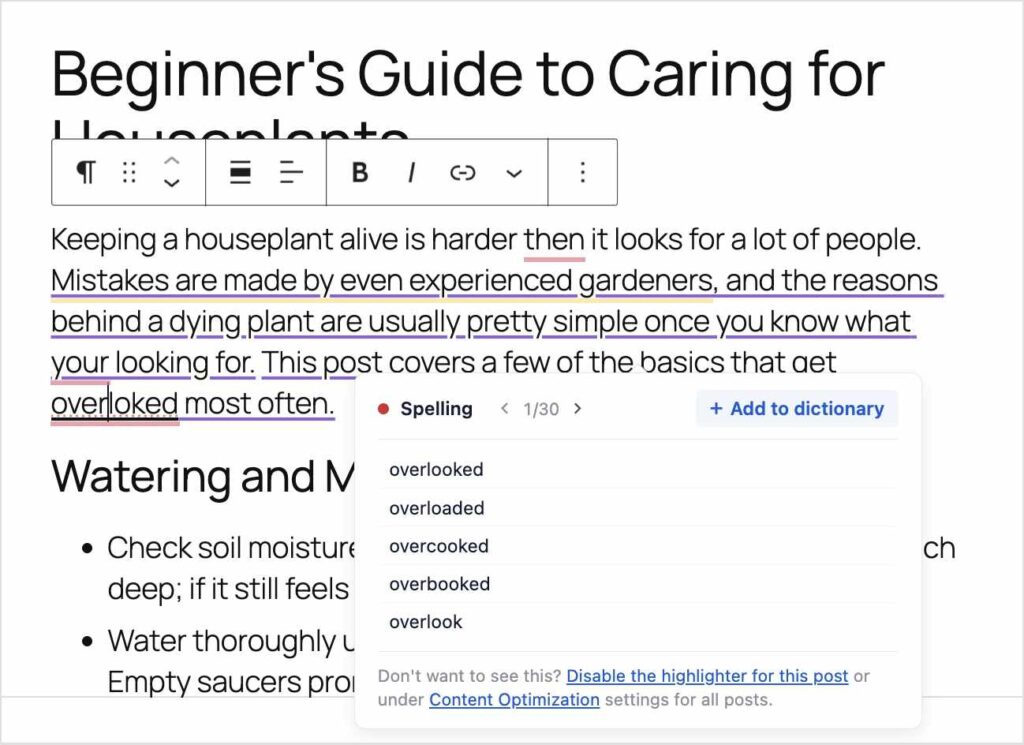
And that’s it! You’ve successfully verified the spelling of your entire post or page.
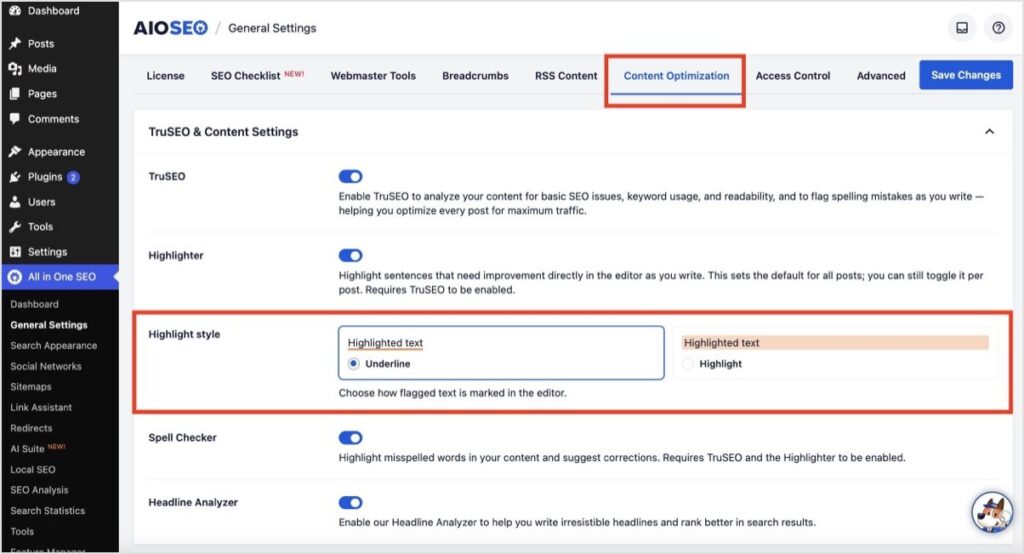
Pro Tip: Misspelled words are underlined by default. If that’s hard to spot, switch to a highlighted background by going to All in One SEO >> General Settings >> Content Optimization >> Highlight Style. You can switch to highlight text, so typos jump out more.
This is what this looks like for misspelled words:
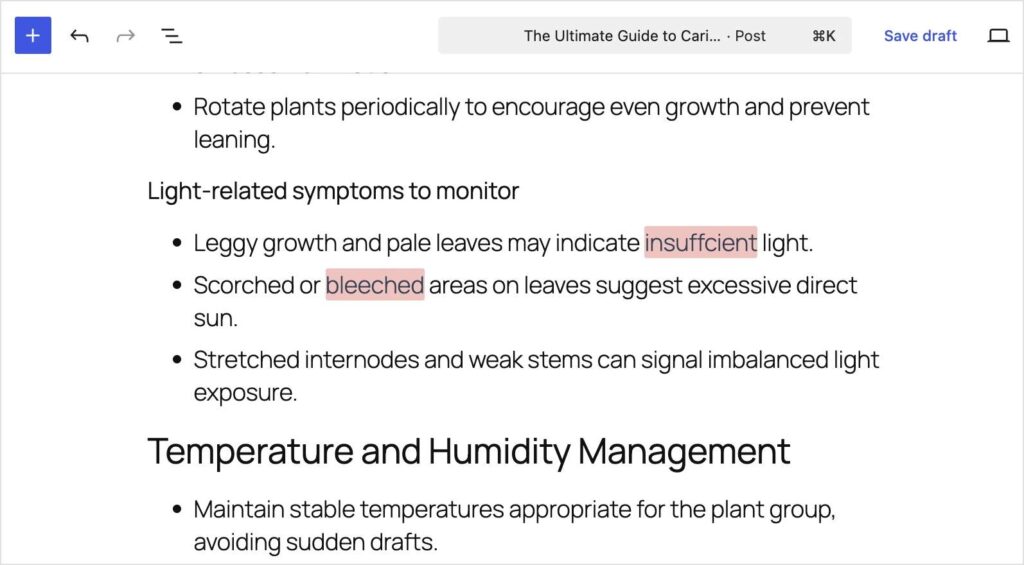
Both styles work; it really just comes down to personal preference.
Adding Brand Terms to Your Dictionary
You likely have branded terms and preferred spelling for specific words. For example, at All in One SEO, our abbreviated name, AIOSEO, got flagged the first time I ran the Spell Checker since it had not seen it before.
However, each flagged term comes with an + Add to dictionary button. Once you’ve clicked it, that term will never get flagged again. It also removes any red underlinings immediately from your post for that term.
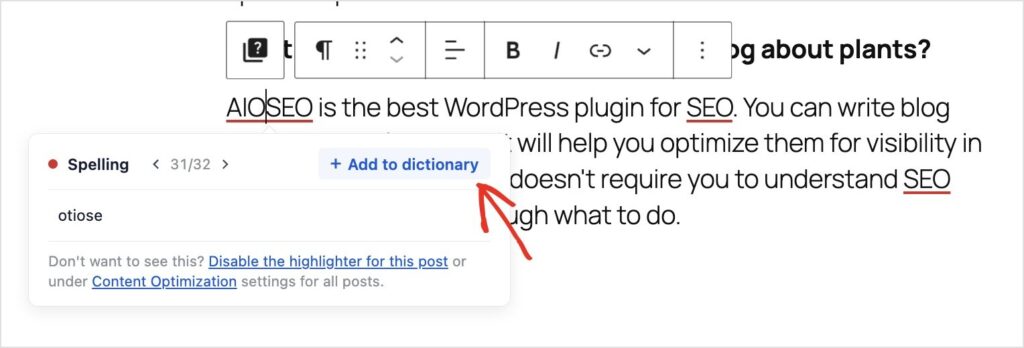
Do this once for your brand name, your product names, and the handful of technical terms you use constantly.
Custom Language Settings Per Post
If you have an international audience, you’ll be happy to know that the Spell Checker (and TruSEO in general) works in 10+ languages. AIOSEO autodetects your post’s language and checks spelling against that language’s dictionary, so correct words in French, Spanish, German, and the other languages TruSEO 2.0 now supports don’t get flagged just because your account happens to be set to something else.
You can also set the language manually in the post editor. Just go to the Optimization tab and select your language from the dropdown button on the right.
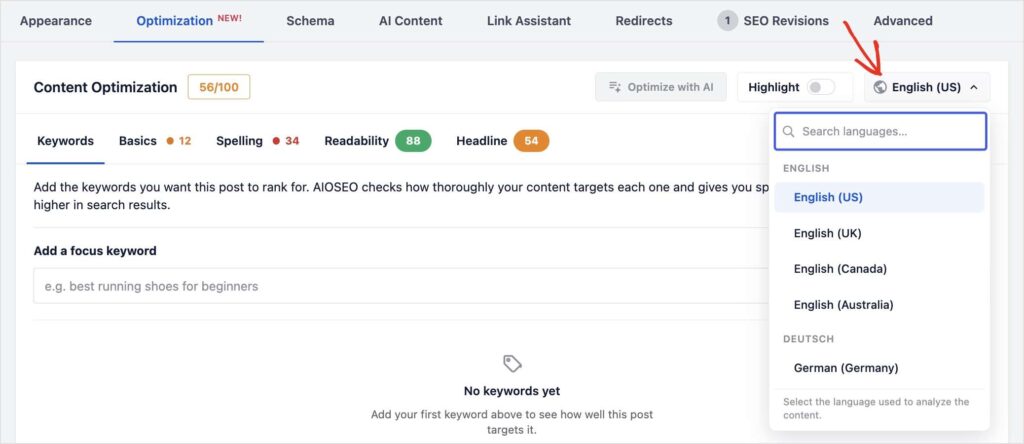
Once it’s set, spelling gets checked against the language set for that post or page.
What You Can Do With the Spell Checker
We’ve already covered a few scenarios, but here are some of the best ways to use the new Spell Checker:
- See every misspelled or unrecognized word in your post, with a running count of how many times it shows up
- Pick the correct spelling from a list of suggested corrections built around what you actually typed
- Fix a misspelled word once, and every other instance of that mistake in your post updates automatically, so you’re not repeating the same fix over and over
- Add brand names, technical terms, or niche jargon to your dictionary so they’re never flagged again
- Review and manage everything you’ve added in one place with Manage Dictionary
- Watch flagged words get underlined directly in your content when Highlight is turned on, so you’re not hunting through a list to find them
- Set the language your post gets graded in if autodetect doesn’t guess right, so correct spelling in the right language never gets flagged as an error
- Get your spelling checked automatically, without opening the post and hitting save first
That’s just what’s sitting in the Spelling tab today. Open Optimization on any post and you’ll see exactly what’s flagged for you. And as we keep building on TruSEO 2.0, expect dictionary and language support to keep growing too.
What Else Is New in AIOSEO 5.0.0
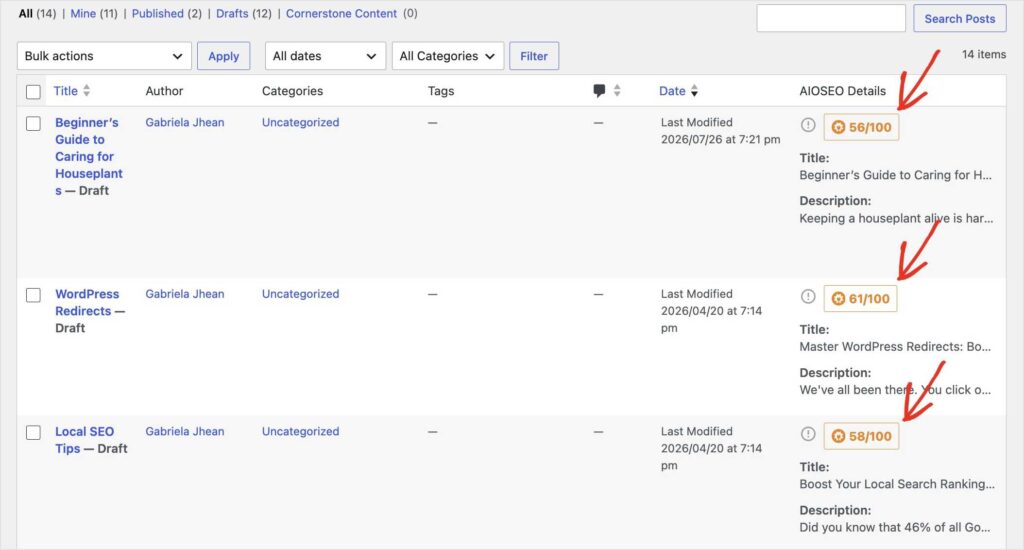
The Spell Checker is just one component of a bigger change in 5.0.0. We did a complete overhaul of TruSEO, its grading system, and the UX. Now, your score generates automatically and instantly. This means you don’t have to open a post and save it just to get your SEO score. It also prevents posts from getting stuck with a “N/A” score after a fresh install or a switch from another SEO plugin.
We’ve also reorganized all TruSEO insights and actions into one place. Now, when you’re in the post editor, you can select the Optimization tab to review your keywords, SEO basics, spelling, readability, and headline.
The idea was to make it easier for you to navigate and improve your content’s SEO, without having to jump around the plugin.
In summary: The Content Optimization card scores your whole post. Spelling is the tab that hunts down misspelled and unrecognized words and gives you a fast way to fix each one.
Free on Every Plan, Basic Through Elite
All AIOSEO users get the Spell Checker, dictionary, and per-post language controls. And unlike your browser’s spellcheck, this one lives inside your actual SEO score right in WordPress.
Spelling is one piece of the TruSEO 2.0 rebuild in 5.0.0. The same release also brings an AI-assisted way to act on TruSEO’s suggestions with AIOSEO Copilot, a rebuilt Headline Analyzer, and inline highlighting for every flagged issue across the whole panel via the Highlighter.
I’ve watched people avoid publishing because they weren’t confident in their writing, or publish anyway and wince at a typo weeks later. Neither should be the choice. The Spelling tab does the noticing for you, so all that’s left is deciding how you want to say it.
— Ben Rojas, President of AIOSEO
Frequently Asked Questions
What is the AIOSEO Spell Checker?
The Spell Checker is a built-in tool in AIOSEO’s Content Optimization panel that flags misspelled or unrecognized words in your post, shows suggested corrections, and lets you add words to a custom dictionary.
Do I need a paid plan to use it?
No. The Spell Checker is available to all AIOSEO users, from Lite to Elite.
Will it flag my brand name or jargon?
Yes, until you add it. The Spell Checker doesn’t recognize brand names or technical terms by default, so add them to your dictionary once and they won’t be flagged again.
Does it grade spelling in my language?
Yes. AIOSEO autodetects your post’s language and grades spelling accordingly, and you can manually set the language per post if needed.
Do I need to save my post to see results?
No. Scores and flagged words in 5.0.0 generate automatically, so you don’t need to open and re-save a post just to check its spelling.