
Did you know that you can research how brands perform in AI search results using All in One SEO?
The AI Insights feature in All in One SEO makes it easy to discover which brands rank for specific terms across popular AI search tools like ChatGPT, Claude, Gemini, DeepSeek, and Perplexity.
As more users turn to AI-powered search tools for product recommendations and research, understanding how brands appear in these results has become essential for SEO strategy. AI Insights helps you analyze this data so you can optimize your content for AI search visibility.
In This Article
Accessing AI Insights
NOTE:
The AI Insights feature is currently in BETA and is available to customers with All in One SEO Pro. AI-powered keyword reports are 100% free for a limited time.
To access the AI Insights feature, click on AI Suite in the All in One SEO menu in your WordPress dashboard.
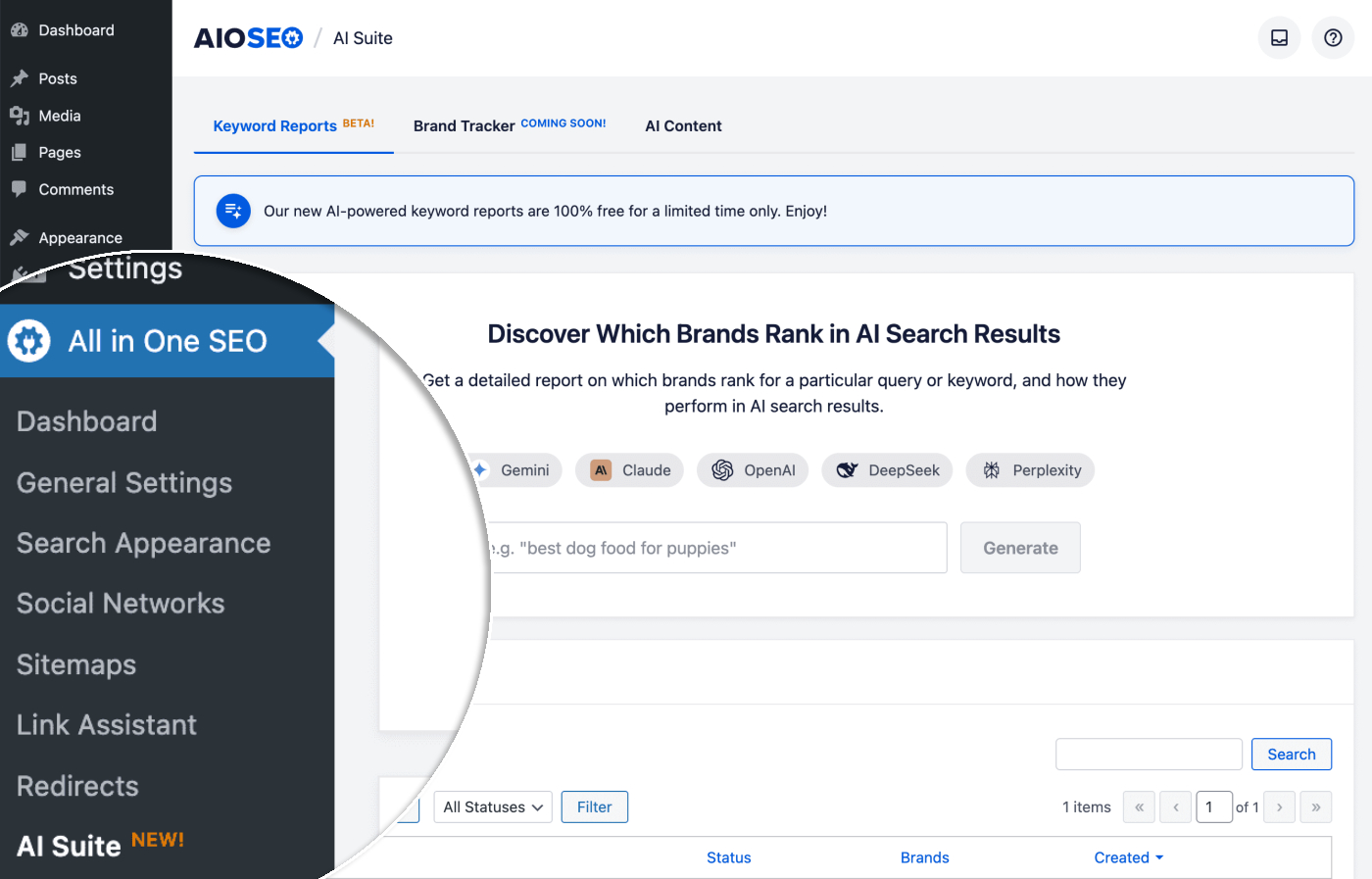
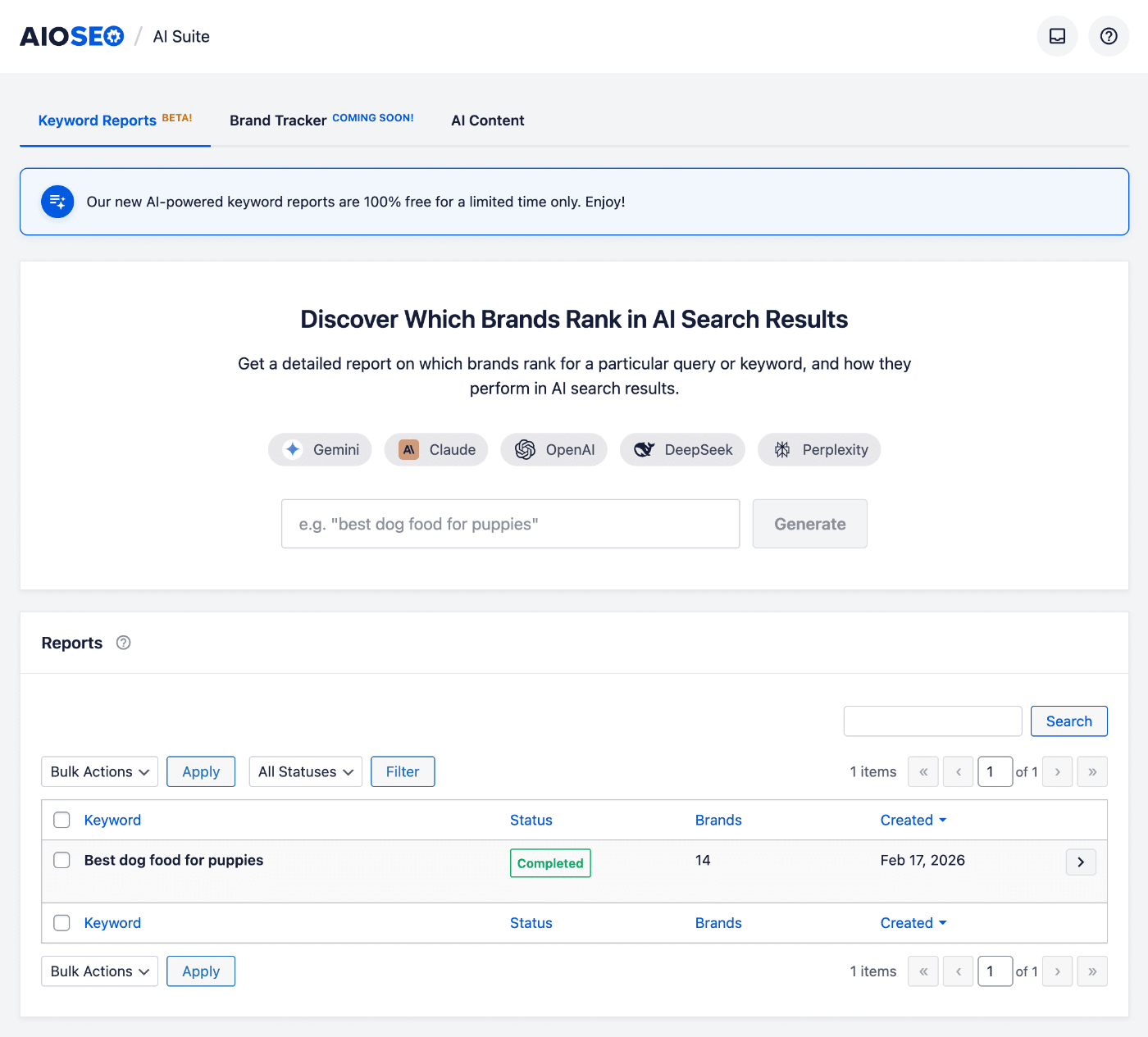
You’ll see the main AI Insights screen with three tabs:
- Keyword Reports – Generate reports on how brands rank in AI search results for specific keywords.
- Brand Tracker – Track your brand’s performance in AI search (Coming Soon).
- AI Content – Manage the default settings for the AI Content features in AIOSEO.
Generating a Keyword Report
To generate a new keyword report, follow these steps:
1. On the Keyword Reports tab, you’ll see the Discover Which Brands Rank in AI Search Results section.
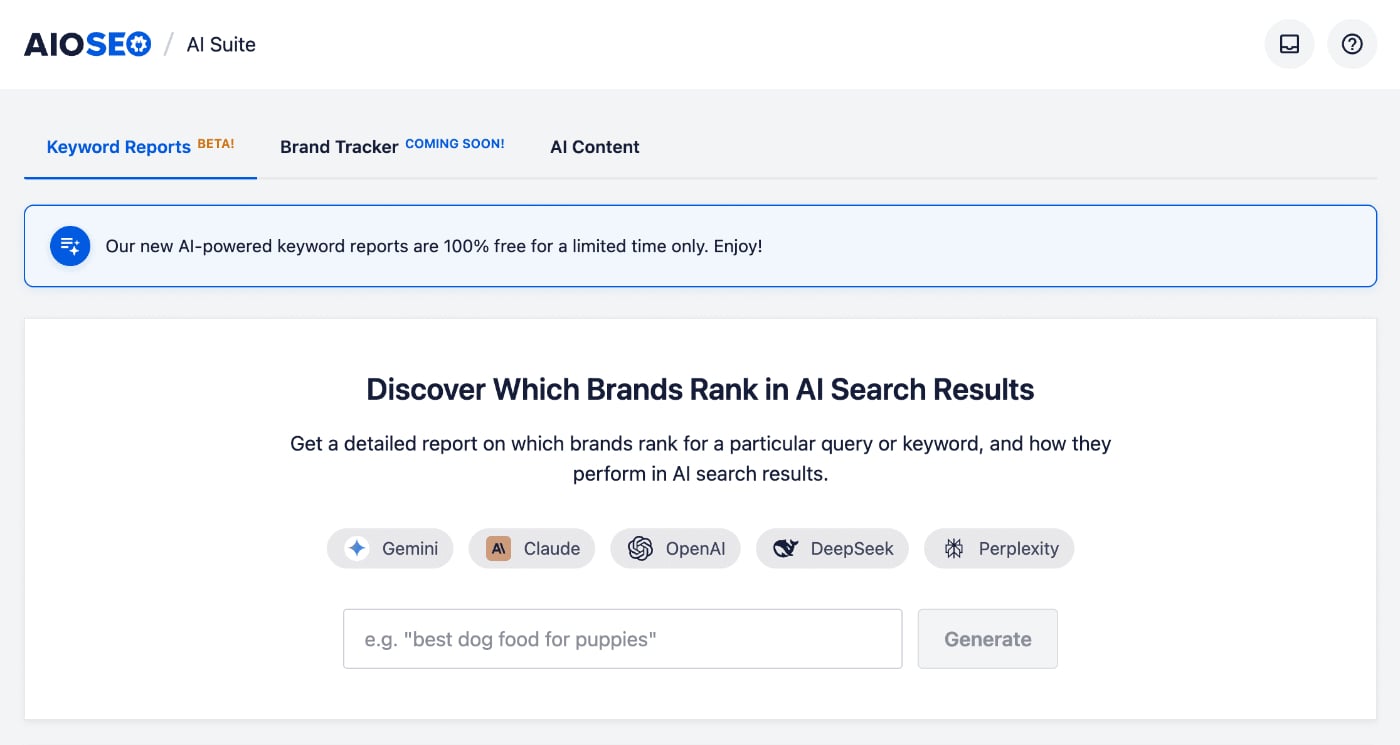
2. Below this heading, you’ll see the AI search field and the Generate button.
3. Enter your keyword or search query in the AI search field. For example, you might enter “best dog food for puppies” or any other search term relevant to your industry.
4. Click the Generate button to create your report.
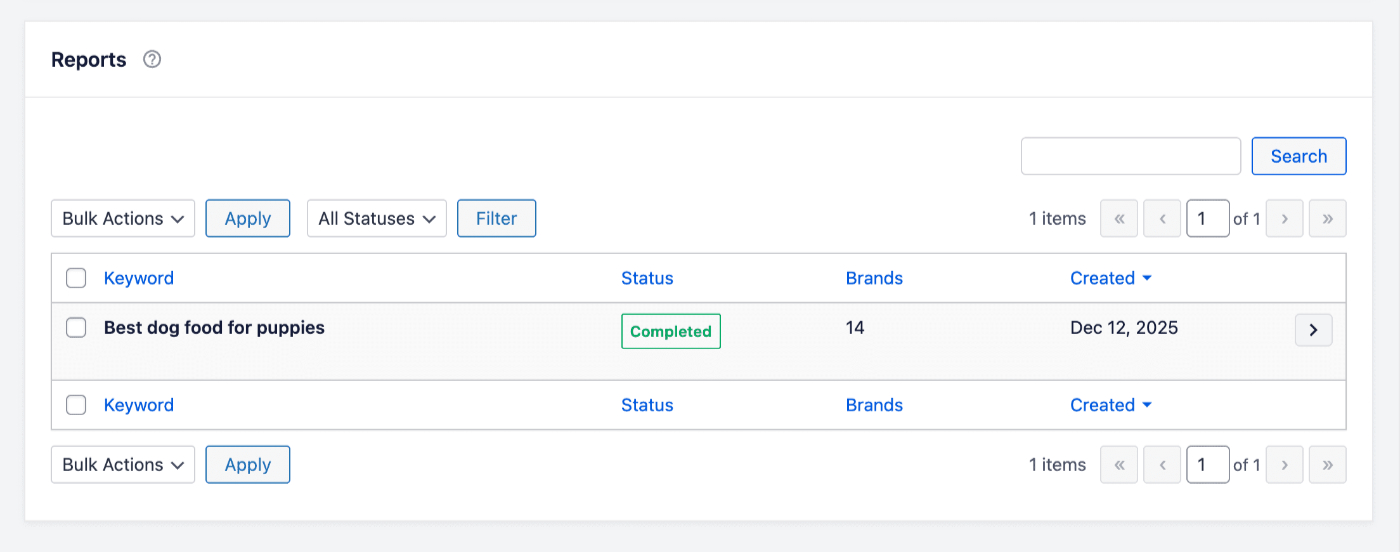
5. The report will be added to the Reports table. You’ll see the Keyword you entered, and the Status column showing the progress of your report.
NOTE:
Reports may take some time to generate, depending on the complexity of the search term.
6. Once complete, the status will change to Completed.
Understanding Your Report Results
Once your report is complete, click the arrow to the right of the report row to view the full results.
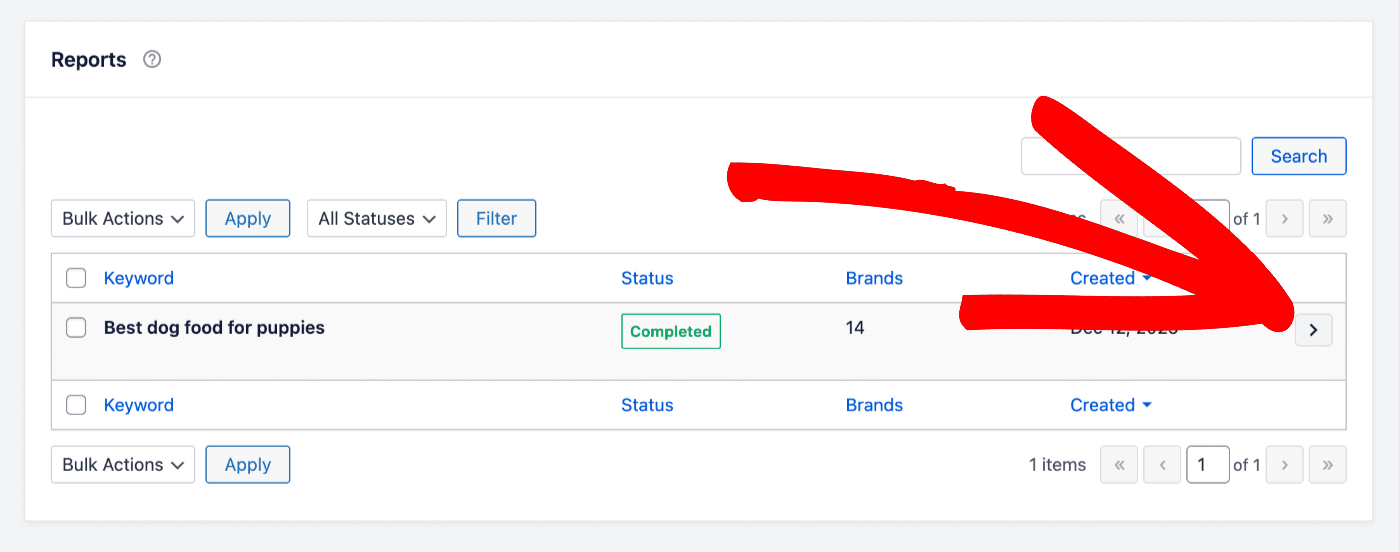
You’ll be taken to a detailed results page showing how brands rank across different AI search tools.
Brands Comparison Table
At the top of the results page, you’ll see a comparison table showing all the brands mentioned across the AI search tools.
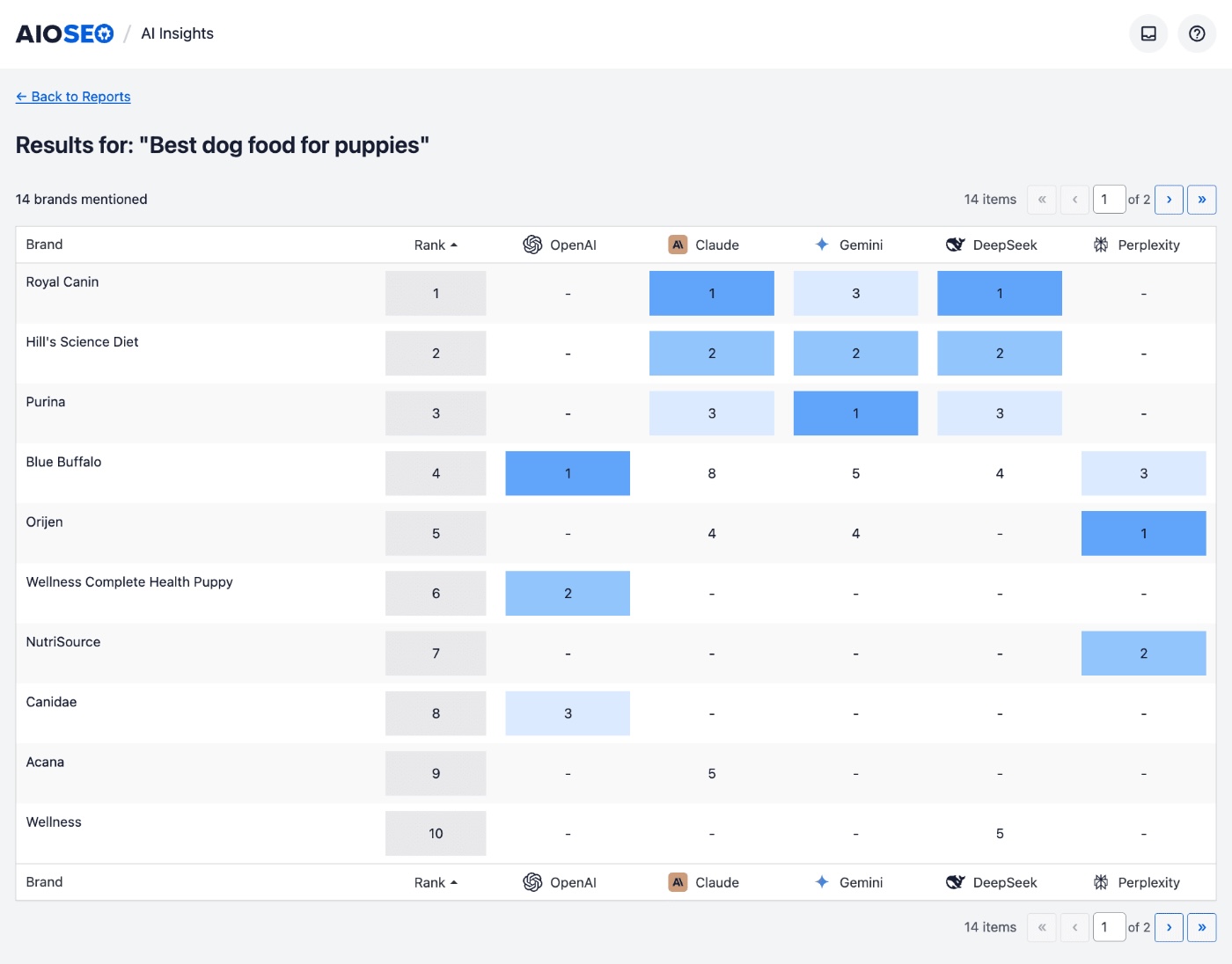
The table includes:
- Brand – The name of each brand mentioned in AI search results.
- Rank – The overall ranking position for each brand based on combined AI results.
- AI Engine Columns – Individual columns for each AI tool (OpenAI, Claude, Gemini, DeepSeek, Perplexity) showing the position where that brand was mentioned.
The cells are color-coded to help you quickly identify top-ranking positions:
- Darker blue – Higher rankings (positions 1-3).
- Lighter blue – Mid-range rankings.
- Gray – Lower rankings.
- Dash (-) – Brand not mentioned by that AI engine.
You can use the pagination controls at the bottom of the table to navigate through all the brands if there are more than fit on one page.
AI Engine Results
Below the comparison table, you’ll find the AI Engine Results section. This shows the detailed response from each AI search tool.

Each AI engine is displayed as an expandable card showing:
- AI Engine Name and Icon – The name of the AI tool (e.g., OpenAI, Claude).
- Sources Count – The number of web sources the AI referenced in its response.
- Brands Count – The number of brands mentioned in the response.
Click on any AI engine card to expand it and view the full details.
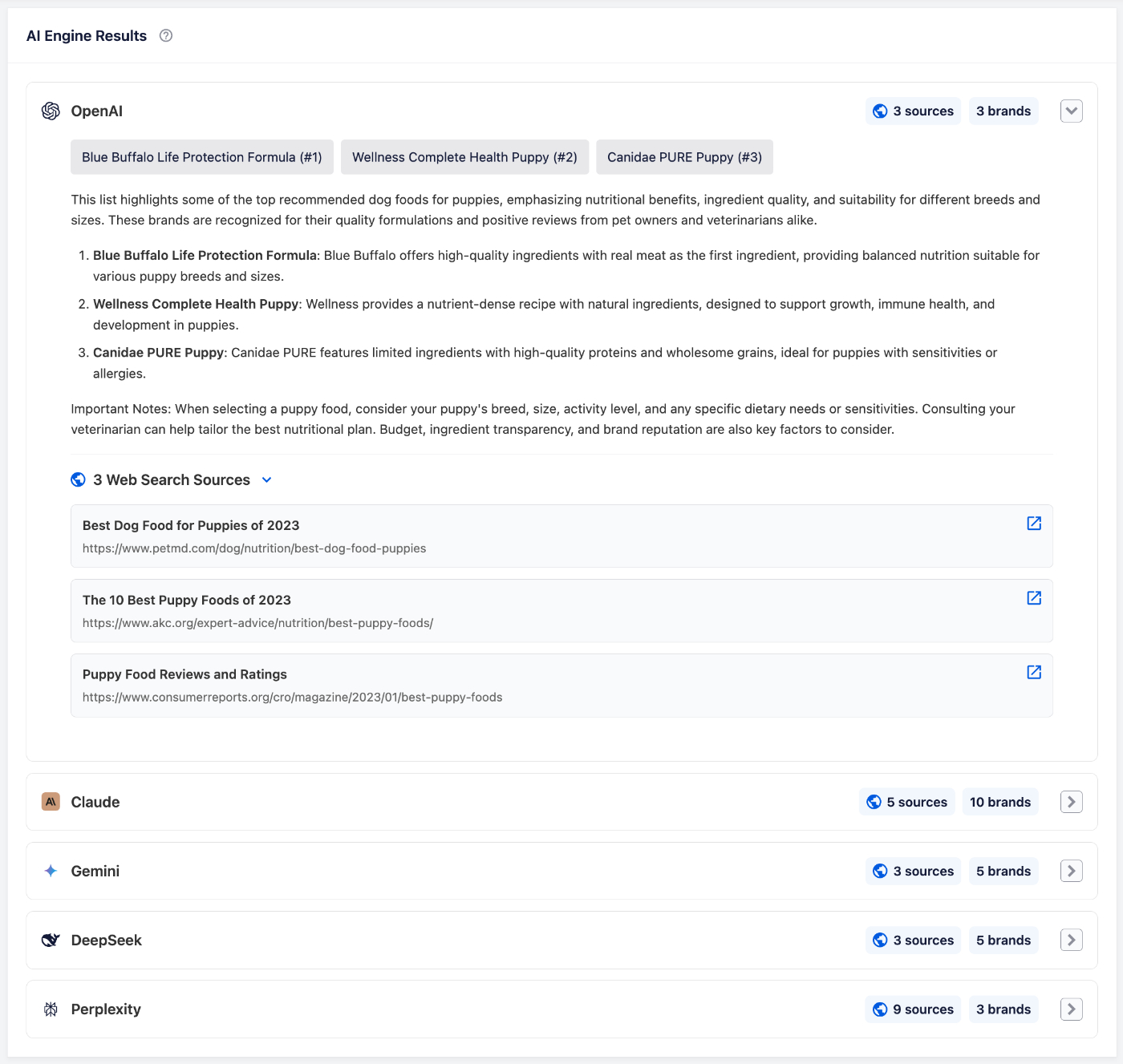
When expanded, you’ll see:
- Brand Mentions – Pills showing each brand mentioned with their ranking position. For example: “Blue Buffalo Life Protection Formula (#1)”.
- Response Content – The full AI-generated response, including descriptions of each recommended brand.
- Web Search Sources – A list of the web pages the AI referenced when generating its response, with clickable links to view each source.
Managing Your Reports
All your generated reports are saved in the Reports table on the main AI Insights screen.
From here, you can:
- Search Reports – Use the search field to find reports by keyword.
- Filter by Status – Use the All Statuses dropdown to filter reports by their status.
- Bulk Actions – Select multiple reports using the checkboxes and use the Bulk Actions dropdown to delete them.
- View Report – Click the arrow to the right of any report to view its full results.
TIP: Use specific, detailed keywords when generating reports to get the most useful insights. For example, “best dog food for puppies” will give more targeted results than just “dog food”.