Did you know that you can create high quality images to use in your content with the AI features in All in One SEO?
With All in One SEO's built-in AI Image Generator feature, you can easily create images to use within content, or as your featured image with just a simple prompt.
In this article, we'll go over how to use this AI feature.
In This Article
Getting Started with AIOSEO AI
The AI features in All in One SEO rely on a credits system. You can buy blocks of credits, or use credits you receive as part of your subscription for All in One SEO Pro.
To get started, you'll need to verify that you have AI credits. To do this, click on General Settings in the All in One SEO menu and scroll down to the AI Credits section on the License tab.
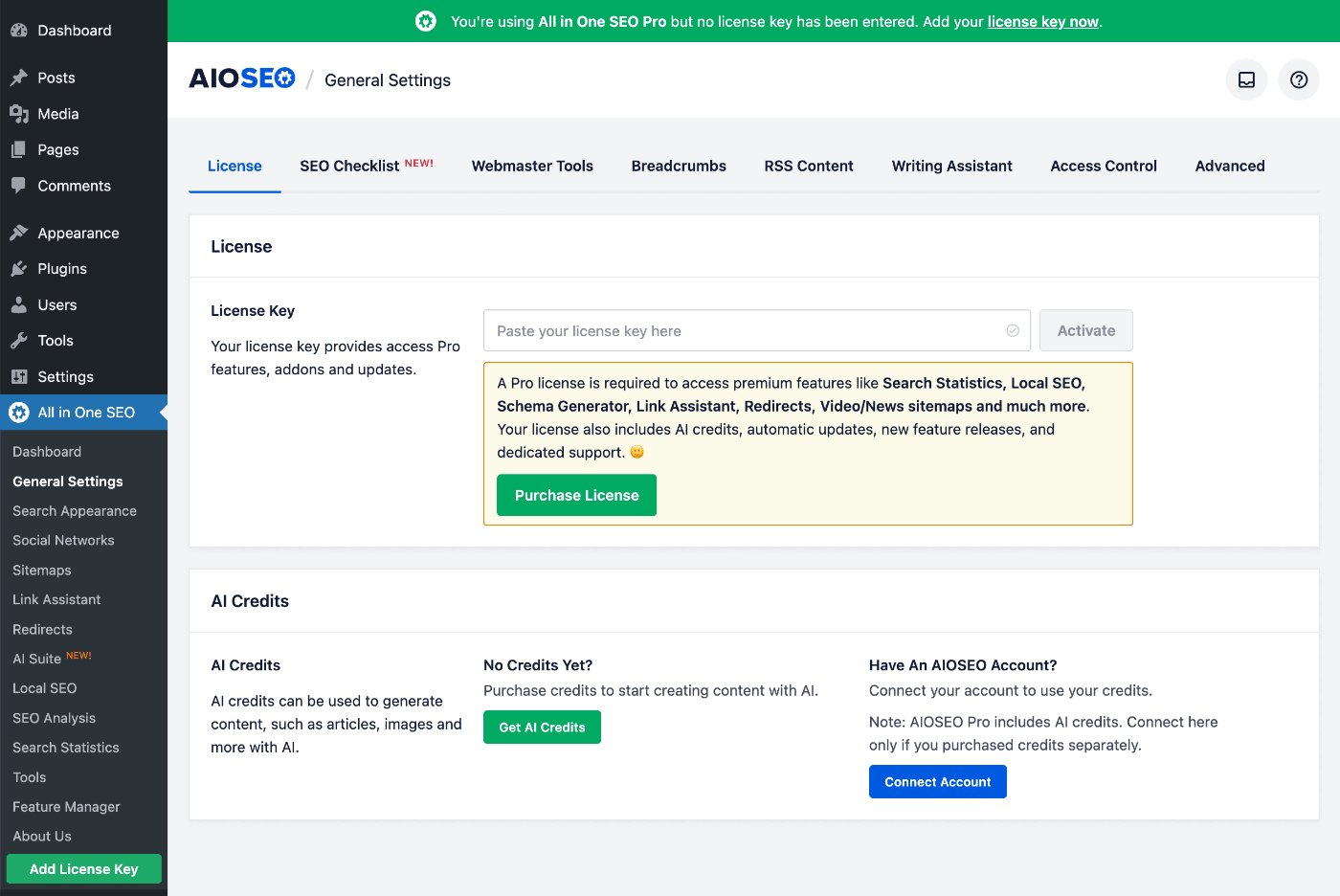
You can click on the Get AI Credits button to purchase a block of Pay-As-You-Go credits, or you can click on the Connect Account button if you already have an account for AI credits.
If you activate a license key for All in One SEO Pro, then you'll see that your account is automatically connected and the number of credits available to you.
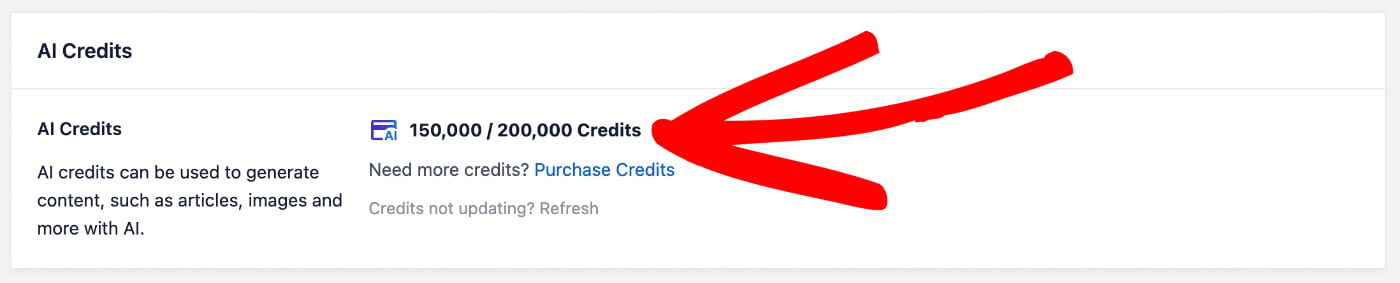
In the screenshot above, you can see that we have 150,000 credits remaining out of 200,000 credits.
For more information about the AI credits system for All in One SEO and how to manage your account, please check out our article on Buying and Managing Credits for the AIOSEO AI Features.
Now that we've verified that we have some AI credits, let's check out the AI Image Generator feature.
Creating Images in Your Content Using the AIOSEO AI Image Generator
NOTE:
This feature works with the WordPress Block Editor (also known as Gutenberg), the WordPress Classic Editor, and our supported page builders.
To get started, edit or create a new post using the default WordPress Block Editor and click on the Add Block icon.

Select the Image Block to add an image to your content.

Next, click on the Generate with AI button to open the AI prompt.

The Image Generator window will be displayed that shows the Prompt field, as well as some options, and a Preview of the generated image.

In the Prompt field, type a description of the image you want to generate. For example, “A cute cat wearing a wizard hat, reading a spell book”.
Image Options
You can then select from the image options listed below:
- Quality – In this drop down, you can select the image quality from Low, Medium, and High.
- Style – In this drop down, you can select the image style from Auto, 3D Render, Cinematic, Creative, Illustration, Minimalist, Stock Photo, and Vibrant.
- Aspect Ratio – In this drop down, you can select the aspect ratio from Landscape, Portrait, and Square.
NOTE:
The image quality will affect the number of AI credits that will be used to generate the image.
You can set the site wide defaults for these image options in the AI Content Settings by going to All in One SEO > AI Suite and clicking on the AI Content tab.
Once you've entered your prompt and selected from the image options, click on the Generate Image button to create your image.

Notice that the Generate Image button shows the number of AI credits that will be used to generate the image.
In the bottom left-hand side of the window, you'll see the number of credits you have, along with the amount remaining.
IMPORTANT:
Using AI to generate images can be time-consuming, depending on the complexity of the prompt, and the quality of the image.
You should be patient and wait for the image generation process to complete, before closing the Image Generator window.
Once the image generation process has completed, the image will be displayed in the Preview area.

You can click on the Insert Image button to add the image to your content.
You can also edit your prompt, or change the quality and regenerate the image.
That's all! You've now used the AI Image Generator in All in One SEO to create images to use in your content.
Editing Existing Images Using the AI Image Generator
Now that we've discussed creating new images using the All in One SEO AI Image Generator, let's look at editing existing images in your content.
First, edit your content and click on the image you want to edit.

Click on the Edit with AI button to open the Image Generator window.

Now you can enter your prompt and select the image quality.

Click the Regenerate button to generate the new image using AI.
Notice that the Regenerate button shows the number of AI credits that will be used to generate the image.
In the bottom left-hand side of the window, you'll see the number of credits you have, along with the amount remaining.
IMPORTANT:
Using AI to generate images can be time-consuming, depending on the complexity of the prompt, and the quality of the image.
You should be patient and wait for the image generation process to complete, before closing the Image Generator window.
Once the image regeneration process has completed, the image will be displayed in the Preview area.

You can click on the Insert Image button to add the image to your content.
You can also edit your prompt, or change the quality and regenerate the image.
That's all! You've now used the AI Image Generator in All in One SEO to edit an image in your content.
Creating a Featured Image Using the AIOSEO AI Image Generator
Not only can you create and edit images in your content using the AI Image Generator in All in One SEO, but you can also create a featured image.
To get started, edit or create a new post using the default WordPress Block Editor and click on the Generate with AI button next to the Set featured image button.

The Image Generator window will be displayed that shows the Prompt field, as well as some options, and a Preview of the generated image.
In the Prompt field, type a description of the image you want to generate. For example, “A cute cat wearing a wizard hat, reading a spell book”.
Select the Image Options as described above.
Once you've entered your prompt and selected from the image options, click on the Generate Image button to create your featured image.
Notice that the Generate Image button shows the number of AI credits that will be used to generate the image.
In the bottom left-hand side of the window, you'll see the number of credits you have, along with the amount remaining.
IMPORTANT:
Using AI to generate images can be time-consuming, depending on the complexity of the prompt, and the quality of the image.
You should be patient and wait for the image generation process to complete, before closing the Image Generator window.
Once the image generation process has completed, the image will be displayed in the Preview area.
You can click on the Insert Image button to add the image as your featured image.
You can also edit your prompt, or change the quality and regenerate the image.
That's all! You've now used the AI Image Generator in All in One SEO to create a featured image.
AI Generated Content Disclaimer
The use of artificial intelligence (AI) to generate images involves a range of considerations that users should be aware of. AI-generated images may not always accurately represent real-world objects or scenarios, and there is a possibility of unintended biases or inaccuracies being present in the output. Users are advised to exercise caution and critical judgment when utilizing such images, particularly in contexts where authenticity and precision are paramount.
Furthermore, it is important to recognize the ethical and legal implications associated with AI-generated visuals. These images may inadvertently infringe upon intellectual property rights or misrepresent individuals and entities. Users should ensure that they have appropriate rights or permissions when using AI-generated content and remain mindful of the potential impact on privacy, reputation, and compliance with applicable laws and regulations.
The developers of All in One SEO do not guarantee the absolute accuracy, impartiality, or rights and permissions of the generated images.
Further Reading
Check out more articles on how to use the AIOSEO AI features here.