At AIOSEO, we strive to make SEO easier for our users. We believe SEO and website management should be easy for everyone.
That’s why we’re always developing better features that make SEO a breeze, especially for our non-techie users who want their websites to gain more traffic.
Just recently, we announced the release of AIOSEO 4.1.7. Now we’re back with the latest update. Today, we’re super-excited to announce the release of AIOSEO 4.1.8.
This time, we’ve improved our redirects feature and added a function to help you control your “post modified” date.
Now, it’s easier than ever to manage your site redirects and control your blog posts’ dates – even if you’re not tech-savvy.
Let’s check out how these new features can help optimize your website for higher rankings, so you can grow your business.
Manage Redirects Right Inside a Post or Page
Redirection is the process of forwarding one URL to another. This sends users and search engines to a different URL when the original URL is requested. Redirects are usually performed when:
- Content is moved
- A page is deleted
- A website moves to a new domain
Implementing redirects can be a major pain for most publishers.
They can be complicated and, if not done well, can lead to a negative user experience (UX) for users. It can also lead to you losing any “link juice” the old page had gained.
That’s why we decided to make life easier for you by including our Redirection Manager right in your AIOSEO post settings.
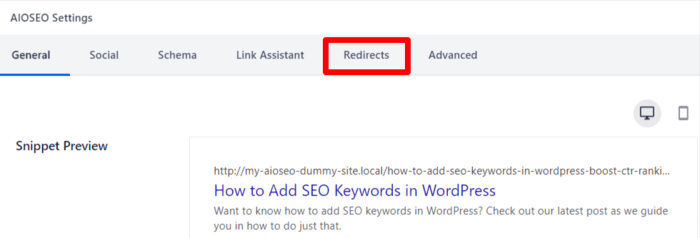
Clicking on the “Redirects” tab will open up a menu option that lets you redirect that particular page/post to another URL.
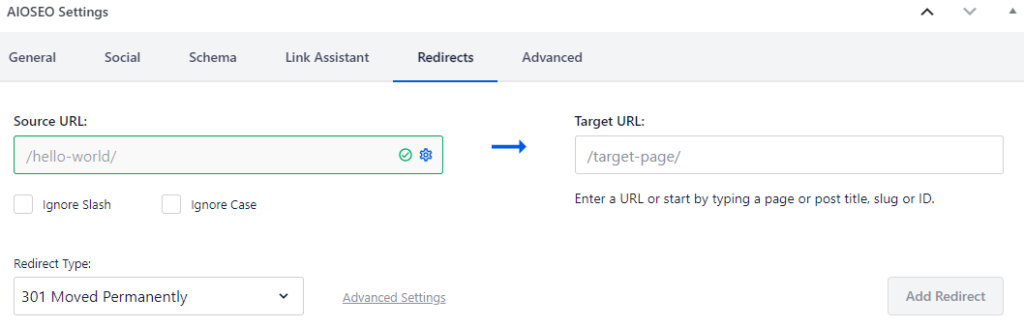
Besides the source and destination URLs, you get different options for your redirect, including the redirect status and custom rules like login status, referrer, and locale, among others.
Once you enable a redirect on a page or post, or if it already has a redirect, you’ll see a small alert on the Redirect’s tab that there’s an active redirect.
This will help remind you that the page/post is being redirected and will allow you to edit, check, delete or disable the redirect without having to go to the Redirection Manager.
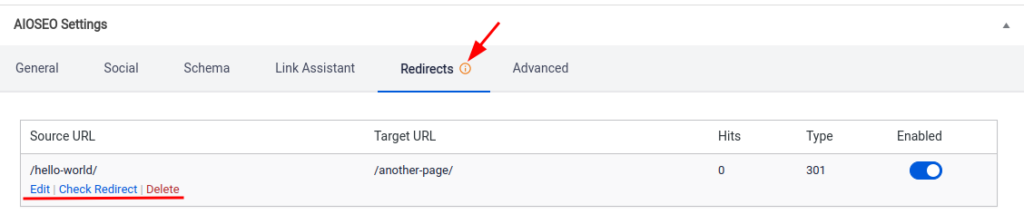
You can quickly manage redirects right from within a page, so it’s easier for you to optimize that page without hiring an expert.
It also saves you the time of manually searching for the redirects in the Redirection Manager and enabling them from there.
For example, if you want a page to temporarily appear in your blogroll, you can just click on the page to edit it and redirect it in just a few seconds.
Or perhaps you have a blog post that you want to redirect to another page or post. Again, you can easily implement a redirect right from within that page.
The best part?
You can do this with a few clicks using our new redirect feature — right from within the post or page you’re editing.
The ease of use and speed of execution makes this feature a game-changer when it comes to enabling redirects on your site.
Manage Your “Post Modified” Date
Ever wished you could make minor edits to posts and prevent the “post modified” date from being changed?
Well, now you can.
Since the Caffeine search index, search engines have always loved to see fresh content. If your page has stale content, it will drop in rankings.
That’s why it’s advisable to bump the “post modified” date when you update a piece of content. This way, search engines will know that you’ve added more value to your page. It’s also a great way to let search engines know that you’re constantly updating your website.
But, there are situations where you may want to perform minor updates to your content and not change the “post modified” date. That’s why we updated our plugin to help you keep the “post modified date” the same when you add minor tweaks to your content.
Changing your post modified date in such cases doesn’t make any sense.
That’s why we updated our plugin to help you keep the “post modified” date the same when you tweak your content.
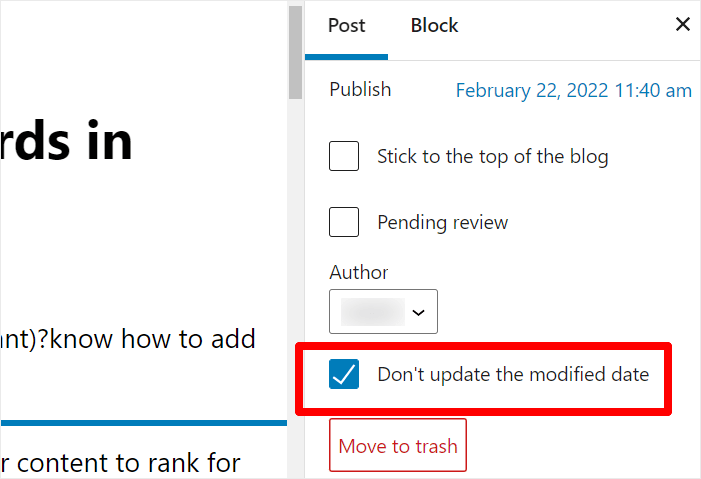
Another example of when this feature can come in handy is when you create a new category on your blog. You can add some old blog posts to the new categories without altering the “post modified” date.
While this may seem like a small issue, it makes a huge difference.
For websites with a lot of pages, it helps ensure search engines only crawl fresh pages as they prioritize new content and content with major updates.
You can see a list of all the improvements in this update in the AIOSEO changelog here.
Want more details on redirects? You can read our documentation on the AIOSEO redirection manager here to know more.
And that’s all we have for now. Keep your eyes peeled, because we’ve got a lot more updates planned for the future.
If you have any questions, feel free to reach our customer support team here and they’ll be happy to help you out.
Don’t have AIOSEO yet? Go ahead and take advantage of the additional power of AIOSEO 4.1.8 by upgrading to a Pro or Elite plan.
As always, we value your feedback and input. That’s why we encourage you to keep the suggestions and feature requests coming. Together, we’ll build the world’s best WordPress SEO plugin and toolkit.