
Want to rank higher on Google, but not sure why your content keeps losing ground to newer, less-experienced sites? The answer might lie in Author SEO.
With AI-generated content flooding search results, Google is leaning harder on verified human expertise as a primary quality signal. And author SEO is how you show Google, and your readers, that real, qualified people stand behind your content.
So, in this guide, I'll show you exactly how to boost your author SEO in WordPress using All In One SEO, so you can strengthen your E-E-A-T signals and improve your rankings.
Let's start with a definition.
In This Article
What Is Author SEO?
Author SEO is the practice of optimizing an author's online presence so search engines can identify who wrote a piece of content, verify their credentials, and use those signals to assess content quality. It includes optimizing author bios, adding structured schema markup, building author archive pages, and connecting content to a real person with demonstrated expertise.
It's closely tied to Google's E-E-A-T framework (Experience, Expertise, Authoritativeness, and Trustworthiness).
When Google can clearly identify the person behind your content and confirm their credentials, it's better equipped to evaluate whether that content deserves to rank. Author SEO is how you make that identification easy.
This is especially important for YMYL (your money, your life) content, which covers topics like health, finance, and legal advice, where the author's qualifications directly affect how Google evaluates trustworthiness.
Why Is Author SEO Important?
With AI-generated content flooding search results, Google's response has been to lean harder on verified human expertise as one of its primary quality filters.
A generic “Admin” author with no profile, bio, or credentials is a red flag to both search engines and readers. Author SEO is how you demonstrate that real, qualified people stand behind your content.
The framework Google uses to evaluate that credibility is E-E-A-T, introduced in their Search Quality Evaluator Guidelines. Here's what each component means:
- Experience refers to the first-hand experience the author has with the topic they're writing about.
- Expertise refers to the depth of knowledge and qualifications the author has in their subject area.
- Authoritativeness refers to the recognition of the author, the content, and the website as a credible source within their niche.
- Trustworthiness refers to the honesty, accuracy, and reliability of the author, the content, and the site it's published on.
While E-E-A-T isn't a direct ranking factor, the signals it generates, including structured author schema, verified credentials, and strong author profiles, give Google a clearer context for evaluating your content. That context gives your content a real advantage over thin or anonymous alternatives. The most visible payoff is that your content can appear in search results faster.
Good news? The Author SEO feature is available on AIOSEO's Plus plan and higher.
How to Set Up Author SEO in WordPress
Step 1: Install and Activate AIOSEO
The first step is to install All In One SEO (AIOSEO). AIOSEO is the best WordPress SEO plugin on the market, trusted by over 3 million website owners, and it has a dedicated Author SEO module built specifically to help you implement E-E-A-T signals in WordPress.
For a step-by-step walkthrough of the installation process, check out our installation guide.
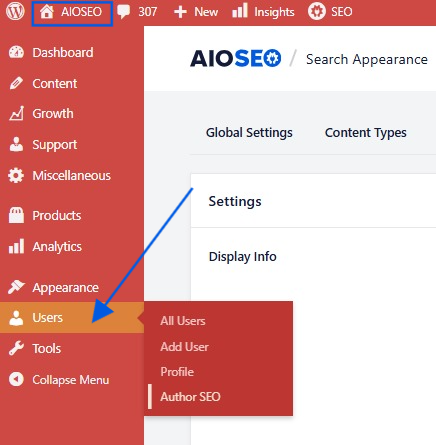
Once AIOSEO is installed, you'll need to activate the Author SEO feature. Go to All in One SEO's dashboard in WordPress » Users and toggle on Author SEO. This unlocks the extended author profile fields and structured data settings.
Step 2: Create a User Profile
But, if you haven't set up user profiles on your WordPress site yet, now is a good time to do that. Go to the WordPress dashboard » Users » Add New User.
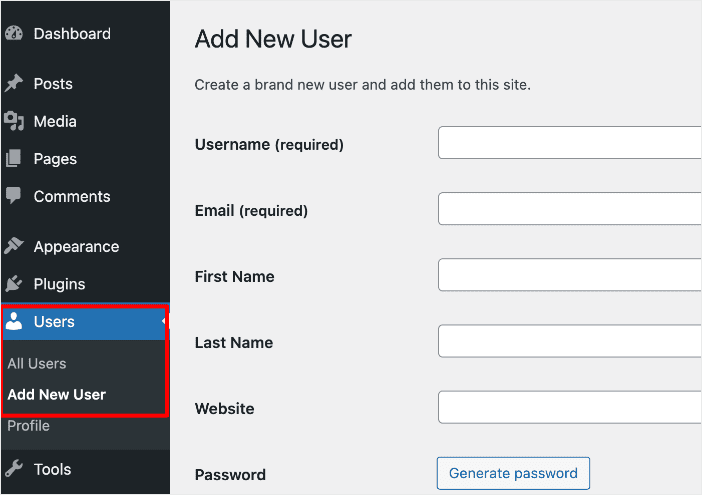
Fill in all required information, then click the Add New User button.
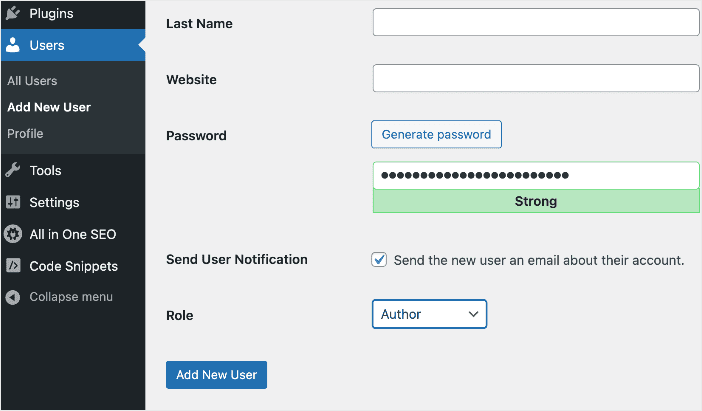
Once the profile is created, you're ready to populate it with author SEO data.
Step 3: Add Author Information in the Author SEO Section
With AIOSEO installed and your user profiles set up, go to your Profile from the sidebar and then click on the Author SEO section to add details about yourself.
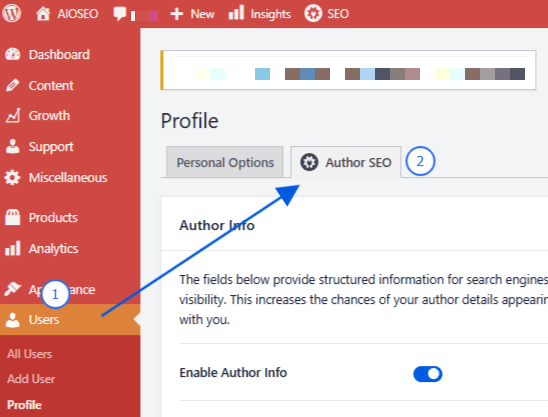
This is where you add the credentials and background information that validate your E-E-A-T signals. There are a lot of relevant fields included that you can fill in as you like.
But remember, the more valid and up-to-date information you add, the stronger your profile will be and the more it will signal your expertise to search engines.
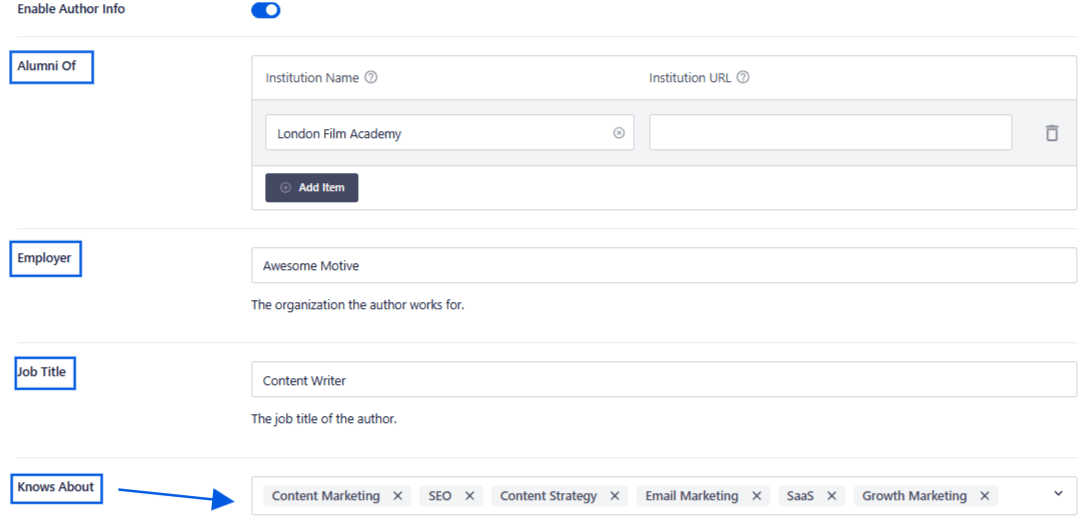
AIOSEO automatically generates Person schema markup from this information. That means search engines receive a structured, machine-readable version of your author's credentials, making it much easier for Google to verify expertise and assess content trustworthiness.
You can also add categories for the author's areas of expertise, which signals topical authority to both readers and search engines.
You can also showcase any awards the author has received and the languages they speak.

The Awards and Spoken Languages fields help demonstrate credibility and build trust with both readers and search engines. All of this feeds directly into the Person schema AIOSEO generates automatically.
The author bio section lets you add a profile image, a short excerpt, and a full bio.
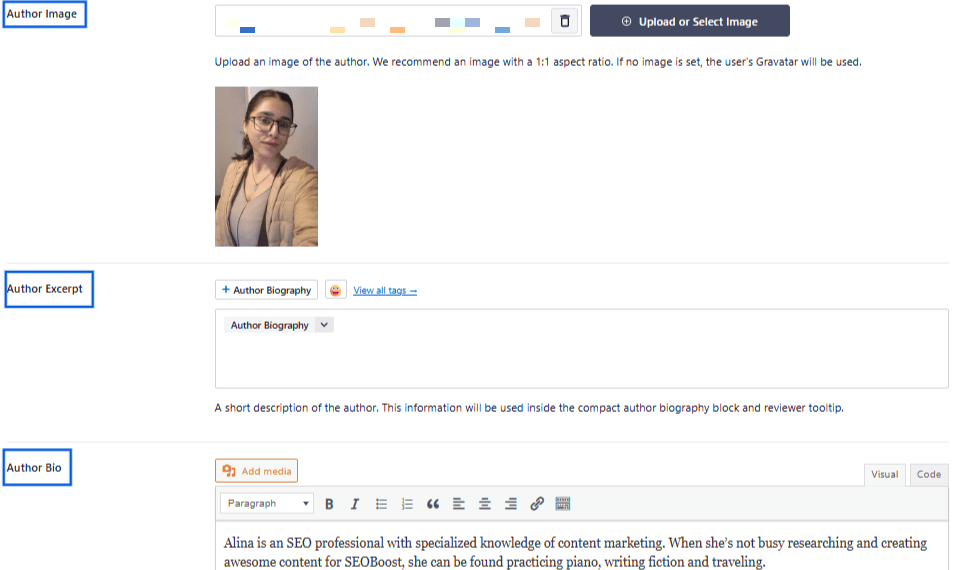
Together with the schema markup, this bio content gives Google the context it needs to understand who wrote your content and why they're qualified to write it, which directly supports your E-E-A-T signals.
Step 4: Add Author Blocks in Your Posts
Once you've filled in your author information, the next step is to add AIOSEO's author blocks to your posts. These blocks pull the information from the Author SEO section and display it visibly within your content, which builds trust with readers and reinforces your E-E-A-T signals on the page itself.
AIOSEO supports 2 main types of author blocks:
The Written By Author Block
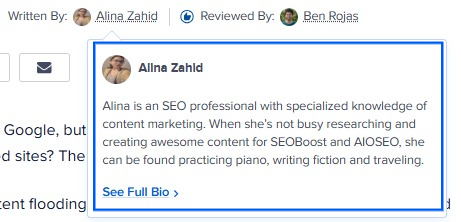
The Written By block displays a brief author byline near the top of a post. Hovering over the author name reveals a tooltip with a mini bio pulled from the Author Excerpt field.
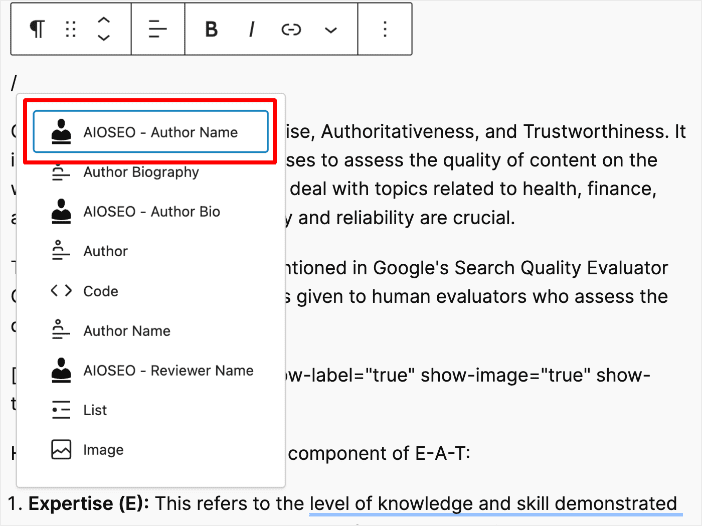
To add this block, open your post in the editor, click where you want to place it, and insert the Author Name block from the block inserter.
The Author Bio Block
The Author Bio block displays a full author profile at the bottom of a post. It's typically placed after the conclusion and includes a photo, a short bio, the author's areas of expertise, and links to their social media accounts and author archive page.
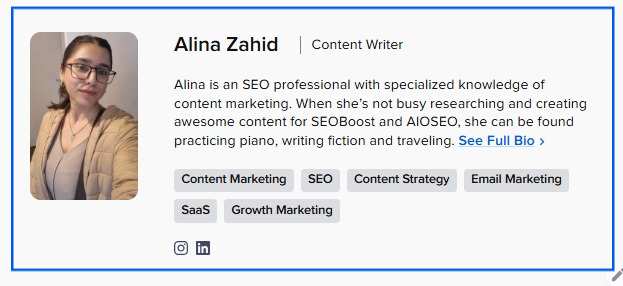
By default, the Author Bio block shows a compact version. To display the full bio, go to the block settings in the editor and turn the Show Compact Author Bio toggle off.
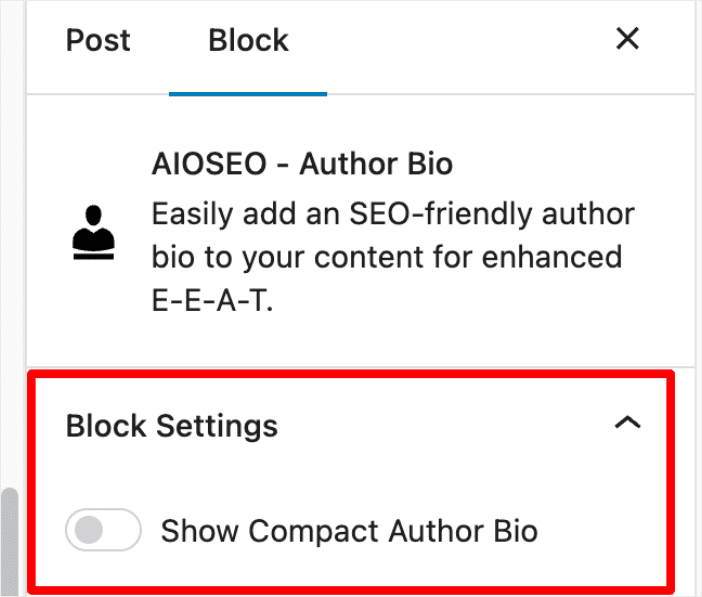
This expands the bio to show the full version.
The Author SEO module also lets you create custom author bio URLs and gives you full control over how the Author Bio block is displayed, including which elements to show or hide.
Both the Written By and Author Bio blocks make your E-E-A-T signals visible to readers, not just search engines. That combination of on-page credibility and structured schema data is what makes author SEO effective.
Step 5: Add a Reviewer Block (Optional)
For content where accuracy matters most, AIOSEO's Author SEO module also supports a Reviewer block. This adds a second credentialed person to your post, typically a subject matter expert who has reviewed and verified the content.
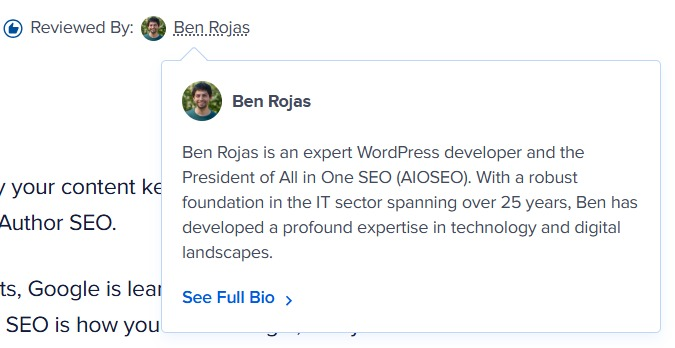
A reviewer block is especially valuable for YMYL topics, where demonstrating that content has been verified by a qualified expert directly strengthens trust signals. To add it, open your post in the editor, click where you want it, and insert the Reviewer block.
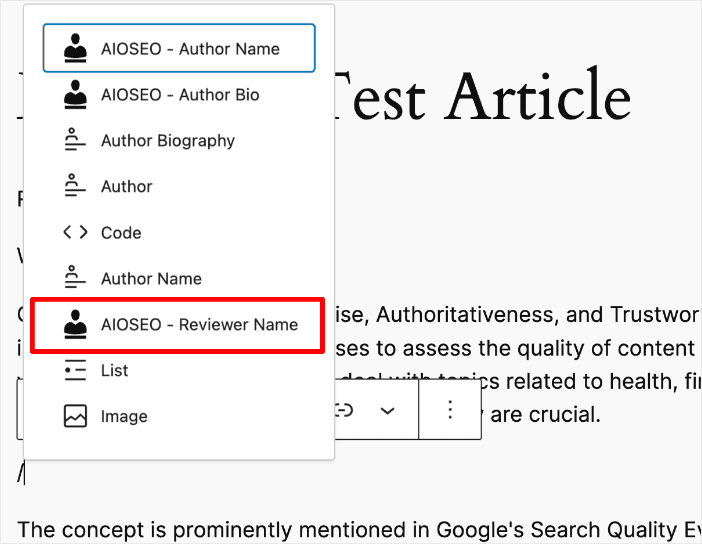
Note: You'll need to have the reviewer's profile set up in the Users and Author SEO sections before this block can pull their information.
How to Optimize Your Author Archive Page
Your author archive page is the page that lists all the content a particular author has published on your site. It's an important part of author SEO because it gives search engines a single page where they can see the full breadth of an author's work, reinforcing topical authority and E-E-A-T signals across your site.
In 2026, a missing or unoptimized author archive page is a meaningful gap in your E-E-A-T foundation. Having a well-structured archive page helps Google connect an author's credentials to the volume and consistency of their output.
Here's how to optimize your author archive pages with AIOSEO:
- Make sure author archives are enabled and indexable. Go to All in One SEO » Search Appearance » Taxonomies and confirm that author archives are set to index, not noindex.
- Add custom SEO titles and meta descriptions. Go to All in One SEO » Search Appearance » Archives and set a keyword-rich title and compelling meta description for author archive pages. This helps the archive pages rank for author name searches and topic-based queries.
- Display the Author Bio block on archive pages. The Author Bio block can be configured to appear on archive pages, giving visitors immediate context about who the author is when they land on the page.
- Link to the archive page from your Author Bio block. AIOSEO's Author Bio block automatically links to the author's archive page, creating a natural connection between individual posts and the author's full content history.
Well-optimized author archive pages also give you another entry point for ranking in search results. An author's name is a legitimate search query, and a properly optimized archive page with schema markup can appear in rich results alongside the author's credentials.
If you manage a multi-author site or set this up for clients, repeat the profile and archive setup for each author and use a consistent template across all profiles. AIOSEO's Author SEO module scales to unlimited authors, so the same process applies whether you have 2 contributors or 20.
Author SEO: Your FAQs Answered
What is author SEO?
Author SEO is the practice of optimizing an author's online presence, credentials, and on-page profile so search engines can identify who created content, verify their expertise, and use those signals to evaluate content quality. It includes optimizing author bios, generating author schema markup, building author archive pages, and aligning with Google's E-E-A-T guidelines. For WordPress users, AIOSEO's Author SEO module handles the technical side of this automatically.
Why is author SEO important for SEO?
Author SEO helps search engines verify that real, qualified people stand behind your content. As AI-generated content continues to grow rapidly, Google is placing greater weight on verifiable human expertise as a quality signal. Strong author SEO builds the E-E-A-T signals that distinguish credible, expert content from thin or anonymous alternatives, which can lead to better rankings, especially in competitive or YMYL niches.
Does author SEO affect Google ranking?
Author SEO helps search engines verify that real, qualified people stand behind your content. As AI-generated content continues to grow rapidly, Google is placing greater weight on verifiable human expertise as a quality signal. Strong author SEO builds the E-E-A-T signals that distinguish credible, expert content from thin or anonymous alternatives, which can lead to better rankings, especially in competitive or YMYL niches.
How do I add author schema in WordPress?
With AIOSEO, author schema is generated automatically. Once you activate the Author SEO (E-E-A-T) feature and fill in an author's profile, AIOSEO outputs Person schema markup that search engines can read and use to verify the author's credentials. No coding or manual schema editing is required.
What Next?
I hope this guide has given you a clear picture of how to set up and strengthen your author SEO in WordPress. From activating the feature and filling in author profiles to adding bio blocks and optimizing author archive pages, every step you take builds the E-E-A-T signals that help your content rank with confidence.
For more on building content authority, check out our guide to E-E-A-T and YMYL content.
Ready to put your author SEO on autopilot? Get AIOSEO today and start building the author authority your content deserves.
Disclosure: Our content is reader-supported. This means if you click on some of our links, then we may earn a commission. We only recommend products that we believe will add value to our readers.
Want to Try AIOSEO for Free?
Enter the URL of your WordPress website to install AIOSEO Lite.