
Do you have dozens of old blog posts but no idea which ones are actually helping your SEO, and do you need a content audit? You’re not alone.
As your website grows, some pages bring in steady traffic, others slowly lose rankings, and a few might never get noticed at all. The tricky part is knowing which ones deserve your attention. That’s why a content audit matters.
A content audit helps you review your existing pages, see how they’re performing, and decide what to keep, update, merge, or remove. And you don’t need a complicated spreadsheet or expensive tools to get started.
In this guide, I’ll show you how to do a WordPress content audit step by step, using AIOSEO to spot content decay, find SEO issues, and identify pages that need work. I’ll also look at how to make your content more useful for AI-powered search.
Let’s start with a quick definition.
In This Article
What Is a Content Audit?
A content audit reviews every page on your site to see how each one is performing and what to do next. It answers 5 simple questions:
- What content do we have?
- Who is creating it?
- How do people find it?
- How is it performing?
- Is it still accurate and up to date?
The end result is a clear action for every page, so you stop guessing about your old content.
Content Audit vs. Content Inventory vs. SEO Audit
These 3 terms often get mixed up, especially in casual content marketing conversations. But it’s important to know how they differ, so here’s a quick overview:
| What It Is | Main Goal | When to Use It | |
|---|---|---|---|
| Content Inventory | A list of every page on your site | Know what you have | The first step of any content audit |
| Content Audit | A review of how each page performs and what to do with it | Decide to keep, update, merge, or remove each page | Once or twice a year, or when traffic stalls |
| SEO Audit | A check of your site’s technical health, like crawling, indexing, and speed | Fix issues that stop search engines from reading your site | After a migration, redesign, or sudden traffic drop |
Want to learn more about the technical side? Here’s our technical SEO audit tool that covers it.
How a Content Audit Is Different From Fixing Content Decay
Content decay is when a page slowly loses traffic and rankings over time. Fixing it means finding those slipping pages and refreshing them. We cover that in our guide on stopping content decay.
However, content audit is bigger. It reviews every page, including posts that never ranked first, pages that compete with each other, and topics you haven’t covered yet. Decay is one thing you’ll find during an audit, but it’s not the only thing.
Why Regular Content Audits Matter
Publishing new posts is only half the job. Here’s what a regular content audit does for your site:
- Finds quick wins: Posts sitting just off page 1 often need small updates, not a full rewrite.
- Cuts dead weight: Old posts with no traffic and nothing useful to say make your site harder to maintain and can bury your best content.
- Stops your posts from competing with each other: When 2 posts target the same keyword, neither one ranks as well as it could.
- Shows you content gaps: You’ll spot topics your readers want that you haven’t written yet.
- Keeps you visible in AI search: AI tools like ChatGPT and Google’s AI Overviews tend to cite fresh, clearly structured content. Old, messy posts get skipped.
How to Do a Content Audit in 7 Steps: Step-by-Step Guide
Before I share my step-by-step guide, keep in mind you can tweak it to fit your workflow. This covers everything you need to plan your content audit. It also helps you sort your pages fast, so you only spend real time on the ones that need it.
Step 1: Set Your Content Audit Goal
Time: 30 – 60 minutes
Before you open a single report, decide what you want this audit to do. Your goal tells you which numbers matter. Some of the most common goals include:
- Grow organic traffic: Focus on clicks, impressions, and rankings.
- Get more conversions: Focus on which posts bring in email signups, sales, or affiliate clicks.
- Clean up before a redesign: Focus on what to cut, merge, or move.
- Show up more in AI search: Focus on freshness, structure, and clear answers.
Next, pick your scope. A full audit covers every page. A partial audit covers one section, like your blog or posts older than 12 months. A sample audit checks a handful of pages from each category to spot patterns.
If you have hundreds of posts, I suggest starting with a partial audit. This way, you’ll finish faster and see results sooner.
Step 2: Build Your Content Inventory
Time: 30 to 60 minutes
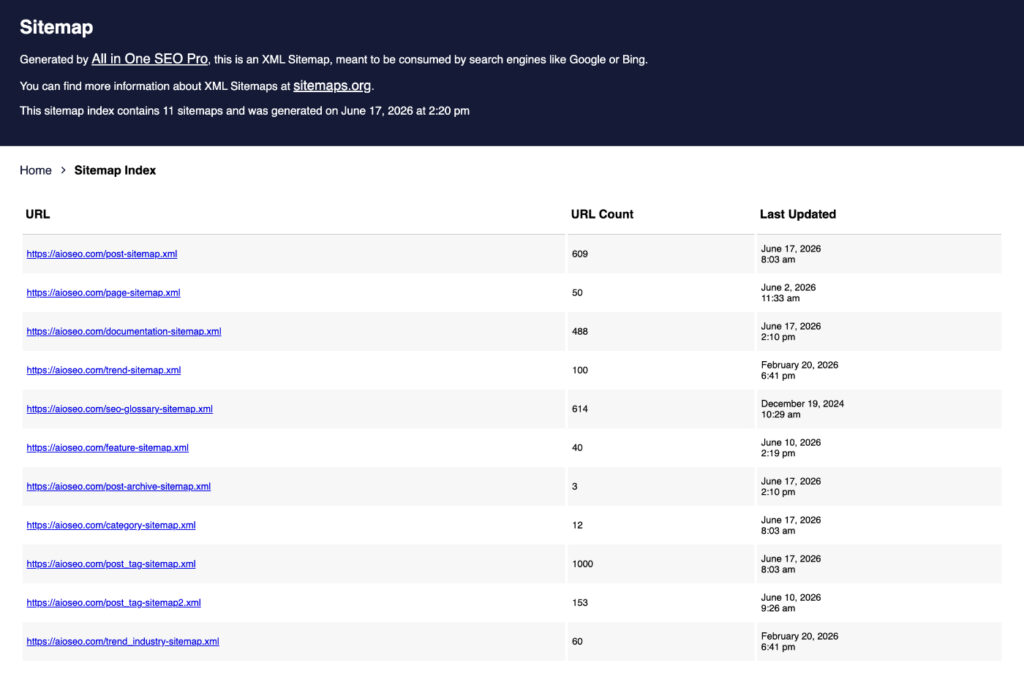
Your content inventory is a spreadsheet with one row for every page you’re auditing. The fastest way to get your full URL list is your XML sitemap.
If you use AIOSEO, it creates your sitemap for you. Just visit yoursite.com/sitemap.xml in your browser. You’ll see a sitemap for each content type, like posts and pages. Open the one you’re auditing and copy the URLs into a spreadsheet.
For a small blog, you can also copy titles and links from Posts » All Posts in your WordPress dashboard.
Then, add these columns to your spreadsheet. We’ve filled in an example row so you can see what a finished entry looks like:
| Column | Example |
|---|---|
| URL | yoursite.com/best-hiking-boots/ |
| Title | Best Hiking Boots for Beginners |
| Content Type | Blog post |
| Publish Date | March 2023 |
| Last Updated | March 2023 |
| Focus Keyphrase | best hiking boots for beginners |
| Clicks (12 months) | 1,240 |
| Impressions (12 months) | 48,900 |
| Average Position | 11.4 |
| AI-Ready | No |
| Verdict | Update |
You’ll fill in the performance columns in Step 3 and the last 2 columns in Steps 5 and 6.
Step 3: Pull Performance Data and Triage Your Pages
Time: 60 to 90 minutes; could probably take more time as well, depending on your site’s size
Now it’s time to see how each page is actually doing in search. There are 2 ways to get this data. Let me show you both.
Option 1: Use AIOSEO’s Search Statistics
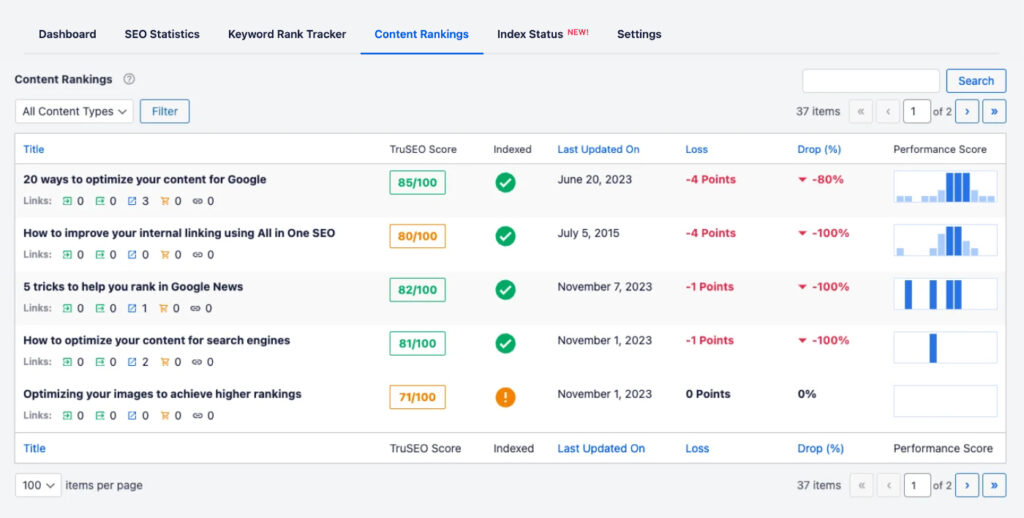
All in One SEO connects to Google Search Console and shows your search data right inside WordPress. Its Content Rankings report also flags which pages are gaining or losing ground, so you don’t have to calculate it yourself.
Note: Search Statistics is available on the AIOSEO Elite plan. If you’re on another plan, skip to Option 2.
Here’s how to use it:
- In your WordPress dashboard, go to All in One SEO » Search Statistics. If you haven’t connected Google Search Console yet, follow the prompt to connect it.
- Click the Content Rankings tab.
3. Set the date range to the last 12 months to see the full picture.
4. Review each page’s loss or gain, drop percentage, and last updated date. Sort by drop percentage to see your biggest losers first.
5. Click the Keyword Rankings tab to see which search terms each page ranks for and where it sits.
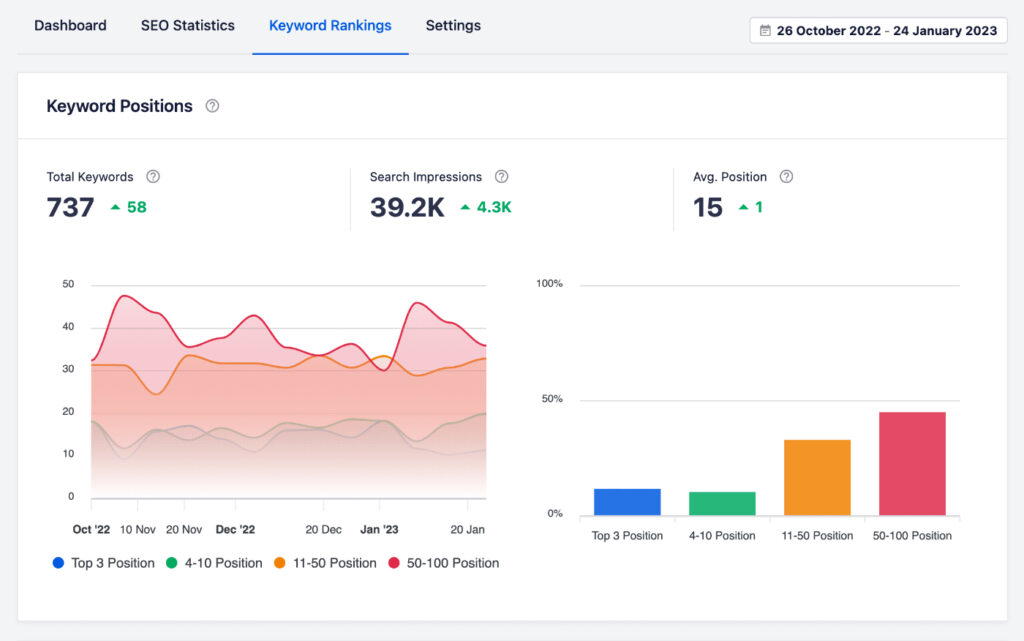
Copy the clicks, impressions, and average position for each page into your spreadsheet.
Option 2: Use Google Search Console Directly
Google Search Console is free and gives you the same core numbers. It just takes a few more clicks.
- Log in to Google Search Console and choose your site.
- Go to Performance » Search results.
- Set the date range to the last 12 months.
- Turn on Average position at the top of the chart, along with clicks and impressions.
- Click the Pages tab below the chart.
- Click Export and download the data. Then paste it into your spreadsheet.
To spot slipping pages, use the date filter’s Compare option to compare the last 6 months with the 6 months before.
This works, but it’s manual. You’ll export both date ranges, match the pages in your spreadsheet, and add a formula to calculate the change for each one. Content Rankings in Search Statistics shows that change, plus the drop percentage and last updated date, in a single tab inside WordPress. On a site with hundreds of posts, that’s the difference between an afternoon of spreadsheet work and a few minutes of sorting.
Triage Before You Go Deeper
Here’s the trick that keeps a content audit from eating your whole week. Once your data is in, sort your spreadsheet by clicks and sort every page into 1 of 3 groups:
- Clear winners: Your top 20% of pages by clicks, as long as their traffic is steady or growing. Mark them “Keep” for now.
- Clear zeros: Pages with fewer than 100 impressions in the last 12 months. Flag them as possible “Remove” or “Merge” pages. On a large or high-traffic site, raise this cutoff.
- The middle: Everything else. Pay special attention to pages ranking in positions 4 to 20, pages losing traffic, and pages with lots of impressions but few clicks. These pages get the full review in Steps 4 and 5.
Treat these cutoffs as a starting point, not a hard rule. The goal is to make fast decisions on the obvious pages so you spend your time where it matters. I’d also suggest excluding anything published in the last 3 months, because new posts generally need time to settle before their numbers mean much.
What This Looks Like for a 300-Post Blog
Let’s put real numbers on it. Say you have 300 posts. After triage, you might end up with something like this:
| Group | Example Count | Time Needed |
|---|---|---|
| Clear winners | About 60 posts | None for now |
| Clear zeros | About 90 posts | About 1 minute each in Step 6 |
| The middle | About 150 posts | About 10 to 15 minutes each in Steps 4 and 5 |
Your numbers will be different, but the pattern would most certainly hold. And as you can see, that middle group is still a lot of work, so don’t try to finish it in one sitting. Instead:
- Sort the middle group by impressions: Pages with the most impressions have the most to gain, so they go first.
- Work in batches of 10 pages: Each batch takes about 2 hours.
- Start with your top 30: That’s 3 sessions, and it covers the pages most likely to move the needle.
- Or audit 1 category at a time: This works well if your site covers several different topics.
You can start fixing your first batch while you review the next one. You don’t need to finish the whole audit before you see results.
Step 4: Review Content Quality and On-Page SEO
Time: about 30 minutes per page
Numbers tell you which pages are struggling. A quality review tells you why. Open each page from your “middle” group and check for:
- Outdated facts: Old stats, old prices, old screenshots, or mentions of last year as “this year.”
- Thin content: Does the page fully answer the search, or does it leave readers hunting for more?
- Search intent match: Search the keyword in Google. If the top results are lists and your page is a long story, that’s a mismatch.
- Broken links: Dead links hurt your readers and your credibility.
- Missing internal links: Do related posts link to the page, and does the page link out to them?
- Weak titles and meta descriptions: A page with lots of impressions but few clicks often has a title problem.
For a quick on-page check, open the post in the WordPress editor and look at the AIOSEO TruSEO score in the sidebar.
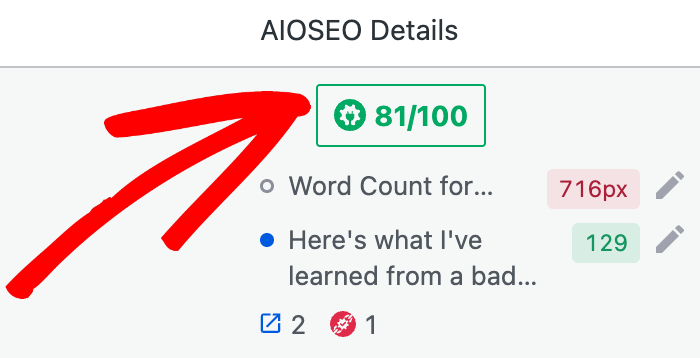
It flags issues like keyphrase placement, readability, and missing links in seconds.
Compare Your Page to Top Results With SEOBoost
TruSEO checks your page on its own. To see how it stacks up against the pages outranking you, use SEOBoost’s Content Audit report. It scores your page against 25+ ranking factors and compares it with the top search results for your keyword.
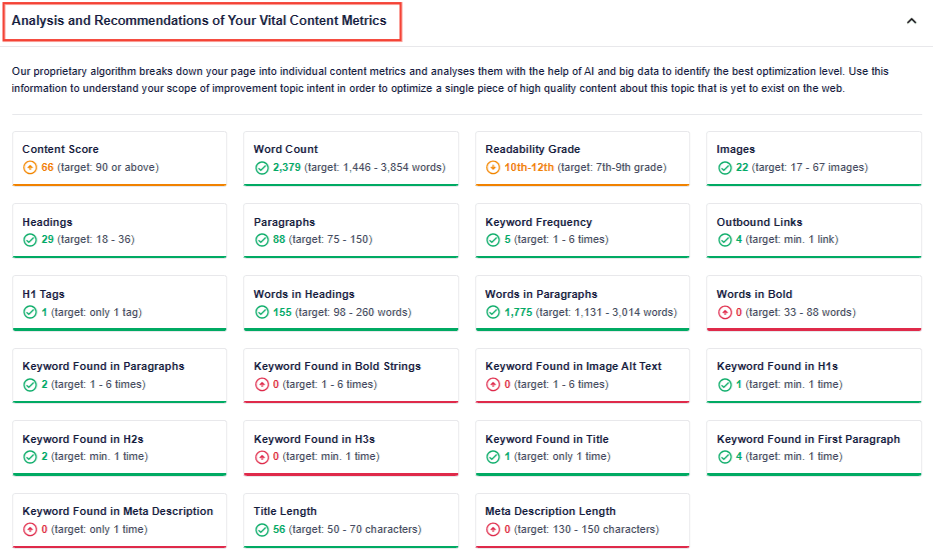
SEOBoost is a separate content optimization tool, but it connects with the AIOSEO plugin to help you run deeper competitor comparisons.
Here’s how to run a report:
- Log in to your SEOBoost account and open Content Audit.
- Click Create Report.
- Enter the URL of the page you’re auditing and its target keyword.
- Review the color-coded report. It flags problems like thin content, missing related terms, and weak structure.
- To start fixing it, open the page in SEOBoost’s Content Optimization editor directly from the report.
You don’t need to run this on every page. Save it for your “middle” pages, especially the ones ranking on page 2. For a full walkthrough of the tool, see this guide to running a content audit with SEOBoost.
Step 5: Check Each Page’s AI Search Readiness
Time: about 15 minutes per page
Ranking in Google isn’t the only goal anymore. AI tools like ChatGPT, Perplexity, and Google’s AI Overviews now pull answers straight from web pages. That’s where Answer Engine Optimization (AEO) comes in. It means shaping your content so AI tools can find, understand, and quote it.
Use this checklist on each page from your “middle” group, plus your top performers:
- Answer first: Does the page answer its main question in the first 2 to 3 sentences?
- Question-based headings: Do your subheadings match how people actually ask about the topic?
- Sections that stand alone: Would each section still make sense if an AI tool quoted only that part?
- Real freshness: Is the “last updated” date accurate, and did the stats and screenshots actually get refreshed?
- Structured data: Does the page have the right schema markup, like Article or FAQ schema?
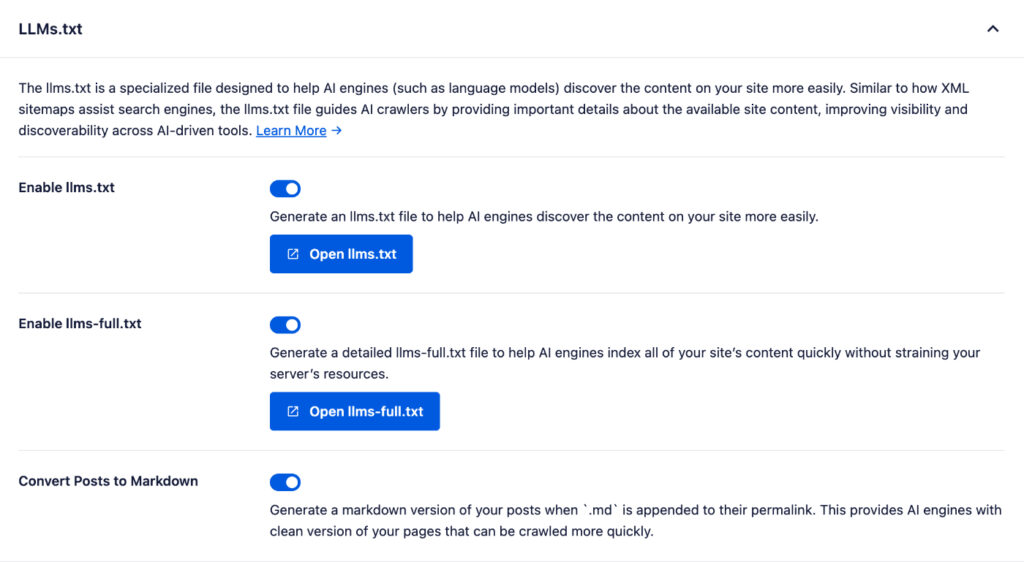
- Site-level AI access: Does your site have an llms.txt file to help AI tools understand your content?
AIOSEO makes the last 2 checks easy. To check a page’s schema, open the post in the editor, scroll to the AIOSEO Settings box, and click the Schema tab. You’ll see which schema types are active and can add more, like FAQ, without touching code.

To check your llms.txt file, go to All in One SEO » General Settings and look for the llms.txt settings. Make sure the file is turned on. If you’re not sure how it differs from your other crawler files, our guide on how llms.txt helps AI tools understand your site breaks it down.
Being AI-ready is one thing. Actually getting cited is another. For your most important pages, do a quick spot-check to see whether AI tools are using them:
- Write down the main question the page answers, the way a real person would ask it.
- Ask that question in ChatGPT, Perplexity, and Google, and check the AI Overview if one appears.
- Look at the sources each answer cites. Note whether your page shows up, and which sites show up instead.
AI answers can change from one search to the next, so treat this as a quick signal, not a final score. If a competitor keeps getting cited and you don’t, open their page and look at how it answers the question. That often shows you exactly what your page is missing.
When you’re done, mark each page “Yes” or “No” in the AI-Ready column of your spreadsheet. You’ll use it in the next step.
Step 6: Give Every Page a Verdict
Time: a few minutes per page
Now you have everything you need to decide what happens to each page. Every page should ideally get 1 of 4 verdicts to make things easier:
| Verdict | Signs | What to Do |
|---|---|---|
| Keep | Strong, steady traffic, accurate content, and AI-ready | Leave it alone and check it again next audit |
| Update | Has rankings or impressions but is slipping, outdated, or not AI-ready | Refresh the content, fix on-page issues, and add answer-first sections |
| Merge | Overlaps with another page on the same topic or keyword | Combine the best parts into the stronger page and set up a 301 redirect |
| Remove | No traffic, no backlinks, and no value to readers | Delete it and redirect it, or noindex it if readers still need it |
Pages that compete for the same keyword are common. Our guide to fixing keyword cannibalization with keyword mapping shows you how to pick which page should win.
Before you remove anything, check whether the page has backlinks. If it does, redirect it to a related page instead of letting it turn into a 404 error. For a deeper look at this step, see our guide on how to prune underperforming content.
To set up a redirect for a merged or removed page with AIOSEO’s Redirection Manager:
- Go to All in One SEO » Redirects.
- Enter the old page’s URL in the Source URL field.
- Enter the page you’re sending visitors to in the Target URL field.
- Choose 301 Moved Permanently as the redirect type.
- Click Add Redirect.
Step 7: Prioritize, Fix, and Track the Results
Time: 30 minutes to plan, then ongoing
You probably have more “Update” pages than you can fix this week, and that’s okay. Work through them in this order:
- Quick wins first: Pages ranking in positions 4 to 20 with lots of impressions. Google already sees these pages as relevant, so they usually need less work to climb than pages that aren’t ranking at all.
- Slipping top performers: Pages that used to bring in big traffic and are now dropping.
- Merges: Combining competing pages often lifts the surviving page fast.
- Removals: Do these last. They take the least effort but usually have the smallest impact.
Turn your list into a content backlog, a running to-do list of updates with a due date for each. This keeps the work moving long after the audit.
Finally, track your results. Give each updated page 4 to 8 weeks, then check it again in Search Statistics » Content Rankings or in Google Search Console. Look for gains in clicks, impressions, and position. If a page still isn’t moving, it may need a bigger rewrite or a merge.
How Often Should You Do a Content Audit?
For most sites, we recommend a full content audit once a year, plus a smaller partial audit every quarter. If you publish several posts a week or work in a fast-changing topic, audit more often.
Between audits, you don’t have to wait for a scheduled review to catch problems. AIOSEO’s SEO Alerts can let you know when something important changes on your site, so you can act right away.
Content Audits for SEO: FAQs Answered
It depends on how many pages you have. Pulling data and triaging can take an afternoon. The manual quality review takes longer. Content strategy firm Content Science estimates you can review about 6 to 12 pages an hour. That’s why triage in Step 3 matters so much.
At minimum, you need a spreadsheet and Google Search Console. AIOSEO’s Search Statistics brings that search data into WordPress and flags pages that are slipping. SEOBoost adds a page-by-page comparison against the top search results.
On a small site, one person can handle it. On a bigger team, bring in whoever writes the content, whoever owns SEO, and anyone who knows which pages drive sales or signups. Their input helps you avoid cutting a page that looks weak in search but matters to the business.
No. A content audit looks at what your pages say and how they perform. An SEO audit looks at your site’s technical health, like crawling, indexing, and speed. Most sites benefit from doing both.
Final Thoughts
Learning how to do a content audit is about making better use of the content you’ve already published. Once you know what’s working and what isn’t, you can focus on improving pages with the greatest potential instead of constantly creating new ones.
For more ways to improve existing content, check out our guide on content pruning for SEO.
And to make future audits easier, AIOSEO’s Search Statistics (available with Elite) lets you monitor content performance and spot declining pages directly from your WordPress dashboard.
Disclosure: Our content is reader-supported. This means if you click on some of our links, then we may earn a commission. We only recommend products that we believe will add value to our readers.
Want to Try AIOSEO for Free?
Enter the URL of your WordPress website to install AIOSEO Lite.