
Google Alerts for SEO is a simple way to keep track of what’s happening around your brand, competitors, and industry without searching for updates yourself.
You just have to set up an alert for a keyword or phrase, and Google can email you when it finds new web results that match it. Using this, you can monitor brand mentions that might turn into backlinks, keep an eye on competitor updates, find potential guest-posting opportunities, or follow topics you regularly write about. And because Google Alerts is free, there’s little reason not to run a few useful alerts in the background.
But it might be worth noting that Google Alerts can’t tell you when something on your website goes wrong. If your homepage accidentally gets set to noindex, your robots.txt file has a problem, or your XML sitemap fails, Google Alerts won’t know. That’s where WordPress-specific monitoring like AIOSEO’s SEO Alerts comes in.
In this guide, I’ll show you how to set up and use Google Alerts for SEO first, including a few search operators that make the results much more useful. Then we’ll look at how I pair that external monitoring with AIOSEO SEO Alerts to keep an eye on a WordPress site’s technical health, too.
Let’s start with a quick definition.
In This Article
- What Is Google Alerts?
- How to Set Up Google Alerts for SEO (Step by Step)
- How to Use Google Alerts for SEO
- What Google Alerts Can't Do for Your WordPress Site
- How AIOSEO SEO Alerts Monitors What Google Alerts Misses
- Google Alerts for SEO vs. AIOSEO SEO Alerts
- Google Alerts for SEO: FAQs Answered
- Final Thoughts
What Is Google Alerts?
Google Alerts is a free monitoring tool from Google that notifies you when new web results appear for a search term you want to track.
Think of it as a Google search that keeps running after you’ve closed the tab. Instead of repeatedly searching for your brand name, a competitor, or an industry topic, you create an alert once. Google then looks for new matching results and emails them to you based on the frequency you choose.
For SEO, that makes Google Alerts particularly useful for monitoring what’s happening around your website. I can use it to spot new brand mentions, track competitors, discover potential link-building opportunities, or follow topics that matter to my content strategy.
How Does Google Alerts Work?
Google Alerts starts with a search query. You enter the keyword, phrase, or search operator you want to monitor, then choose how often you want updates and which results you want Google to include.
For example, I could create an alert for: "All in One SEO" -site:aioseo.com
The quotation marks tell Google to look for that exact phrase, while -site:aioseo.com excludes results from AIOSEO’s own website. That makes the alert much more useful for finding external brand mentions rather than getting notified about pages we publish ourselves.
When Google discovers matching results, it collects them into an alert and sends them to the email address associated with your Google account. You can control the frequency, sources, language, region, and number of results you receive, which we’ll configure in the next section.
Is Google Alerts Free?
Yes, Google Alerts is free to use, and you can create multiple alerts for different keywords, brands, competitors, or topics.
That makes it an easy addition to an SEO monitoring workflow. It won’t replace a dedicated SEO or brand-monitoring platform, but for simple web monitoring, you can set it up in a few minutes and leave it running in the background.
The trick is setting up the right queries. A broad alert can fill your inbox with noise surprisingly quickly, so next I’ll show you how to configure Google Alerts for SEO properly.
How to Set Up Google Alerts for SEO (Step by Step)
Setting up your first alert takes about 2 minutes. Here’s the exact process to use:
Step 1: Go to Google Alerts
Head to google.com/alerts and sign in with your Google account. If you manage SEO for a business, I recommend using a shared work account. That way, alerts won’t disappear if someone leaves the team.
Step 2: Enter Your Keyword and Configure Settings
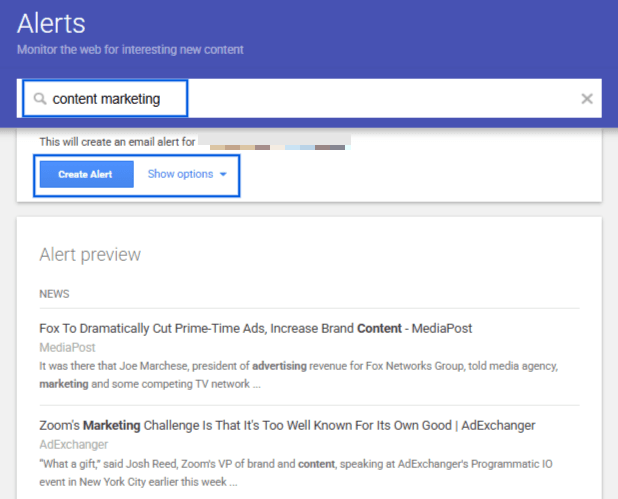
Type your keyword or query into the search bar at the top. Google shows a preview of the results you’ll get, which is a great way to check whether your query is too broad before you commit.
Next, click Show options. This is where most people skip ahead, and it’s why their alerts end up noisy.
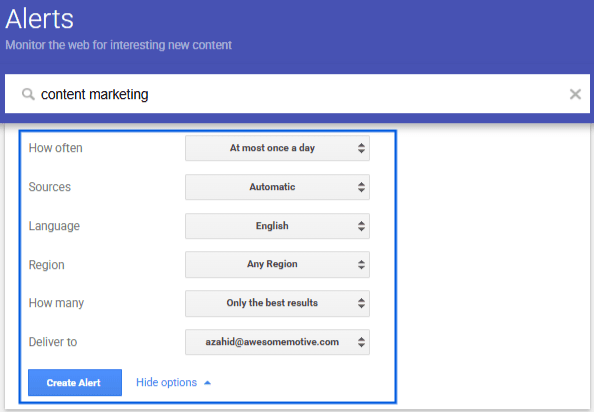
Here’s what each setting does:
- How often: Choose As-it-happens, At most once a day, or At most once a week. I use once a day for brand alerts and once a week for competitors.
- Sources: Pick Automatic, or narrow it to News, Blogs, Web, Video, Books, Discussions, or Finance. For link building, Blogs and Web are the most useful.
- Language: Set this to the language your audience reads in.
- Region: Leave it on Any Region unless you run a local business or only care about one market.
- How many: Choose Only the best results or All results. I start with All results for brand alerts so nothing slips through, then switch to Only the best results if the volume gets out of hand.
- Deliver to: Send alerts to your email address or to an RSS feed. RSS is handy if you want to pipe alerts into a feed reader or a team channel instead of your inbox.
When your settings look right, click Create Alert.
Step 3: Review and Manage Your Alerts
Your new alert appears in the My alerts list on the Google Alerts homepage. From here, you can:
- Click the pencil icon to edit an alert’s query or settings.
- Click the trash icon to delete an alert you no longer need.
- Click the gear icon to set your delivery time and bundle all your alerts into a single daily digest email.
I’d turn on the digest option as soon as you have more than 3 or 4 alerts. Getting one organized email beats 12 separate ones.
How to Use Google Alerts for SEO
Now for my favorite part – here are the 7 ways I actually use Google Alerts for SEO, along with the exact queries you can copy.
1. Monitor Your Brand for Unlinked Mentions
This is the highest-value use of Google Alerts for SEO. When a site mentions your brand without linking to you, you have a warm outreach opportunity. The writer already knows about your brand, so your work is half-done. All you need to do is approach them and ask them to mention your brand.
Here’s the query I use: “Your Brand Name” -site:yourdomain.com
The quotation marks force an exact match, and -site:yourdomain.com removes your own pages from the results. If your brand name is a common word, add your niche to the query, like "Your Brand Name" recipes.
When a mention comes in, check if it links to you. If it doesn’t, send a short, friendly email thanking the writer and asking if they’d link the mention to your site. Even unlinked brand mentions send trust signals, but turning them into links is one of the easiest wins you can secure.
Want to know the easy, quick SEO wins? Here’s a complete SEO checklist for you to follow.
Here’s a template of a short outreach email you can use. Keep it this brief, because busy editors do skim through reading, especially when they get loads of emails every day.
Subject: Thanks for mentioning [Brand] in your [topic] post

Hi [Name],

I just saw your post on [topic] and loved it. Thanks for including [Brand]!
Would you be open to linking the mention to [URL]? It'd help your readers
find the [resource] you described.

Thanks again,
[Your name]
2. Find Link Building Opportunities
New roundups, resource pages, and “best of” lists in your niche are perfect link targets because they’re still fresh. Writers are more likely to update a post they published last week than one from 3 years ago.
Try queries like these:
intitle:"best" "your topic" tools
"your topic" "resources" OR "roundup"
When one of these alerts lands, read the post and look for a gap your content fills. Then pitch it. Focus on earning links from new referring domains rather than piling up links from sites that already link to you.
3. Track Competitor Content and Product Updates
Want to know what your competitors publish without checking their blogs every week? Set up an alert for their domain:
site:competitor.comYou’ll get a heads-up when they publish new content that Google indexes. I use this to spot topics they’re doubling down on and content gaps I can cover first.
For link prospecting, flip the query around:
"Competitor Name" -site:competitor.comThis shows you who’s writing about your competitor. If a site covers them, there’s a good chance it would cover you too.
4. Discover Guest Posting Opportunities
Instead of searching for guest post opportunities every time you need one, let them come to you. These queries surface sites that are openly asking for contributors:
"write for us" "your niche"
intitle:"guest post" "your niche"
Here’s a quick tip from my experience: check the site’s other guest posts before you pitch. If they’re thin or stuffed with links, that’s a sign the site sells placements, and you’re better off skipping it.
5. Protect Your Content from Plagiarism
If you publish original research, recipes, or in-depth guides, someone will eventually copy them. Google Alerts for SEO can help you catch it.
Pick a distinctive sentence from your post, one that’s unlikely to appear anywhere else, and set up an alert for it in quotation marks:
"a unique sentence copied word for word from your post" -site:yourdomain.comI recommend doing this for your top 5 to 10 traffic drivers, not every post. Scraped content is a common tactic in negative SEO attacks, so it’s worth watching the pages that matter most. If you find a copy, you can contact the site owner or file a DMCA takedown request.
6. Monitor Industry News and Trending Topics
Being first to cover a trend can earn you links, traffic, and a spot in Google’s Top Stories. Set up alerts for the big topics in your niche, along with terms like "Google core update" if you follow search news.
When the same topic shows up across 3 or 4 alerts in a week, that’s usually a sign it’s worth writing about.
7. Use Search Operators to Cut the Noise
Search operators are what separate a useful alert from an inbox full of junk. Google Alerts supports most of the same operators as Google Search.
Here are the ones I rely on:
| Operator | What It Does | Example |
|---|---|---|
"exact phrase" | Matches the exact words in that order | "Your Brand Name" |
-site: | Excludes results from a domain | -site:yourdomain.com |
site: | Only shows results from a domain | site:competitor.com |
intitle: | Requires a word in the page title | intitle:"guest post" baking |
inurl: | Requires a word in the URL | inurl:resources "your topic" |
OR | Matches either term | "roundup" OR "best tools" |
But operator results in Google Alerts can be less consistent than in regular search. Before you save an alert, run the same query in Google Search to see what comes back. If the results look right there, the alert is usually in good shape.
What Google Alerts Can’t Do for Your WordPress Site
By now, you’ve got a solid setup for monitoring what’s being said about your site across the web. But here’s the catch: Google Alerts can’t see what’s happening inside your site.
Remember how Google Alerts only reports on content that’s already in Google’s index? That’s exactly why it can’t warn you when your own site has a problem. If something breaks and your pages start dropping out of search, Google Alerts won’t warn you. It just goes quiet. And silence is easy to miss.
Here are some of the important technical SEO issues it can’t catch:
Doesn’t Know If Your Homepage Is Set to Noindex
A noindex tag tells search engines to leave a page out of their results. On your homepage, that’s a disaster. And it happens more often than you’d think.
The usual culprits are a plugin update gone wrong, a theme change, or the “Discourage search engines from indexing this site” box in WordPress being left on after a site moves from staging to live. None of these publish new content, so Google Alerts has nothing to report.
Won’t Catch Robots.txt Errors
Your robots.txt file tells search engine crawlers which parts of your site they can access. If it fails to load, for example during a server migration or a hosting outage, crawlers can stop visiting your site. Google’s own documentation notes that it may pause crawling when it can’t reach a site’s robots.txt file.
That’s a problem you’d want to know about in hours, not days later, but Google Alerts won’t tell you either way.
Misses XML Sitemap Failures
Your XML sitemap helps search engines find your new and updated content. If it breaks after a WordPress or plugin update, your new posts can take much longer to get discovered and indexed.
For anyone publishing on a regular schedule, you’ll want to avoid that. You keep hitting publish, but Google has a harder time finding the new posts, and nothing in your inbox tells you why.
Doesn’t Monitor Social Media
Even as a web monitoring tool, Google Alerts has gaps. It’s not built to track social media, so mentions on most social platforms won’t show up in your alerts. It also doesn’t catch every result for your query, and it doesn’t offer sentiment analysis or backlink data.
None of that makes Google Alerts a bad tool. It’s free, and it does its main job well. It just means you need something else watching your site itself.
How AIOSEO SEO Alerts Monitors What Google Alerts Misses
So how do you get notified when your website has SEO issues?
Meet SEO Alerts.
If you run WordPress, the easiest option I’ve found is SEO Alerts in All in One SEO. It watches your WordPress site for the critical technical issues Google Alerts can’t see, then notifies you by email, Slack, or both. And it’s included on every AIOSEO plan, including the free AIOSEO Lite.
SEO Alerts currently monitors 3 issues, the same 3 I covered above:
- Homepage is noindexed: Alerts you if your homepage gets set to noindex.
- Robots.txt fails to load: Alerts you if your robots.txt file returns an error.
- XML Sitemaps fail to load: Alerts you if any of your XML sitemaps return an error.
AIOSEO checks for these problems every hour. To keep your inbox clean, it won’t alert you about the same issue more than once a day.
To be clear about scope, SEO Alerts doesn’t track rankings, traffic drops, or broken links. It focuses on the 3 issues most likely to knock pages out of search without any obvious warning signs.
How to Set Up SEO Alerts in AIOSEO
Setup takes under 5 minutes. First, make sure you’re running the latest AIOSEO version. If needed, you can update from Plugins » Installed Plugins in your WordPress dashboard.
Then, from your WordPress admin sidebar, go to All in One SEO » Tools and click the SEO Alerts tab.
Make sure the Enable SEO Alerts toggle is turned on.
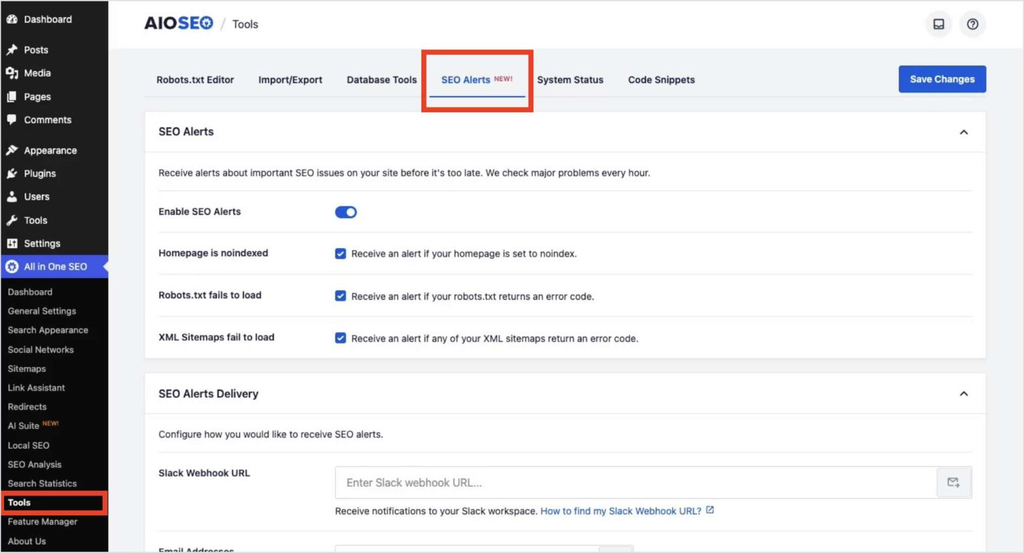
Below the toggle, you’ll see the 3 issues SEO Alerts can watch for. All 3 are enabled by default. I’d leave them all on, since each one can quietly stop your pages from ranking.
Next, scroll down to the SEO Alerts Delivery section and choose how you want to be notified. You can use email, Slack, or both.
- For email: Type an address and click Add Email Address. Repeat this to add more addresses, like a teammate or your developer.
- For Slack: Paste an incoming webhook URL from your Slack workspace into the Slack Webhook URL field.
When everything looks good, click Save Changes. That’s it. AIOSEO will now monitor your site and alert you if one of these issues appears.
For a full walkthrough, including how to create a Slack webhook, see our guide to setting up SEO Alerts.
Email and Slack Notifications
When AIOSEO detects an issue, it sends a notification to every channel you’ve set up. If you add both email and Slack, you’ll get the alert in both places.
Slack is the better choice if you work with a team. Once you add a webhook URL, a Slack Member IDs field appears. Add the IDs of anyone you want @mentioned when an alert fires, so the right person sees it right away. You can find a member’s ID in Slack by clicking their name, opening the 3-dot menu, and choosing Copy member ID.
My advice? Use the Test buttons in the SEO Alerts panel to send a sample notification to each channel right after setup. It confirms everything works before you actually need it.
If you want to go beyond technical alerts and track how your content performs in search, AIOSEO’s Search Statistics module adds keyword rank tracking and content decay analysis right in WordPress. It’s available on the Elite plan and pairs well with SEO Alerts.
Google Alerts for SEO vs. AIOSEO SEO Alerts
It’s tempting to compare these 2 tools head-to-head, but they don’t really compete as they watch different things.
Google Alerts looks outward. It monitors the web for external mentions of your brand, your competitors, and your content. That makes it great for link building, outreach, and spotting copied content.
AIOSEO SEO Alerts looks inward. It monitors your WordPress site for the technical issues that can quietly pull your pages out of search. That makes it your early warning system for site health.
Since both are free, you don’t have to choose. I run both, and I’d recommend you do the same.
Google Alerts for SEO: FAQs Answered
Set up alerts for your brand name, your competitors, your niche topics, and distinctive sentences from your best content. Then use search operators like quotation marks and -site: to filter out noise. The most valuable SEO uses are finding unlinked brand mentions, spotting link-building and guest-post opportunities, tracking competitors, and catching plagiarism.
Yes, for off-page SEO. Google Alerts is a free and easy way to monitor brand mentions, find link opportunities, and keep an eye on competitors. It doesn’t help with technical SEO, though, because it can’t monitor what’s happening on your own site.
Go to google.com/alerts, sign in, and type your keyword into the search bar. Click Show options to choose your frequency, sources, language, region, and delivery method. Then click Create Alert. Wrap multi-word keywords in quotation marks to get exact matches.
Google Alerts doesn’t catch every result, doesn’t monitor most social media, and doesn’t offer sentiment analysis or backlink data. It also can’t monitor your own site for technical issues like a noindexed homepage, robots.txt errors, or broken XML sitemaps. For WordPress, AIOSEO SEO Alerts covers those issues.
You can choose As-it-happens, At most once a day, or At most once a week for each alert. You can also bundle all your alerts into a single daily digest from the settings menu.
Final Thoughts
Now you know how to use Google Alerts for SEO, and set them up to help with your content research and strategy.
I believe Google Alerts is a genuinely useful SEO tool, especially since it costs nothing. And that you can use it to easily track brand mentions and stay updated with industry conversations. For WordPress monitoring, I’d recommend using AIOSEO’s SEO Alerts to watch for critical issues on the site, including homepage noindex status, robots.txt errors, and XML sitemap failures, and to notify you by email or Slack. Together, the two cover very different sides of SEO monitoring.
Ready to put those alerts to work? Turn your new brand mentions into backlinks with our guide to on-page vs. off-page SEO.
Disclosure: Our content is reader-supported. This means if you click on some of our links, then we may earn a commission. We only recommend products that we believe will add value to our readers.
Want to Try AIOSEO for Free?
Enter the URL of your WordPress website to install AIOSEO Lite.