
Is your Yoast SEO Premium renewal starting to cost more than your hosting? Are you looking for the best Yoast SEO alternative for WordPress?
You've just landed on the right page!
In this guide, I'll show you what Yoast costs over the years, where AIOSEO saves you money and offers better features, and how to move every site over without losing your SEO data.
In This Article
- Why People Look for a Yoast SEO Alternative
- What Yoast and AIOSEO Really Cost at 1, 3, and 10 Sites
- Why I Recommend AIOSEO as the Top Yoast SEO Alternative
- Yoast vs. AIOSEO Feature Comparison
- How to Switch From Yoast to AIOSEO (Step by Step)
- Step 1: Back Up Your Site
- Step 2: Install AIOSEO and Run the Setup Wizard
- Step 3: Or Import From the Tools Menu Instead
- Step 4: Import Your Redirects
- Step 5: Let the Import Finish
- Step 6: Deactivate Yoast
- Step 7: Spot-Check Your Top Pages
- Step 8: Submit Your New Sitemap to Google Search Console
- Switching 10 Sites? Use This Checklist
- Other Yoast SEO Alternatives Worth Knowing
- Yoast SEO Alternatives: FAQs Answered
- Ready to Make the Switch?
Why People Look for a Yoast SEO Alternative
I'm not going to lie – Yoast is a solid plugin. It's been around since the early days of WordPress, and millions of sites run it. So why are so many site owners shopping around?
In my experience (and the experience of most users I've talked to), it comes down to 3 things.
Per-Site Pricing Adds Up Fast
Every Yoast SEO Premium subscription covers 1 website. If you run 10 sites, you need 10 active subscriptions.
At $118.80 per site, that's $1,188 a year before any bulk discount. Yoast does offer discounts on larger orders, but the price still grows with every site you add.
For a blogger or even a small business building a network of niche sites, that math gets old quickly.
WooCommerce Stores Pay More
If you sell products, Premium isn't enough. You need Yoast WooCommerce SEO, which costs $178.80 per store each year.
That plan includes everything in Premium plus product schema and product sitemaps. But it's still priced per store. So 10 stores cost $1,788 a year.
Growing Sites Want More Automation
When you publish a lot, the time you spend on each post matters. Many content creators want tools that do the busywork for them, like adding internal links or fixing on-page issues with 1 click.
To be fair, Yoast has improved here. Premium now includes the Local SEO, News SEO, and Video SEO plugins at no extra cost. It also includes AI tools and supports up to 5 keyphrases per post. But some features that save the most time at scale work differently in AIOSEO, as you'll see in the detailed comparison below.
What Yoast and AIOSEO Really Cost at 1, 3, and 10 Sites
Let's put real numbers side by side. I've added AIOSEO's first-year price and its renewal price, because you'll pay the renewal price every year after that.
| Scenario | Yoast (Every Year) | AIOSEO First Year | AIOSEO Renewal |
|---|---|---|---|
| 1 site | $118.80 (Premium) | $49.50 (Basic) | $99 |
| 3 sites | $356.40 | $99.50 (Plus) | $199 |
| 10 sites | $1,188 | $199.50 (Pro) | $399 |
| 10 WooCommerce stores | $1,788 | $199.50 (Pro) | $399 |
| 100 sites | $11,880 before bulk discounts | $299.50 (Elite) | $599 |
Even at full renewal price, 10 sites on AIOSEO Pro cost about a third of Yoast Premium. For 10 WooCommerce stores, you'd save about $1,389 a year after the first year. And that's just the monetary aspect of switching.
Here are 2 things to know before you pick a plan:
- WooCommerce SEO is on every AIOSEO plan, including Basic. You don't pay more for running a store.
- Some features start on higher plans. Local SEO starts on Plus. Link Assistant, advanced redirects, and news and video sitemaps start on Pro.
What You Pay Over 3 Years
First-year deals can hide the real cost. So here's the total over 3 years, using full renewal prices for years 2 and 3.
| Scenario | Yoast, 3 Years | AIOSEO, 3 Years | You Save |
|---|---|---|---|
| 10 sites | $3,564 | $997.50 (Pro) | $2,566.50 |
| 10 WooCommerce stores | $5,364 | $997.50 (Pro) | $4,366.50 |
| 3 sites | $1,069.20 | $497.50 (Plus) | $571.70 |
When You Need Elite Instead of Pro
Pro covers most content sites. But 3 features that multi-site owners often want are Elite-only:
- WordPress Multisite Support: If your sites run as 1 Multisite network, rather than separate installs, you need Elite.
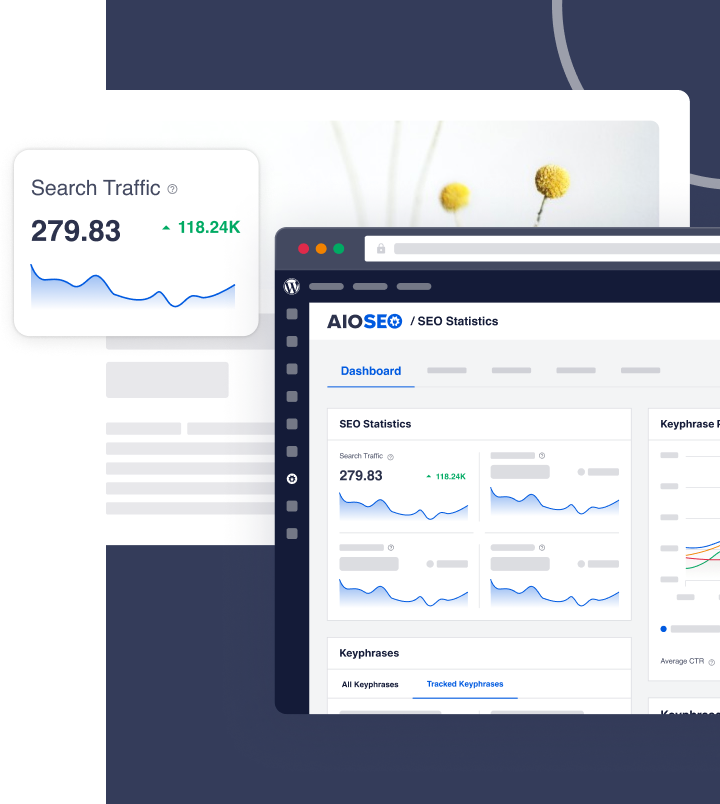
- Search Statistics: This shows your Google Search Console data, like clicks and top content, inside WordPress.
- Keyword Tracking and Content Decay: These show which posts are slipping so you know what to update.
Elite costs $299.50 for the first year and $599 after that, for up to 100 sites. That's still about half of what Yoast charges for 10. You can compare every plan on the AIOSEO pricing page.
Why I Recommend AIOSEO as the Top Yoast SEO Alternative
Price gets you to look, but its features improve your entire workflow and strategic planning. Here's what AIOSEO does that matters most when you run several sites.
Link Assistant Adds Internal Links for You
On a site with 300 posts, adding internal links by hand is hours of work you'll never get back.
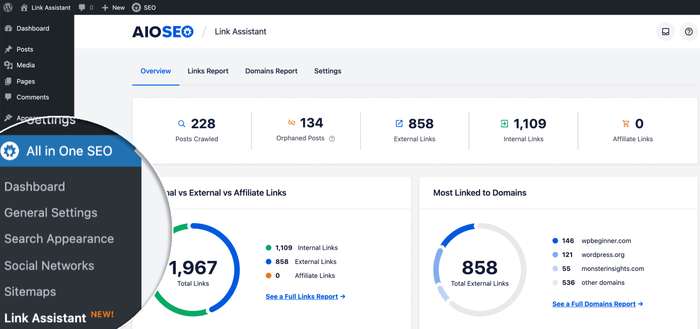
Yoast Premium suggests related posts while you write. You then add each link yourself. AIOSEO's Link Assistant goes further. It scans your whole site and shows link suggestions you can add with 1 click, right from the report.
It also finds orphaned posts. These are posts with no internal links pointing to them, so readers and search engines have a hard time finding them.
To see it, go to All in One SEO » Link Assistant in your WordPress dashboard.
If you're planning which pages should link where, this guide on mapping keywords to the right pages pairs well with Link Assistant.
TruSEO Fixes On-Page Issues With 1 Click
TruSEO is AIOSEO's on-page analysis tool. It scores your post out of 100 and gives you a checklist of fixes. You can track up to 10 keywords per post.
With TruSEO 2.0, you get more than a list of problems. The Highlighter pairs flagged issues with AI fixes you can apply right away.
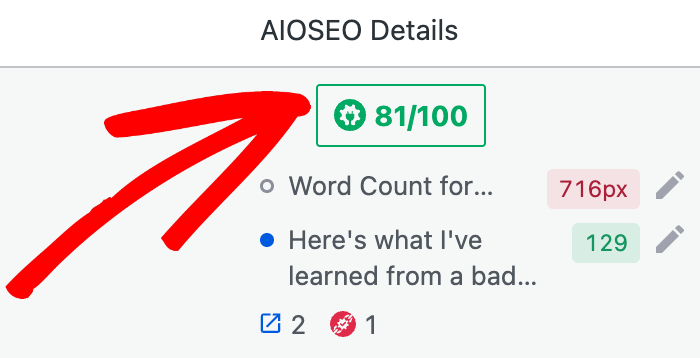
And the Optimize with AI button can rewrite your title, meta description, and content in 1 pass. If you don't like the result, you can undo it with 1 click.
All of this helps ensure your on-page SEO score stays optimized and that you keep creating high-quality content.
AI Credits Come With Your Plan
Every paid AIOSEO plan includes AI credits. Pro includes 50,000, and Elite includes 200,000. You can use them for SEO titles, meta descriptions, FAQs, social posts, and more.
You can even use them to generate images with GPT Image 2 or Nano Banana 2 without switching tabs.
That matters when you compare options with other Yoast SEO alternatives. For example, Rank Math sells its Content AI tools as a separate subscription on top of its paid plans, which can add up, especially for a small-scale agency or solopreneur.
One License Works for Client Sites Too
If you build or manage sites for clients, check the license terms of any plugin you pick. AIOSEO lets you use your license on client sites, and every plan includes unlimited users. So you can give a client or a writer access without paying per seat.
However, if you run just 1 local business site and write in Google Docs, Yoast may still be a good fit. The case for switching gets much stronger as your site count grows.
Yoast vs. AIOSEO Feature Comparison
Here's how the 2 plugins stack up on the features content creators ask us about most.
| Feature | Yoast Premium | AIOSEO |
|---|---|---|
| License model | 1 site per subscription | 1, 3, 10, or 100 sites per plan |
| WooCommerce SEO | Separate plan at $178.80 per store | Included on every plan |
| Local SEO | Included in Premium | Plus plan and up |
| News and video sitemaps | Included in Premium | Pro plan and up |
| Redirect manager | Included in Premium | Basic plan and up, with 404 tracking and server redirects on Pro |
| Internal linking | Link suggestions you add by hand | Link Assistant with 1-click links and orphaned post reports (Pro and up) |
| Keywords per post | Up to 5 | Up to 10 |
| AI tools | AI suggestions and bulk AI meta | Optimize with AI, AI fixes, AI credits included |
| Google Docs add-on | 1 seat included | Not available |
| Search Console data in WordPress | Not included | Search Statistics (Elite) |
| Users | No per-user limit in WordPress | Unlimited users on every plan |
Want the deeper, feature-by-feature breakdown? Check out our full Yoast vs. AIOSEO comparison.
How to Switch From Yoast to AIOSEO (Step by Step)
Switching SEO plugins sounds scary. But if you move your data correctly, your titles, descriptions, and settings come with you. Here's the process we recommend for each site.
Important: Never run 2 SEO plugins at the same time long-term. They'll both output meta tags, which creates duplicate tags on your pages.
Step 1: Back Up Your Site
Before you change anything, make a full site backup with your host or a backup plugin. If something goes wrong, you can roll back in minutes.
If you use Yoast's redirect manager, also export your redirects as a CSV file. Go to Yoast SEO » Redirects and export them. This gives you a safe copy no matter what happens next.
Step 2: Install AIOSEO and Run the Setup Wizard
Install and activate AIOSEO. Keep Yoast installed for now. AIOSEO can only import from plugins that are still installed on your site.
Next, launch the setup wizard and click Let's Get Started.
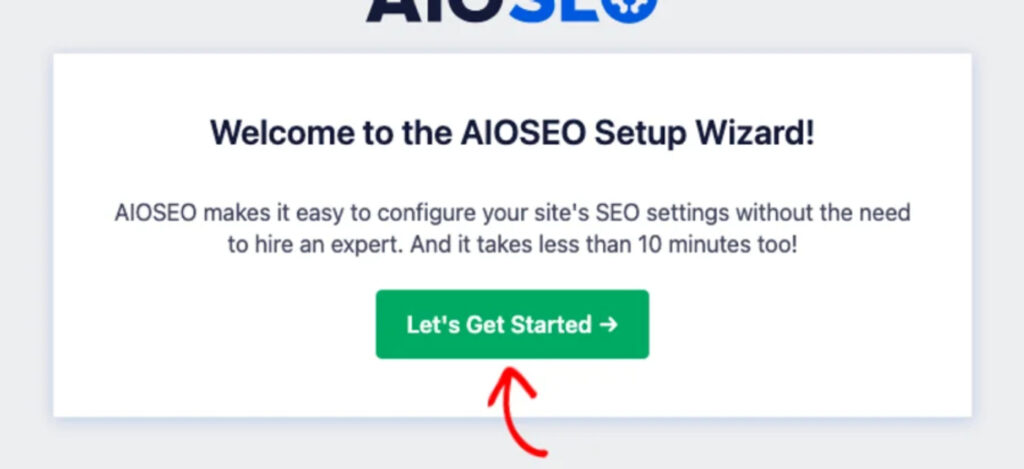
AIOSEO will detect Yoast. Select it and click Import Data and Continue. Then finish the rest of the wizard to set up your site info and features.
Step 3: Or Import From the Tools Menu Instead
Already skipped the wizard? No problem. Go to All in One SEO » Tools and click the Import/Export tab.

In the Import Settings From Other Plugins section, choose Yoast SEO from the dropdown. Check the settings you want to bring over, then click Import.
AIOSEO imports your titles, meta descriptions, schema settings, social meta, and more. For the full list, see our doc on importing settings from other plugins.
Step 4: Import Your Redirects
Redirects live in their own section. Go to All in One SEO » Redirects and click the Import/Export tab.
In the Import Redirects From Other Plugins section, pick your old redirect plugin from the dropdown and click Import.
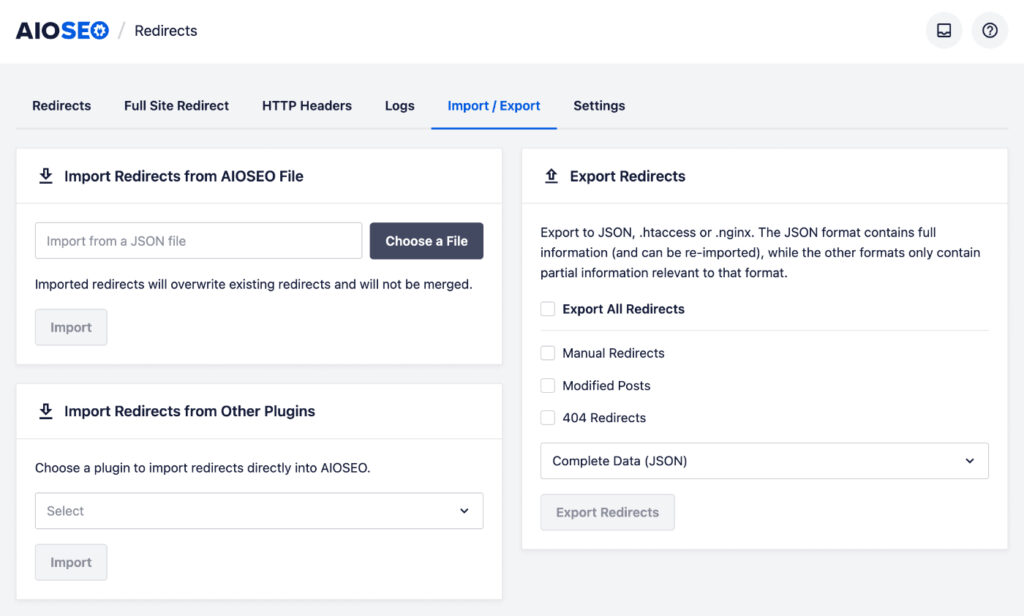
AIOSEO keeps options like Ignore Case and Regex where it can. Your redirects will show up on the Redirects tab.
Learn more in our doc on importing redirects from other plugins.
Step 5: Let the Import Finish
Your settings import right away. But post and page meta imports run in the background, and it can take a while on big sites. So if a post's title looks blank right after you import, don't panic. Give it some time, then check again.
Step 6: Deactivate Yoast
Once the import is done, go to Plugins » Installed Plugins and click Deactivate under Yoast SEO. If you have Yoast SEO Premium, deactivate that too.
I'd suggest keeping Yoast installed but deactivated for about a week. That way, you can import again or roll back if you spot a problem.
Step 7: Spot-Check Your Top Pages
Now open 5 to 10 of your most important pages. For each one, check these things:
- The SEO title and meta description match what you had in Yoast.
- The canonical URL is correct. You'll find it in the AIOSEO Settings box under the Advanced tab.
- Schema still shows up. Test a few URLs with the Rich Results Test.
- A few old redirected URLs still send visitors to the right place.
Step 8: Submit Your New Sitemap to Google Search Console
Sitemaps don't transfer between plugins. That's because both Yoast and AIOSEO build them on the fly with your latest content.
So once you switch, submit your new AIOSEO sitemap to Google Search Console (GSC). You'll find your sitemap URL under All in One SEO » Sitemaps. In GSC, go to Sitemaps, paste in the URL, and click Submit.
Need a refresher? Here's how to create a sitemap in WordPress.
Most of your SEO data moves over in the import. But a few things might need your attention:
- Sitemaps: Both plugins build them on the fly, so you'll submit the new one in Step 8.
- Redirects: These use their own import in Step 4, so don't skip it.
- Custom code: If a developer added Yoast filters to your theme's functions.php file, that code won't do anything once Yoast is off. Remove it, and rebuild the change in AIOSEO if you still need it.
- Google Docs drafts: Yoast's Google Docs add-on stops working without a Yoast subscription. Finish or move any drafts first.
Switching 10 Sites? Use This Checklist
When you're moving a whole portfolio, a repeatable routine saves time and stops mistakes. Here's the order we'd follow:
- Start with your smallest site: Learn the process where the stakes are lowest.
- Test on staging first for money sites: If a site earns most of your income, run the switch on a staging copy before touching the live site.
- Do 1 or 2 sites a day: That gives you time to spot-check each one properly.
- Keep a simple log: Track the switch date, the redirect count before and after, and when you submitted the sitemap.
- Watch GSC for 2 weeks: Check the Pages report for new indexing errors on each site.
For a longer walkthrough with extra tips, see our full guide on migrating from Yoast SEO to All in One SEO.
Other Yoast SEO Alternatives Worth Knowing
AIOSEO is my top pick for most multi-site owners looking for the best Yoast SEO alternative. But it's not the only option, and the right choice depends on your needs.
So, here are 3 other plugins you could consider as a Yoast SEO alternative.
Rank Math
Rank Math‘s free plugin includes a lot, like redirects and support for many keywords per post. Its Pro plan costs $95.88 for the first year and $107.88 after that, and it covers unlimited sites you own.
There are 2 catches, though. Pro doesn't cover client sites, so freelancers and agencies need the pricier Business or Agency plans. And Content AI costs extra on every plan.
If you own all your sites, Rank Math Pro costs about $312 over 3 years, compared to $997.50 for AIOSEO Pro. So why pay more? AIOSEO makes sense if you want built-in AI credits instead of a second subscription, 1-click AI fixes inside TruSEO, WooCommerce SEO without extra setup, and client sites covered by the same license. If none of those matter to you and price is all that counts, Rank Math is a fair choice.
Want a detailed analysis? Check our comparisons of Rank Math vs. Yoast and AIOSEO vs. Rank Math.
SEOPress
SEOPress PRO costs $49/year for 1 site, $59 for 5 sites, or $149 for unlimited sites. Renewals stay at the price you first paid, outside of special promotions.
It's a good fit if you want a simple, low-cost plugin with white-label options. But it lacks some of the more advanced features AIOSEO provides, such as an automated internal linking tool like Link Assistant.
Interested in knowing more? See the complete SEOPress vs. AIOSEO comparison for details.
The SEO Framework
The SEO Framework is a lean, free plugin that handles the SEO basics with very little setup. It's a good choice if you want speed and simplicity and don't need extras like internal link automation or AI tools.
Want to see even more options? Browse our list of the best SEO plugins for WordPress.
Yoast SEO Alternatives: FAQs Answered
No, not if you import all of your data. Your titles, meta descriptions, and settings move along, so search engines see the same pages. Switching won't boost or hurt your rankings because rankings come from your content quality, links, and site health.
Only for a few minutes while you import all your data. After that, deactivate Yoast. Running 2 SEO plugins creates duplicate metadata and competing sitemaps.
No, AIOSEO imports them directly from Yoast. Keep Yoast installed until the import finishes, since post meta imports in the background and can take a while on larger sites.
Yes, sitemaps don't carry over between plugins. Submit your new AIOSWO sitemap URL in Google Search Console after the switch.
Ready to Make the Switch?
If you run more than 1 or 2 sites, AIOSEO can cut your yearly plugin bill by hundreds of dollars and give you time-saving tools like Link Assistant and 1-click AI fixes. Once you've switched, check out our complete WordPress SEO guide to get even more out of your new setup.
Not using AIOSEO yet? Get started with AIOSEO today. Every plan comes with a 14-day money-back guarantee, so you can try it risk-free.
Disclosure: Our content is reader-supported. This means if you click on some of our links, then we may earn a commission. We only recommend products that we believe will add value to our readers.
Want to Try AIOSEO for Free?
Enter the URL of your WordPress website to install AIOSEO Lite.