
Want to reach customers in different countries but aren't sure how to get your WordPress site in front of them? That's where international SEO comes in.
Ranking well in your home country doesn't mean your website will automatically perform as well elsewhere. People in different regions may search in different languages, use different keywords, or expect location-specific content. Without the right setup, Google may struggle to identify which version of your website to show.
The good news? WordPress makes international SEO much easier to manage with the right tools.
In this guide, I'll walk you through how to set up international SEO in WordPress, from choosing a website structure and implementing hreflang tags to optimizing multilingual content and targeting the right countries.
I'll also show you how AIOSEO can help you manage your international website's technical SEO.
Let's start with a definition.
In This Article
- What Is International SEO?
- Step 1: Choose Your URL Structure
- Step 2: Install a Translation Plugin
- Step 3: Optimize Each Language Version With AIOSEO
- Step 4: Check Your Hreflang Tags
- Step 5: Add Every Language to Your XML Sitemap
- Step 6: Strengthen Your Country Signals
- How to Validate Your International SEO Setup
- Common Hreflang Errors (and How to Fix Them)
- Managing International SEO Across Client Sites
- International SEO in WordPress: FAQs Answered
- What Next?
What Is International SEO?
International SEO is the process of optimizing your website so search engines can identify which countries and languages your content is intended for. It helps Google and other search engines serve the most relevant version of your website to users in different locations.
For example, let's say you run an online store that sells products in the US, UK, and France.
Your customers might search for the same products using different terms. Someone in the US might search for “running sneakers,” while a customer in the UK might search for “running trainers.” A French customer, meanwhile, may search in French.
Even though they're looking for similar products, their search behavior isn't identical.
International SEO helps you account for these differences by creating content that matches each audience's language, location, and search intent.
It also involves technical elements that tell search engines how your international pages relate to one another. These include:
- Hreflang tags: Help Google understand which language or regional version of a page is appropriate for a user.
- International URL structure: Organizes different versions of your website using country-specific domains, subdomains, or subdirectories.
- Localized content: Adapts keywords, language, currency, and other details to suit your target audience.
- Technical SEO: Helps search engines discover, crawl, and index the appropriate versions of your pages.
One important distinction: international SEO isn't the same as translating your website. Translation changes the language. International SEO goes further by considering how people search, what information they need, and how search engines understand your site's regional targeting.
It also helps to know what type of international site you're building. There are 3 main setups:
- Multilingual: The same market in more than one language. A Canadian business with English and French pages is a good example.
- Multiregional: The same language for different countries. Think of a store with separate pages for the US, the UK, and Australia, each with its own prices and shipping info.
- Both: Different languages and different countries. For example, a site with pages for Germany, Austria, and France.
Here's what you'll need to follow this tutorial easily:
- All in One SEO (AIOSEO) to handle the SEO data for every language version.
- A translation plugin, like Universally, to create your translated pages and output hreflang tags.
- A verified Google Search Console (GSC) property for your site.
- A list of the languages and countries you want to target, backed by international keyword research.
Once you have those, you're ready to start with the hardest decision to change later: your URL structure.
Step 1: Choose Your URL Structure
Each language or country version of your site needs its own URL. Google recommends against using cookies or browser settings to swap content on the same URL, because Googlebot won't see the other versions.
You have 3 main options:
| Structure | Example | Pros | Cons |
|---|---|---|---|
| Subdirectory | site.com/fr/ | Easy to manage in 1 WordPress install, shares your domain's authority | Weaker country signal than a ccTLD |
| Subdomain | fr.site.com | Can be hosted separately | More setup, and authority isn't as clearly shared |
| Country code top-level domain (ccTLD) | site.fr | Strongest country signal | Most expensive, and each domain builds authority on its own |
For most WordPress sites, I recommend subdirectories. You keep everything in 1 install, every language benefits from the links your main domain already has, and most translation plugins use this structure by default.
ccTLDs make sense when a client has a strong local brand in a country, or legal reasons to run a separate site there.
Important: If the site is already live, changing your URL structure later means redirecting every affected URL. Plan this before you translate anything. If you do need to move URLs, AIOSEO's Redirection Manager can help you set up those redirects in bulk.
Step 2: Install a Translation Plugin
WordPress can't serve content in more than 1 language on its own. So, you'll need a translation plugin to create your translated pages.
Here's how the work splits between your plugins: your translation plugin creates the translated pages, sets up the language URLs, and outputs your hreflang tags. AIOSEO handles the SEO data on each of those pages, like titles, meta descriptions, schema markup, robots settings, and your XML sitemap.
That means AIOSEO doesn't output hreflang tags itself. Instead, it works with compatible translation plugins so your SEO data gets translated correctly. Many translation plugins connect through AIOSEO's Translations API.
Since you only need 1 plugin that outputs hreflang tags, I recommend Universally because it's most compatible with AIOSEO and WordPress.
Universally
Universally is an AI translation plugin that translates your whole WordPress site automatically. It also handles the multilingual SEO side for you.
Every translated page gets its own hreflang tags, translated meta titles and descriptions, translated schema markup, and a clean URL like yoursite.com/es/.
To set it up, sign up for a Universally account and activate it.
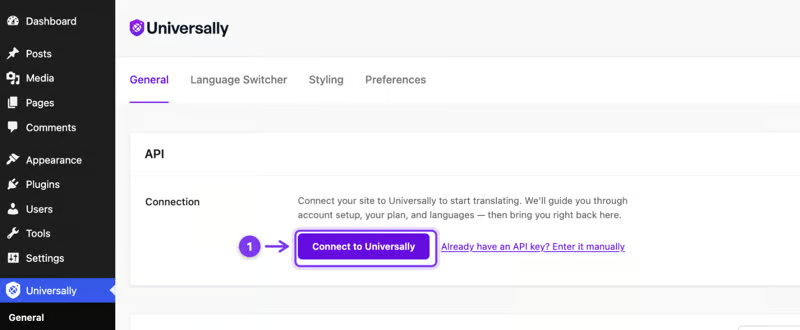
From your dashboard, click Add Project. Then name your project, choose WordPress as your platform, and enter your site's domain and main language.
Next, Universally walks you through 2 quick steps. The first installs the plugin on your WordPress site, and the second connects it to your account with your API key. Follow the steps and click Confirm and connect.
Once you're connected, click Add Languages and choose the languages you want. Universally supports over 110 languages, and the free plan lets you translate your site into 1 language.
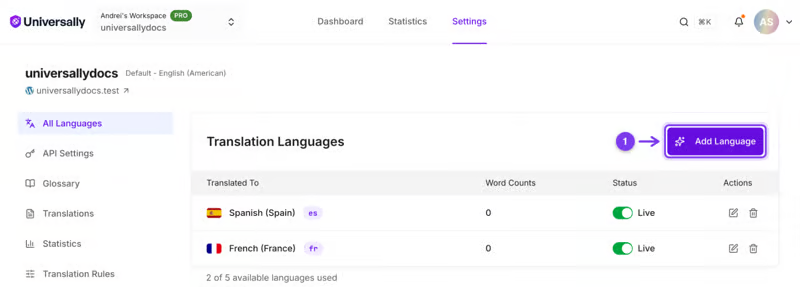
After that, Universally starts translating right away and adds a language switcher so visitors can choose their language.
Step 3: Optimize Each Language Version With AIOSEO
Each translated page is a separate page in Google's eyes. That means each one needs its own optimized title, meta description, and robots settings.
Set Titles and Descriptions for Each Language
Open a translated post or page in the editor. Then scroll down to AIOSEO Settings » General. Here, you can set the post title and meta description for that language version.
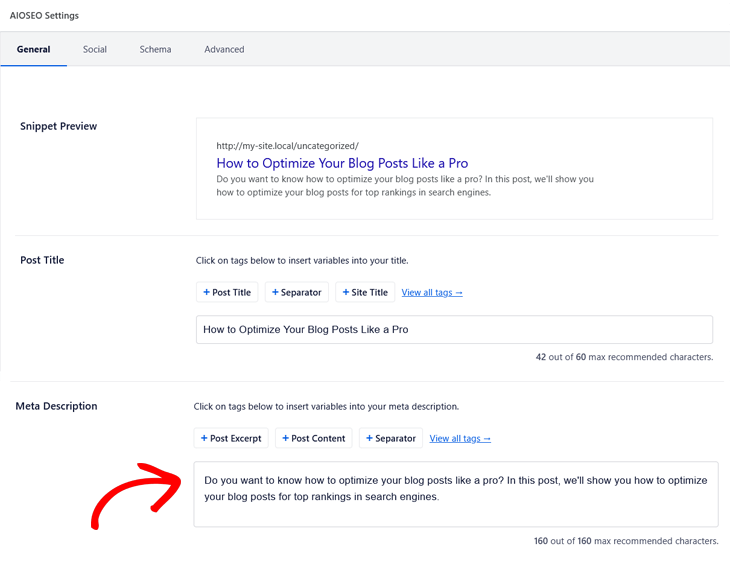
Don't just translate your English keyword word for word. People in each market often search with different terms. Use the keywords you found in your research for that country.
Keep in mind that some TruSEO content analysis checks only work for English content. For other languages, focus on your title, meta description, and the keywords your research turned up.
Noindex Pages That Don't Belong in a Market
Sometimes a page shouldn't show up in search for a certain market. A promo that only runs in the US is a good example.
To hide it, open the page and go to AIOSEO Settings » Advanced. Under Robots Settings, toggle off Use Default Settings and check the No Index box.
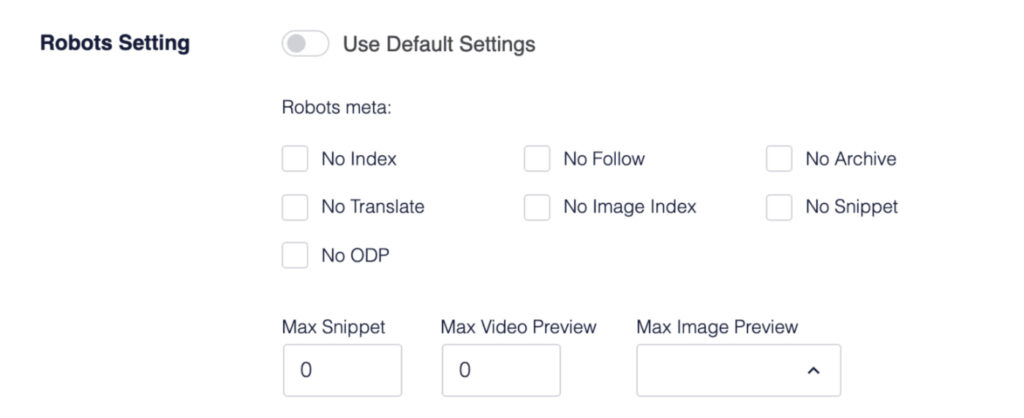
Be careful here. If a noindexed page is part of an hreflang set, the other language versions will point to a page Google can't index. Remove it from the hreflang set in your translation plugin, or leave it indexable.
Translate Your Schema and Social Settings
Your schema markup and social sharing data should match the page's language. Universally translates this data automatically.
Translated schema also helps AI search engines understand each language version. That makes it more likely the right page gets cited when someone asks a question in their own language.
Step 4: Check Your Hreflang Tags
Hreflang is the most technical part of international SEO. It's also where most sites go wrong.
What Hreflang Tags Do (and Don't Do)
Hreflang tags tell Google which language and region each page version is for. When someone searches, Google uses them to show that person the right version.
Here's what a complete set looks like for a page with English, French, and German versions:
<link rel="alternate" hreflang="en" href="https://example.com/page/" />
<link rel="alternate" hreflang="fr" href="https://example.com/fr/page/" />
<link rel="alternate" hreflang="de" href="https://example.com/de/page/" />
<link rel="alternate" hreflang="x-default" href="https://example.com/page/" />
The x-default tag tells Google which page to show when none of your languages match the searcher. Most sites point it to their main-language version or a language-selection page.
Hreflang tags won't boost your rankings on their own. They help Google serve the right URL to the right person. Without them, your English page might outrank your Spanish page in Mexico.
Your translation plugin generates these tags. Universally adds them automatically for every translated page.
Your job is to confirm 2 things:
- Every page lists all of its language versions, including itself.
- The language and country codes match what you planned in your target market list.
The en-US vs. en-GB Question
This is one of the most common questions: should you add hreflang for every English-speaking country?
Here's my rule of thumb:
- Use language-only codes like “en” if you have 1 English version for everyone.
- Use country codes like “en-US” and “en-GB” only when the pages are really different, like different prices, currency, spelling, or shipping details.
- Combine both if you have a UK page and a general English page. Tag the UK page “en-GB” and the general page “en.”
Don't create 60 near-identical English pages just to tag them for 60 countries. It adds maintenance work without helping your rankings.
Step 5: Add Every Language to Your XML Sitemap
Your XML sitemap helps Google quickly find all your translated pages. If a language is missing from your sitemap, those pages can take much longer to get indexed.
AIOSEO's XML sitemap settings create your sitemap automatically, and the sitemap works with popular translation plugins.
To check yours, go to All in One SEO » Sitemaps and click Open Sitemap. Then look for URLs from each language, like your /fr/ and /de/ pages.
If you're building a custom setup for a client, developers can use the aioseo_sitemap_post filter to add translated versions of a post to AIOSEO's multilingual sitemap.
Finally, submit your sitemap in Google Search Console. Go to the Sitemaps report, paste in your sitemap URL, and click Submit. 1 sitemap that includes every language is enough for most sites.
Step 6: Strengthen Your Country Signals
Older guides tell you to set a target country in Google Search Console. That's no longer possible. Google deprecated the International Targeting report in 2022, and Search Console no longer supports country targeting.
Google still supports hreflang, though. So today, these are the signals that tell Google which country a page is for:
- Your domain: A ccTLD like site.de sends the strongest country signal.
- Your hreflang country codes: On subdirectories, codes like “de-AT” now carry most of the weight. That makes getting them right even more important.
- Your content: Local currency, local addresses and phone numbers, local spelling, and links from sites in that country all help.
One more thing: avoid redirecting visitors automatically based on their location. Google mostly crawls from US addresses, so automatic redirects can stop Googlebot from ever seeing your other versions. Use a language switcher or a banner that suggests the right version instead.
How to Validate Your International SEO Setup
Now that everything is set up, make sure it works. Here are 4 ways to check:
Check the Page Source
Open a translated page in your browser, right-click, and choose View Page Source. Then search for “hreflang.”
You should see a full set of tags: 1 for each language version, 1 pointing to the page itself, and an x-default tag. Repeat this on at least 1 page per language.
Use the URL Inspection Tool
In Google Search Console, paste a translated URL into the URL Inspection tool. Check that the page is indexed, then look at the Google-selected canonical.
If Google picked a different language version as the canonical, it's treating your translation as a duplicate. That usually points to a canonical or hreflang problem, which we cover below.
Run a Site Crawl
Checking pages by hand doesn't scale for larger sites. A crawler like Screaming Frog SEO Spider can check hreflang across every page and flag missing return tags, bad codes, and broken URLs in 1 report.
Track Performance by Country
In Google Search Console, open the Performance report. Add a Country filter, then a Page filter for a language folder like /fr/. This shows how each market performs on its own.
You can also connect your site to Search Statistics to see your Google Search Console data right in your WordPress dashboard. Go to All in One SEO » Search Statistics to see how your translated pages are performing without leaving WordPress.
Common Hreflang Errors (and How to Fix Them)
Most hreflang problems fall into a handful of patterns. Here's what to look for and how to fix each one.
Missing Return Tags
Hreflang has to work both ways. If your English page points to your French page, the French page must point back to the English page. If it doesn't, Google ignores the tags.
The fix: Make sure your translation plugin links every translation to its original. Unlinked translations are the most common cause of missing return tags.
Wrong Language or Country Codes
Hreflang uses ISO 639-1 codes for languages, like “en” or “fr.” It uses ISO 3166-1 Alpha 2 codes for countries, like “US” or “GB.” Words like “english” won't work.
Watch out for these common mistakes:
- “en-UK” instead of “en-GB”: The country code for the United Kingdom is GB.
- A country code alone: “GB” by itself isn't valid. You always need a language code first.
- The wrong order: The language always comes first, then the country. “US-en” won't work.
The fix: Check the language and region settings in your translation plugin, since that's where the codes come from.
Missing Self-Reference or x-default
Each page should list itself in its own hreflang set. It's also smart to include an x-default tag, so Google knows what to show everyone else.
The fix: Check your translation plugin's settings for x-default. Most let you choose which language it points to.
Hreflang Pointing to Redirected or Noindexed Pages
Every URL in your hreflang set needs to be live, indexable, and canonical. If a URL redirects, returns a 404 error, or is set to noindex, Google can't use it.
The fix: Crawl your site and look for hreflang URLs that don't return a 200 status code. Then update the translation link or fix the page.
Canonical Tags That Conflict With Hreflang
Each language version should have a canonical tag pointing to itself. If your French page's canonical points to the English page, you're telling Google to ignore the French version.
The fix: Open the translated page and go to AIOSEO Settings » Advanced. Make sure the Canonical URL field is empty so AIOSEO uses the page's own URL, or point it to the page itself.
Duplicate Hreflang Tags From 2 Plugins
If 2 plugins output hreflang tags, you'll often get conflicting sets on the same page. This often happens after switching translation plugins.
The fix: View the page source and count your hreflang sets. If you see more than 1, deactivate the plugin you're not using.
Managing International SEO Across Client Sites
If you run international SEO for more than 1 client, a repeatable process saves hours. Here's what we suggest:
- Document the decisions first: Write down the site type, URL structure, target languages and countries, and x-default page for every client before you install anything.
- Reuse your base settings: Go to All in One SEO » Tools » Import Export to export AIOSEO settings from 1 site and import them on the next.
- Control who can change SEO settings: AIOSEO's SEO Manager role lets client translators edit content without touching your technical settings.
- Report by market: Send clients a monthly view of clicks and impressions by country and language folder, not just sitewide totals.
- Recheck after updates: Crawl hreflang again after major plugin updates or site migrations, since errors tend to appear then.
International SEO in WordPress: FAQs Answered
Multilingual SEO focuses on ranking content in more than 1 language, whereas international SEO has broader objectives. It covers both languages and countries, including sites that may use 1 or several languages across several countries.
No, AIOSEO doesn't automatically add hrelang tags. But it relies on translation plugins like Universally or WPML to handle language-specific SEO data, such as titles, metadata, schema, and the XML sitemap.
Only if you have separate pages for each country, like a US page and a UK page with different prices. If everyone sees the same version, you don't need country-specific hreflang tags.
No, Google removed the International Targeting report and its country setting. Today, Google uses your domain, hreflang country codes, and local content signals to determine which country a page is for.
View the page source and search for “hreflang” to confirm the full set is there. Then use the URL Inspection tool in Google Search Console and a site crawler to catch missing return tags and invalid codes.
For most sites, no. 1 install with subdirectories is easier to manage and shares your domain's authority. Separate installs make more sense when you're using ccTLDs or when separate teams run each country site.
What Next?
Now that you know how to go global with international SEO, make sure you set it up correctly in WordPress.
AIOSEO can help you manage important on-page SEO elements, XML sitemaps, and other technical settings across your WordPress content. Just remember that hreflang implementation may require a compatible multilingual plugin or additional configuration.
Next, explore our guides on multilingual SEO and WordPress SEO to strengthen your site's optimization as you expand into new markets.
Disclosure: Our content is reader-supported. This means if you click on some of our links, then we may earn a commission. We only recommend products that we believe will add value to our readers.
Want to Try AIOSEO for Free?
Enter the URL of your WordPress website to install AIOSEO Lite.