
Would you like AIOSEO to optimize a post for search so you don’t have to work through every suggestion yourself?
AI Copilot reviews the post you’re editing, optimizes it in one click, and shows you exactly what it changed before you apply the changes. All you need is All in One SEO installed on your site and some AI credits available.
In this guide, we’ll walk you through running AI Copilot on a post, reviewing its changes, saving the result, and restoring your original version if you change your mind.
IMPORTANT:
The Optimize with AI Copilot feature currently only works with the default WordPress Block Editor.
Support for additional page builders and the WordPress Classic Editor will be added in future releases.
Before you get started, make sure All in One SEO is installed and activated on your WordPress site.
In This Article
Tutorial Video
Finding AIOSEO Copilot in the Editor
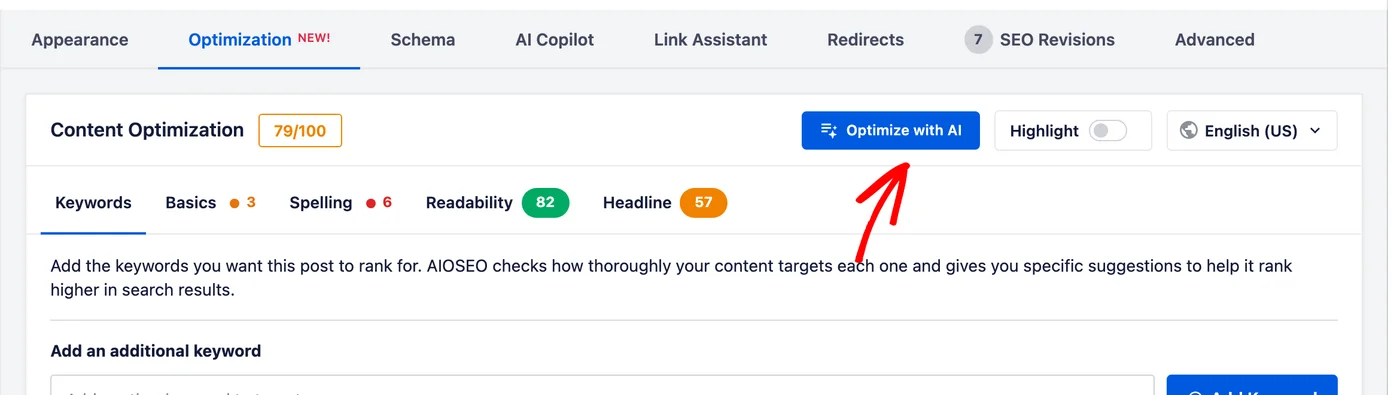
To get started, open the post you want to optimize in the WordPress editor. Below your content, select the Optimization tab in the AIOSEO Settings panel. Then click the Optimize with AI button in the Content Optimization section.
There’s a second way in. From the same AIOSEO Settings panel, select the AI Copilot tab, which lists every AI action you can run on a post. Then click the Optimize button.
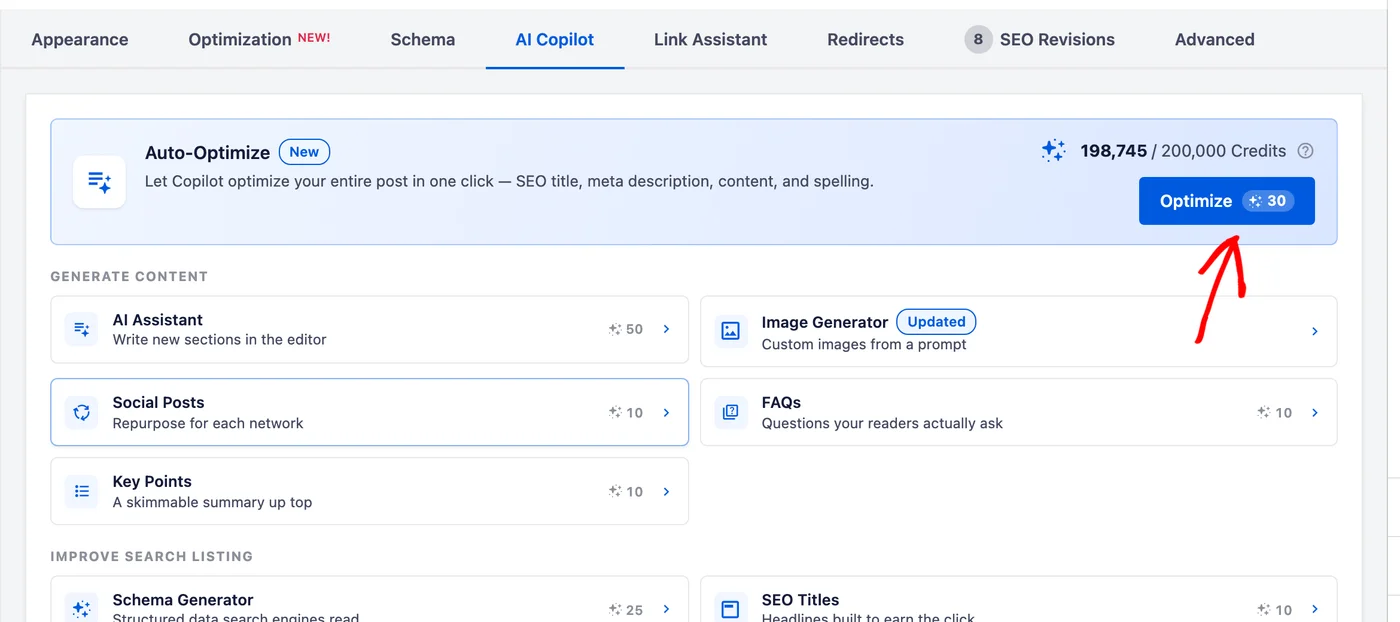
Both methods open the same window, so it doesn’t matter which one you use. Either way, AI Copilot explains what it’s about to do before it changes anything.
Checking What AI Copilot Will Change
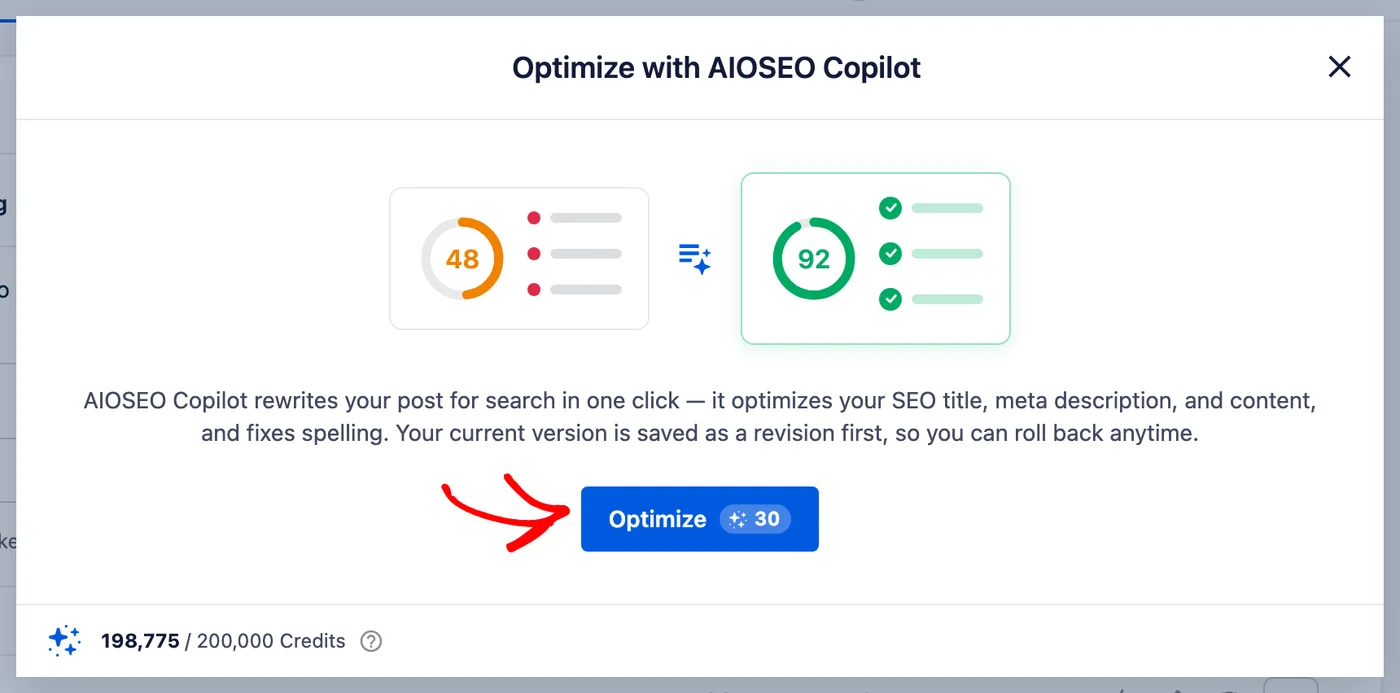
The window that opens explains what AI Copilot does before you commit to anything.
In one click, AI Copilot optimizes your SEO title, your meta description, and your content, fixing spelling along the way. It also saves your current version as a revision first, so you can roll back later.
The number on the Optimize button is how many AI credits the run will use. Your remaining balance sits at the bottom of the window, so you can check you have enough before you start.
NOTE:
The two TruSEO scores shown in the window are an illustration of how AI Copilot works, not a prediction of your own before and after scores.
Running the Optimization
When you’re ready, click the Optimize button. AI Copilot reports that it’s optimizing your content while it works.
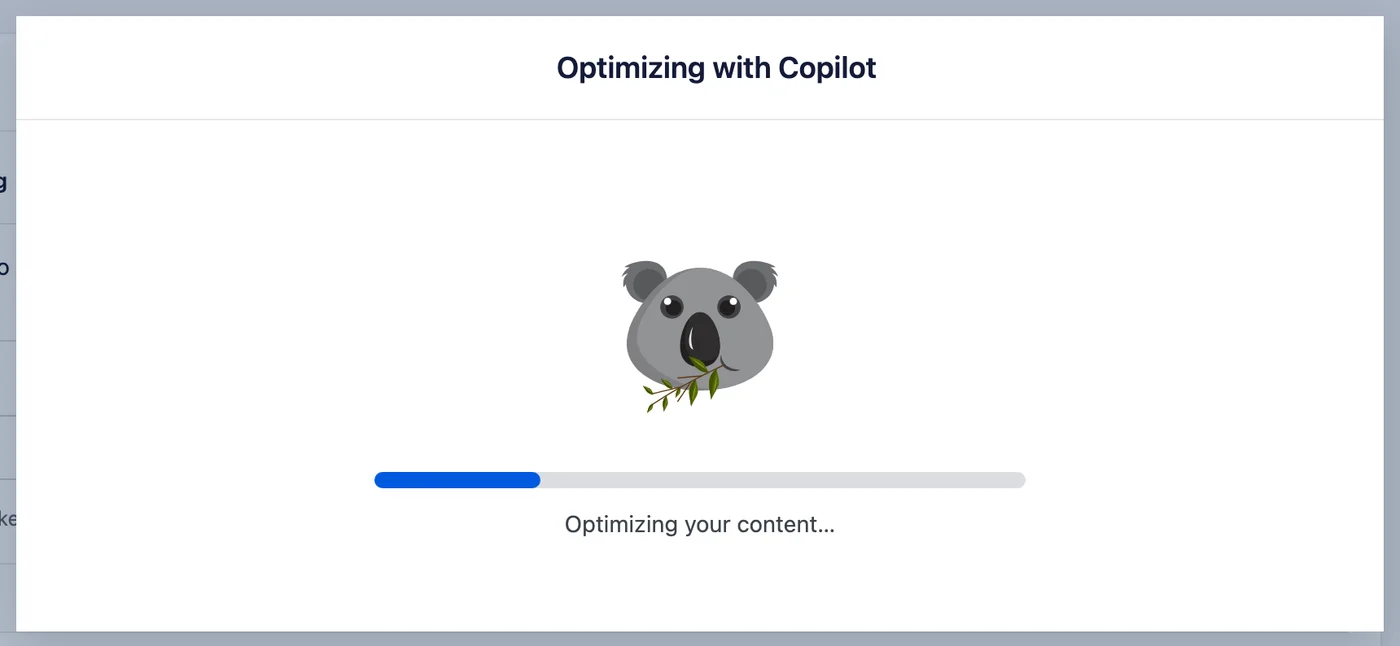
How long this takes depends on the length of your post. A short post finishes in under a minute, while a long one can take a couple of minutes. If AI Copilot reports that it couldn’t optimize your post right now, the run can be started again from the same window.
Reviewing What AI Copilot Changed
When AI Copilot finishes, the window turns into a summary of its work. It opens with your new TruSEO score, how much it moved, and the improvements it’s recommending.
Below that, each change AI Copilot is recommending gets its own entry, whether that’s your SEO Title, your Meta Description, your Headline, or your Content.
Every entry shows the old version alongside the new, with the wording that changed, so you can see precisely what changed.
Some entries, such as the meta description, also show how the character count changed. This matters because search results cut long descriptions off.
If you’d rather keep the original wording for any one of them, click the Revert link next to that entry.
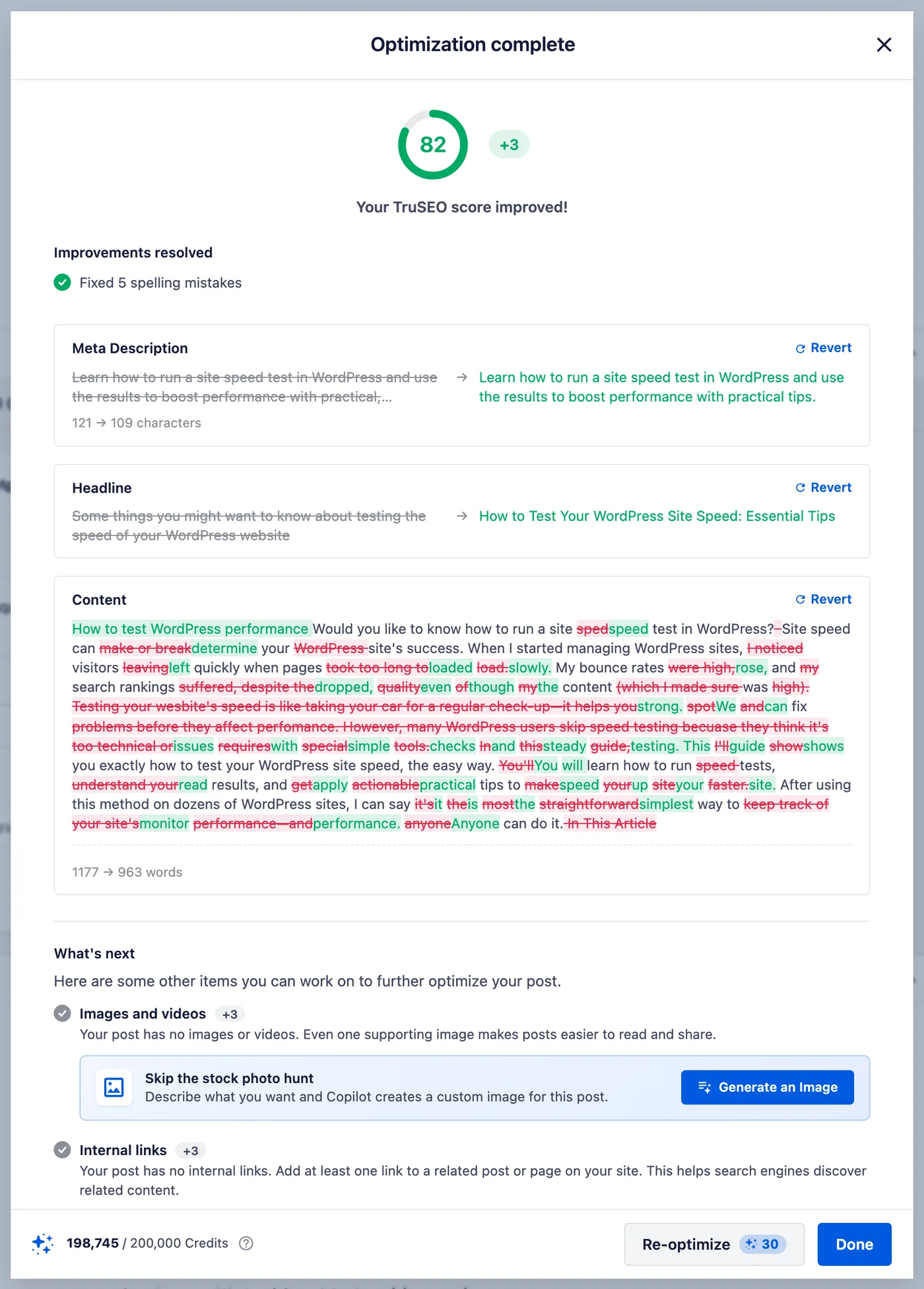
The What’s next section suggests further improvements that you can make to your post, that AI Copilot hasn’t done for you, such as adding images or internal links.
Once you’ve finished reviewing the recommended changes, they are ready to apply.
Applying and Saving Your Changes
Once you’re happy with the recommended changes, click the Done button. This applies them to the post you’re editing, replacing your content and SEO settings with the optimized versions.
See Restoring Your Previous Version below if you want to undo everything after clicking the Done button.
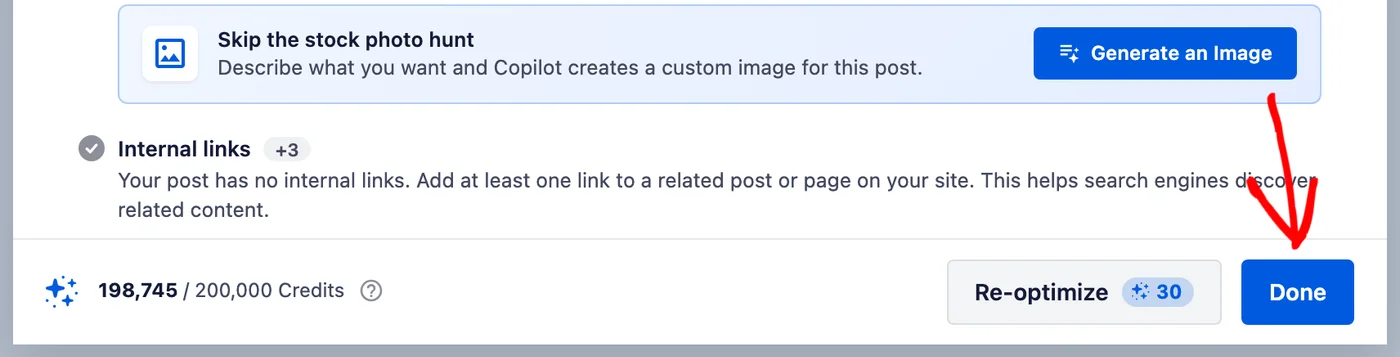
If you’d prefer to redo the optimization, then click the Re-optimize button to run AI Copilot again for the credit cost shown beside it.
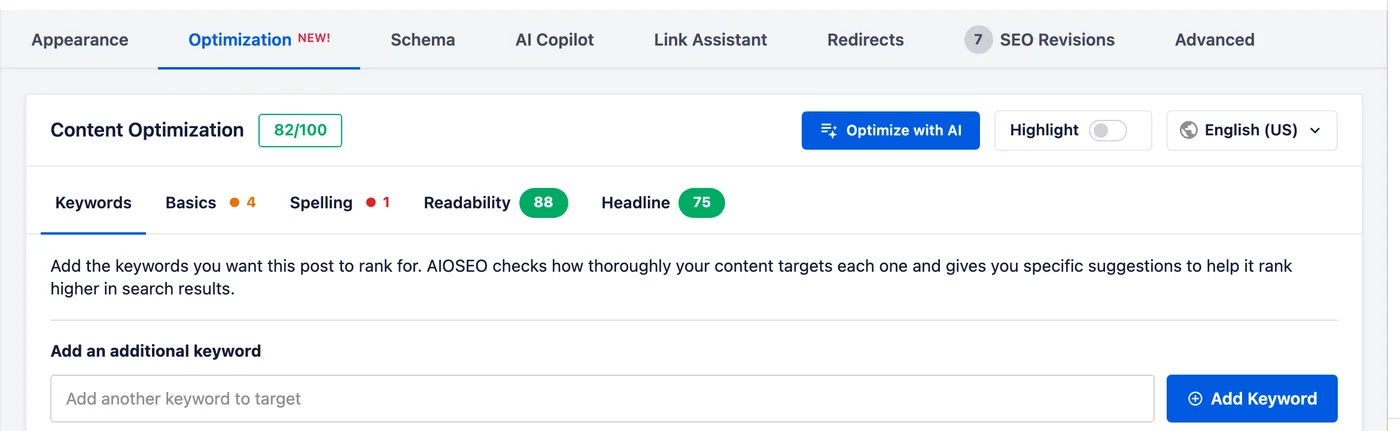
Back in the editor, the Content Optimization section shows your new TruSEO score. The counts on each analysis tab update too, so you can see what’s left to work on.
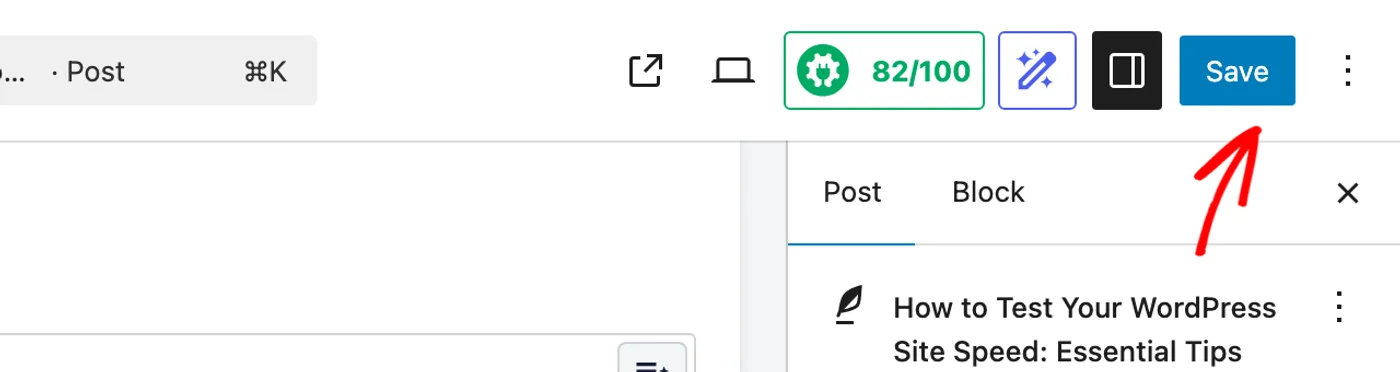
AI Copilot applies its changes in the editor rather than saving them to your site. To keep them, click Save or Update at the top of the Edit Post screen.
IMPORTANT:
Clicking Done applies AI Copilot’s changes to the post you’re editing, but it doesn’t save them. Save the post to keep them. If you refresh your browser before saving, the changes are undone.
Restoring Your Previous Version
If you’ve already saved and then think better of it, then you can revert because AI Copilot saved the version you started with as a WordPress post revision.
To go back, open Revisions in the post panel. Then restore the version from before you ran AI Copilot.
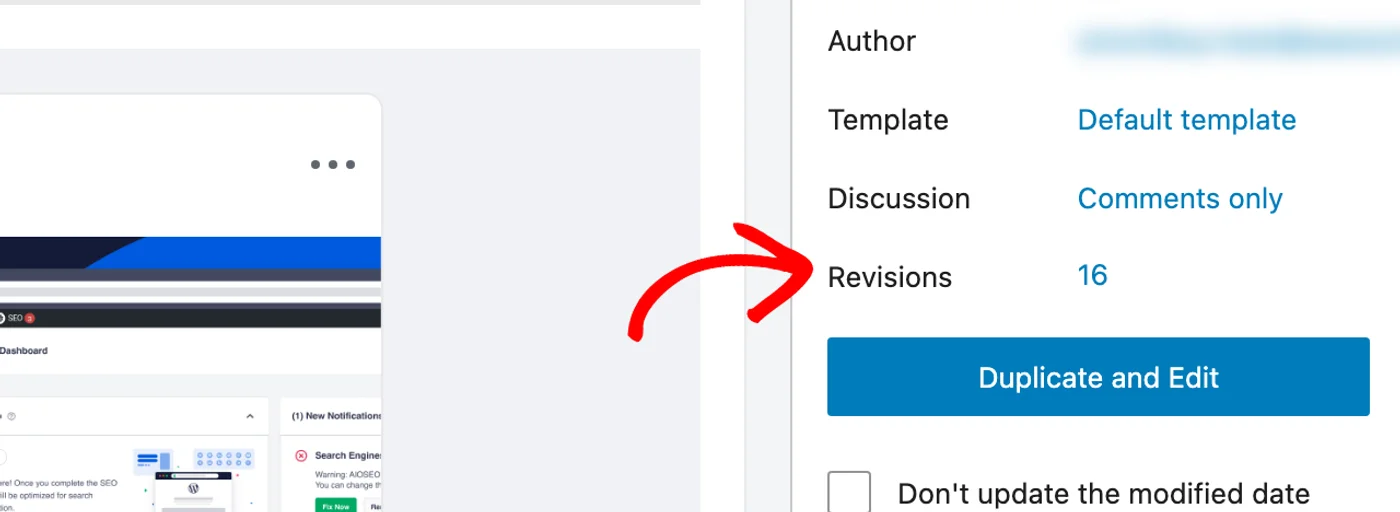
WordPress opens its own revisions screen from here. The version AI Copilot set aside for you is the one saved just before your run.
That’s it! You now know how to optimize a post with AI Copilot, review what it changed, keep the result, and roll back if needed.
Further Reading / Next Steps
AI Copilot is one of several ways to raise your TruSEO score. To learn more, browse all of our TruSEO content analysis documentation.
If you’d rather work through your remaining improvements one check at a time, our guide on using TruSEO content analysis is the place to start.
Frequently Asked Questions
Below, we’ve answered some of the most common questions about AI Copilot:
What exactly does AI Copilot change?
It optimizes your SEO title, your meta description, and your content, fixing spelling along the way. Your post headline is optimized too. Every change is listed for you to review before you keep it. See Checking What AI Copilot Will Change above.
Can I keep some changes and not others?
Yes. Each change in the summary has its own Revert option, so you can undo one and keep the rest. See Reviewing What AI Copilot Changed above.
How many credits does a run use?
The Optimize button shows the cost before you start. Your remaining balance appears at the bottom of the same window. See Checking What AI Copilot Will Change above.
How long does AI Copilot take?
It depends on the length of your post. A short post finishes in under a minute, while a longer one can take a couple of minutes.
Do I have to save my post after running AI Copilot?
Yes. The Done button applies the changes to the post you’re editing, but saving is what keeps them. Refreshing your browser before you save undoes any changes. See Applying and Saving Your Changes above.
Can I undo what AI Copilot did?
Yes, in two ways. Before you save, use Revert on any change in the summary. After you save, restore the earlier version from Revisions in the post panel. See Restoring Your Previous Version above.