
Would you like to know whether your post is ready to rank before you publish it? TruSEO content analysis reviews your content as you write and tells you exactly what to improve, from your keywords to your headline. All you need is All in One SEO installed on your site with TruSEO enabled.
In this guide, we’ll walk you through using TruSEO content analysis on the Optimization tab to get your post in shape.
In This Article
Before you get started, make sure All in One SEO is installed and activated on your WordPress site.
Finding Your Content Optimization Score
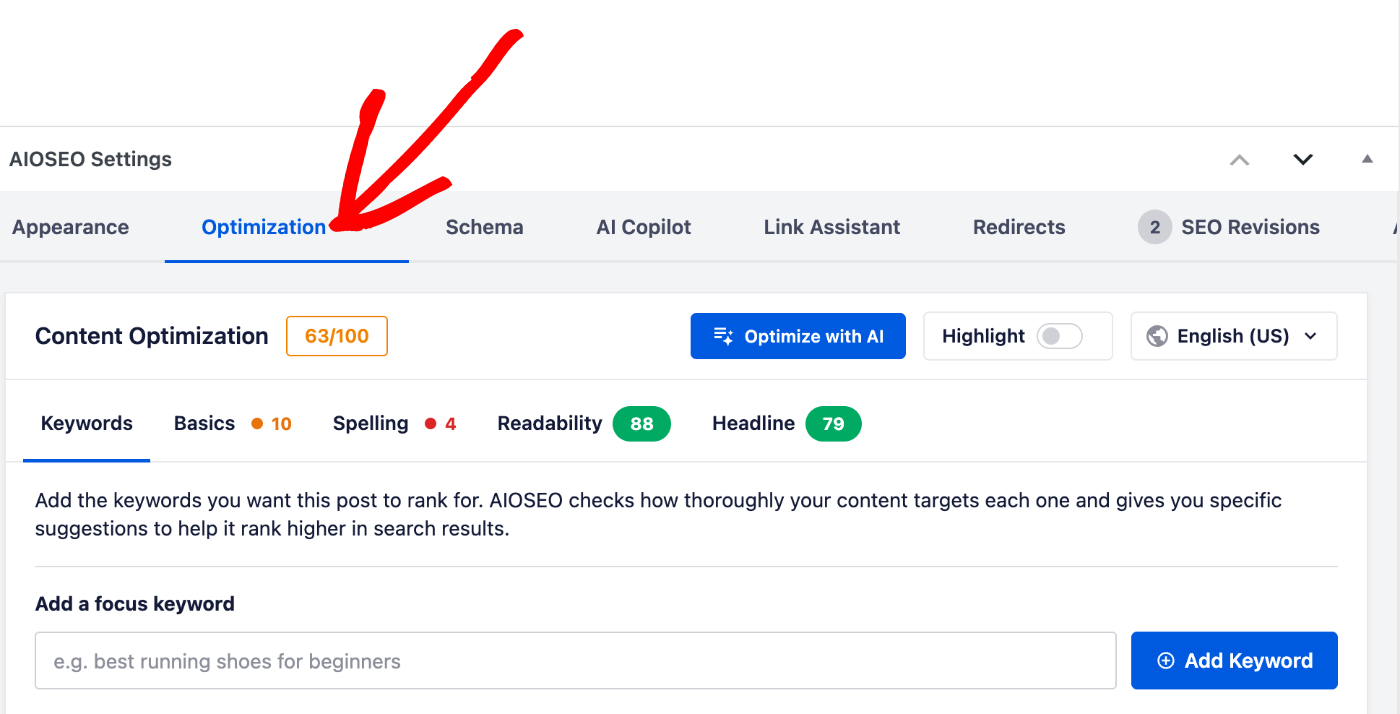
To get started, open the post you want to work on in the WordPress editor. Below your content, find the AIOSEO Settings panel. Then select the Optimization tab.
The score beside Content Optimization is your overall rating out of 100, updated as you edit. To the right of the score, the section holds an Optimize with AI button and a Highlight toggle. The toggle marks the sentences that need attention directly in the editor, and turning it off clears those markers.
IMPORTANT:
The TruSEO Highlighter feature only works with the WordPress Block Editor (also known as Gutenberg) and the WordPress Classic Editor.
Support for page builders will be added in future releases.
Underneath, your analysis is grouped into five tabs – Keywords, Basics, Spelling, Readability, and Headline.
Each tab shows how that part of your content is doing, so you can see at a glance where the work is. We’ll go through them in turn.
Adding Keywords to Target
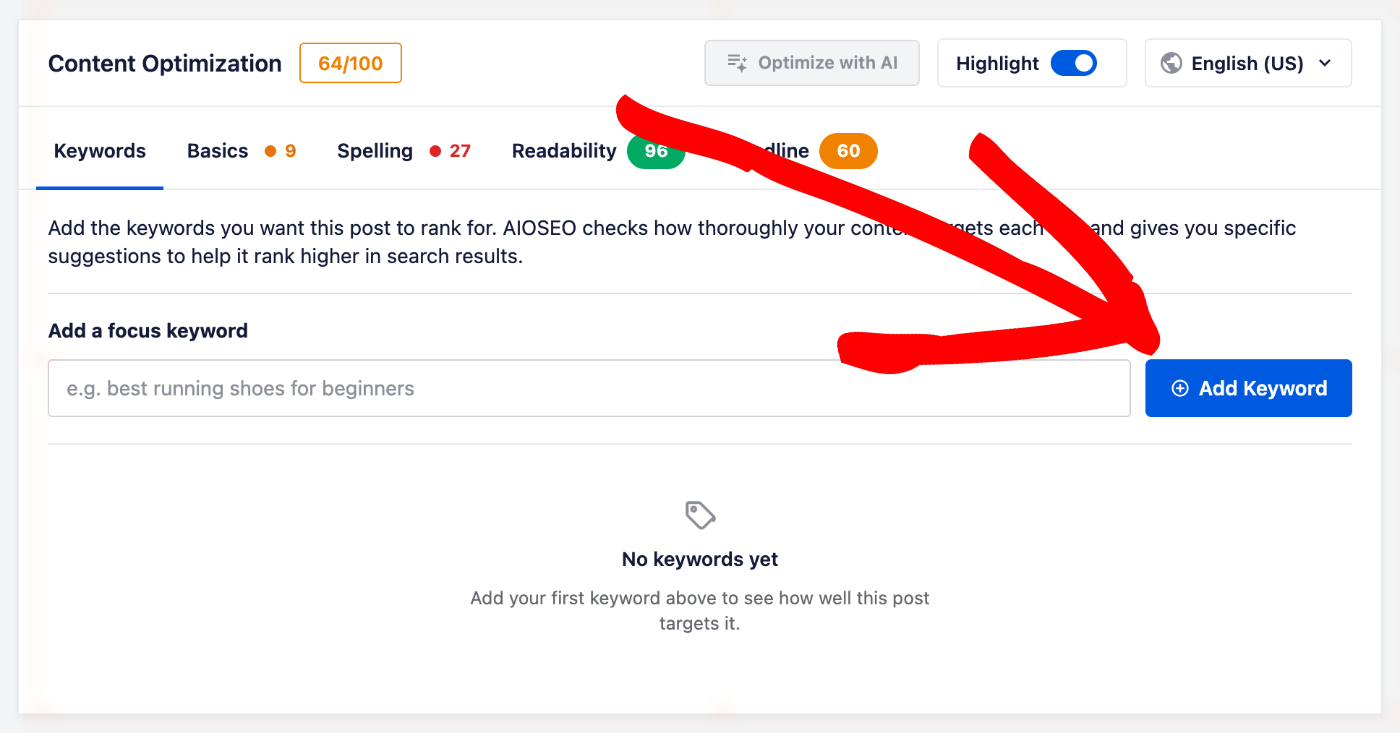
The Keywords tab is where you tell AIOSEO what this post is meant to rank for. You can target more than one keyword. Each one is scored separately.
To add one, type it into the keyword field. Then click the Add Keyword button.
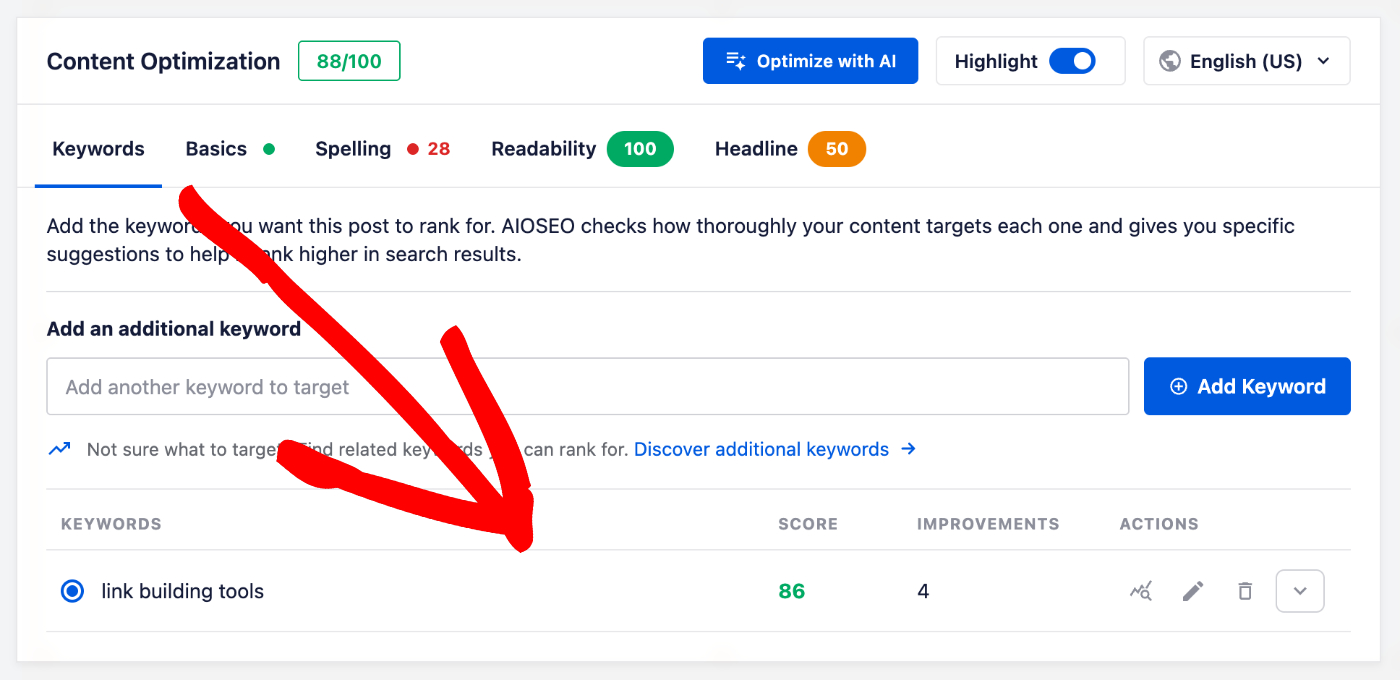
Each keyword you add will be listed in the table underneath. Its Score shows how well your content targets that keyword. The Improvements count shows how many suggestions are waiting for you.
If you’re unsure how many keywords to add, one main keyword plus a couple of close variations is enough for most posts. The variations only help when your content genuinely covers them.
Our guide on getting keyword suggestions from Semrush covers keyword research in more detail, including how to use the Discover additional keywords feature on the Keywords tab.
If you’re new to picking what to target, our beginner’s guide on how to do keyword research for your WordPress site walks through the whole process.
With your keywords in place, the rest of the analysis shows how well your content supports them.
Reviewing the Basics
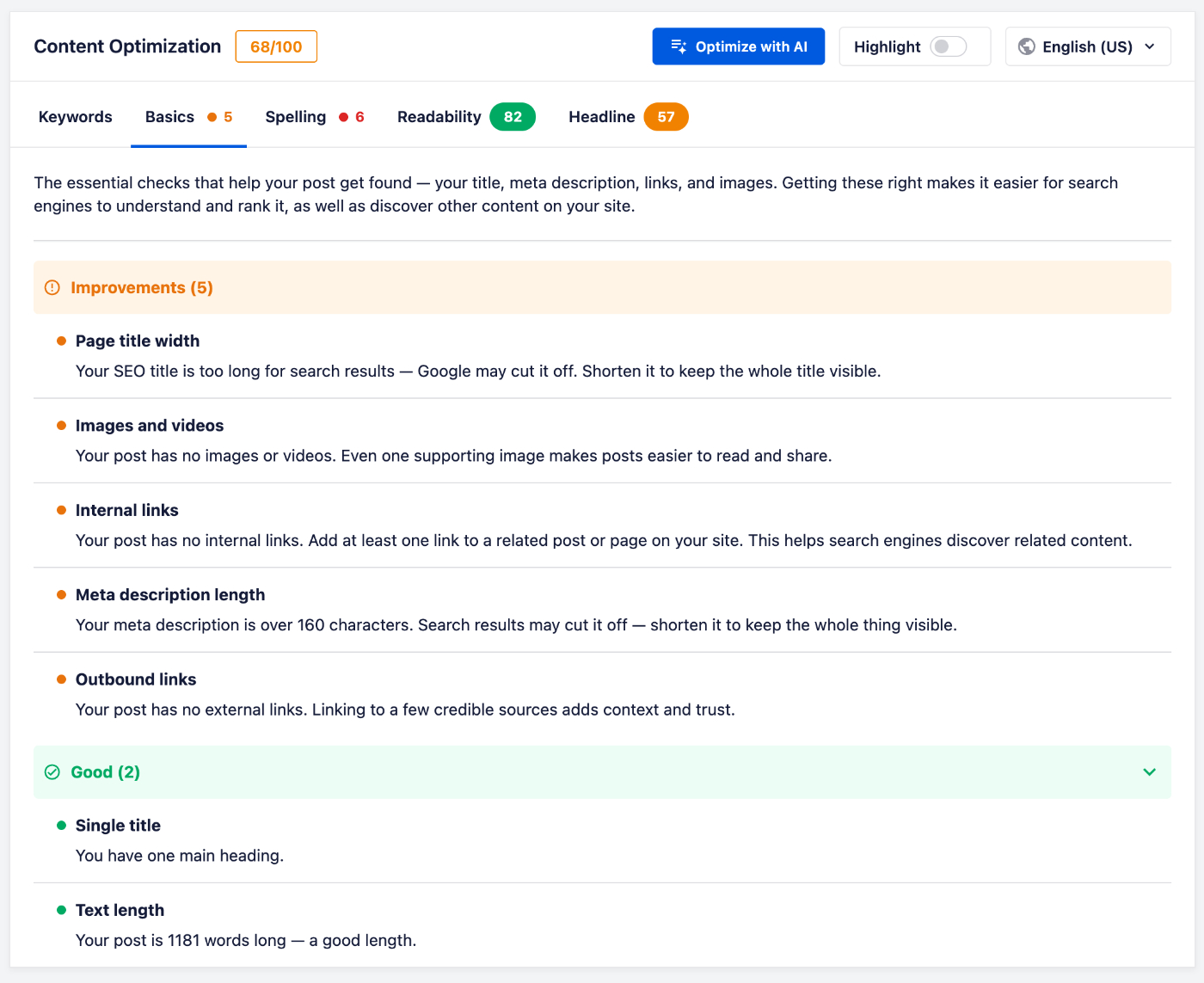
Next, select the Basics tab. This covers the essential checks that help your post get found, including your title, meta description, links, images, and videos.
When something needs attention, it’s listed here as a suggestion you can work through. Once everything passes, you’ll see a confirmation that no improvements are needed.
With the essentials in good shape, the next thing worth a look is the wording itself.
Fixing Spelling Mistakes
Now select the Spelling tab to see the words AIOSEO has flagged in your content, along with how many times each one appears. Most flagged words come with suggested corrections you can choose from.
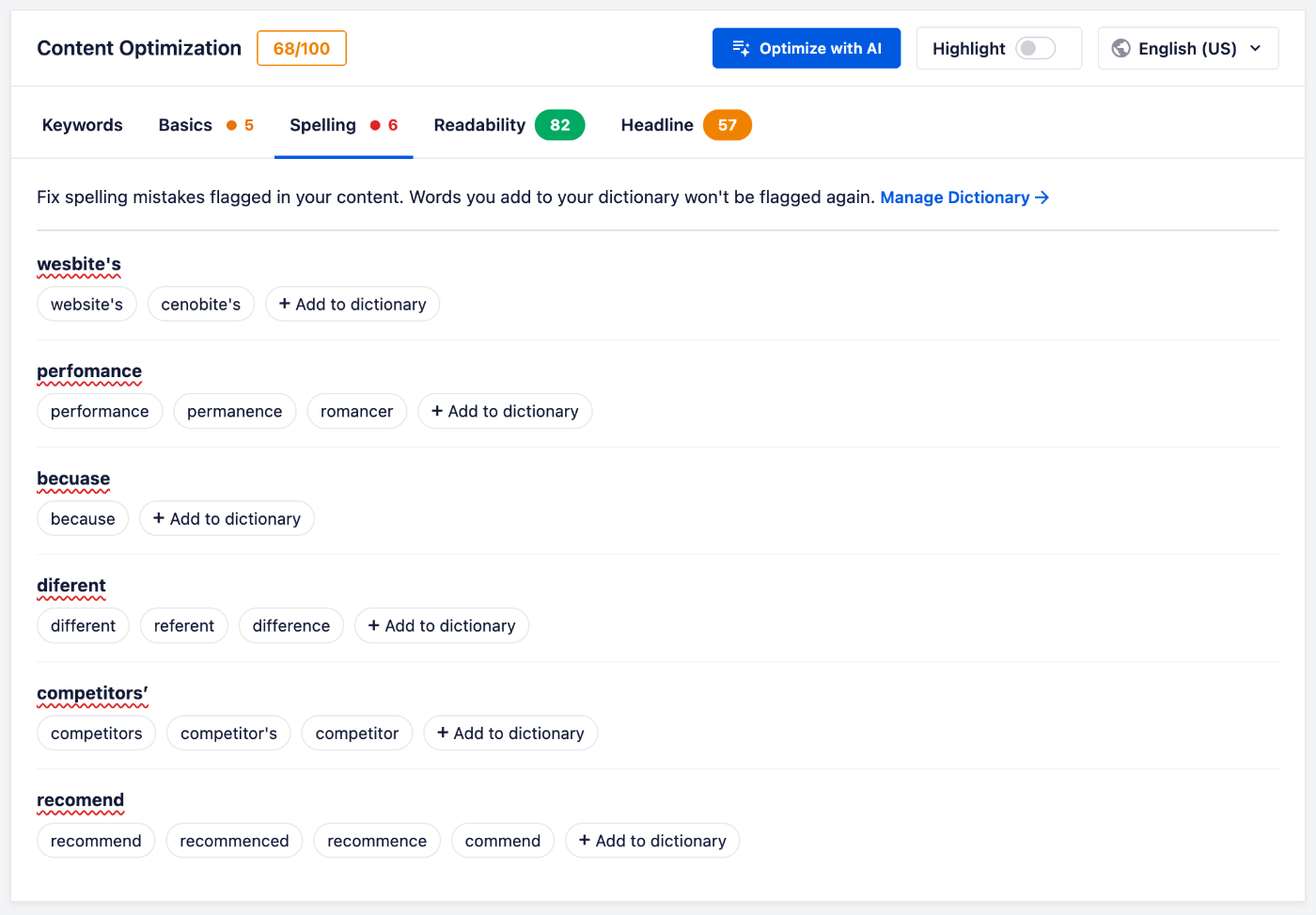
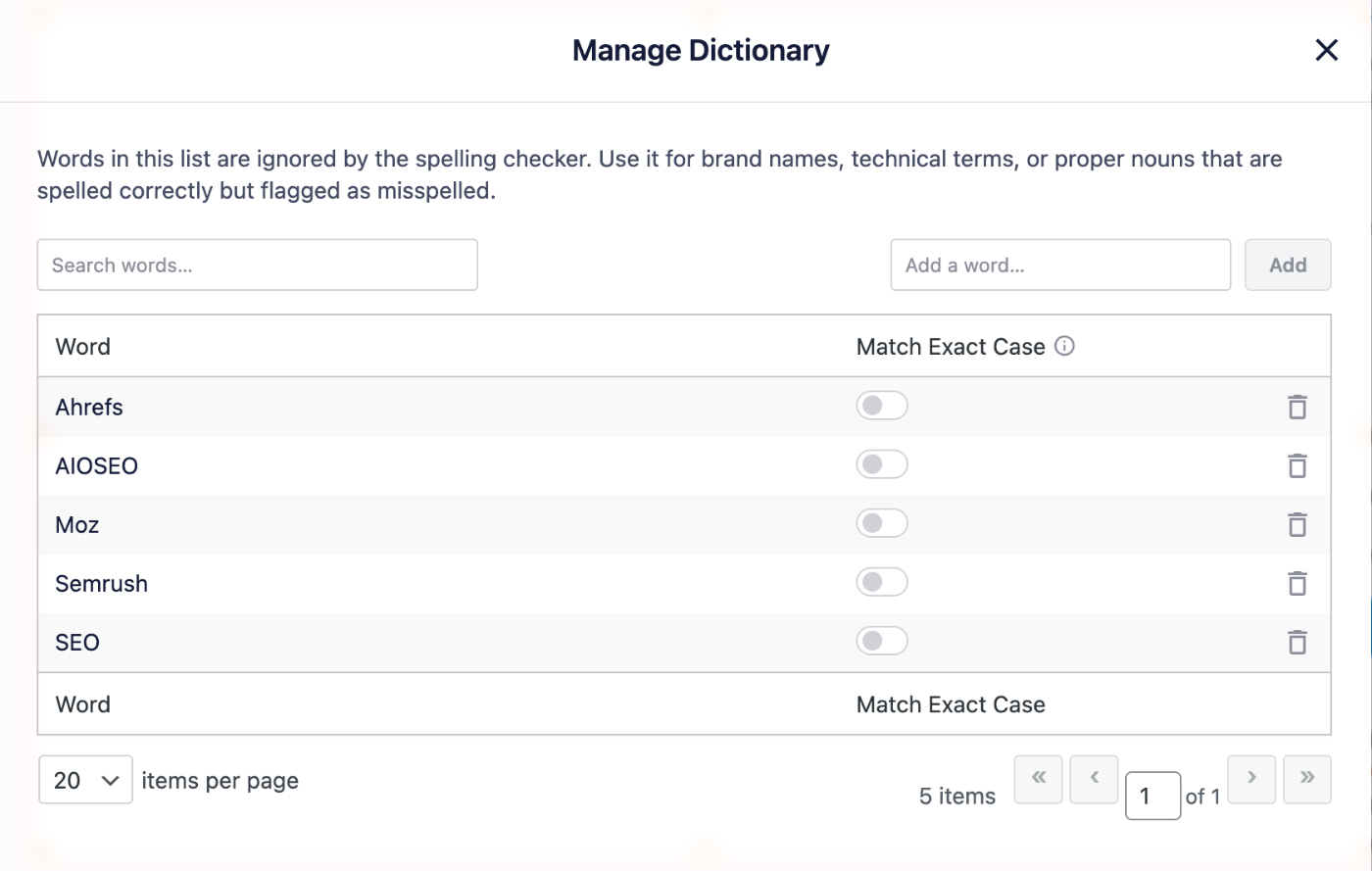
Product names, brand names, and technical terms often get flagged even though they’re spelled correctly. When that happens, click Add to dictionary and AIOSEO won’t flag that word again. To review the words you’ve saved, click Manage Dictionary.
Once your wording is clean, the next question is how easily it reads.
Improving Readability
Then select the Readability tab to see how easy your content is to read.
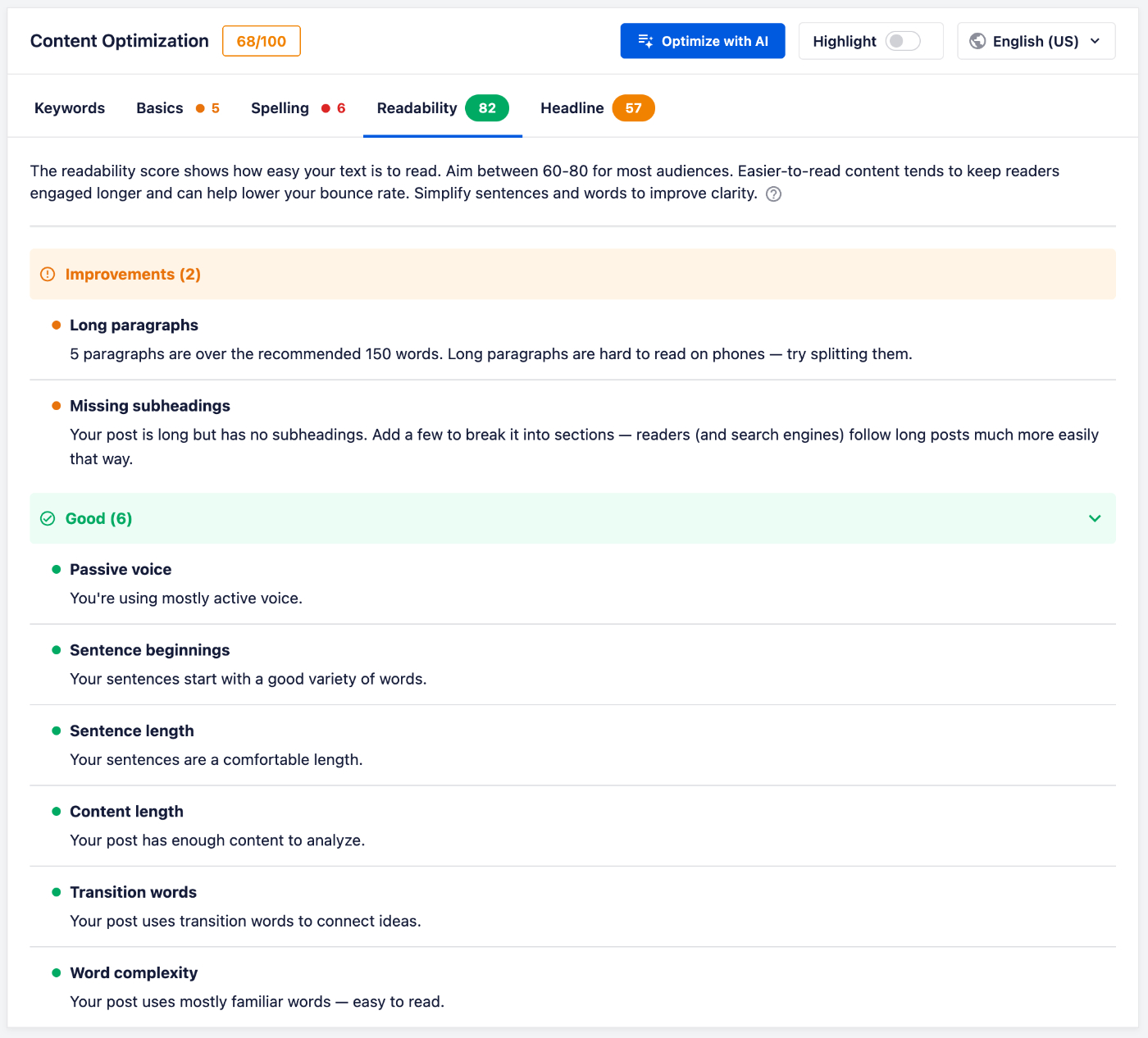
For most audiences, AIOSEO suggests aiming for a score between 60 and 80. Content that’s easier to read tends to keep readers engaged for longer. Simplifying your sentences and word choices is the quickest way to improve your score.
With the body of your post in shape, one score is left to look at.
Analyzing Your Headline
Finally, select the Headline tab. This score rates how likely your headline is to earn clicks and shares. Aim for a score of 70 or above.
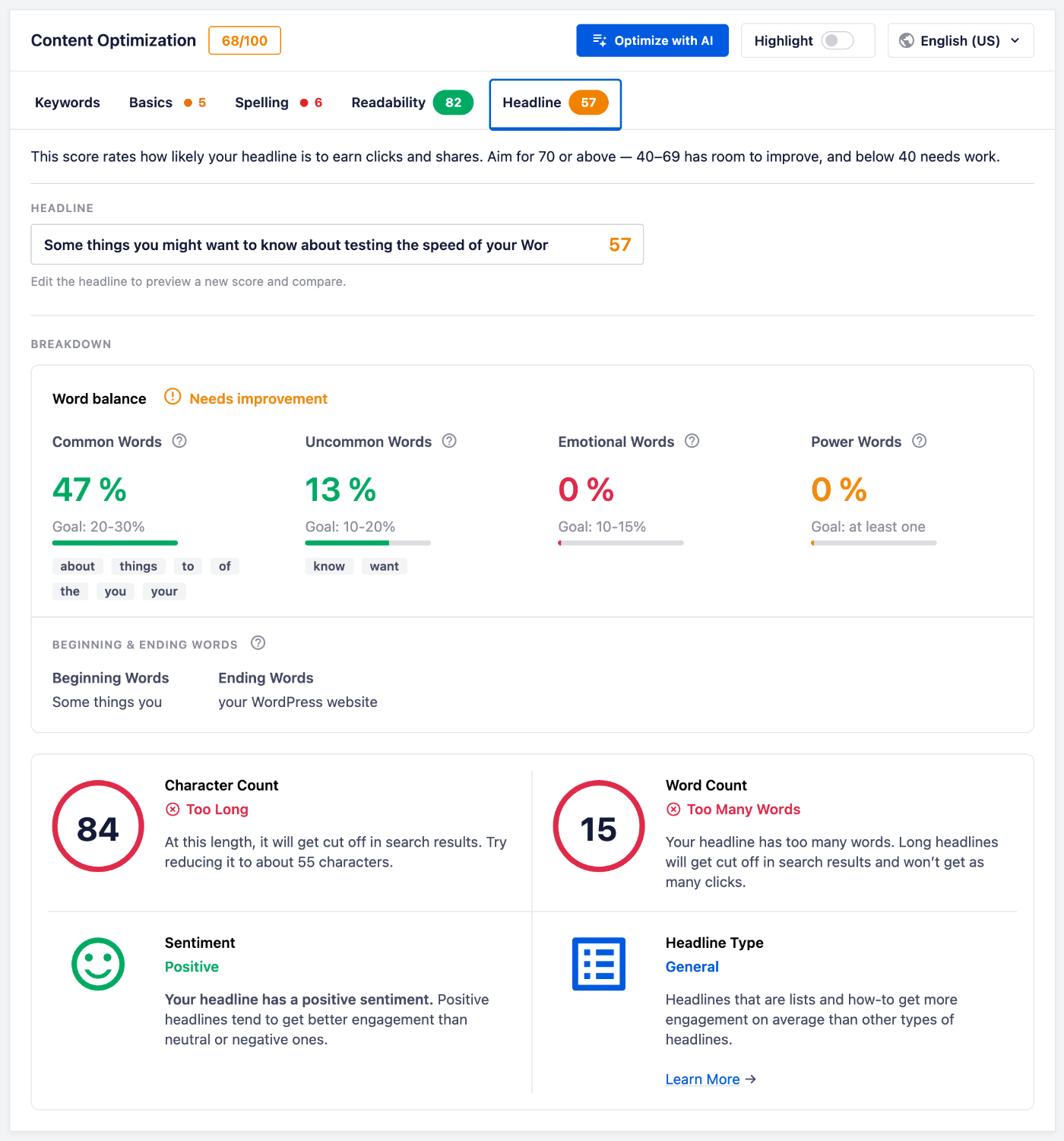
A score between 40 and 69 has room to improve. Anything below 40 needs work.
The breakdown underneath shows you why you got that score. It measures your balance of common, uncommon, emotional, and power words against a target range for each. It also lists the beginning and ending words of your headline.
We have a Word Bank with a list of common, uncommon, emotional, and power words here.
Your character count and word count are scored too. Headlines of around 55 characters display fully in search results, while longer ones can get cut off.
Most checks come with a short explanation of what to change. You can edit your headline to preview a new score before you commit to it.
That’s it! TruSEO content analysis gives you one place to check your keywords, basics, spelling, readability, and headline before you publish.
Further Reading / Next Steps
Check out more articles about our TruSEO content analysis here.
Frequently Asked Questions
Below, we’ve answered some of the most common questions about TruSEO content analysis.
Can I target more than one keyword?
Yes. Each keyword you add gets its own score and its own list of improvements. See Adding Keywords to Target above for the full walkthrough.
Why is a word I spelled correctly being flagged?
Brand names, product names, and technical terms are often flagged because they aren’t in the dictionary. For any word you want AIOSEO to skip from then on, click Add to dictionary. See Fixing Spelling Mistakes above for more.
What readability score should I aim for?
Between 60 and 80 works for most audiences. Shorter sentences and simpler words are the fastest way to raise the score. For more background on what the score measures, see our guide on how to improve readability score in WordPress posts.
Where do I turn TruSEO on or off?
TruSEO has its own settings screen. From your WordPress admin sidebar, go to All in One SEO » General Settings, then select the Content Optimization tab. You can turn TruSEO, the TruSEO Highlighter, the Spell Checker, and the Headline Analyzer on or off there.
Does my score update as I edit?
Yes. The analysis runs on your content as you work, so your scores and suggestions reflect the current version of your post.