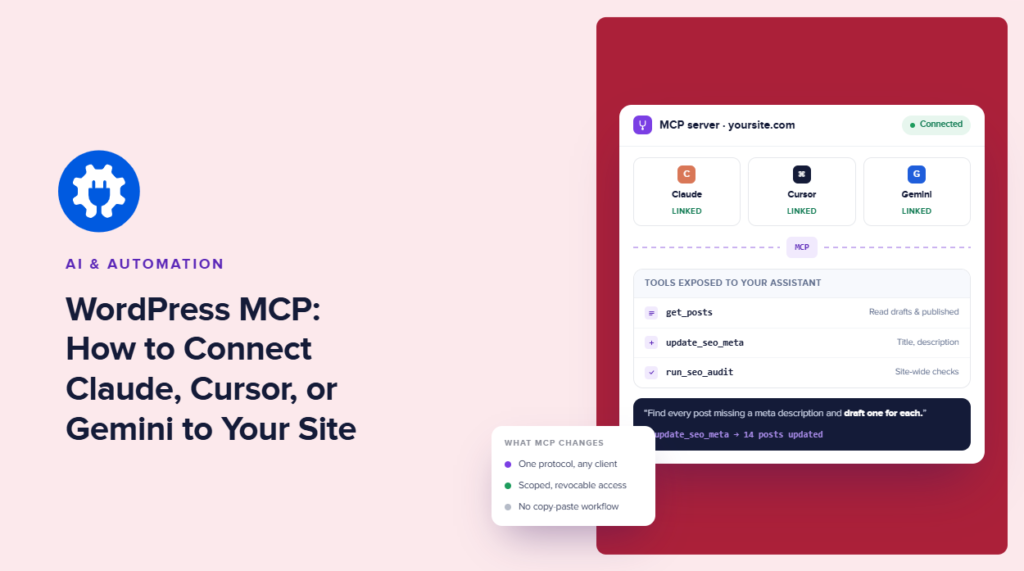

Ask Claude which posts on your WordPress site have the lowest TruSEO scores. Normally, it can’t tell you just like that.
That’s because Claude doesn’t know what’s currently in WordPress. Neither does Cursor or Gemini. You can export the data, paste it into a chat, and ask your question there, but then you’re the integration layer.
WordPress MCP changes that.
Model Context Protocol gives an AI client a standard way to connect to external tools and data. With an MCP server on the WordPress side, your AI tool can query information from your site directly instead of waiting for you to copy it across.
The catch is that WordPress doesn’t give you an SEO-specific MCP server out of the box, but AIOSEO does. That means we can build a connection that looks something like this:
Claude / Cursor / Gemini
           │
           │ MCP
           ▼
    AIOSEO MCP Server
           │
           ▼
       WordPress
           │
    ┌──────┼──────┐
    ▼      ▼      ▼
 TruSEO   Links   SEO data
Once it’s connected, your AI tool can work with the WordPress data directly.
That’s what I’ll cover in this guide: a working MCP connection between WordPress and an AI client, and then what becomes possible once the plumbing is out of the way.
In This Article
- What Is MCP, and Why Should WordPress Users Care?
- Does Your WordPress Site Already Have MCP Support?
- How to Connect Claude to WordPress With AIOSEO MCP
- Connecting Cursor to WordPress
- Connecting Gemini to WordPress
- What Can You Actually Do With AIOSEO’s MCP Abilities?
- Security, Permissions, and What I Wouldn't Automate
- WordPress MCP: FAQs Answered
- Final Thoughts
What Is MCP, and Why Should WordPress Users Care?
MCP is easiest to understand by looking at what happens without it.
Say I want Claude to find every post on my site with a TruSEO score below 70. Claude can reason about the task perfectly well. What it lacks is the data required to answer it. I could copy information out of WordPress and paste it into Claude. But the problem with doing that is it’s a repetitive process where you have to open a new chat every now and then and feed it data manually.
Or I could build a custom integration between my WordPress site and Claude. That works too, but now I have to build, authenticate, document, and maintain an integration.
MCP gives us another option.
MCP Explained For Everyone (Even the Non-Technical Marketers)
Model Context Protocol (MCP) is a standard way for AI applications to connect to external systems and use the data and tools those systems expose.
Instead of building a separate integration for every AI client and external application combination, MCP gives both sides a common interface.
In our case, there are two sides:
MCP client                    MCP server

Claude  ───────────────┐
Cursor  ───── MCP ─────┼────► AIOSEO ────► WordPress
Gemini  ───────────────┘
Claude, Cursor, or Gemini acts as the MCP client, and AIOSEO provides the MCP server on the WordPress side.
The server is what makes specific WordPress and SEO capabilities available to the client. Once the connection is authenticated, the AI doesn’t need you to manually move the relevant information from one application to the other every time you ask a question.
What Can You Actually Do With WordPress + MCP?
The easiest way to see the difference is to compare the same task before and after the connection.
Without MCP, I might want to ask: Which posts on my site have low TruSEO scores?
Before Claude can help, I have to get that information out of WordPress and give it to Claude.
With an AIOSEO MCP connection, the workflow changes:
Me
 │
 │ "Show me posts with a TruSEO score below 70"
 ▼
Claude
 │
 │ MCP request
 ▼
AIOSEO
 │
 │ WordPress / SEO data
 ▼
Claude
 │
 ▼
Answer
The same idea applies to more useful questions as well, obviously.
I could ask an AI client to identify posts that need an update, inspect SEO metadata, work with internal-link information, or query available search-performance data, depending on which AIOSEO capabilities and plan features the connection supports.
Instead of opening several WordPress screens, finding the relevant data, and assembling it myself, I can describe the outcome I want and let the client request the information it needs.
That’s a much more interesting use of AI in WordPress than generating another paragraph of copy. But we still need one piece of infrastructure.
So before configuring Claude or Cursor, we need to look at what actually has to exist on the WordPress side.
Does Your WordPress Site Already Have MCP Support?
Probably not.
WordPress doesn’t give every site a general-purpose MCP server out of the box. So installing WordPress doesn’t automatically give Claude or Cursor a secure endpoint they can connect to and start querying. Something still has to provide the server.
There are two broad ways to solve that.
You can build an MCP server yourself and decide which WordPress data and actions it should expose. If you’re building a custom application, that may be exactly what you want. You control the authentication, tools, permissions, and underlying WordPress APIs.
But it’s quite a lot of infrastructure, especially for small teams, people with a non-technical background, or if you want to save your time and resources.
The other option (the better one, if you ask me) is to use a WordPress plugin that already provides the MCP server and exposes the capabilities you need.
Enter AIOSEO MCP
AIOSEO’s MCP integration gives us the server between the AI client and the site’s SEO data.
So rather than building this:
Claude
   │
   ▼
Custom MCP server
   │
   ├── Authentication
   ├── WordPress integration
   ├── SEO data access
   ├── Tool definitions
   └── Error handling
           │
           ▼
       WordPress
we can start here:
Claude
   │
   │ MCP
   ▼
AIOSEO MCP Server
   │
   ▼
WordPress + AIOSEO data
That changes the job considerably as you don’t need to design an MCP server before you can start using MCP. You just need to enable the existing server, authenticate the AI client, and tell that client where to find it.
This is also why the distinction between the client and server matters.
Installing Claude Desktop doesn’t add MCP support to WordPress. And enabling an MCP server in WordPress doesn’t automatically connect Claude to it.
Both sides need to be configured.
Once they are, the server exposes specific SEO capabilities that the client can use. That’s what lets a natural-language request in Claude turn into a structured request for actual WordPress data, rather than an answer based only on whatever context happens to be in the chat.
In the next section, I’ll connect the two.
How to Connect Claude to WordPress With AIOSEO MCP
There are only three things Claude really needs:
An MCP endpoint
A way to authenticate
A client configuration that tells Claude about both
Everything else is set up.
Step 1: Install and Activate AIOSEO
If AIOSEO is already running on the WordPress site, you can skip this step. Otherwise, install and activate AIOSEO like any other WordPress plugin.
After activation, WordPress is one side of our architecture:
Claude  ───── MCP ─────►  AIOSEO  ─────►  WordPress
                         ▲
                         │
                    We are here
Next, we need to expose the MCP endpoint.
Step 2: Enable the MCP Server
Open AIOSEO’s MCP settings in WordPress and enable the MCP server.
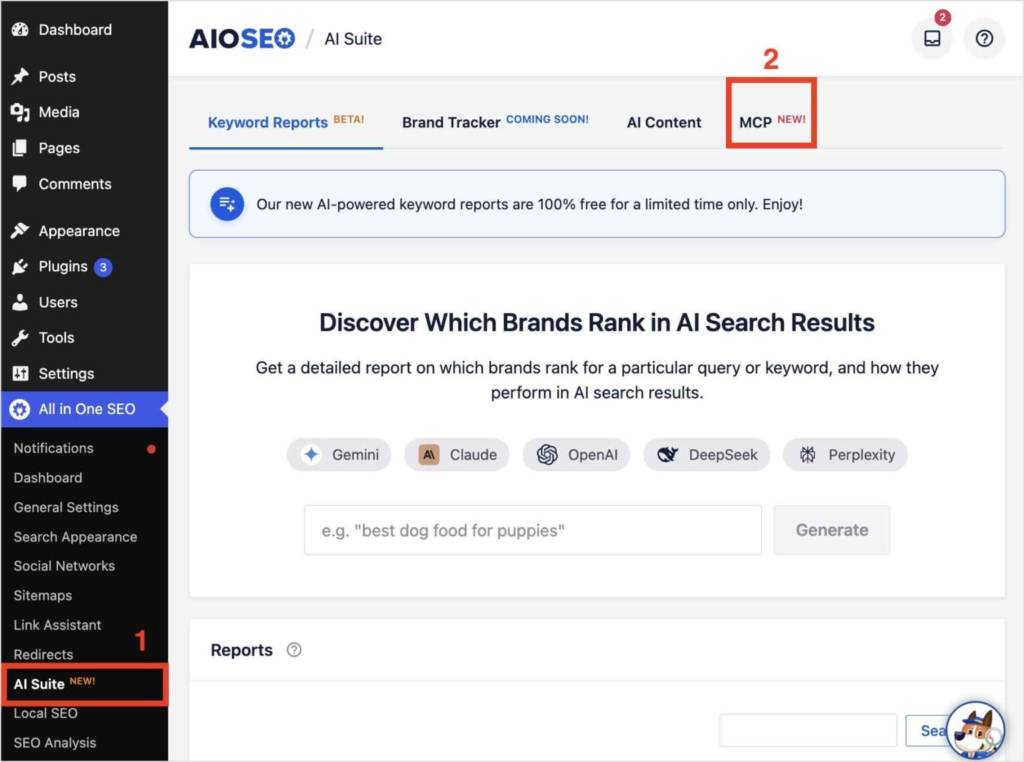
Once enabled, AIOSEO gives an external MCP client a defined interface for interacting with the SEO capabilities available on your site.
Before:
Claude        WordPress
  │               │
  └────── X ──────┘
After:
Claude
  │
  │ MCP
  ▼
AIOSEO MCP Server
  │
  ▼
WordPress
We haven’t connected Claude yet. We’ve just made WordPress capable of accepting the connection. That distinction will help when we add Cursor later, as the WordPress side doesn’t need rebuilding every time we change clients.
Step 3: Get Your MCP Server URL and Token
Once the server is enabled, you’ll need the connection details AIOSEO provides.
At minimum, the client needs to know where the MCP server is and how to authenticate. You’ll use these values in Claude’s configuration in the next step.
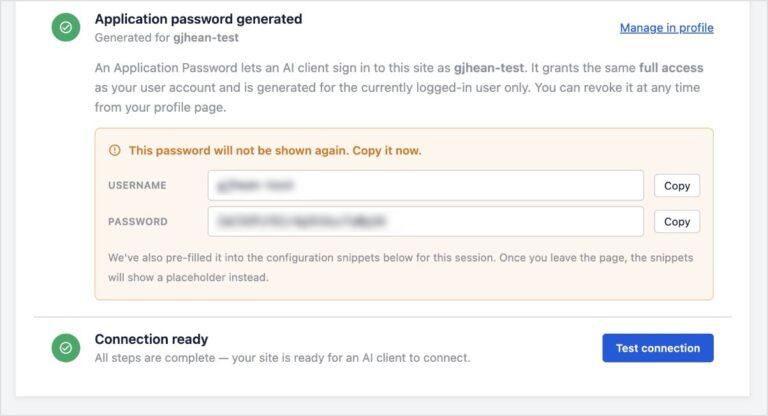
Treat the token like any other credential. Don’t commit it to a public Git repository. Don’t paste a real token into documentation. And if you’re taking screenshots for your team, redact it before sharing them.
For the examples below, I’ll use placeholders:
YOUR_AIOSEO_MCP_URL
YOUR_API_TOKEN
Replace those with the values from your own WordPress installation.
Step 4: Add the Server to Claude
Add the AIOSEO MCP server to Claude using the connection configuration AIOSEO provides. Conceptually, we’re giving Claude two pieces of information:
server = YOUR_AIOSEO_MCP_URL
authentication = YOUR_API_TOKEN
The exact configuration matters, so don’t improvise the JSON from memory. Use AIOSEO’s current MCP documentation for the supported transport and exact key names, then substitute your own server URL and token.
That may sound like a small detail, but it’s the sort of detail that makes technical tutorials either useful or annoying. An almost-correct configuration example is usually worse than no example at all.
[Code block: Insert the verified, copy-pasteable Claude MCP configuration here using YOUR_AIOSEO_MCP_URL and YOUR_API_TOKEN placeholders.]
Save the configuration and reconnect or restart the Claude client if required by the current Claude MCP workflow.
At that point, both sides know about each other:
Claude
  │
  │ authenticated MCP connection
  ▼
AIOSEO MCP Server
  │
  ▼
WordPress
Step 5: Prove the Connection Works
If I were you, I wouldn’t test this with “Hello.”
Ask for something Claude couldn’t know without accessing the site. For example: List all posts on my WordPress site with a TruSEO score below 70.
That gives us a useful test because there are only two possible outcomes.
If Claude can query the appropriate AIOSEO capability and return actual posts from the connected WordPress site, the integration is working. (Woohoo!)
If it can’t, we know the problem is somewhere in the connection, authentication, permissions, or exposed MCP capabilities.
More importantly, when it does work, look at what just disappeared from the workflow.
- No more exporting CSV files manually.
- No copies of a table out of WordPress.
- You don’t have to paste ten posts into Claude and explain which number represented the TruSEO score.
That’s one of my favorite parts of WordPress MCP.
Next, we’ll connect Cursor.
Connecting Cursor to WordPress
Once the AIOSEO MCP server is running, connecting another client should feel almost uneventful.
We don’t need another WordPress plugin, another API integration, or a second server. Cursor is simply another MCP client connecting to the same server we configured for Claude.
                    ┌──── Claude
                    │
WordPress ← AIOSEO MCP
                    │
                    └──── Cursor
The interesting difference is what Cursor brings to the other side of that connection. Claude is useful when you want to interrogate my site’s SEO data conversationally. Cursor gets more interesting when that data needs to become part of a development workflow.
Add AIOSEO to Cursor
Cursor currently lets you manage MCP servers from Customize → MCPs. You can also configure a custom server directly in mcp.json. Cursor supports project-level configuration at .cursor/mcp.json and a global configuration at ~/.cursor/mcp.json.
For this connection, add the remote AIOSEO MCP server using the URL and authentication details from your WordPress site.
A remote MCP configuration in Cursor follows this general shape:
{
  "mcpServers": {
    "aioseo": {
      "url": "YOUR_AIOSEO_MCP_URL",
      "headers": {
        "Authorization": "Bearer YOUR_API_TOKEN"
      }
    }
  }
}
Important: The URL and token above are placeholders. The final configuration should use the authentication header and connection values specified by AIOSEO’s current MCP implementation.
If you plan on using this server across several projects, I’d put it in the global configuration. If the connection belongs to one particular WordPress project, .cursor/mcp.json keeps that relationship scoped to the project.
There’s one thing I would not do: commit the real API token with the project. Cursor supports environment-variable interpolation in MCP configurations, which is a better option for credentials that shouldn’t live in source control.
Check That Cursor Can See the Server
After saving the configuration, Cursor should load the MCP server and make its available tools accessible to Agent.
You can check the server in Customize → MCPs. If you’re working from the Cursor CLI, you can also inspect configured servers and the tools exposed by an individual server.
Again, I wouldn’t stop at a green connection indicator. Make Cursor do something that requires WordPress data.
A useful test has to cross the boundary.
Cursor project context
        +
WordPress SEO context
        │
        ▼
     Cursor Agent
Imagine I’m working on a WordPress theme and changing the way a group of pages is structured. Cursor already understands the project’s code. Through MCP, it can also work with the relevant information exposed by the WordPress site.
Same Server, Different Workflow
This is one reason MCP is more useful than a one-off “AI integration.”
Claude and Cursor don’t need AIOSEO to build bespoke integrations for every workflow I might invent. They need access to a server that exposes useful tools in a protocol they both understand.
So I can use Claude like this: Which posts have the weakest TruSEO scores?
And Cursor like this: Find the posts affected by the template I’m changing and check whether any of them have SEO issues I should account for.
You see how it operates differently for the same WordPress site and the same MCP server. Different client, different job. – that’s what I’m talking about.
Connecting Gemini to WordPress
Before we configure anything, here’s an important clarification (if you didn’t know already): “Gemini” is a model family, not a single MCP client.
Google now supports MCP in several places, including its APIs and agent tooling, but the setup isn’t identical across them. For this WordPress workflow, Gemini CLI is the cleanest option, and AIOSEO also provides a ready-made configuration.
Add AIOSEO to Gemini CLI
If you completed the WordPress setup earlier, you don’t need to install anything new on the site.
AIOSEO’s MCP setup screen actually generates client-specific configuration for several tools, including Claude Desktop, Claude Code CLI, Cursor, VS Code, and Gemini CLI. Select Gemini CLI and AIOSEO will generate the appropriate snippet using the credentials you created during setup.
The architecture is exactly what we’ve already built:
Gemini CLI
    │
    │ MCP
    ▼
AIOSEO MCP Server
    │
    ▼
WordPress
Notice how we’re now on our third client and haven’t changed the server once. (Isn’t that amazing?)
Test the Connection With a WordPress Question
Once Gemini CLI has loaded the server, test it the same way we tested Claude and Cursor.
Don’t ask whether MCP is connected. Ask it for information that only exists on the WordPress site. If Gemini can discover the relevant AIOSEO ability, call it, and return information from WordPress, the connection works.
At this point, we have three clients sitting in front of the same WordPress interface:
Claude ─────┐
            │
Cursor ─────┼──── MCP ──── AIOSEO ──── WordPress
            │
Gemini ─────┘
And this is where MCP starts earning the word protocol.
Without a common protocol, AIOSEO would need one integration for Claude, another for Cursor, another for Gemini, and another when the next useful AI client appears.
With MCP, the integration boundary moves. AIOSEO exposes capabilities on one side. Any compatible client can discover and use those capabilities on the other.
What Can You Actually Do With AIOSEO’s MCP Abilities?
AIOSEO currently exposes 29 SEO abilities through its MCP setup, grouped across areas including posts, settings, robots.txt, audits, terms, redirects, Search Statistics, and Link Assistant.
29 abilities sound crazy impressive, right? But, it also doesn’t tell you very much. What you might want to know is whether those abilities map to work you already do in WordPress.
Can you find posts that need attention? Can you inspect SEO settings without clicking through dozens of edit screens? Can you look for redirect problems? Can you use Search Statistics or Link Assistant data as context for a larger task?
That’s a more useful way to think about the AIOSEO MCP server.
The exact abilities available to you can also depend on which AIOSEO features and plan you have access to. So, rather than treating those as a list of 29 API methods, I’d group them by the jobs they make possible.
Use AI to Find Content That Needs Work
This is probably where I’d start.
SEO maintenance usually isn’t difficult because you don’t know how to optimize a page. It’s difficult because finding the pages worth looking at means jumping between reports, WordPress screens, and spreadsheets.
But MCP gives you another interface for that discovery work.
Instead of opening WordPress and working through posts individually, you can automate much of the process.
WordPress data                AI reasoning
      │                            │
      ▼                            ▼
"These posts have       →    "Start with these
low TruSEO scores"           five because..."
This also gives you a better way to use AI for SEO than asking it to blindly “optimize my website.” You can give the agent a narrow, inspectable task, see what data it retrieves, and decide what happens next.
Inspect SEO Configuration Easily
The same pattern works for site-level SEO.
Suppose I’m taking over an existing WordPress site. Before changing anything, I want to know how it’s configured.
Normally, that means clicking around. But with the right MCP abilities, I can ask the client about the SEO settings AIOSEO exposes instead.
For an agency managing several WordPress installations, that gets interesting quickly. The conversational interface is valuable because you can now ask the same diagnostic question across multiple sites without first learning how each one is organized internally.
Investigate Technical SEO Problems
Redirects are a good example of where this becomes more than a content workflow.
If redirect information is available through the server, you can use an AI client to inspect it as part of a broader debugging session.
Imagine I’m already in Cursor investigating why a group of old URLs is behaving unexpectedly. Instead of leaving the editor, opening WordPress, navigating to the redirects interface, finding the relevant entries, and carrying that information back into my debugging session, I can ask from the context I’m already working in: Find redirects related to /old-category/ and show me their destinations.
Now the redirect configuration can become part of the same investigation as the code.
And it’s small tasks like these that make WordPress MCP really effective in making your day-to-day tasks more efficient.
Bring Search Performance Into the Conversation
AIOSEO’s Search Statistics connects WordPress with Google Search Console data. Where the corresponding MCP abilities and plan access are available, an AI client can work with that search data as part of the same conversation.
So instead of:
Open Search Console
      ↓
Find declining pages
      ↓
Export / copy data
      ↓
Open WordPress
      ↓
Inspect those pages
      ↓
Open AI tool
      ↓
Paste everything in
You can move toward:
"What pages are losing search traffic,
and what should I investigate first?"
                 │
                 ▼
             AI client
                 │
                MCP
                 │
                 ▼
       AIOSEO + site data
But if I were you, I wouldn’t ask an agent to diagnose a traffic decline and blindly implement whatever it suggests. Search performance has too many possible causes, so do keep that in mind.
What MCP does well is shorten the distance between finding evidence and reasoning about it.
Use Link Assistant Data as Context
Internal linking has a similar problem.
It’s easy to say “add more internal links.” It’s harder to know which pages need them and which pages make sense as sources.
AIOSEO’s Link Assistant analyzes internal linking across the site, and its data can be exposed through the relevant MCP capabilities for users with access to the feature.
Grouping pages by topic doesn’t need to be an AIOSEO MCP ability. The server retrieves the relevant WordPress information. The model can reason over the result. That’s why the number of abilities isn’t really the ceiling on what you can do.
Treat MCP Abilities As Building Blocks
It’s tempting to look at an MCP server as a menu:
Tool 1 → Do thing 1
Tool 2 → Do thing 2
Tool 3 → Do thing 3
That’s not quite how I think about it. The more useful model is:
        AIOSEO abilities
              │
      ┌───────┼───────┐
      ▼       ▼       ▼
   Retrieve  Inspect  Act
      │       │       │
      └───────┼───────┘
              ▼
        Model reasoning
              │
              ▼
        Larger workflow
One ability might retrieve posts. Another might expose SEO information. Another might provide redirect or search data. The AI client can combine the information those tools return with the context already available to it and the instructions you give it.
Security, Permissions, and What I Wouldn’t Automate
Once an AI client can query your WordPress site, the obvious next question is: how much access did I just give it?
It’s easy to lose sight of this because the interface is conversational. Asking Claude to inspect a redirect feels less consequential than making an authenticated request to WordPress.
Technically, though, that’s what is happening.
The MCP client is using credentials to access a server that exposes specific capabilities on your site. The model doesn’t suddenly have unrestricted access to WordPress. What it can do depends on the tools the MCP server exposes and the permissions attached to the credentials used for that connection.
That’s a much better security model than “give the AI access to everything,” but it still deserves the same care I’d give any authenticated integration.
Treat Your MCP Credentials Like Credentials
The first rule might sound boring, but it’s the same rule that applies everywhere else: Don’t expose your credentials.
Don’t commit them to a public repository or paste them into a support ticket or public issue. Don’t leave them visible in a tutorial screenshot.
If you’re configuring MCP inside a project that other people can access, pay particular attention to where those credentials are stored.
Read Access and Write Access Aren’t the Same Risk
There’s also a big difference between asking an agent to inspect something and asking it to change something.
Consider these two prompts: Show me redirects that point to 404 pages.
and: Fix all of my redirects.
The first gives you the information you can inspect. Whereas the second potentially turns a model’s interpretation into changes on a live website.
My default would be to use MCP aggressively for retrieval and analysis, then keep a human checkpoint before consequential changes.
Retrieve
   ↓
Analyze
   ↓
Propose
   ↓
Review  ← human checkpoint
   ↓
Change
That isn’t necessarily because AI agents are uniquely dangerous. It’s because SEO configuration can have a surprisingly large blast radius.
One incorrect redirect is annoying, but a bad rule applied across hundreds of URLs can quickly turn into a disaster.
The same goes for robots.txt changes, metadata at scale, or anything else that can affect how search engines crawl and understand a site.
Give the Agent Only the Context It Needs
MCP lets you give an AI client useful context without dumping your entire WordPress installation into a prompt.
That’s one of its advantages, but make sure you don’t overshare.
If the task is analyzing SEO data, the agent needs access to the relevant SEO capabilities. It doesn’t necessarily need the same level of access as a WordPress administrator.
Think of the MCP server as a deliberately narrow interface:
                  WordPress
        ┌────────────┼────────────┐
        │            │            │
     Users        Plugins      SEO data
        │            │            │
        X            X            │
                                  ▼
                            MCP abilities
                                  │
                                  ▼
                             AI client
The narrower that interface is, the easier it is to reason about what an agent can actually do.
MCP Doesn’t Remove the Need to Review AI Output
MCP gives the model access to better context. It doesn’t guarantee better judgment.
If Claude can retrieve the 5 pages losing the most clicks, that’s useful evidence. But if Claude then says all 5 pages should have their titles rewritten, that’s a recommendation, not necessarily something you should do before investigating it yourself.
This is especially important with SEO because the information available through WordPress rarely tells the whole story. A traffic drop could be caused by a ranking change, seasonality, search intent, SERP features, a Google update, cannibalization, or something happening entirely outside the site.
So, my advice? Make your workflow agent-assisted.
WordPress MCP: FAQs Answered
MCP (Model Context Protocol) lets compatible AI tools connect to a WordPress site and access specific data or capabilities exposed by an MCP server. For example, an MCP server can allow Claude or Cursor to work with WordPress SEO data without you manually copying it into the AI tool.
You can connect AI applications to WordPress when the application supports the MCP server and its authentication method. MCP provides the standardized connection between the AI client and the capabilities exposed by your WordPress site.
Yes. AIOSEO includes an MCP server that allows compatible AI clients to access SEO-related capabilities from your WordPress site. This lets you use tools such as Claude, Cursor, and Gemini with your site’s AIOSEO data.
WordPress MCP setup can be relatively straightforward when you use a plugin with a built-in MCP server, such as AIOSEO. Enable the server, configure authentication, connect a compatible AI client, and then test the connection with a WordPress-specific request.
AI tools with MCP client support can potentially connect to a WordPress MCP server. Examples include Claude, Cursor, and Gemini, provided the client supports the server’s connection and authentication requirements.
Final Thoughts
WordPress MCP is useful because it removes the manual work between your site and the AI tools you already use. Instead of copying SEO data into Claude, Cursor, or Gemini, you can give them a structured way to access the WordPress context they need.
And with AIOSEO’s MCP server handling that connection, you can start small with tasks, then build toward more complex workflows and automations.
If you want to explore those capabilities further, check out AIOSEO’s features, including TruSEO Analysis, Link Assistant, and Search Statistics.
Disclosure: Our content is reader-supported. This means if you click on some of our links, then we may earn a commission. We only recommend products that we believe will add value to our readers.
Want to Try AIOSEO for Free?
Enter the URL of your WordPress website to install AIOSEO Lite.