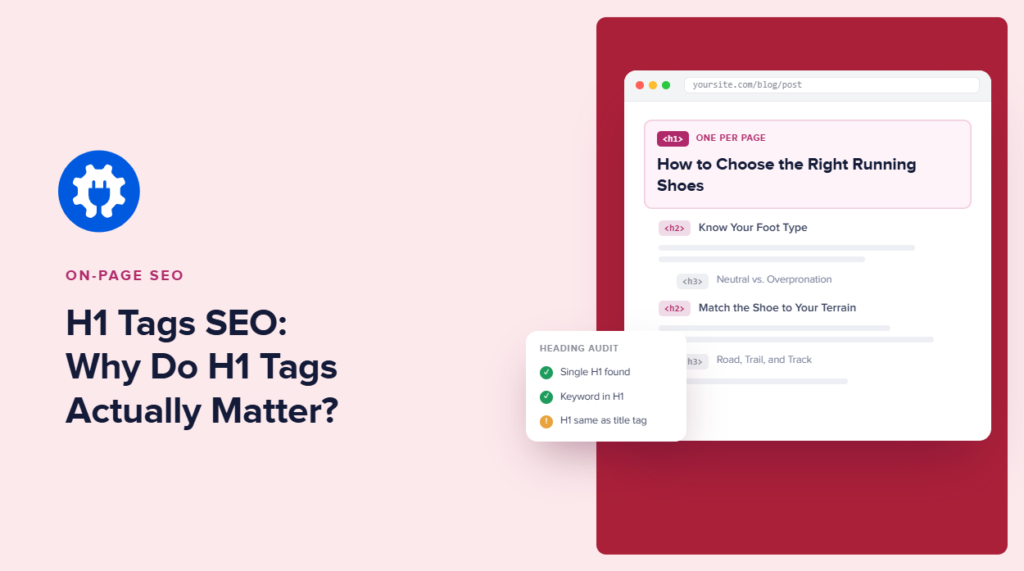

H1 tags SEO may sound like a small part of on-page optimization, but your H1 plays an important role in telling both visitors and search engines what a page is about.
Think of your H1 as the headline of the page. It's usually the first major heading someone sees after landing on your content, and it establishes the main topic before your H2s and H3s break that topic into smaller sections.
But H1 optimization can get confusing quickly. Should your H1 and SEO title be identical? Can you have more than 1 H1? Should your target keyword appear in it? And does changing your H1 actually affect rankings?
So, in this guide, I'll explain how H1 tags SEO works. I'll also discuss the best practices I use when optimizing them. And of course, include a short tutorial on how to add H1 tags SEO in WordPress using AIOSEO.
Let's start with a quick definition.
In This Article
What Are H1 Tags SEO?
An H1 tag is the main heading element on a web page. It sits at the top of the heading hierarchy, which runs from H1 down to H6, with H1 being the largest and most important. Search engines use the H1 to understand what a page is about, and they may pull text from it to show in featured snippets and AI Overviews.
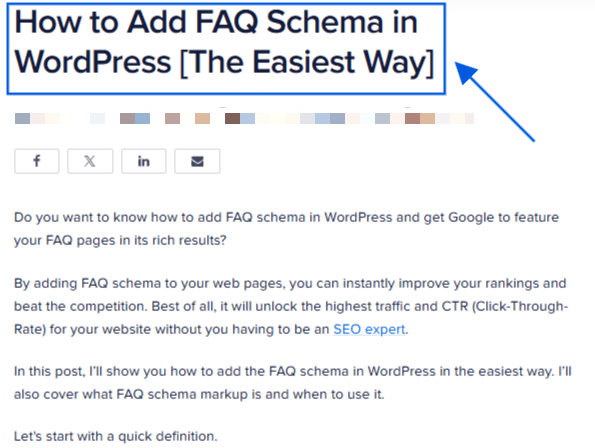
Think of the heading hierarchy like an outline. Your H1 is the main title, and your H2 through H6 headings are the subheadings that break your content into sections. A page should have one H1, since it represents the page's main topic.
It is easy to confuse your H1 with the title you see in your browser tab. That browser tab text comes from a different element called the title tag, which lives in the HTML (Hypertext Markup Language) head of your page and does not appear anywhere in your visible content. I'll also cover how these 2 elements work together in AIOSEO a bit further down.
Does Your H1 Tag Actually Affect SEO?
Google has confirmed that the H1 tags SEO is not a direct ranking factor. Setting it correctly will not push your page up the results on its own. What it does do is help Google understand your page's structure and topic, and it plays a role in which passages get pulled into featured snippets and AI Overviews.
In fact, a recent study examined H1 tags across top-ranking pages and found that 93.5% use a single H1 tag, while 12.5% use multiple H1 tags. Pages that included their target keyword in the H1 did not show a meaningfully stronger ranking pattern than pages that did not. In other words, the presence of a clean, well-structured H1 lines up with strong rankings, but stuffing it with your exact keyword phrase is not what gets you there.
So, my verdict is that a correctly set H1 will not, by itself, make your page rank higher. But a missing or broken H1 is a signal problem that can hold your content back from being understood and cited correctly. This might be especially true for featured snippets and AI Overviews, where clear, question-matching headings tend to be picked up first.
The Multiple H1 Tags SEO Question
This is the question we see beginners ask most, and the SERPs do not answer it clearly. So let's settle it.
“Our systems don't have a problem when it comes to multiple H1 headings on a page.”
– Google's John Mueller
He also noted that using more than one H1 tag is common across the web, since modern HTML5 allows multiple H1 tags within different content sections, unlike the older HTML4 standard, which assumed a page would have just 1.
The 2026 Rankability data that I cited above supports this. Of the top-ranking pages studied, 12.5% had multiple H1 tags, and researchers did not observe a ranking penalty associated with them. So no, multiple H1 tags won't penalize your WordPress site.
But my recommendation for WordPress users is to aim for 1 H1 per page, which should be your post title. Not because a second H1 hurts your rankings, but because it usually means something structural is off. A theme or page builder might be outputting an extra H1 where you did not expect it, and that is worth investigating before you decide it is intentional.
H1 Tag vs. SEO Title, What's the Difference?
This is where most WordPress beginners get confused, and it is worth slowing down on. The post title you enter in WordPress becomes your H1 tag on the live page in most standard themes. It is the big heading that your visitors see at the top of your content.
Your SEO title is something different. In AIOSEO, the SEO Title field controls the title tag, the clickable headline that appears in Google search results and in your browser tab. It has nothing to do with your H1, and the 2 do not need to match.
In fact, letting them differ slightly is a feature, not a mistake. Your H1 might read “How to Make Sourdough Bread, a Step-by-Step Guide” because that sounds natural and inviting to a reader. Your SEO title might read “Sourdough Bread Recipe, Easy Step-by-Step Guide” because it leads with the keyword your audience searches for.
AIOSEO lets you set these separately in the same meta box, so your H1 can stay conversational while your SEO title stays keyword-focused.
If you want a deeper walkthrough of writing your SEO title specifically, check out our guide to writing SEO title tags.
How to Check and Fix Your H1 in WordPress
How you fix your H1 depends on how your site is set up. Here are the 3 scenarios you are likely to run into.
Standard WordPress (Block Editor)
In most standard WordPress themes, your post title automatically becomes your H1. You do not need to do anything extra.
You can verify this yourself. Right-click your published page, select Inspect, then press Ctrl+F (or Cmd+F on a Mac) inside the inspector panel and search for <h1>. If your title text appears wrapped inside an H1 tag, you are all set.
One thing to avoid: do not add a Heading block at the top of your content and set it to Heading 1. That creates a second H1 alongside your post title. Your in-content headings should start at Heading 2 and move down from there.
Theme Controlled H1 (Classic Themes and Page Builders)
Some themes and page builders, including certain setups built on Divi, Elementor, or older custom themes, do not output your post title as an H1 by default. They might use an H2 instead, or apply a CSS (Cascading Style Sheets) class to make the text look like a big heading without actually using the H1 tag.
Use the same inspector check described above. Open your page, right-click, select Inspect, then search for <h1>. If your title is not wrapped in an H1 tag, your theme or builder is the source of the problem.
From there, check your theme's Customizer under Typography or Heading Tags settings, since the exact location varies by theme. If you cannot find the setting, your theme's documentation or support team can point you to it.
When AIOSEO Flags an H1 Warning
AIOSEO's TruSEO Score analysis checks every post and page for H1 issues automatically, so you do not have to inspect your HTML by hand every time. Look for the H1 Heading check in the TruSEO panel while you are editing a post.
How to Optimize H1 Tags SEO With AIOSEO
If you're using WordPress, you don't need to manually inspect every heading in your HTML to get your basic on-page structure right. I use AIOSEO to analyze the page while I'm creating it and identify optimization opportunities before publishing.
H1 vs. SEO Title: What's the Difference?
Your H1 is the main visible heading on the page. In WordPress, your post title is commonly used by your theme as the H1.
Your SEO title, on the other hand, is the title tag optimized for search results. It may appear as the clickable headline in Google, though Google may display different text.
The 2 can be similar, but they don't have to be identical.
For example:
H1: How to Start an SEO Blog: A Beginner's Guide
SEO title: How to Start an SEO Blog in 2026 (Step-by-Step)
The H1 is written primarily to orient someone who has already landed on the page. The SEO title can be optimized around search visibility and encouraging someone to click.
AIOSEO makes it easy to manage both separately. Here's how:
Step 1: Add Your Post Title
Open the post or page you want to optimize in WordPress.
At the top of the editor, enter your post title in the Add title field. On most WordPress setups, this becomes the primary visible heading for the post.

Make sure the title clearly describes what the page covers. I also recommend including your primary keyword naturally when it accurately describes the topic.
Don't force it, though. A clear headline is more useful than one stuffed with keywords.
Step 2: Check Your Headline With AIOSEO
If you're using the WordPress Block Editor, AIOSEO's Headline Analyzer automatically evaluates the post title you enter.
Click the Headline Analyzer score under the Optimization section in the upper-right corner of the editor to see its recommendations.
AIOSEO evaluates elements such as word balance, headline type, sentiment, character count, word count, and the words at the beginning and end of your headline.
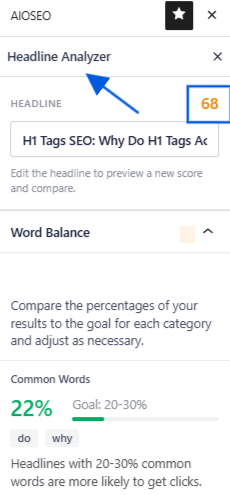
I find this particularly useful because optimizing an H1 isn't only about inserting a keyword. The heading also needs to make someone want to continue reading.
You can edit your title and AIOSEO will recalculate the score, allowing you to compare different versions before settling on the final headline.
Step 3: Add Your Focus Keyphrase to TruSEO
Next, scroll to AIOSEO Settings, look for the Content Optimization box and add your primary keyword under Keywords.
AIOSEO's TruSEO Score analyzes your content against the focus keyphrase and a broader set of on-page SEO best practices. You'll receive a score out of 100 alongside recommendations showing where the page could be improved.
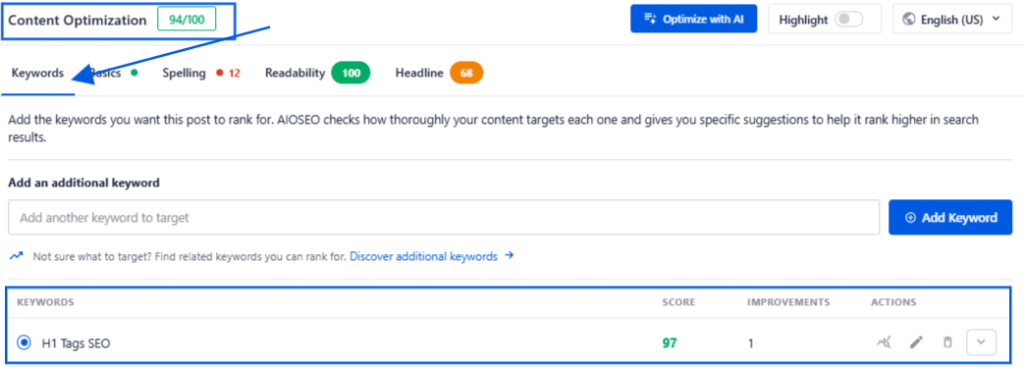
Instead of manually working through an on-page SEO checklist every time I publish, I can use these recommendations as a diagnostic tool to spot optimization gaps.
I wouldn't chase a perfect score at the expense of good writing. AIOSEO itself treats TruSEO recommendations as guidance rather than a guarantee of rankings. The goal is to use the analysis to catch problems while keeping the page natural and useful.
Step 4: Optimize Your SEO Title Separately
Now scroll to the Post Title field inside AIOSEO's search appearance settings. This is where the H1 and SEO title distinction becomes useful.
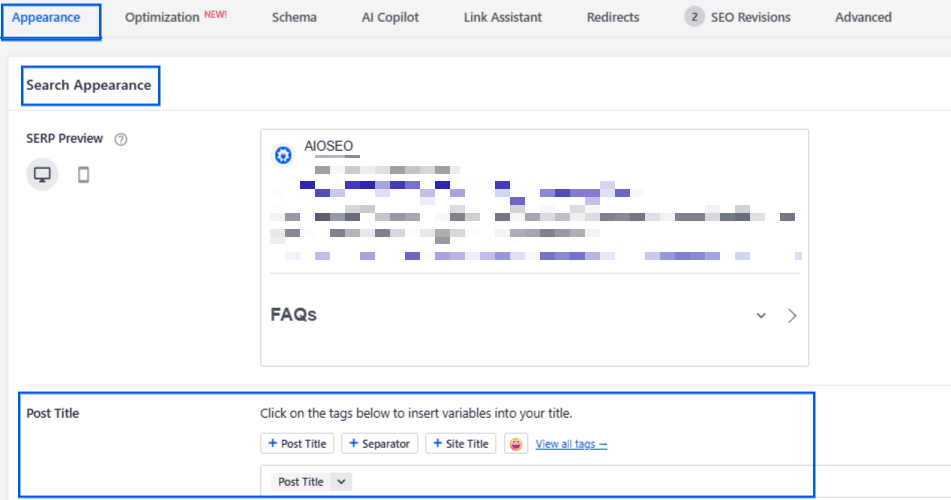
You can keep the post title as your reader-friendly H1 while creating a slightly different SEO title for search. For example, you might include the year, a benefit, or another relevant phrase that makes the search result more descriptive.
AIOSEO's search preview lets you see how your title may appear in search results before you publish.
Step 5: Review the Rest of Your Heading Hierarchy
Your H1 is only the beginning of a well-structured page.
Use H2s for the major sections underneath it and H3s to organize subsections within those H2s. Rather than choosing heading levels based on how large you want the text to look, use them to create a logical hierarchy.
A simple structure might look like this:
H1: Beginner's Guide to Local SEO
H2: What Is Local SEO?
H2: How to Improve Local SEO
H3: Optimize Your Google Business Profile
H3: Build Local Citations
H2: Local SEO FAQs
That makes the relationship between different parts of the content immediately clear to readers and search engines.
Step 6: Add Relevant Schema Markup
Heading structure explains the hierarchy of information on the page, while schema markup gives search engines additional context about what that information represents.
For a standard blog post, you can use the Article schema. If your article contains a genuine FAQ section, the FAQPage schema can describe those questions and answers in a machine-readable format where appropriate.
AIOSEO's Schema Generator lets you add these schema types without manually writing JSON-LD.
Open AIOSEO Settings → Schema → Generate Schema, choose the appropriate schema type, complete the required information, and add it to the page.
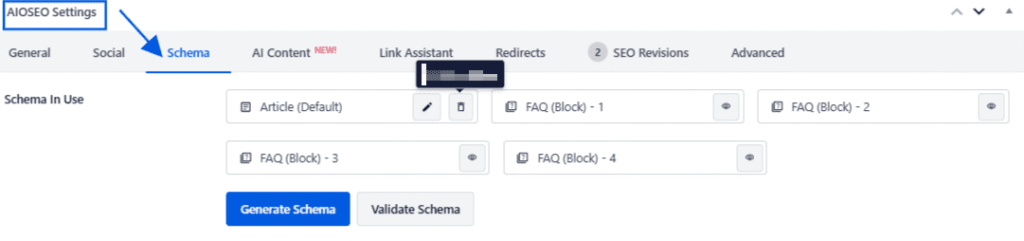
Schema doesn't replace good H1 optimization, nor does it guarantee enhanced search visibility. Instead, I think of the 2 as complementary signals: your heading hierarchy creates a clear content structure for readers, while structured data gives search engines explicit information about the content they're processing.
What Makes a Good H1?
Once your H1 is technically set up correctly, here are the factors that make it work well for both readers and search engines.
- Include your target keyword or a close variant, ideally near the start of the heading.
- Match what your page actually delivers. Your H1 should reflect the content below it, not tease something the page does not cover.
- Keep it under 70 characters. Longer H1s are more likely to get cut off when they are pulled into a featured snippet.
- Use just 1 H1 per page, since it represents your single main topic.
- Let it differ from your SEO title when it makes sense. Your H1 can be conversational, while your SEO title stays keyword precise.
- Avoid keyword stuffing and include LSI and long-tail keywords.
H1 Tags SEO: FAQs
FAQs
An H1 tag is an HTML heading used to identify the primary heading of a webpage. It helps readers quickly understand the page's main topic and contributes to a clear content hierarchy that search engines can interpret.
I recommend using 1 clear H1 per page as a simple SEO and accessibility best practice. However, having multiple H1 elements isn't automatically a Google ranking problem. The more important goal is creating a logical heading hierarchy that makes the page easy to understand.
They can be, but they don't have to be. Your H1 is the main heading visitors see on the page, while your SEO title is designed for search results and browser tabs. AIOSEO lets you optimize the SEO title separately from your WordPress post title.
Final Thoughts
H1 tags are simple, but getting them right creates a stronger foundation for the rest of your page.
I recommend treating your H1 as the clearest possible description of the page's main topic, then using H2s and H3s to create a logical hierarchy underneath it. It's also important to remember that your H1 and SEO title serve different purposes. Your H1 helps someone understand the page upon arrival, while your SEO title can be optimized to communicate relevance and encourage clicks from search results.
With AIOSEO, you can manage both without manually editing HTML.
And remember, H1 tags SEO optimization alone won't take a page to position 1. But when it's combined with helpful content, a clear heading hierarchy, strong on-page SEO, and appropriate structured data, it becomes one more signal helping users and search engines understand exactly what your page has to offer.
Disclosure: Our content is reader-supported. This means if you click on some of our links, then we may earn a commission. We only recommend products that we believe will add value to our readers.
Want to Try AIOSEO for Free?
Enter the URL of your WordPress website to install AIOSEO Lite.