
Would you like to configure your site's SEO correctly without guessing at technical settings? The All in One SEO setup wizard configures the essentials for you in a few guided steps. It opens automatically the first time you activate All in One SEO, and it takes less than 10 minutes to complete.
This guide will walk you through each step of the All in One SEO setup wizard.
In This Article
Before you get started, make sure AIOSEO is installed and activated on your WordPress site.
Starting the Setup Wizard
Right after you activate All in One SEO, the setup wizard appears with a welcome screen. To begin, click Let's Get Started.
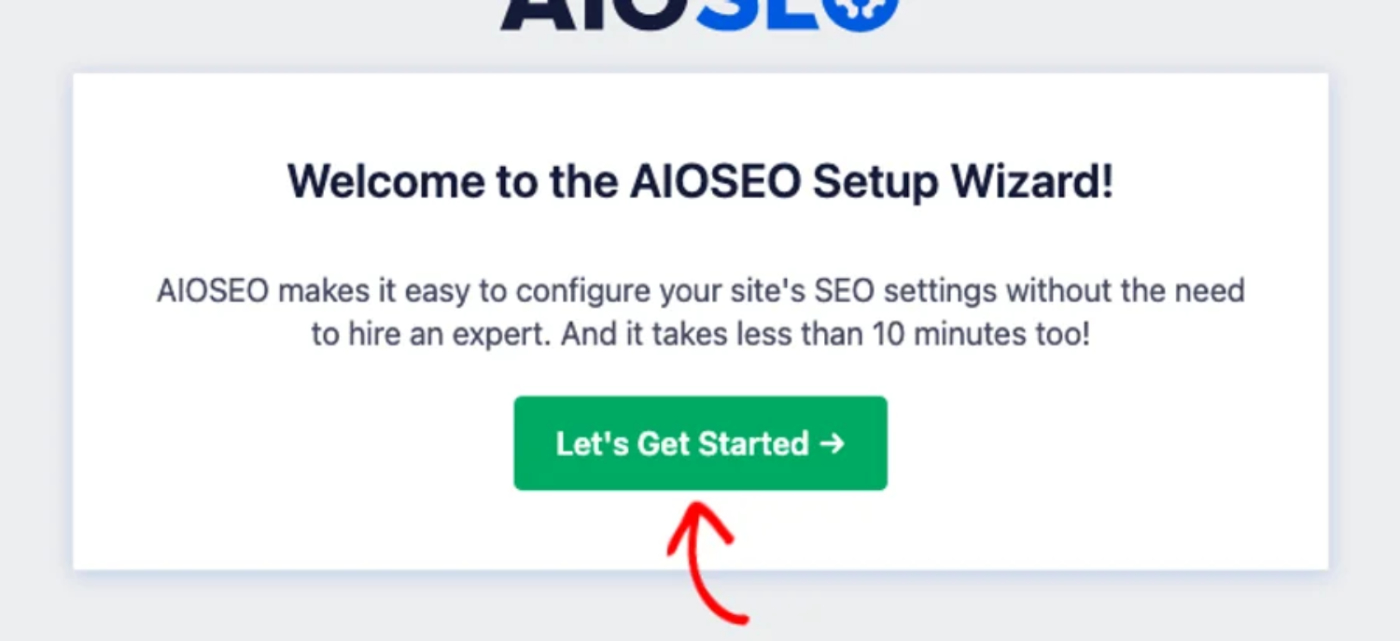
The wizard then walks you through a short series of steps, starting with your site category.
Choosing Your Site Category
The first step asks which category best describes your website, so AIOSEO can tailor its recommendations. Select the option that fits your site, such as Blog, Online Store, or Small Offline Business. Below the categories, set your Home Page Title and Home Page Meta Description with the tag buttons. Then click Save and Continue.
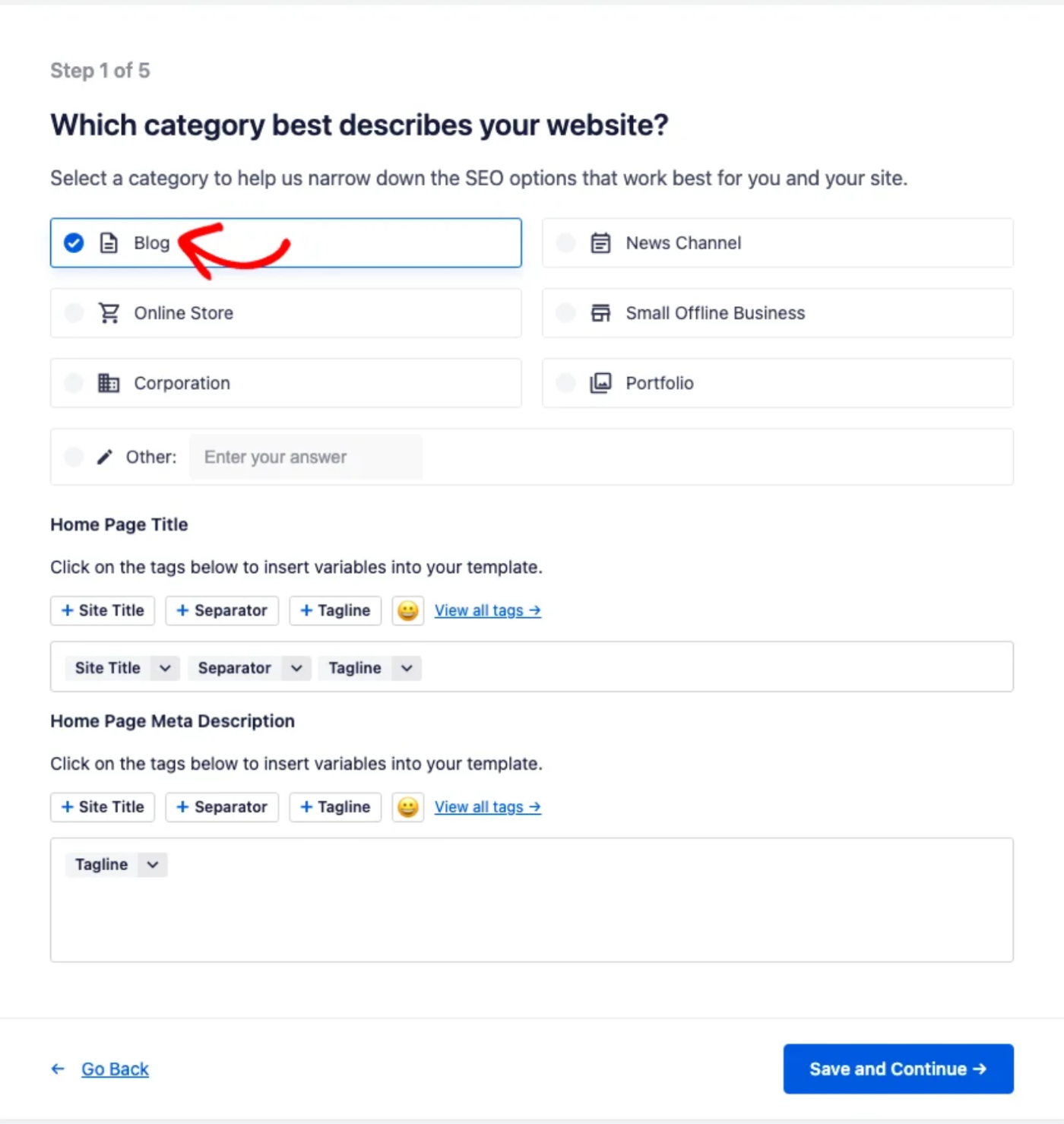
The tag buttons insert dynamic values like your site title and tagline into your homepage title and description. This keeps them accurate as your site changes.
Adding Your Site Information
The second step collects details that help search engines understand who is behind your site. First, choose whether your site represents a Person or an Organization. Choose Person if your site is built around an individual, such as a personal blog, portfolio, or freelancer site. Choose Organization if your site represents a company, business, or brand. If you're not sure, most business and brand sites should choose Organization.
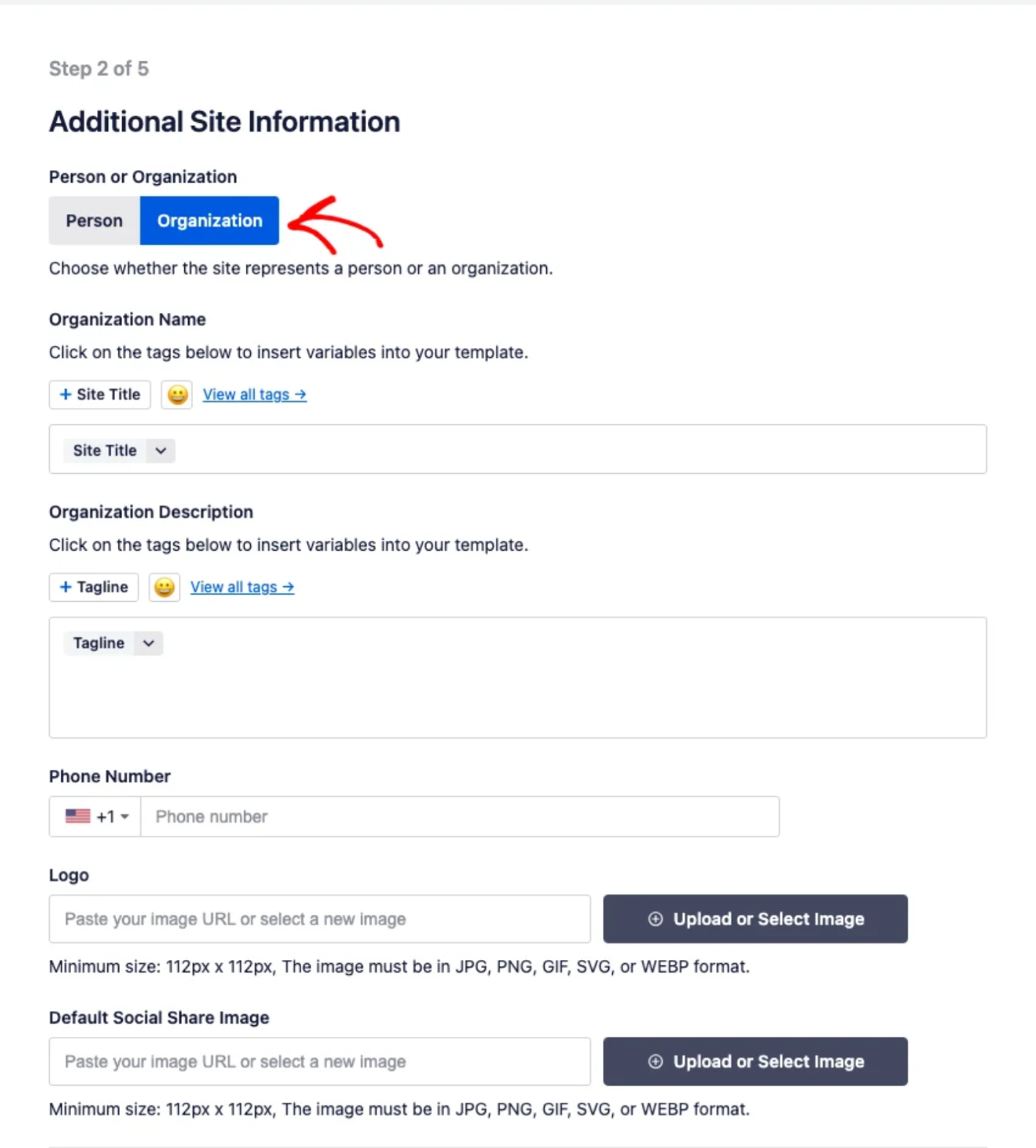
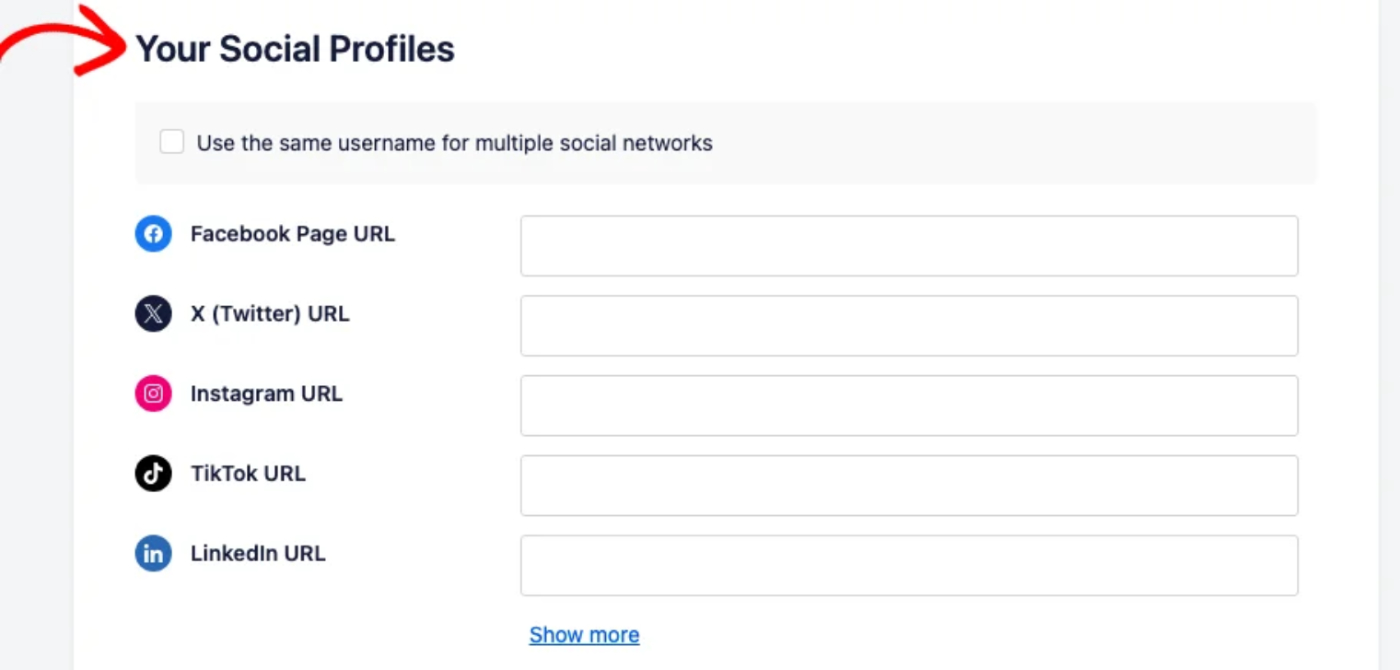
From here, set your name or organization name, a description, a phone number, a logo, and a default social share image. Lower on the same step, add the URLs for your social profiles, such as Facebook, X, Instagram, TikTok, and LinkedIn. Once you've filled in the details you want, continue to the next step.
Selecting SEO Features
The third step lets you choose which SEO features to enable, such as sitemaps, a broken link checker, image SEO, and schema markup. The recommended features are turned on by default. Toggle any feature on or off to match your needs. Then continue to the next step.
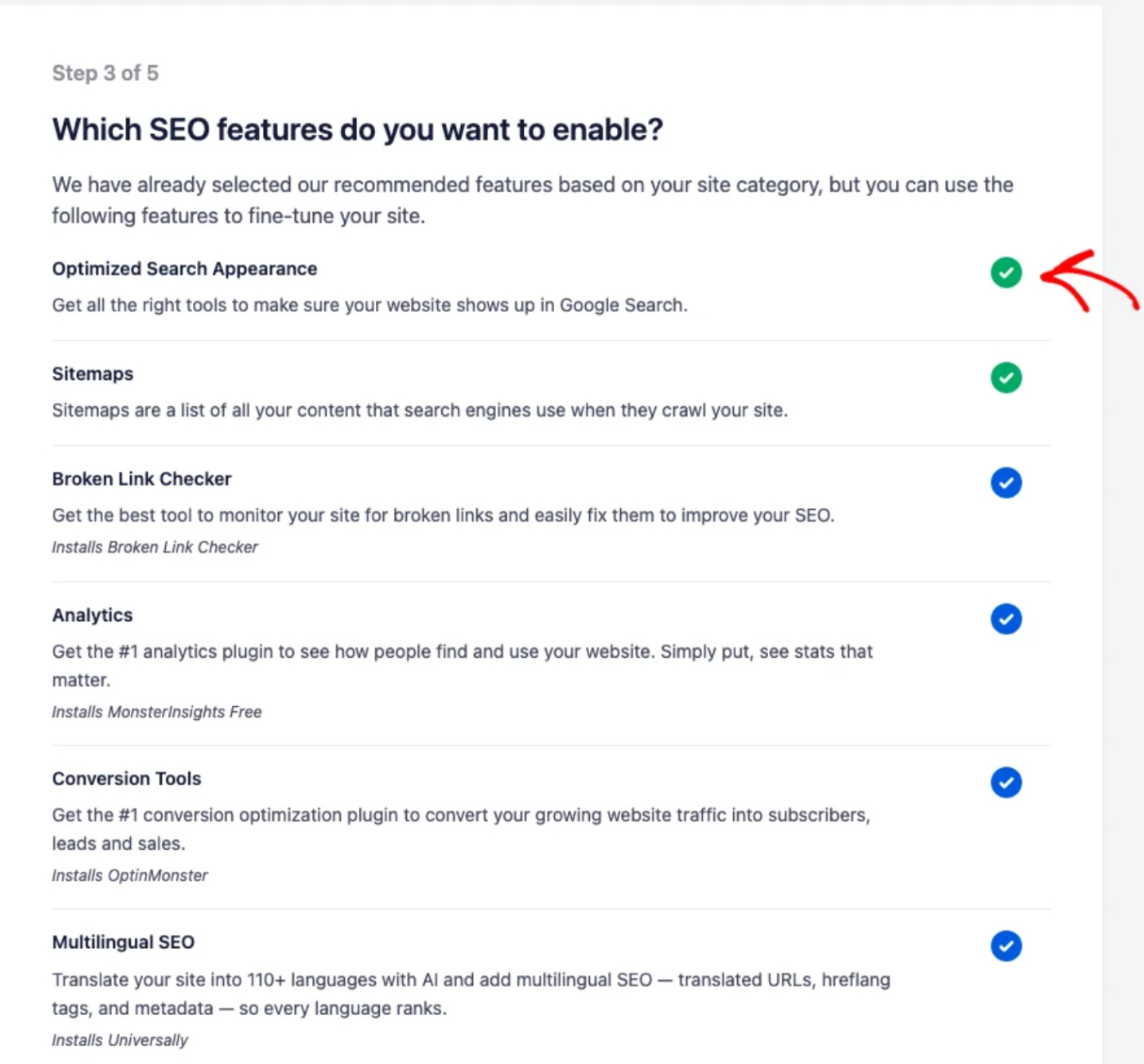
Each feature includes a short description of what it does, so you can decide which ones are right for your site.
Configuring Search Appearance
The fourth step controls how your site appears in search results. A live SERP preview at the top shows you how a result will look. Set whether your site is Under Construction or a Live Site. Review the options for post types, multiple authors, attachment pages, and email reports. Then click Save and Continue.
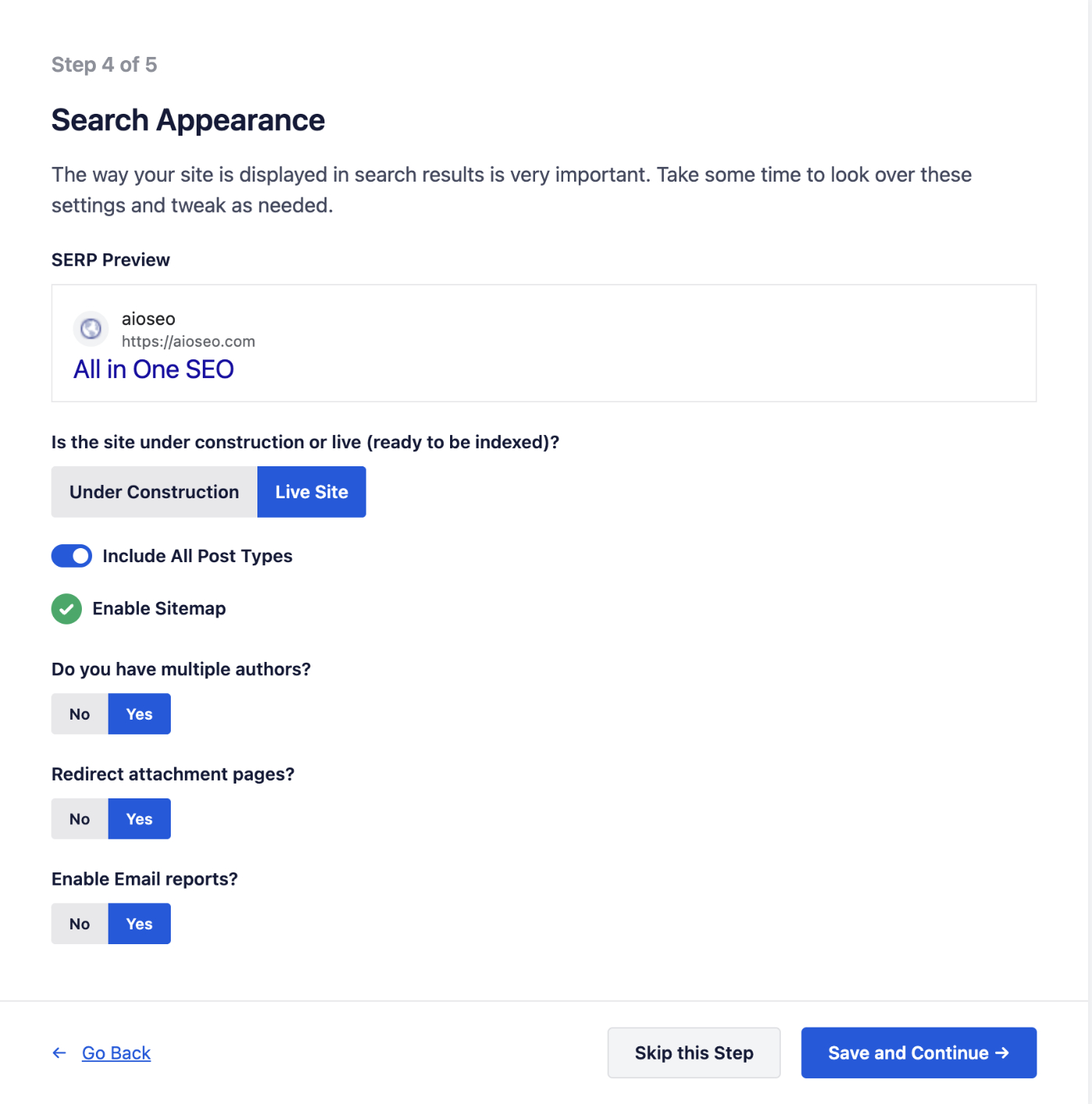
Choose Live Site once your site is ready to appear in search results, or Under Construction to keep it out of search results for now. The SERP preview updates as you adjust your settings, giving you a clear idea of how your homepage will look to searchers.
Connecting Google Search Console
The fifth step offers to connect your site to Google Search Console, which powers AIOSEO's Search Statistics. Connecting lets you see your keyword rankings and search performance right inside your WordPress dashboard. To link your account, click Connect to Google Search Console and follow the Google prompts. If you'd rather set it up later, click Skip this Step.
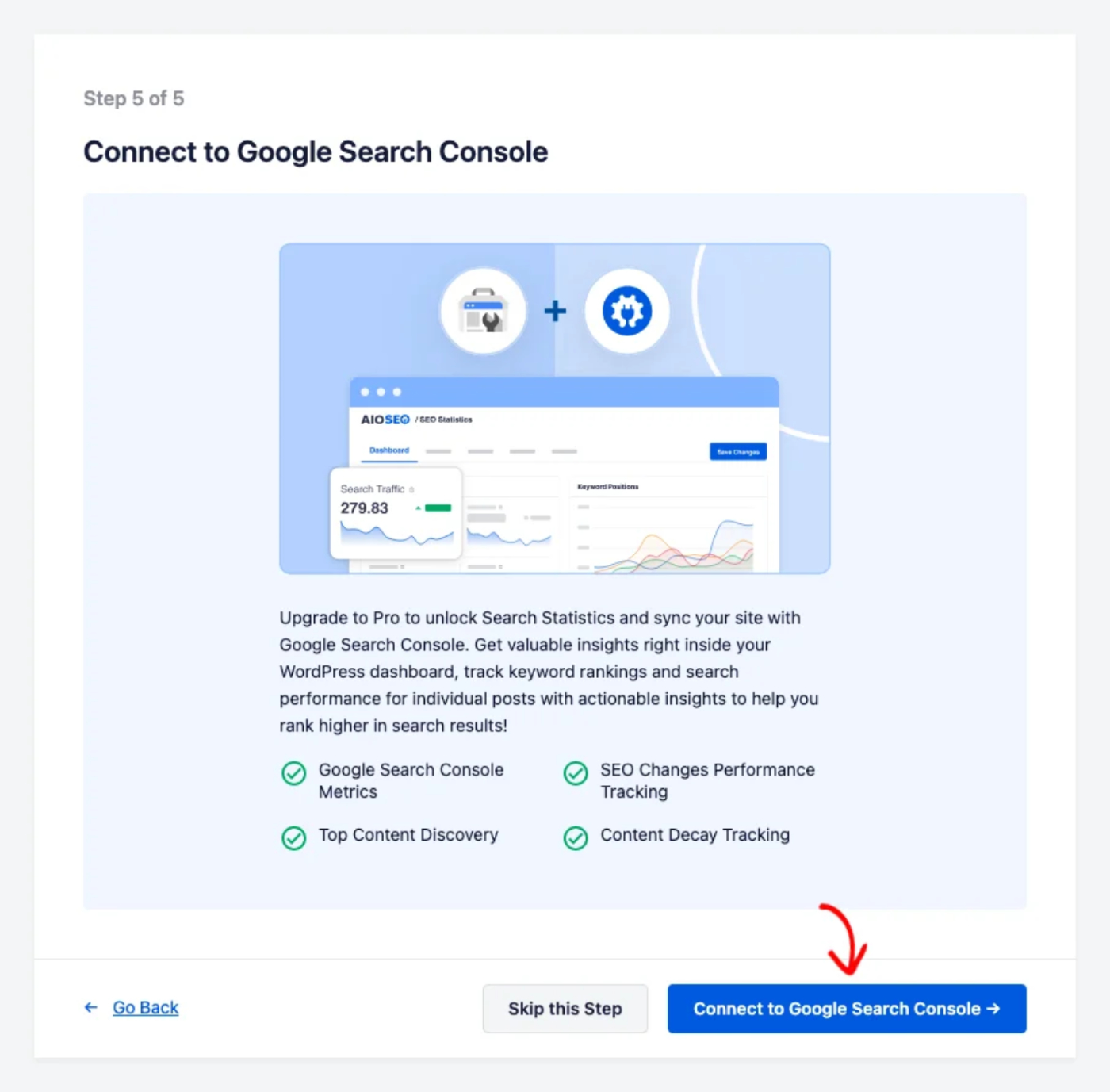
Whether you connect now or skip this step, the wizard moves on to the final screen.
Finishing Setup
Once you complete or skip the final step, AIOSEO confirms that your initial setup is done. It also suggests a few next tasks from the SEO Checklist. To pick up where the wizard left off, click Go to SEO Checklist.
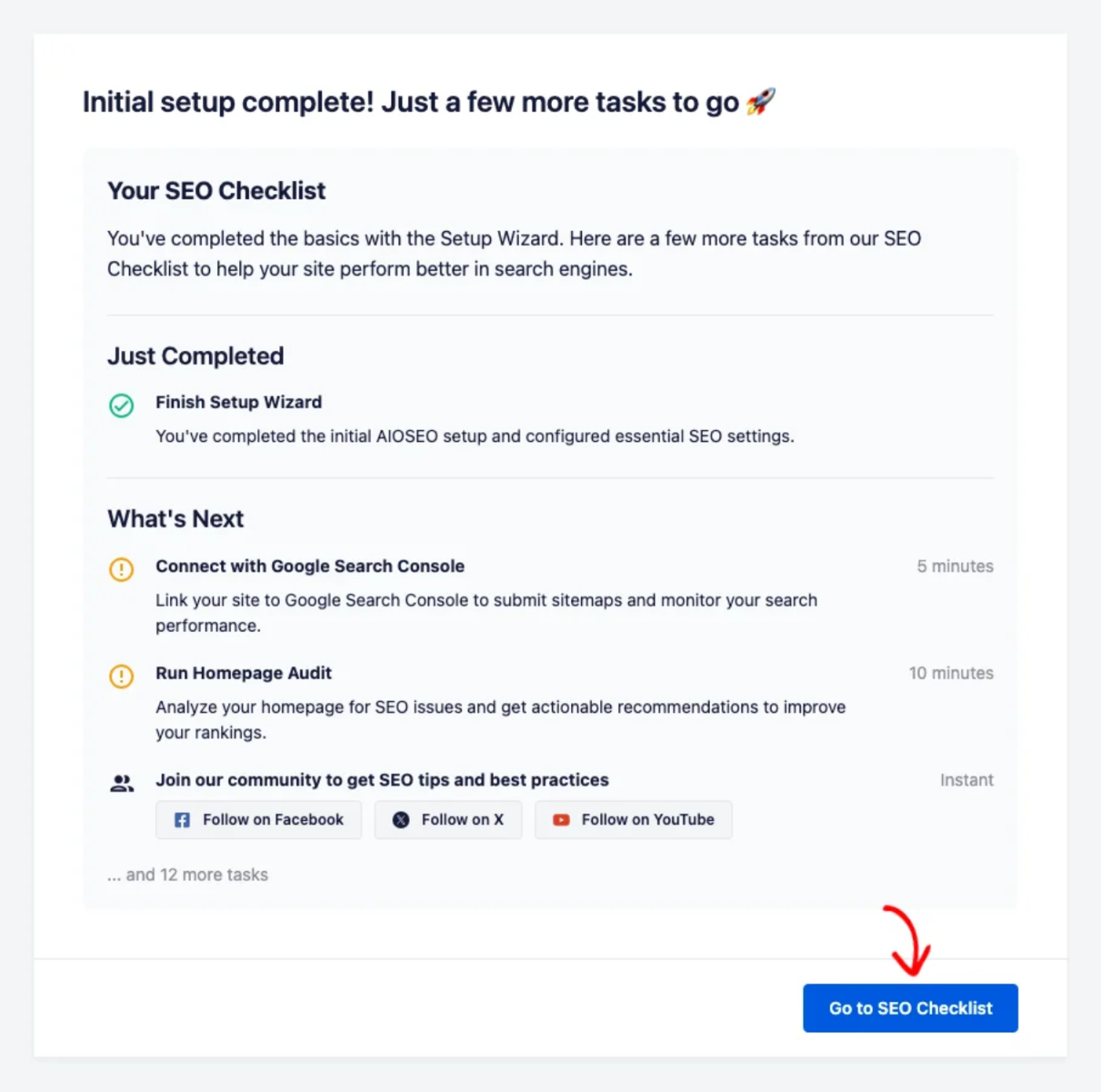
That's it! You now know how to configure your site's SEO essentials with the All in One SEO setup wizard.
Frequently Asked Questions
Below, we've answered some of the most common questions about the All in One SEO setup wizard.
When does the setup wizard appear?
The setup wizard opens automatically the first time you activate All in One SEO on your site, so you can configure the essentials right away.
Do I have to complete every step?
No. You can adjust the settings on each step and move on with Save and Continue, and the Google Search Console step can be skipped and set up later.
Can I change these settings after finishing the wizard?
Yes. Everything you set in the wizard is available afterward in the All in One SEO settings, where you can update it at any time.
Will my choices in the wizard affect my whole site?
Yes. The wizard configures site-wide SEO defaults, such as your search appearance and the features that are enabled. You can refine these later in the All in One SEO settings.